Proctoring overview
Proctored exams help ensure candidates complete exams in a secure and controlled environment. YouTestMe supports two proctoring options:
- Record & review – AI monitors the exam and flags incidents for later review by a proctor.
- Live proctoring – a proctor monitors candidates in real time.
This guide explains how to monitor candidates using both live proctoring and record & review.
Creating a user with the Proctor role does not automatically provide access to all proctoring sessions. Proctors can access only the rooms, sessions, and recordings assigned to them.
Live monitoring
Live monitoring lets you supervise one or more candidates in real time. Access steps vary by platform. Select your integration method below.
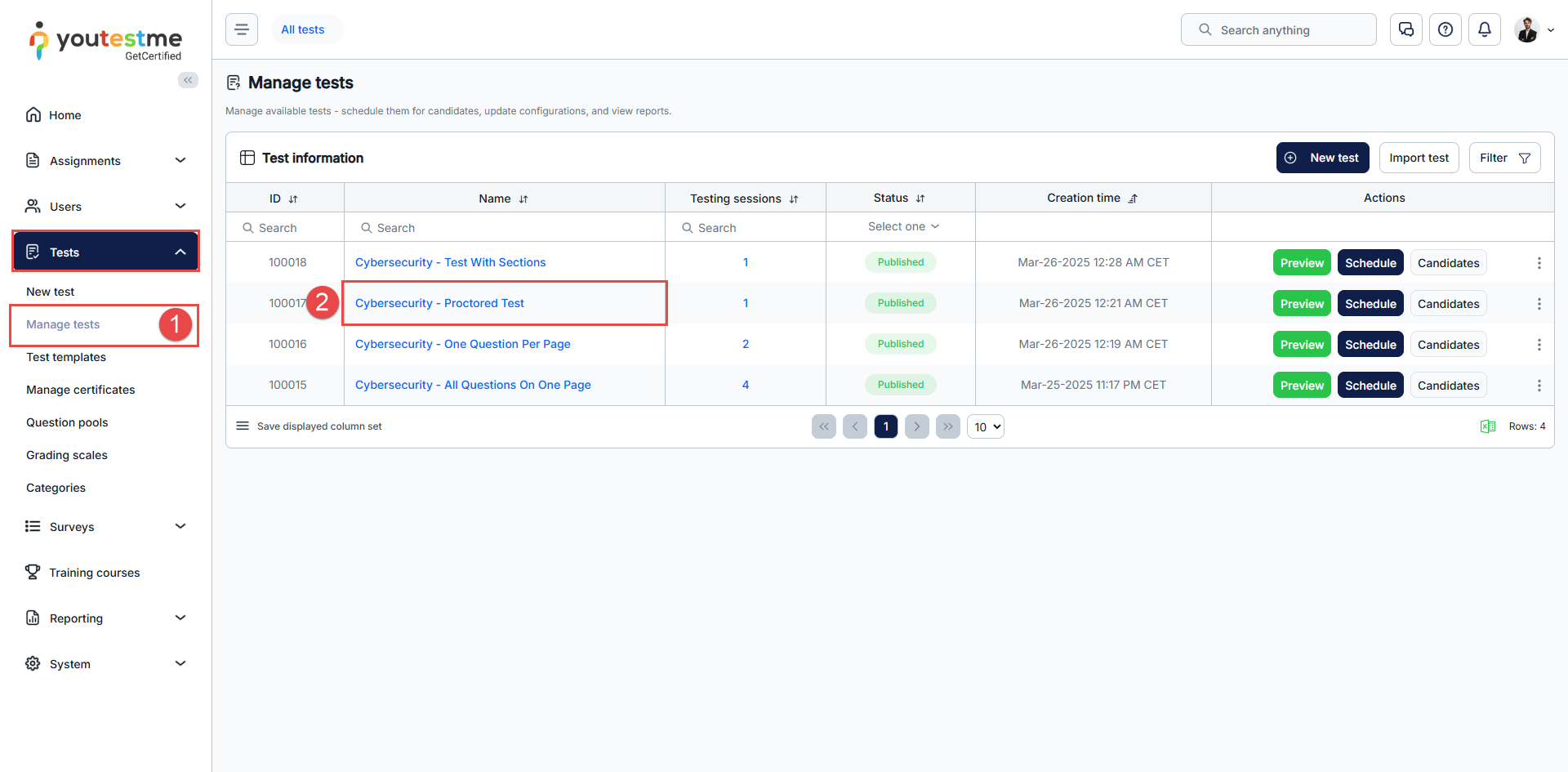
To access Live monitoring:
- Go to Tests → Manage tests.
- Open the test you want to monitor.
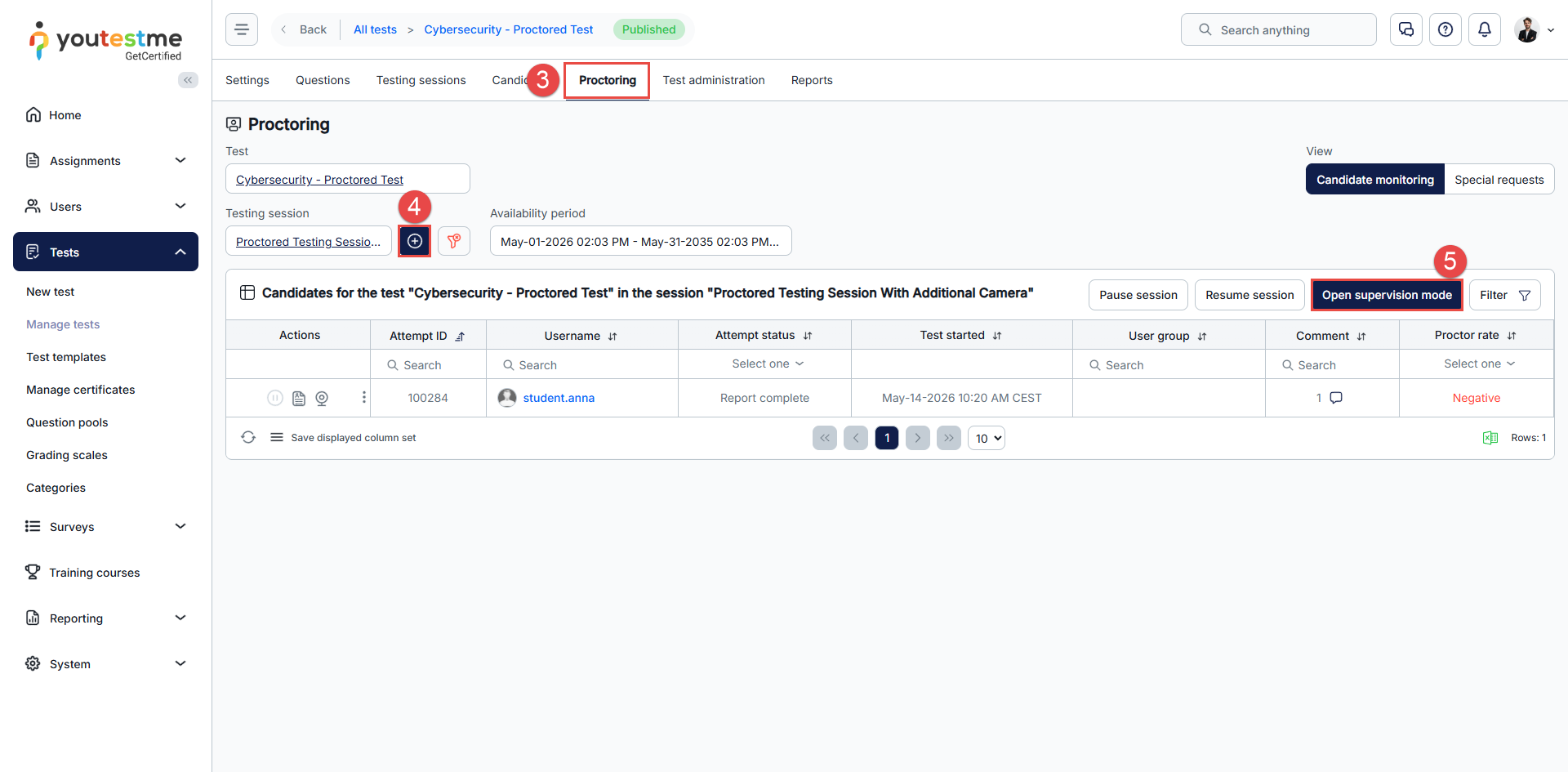
- Open the Proctoring tab.
- Select the testing session to monitor.
- Click Open supervision mode.
To access Live monitoring:
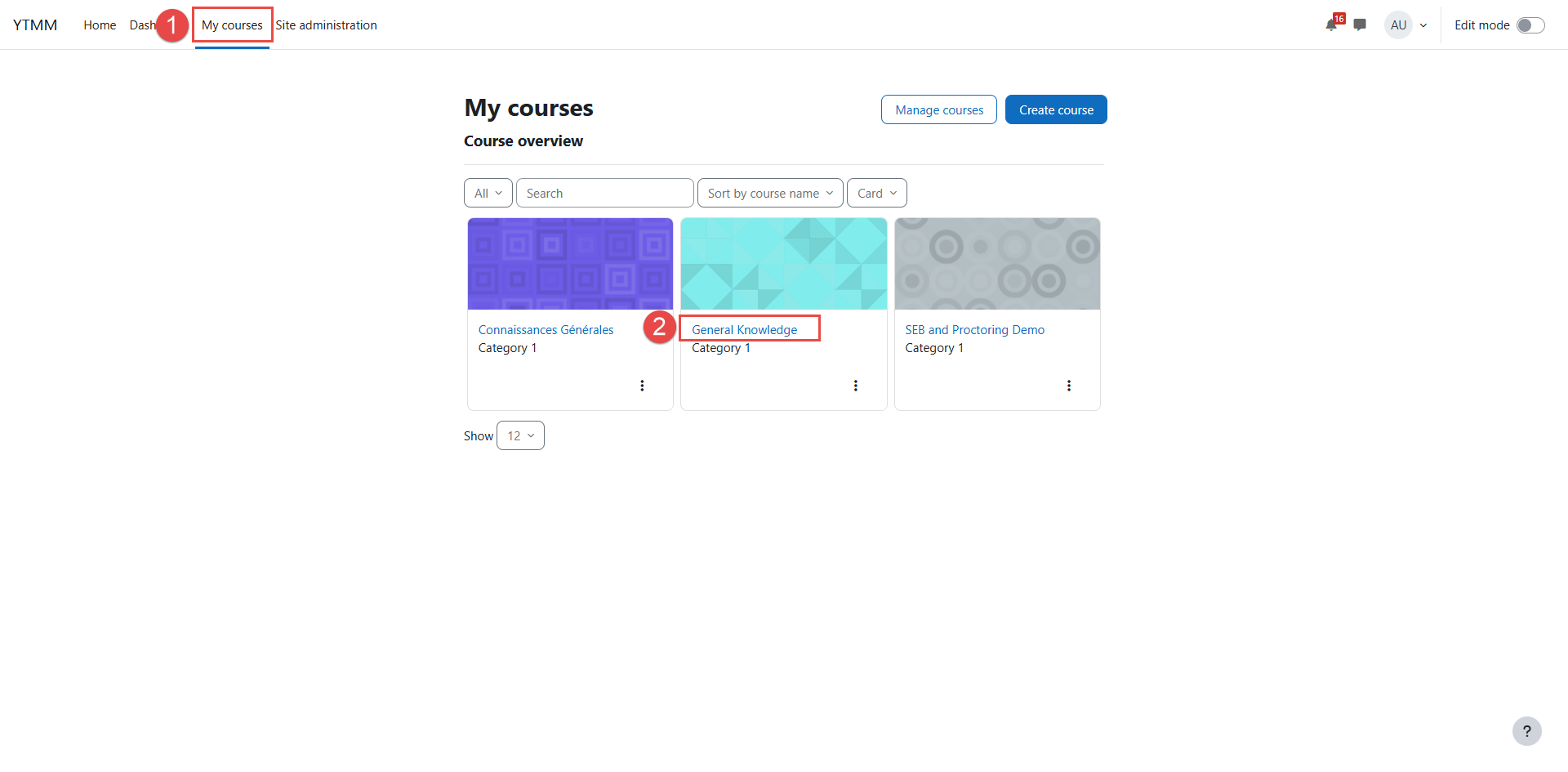
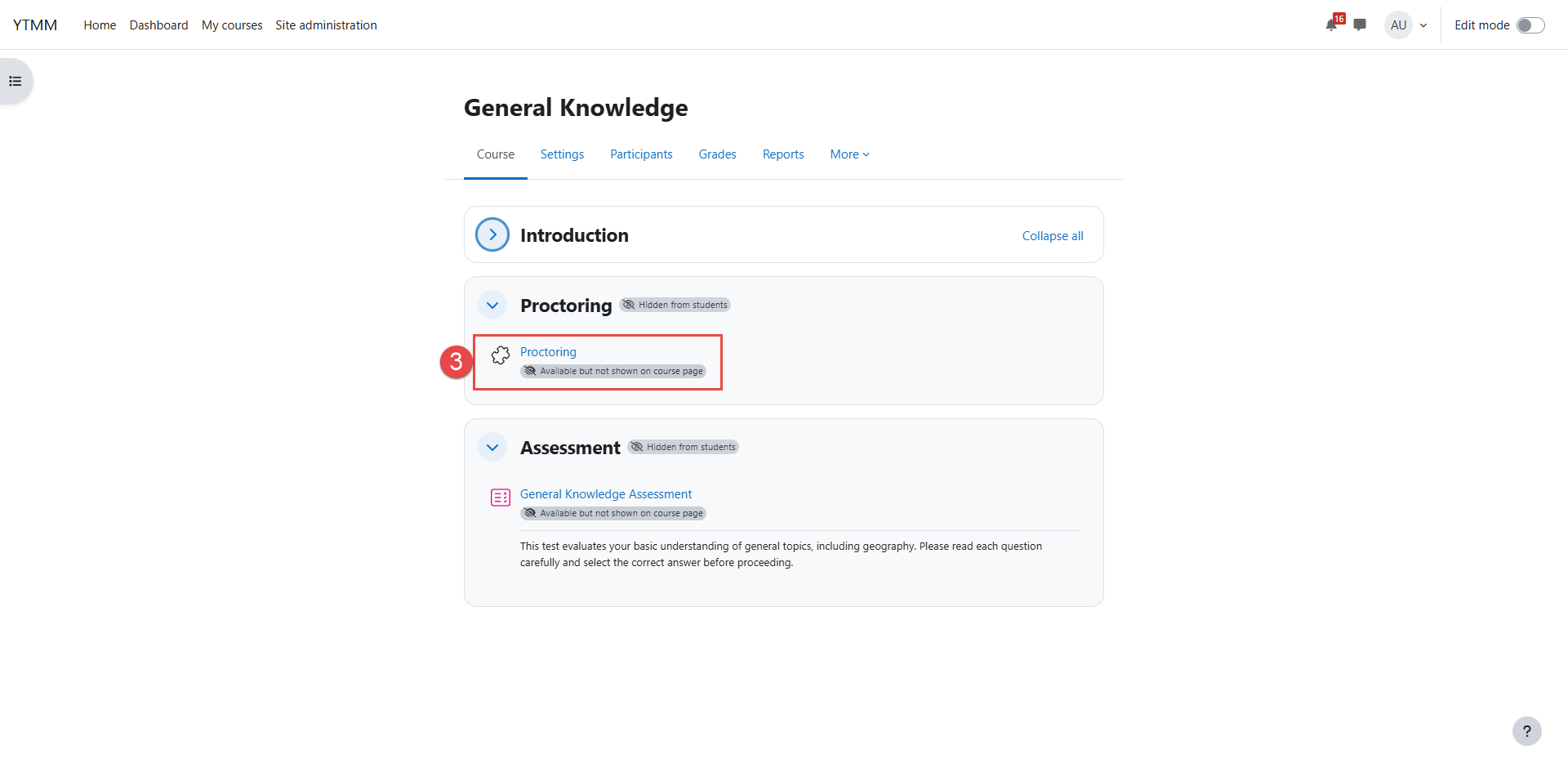
- Go to My Courses.
- Open the course you want to monitor.
- Open the External tool - Proctoring activity.
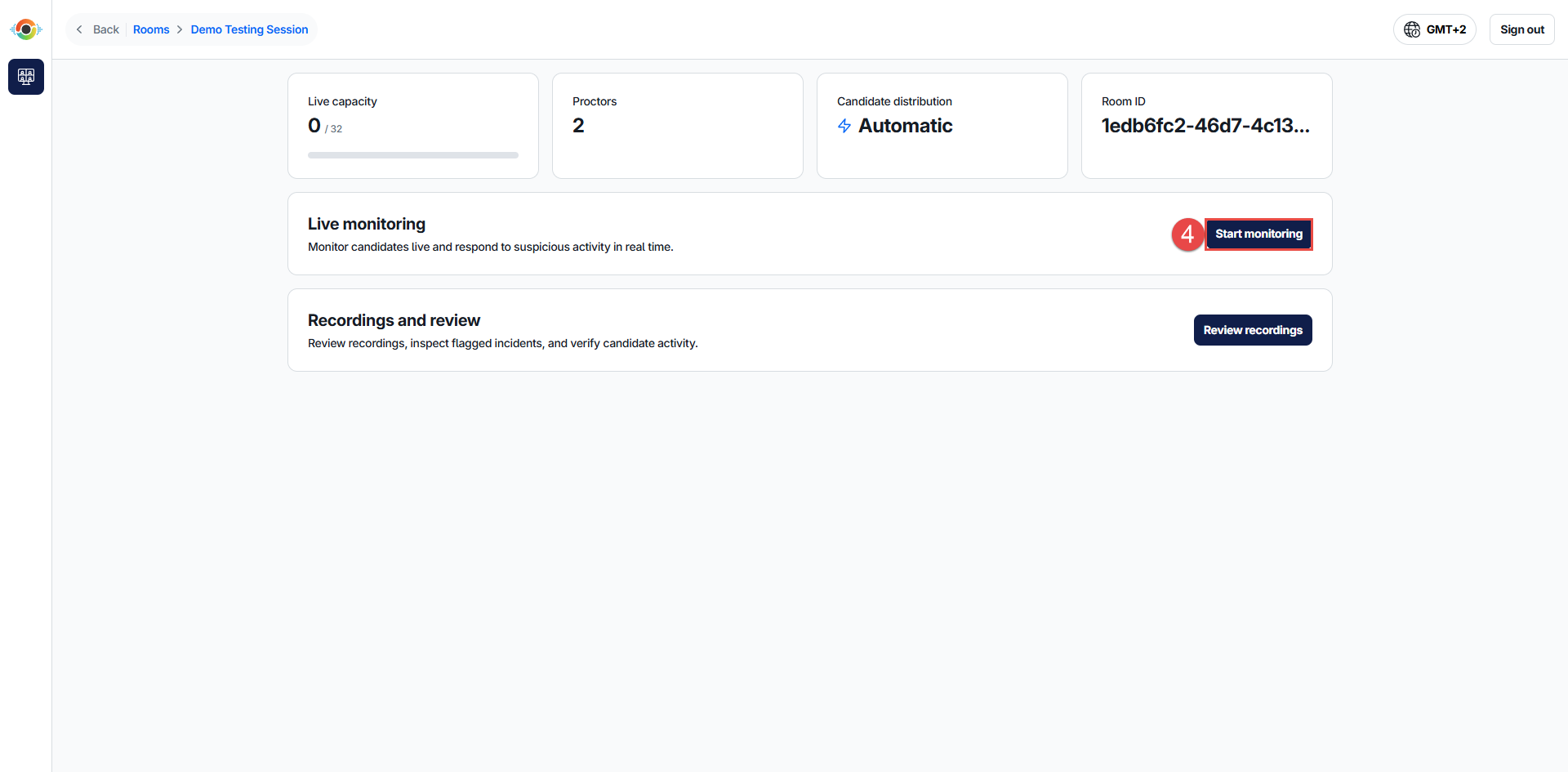
- Click Start monitoring button to begin live monitoring.
To access Live monitoring:
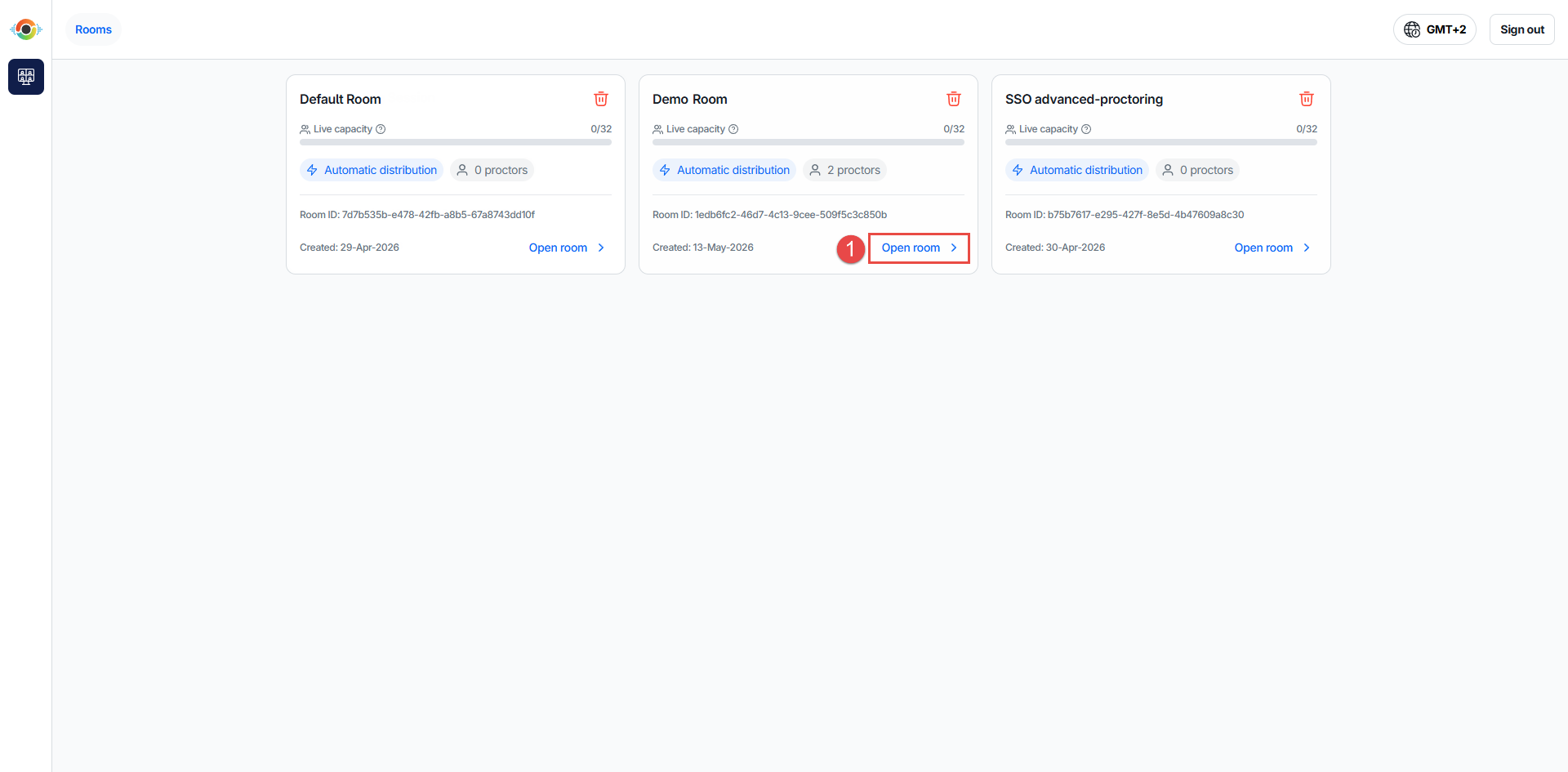
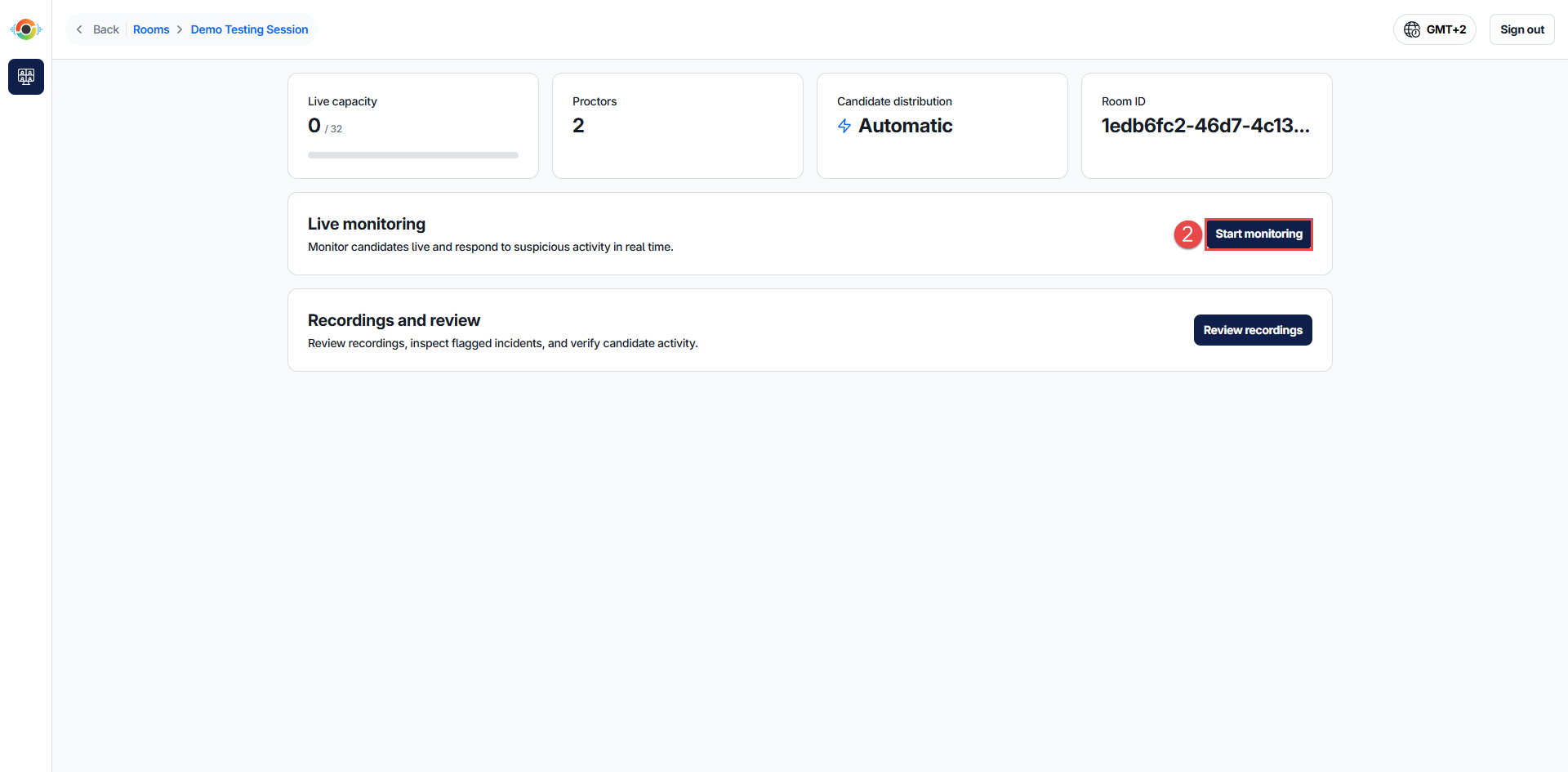
- Open the room you want to monitor.
- Click Start monitoring.
Live monitoring is typically accessed through your examination platform. Refer to your platform's documentation for platform-specific instructions.
Candidate verification and approval
Before the exam begins, candidates complete the required equipment and verification checks. If proctor approval is required, candidates remain waiting until a proctor reviews the available verification information and allows them to begin the exam.
To verify a candidate before the exam:
- Select the candidate who is waiting for approval.
- Review the candidate's identification information and face photo, when required by the proctoring configuration.
- Review the candidate's room or environment scan, when required.
- Confirm that the candidate's identity and testing environment meet the exam requirements.
- Allow the candidate to proceed with the exam after the required verification checks have been completed.
Pausing and resuming candidates
During live monitoring, a candidate may be paused when additional verification or proctor intervention is required. While paused, the candidate cannot continue with the exam until the proctor allows them to proceed.
After completing the required verification or resolving the issue, resume the candidate so they can continue the exam.
Handling detected incidents
When an incident is detected, review the candidate's live feeds and incident information before deciding whether intervention is required.
Depending on the available proctoring actions and the severity of the incident, the proctor may communicate with the candidate, pause or resume the candidate, add a comment or remark, or take another appropriate action.
Connection problems and candidate disconnects
If a candidate loses connection during a proctored exam, their connection status is reflected in the monitoring interface. After reconnecting, the candidate may be required to repeat certain equipment or verification checks, depending on the proctoring configuration.
Review recordings
After an exam is completed, recordings can be reviewed at any time. Access steps vary by platform. Select your integration method below.
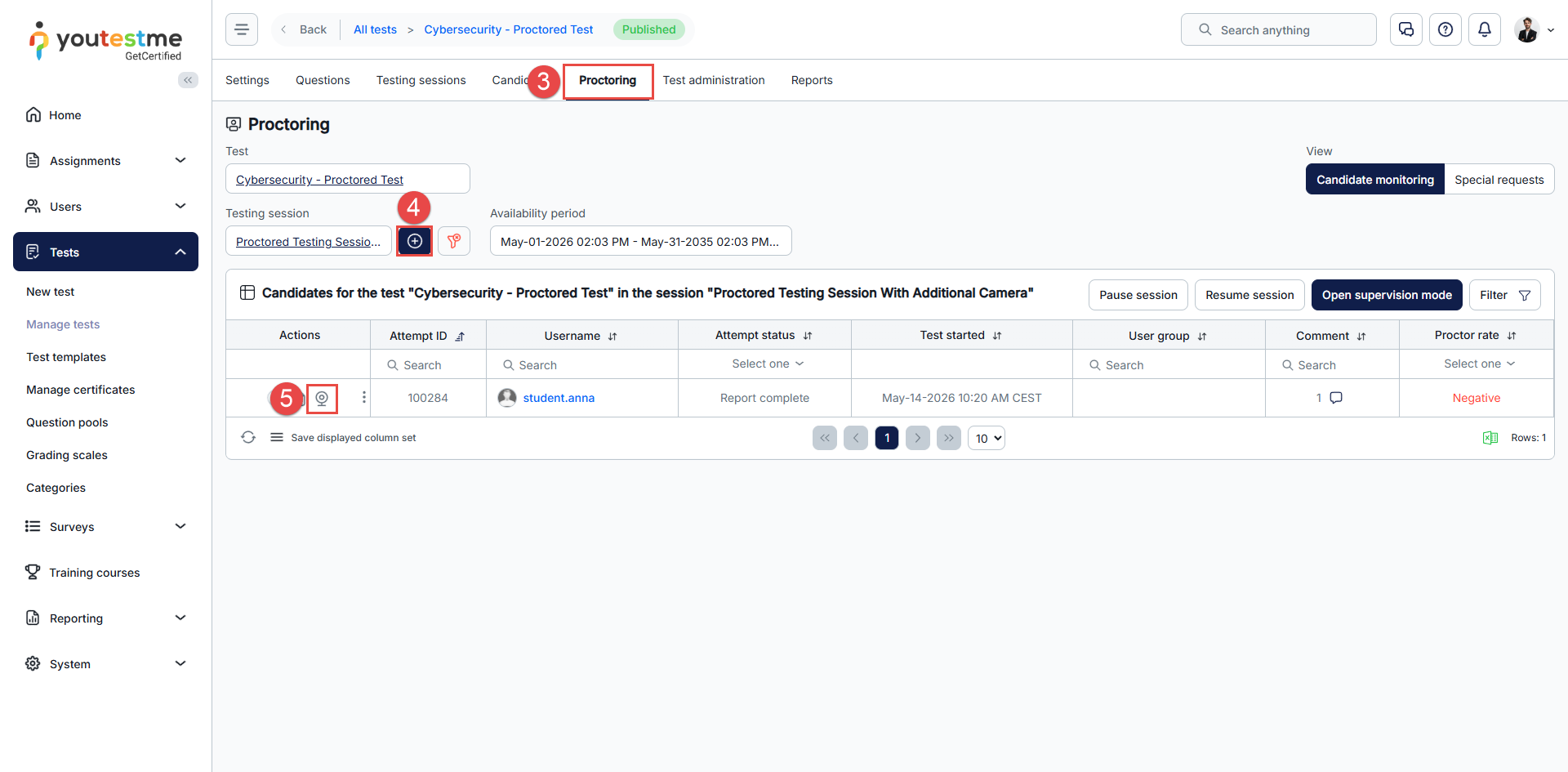
To review a recording:
- Go to Tests → Manage tests.
- Open the test you want to review.
- Open the Proctoring tab.
- Select the testing session you want to review.
- Click the Camera icon.
To review a recording:
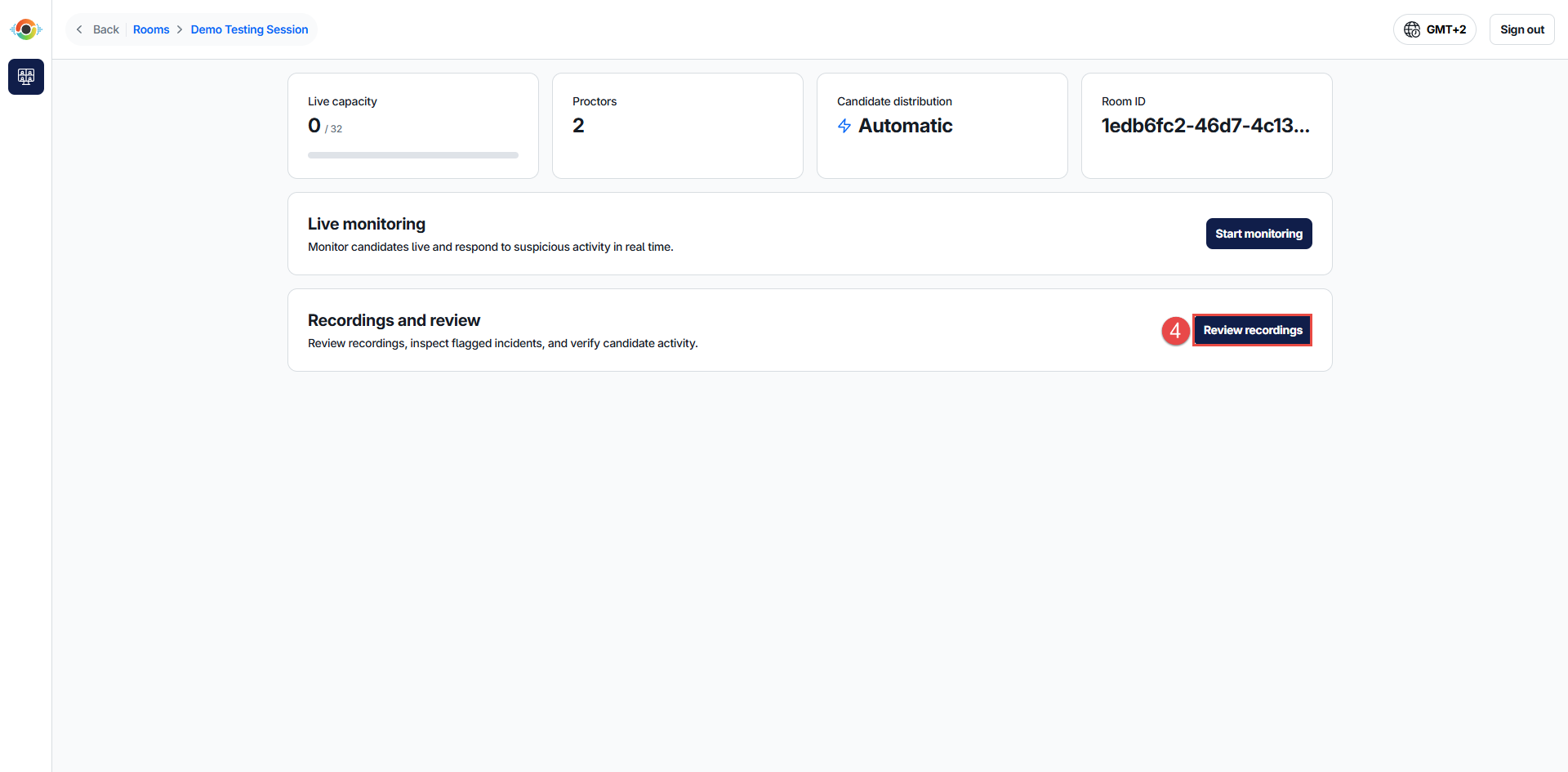
- Go to My Courses.
- Open the course you want to review.
- Open the External tool - Proctoring activity.
- Click Review recordings button to begin reviewing the recordings.
To review a recording:
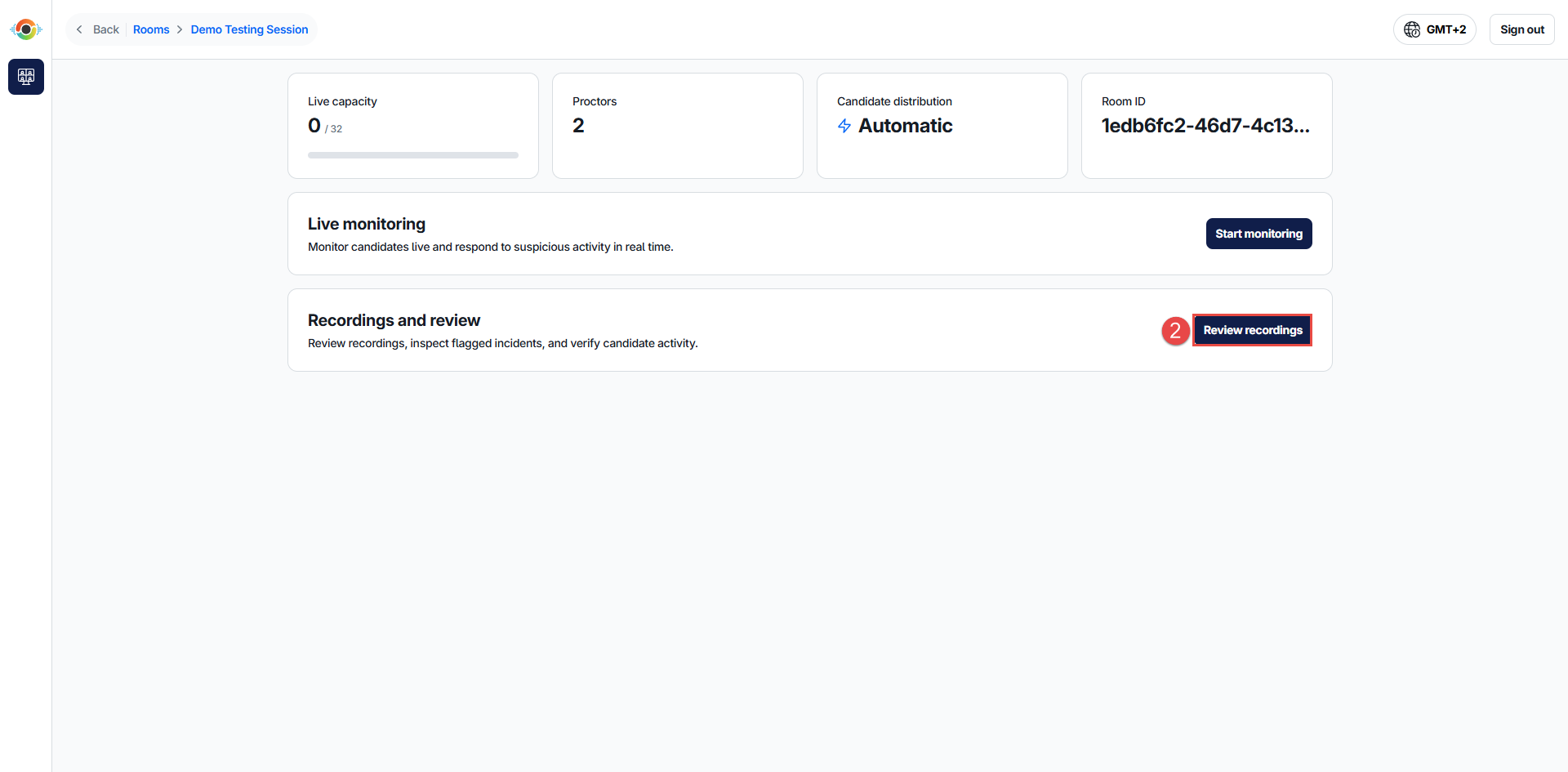
- Find the room you want to review and click Open room.
- Click Review recordings to begin reviewing the recordings.
Please note that creating a user with the Proctor role does not automatically provide access to all proctoring sessions. The Proctor must also be assigned to the appropriate room and can access only the rooms and recordings assigned to them.
Recordings are typically accessed through your examination platform. Refer to your platform's documentation for platform-specific instructions.