Before you begin
Make sure you have the following before starting your exam:
Exam process
Accessing an exam
The steps to access an exam depend on the platform used for exam delivery. Select your platform below.
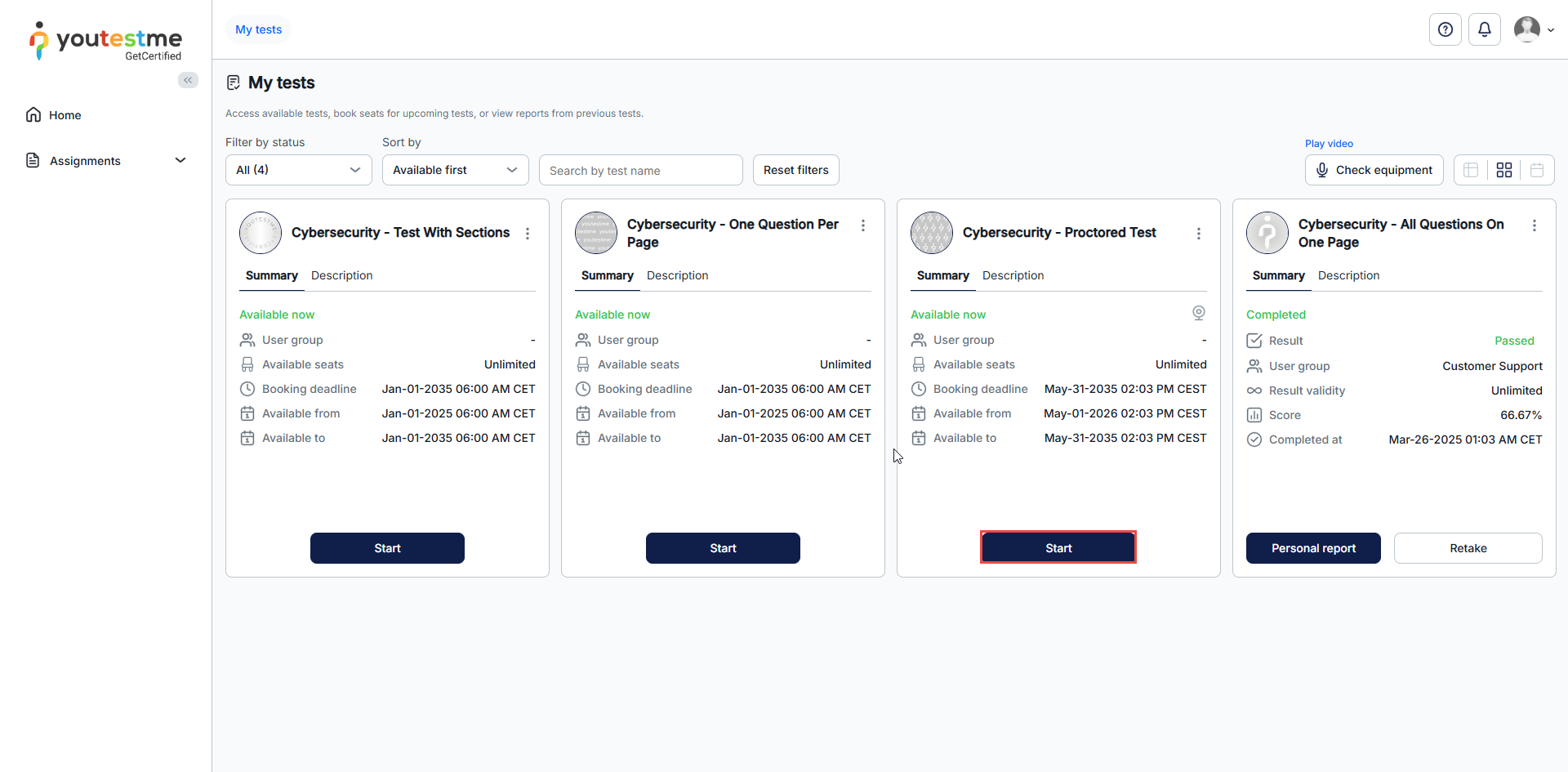
Log in to your account, then:
- Go to Assignments → My tests.
- Find the exam and click Start.
- Review and acknowledge the instructions, if required.
After you click Start, the proctoring system launches automatically and guides you through the system check.
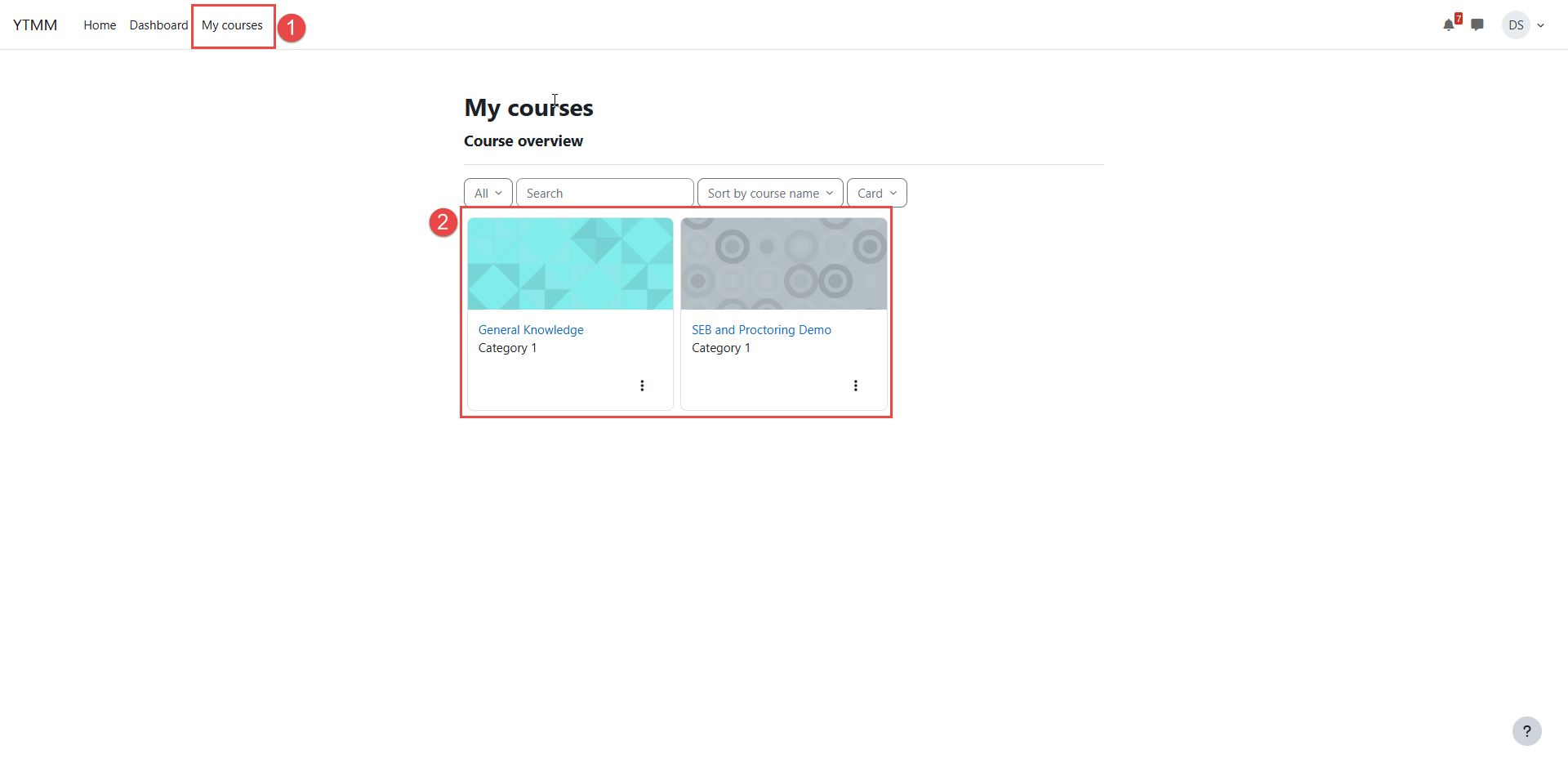
Log in to your account, then:
- Go to My Courses.
- Open the course.
- Click the proctoring activity.
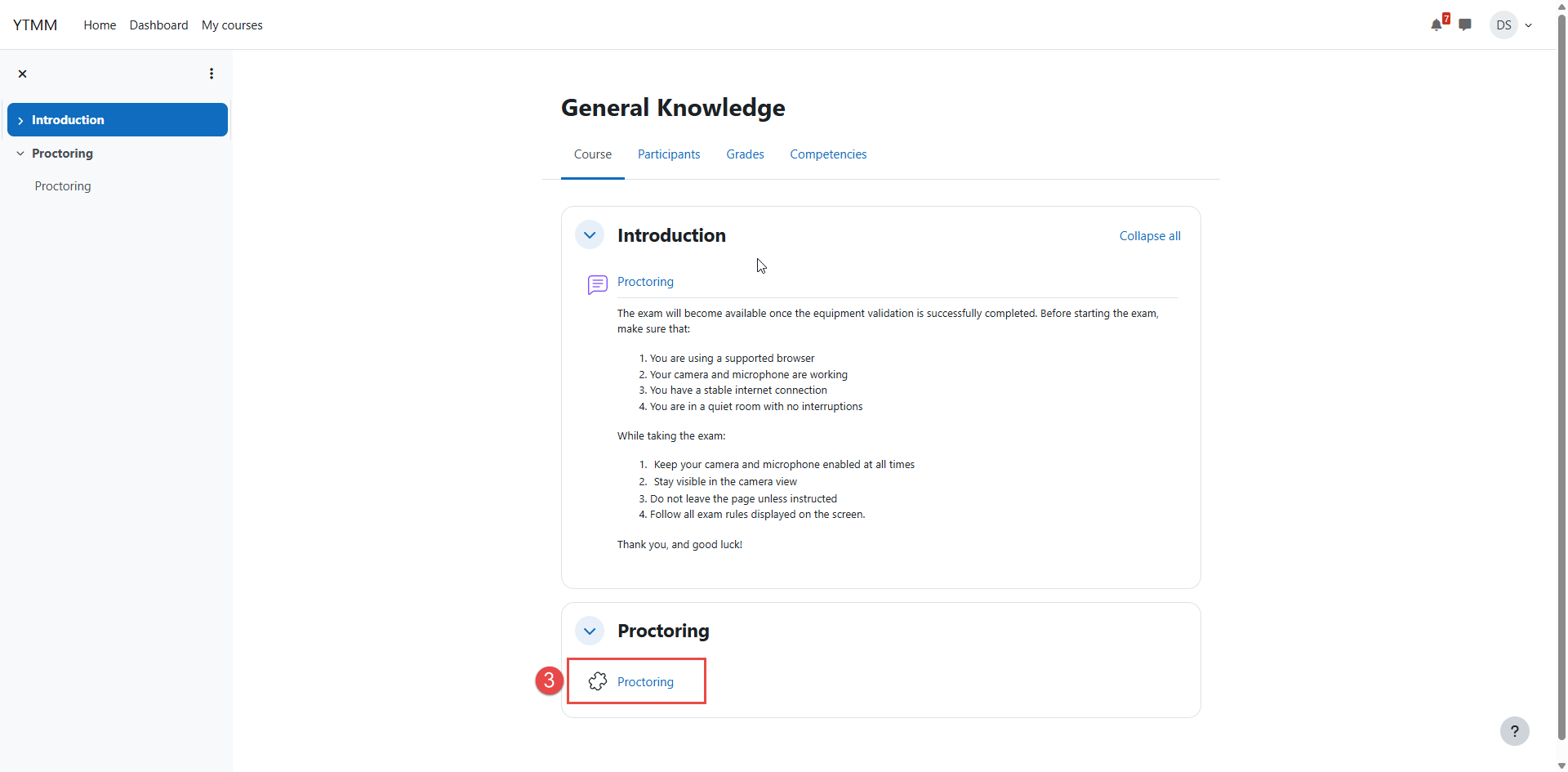
After the system check is complete and monitoring has started, you can begin the quiz.
If your organization does not use an integrated examination platform, you will receive a direct link to the proctoring system from your administrator.
- Open the link provided by your administrator.
- The proctoring system launches automatically and guides you through the system check.
If your organization uses an examination platform that is not listed above, follow the instructions provided by your administrator or platform provider. Once you start the exam, the proctoring system launches automatically.
System check
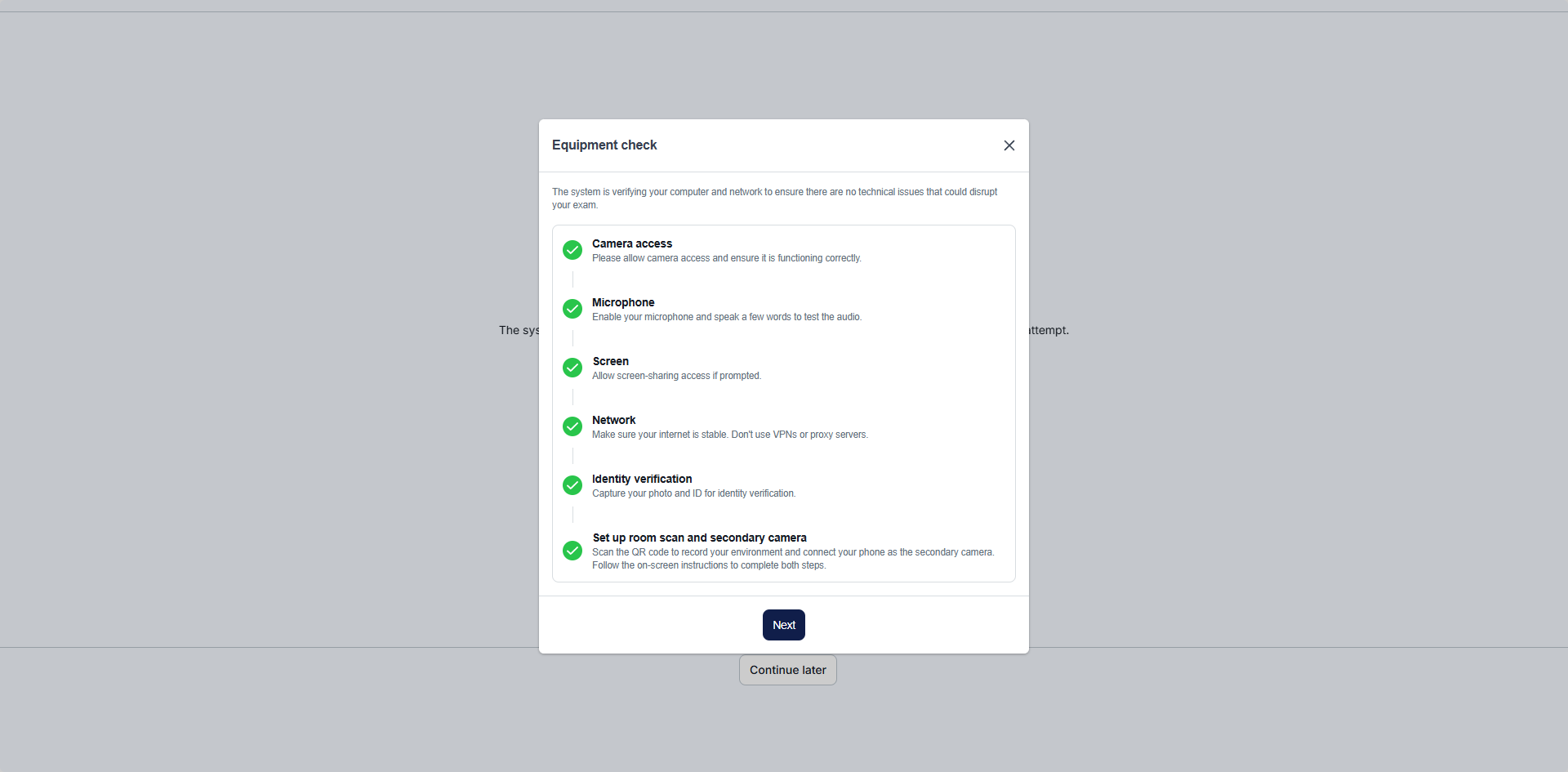
Before the exam starts, the system check verifies that your device and environment meet the requirements for the exam. Follow the on-screen instructions to complete any required steps, such as:
- Allow access to your camera.
- Allow access to your microphone.
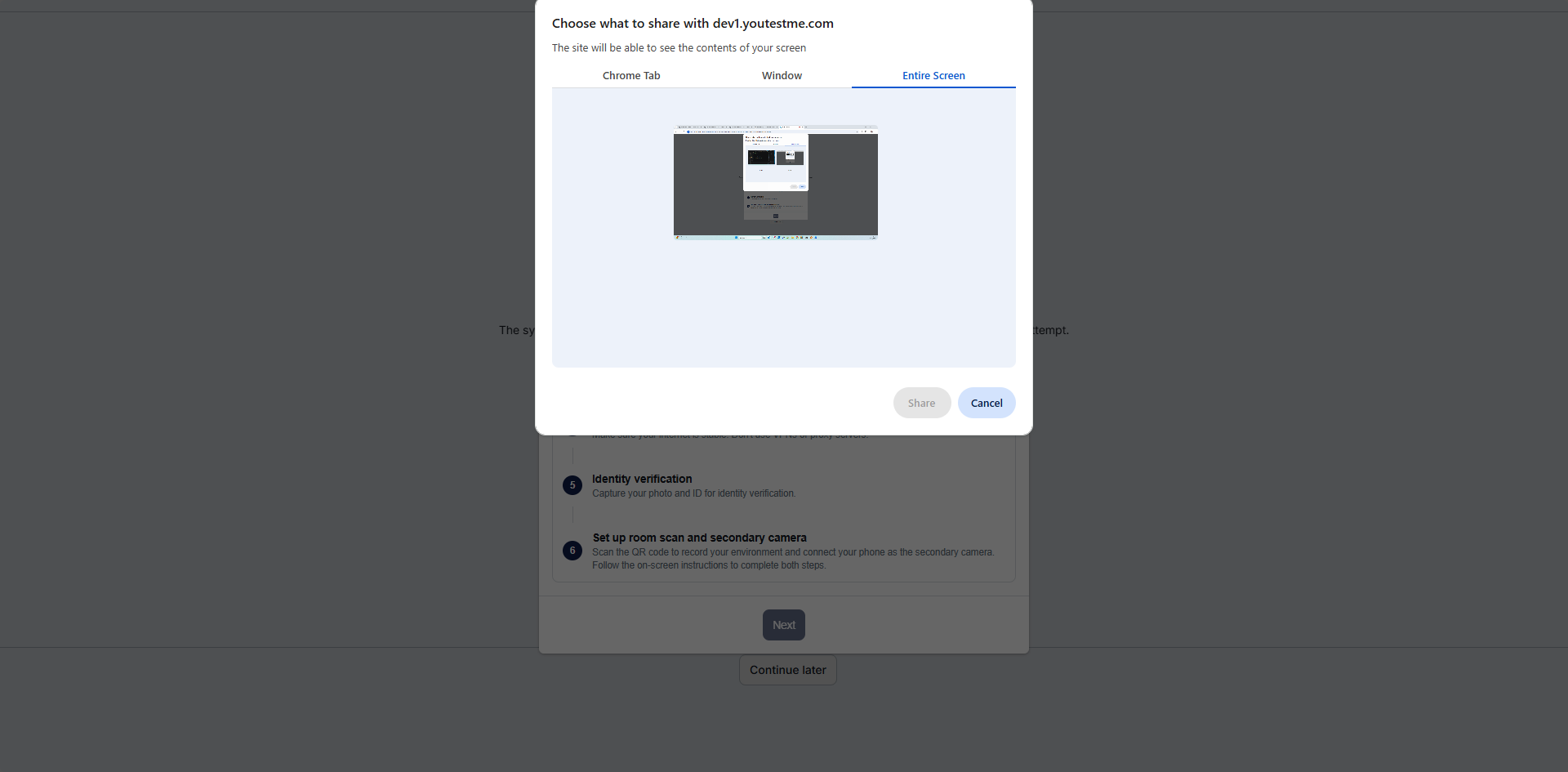
- Allow access to your screen. You must share your entire screen to continue.
- The system checks your network connection.
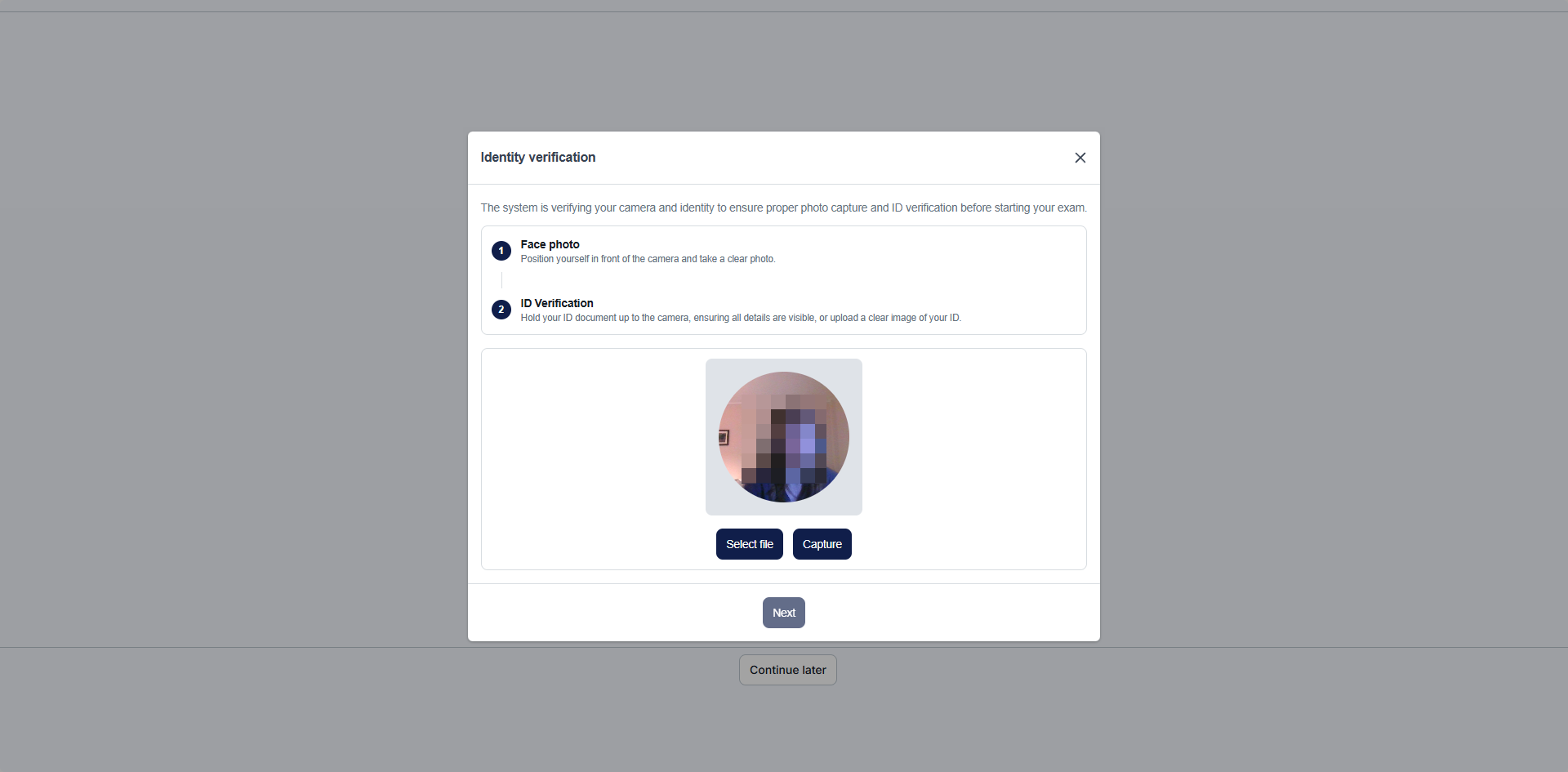
- Take a photo of your face for identity verification.
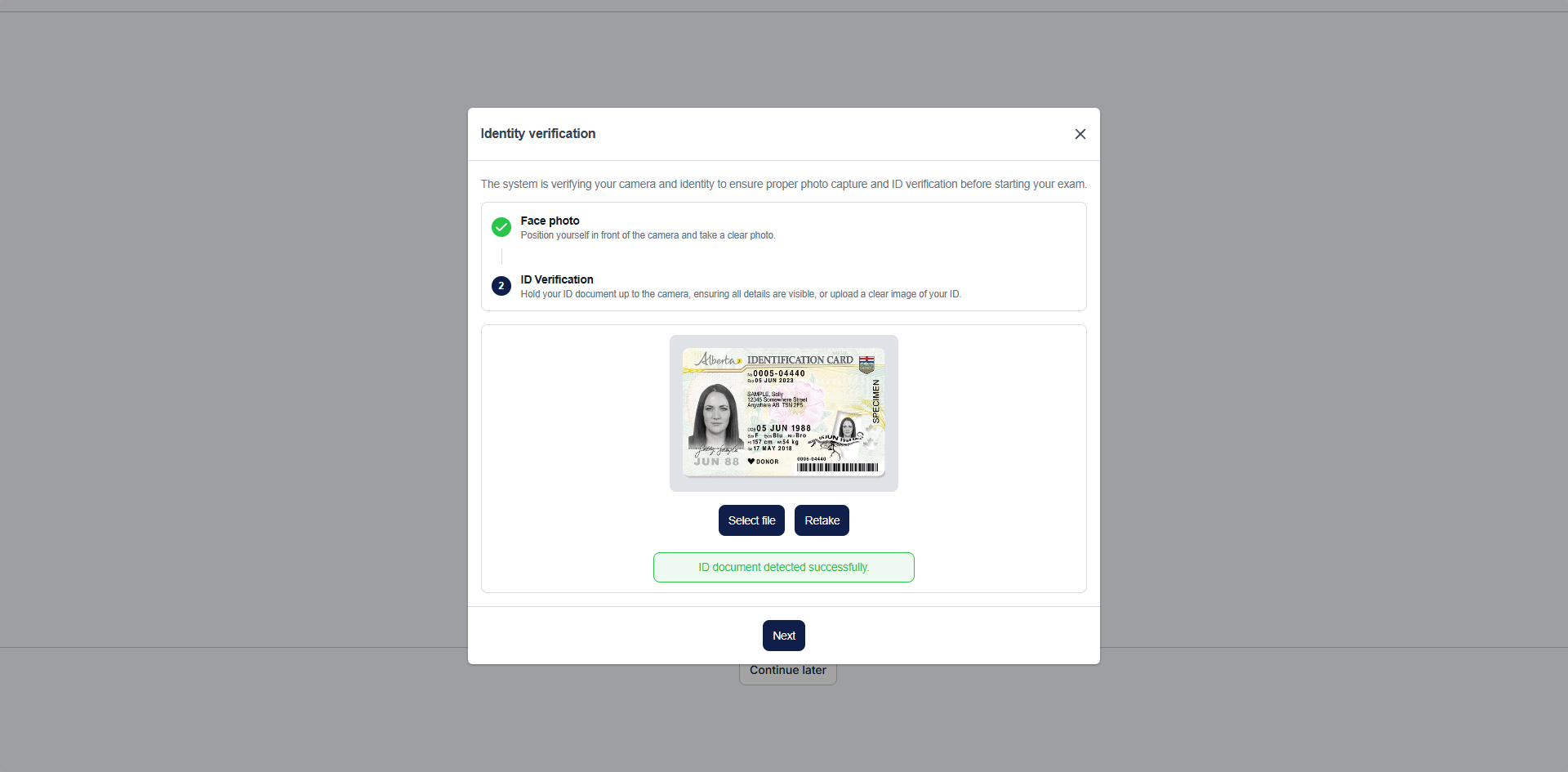
- Take a photo of your government-issued photo ID.
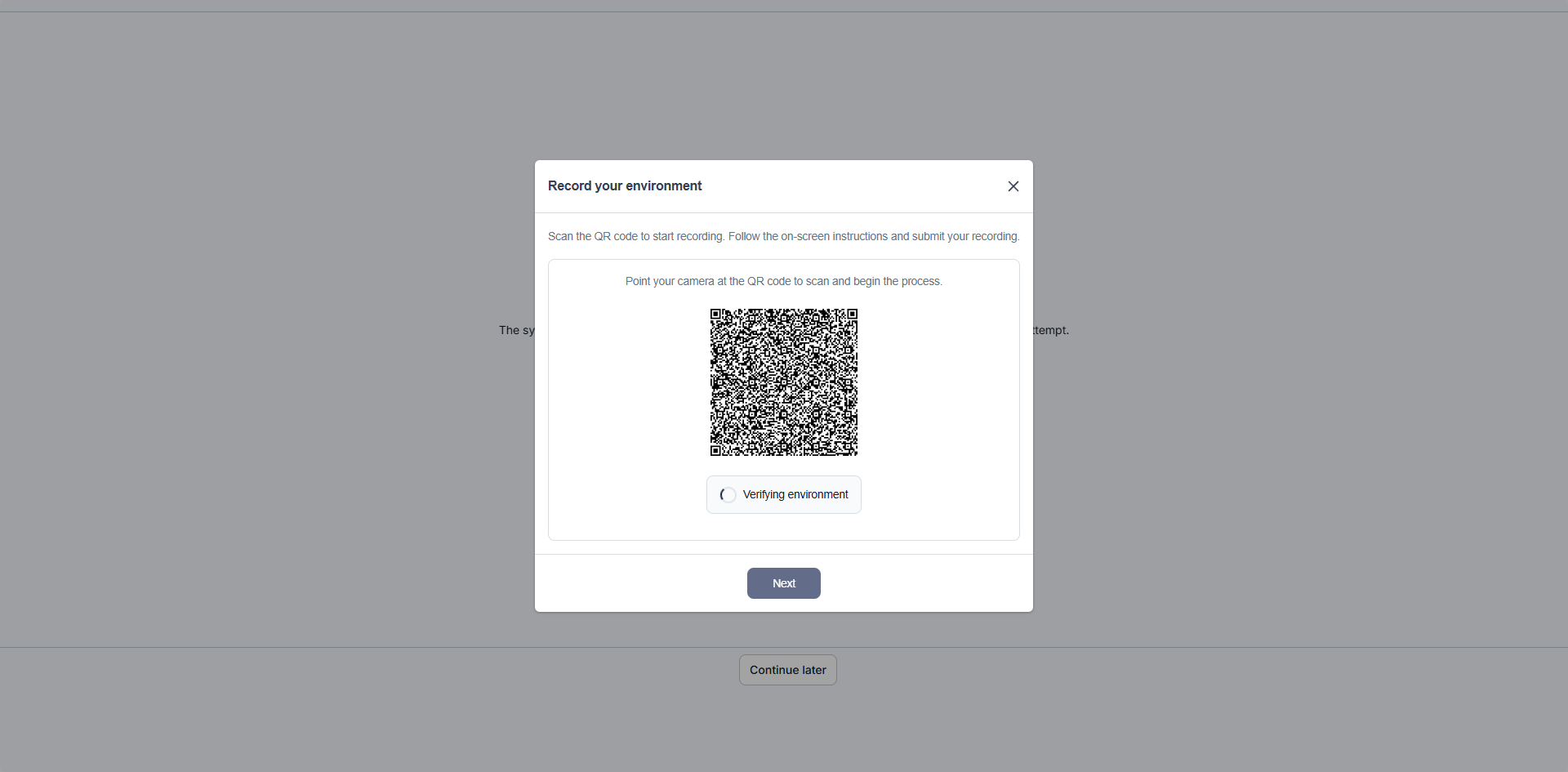
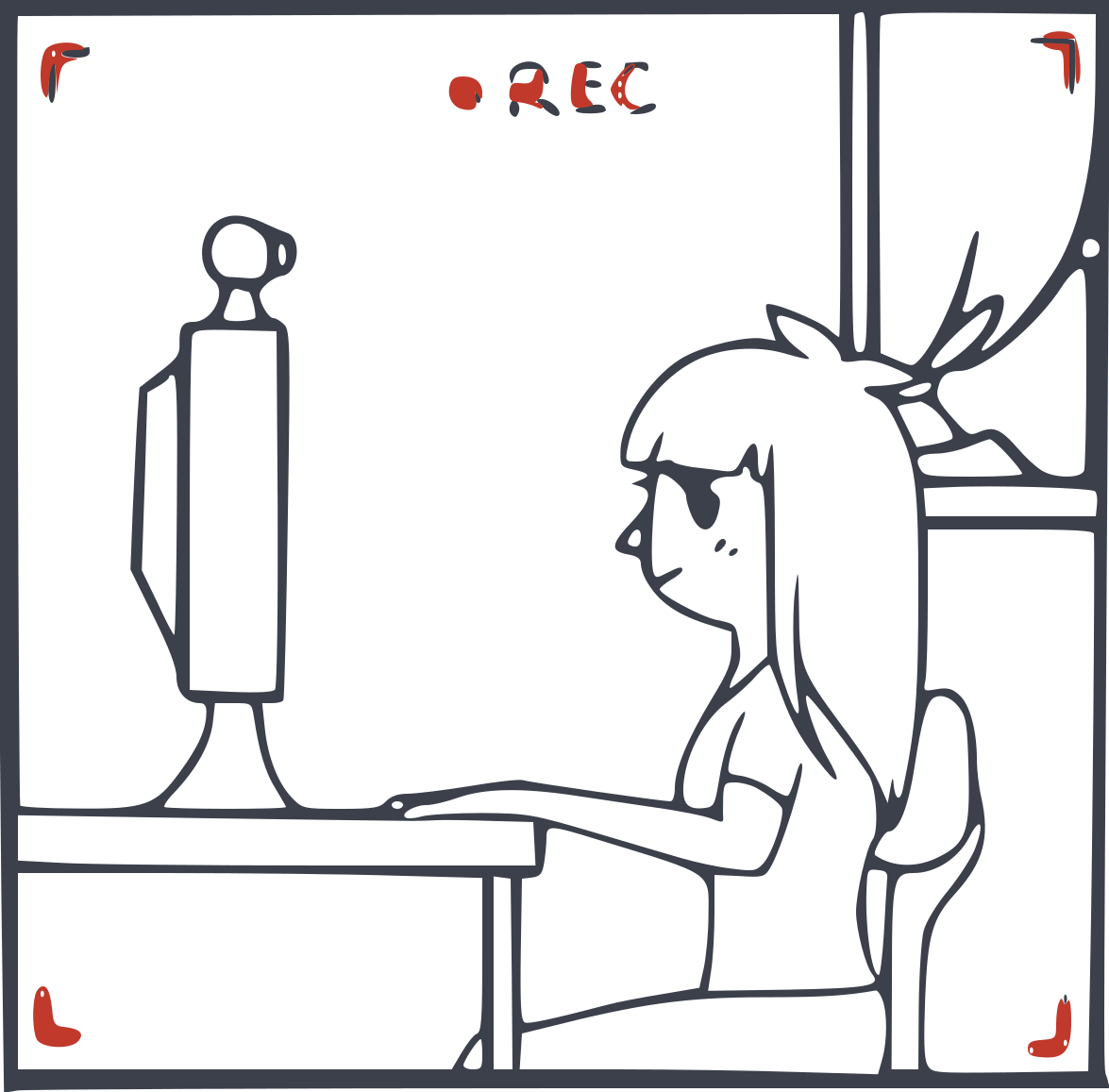
- Scan the QR code displayed on screen and use your phone to record a short room scan video, slowly moving around the room to show your workspace and surrounding area.
- Connect your mobile phone as a secondary camera and position it to show your workspace and surrounding area.
During the exam
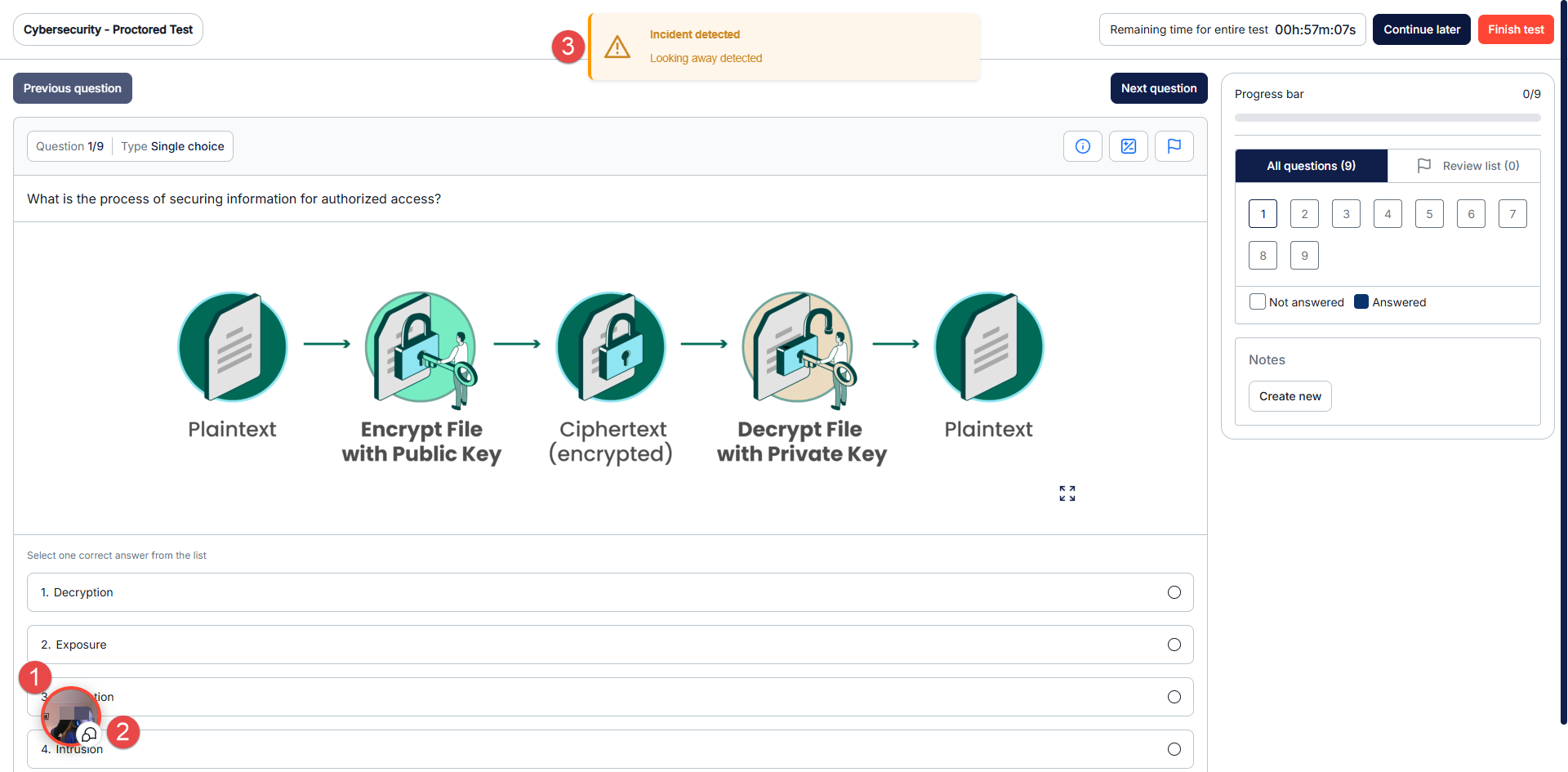
During the exam, depending on your organization's configuration, your screen, webcam, microphone, and mobile camera (if enabled) may be monitored and recorded.
You may see:
- A thumbnail displaying your webcam feed.
- A chat panel for communication with the proctor, if enabled.
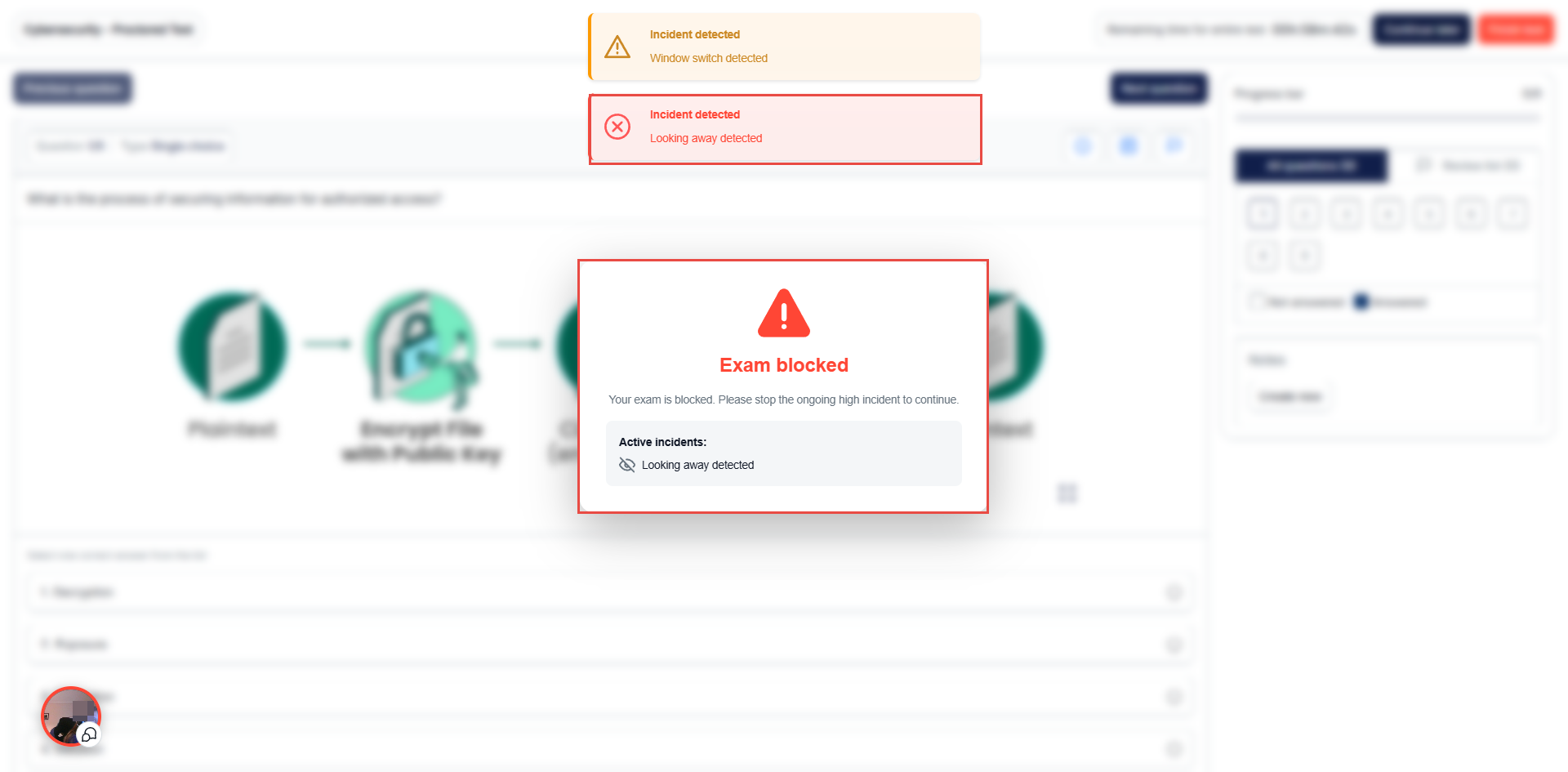
- Warning messages when incidents are detected.
Waiting for proctor approval
Some exams require approval from a proctor before you can begin. If proctor approval is required:
- You will see a message informing you that you are waiting for approval.
- A proctor will review your identification and room environment.
After the exam
- Your recording may be reviewed as part of the exam integrity process.
- Your result will be provided according to your organization's process and timeline.