Session Management

Session Life Cycle
Search and Management
Parameters and Addons
Session Life Cycle
Search and Management
Parameters and Addons

Candidates undergo proctoring sessions following the life cycle, as shown in the diagram to the left. Life cycle consists of two logically separate blocks: preliminary steps and supervision. If no date and time are specified in the 'Remove at' field, the session is stored for the duration of the license agreement.
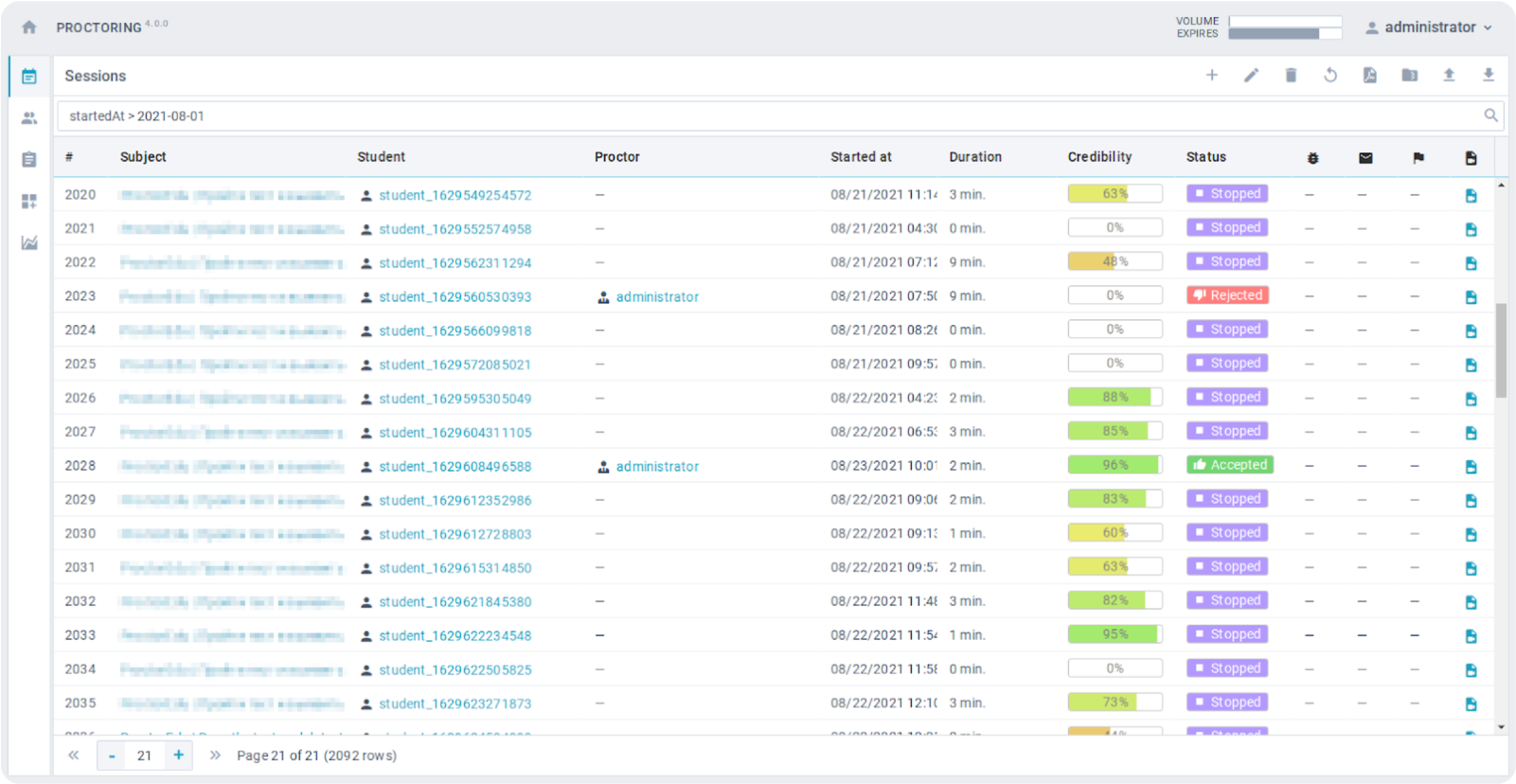
The session schedule table displays either all sessions or only those within a selected time period. The following functions are available to the administrator:
 Full-text search with field-specific expressions and syntax supportSession management (add, edit, delete)Export and import of a session list in CSV format (with comma as a separator, UTF-8 encoding)Viewing sessions and participants information (by clicking on a session name or a participant name)Observing current sessions (switching to the observation mode of the selected session)Viewing the session protocol (switching to the protocol of the selected session)
| Operator | Description | Example query |
|---|---|---|
| > | Greater than | createdAt > 2019-12-01 |
| < | Less than | duration < 5 |
| >= | Equal or greater than | averages.b1 >= 50 |
| <= | Equal or less than | score <= 50 |
| = | Equals | status = [stopped,accepted,rejected] |
| != | Not equal | conclusion != positive |
| ~ | Matches the regular expression | student.username ~ ^studentd+$ |
| ~* | Matches a case insensitive regular expression | subject ~* ^exam |
| & | Logical AND | createdAt > 2019-12-01 & duration < 5 |
| | | Logical OR | status = accepted | score > 90 |
| () | Grouping expressions | startedAt >2019-12-01 & (status = rejected | score < 50) |
| " " ' ' | Text that may include spaces or other operators | startedAt >subject ~* "some name" |
When integrating with the LMS, sessions are created automatically. Administrators have the option to create sessions manually or upload them from a CSV file. Utilize the search field with regular expressions for specific session displays. For example:
To find a session with a specific identifier: ^123$For sessions with a particular participant login: student1Sessions starting with "Entrance": ^entrance (case insensitive)To locate sessions with "exam" in the title: examRefine searches using regular expression syntax and supported operators for precise filtering.
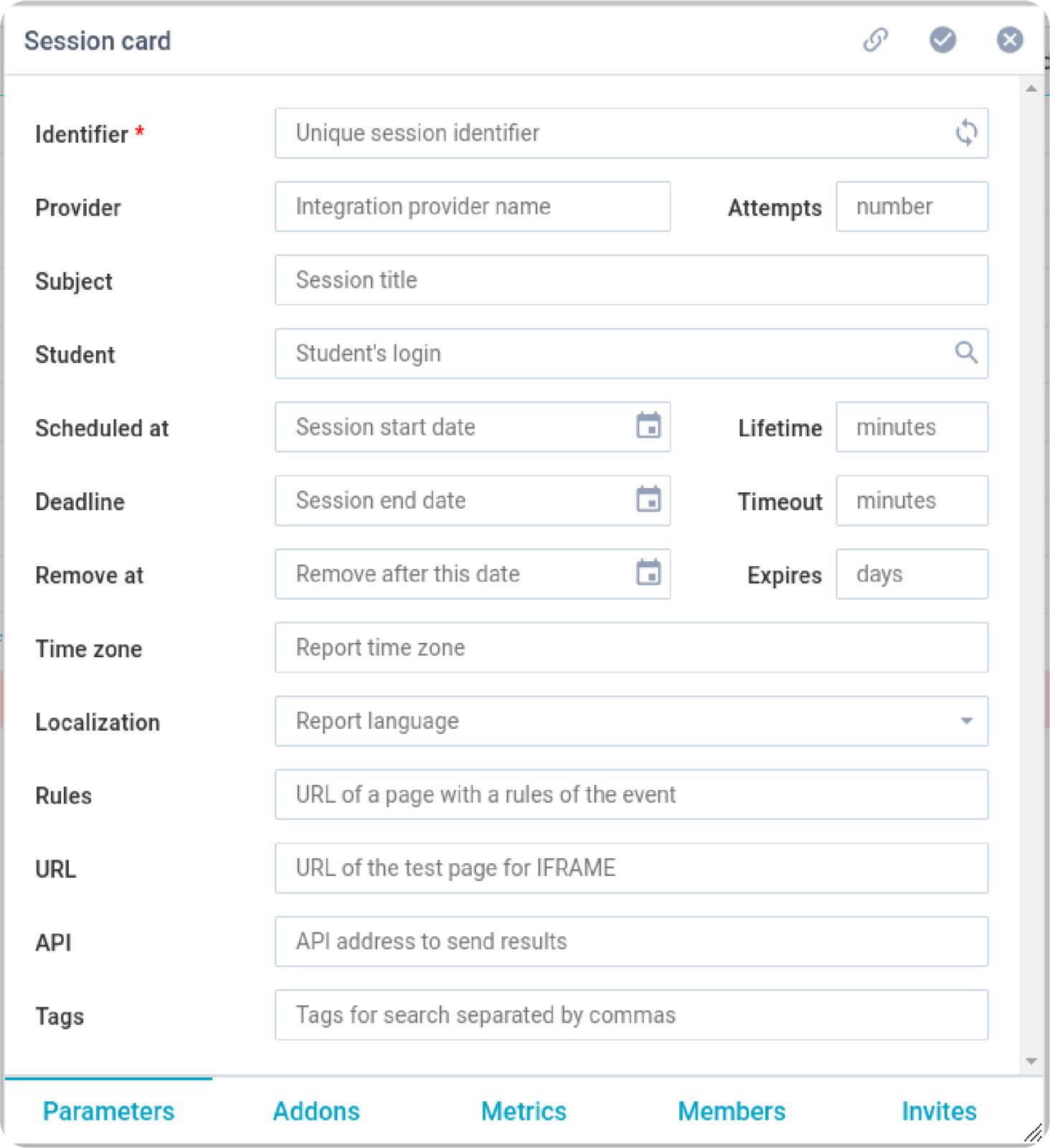
Record video (record)
Webcam preview (preview)
Enable WebRTC check (webrtc)
Content copy protection (content)
Track metrics (track)
Enable screen capture (screen)
Manual face photography (face)
 Includes the stage of photographing the face by the student. The taken photo is compared with the photo of the face from the participant’s profile. The result of the comparison is either saved in the session card or blocks the transition.
Manual photography of the passport (passport)
Includes the step of photographing an identity document by the student. The taken photo is compared with the photo of the ID from the participant’s profile. The result of the comparison is either saved in the session card or blocks the transition to the next step in case of a mismatch when the "verify" add-on is enabled.
Upload a scanned copy of the passport (scan)
Includes the step of uploading the scan of the identifying document by the student. The taken photo is compared with the photo of the scan from the participant’s profile. The result of the comparison is either saved in the session card or blocks the transition to the next step in case of a mismatch when the "verify" add-on is enabled.
Mobile camera connection via QR code (qrcode)
Includes the step of connecting an additional smartphone camera using a QR code.
Overview of the room (overview)
Chat with proctor (chat)
Rules of the event (rules)
Includes the stage of displaying the rules of the event and require participants to agree with them.
xAPI e-learning standard support (xAPI)
Filling out the participant's profile (profile) - includes the stage of filling in the full name by the participant himself.
Add additional passport pages (extrapages)
Includes the ability to add additional pages at the stage of photographing or uploading a scan of an identity document.
Name verification in the passport (name)
Require mandatory identity verification (verify)
Check the possibility to start the event (ready)
Turns on a dialog before starting a session, where the possibility of starting a session and confirmation of readiness by the participant is checked.
Participants must schedule the session time (schedule)
Require the presence of a proctor (proctor)
In case verification is failed, verification by face or document does not pass (at the “face” or “passport” / “upload” stages), then do not proceed to the next step until the problem is resolved.
Limit access for a proctor (limited)
Automatic conclusion (auto)
Allow to run on mobile (mobile)
Allow start only from Safe Exam Browser (SEB)
Show open toolbar button (toolbox)
Show header with IFRAME (header)
Calculator widget (calculator)
Allow uploading files to chat (upload)
Screen lock in case of violations (lock)
Make available on the link (shared)
Allow participants to finish the session (finish)
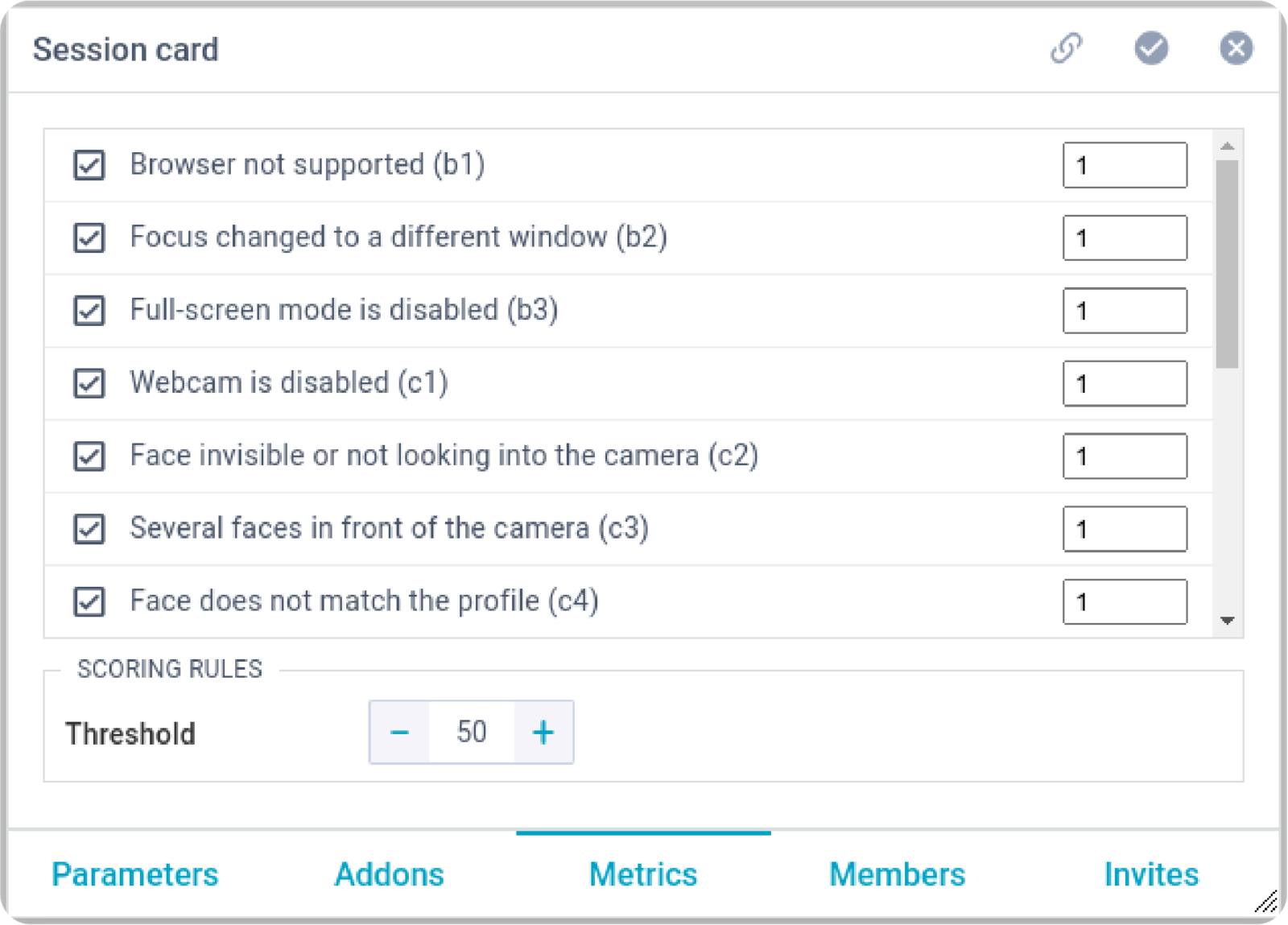
Each metric has its own weight, which is equal to 1 by default. This weight is used to form a confidence rating. The fixed indicators in the session are multiplied by it.
On the “Metrics” tab of the session card, the following metrics are available for selection:
Browser is not supported (b1)Focus changed to a different window (b2)Full-screen mode is disabled (b3)Webcam is disabled (c1)Face invisible or not looking into the camera (c2)Several faces in front of the camera (c3)Face does not match the profile (c4)Found a similar profile (c5)Atypical keyboard keywriting (k1)Microphone muted or its volume is low (m1)Conversation or noise in the background (m2)No network connection (n1)No connection to a mobile camera (n2)Screen activities are not shared (s1)Second display is used (s2)The proctors specified in this list will see all the sessions assigned to them in their interface. Add either the user's login or his group to the list of observers. User groups are conveniently used to organize access to sessions to a large number of participants without the need for each session to specify this large list.


Invitations serve to distribute the proctors by session, ensuring that each proctor is assigned to their specific session. Specify the rules for appointing proctors to a session, these rules will be applied to the specified list, and the proctors selected by these rules will be added to the observers in the session. Proctors are distributed equally between the students.
The following assignment rules are supported:

The "Template" feature—a game-changer for administrators!
Create customized session templates tailored to your unique needs. Each template is assigned a distinct ID, simplifying session registration through API integration.
Elevate your experience with the user-friendly interface. Easily identify default parameters for different test categories, ensuring smooth operations every step of the way. With just a single template ID, unleash a world of possibilities for your sessions.
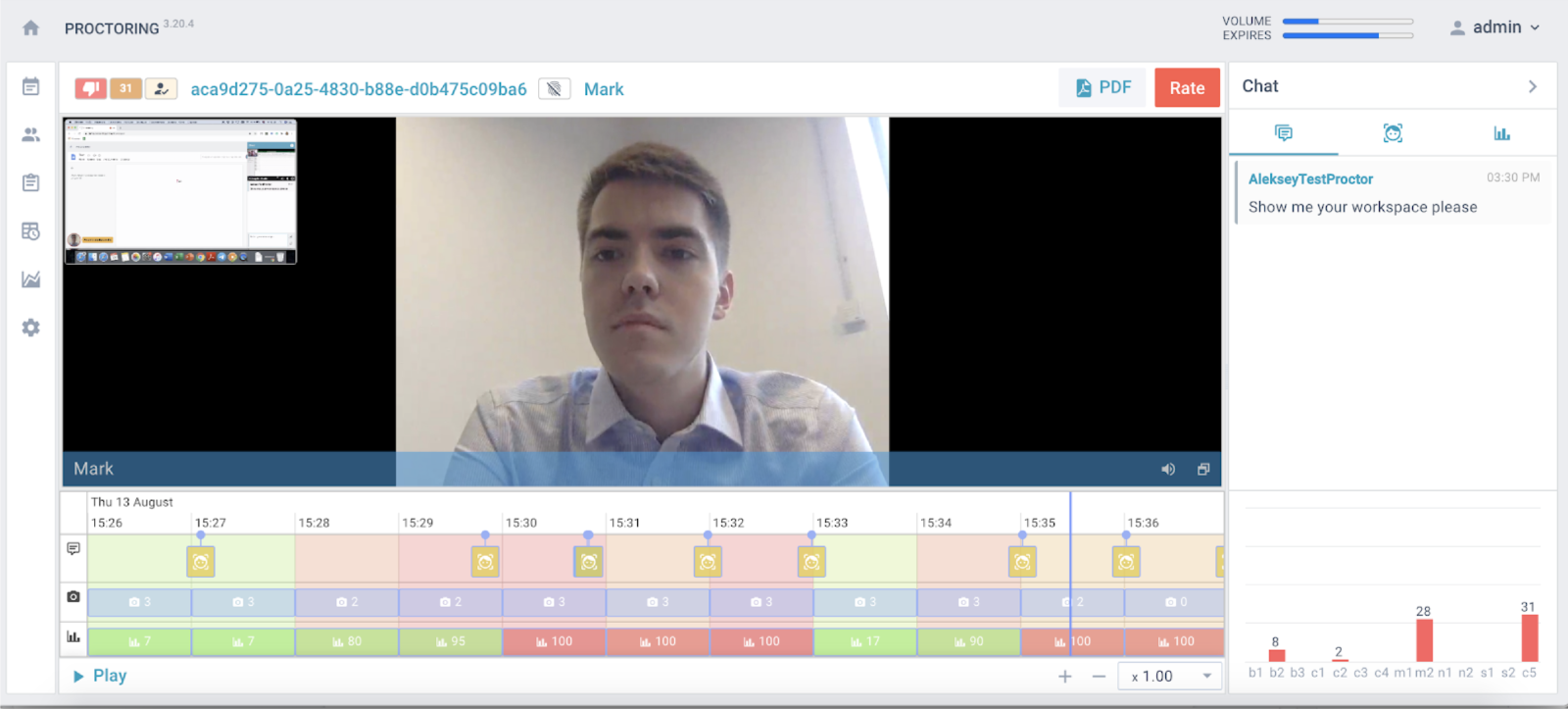
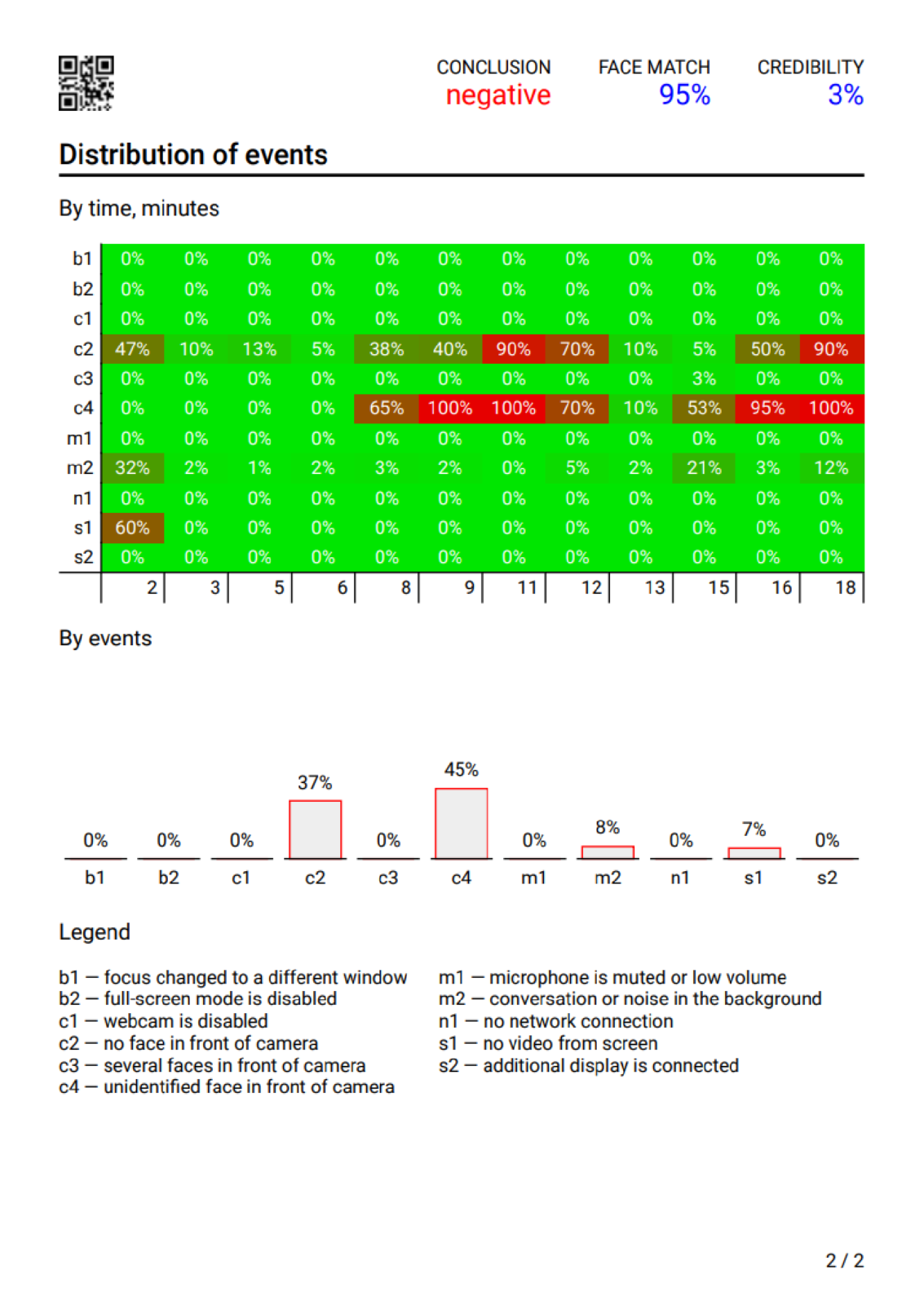
In addition to the main protocol, you can get a PDF version of the protocol, which can be downloaded using the "PDF" button. This is an abridged version, including a student’s profile and photo, a session card, a map of the distribution of violations by time, as well as averaged indicators for the session.
Recording from the main camera (webcam.video)Photos from the main camera (webcam.image)Recording from the computer screen (screen.video)Photos from the computer screen (screen.image)Recording from the secondary camera (extracam.video)Photos from the secondary camera (extracam.image)Recording from the main mobile camera (mobile1.video)Photos from the main mobile camera (mobile1.image)Recording from the secondary mobile camera (mobile2.video)Photos from the secondary mobile camera (mobile2.image)Photo of found faces (face.image)Recording an overview of the room (overview)Chat messagesChat attachments (attach)Report in PDF format (pdf)Session data in JSON format (json)




