
Article verified for Release 15.2 on July 22, 2026.
This article will explain how to efficiently send group email notifications to all candidates assigned to a specific test. Leveraging this notification feature allows you to disseminate essential information, announcements, or updates seamlessly.
Sending Group Email Notification
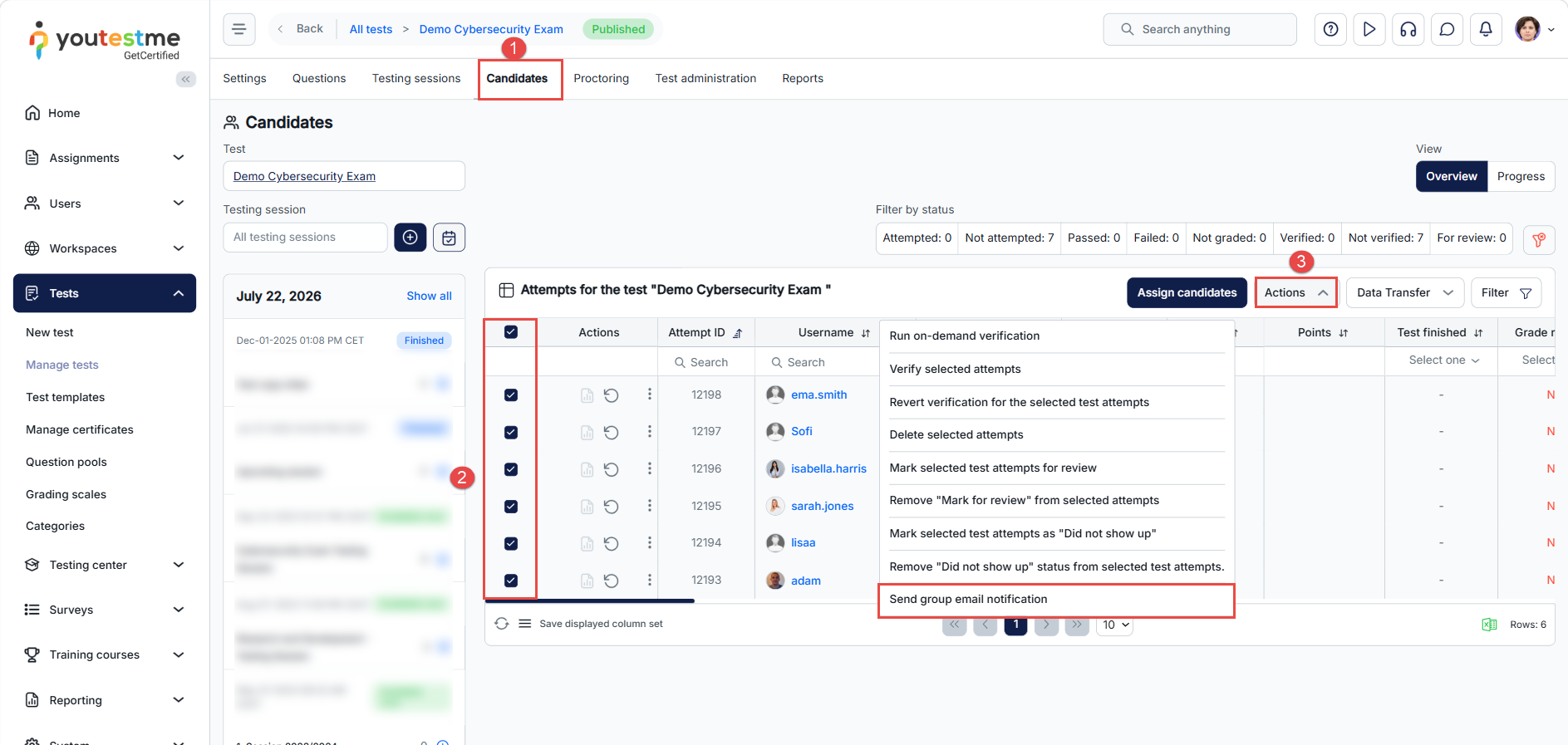
- Navigate to the “Manage tests” page, enter the desired test, and click on the “Candidates” tab.
- Select all users that should receive the notification.
- Click the “Actions” button and select “Send group email notification”.
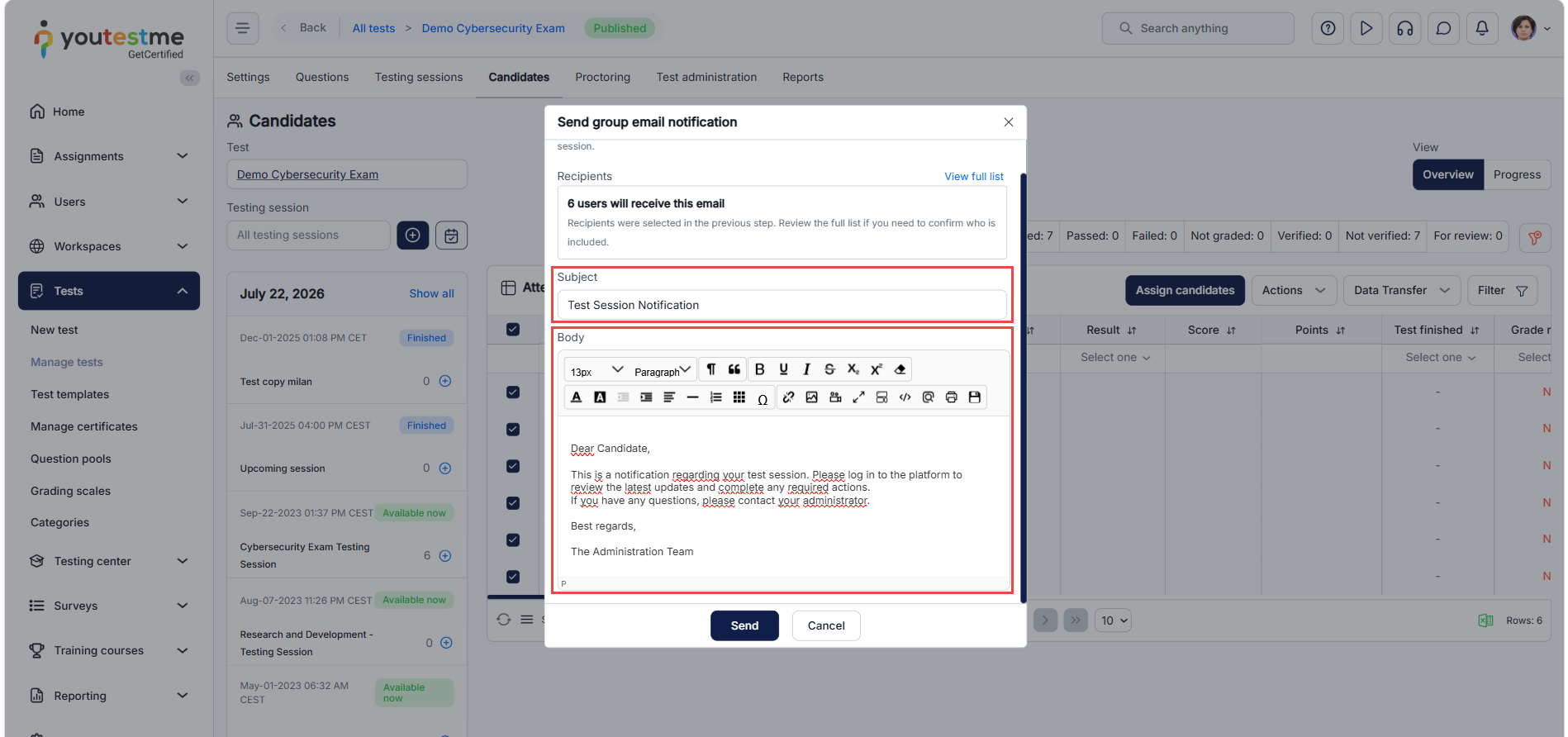
Enter the subject and the body of the email and click the “Send” button.
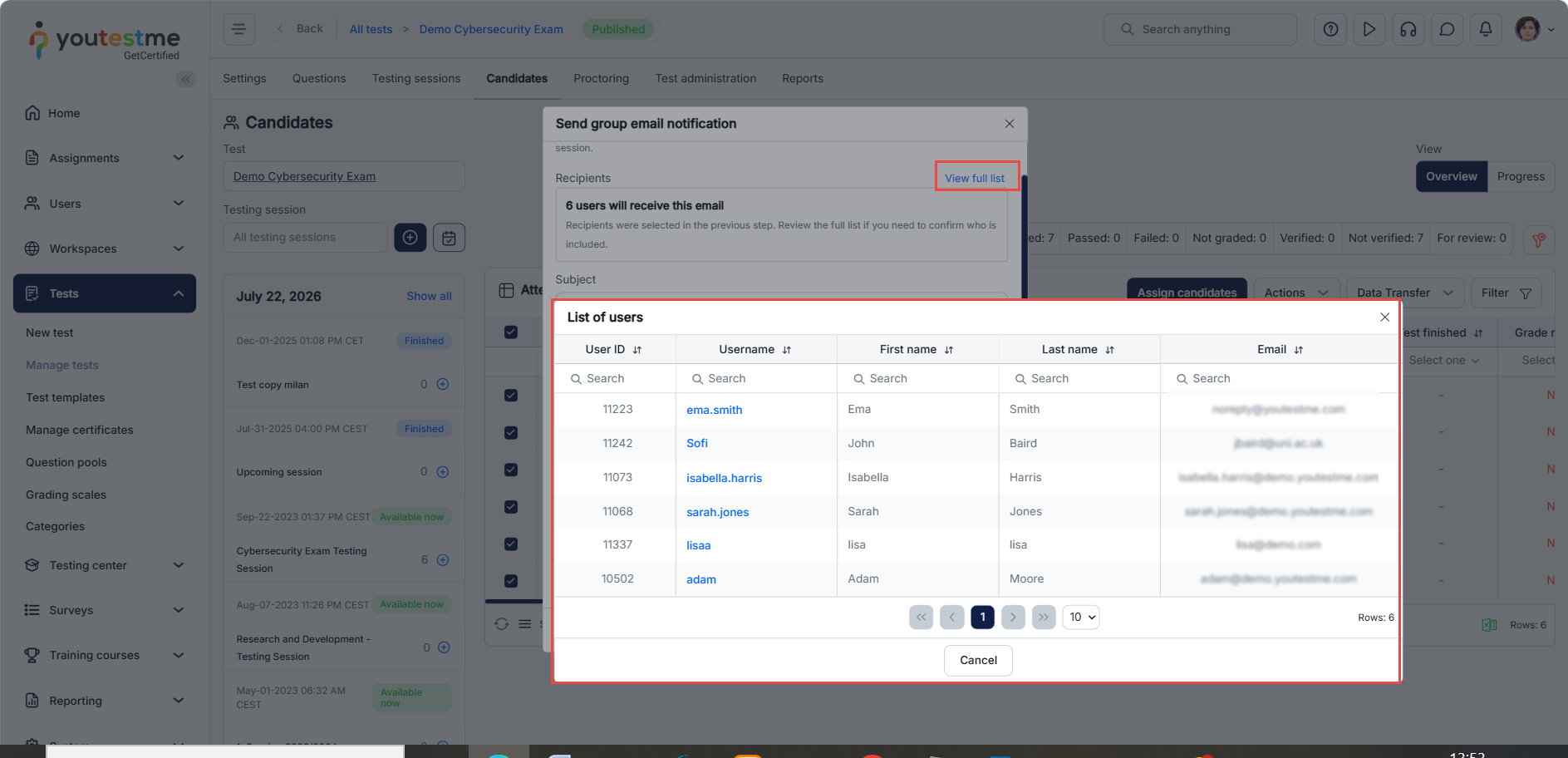
To review the full list of candidates who will receive the notification, click View full list. A dialog opens displaying all selected recipients, including their User ID, Username, First Name, Last Name, and Email address. You can also use the search fields to quickly locate a specific candidate before sending the notification.
For more information about notifications, please check this article or watch this video.