
Article verified for Release 15.1 on October 31, 2025.
This article provides a comprehensive guide to allowing candidates to select and book exams at times that best fit their schedules, all within your personalized demo environment.
YouTestMe allows administrators to make an exam available across different time slots using the Testing Sessions feature. Administrators can create multiple testing sessions for a single exam, enabling candidates to book the session that best suits their availability.
Using the Testing Sessions functionality, administrators can define:
- The time periods during which the exam will be available
- The exam fee
- Eligibility rules (e.g., available only to members of a specific user group, participants of a particular training course, or all users in the application)
- Additional settings, such as enabling proctoring for specific sessions
To help you explore the booking process from the candidate’s perspective, a sample exam with two testing sessions has been made available in your demo application.
In this article, we will guide you through:
- How to test the candidate’s experience with the booking process, and
- How the feature is configured from the administrator’s side.
Student’s Perspective
Accessing the Test
Log in to your demo environment using the following credentials:
- Username: student
- Password: Password for student account provided by YouTestMe
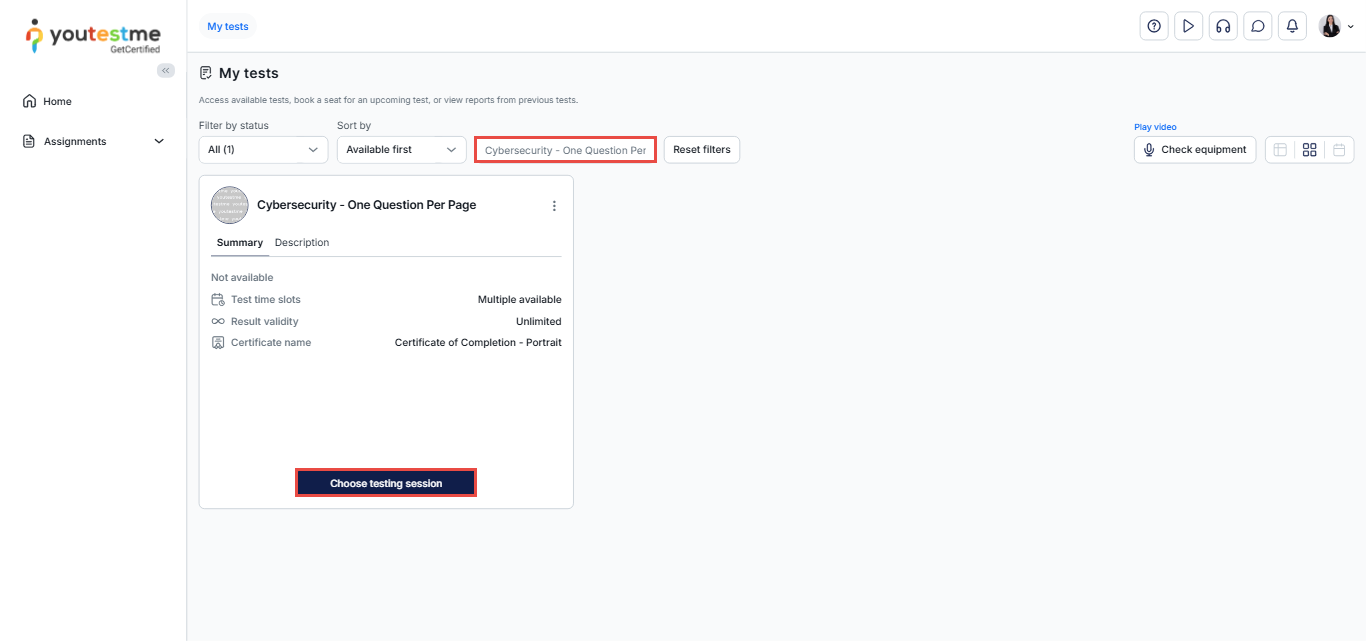
After logging in, you will be automatically redirected to the My Tests page, where you can use the search bar to find the “Cybersecurity- One Question Per Page” exam and then click the Choose testing session button to select a convenient time slot from the list of available testing sessions.
Choosing a Time Slot
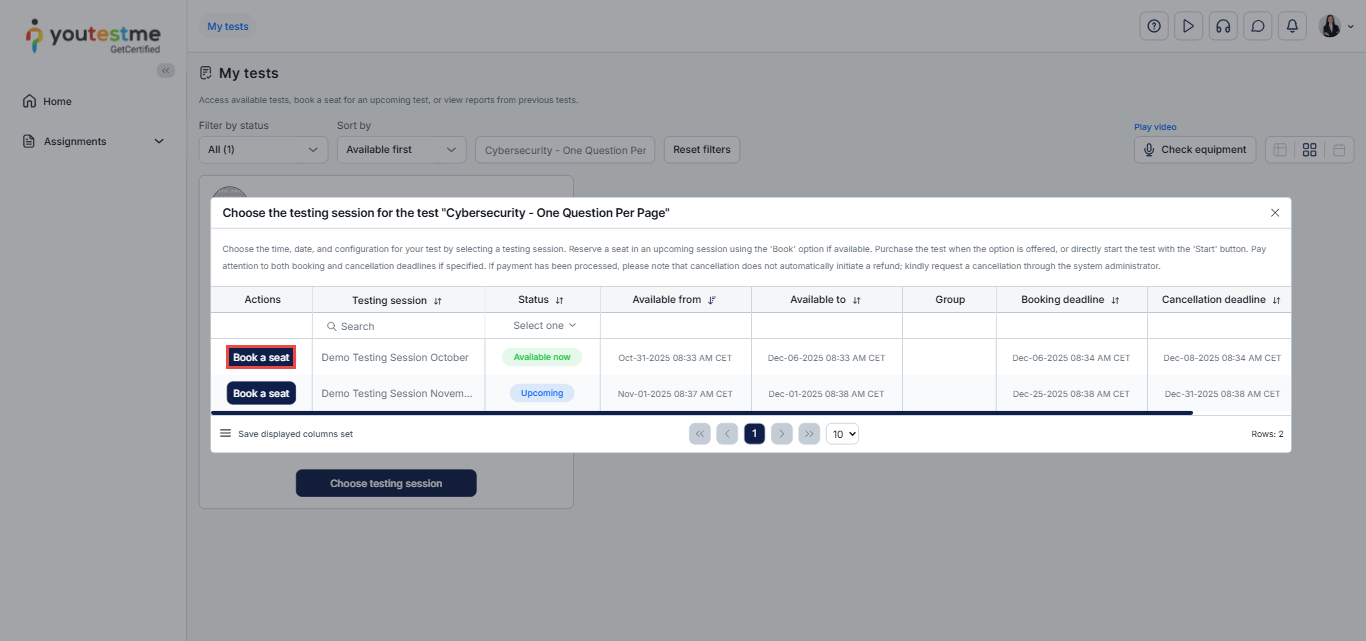
The list of all scheduled testing sessions will appear. Review the availability and choose the testing session you would like to book.
Note: To start the exam immediately after booking, select an available testing session. Other sessions are scheduled for future dates.
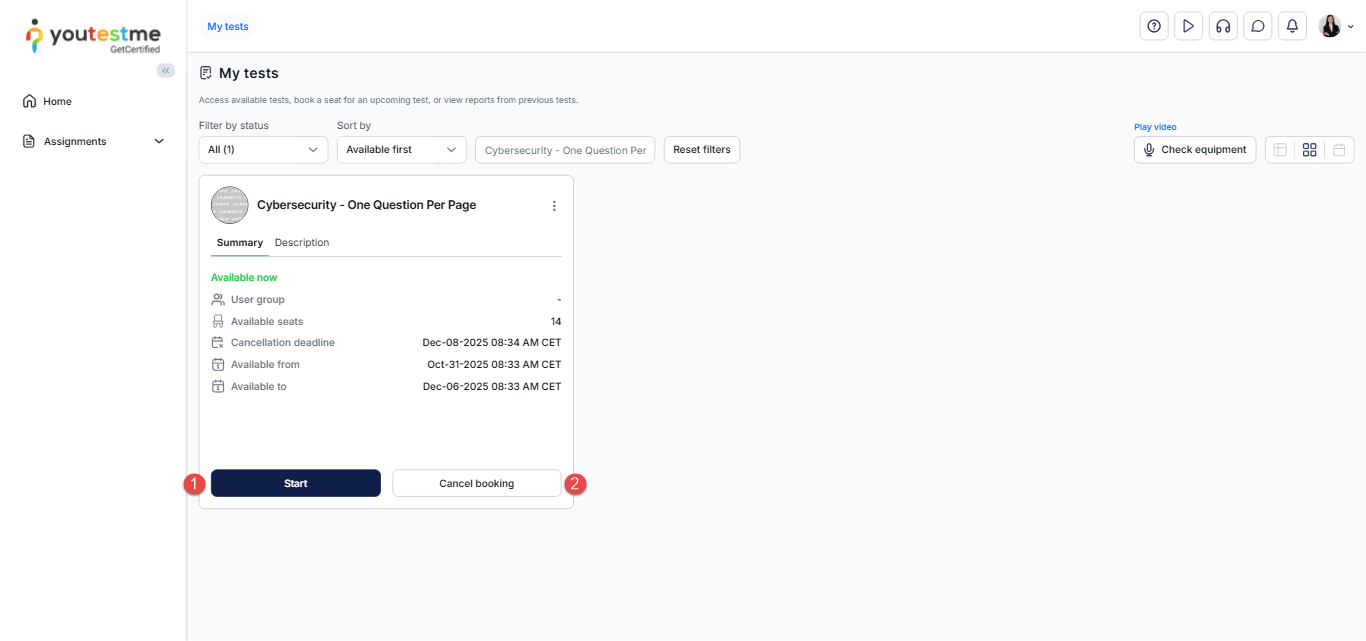
Once you book the exam, you will be able to:
- Start the exam if the session you choose is already available.
- Cancel the booking if you change your mind and want to choose another time slot.
Note: If the booking deadline has expired, you will not be able to cancel the booking.
Admin’s Perspective
To set up another testing session, follow these steps:
Log in to your demo environment using the following credentials:
- Username: admin
- Password: Password for student account provided by YouTestMe
After logging in, select Tests and then Manage Tests. Use the search bar to find the desired exam, and click its name to open it.
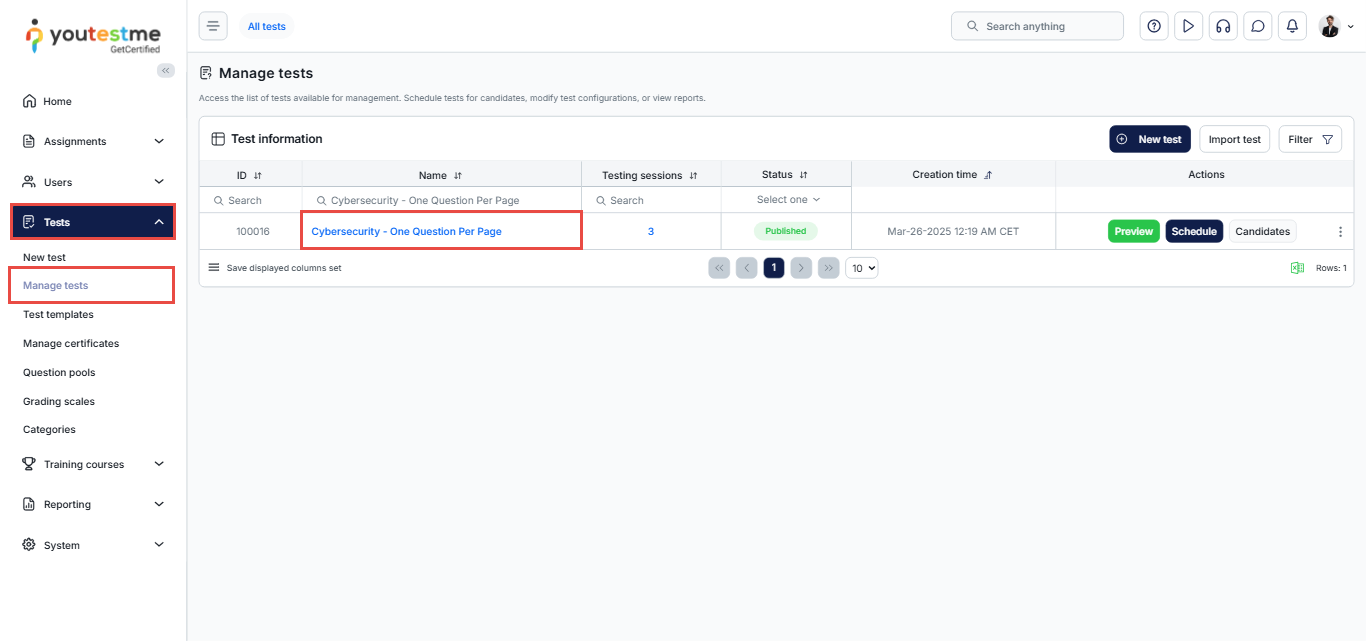
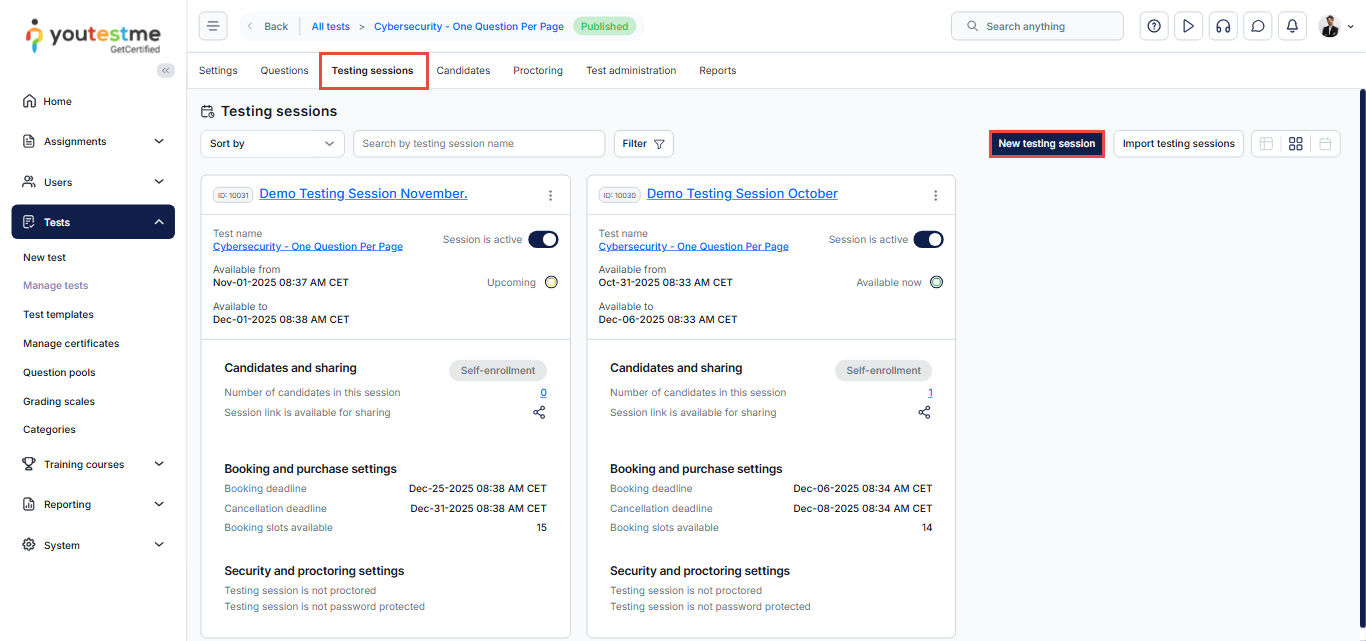
Navigate to the Testing Sessions tab and click the New Testing Session button.
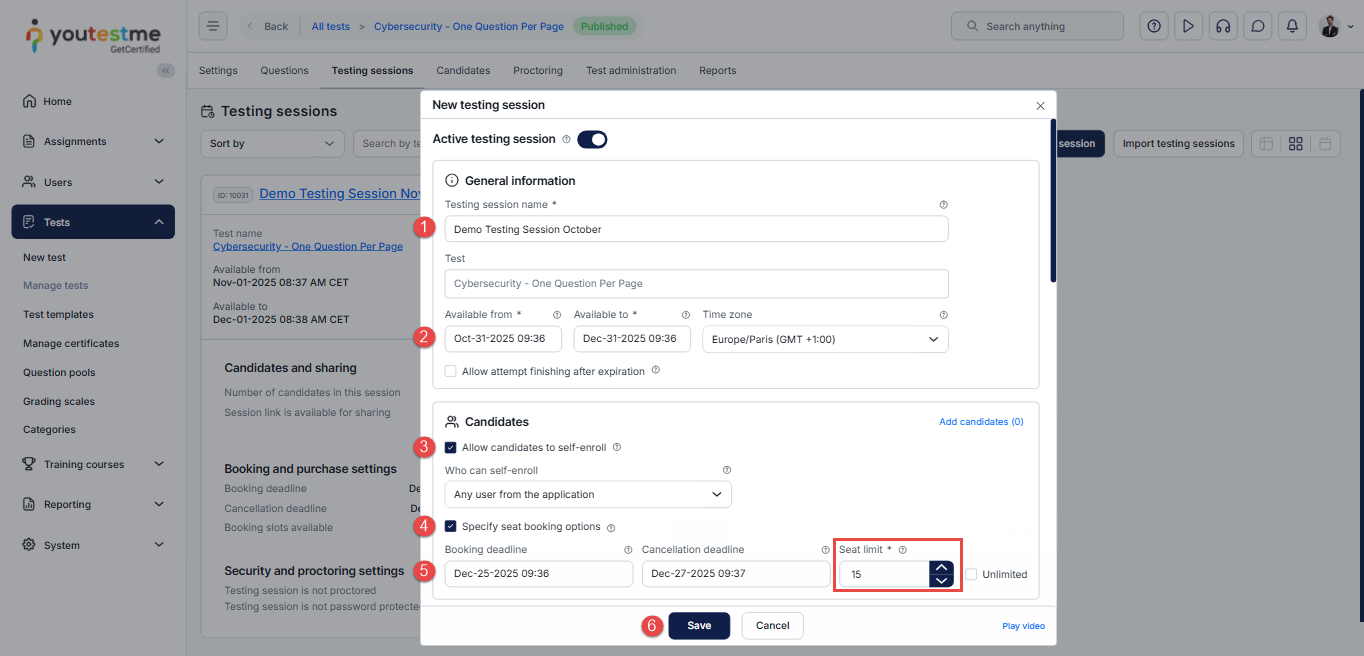
- Enter the session name.
- Set the availability period for the session.
- Enable the Allow Self-Enrollment option to allow candidates to book this testing session.
- You can limit the number of users booking this testing session. Settings include deadlines for booking and cancellation.
- Optionally configure the booking and cancellation deadlines.
- Click the Save button to confirm.
 Use Case
An association is conducting a Cybersecurity Certification test. Members of the association can take the exam for free, while non-members must pay a $10 fee. Test-takers have two options to take the exam:
- In person in a classroom
- Available only on the last Monday or last Friday of the month X.
- The room’s capacity limits the number of seats.
- Online from home
- Available 24/7 during the entire last week of the month X.
- This option is proctored.
How to Configure This Scenario using YouTestMe
Create User Groups
- Create one main user group for all participants.
- Within it, create two sub-groups:
- Members
- Non-members
This allows you to control access and pricing for each group.
Create Testing Sessions for Members (Free)
Create three testing sessions for the Members subgroup:
- Online Proctored Session
- Available 24/7 during the last week of month X
- Proctoring enabled
- No fee
- Classroom Session – Monday
- Available only on the last Monday of month X
- Seat limit based on classroom capacity
- No fee
- Classroom Session – Friday
- Available only on the last Friday of month X
- Seat limit based on classroom capacity
- No fee
Create Testing Sessions for Non-Members (Paid)
Create three parallel testing sessions for the Non-members subgroup, with the same availability and seat rules:
- Online Proctored Session
- Available 24/7 during the last week of month X
- Proctoring enabled
- $10 fee
- Classroom Session – Monday
- Available only on the last Monday of month X
- Seat limit based on classroom capacity
- $10 fee
- Classroom Session – Friday
- Available only on the last Friday of month X
- Seat limit based on classroom capacity
- $10 fee




