
Article verified for Release 16.1 on October 29, 2026.
Application logs record events and errors that occur within the application. They are useful for troubleshooting issues and investigating unexpected application behavior. When reporting an issue to the support team, you may be asked to download and provide the relevant application logs to help identify the cause.
How to Obtain Application Logs
To download application logs, follow these steps:
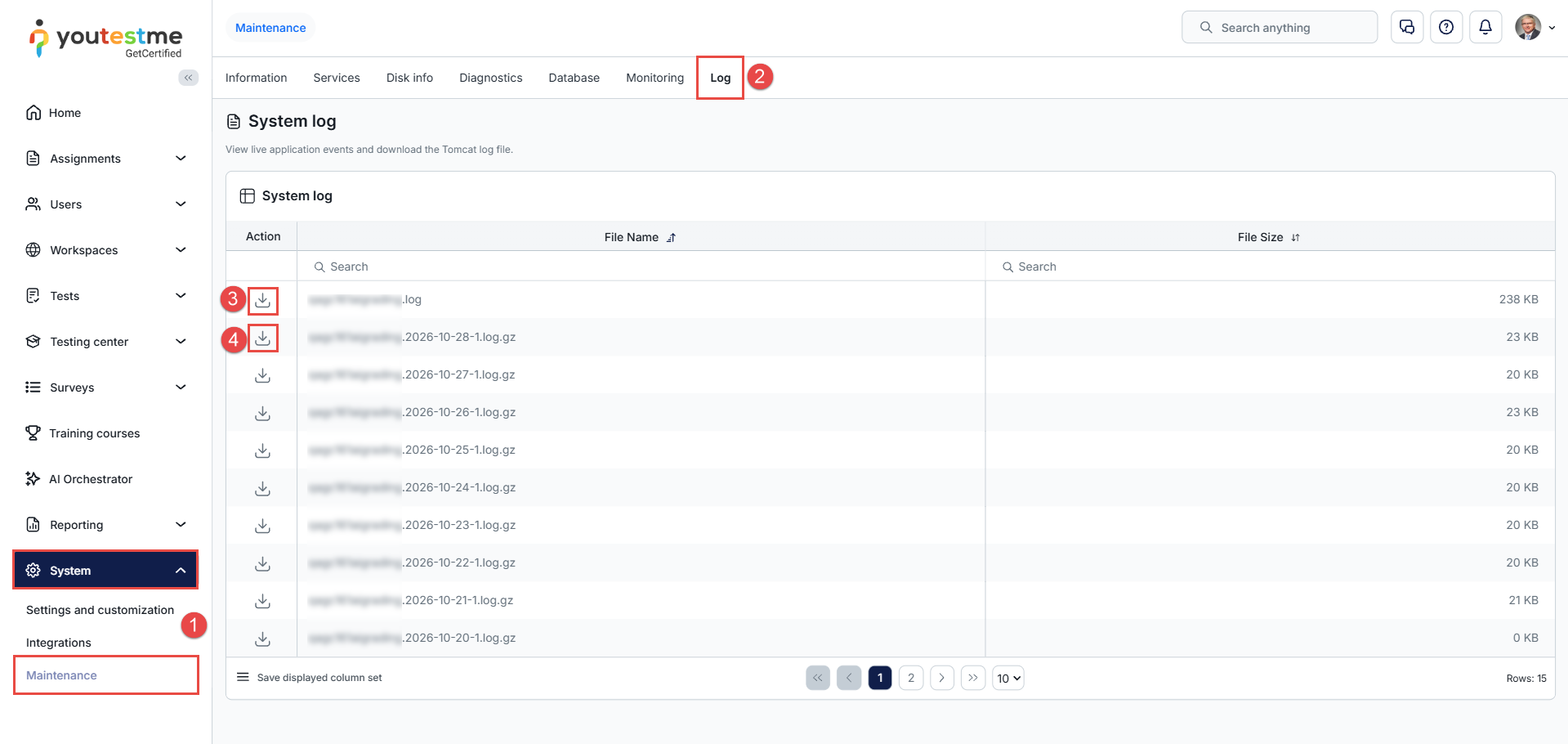
- Navigate to System > Maintenance.
- Open the Logs section.
- To download the general log file, click Download next to the general log. This file is not limited to a single day and usually contains logged actions from multiple days.
- To download a log for a specific day, if daily logs are available, click Download next to the corresponding daily log. This file contains logged actions for that day only.
If both general and daily logs are available, we recommend downloading and sending the general log, as it usually covers a longer period.
After downloading the relevant log file, attach it to your support request for further investigation.
Conclusion
Application logs provide valuable information for troubleshooting and investigating application issues. When reporting a problem, download the relevant log file and share it with the support team to help identify the cause and facilitate resolution.