
Article verified for Release 15.1 on December 26, 2025.
This article provides step-by-step instructions on how to create a new question pool and how to move or copy questions between question pools in YouTestMe. It explains how to access existing pools, select questions, and complete the move or copy process, while highlighting important limitations to be aware of.
Accessing the Question Pool
You can search for the existing question pool to which you want to move or copy questions by following these steps:
-
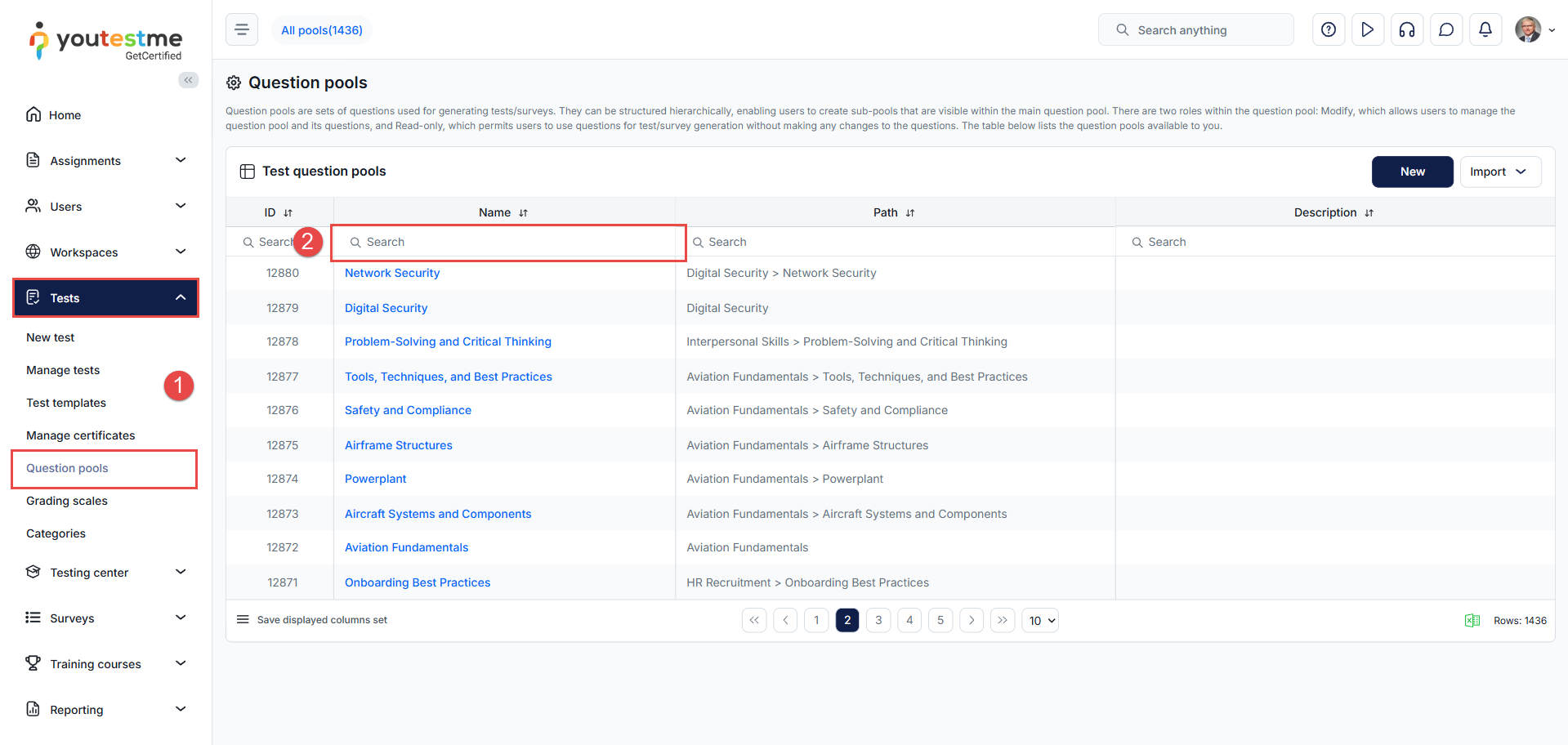
Navigate to Tests > Question pools.
-
Search for and open the desired question pool.
If you want to create a new question pool instead, please refer to this article.
Moving or Copying Questions
Note: The steps for moving and copying questions are identical. For simplicity, the instructions below demonstrate the Move action. When selecting Copy, follow the same steps; the only difference is that the original question will also remain in the source pool.
Once you open the desired question pool:
-
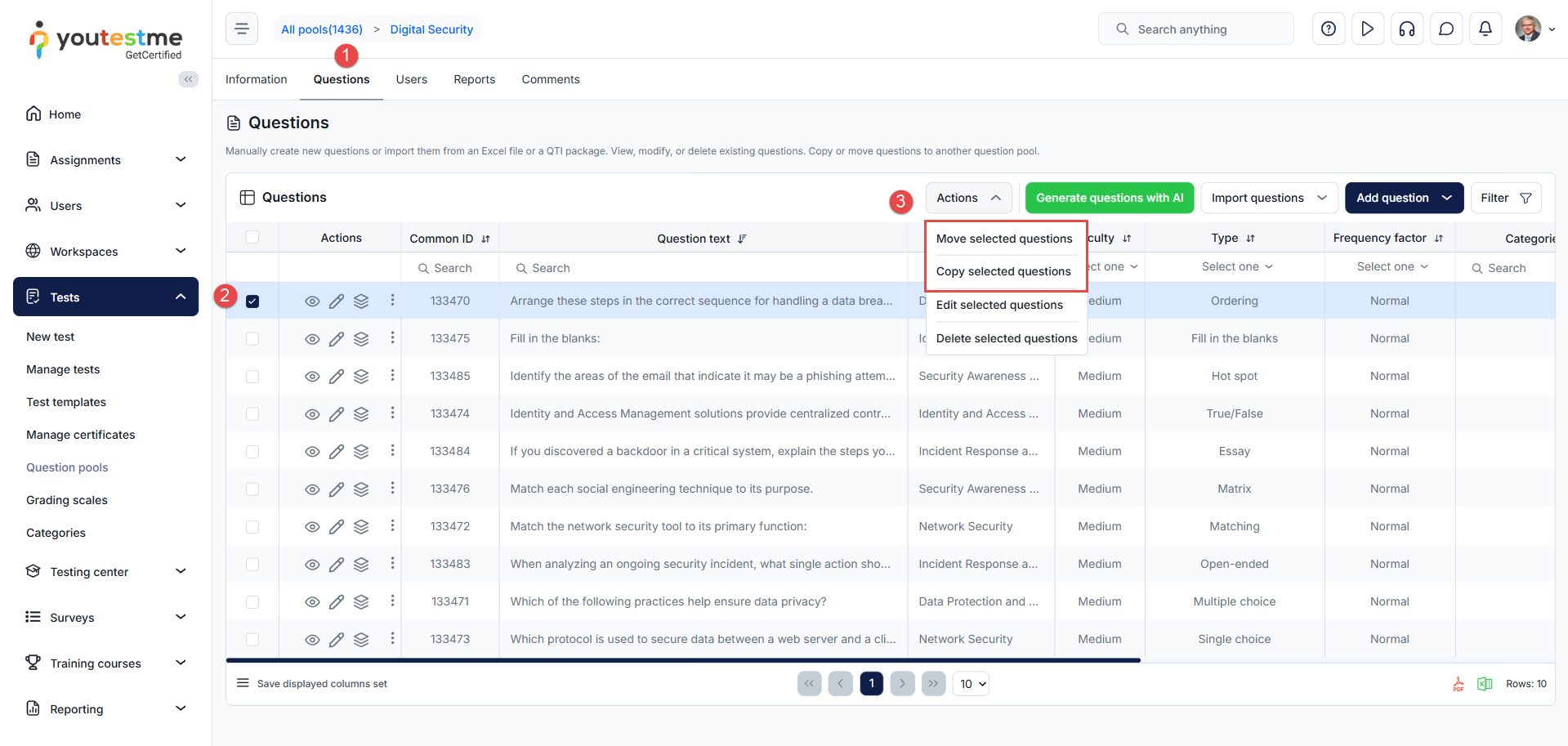
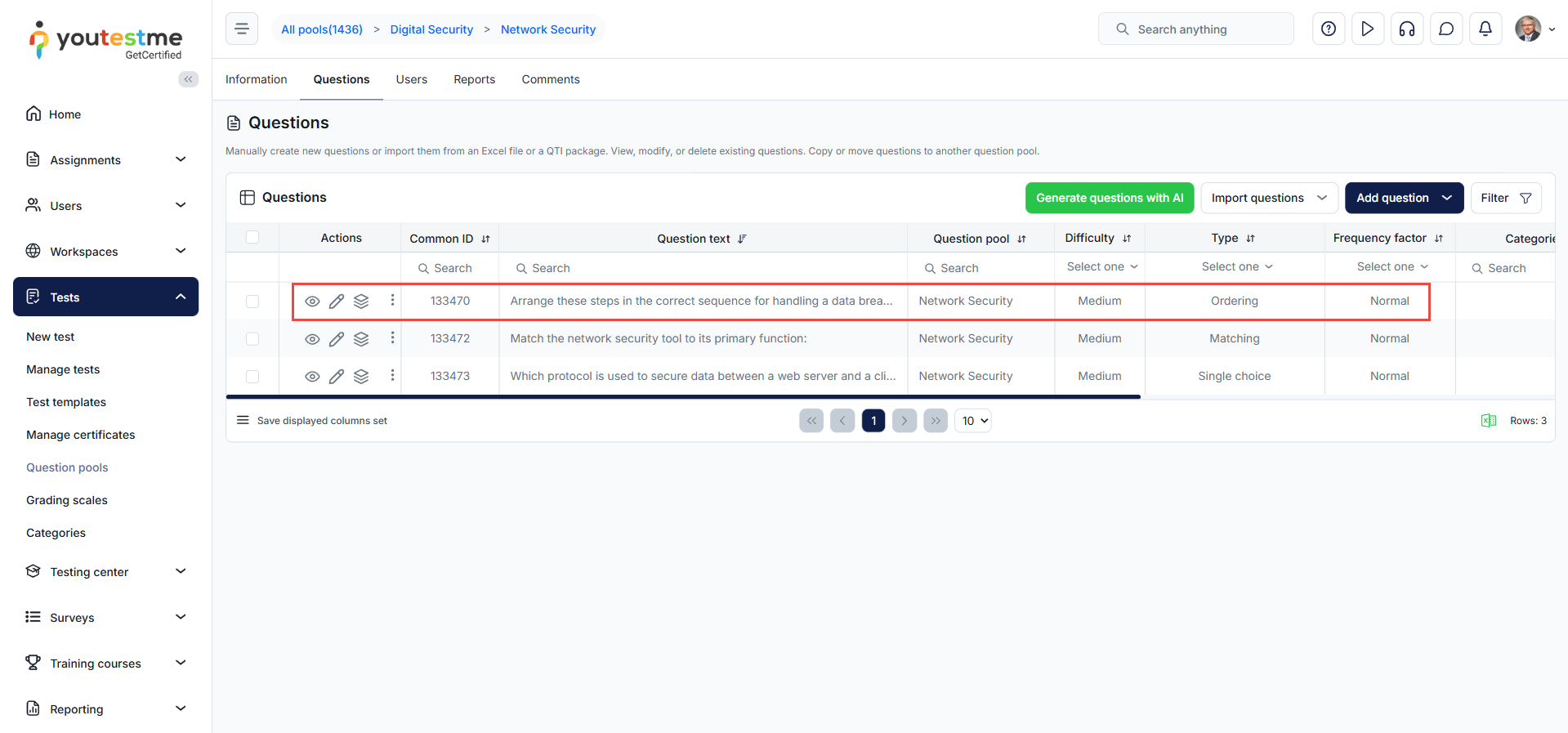
Navigate to the Questions tab. This tab displays all questions in the selected pool and lets you manage them.
-
Select the questions you want to move or copy. You can select one or more questions to transfer or duplicate into another question pool.
- Click the Actions button and choose one of the following options:
- Move – Completely removes the selected questions from the current pool and transfers them to another pool.
-
Copy – Creates duplicates of the selected questions in another pool while keeping the original questions in the current pool.
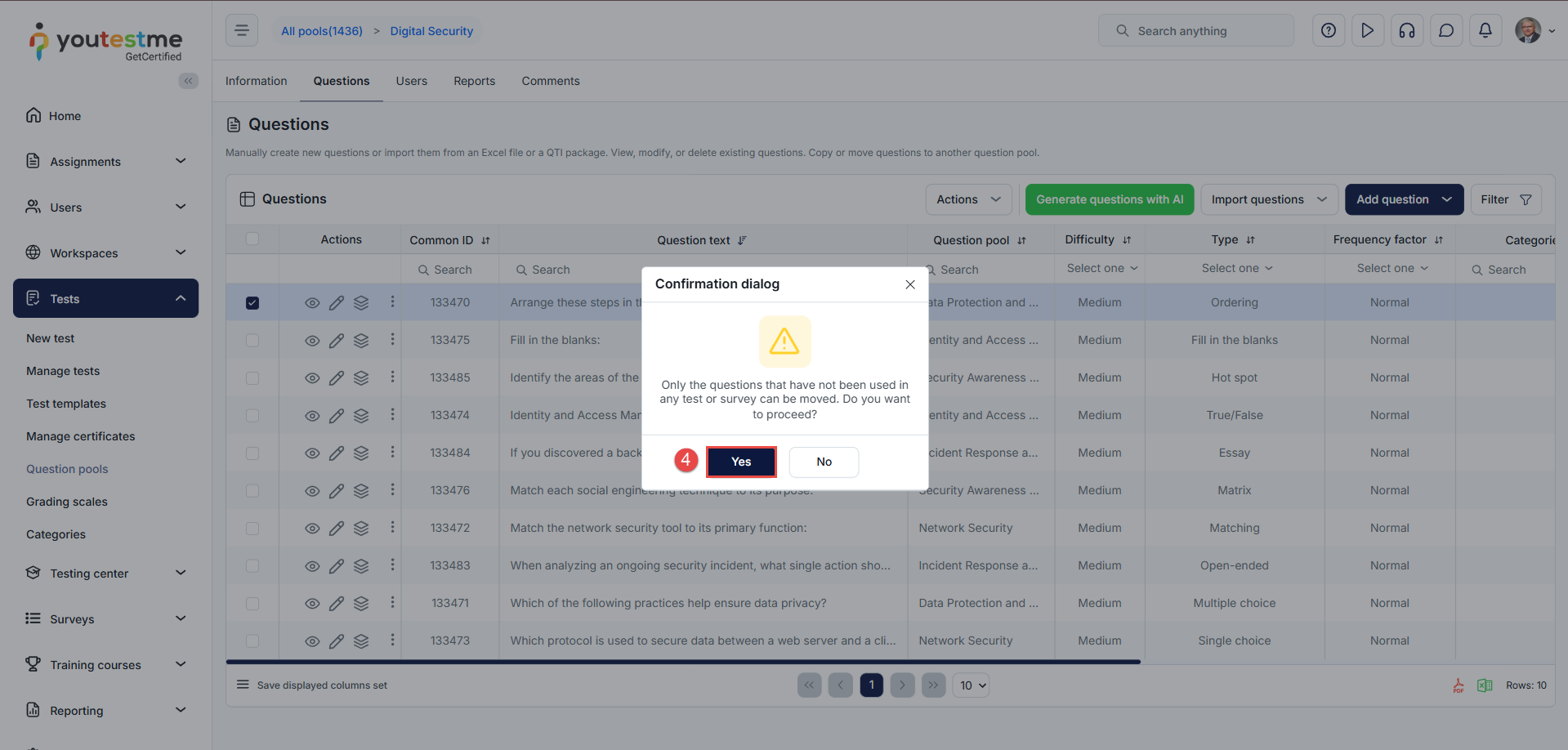
Note: Only questions that have not been used in tests can be moved. Questions that are already used in tests cannot be moved, but they can still be copied.
- Click Yes to confirm the action.
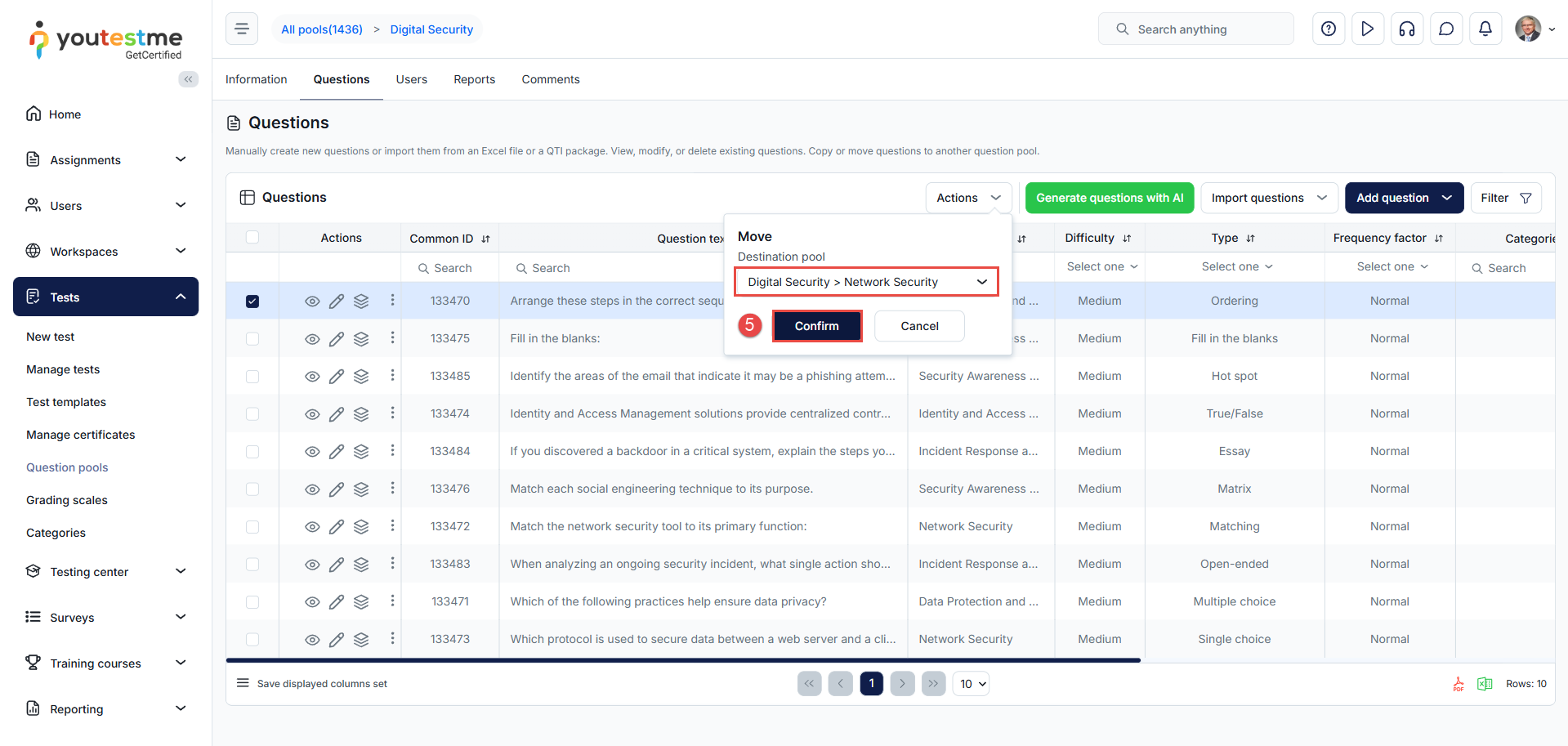
- Select the destination question pool where the questions will be moved or copied.
Once confirmed, the questions will appear in the selected pool.
For more useful instructional materials, please check:




