
Article verified for Release 15.2 on March 12, 2026.
This article explains how to enlarge images within test questions.
Images in test questions may contain important details that require a closer look. The platform provides candidates with two ways to enlarge images directly within the test, ensuring all visual content is clearly visible during the exam.
Candidate’s Perspective
Throughout the test, candidates have the ability to interact with images in two ways:
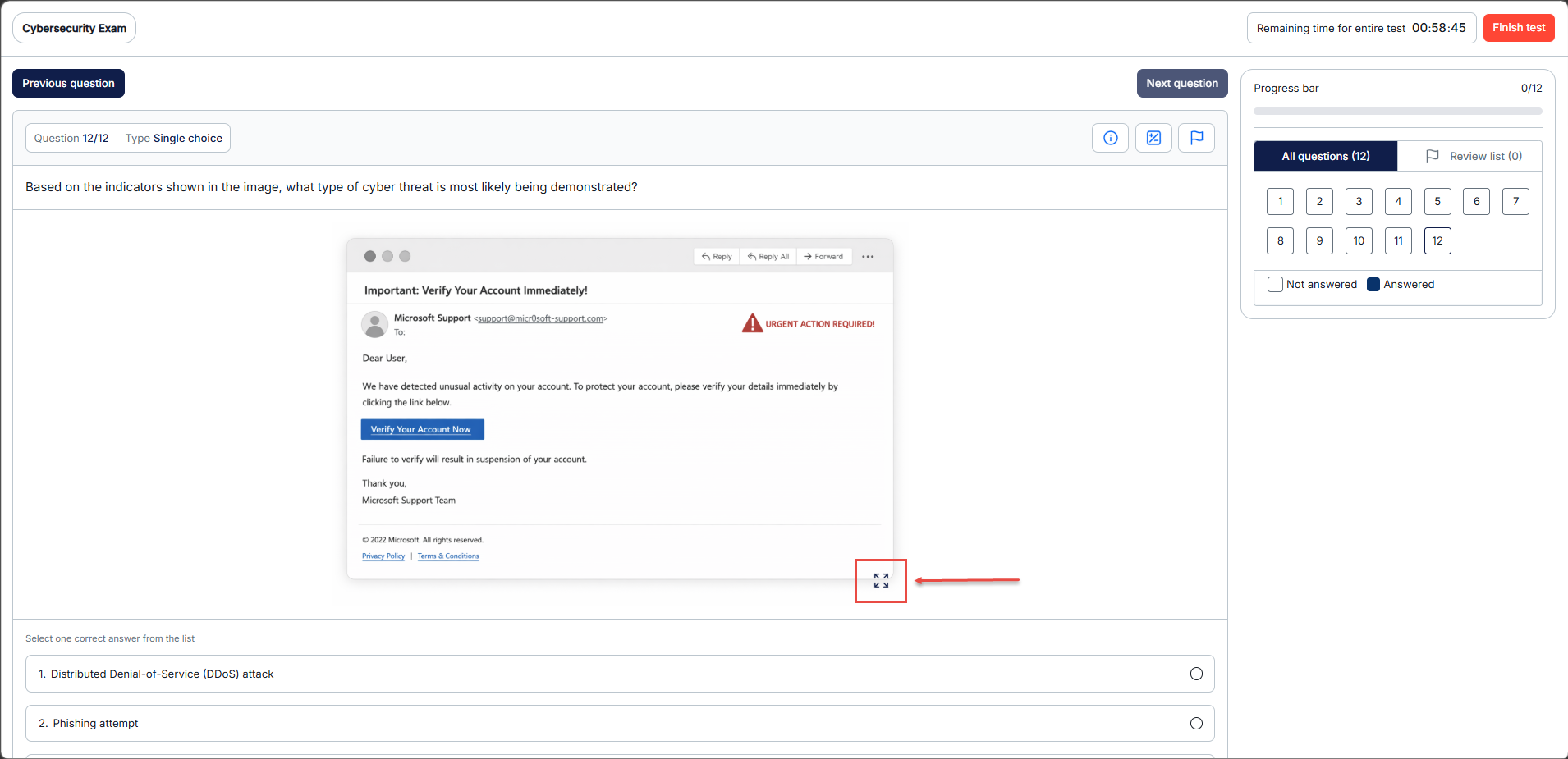
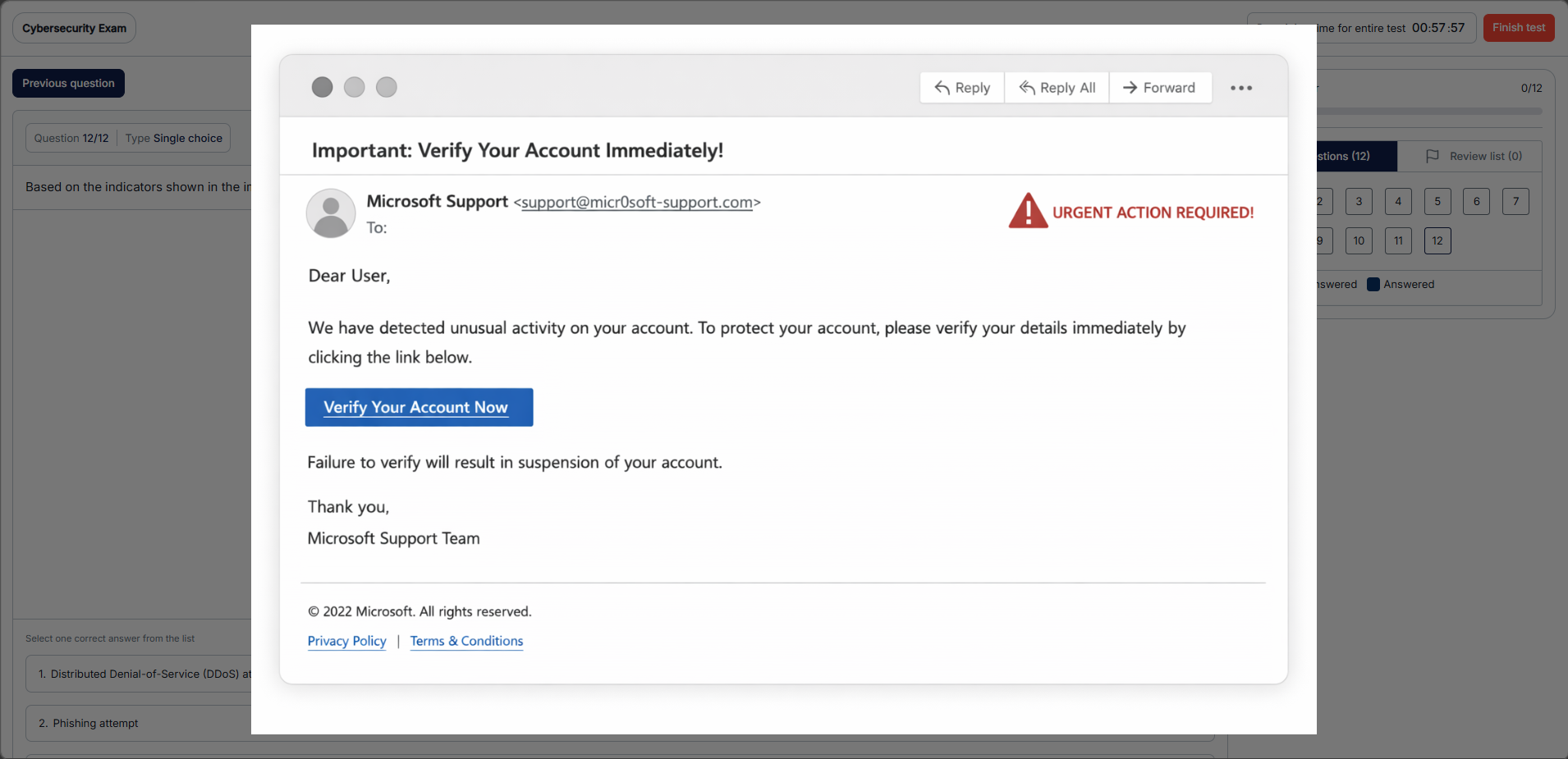
Clicking the arrows icon in the bottom right corner of the image opens it in a full-screen modal overlay, displaying the image enlarged for a clear, focused view.
Clicking directly on the image zooms into a specific area of it, opening an enlarged preview panel that shows a cropped, magnified portion of the image, allowing the candidate to inspect fine details without leaving the question page.
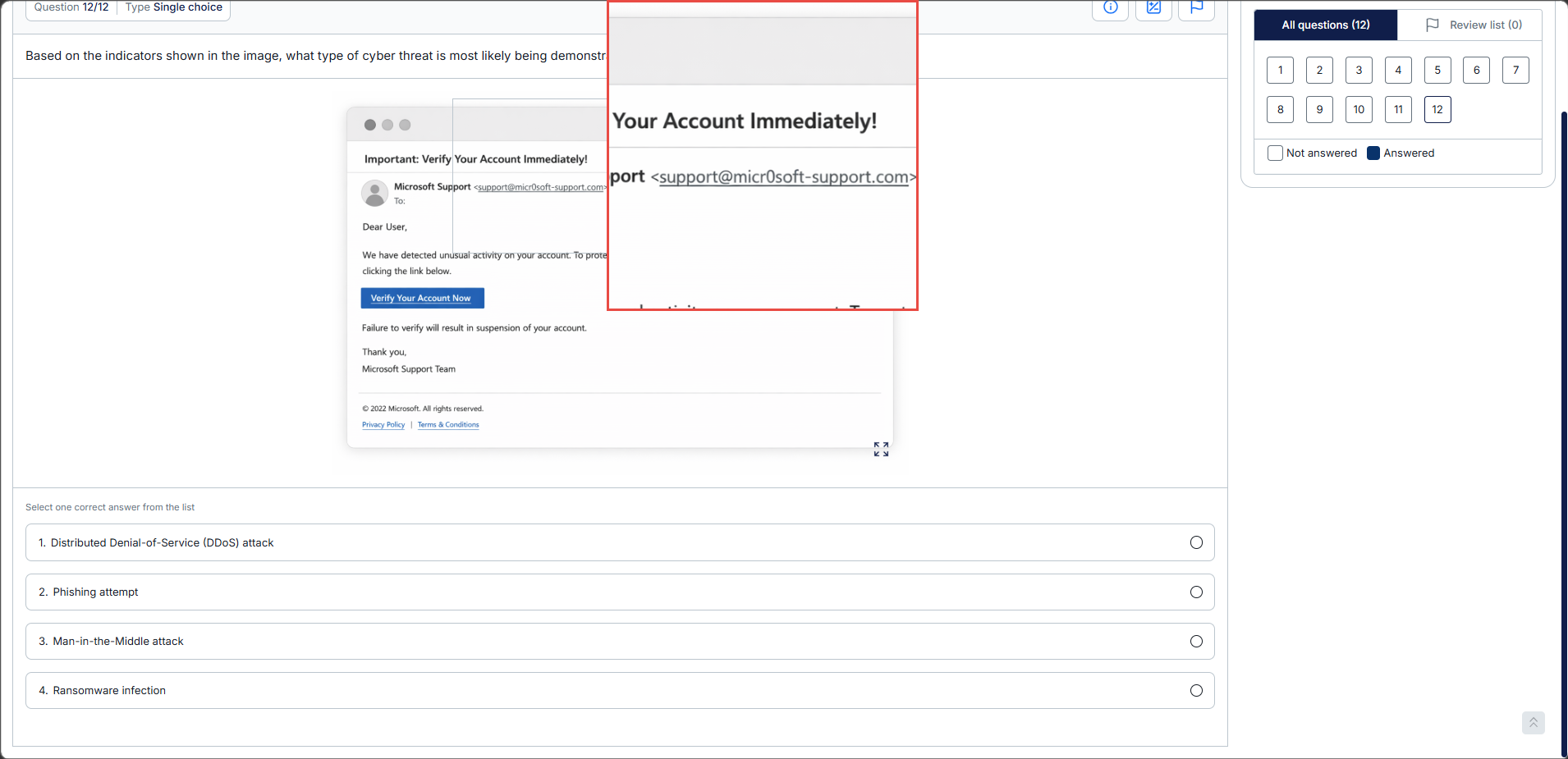
These image enlargement options ensure candidates can fully examine any visual content included in their test, without disrupting their workflow or losing their place in the question.
For more useful instructional materials, please check the following links:




