
Article verified for Release 15.1 on November 25, 2025
This article explains how to enable and disable Accessibility Mode in YouTestMe GetCertified and how to use the application with keyboard controls. Accessibility Mode is designed for users who rely on keyboard navigation or assistive technologies, providing an alternative to mouse-based interaction. The sections below cover the required administrator settings, user activation, and keyboard controls.
Enabling/disabling accessibility mode
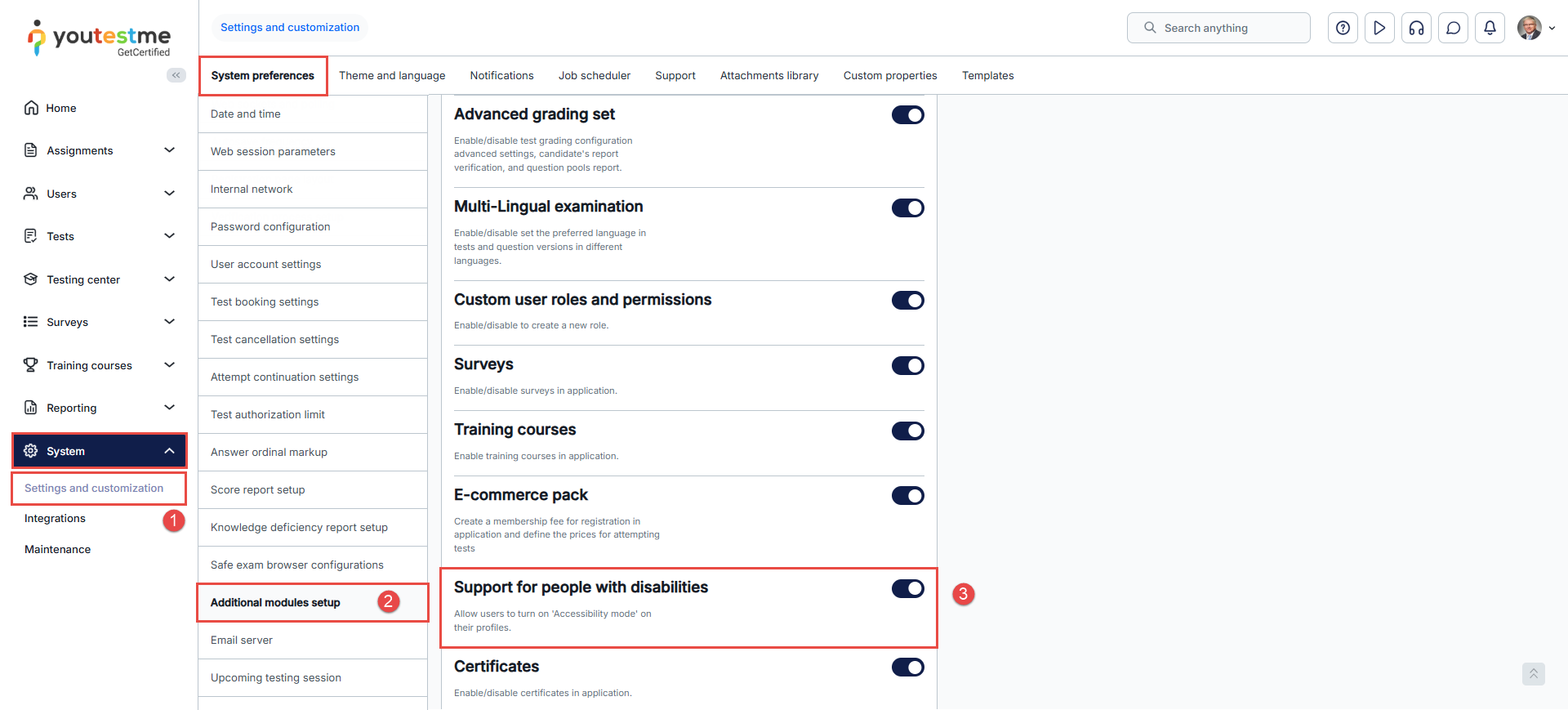
The Accessibility tab is available only when Support for people with disabilities has been enabled by an administrator. To enable that:
- Select the System tab and then the System and customization tab.
- Select the System preferences tab and then the Additional modules tab.
- To turn the accessibility mode on or off, scroll down to Support for people with disabilities.
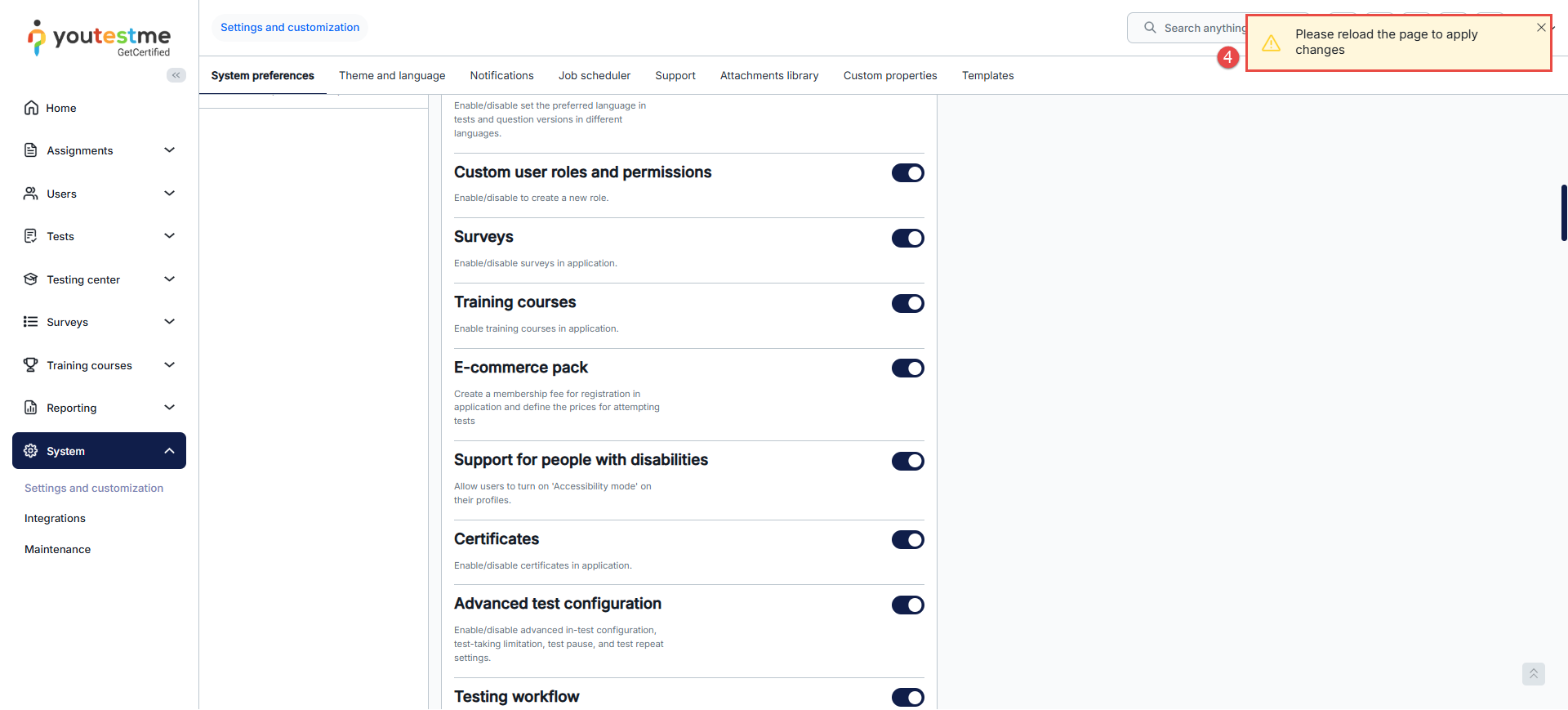
- After enabling the option, you will receive a system notification to reload the page.

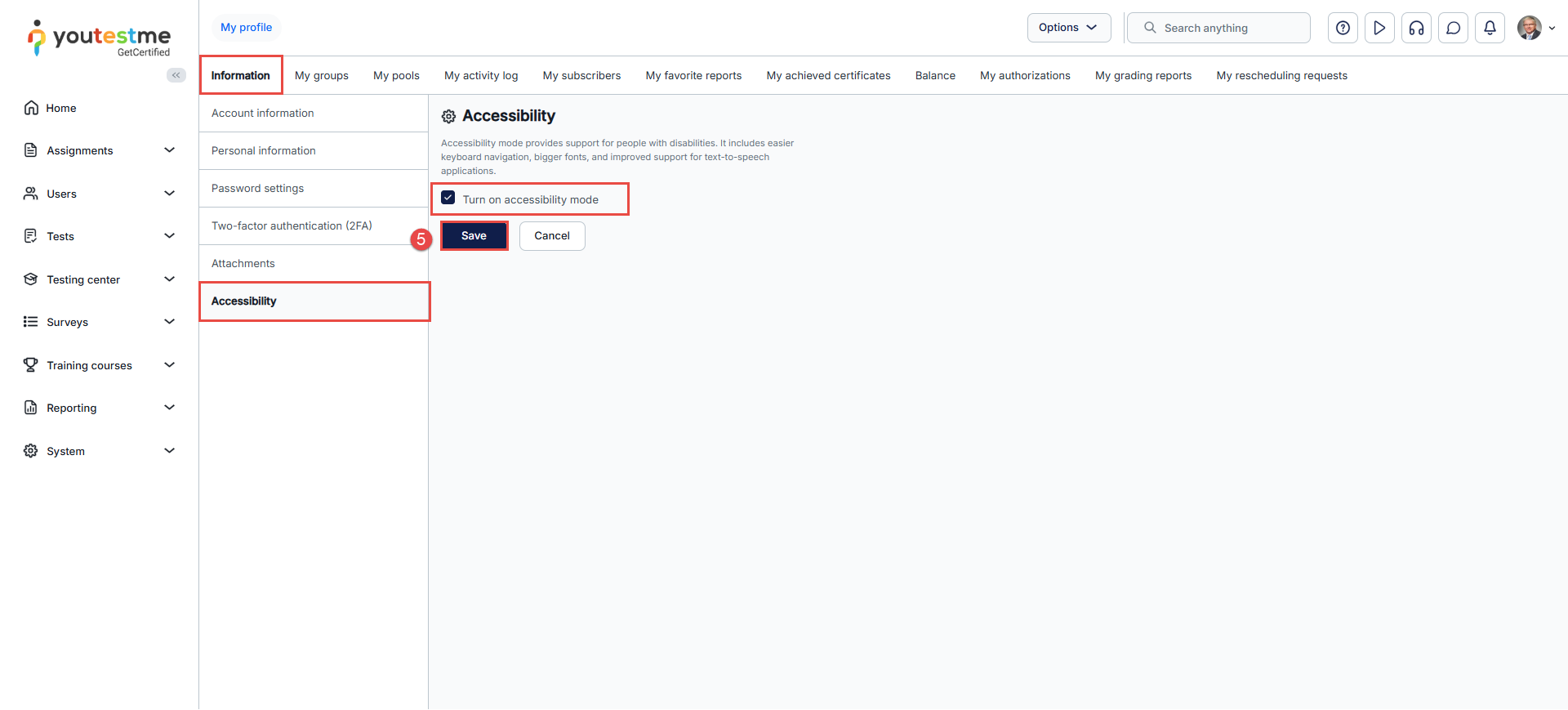
- After navigating to My profile page for the desired user, you will see the tab Accessibility. Tick the box to enable accessibility mode, then save the changes.
Navigate the application using the keyboard
To navigate the application using only a keyboard:
- Use TAB to advance the cursor to the next tab stop and to move the focus to an interactive element
- Use SHIFT+TAB to advance the cursor to the previous tab stop.
- Use UP/DOWN to switch items in the text field of the main menu.
- Use ALT+UP/DOWN for the main menu to list items in the list view.
- Press ENTER or SPACE to activate or confirm the selected action.
Conclusion
Accessibility Mode provides users who rely on keyboard controls or assistive technologies with an accessible way to navigate and interact with YouTestMe GetCertified. Once enabled, users can navigate the application, access interactive elements, and perform actions using keyboard controls without relying on a mouse.