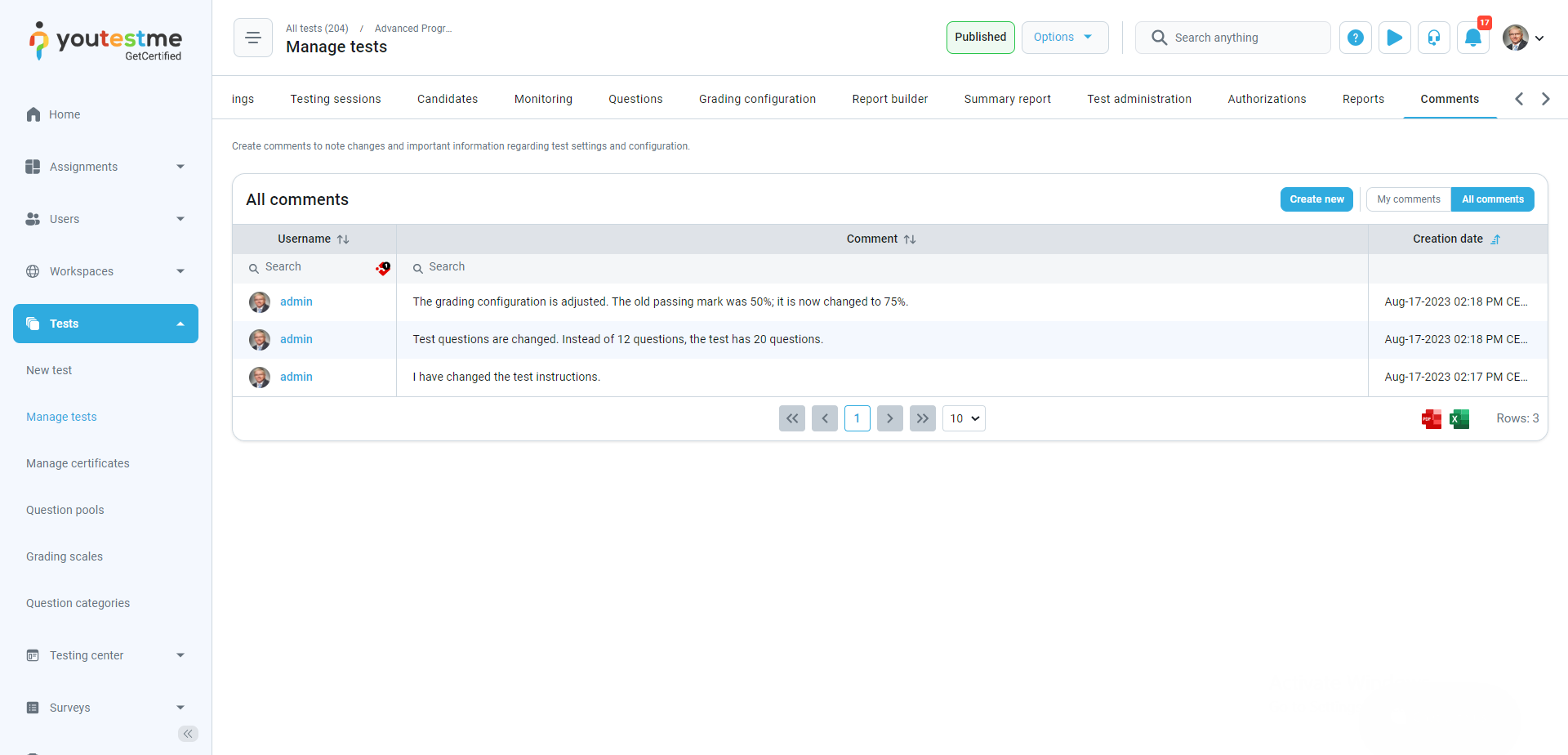
This article will explain how to add comments to changes applied to the test.
Accessing the page
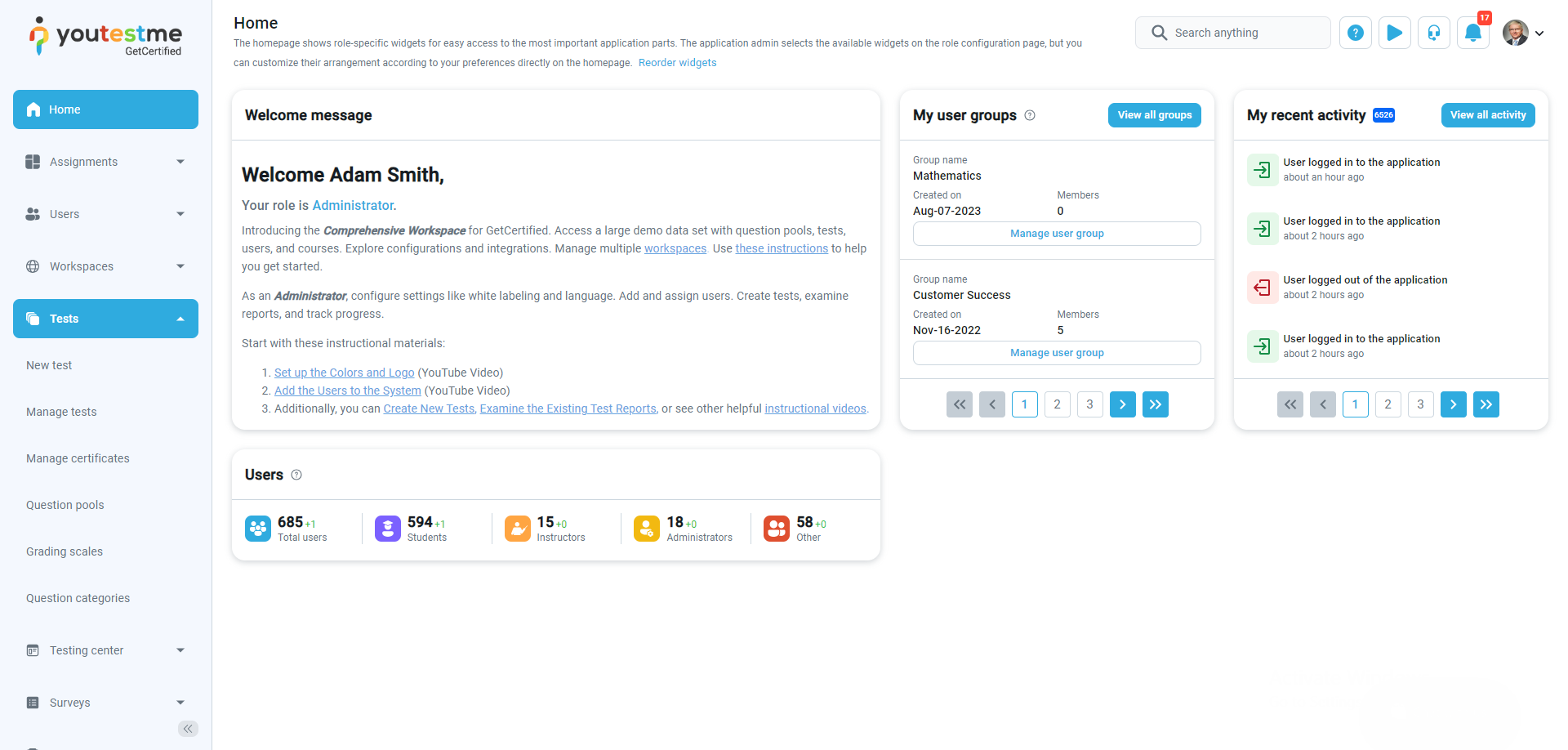
Select the Tests tab and then the Manage tests tab.
Select the desired test.

Adding comments
To add a comment, do the following:
- Select the Comments tab.
- Add a comment in the Comment field.
- Select the Save button to save the changes.
For instance, if the test manager changes the test instructions, they can inform everyone in the comments.

The test manager can add as many comments as needed to note all the changes.