
Article verified for Release 15.2 on February 17, 2026.
This article provides a step-by-step guide on creating a Question pool manager security role within the application. This role will possess permissions to create and manage question pools and access, create, and manage questions.
Creating a Question pool Manager Security Role
The user role represents a set of permissions assigned to users, determining their access to various application parts. A user can be granted permission to manage certain objects within the application (test, pool, group, survey, etc.) without needing a global role for managing said module. Users can create custom roles and manually select the permissions they want those roles to contain. Only specific users can create new roles and assign them to other users. The permission to create roles is ”Manage a role,” and the permission to assign roles to other users is ”Grant roles to users.”
To create a Question pool Manager security role:
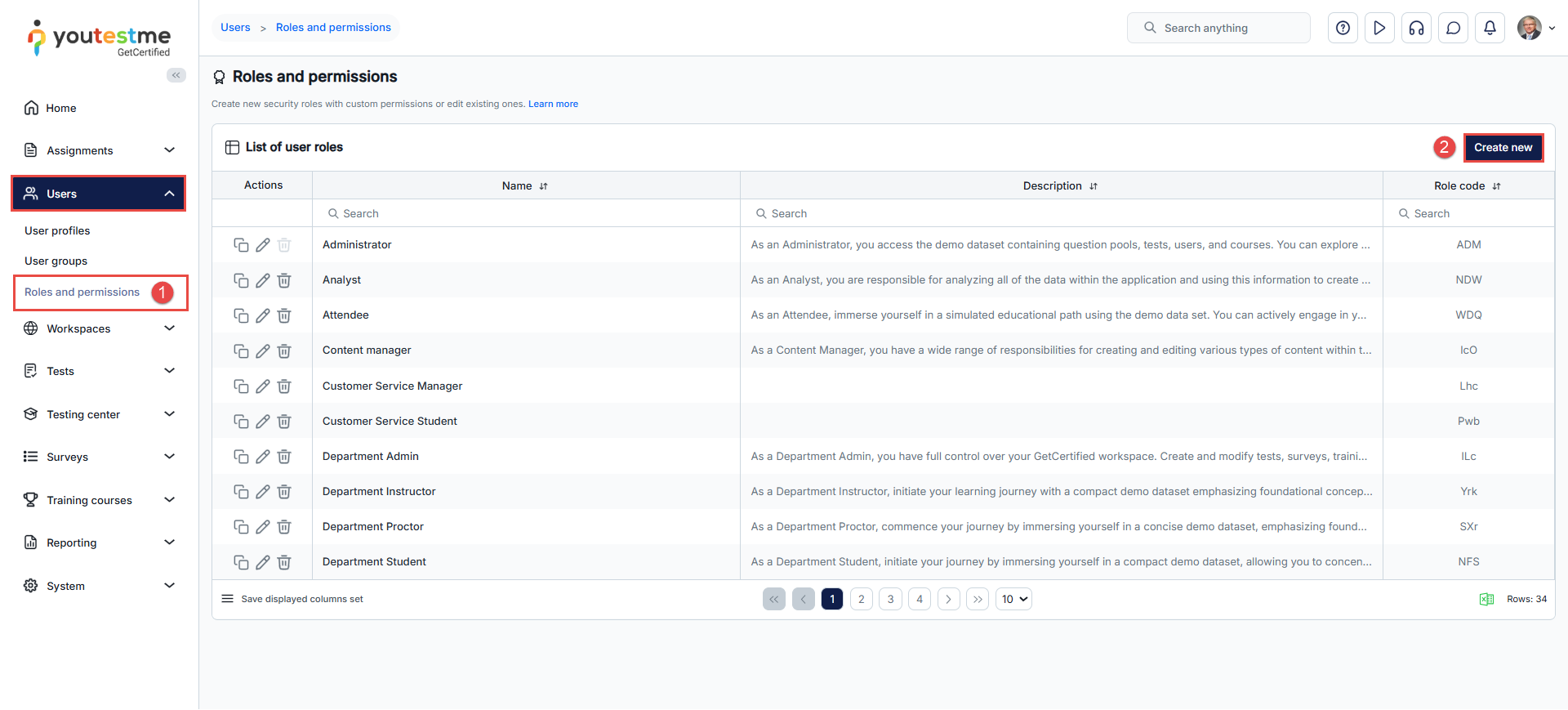
- navigate to the Users panel in the left-side menu and select Roles and permissions.
- Click the Create new button.
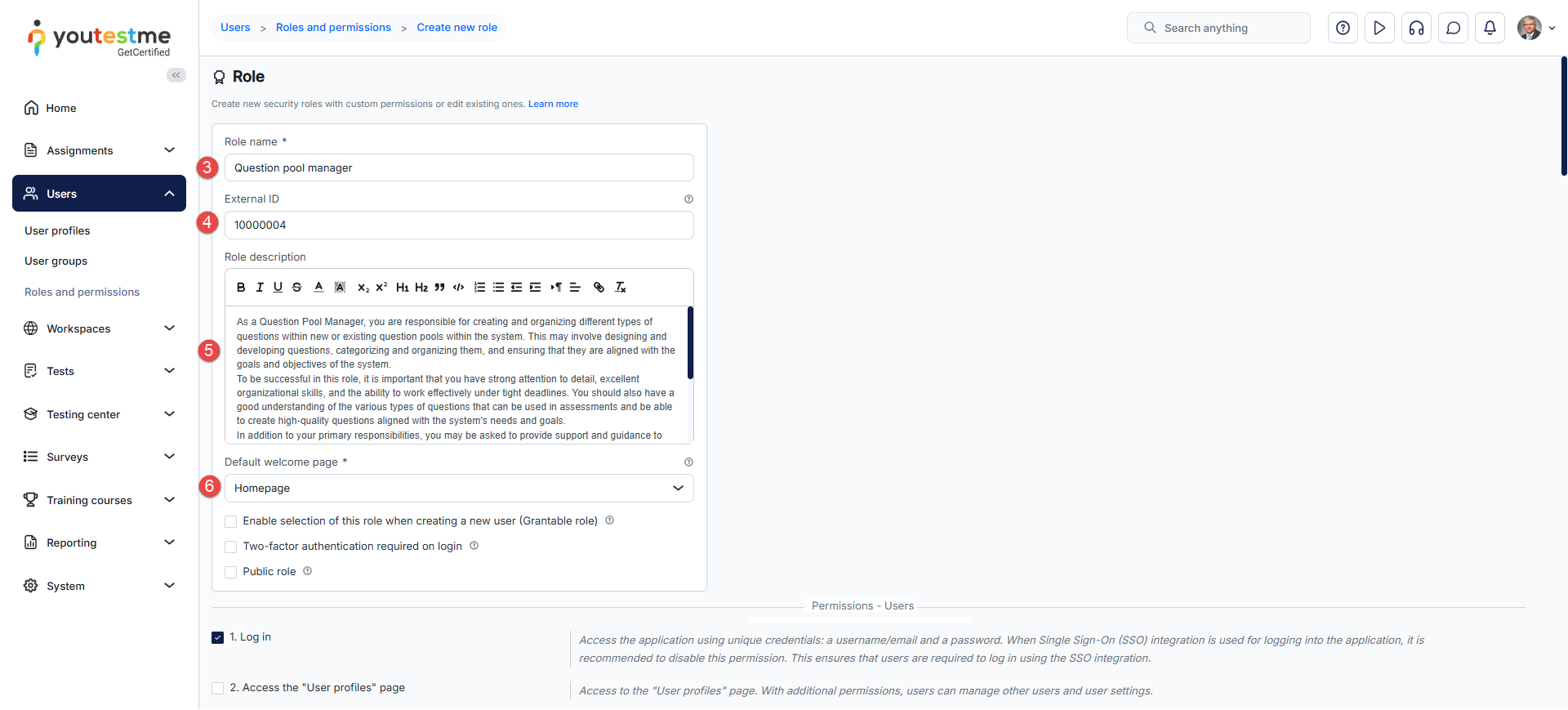
- Enter the role name – Question pool Manager.
- Optionally, enter the External ID of the role used in external systems. The external ID is a unique identifier assigned to a role, which can be used to integrate it with other external systems. This identifier allows the external systems to access the role’s information and reference it without using the ID assigned within the original database. The external ID provides a standardized way of referencing the role across different systems.
- Optionally enter the role description.
- Optionally, choose the page for redirection after a user with this role logs in. By default, it will be redirected to the homepage.

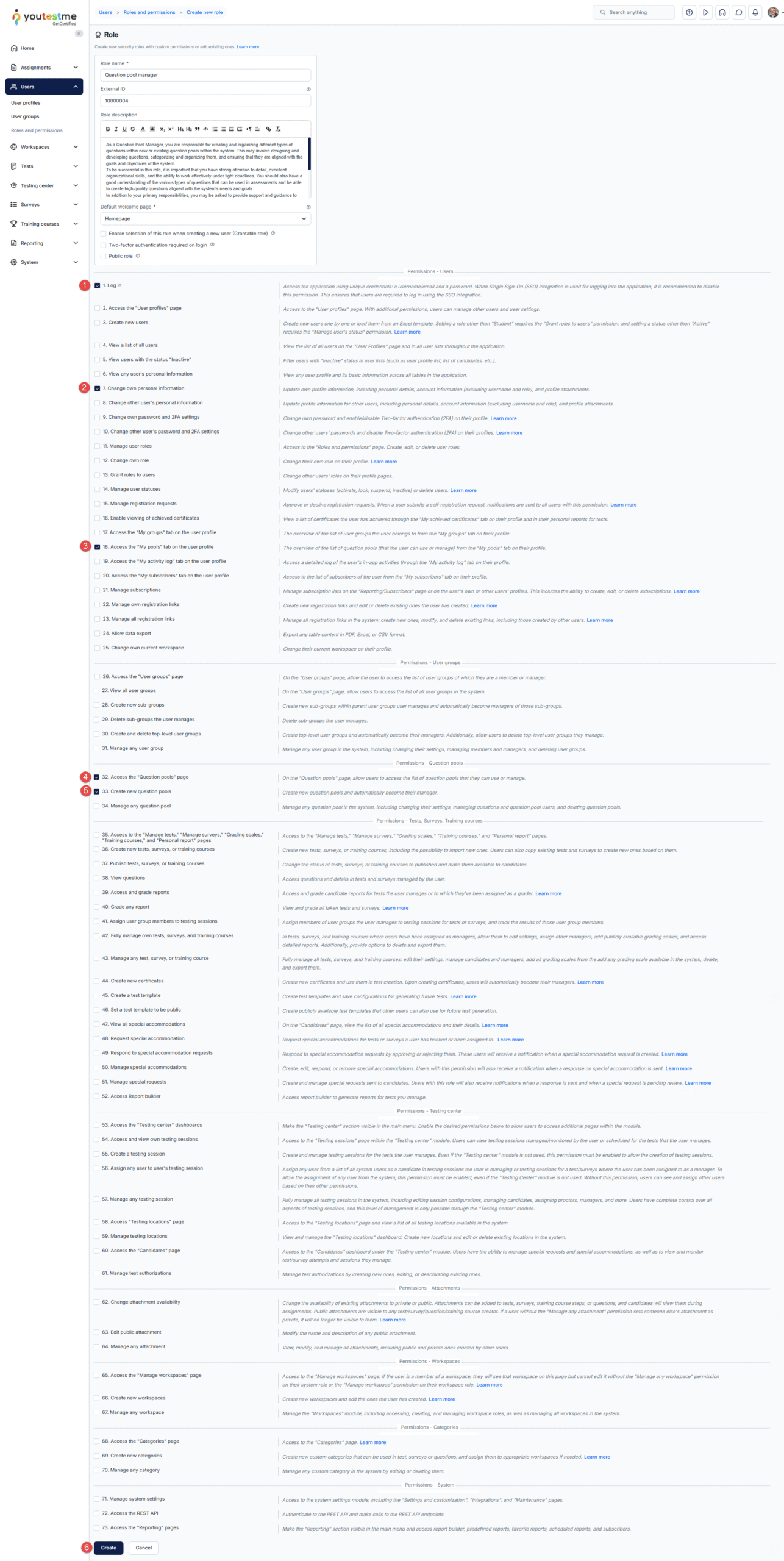
Note: To create a role with permissions limited to managing questions, only select the permissions displayed in the picture below.
- Log in: Allows the user to log in to the system.
- Change own personal information: Allows the user to update their own profile information, including personal details, account information (excluding username and role), and profile attachments.
- Access the “My pools” tab on the user profile: Allows the user to view the list of question pools they can use or manage from the My pools tab on their profile.
- Access the “Question pools” page: Allows the user to access the list of question pools they can use or manage.
- Create new question pools: Allows the user to create new question pools and automatically become their manager.
- Once you have selected all these permissions, click the Create button to create the role.
When you create a Question pool Manager role, you can find it listed on the Roles and permissions page within the Roles table.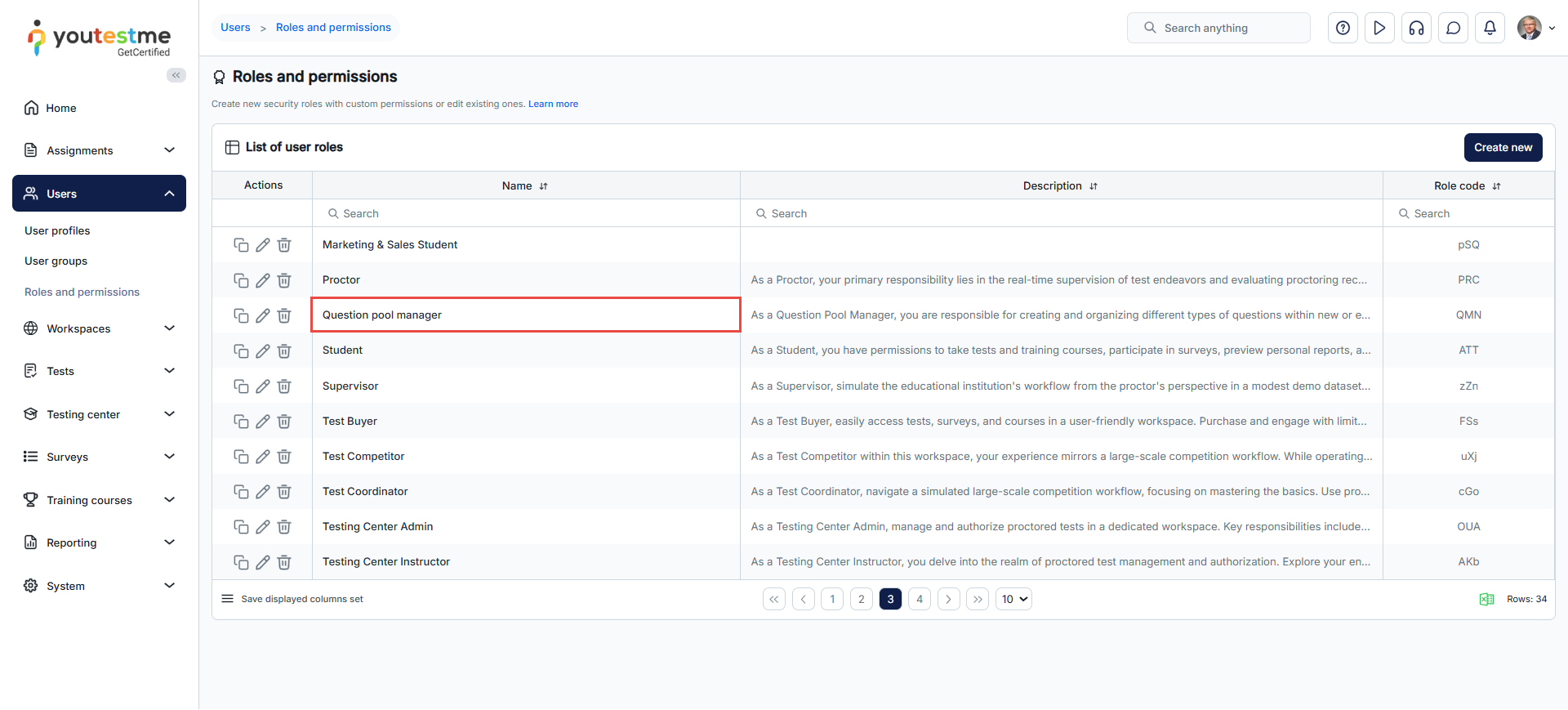
Creating a New User with Question Pool Manager Security Role
The user is an individual with authorized access to the application. Depending on the assigned security role, a user may access specific data and parts of the application.
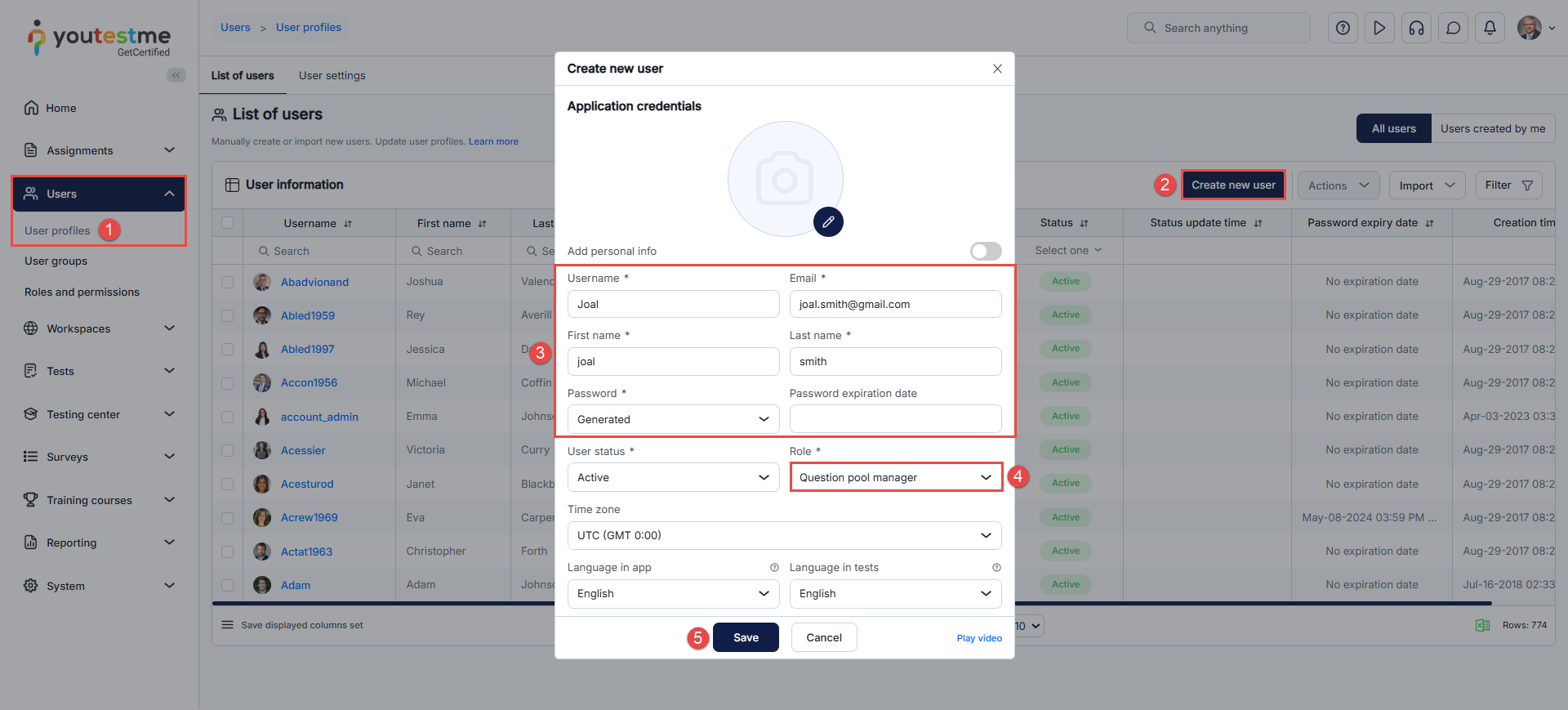
To create a new user with a Question pool Manager security role:
- Navigate to the Users panel in the left-side menu and select User profiles.
- Navigate to the Create new user tab.
- Enter the necessary user information. Required fields are marked with an asterisk.
- From the dropdown menu, choose the role of Question pool Manager.
- Click on the Save button.
Assigning a user to manage an existing question pool
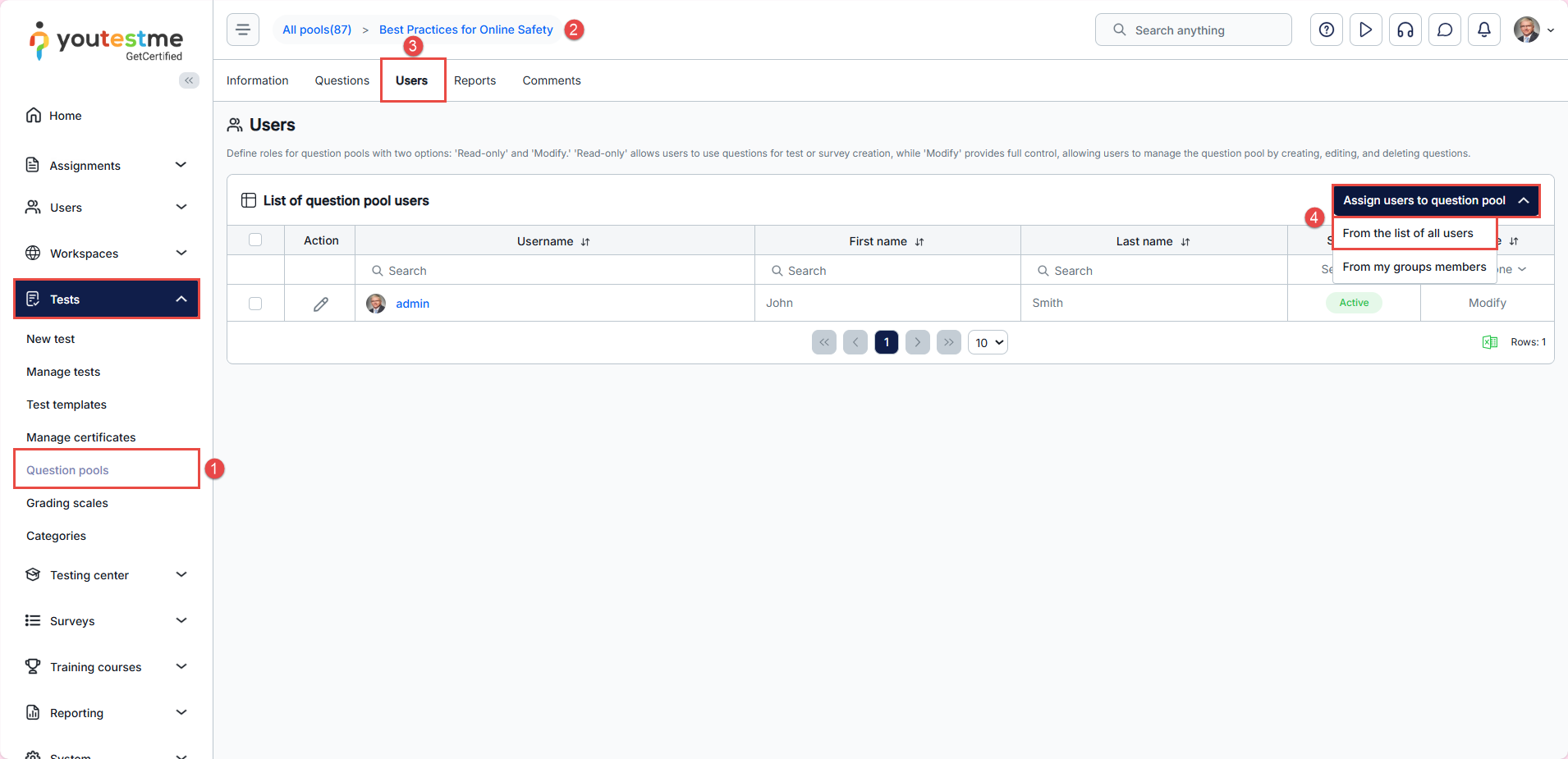
To assign a user as a manager for an existing question pool:
- From the left-hand menu, click Tests, then select Question pools.
- Select the desired question pool.
- Open the Users tab.
- Click Assign users to question pool, and select From the list of all users.
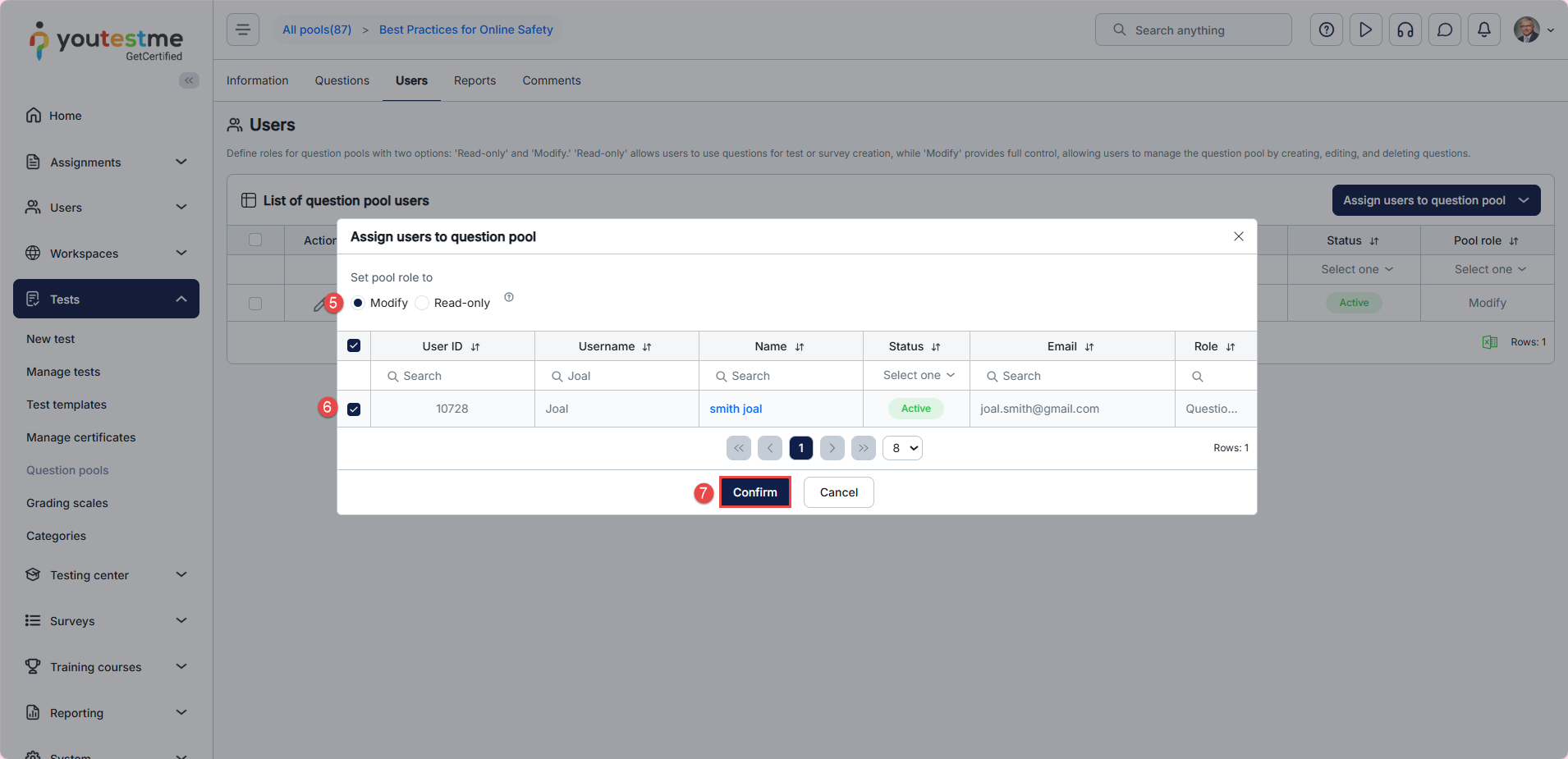
- Set pool role to Modify.
- Select the user(s) you want to assign.
- Click on the Confirm button.
Application from the Perspective of a Question pool Manager
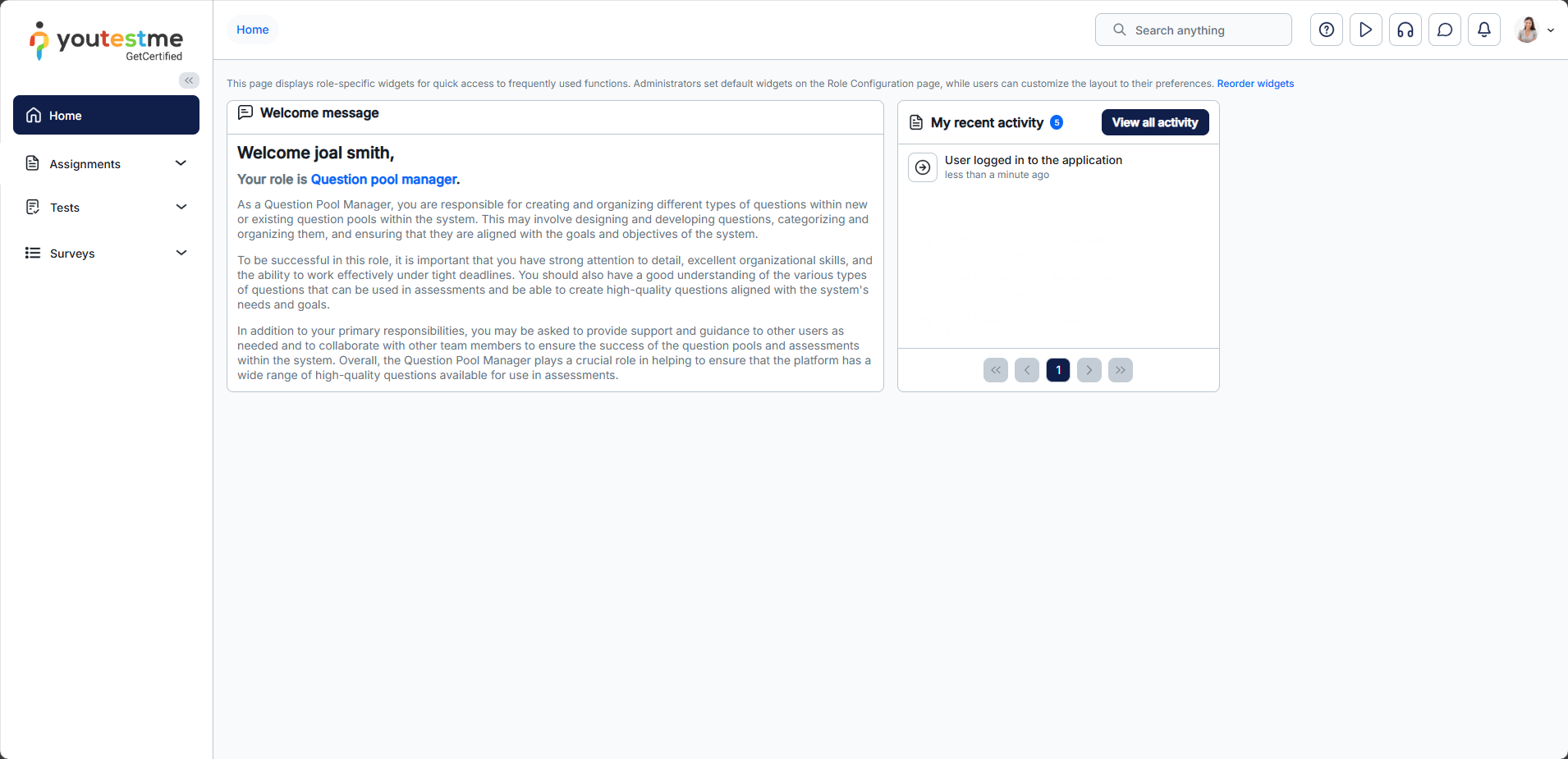
When you log in as a newly created user with the Question pool Manager security role, you will be redirected to the Home page.
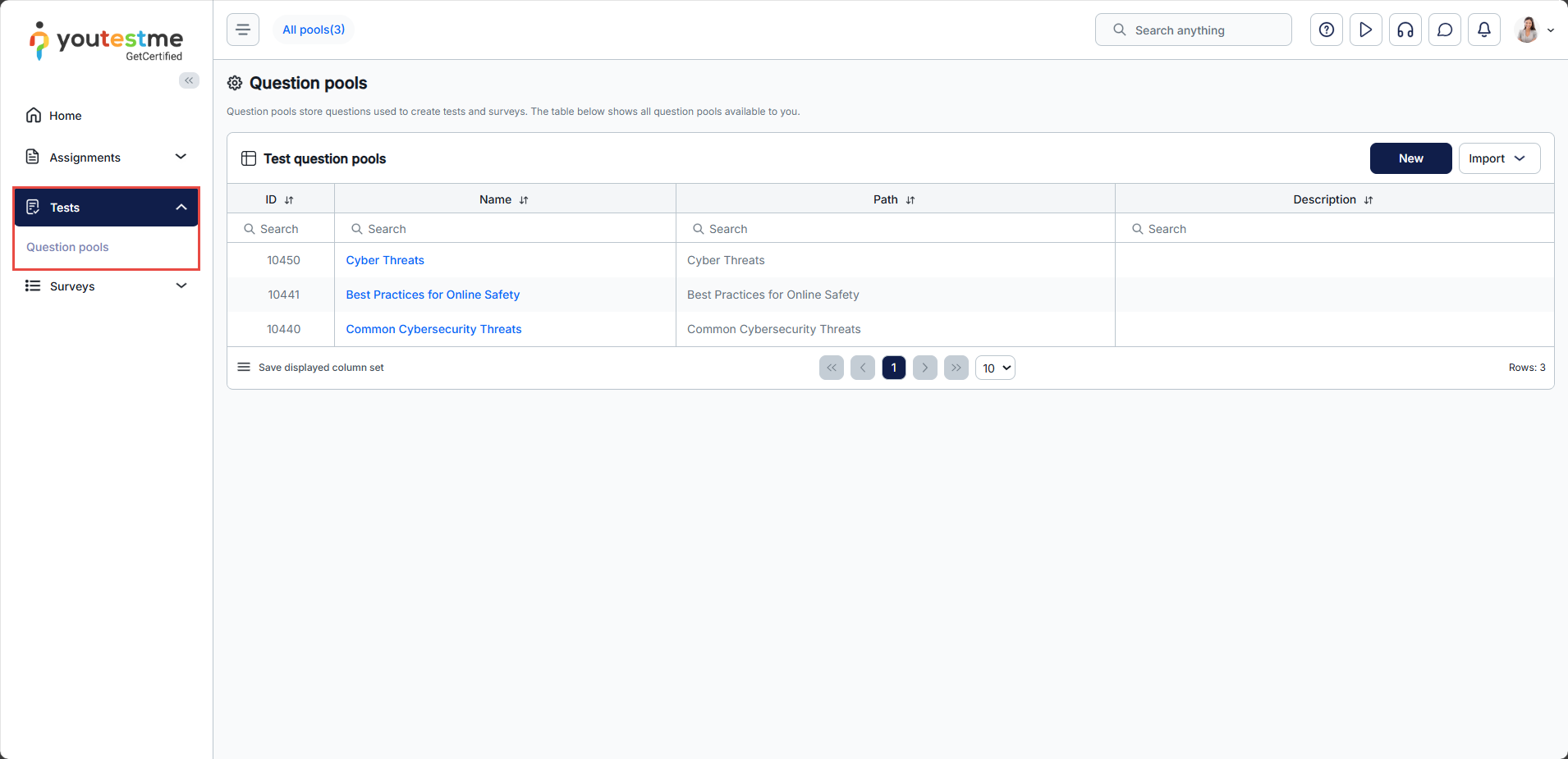
When you access the Question Pools page, you will see the pools you created as well as the pools you were assigned to manage. For detailed instructions on creating a pool and creating questions within it, kindly refer to this article.
For additional helpful resources, please refer to these videos:




