
Article verified for Release 15.1 on October 31, 2025.
This article is a comprehensive guide to exploring various proctoring configurations within your personalized demo environment. In the following sections, we’ll walk you through the entire process of creating new users and assigning them to testing sessions based on the proctoring configuration you’d like to try.
Creating New User
Log in to your demo environment and follow one of the methods detailed in the following article to create new users.
How to Create Users in the System
Accessing the Testing Sessions
Once you create new users, you should:
- Navigate to Tests in the main menu and select the Manage tests option.
- Use the search bar to find the desired proctored test.
- Click on the test name to open it.

Navigate to the Candidates tab to view test attempts, access candidates’ reports, and add new candidates to the desired session.
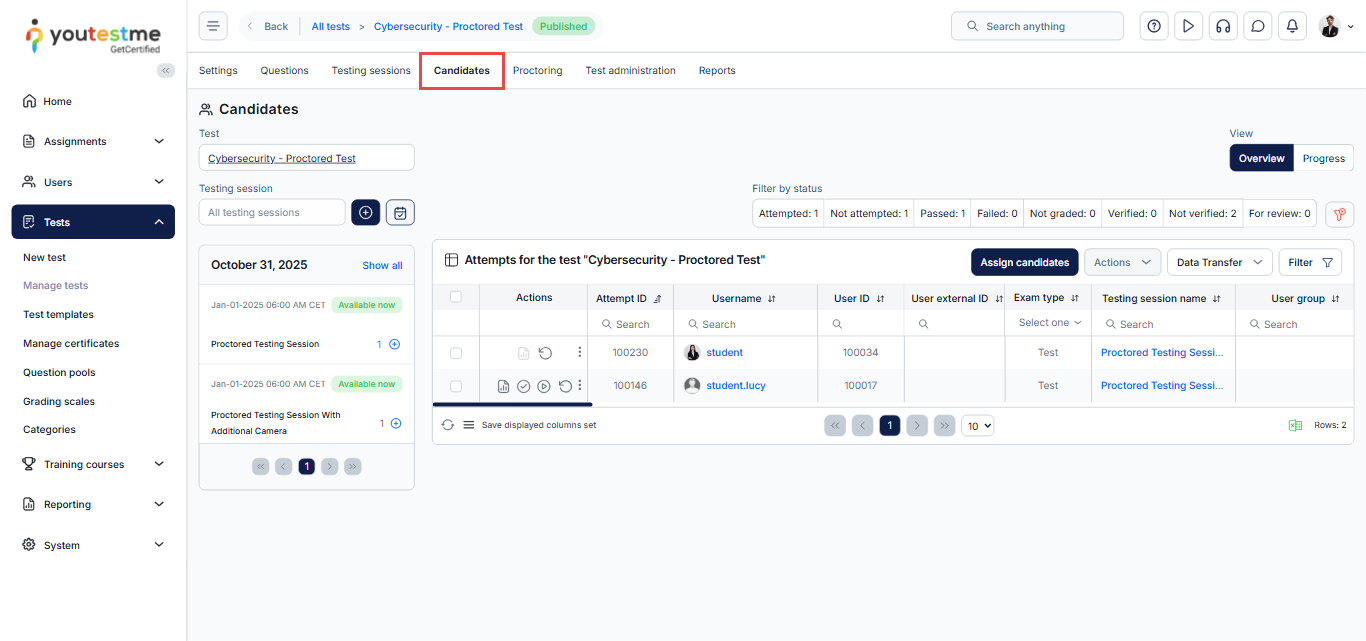
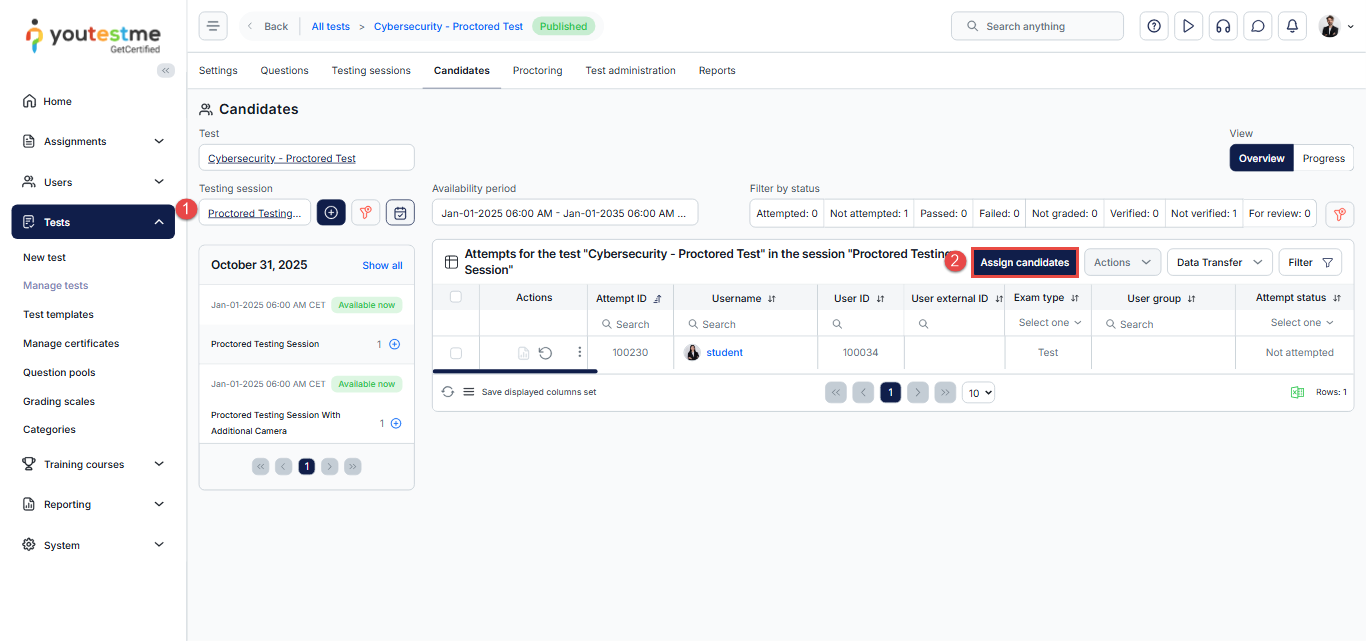
Select the option for adding testing sessions and choose the desired one.

Assigning Candidates
Depending on the proctoring configuration you’d like to explore:
- Click the testing session you want to explore.
- Click the Assign candidates button.
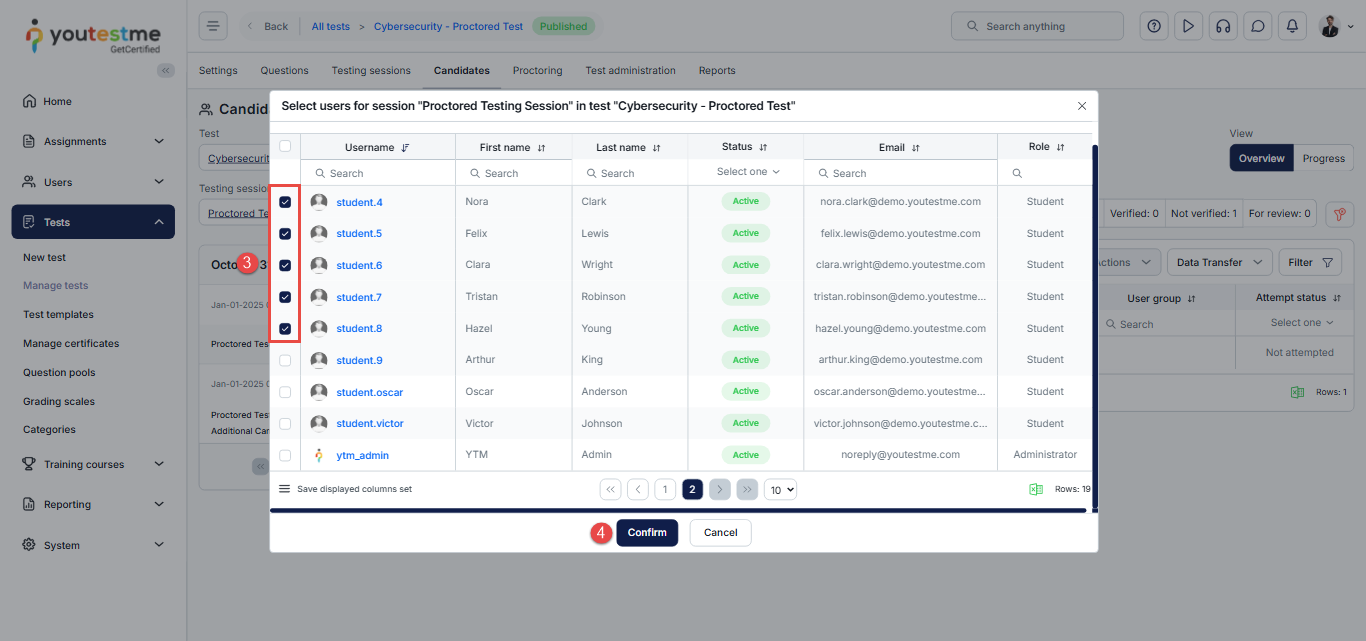
- Select the desired candidates.
- Click the Confirm button.
Testing Session Details and Instructions for Students and Proctors
Follow the instructions below based on the configuration you are testing.
Configuration with Secondary Camera
Testing Details
- This configuration focuses on testing the feature that shows a 360-degree view during proctoring.
- It requires connecting the mobile camera via a QR code.
Preconditions for Testing
- QR code reader on a mobile device.
- Mobile internet or a Wi-Fi Connection on a mobile device.
- A vertical stand for a mobile device positioned behind (or next to) a seat for the test-taker.
Testing Workflow
- Make sure you have a QR code reader on your mobile device.
- Make sure you have an internet connection on your mobile phone (mobile internet is advisable).
- Log in using the username and password of the user you assigned to this testing session.
- Start the “proctored exam” test.
- Scan the QR code during the equipment check.
- Follow the instructions on your mobile device to scan the environment and upload the recording.
- After you have uploaded the environment scan, the recorder on your mobile device will
automatically start. - Position the mobile device on a stand you prepared for it.
- Complete the equipment check.
- Start the test. IMPORTANT NOTE: Please stay in the test for at least 7 minutes (preferably 10 minutes)! This will mimic a real-life situation in which the student took some time to do the test, allowing you to analyze the recording properly afterward. Short 1-minute, 2-minute, and 3-minute recordings are inadequate for properly testing this feature!
- Optionally, do some prohibited actions (make some noise, look away from the screen, etc.).
- Finish the test.
- Log out of the system.
- Log in as a proctor (username: proctor, password: Password for proctor account provided by YouTestMe) and check the AI–generated report. VERY IMPORTANT NOTE: In the first minute of the recording, the system is still synchronizing the primary and secondary cameras, so please examine the recording starting from the second minute. From the second minute, the primary and secondary cameras are synchronized. However, please keep in mind that a delay of a few seconds between the videos can still occur, depending on the strength of the internet connection used during the test attempt.
Default Configuration
Testing Details
This configuration focuses on the default proctoring settings:
- No messages are displayed to candidates.
- The termination feature is disabled.
- Metric sensitivity is set to a low level.
Testing Workflow
- Log in using the username and password of the user you assigned to this testing session.
- Start the “ASE Certification” test.
- Resize the screen to exit full–screen mode.
- Optionally, do additional prohibited actions (make some noise, look away from the screen, etc.)
- Finish the test.
- Log out of the system.
- Log in as a proctor (username: proctor, password: Password for proctor account provided by YouTestMe) and check the AI–generated report.
Note: The proctoring configuration can be adjusted and personalized based on your specific scenario and preferences. See the examples below for additional configuration options and use cases.
Sensitive Configuration
Testing Details
- This configuration emphasizes a sensitive proctoring setup, with the following metrics set to high sensitivity:
- Focus changed to a different window.
- Face not visible or not looking into the camera.
- Screen activities are not shared.
- Full–screen mode is disabled.
- All other metrics are set to default sensitivity.
Testing Workflow
- Log in using the username and password of the user assigned to this testing session.
- Start the “ASE Certification” test.
- Resize the screen to exit full–screen mode.
- Optionally, do additional prohibited actions (make some noise, look away from the screen, etc.)
- Finish the test.
- Log out of the system.
- Log in as a proctor (username: proctor, password: Password for proctor account provided by YouTestMe) and check the AI–generated report.
Delayed Termination Settings
Testing Details
- This configuration focuses on testing the feature that shows a warning to the candidate upon a violation.
- If the student continues with the same violation for another minute, the exam will be terminated.
- To ensure focused testing, we’ve disabled all metrics that could unintentionally trigger termination, such as conversation or noise in the background.
- Please note that the termination feature will work with any metric, but for testing purposes, we enabled only the following two:
- Full–screen mode disabled
- Face not visible or not looking into the camera
Testing Workflow
- Log in using the username and password of the user you assigned to this testing session.
- Start the “ASE Certification” test.
- Resize the screen to exit full–screen mode.
- A warning message will appear, stating that the exam will be terminated in [time] if the same violation continues.
- Leave the resized screen for another minute, and the exam will be terminated.
- Log out of the system.
- Log in as a proctor (username: proctor, password: Password for proctor account provided by YouTestMe) and check the AI–generated report.
Immediate Termination Settings
Testing Details
- The focus of this configuration is to test the feature that terminates the student’s exam as soon as the first violation is made.
- To ensure focused testing, we’ve disabled all metrics that could unintentionally trigger termination, such as conversation or noise in the background.
- Please note that the termination feature will work with any metric, but for testing purposes, we enabled only the following two:
- Full–screen mode disabled
- Face not visible or not looking into the camera
Testing Workflow
- Log in using the username and password of the user you assigned to this testing session.
- Start the “ASE Certification” test.
- Resize the screen to exit full–screen mode.
- The exam will be terminated immediately.
- Log out of the system.
- Log in as a proctor (username: proctor, password: Password for proctor account provided by YouTestMe) and check the AI–generated report.
Configuration Without ID
Testing Details
- This configuration focuses on testing the proctoring equipment check without requiring students to submit a picture of their ID.
Testing Workflow
- Log in using the username and password of the user assigned to this testing session.
- Start the “ASE Certification” test.
- Complete the equipment check steps and take a photo of yourself. Once that’s done, the exam will start without requiring you to take a photo of your ID.
- Finish the test.
- Log out of the system.
- Log in as a proctor (username: proctor, password: Password for proctor account provided by YouTestMe) and check the AI–generated report.




