
Accessing the page
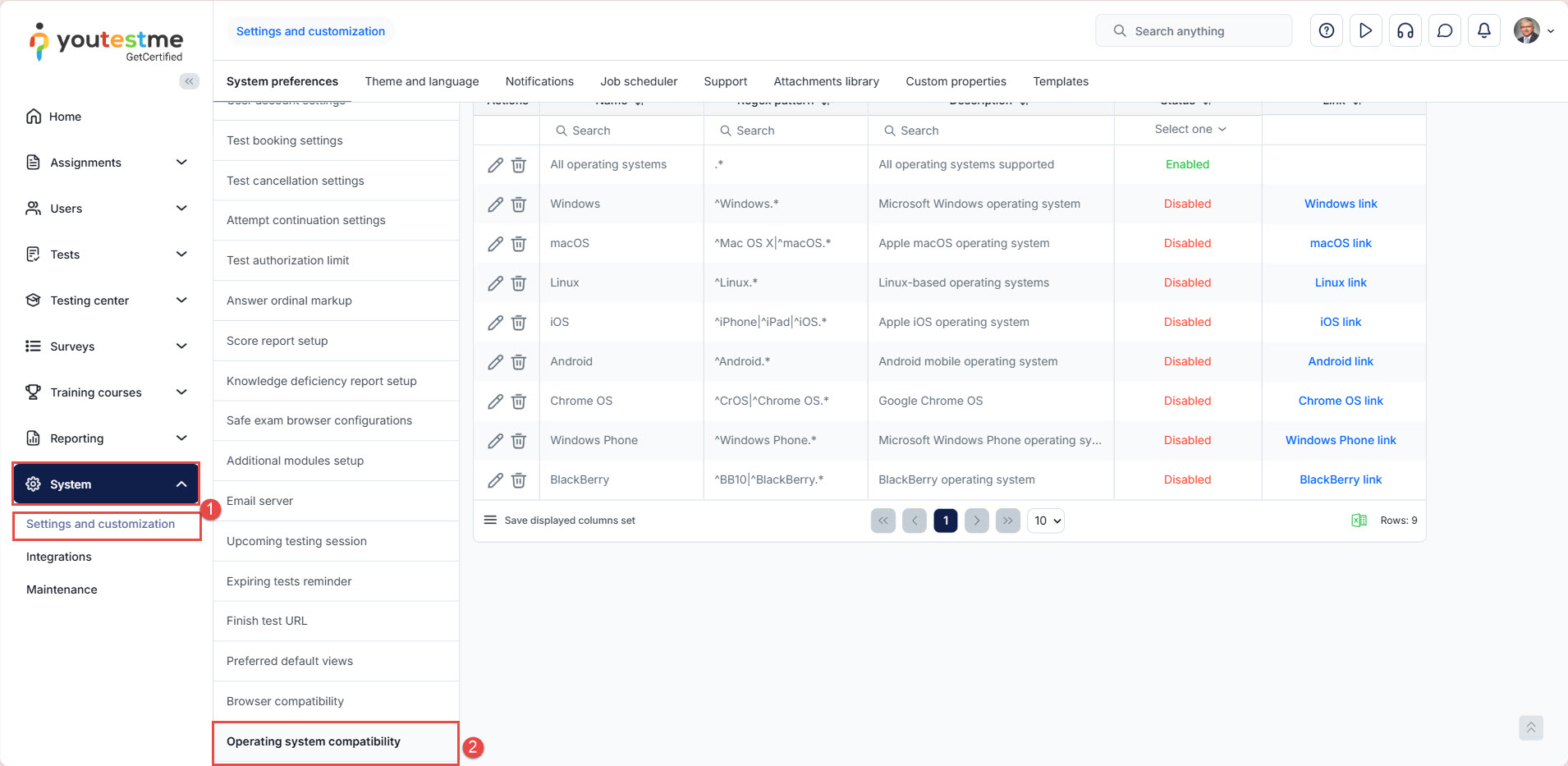
To access the operating system compatibility settings:
- Navigate to the System, then System and customization tab.
- Select the
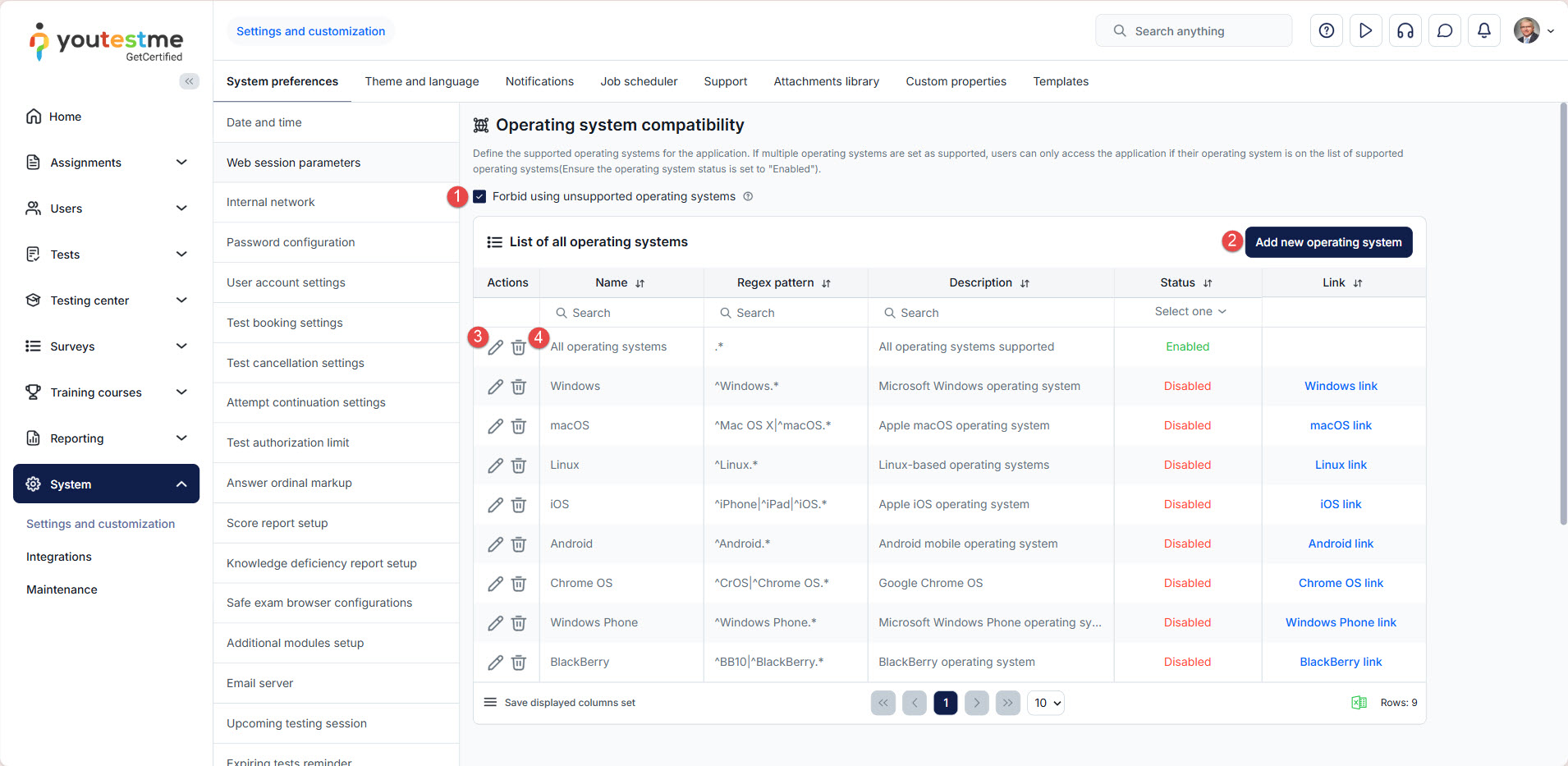
Here are the available operating system compatibility settings:
- Forbid using unsupported operating systems – Enable this option to restrict the application usage to supported operating systems only. If this option is unchecked and an OS is disabled, users with that OS will only receive a warning message, but can still access the application.
- Add a new operating system to the supported operating systems list.
- Edit specific operating system settings. All fields are the same as when adding a new operating system.
- Delete an operating system from the list, and it will no longer be considered supported.
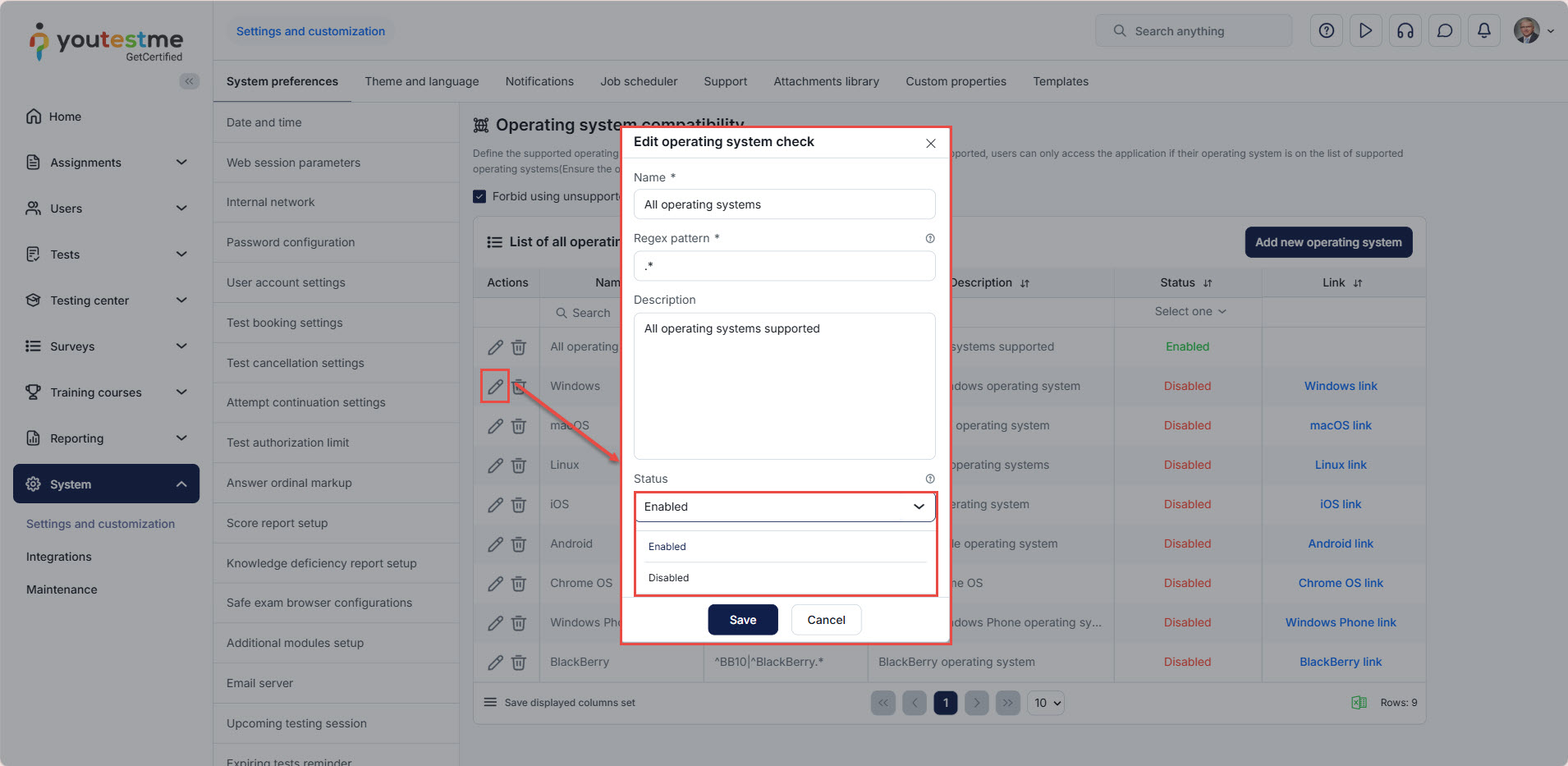
To enable or disable an existing operating system, select the Edit button.
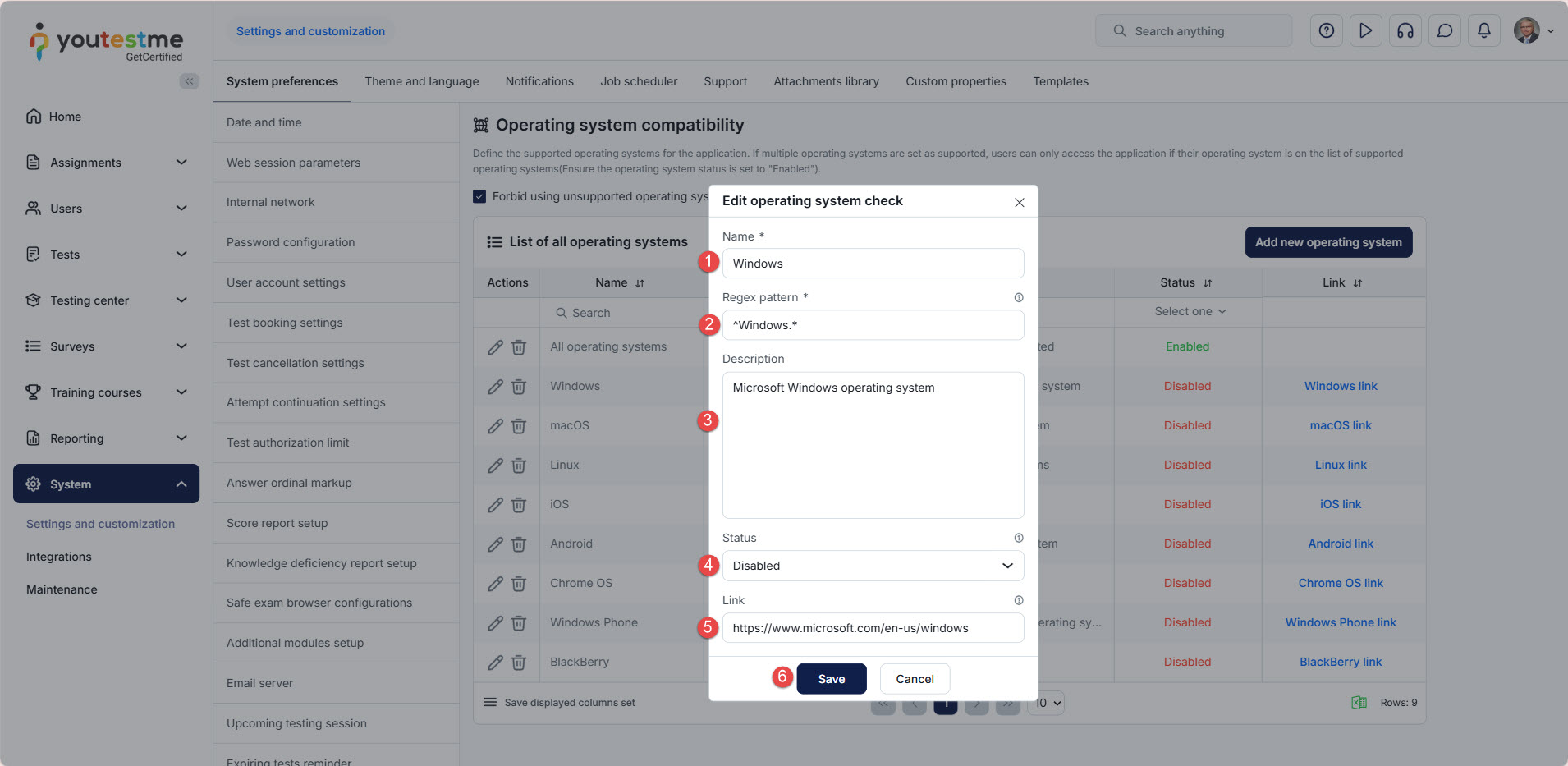
To add a new operating system:
- Click the Create new button.
- Enter the Name of the operating system, such as Windows or Mac OS.
- Define a Regex pattern. Enter OperatingSystemName* to allow all versions of the operating system. Based on the defined regex pattern, the operating system is checked to see whether it is supported.
- Enter the Description of the operating system.
- Define Status – The operating system must be enabled to be considered when comparing the user’s operating system against supported operating systems. If the status is disabled, the operating system is not used for the comparison.
- Link – Provide the website link with information about the operating system or the download link.
- Click the Save button.
Note: Changes to supported operating system settings do not affect users currently using the application; instead, they are applied on the next attempt to access the application.
Candidate’s perspective
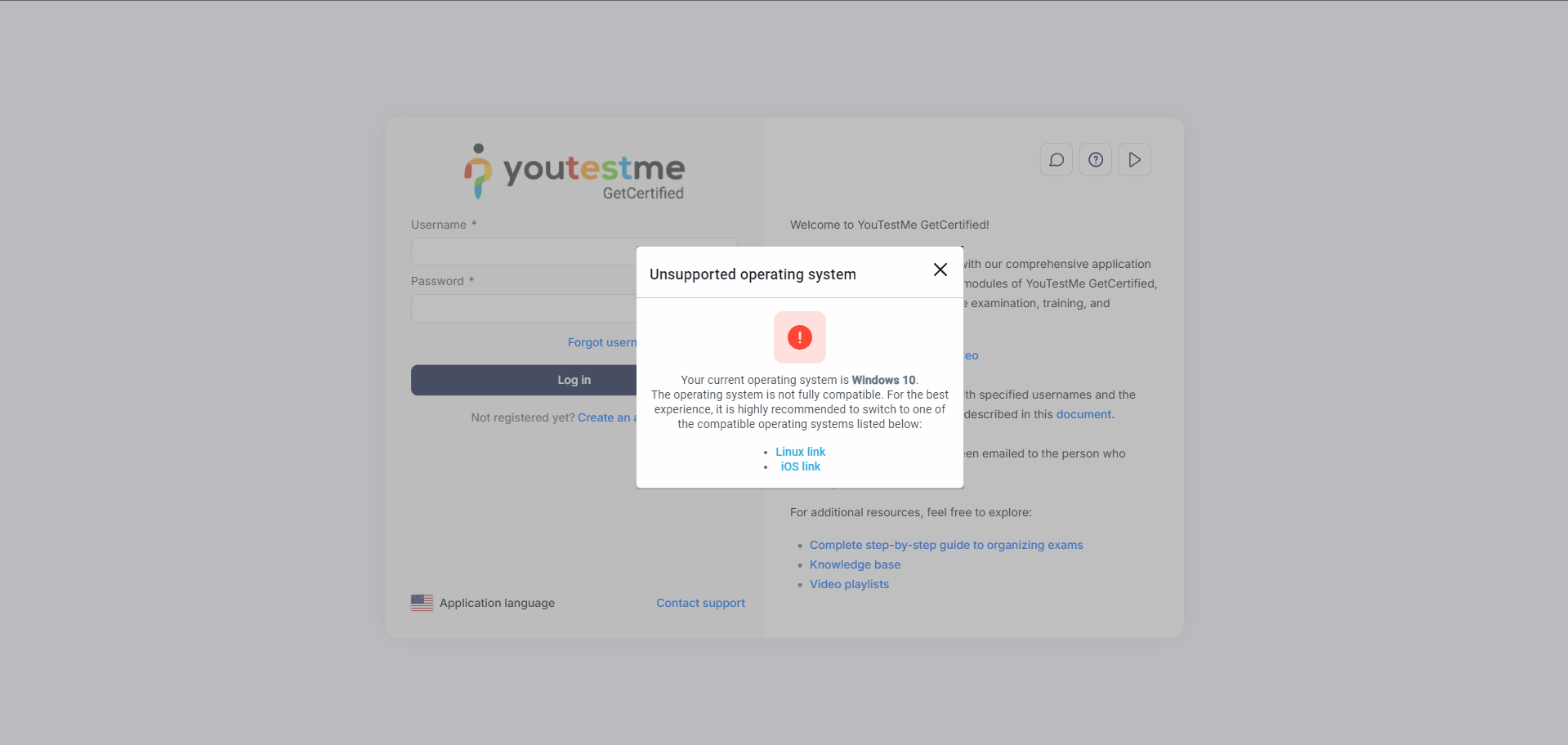
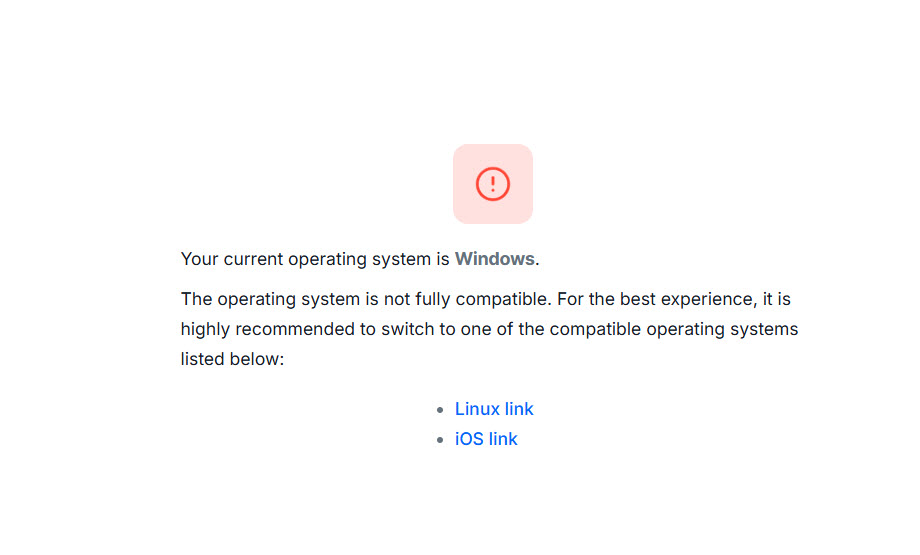
Depending on the settings, the following are examples of how the screen appears to the user when attempting to log in with an unsupported operating system.
When the Forbid using unsupported operating systems option is unchecked, the user can close the warning and access the application:
When the Forbid using unsupported operating systems option is checked, the user will be forbidden from accessing the application:
Additional resources:




