
Article verified for Release 15.2 on January 05, 2026
In this article, we will explain how candidates can securely log in to their accounts using Two-Factor Authentication (2FA). 2FA adds an extra layer of security by requiring not only a password but also a code generated by an authentication app. This process ensures that only the rightful owner of the account can gain access.
Setting Up 2FA for the First Time
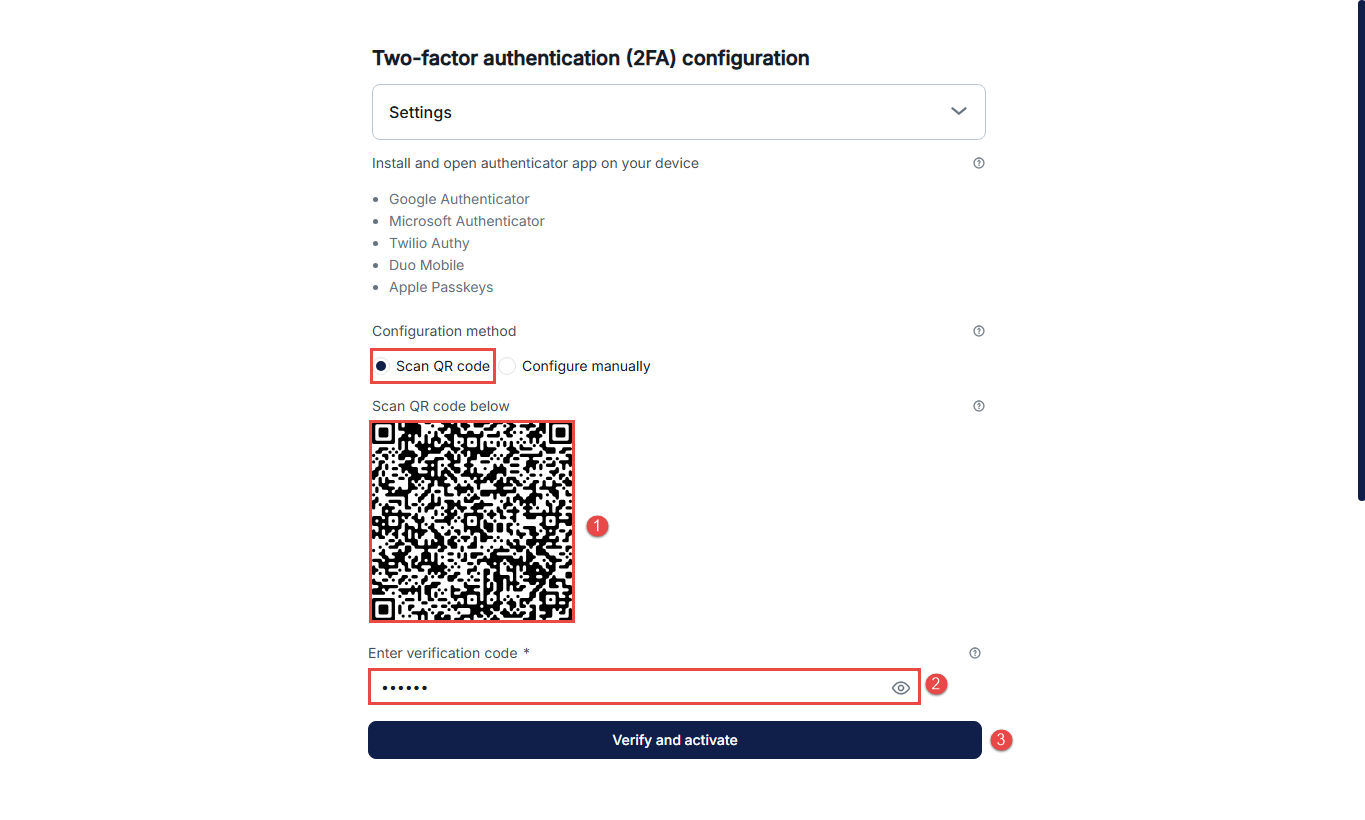
When candidates log in for the first time after 2FA is enabled on their account, they will be prompted to complete the setup process. They can choose one of two setup options:
Option 1: Using a QR Code
- Scan the QR code displayed on the screen using your preferred authentication app (e.g., Google Authenticator, Microsoft Authenticator, Authy, etc.).
- Enter the 6-digit code generated by the authentication app into the provided field.
- Click Verify and activate to complete the setup and log in to your account.
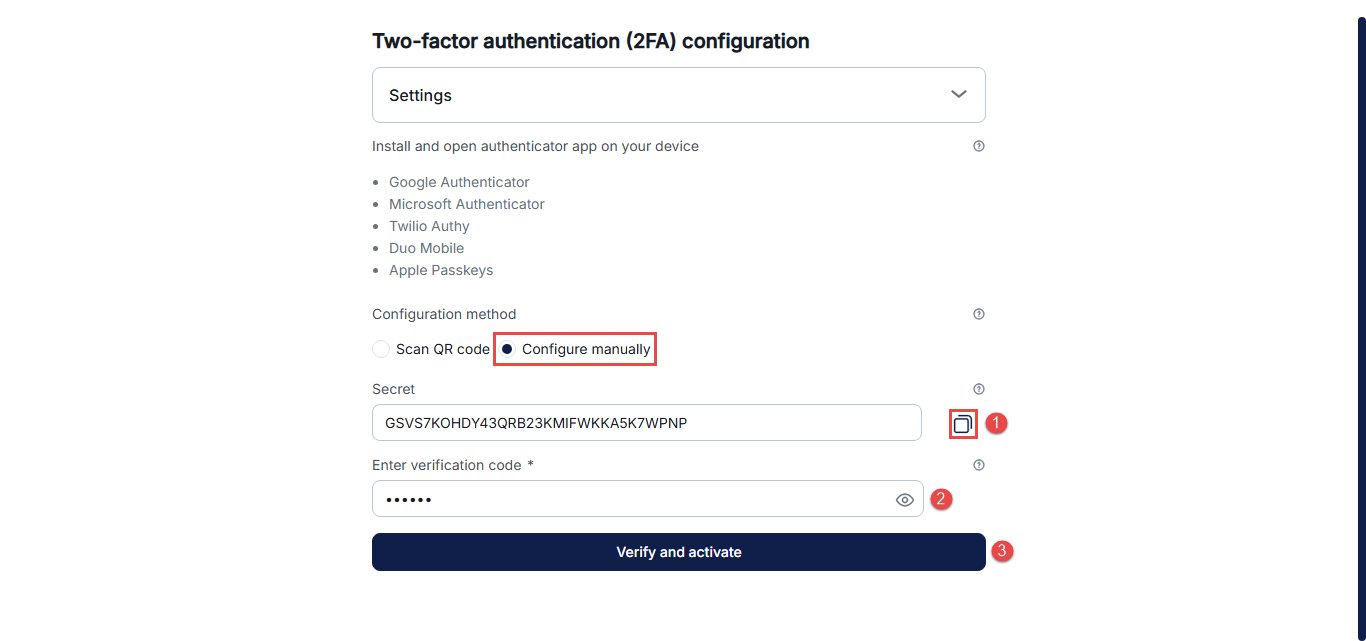
Option 2: Using a Manual Secret Key
- Copy the secret key displayed on the screen. Open your authentication app and manually enter the key to add your account.
- Enter the 6-digit code generated by the app into the provided field.
- Click Verify and activate to complete the setup and log in to your account.
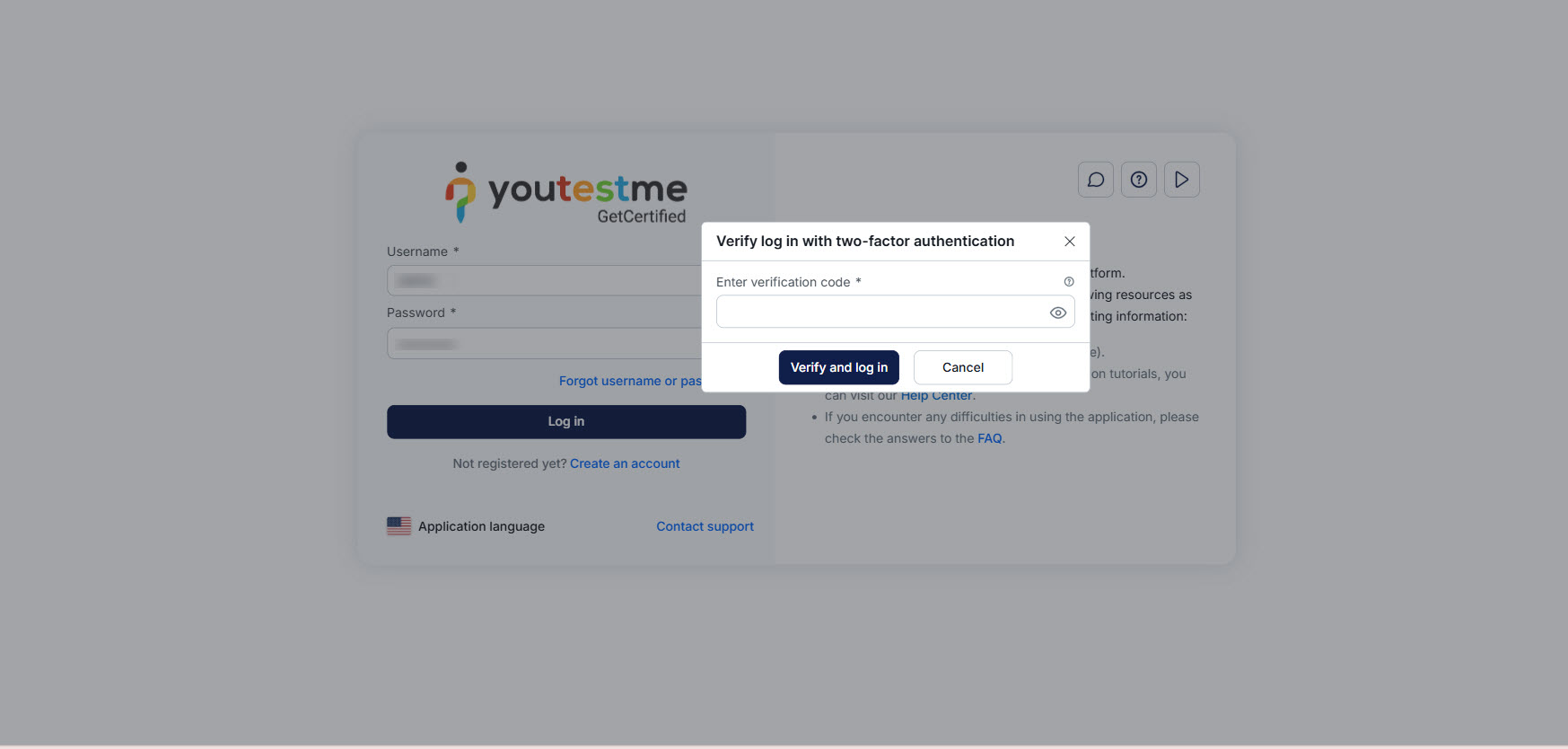
Logging In After 2FA Setup
On every subsequent login, after entering your username and password, you will be prompted to enter the 6-digit verification code generated by your authenticator app. Open the authenticator app you used during the initial setup and enter the current code for your YouTestMe account.
The QR code and secret key are only available during the initial 2FA setup and will not be displayed again. Do not delete the YouTestMe account from your authenticator app after completing the setup!
If you cannot find your YouTestMe account in the authenticator app, no longer have access to the device used for the initial setup, or cannot generate the required verification code, contact your account administrator. The administrator will need to reset your 2FA so you can set it up again.
For related articles, please visit: