
Article verified for Release 16.1 on September 15, 2026
This article explains how to allow candidates to continue a test after an interruption, such as losing their internet connection, closing or reloading the browser tab, or after the test has already been submitted.
There are two ways to allow test continuation:
- Enable automatic test continuation – Candidates can return to the test after an interruption without requiring intervention from an administrator or instructor.
- Allow an individual candidate to continue the test manually – An authorized user can allow a specific candidate to continue when automatic test continuation was not enabled or when the test has already been submitted.
Enabling automatic test continuation
The Allow test continuation option enables candidates to return to an ongoing test without requiring intervention from an administrator or instructor.
When this option is enabled, candidates can re-enter the test after interruptions such as:
- Closing the browser tab.
- Reloading the browser tab.
- Losing their internet connection.
Note: The instructor can see when a candidate exits and returns to the test.
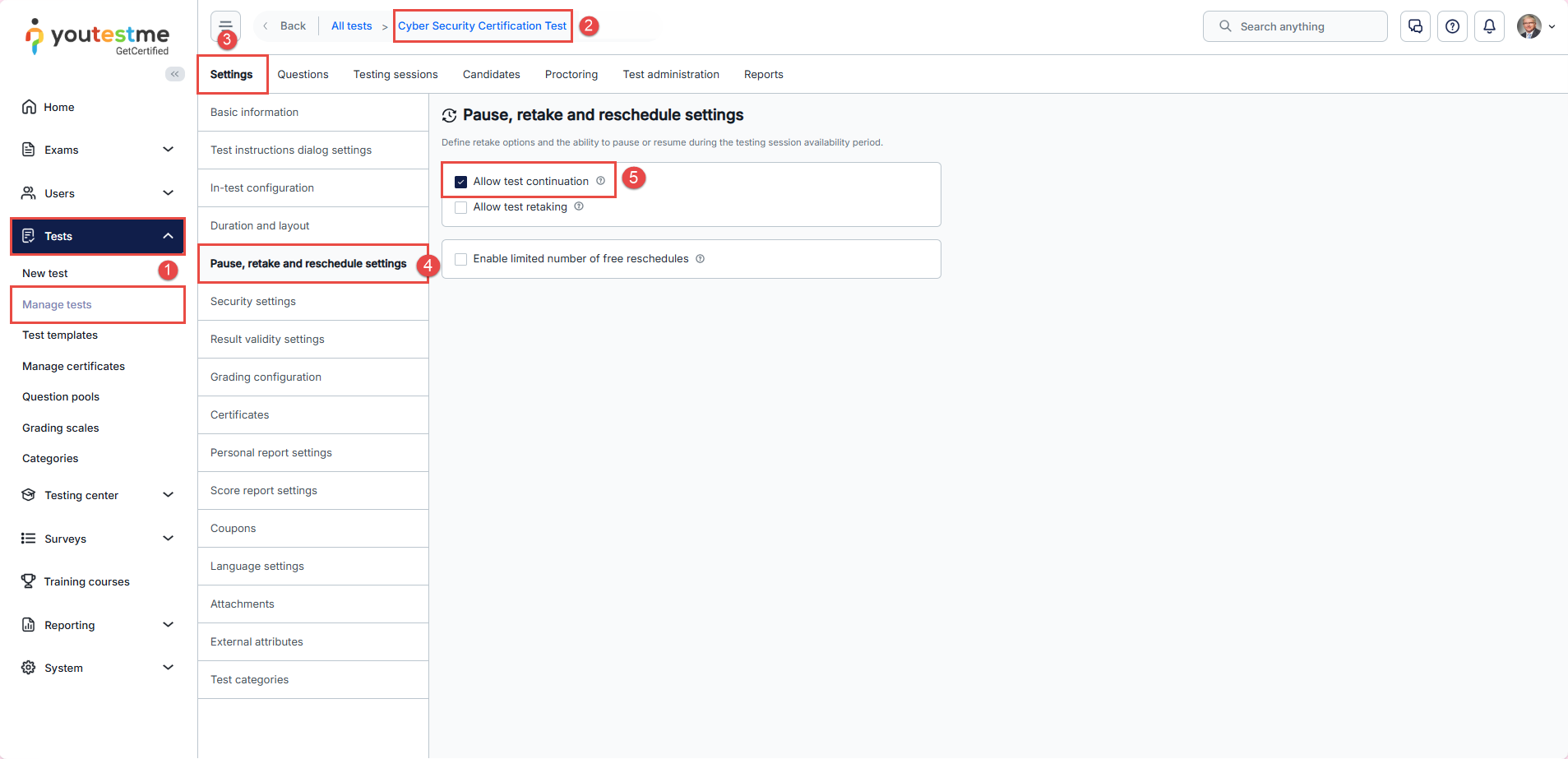
To enable automatic test continuation:
- Navigate to Tests → Manage tests.
- Open the desired test.
- Navigate to the Settings tab.
- Open the Pause and repeat settings section.
- Enable the Allow test continuation option.
Once enabled, candidates can return to the test after an interruption without requiring manual approval.
Allowing a candidate to continue the test manually
If Allow test continuation was not enabled or the candidate has already submitted the test, an authorized user can manually allow the candidate to continue.
This can be done from either the Manage tests page or the Testing Center.
From Manage tests
To allow a candidate to continue from the test configuration:
- Navigate to Tests → Manage tests and open the desired test.
- Navigate to the Candidates tab and locate the candidate.
- Click the Allow Candidate to Continue icon.
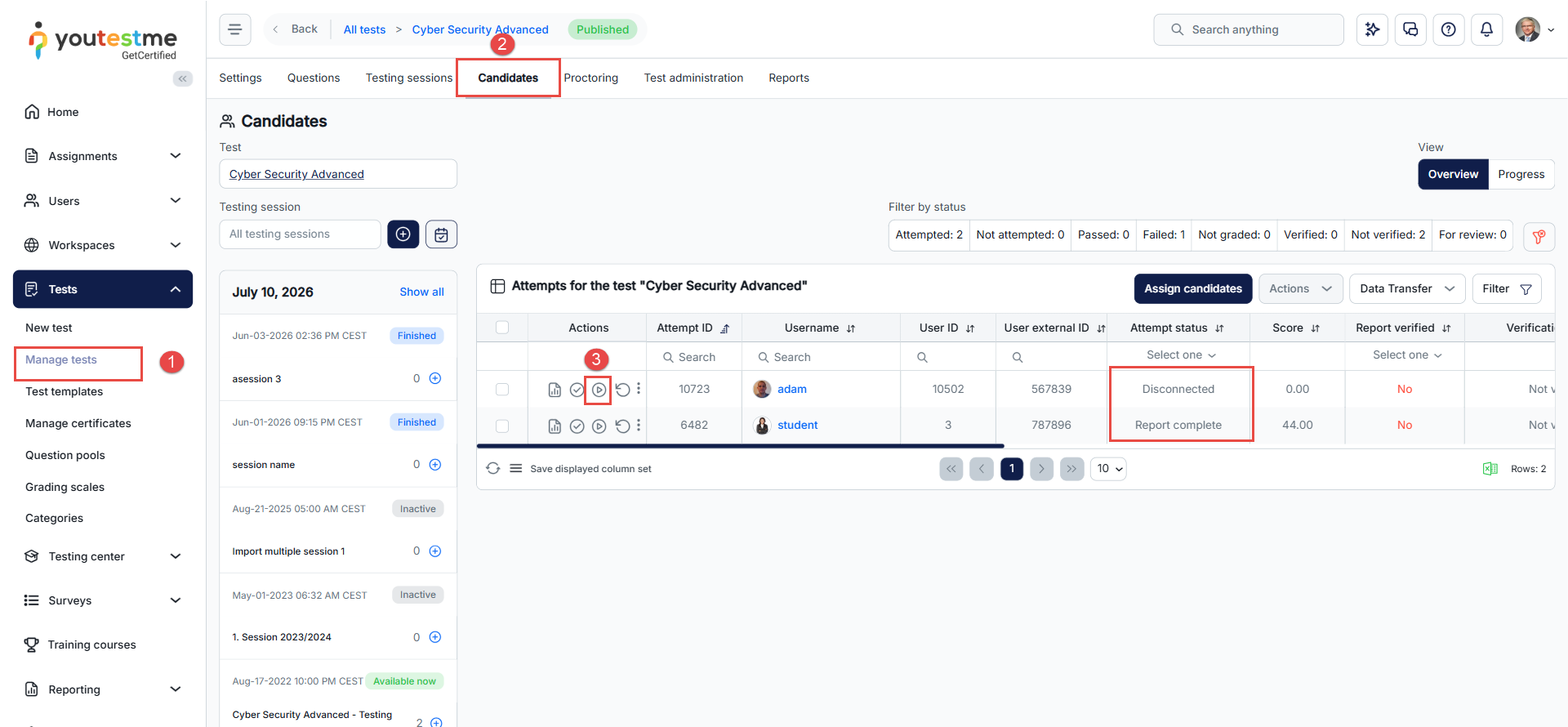
The candidate will then be able to access and continue the test.
From the Testing Center
Users with the appropriate permissions can also allow candidates to continue directly from the Testing Center:
- Navigate to Testing Center → Candidates.
- Select the appropriate Test and Testing session using the filters.
- Click the Allow Candidate to Continue icon in the Actions column.
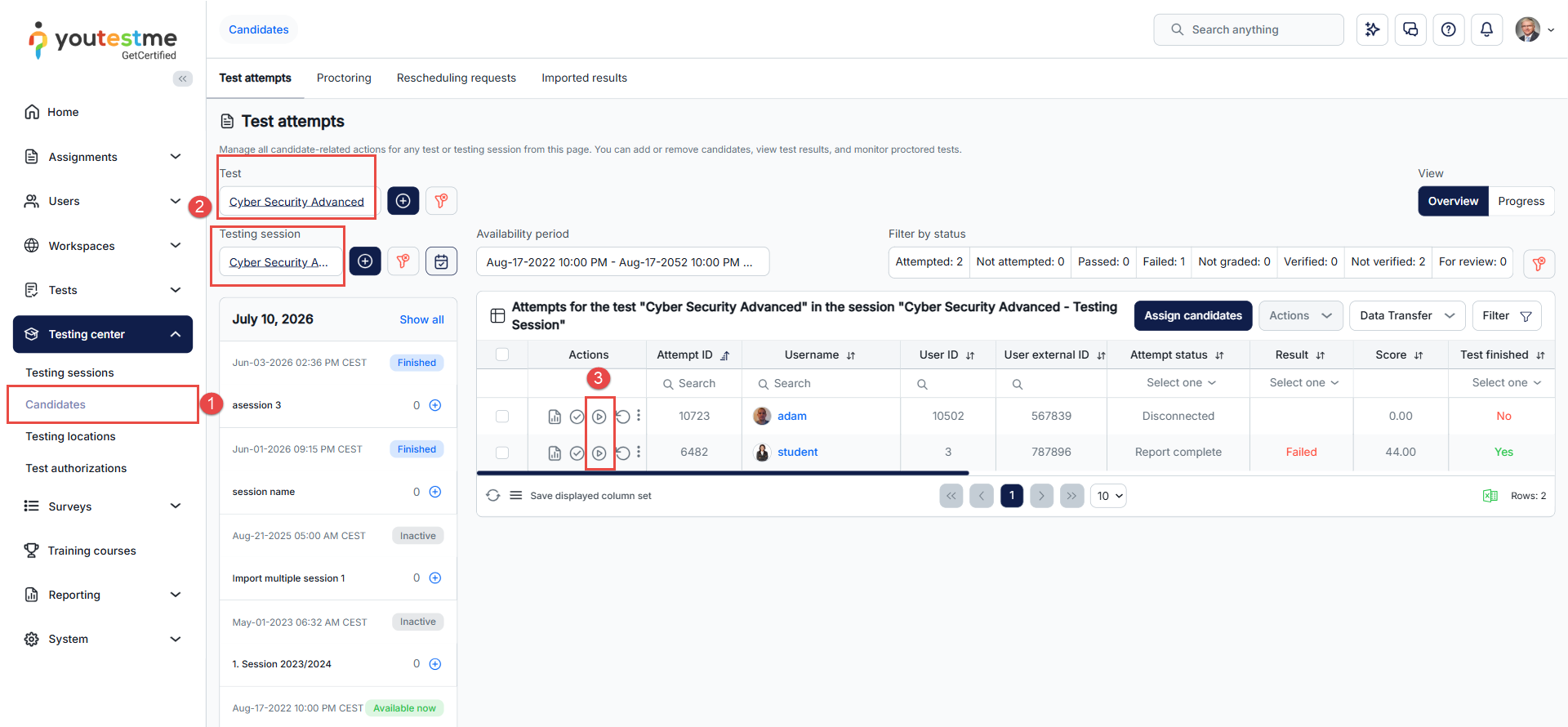
The candidate will then be able to access and continue the test.
Candidate’s perspective
When test continuation is available, the candidate can return to the interrupted test from the My tests page.
To continue the test:
- Navigate to Assignments → My tests.
- Locate the desired test using the search box.
- Click Continue to resume the test.
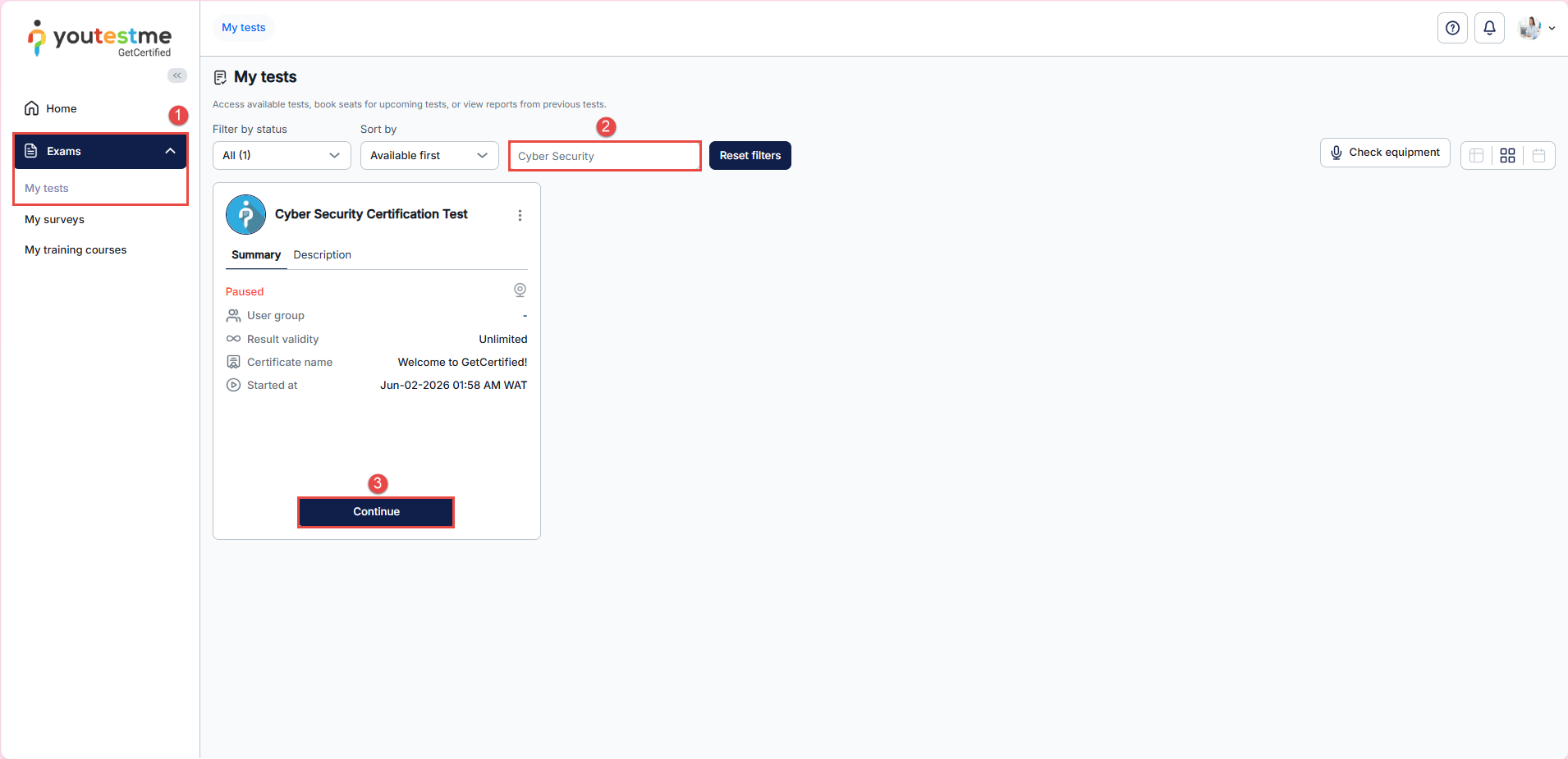
The candidate can continue from the point where the test was interrupted, and previously provided answers are preserved.
If the candidate cannot continue the test because automatic test continuation was not enabled or the test has already been submitted, an authorized user must first manually allow the candidate to continue using one of the methods described above.
For more useful instructional materials, please visit: