Article verified for Release 15.1 on December 22, 2025.
This article explains how to automatically assign workspace roles to users based on their system roles. By configuring membership rules within a workspace, administrators can ensure that users are added with the appropriate permissions without requiring manual assignment.
Automatically assigning System roles
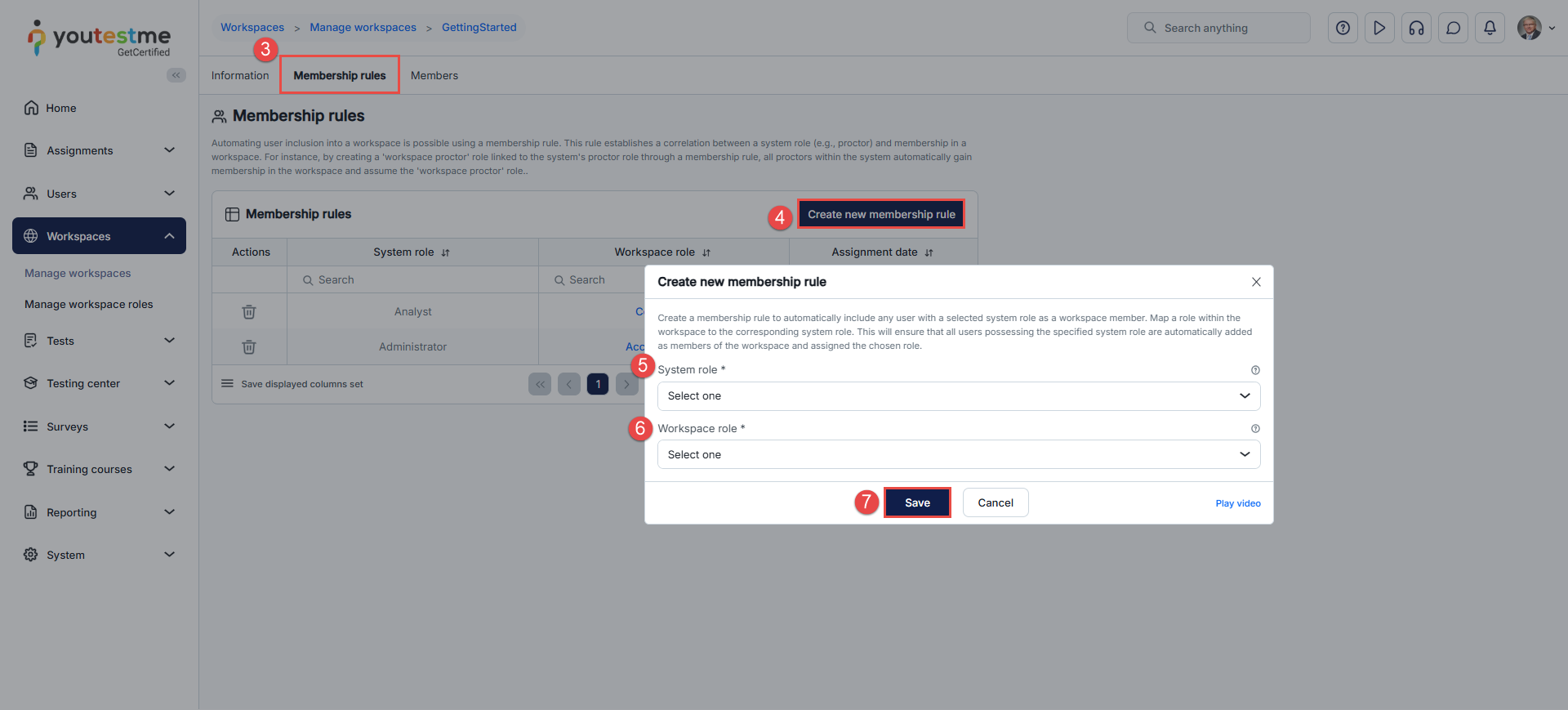
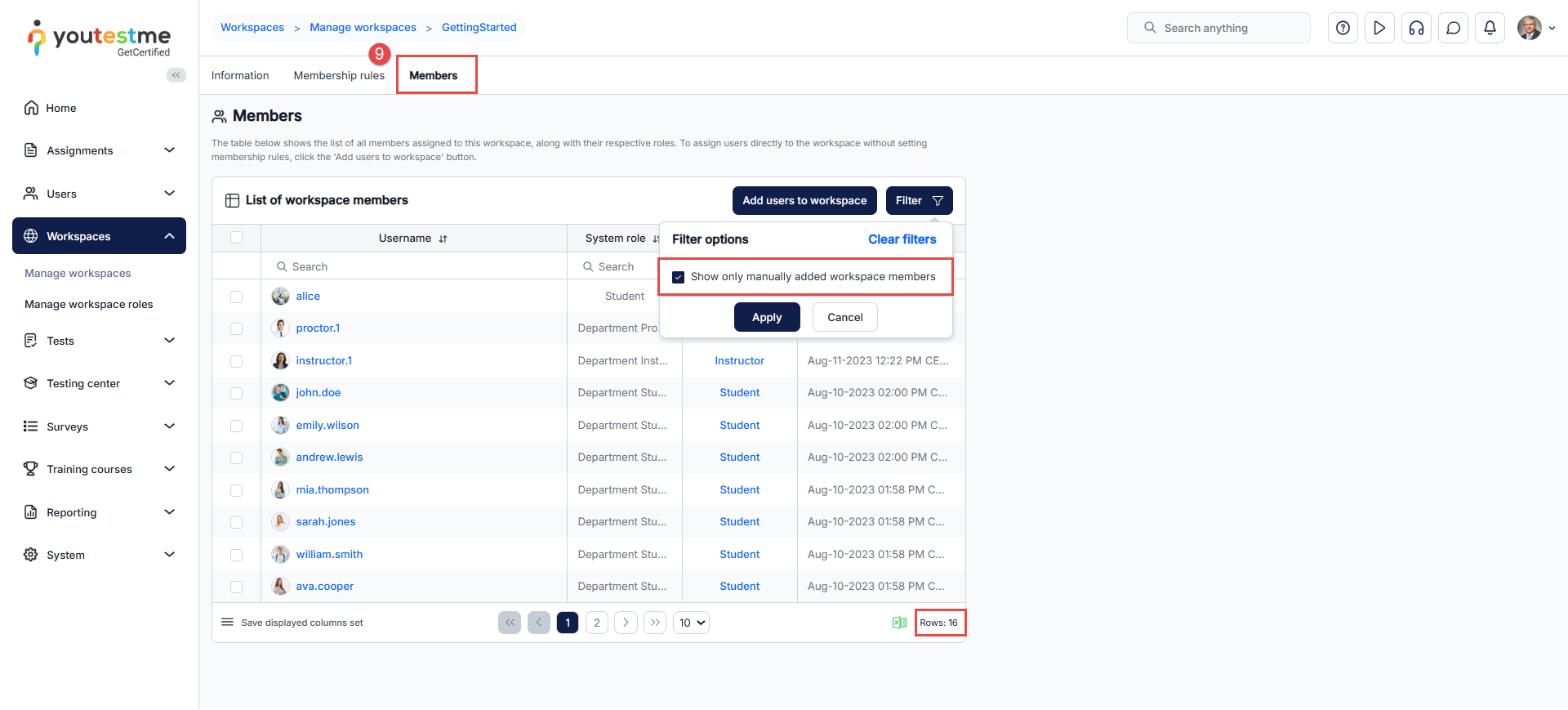
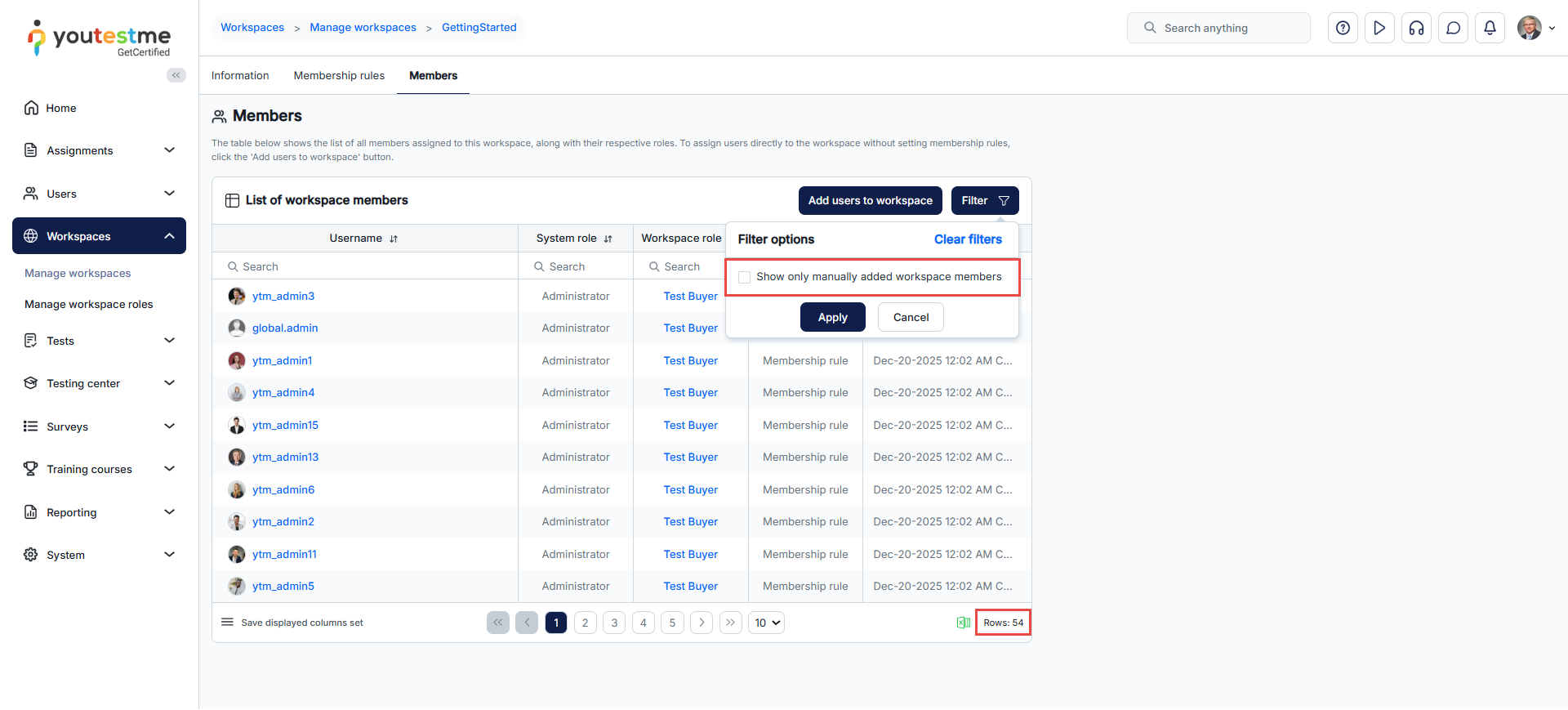
Membership rules allow you to automatically add users to a workspace based on their system roles. A membership rule creates a direct link between a system role (for example, Proctor) and a workspace role.
For example, if you create a Workspace Proctor role and associate it with the system Proctor role through a membership rule, all users assigned the Proctor system role will automatically become members of the workspace and be granted the Workspace Proctor role. This applies to both existing users and new users assigned that system role in the future.
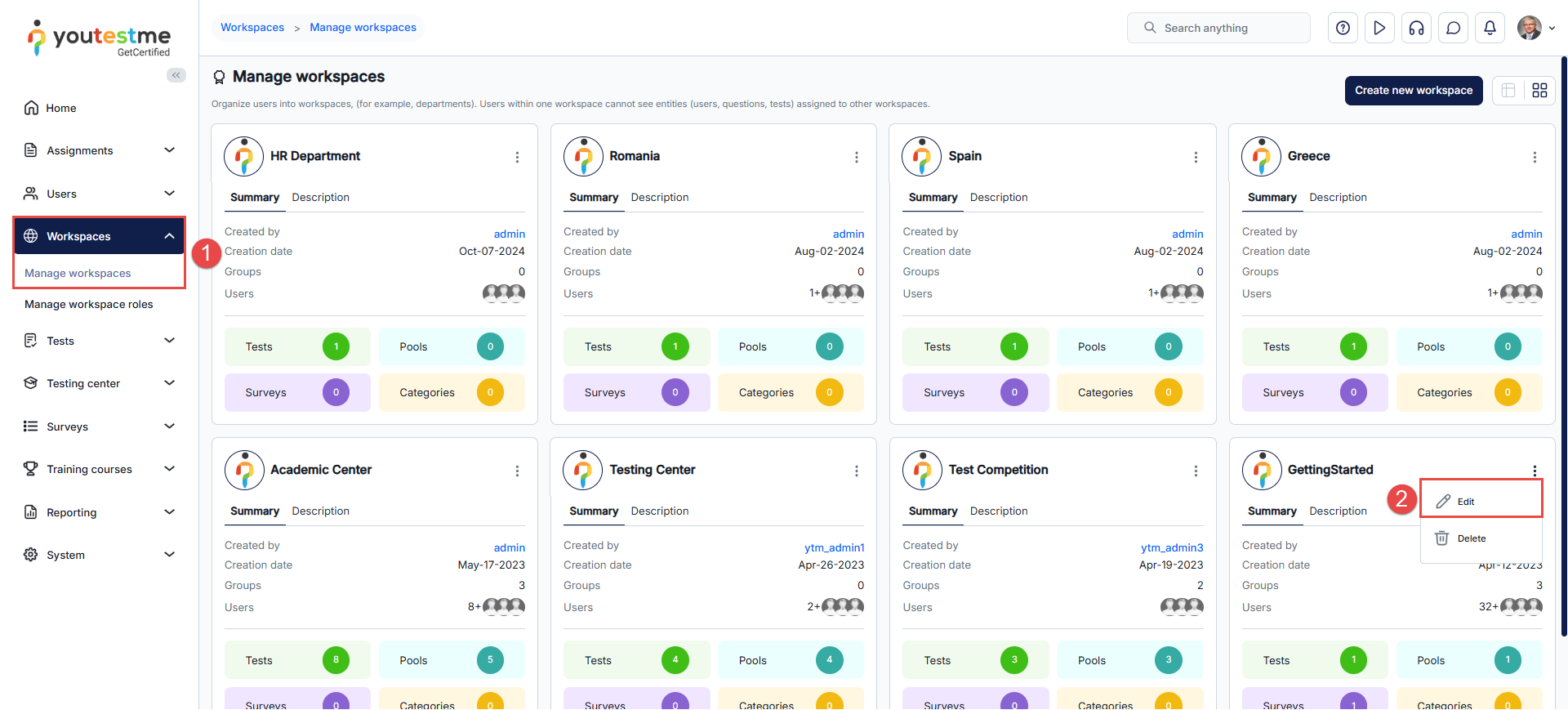
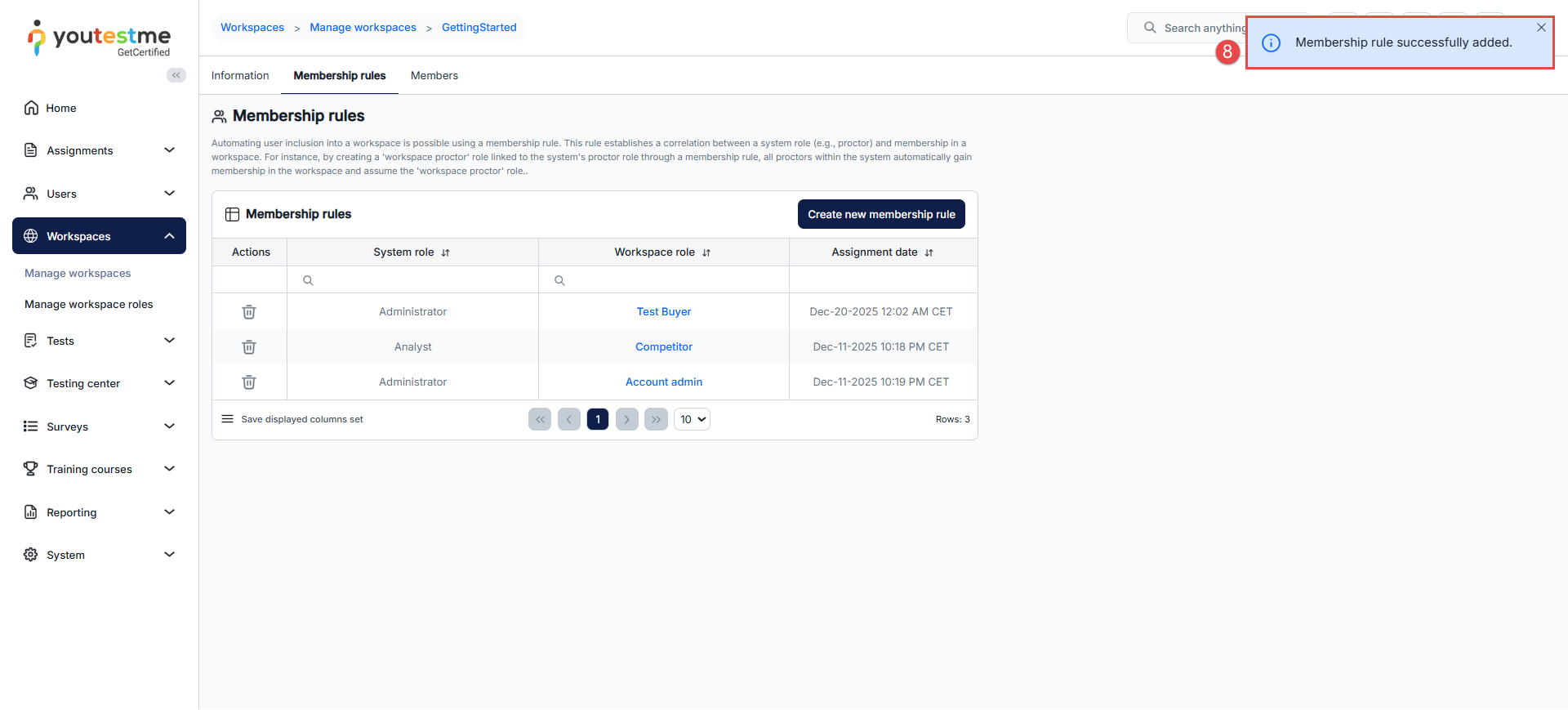
To automatically assign a system role with a workspace role, do the following:
Deleting Membership Rules
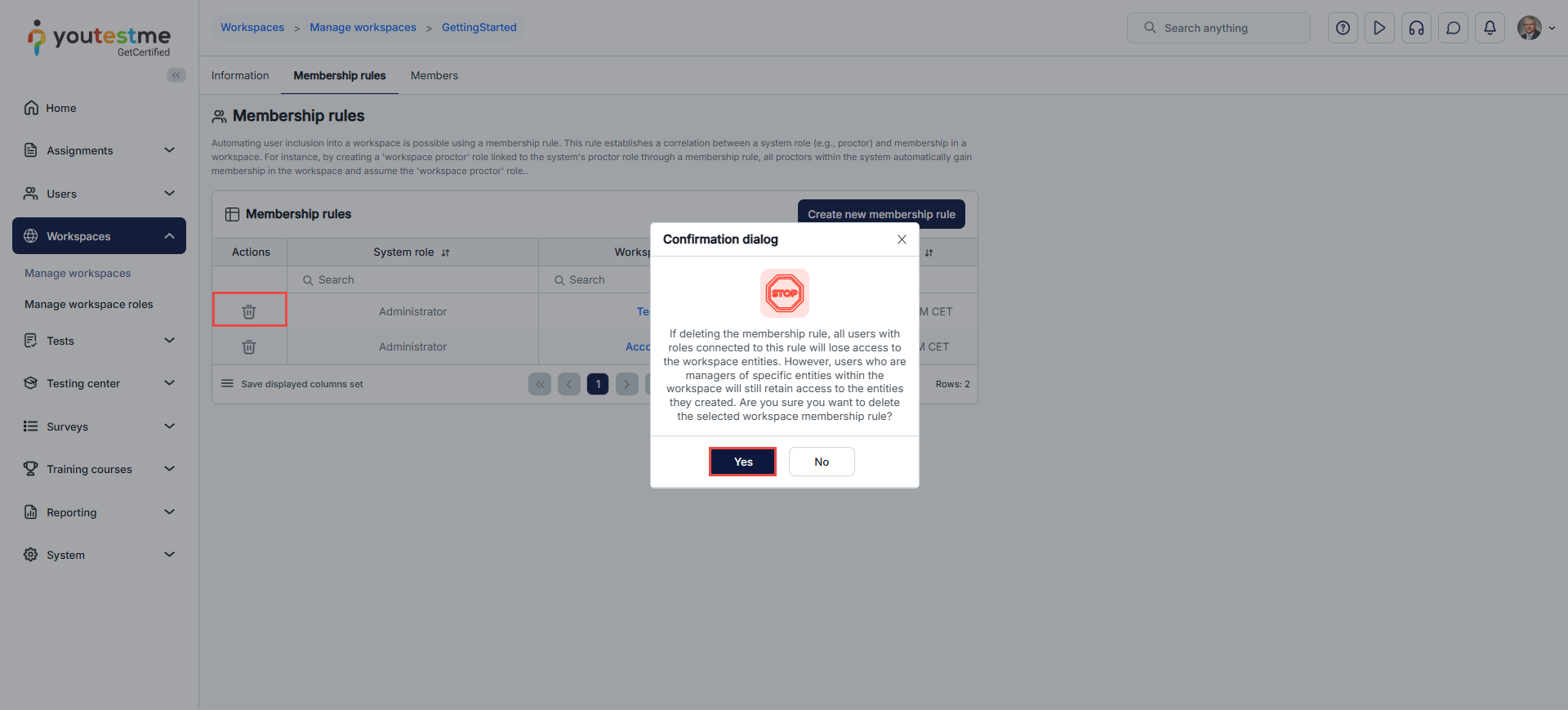
Selecting the Delete option in the Membership rule tab deletes all users imported by that rule from the Members tab.