Article verified for Release 15.2 on February 2, 2026.
This article explains the steps to preview a test on YouTestMe Get Certified.
Before assigning the test to candidates, it is recommended to preview it to ensure it is created correctly. There are two methods for previewing the test:
- Using the preview option provides a comprehensive view of the entire test-taking process before creating the session and assigning it to candidates.
- Assigning the test to your account – You can assign the test you create to your account once you start a testing session, enabling you to take it and experience the student perspective firsthand.
Note: If you need to change anything in the already published test, create a copy of that test and make the desired changes.
Using the Preview option
To preview the created test, follow the steps below:
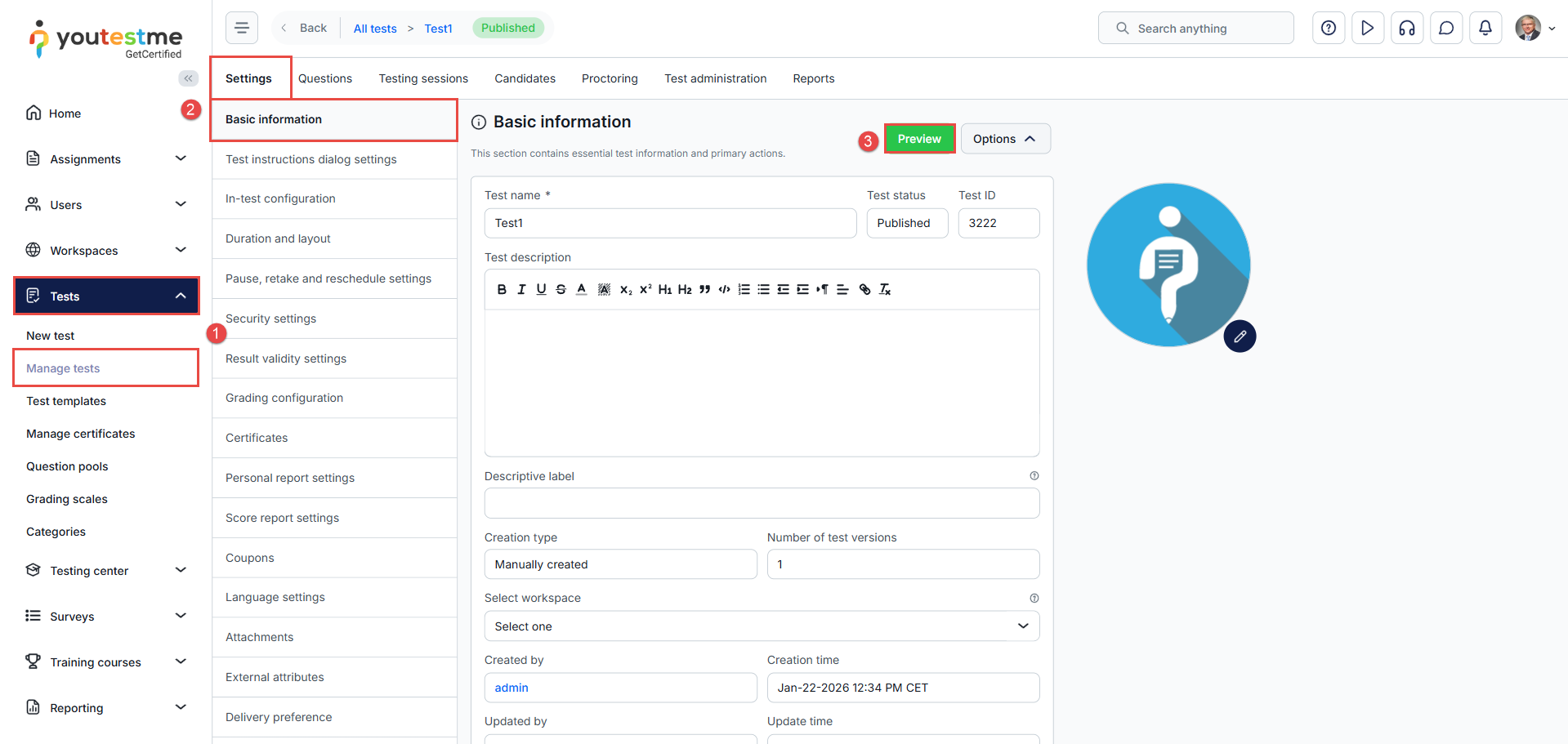
- Select Tests > Manage tests.
- Navigate to the test you previously created, and go to Settings, and select the Basic Information tab.
- Click the Preview button to display the test.
Note: The test’s language preference will not be reflected when previewing the test.
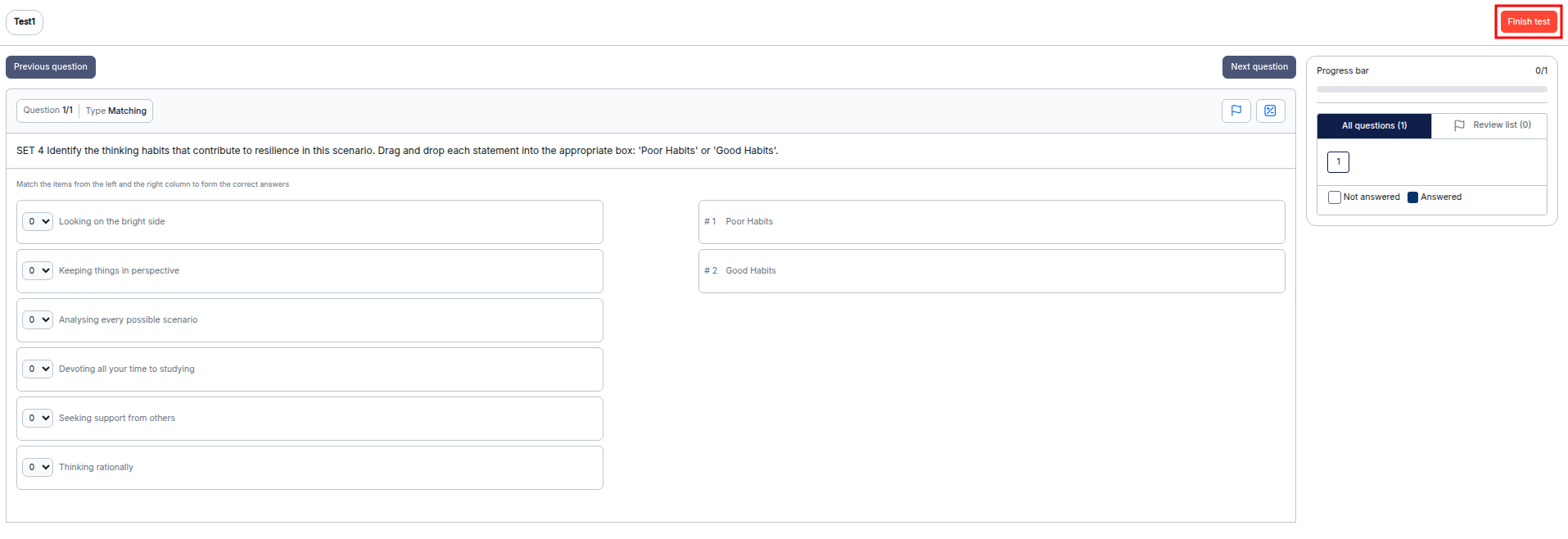
You will be redirected to the test view, where you can see how the test will be displayed to candidates. To exit this view, click the Finish test button.
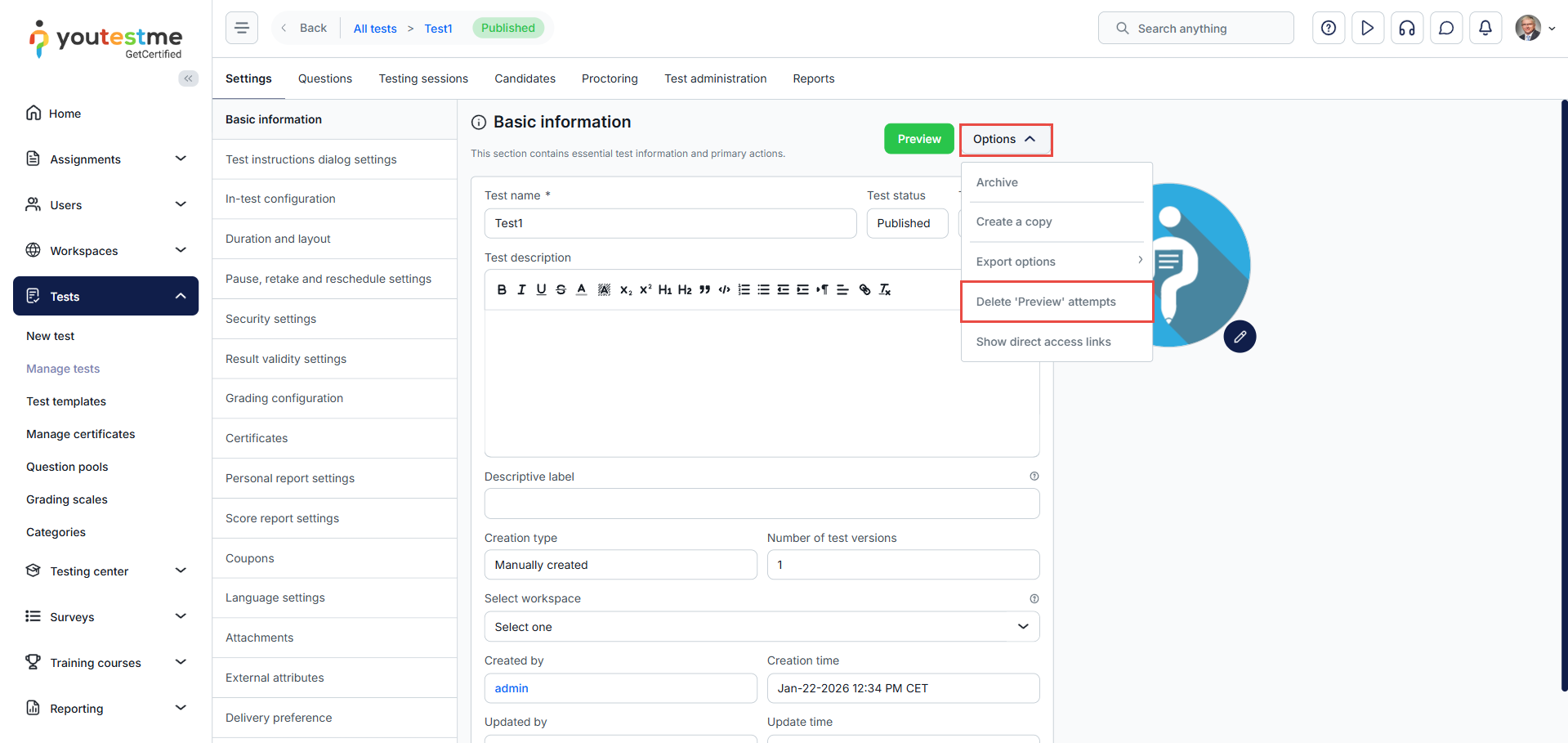
To delete the preview attempts, click the option button and select the Delete ‘Preview’ attempts.
Note: The preview option only allows you to view the test questions and layout. To preview the exam instructions and results, you will need to assign the test to your account and take it.
Assigning the test to your account
Once you create the test session, you can assign the test to your account by following the steps below:
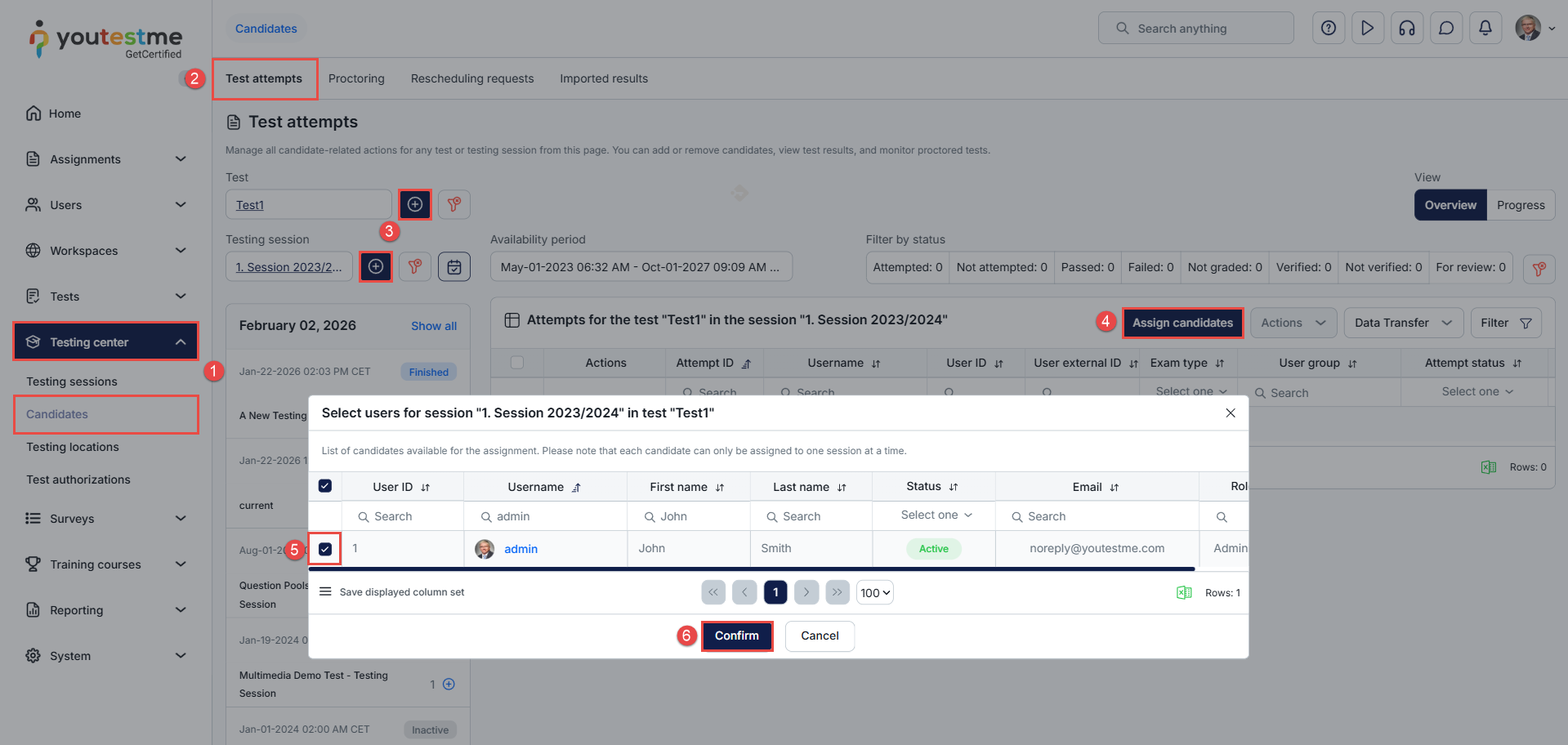
- In the main menu, navigate to the Testing center > Candidates.
- Navigate to the Test attempts tab.
- Click the plus sign (+) to select the test and the testing session.
- Click the Assign candidates button to assign your account.
- Find your account and select it.
- Click on Confirm.
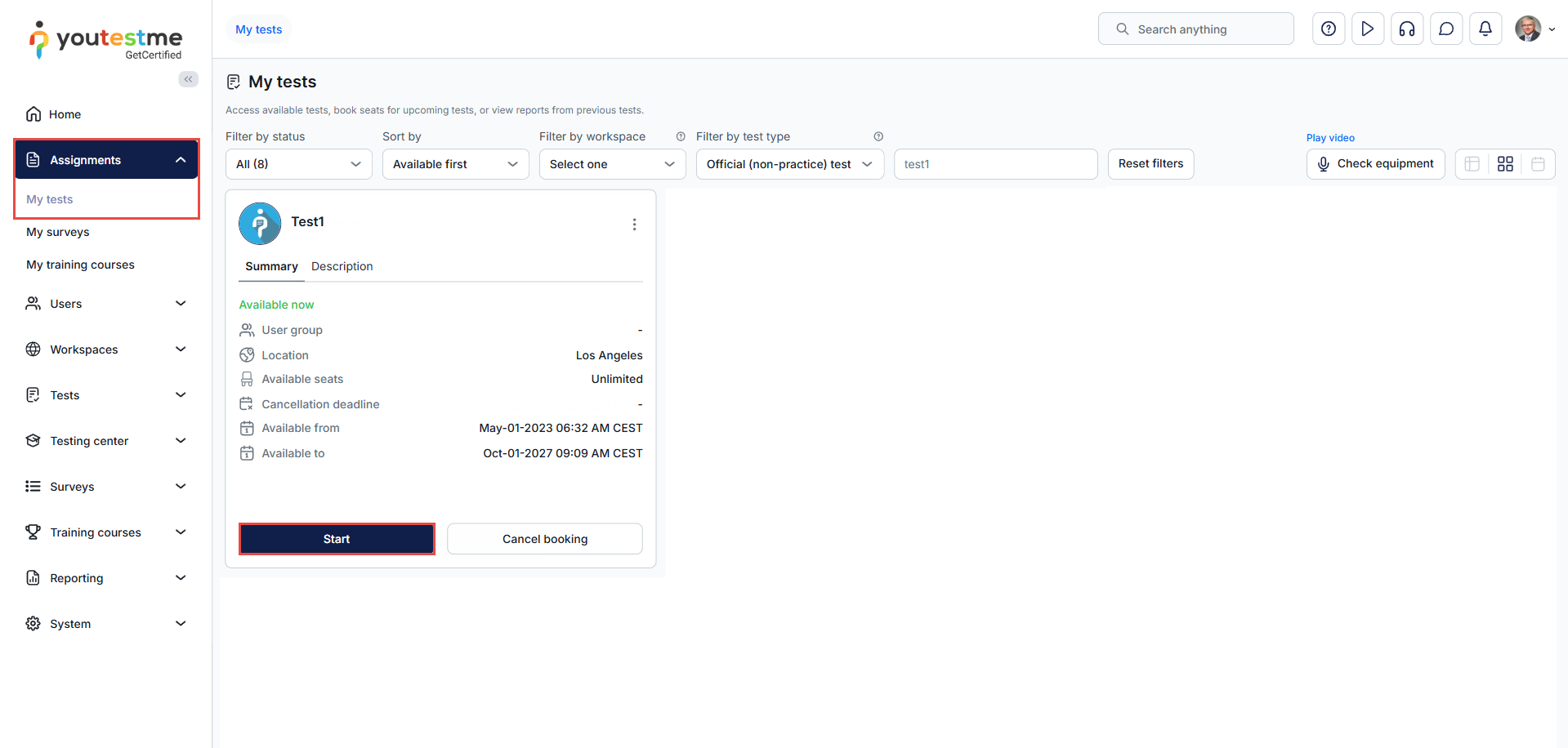
Once you are assigned to the test, you can find and take it by navigating to the Assignments tab in the main menu, selecting My Tests in the sub-menu, and clicking Start.
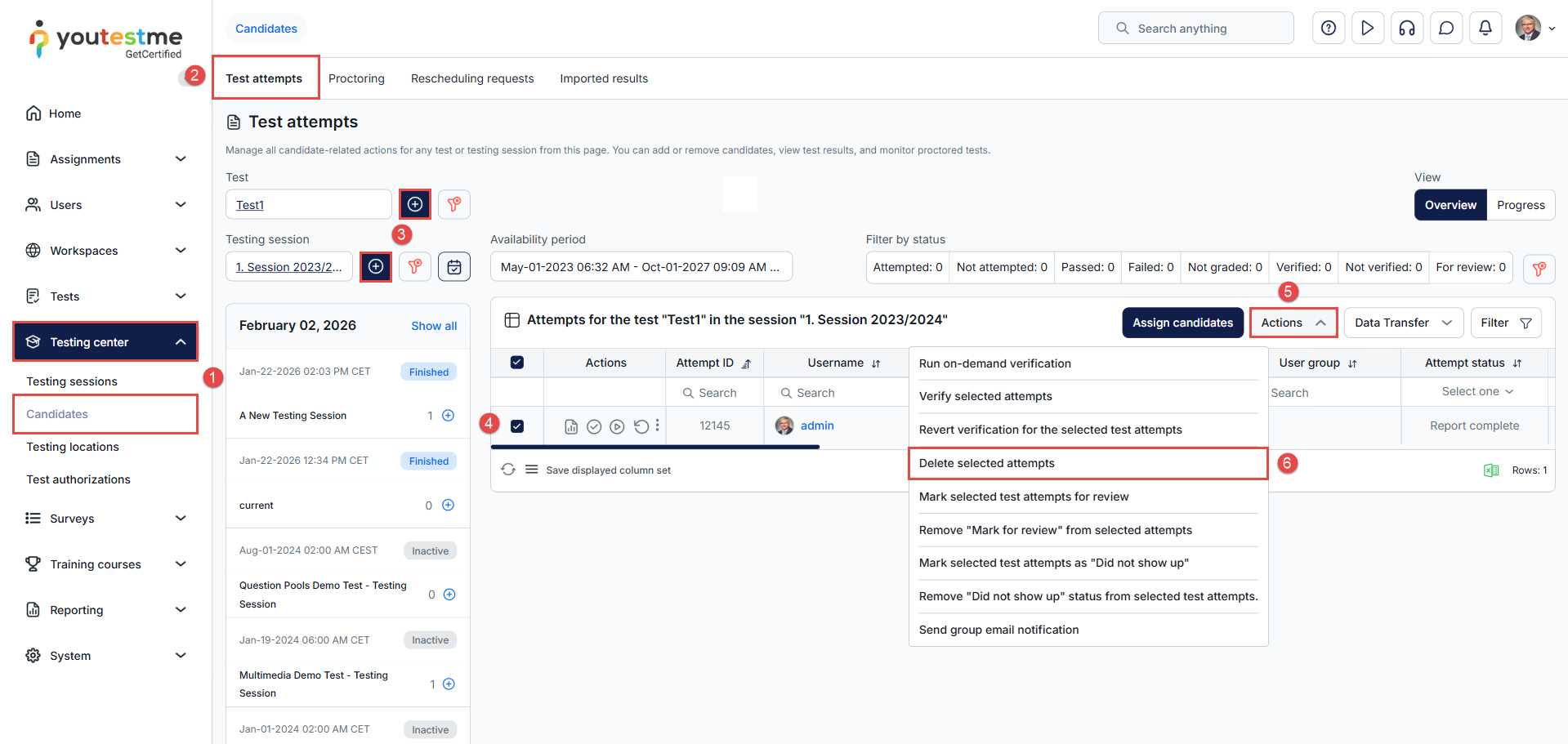
To delete the attempt,
- Navigate to the Testing center > Candidates.
- Go to the Test attempt tab.
- Choose the test and the session.
- Select the attempt.
- Click on the Actions dropdown menu.
- Select the Delete selected attempts option.