
Article verified for Release 15.0 on November 24, 2025.
This article explains how to set an automatic expiring-session reminder that notifies candidates when their test availability period is about to end. Enabling this reminder helps ensure that candidates do not miss their opportunity to take the test and reduces the need for manual follow-ups.
Setting Expiring Test Reminder
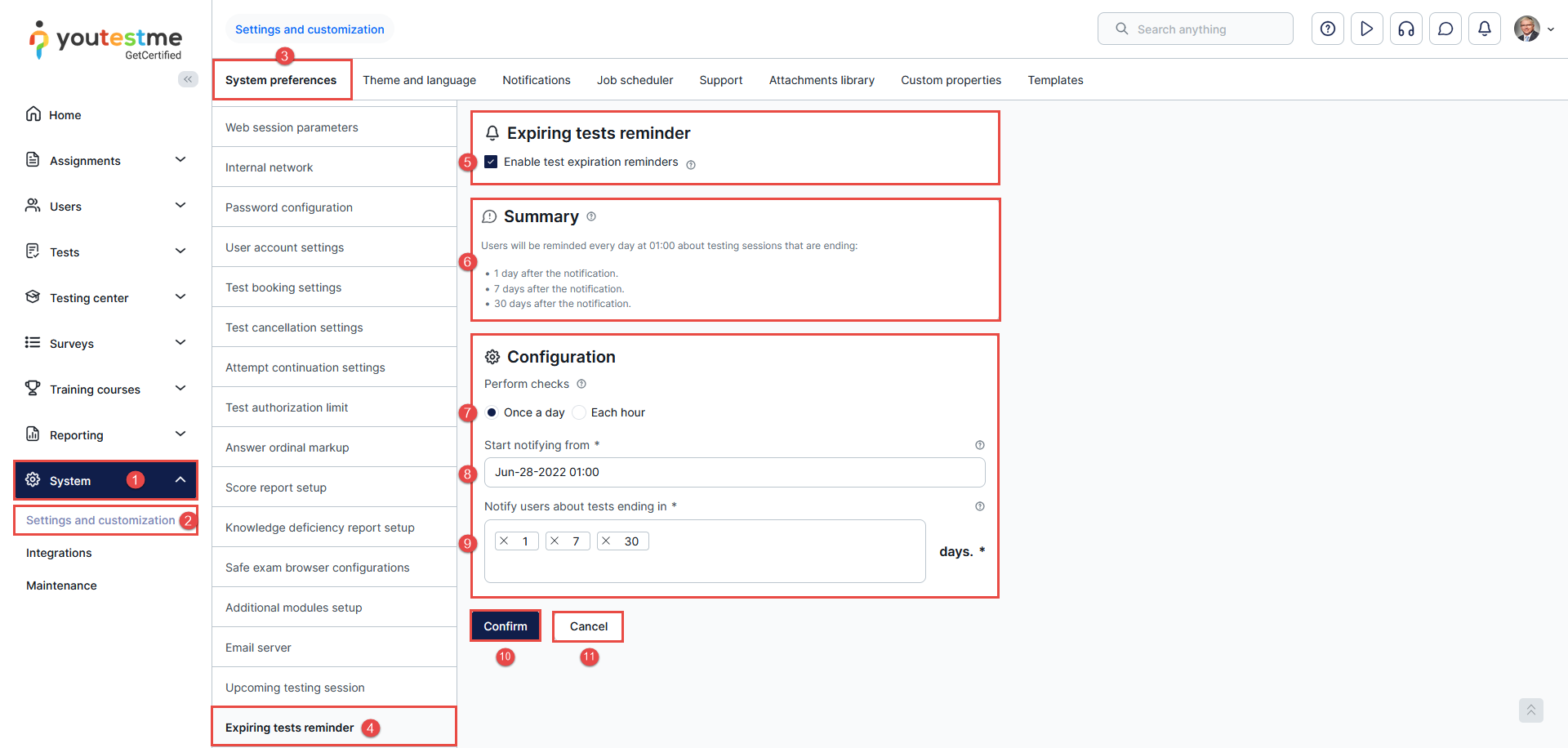
To configure expiring test reminders:
- Navigate to the System tab in the main menu.
- Choose Settings and customization.
- Go to the System preferences tab.
- Select the Expiring tests reminder in the side menu
- Enable/disable expiring test reminders – If this option is disabled, the candidates will not receive additional reminders before the end of the sessions.
- Preview the Summary – displaying the current setup of expiring session reminders. It will dynamically change with configuration changes.
- Choose the frequency of checking session availability and sending reminders to candidates.
- Define the date from which the session availabilities are checked (daily or hourly), and reminders are sent to the candidates according to the defined reminder times.
- Define the number of days/hours before the end of the session when the reminders are sent. For example, reminders will be sent to candidates one day before the test ends.
- Click the Confirm button to save the settings.
- Click the Cancel button to revert settings.
Scheduling Reminders to Notify Candidates a Specified Number of Hours Before Session Expiry
Desired scenario:
- Notify candidates about the tests ending 1 and 7 hours before the session expires.
- Start reminding candidates (if there are available testing sessions in a defined period) from June 27, 2022, at 20:00.
To achieve this scenario:
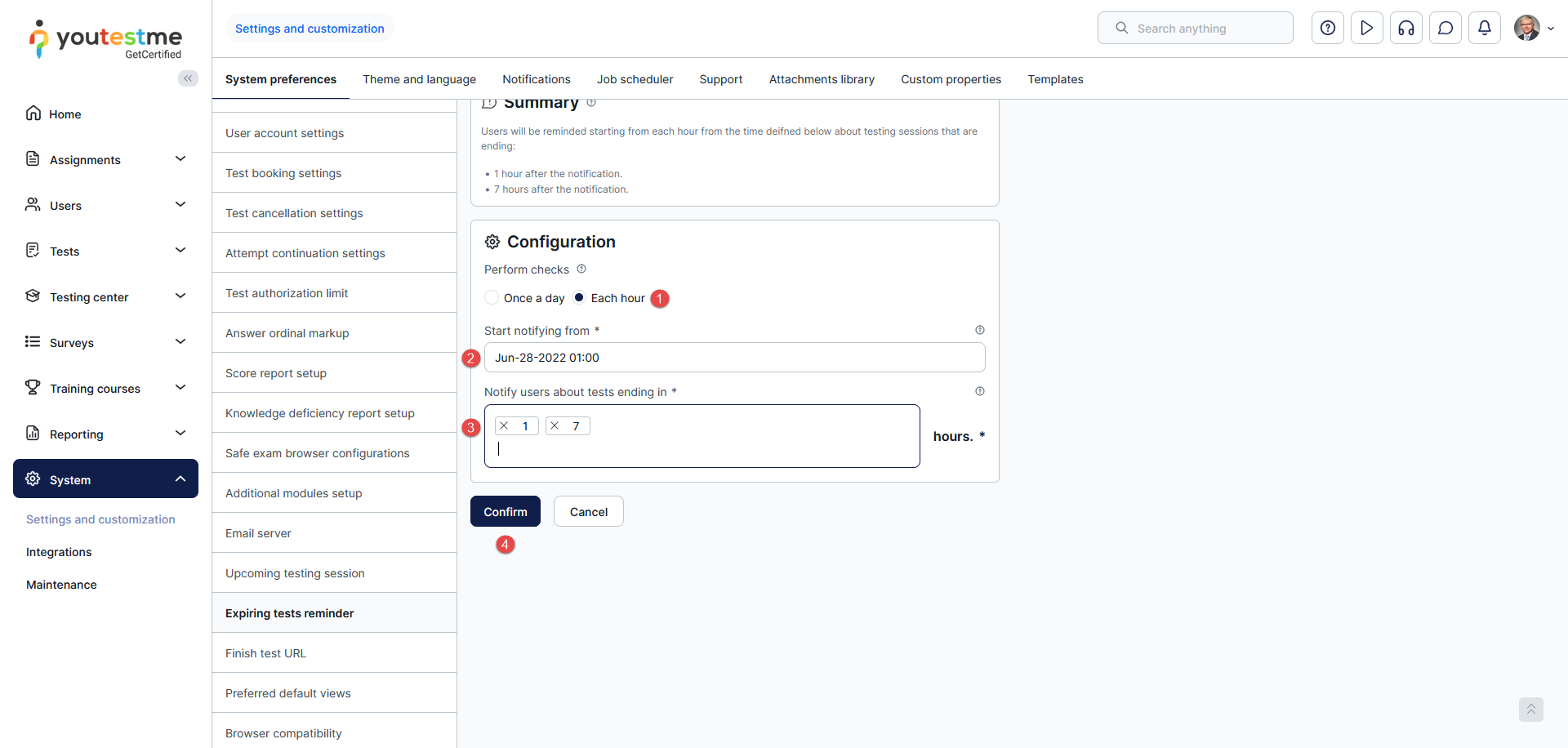
- Choose Each hour for the frequency of checking sessions and sending reminders.
- Set Jun-28-2022 01:00 in the Start notifying from field.
- Enter 1 and 7 in the Notify users about test ending in field.
- Save the configuration by clicking the Confirm button.
System checks:
- At 20:00 on June 27, the system will check whether sessions are ending between 21:00 and 22:00. If so, it will send a reminder to the assigned candidates.
- At 20:00 on June 27, the system will check whether sessions are ending between 03:00 and 04:00; if so, it will send a reminder to the assigned candidates.
Note that the system check will be performed each hour from the defined period.
Candidate’s Perspective
Since a testing session will expire, the candidate will see the notification that the test will expire in an hour when logging in to the application.
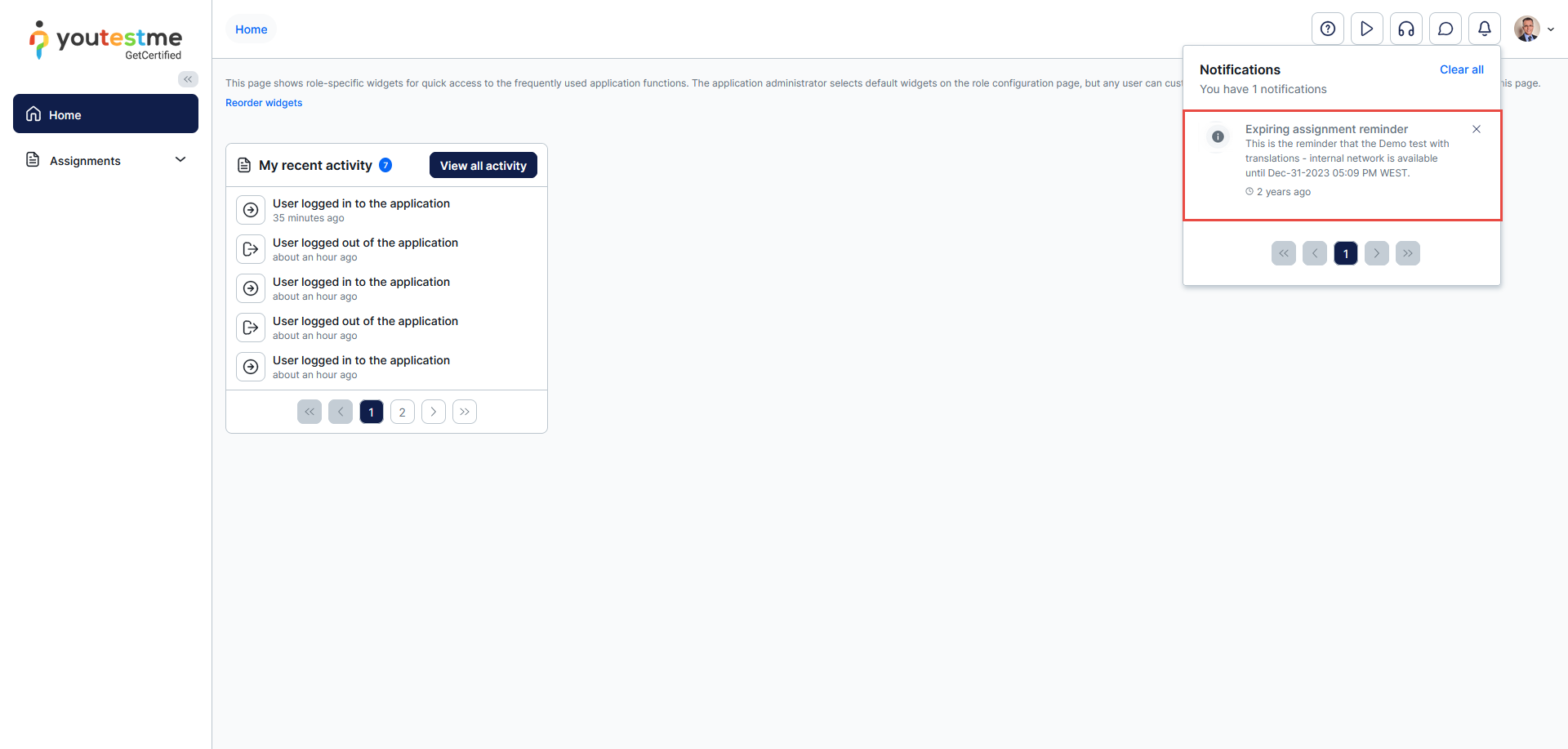
The candidate will also be notified via email. A direct link to the test will be available as long as the testing session is available.

Scheduling Reminders to Notify Candidates a Specified Number of Days Before Session Expiry
Desired scenario:
– Notify candidates about the tests ending 1 and 7 days before the session expires.
– Start reminding candidates (if there are available testing sessions in a defined period) from June 13, 2022, at 13:52.
To achieve this scenario:
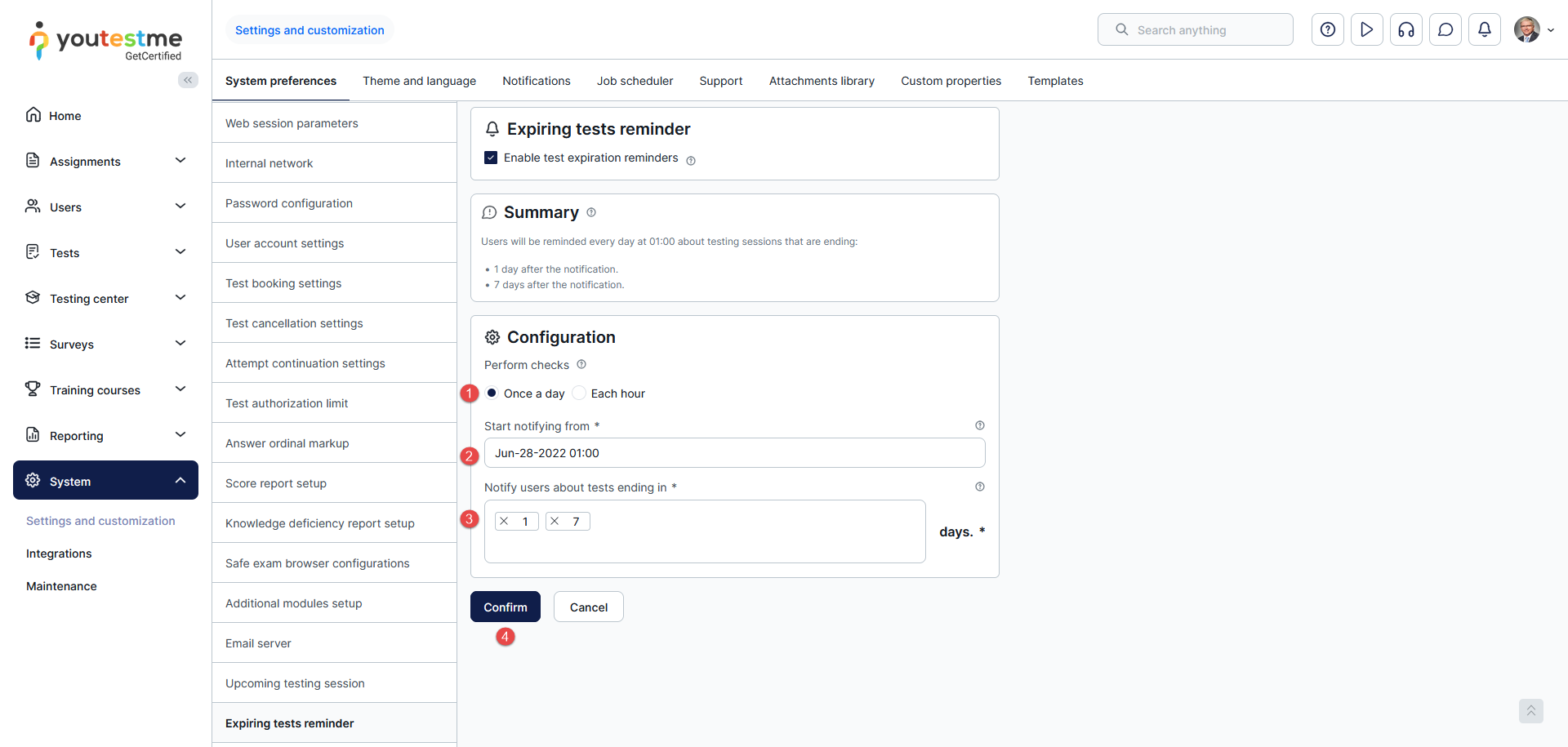
- Choose Once a day for the frequency of checking sessions and sending reminders.
- Set Jun-28-2022 01:00 in the Start notifying from field.
- Enter 1 and 7 in the Notify users about tests ending in field.
- Save the configuration by clicking the Confirm button.
System checks:
- At 20:00 on June 27, the system will check whether sessions are ending between 21:00 and 22:00. If so, it will send a reminder to the assigned candidates.
- At 20:00 on June 27, the system will check whether sessions are ending between 03:00 and 04:00; if so, it will send a reminder to the assigned candidates.
Note that the system check will be performed daily from the defined period.
If any session expires in the checking period, an in-app notification and email will be sent and displayed as in the previous example.
Editing Default Expiring Sessions Reminder Notification
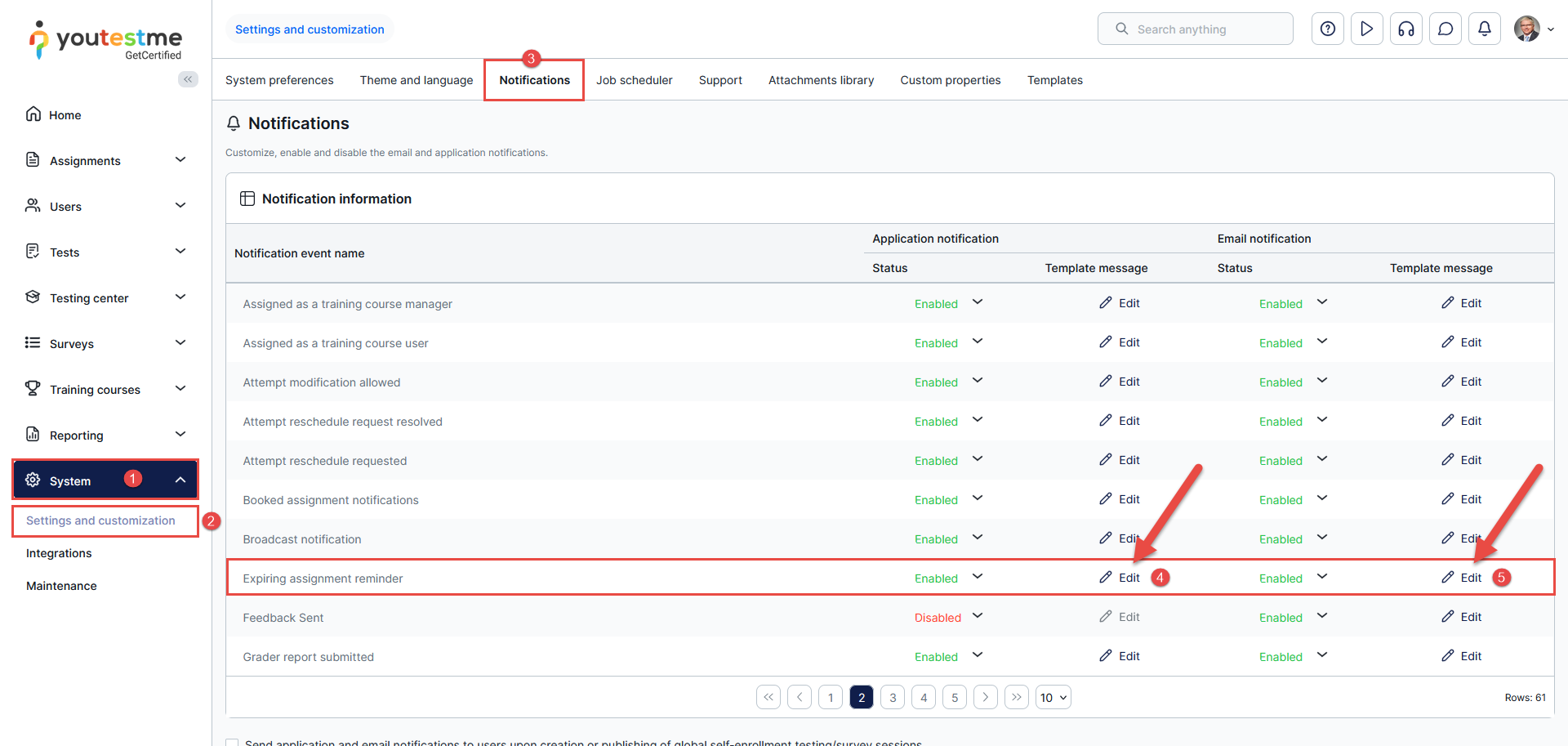
Candidates can be notified in two ways: via a notification in the application and via email. To edit the content of notifications:
- Navigate to the System page.
- Select Settings and customization.
- Navigate to the Notifications tab, where you can see a list of notifications, including the Expiring assignment reminder notification.
- Click Edit in the Application notifications column to edit the notification displayed in the application.
- Click Edit in the Email notifications column to edit the email.
For more useful instructional materials, please visit:




