
Article verified for Release 15.1 on December 15, 2025
This article demonstrates how to configure the Proficiency level question pool report, allowing candidates to view their proficiency level for each pool within the test after completion.
Configuring the Personal Report
After logging in, please follow these steps:
- Go to the Tests, then the Manage tests tab.
- Select the Settings tab.
- Select the Personal report settings tab.
- Locate the Report content and enable the Score and details option.
- Ensure that the Display sub-scores based on question pools feature is enabled.
- Save the changes.

Candidate’s Perspective
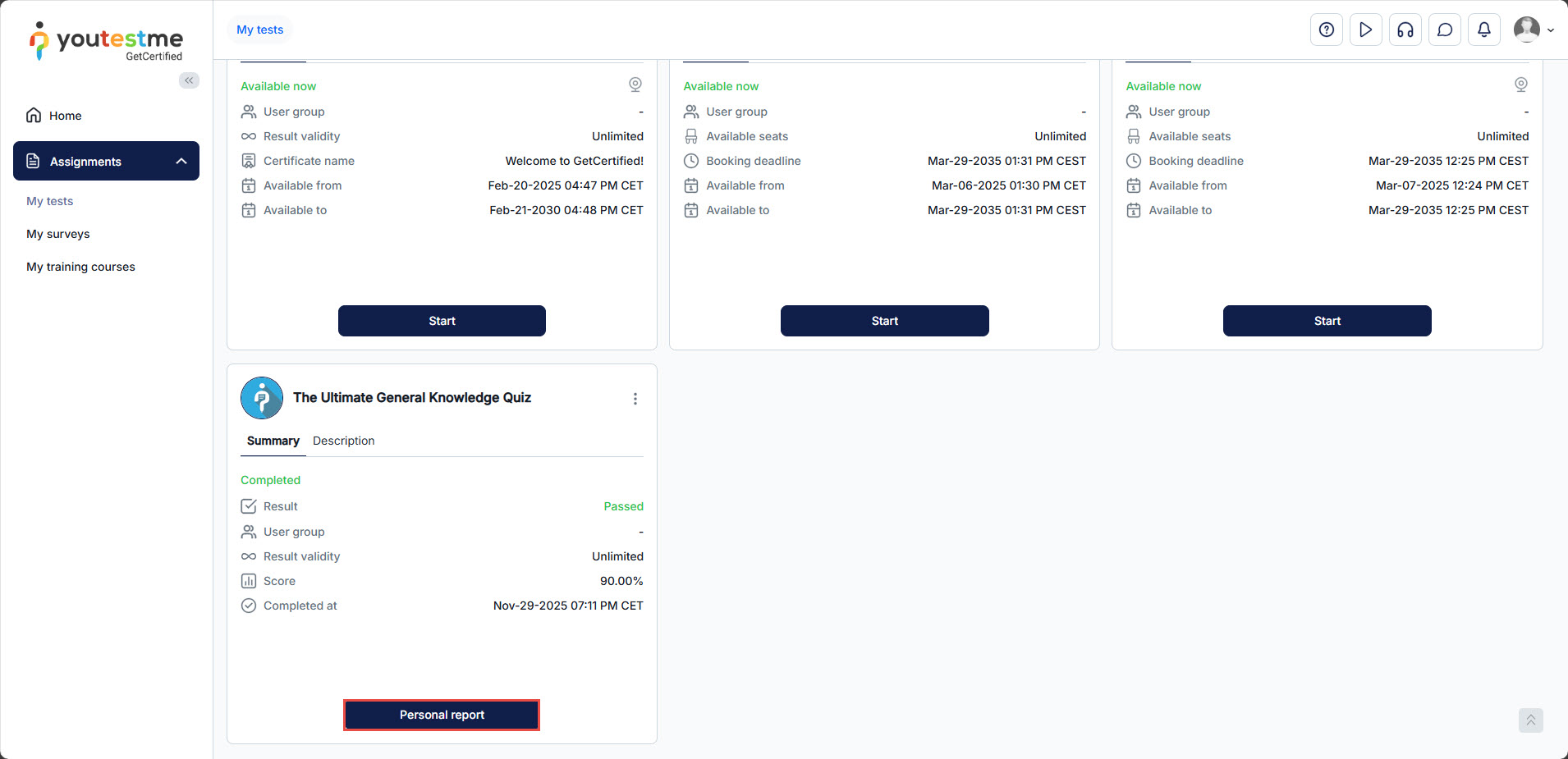
After completing the test, if the candidate can access the Personal report, they can click the Personal report button to view the details.
Under the Aggregated reports tab, candidates can now access graphical representations illustrating their performance within each question pool. These visualizations utilize colored bars to showcase their strengths and areas for improvement vividly.
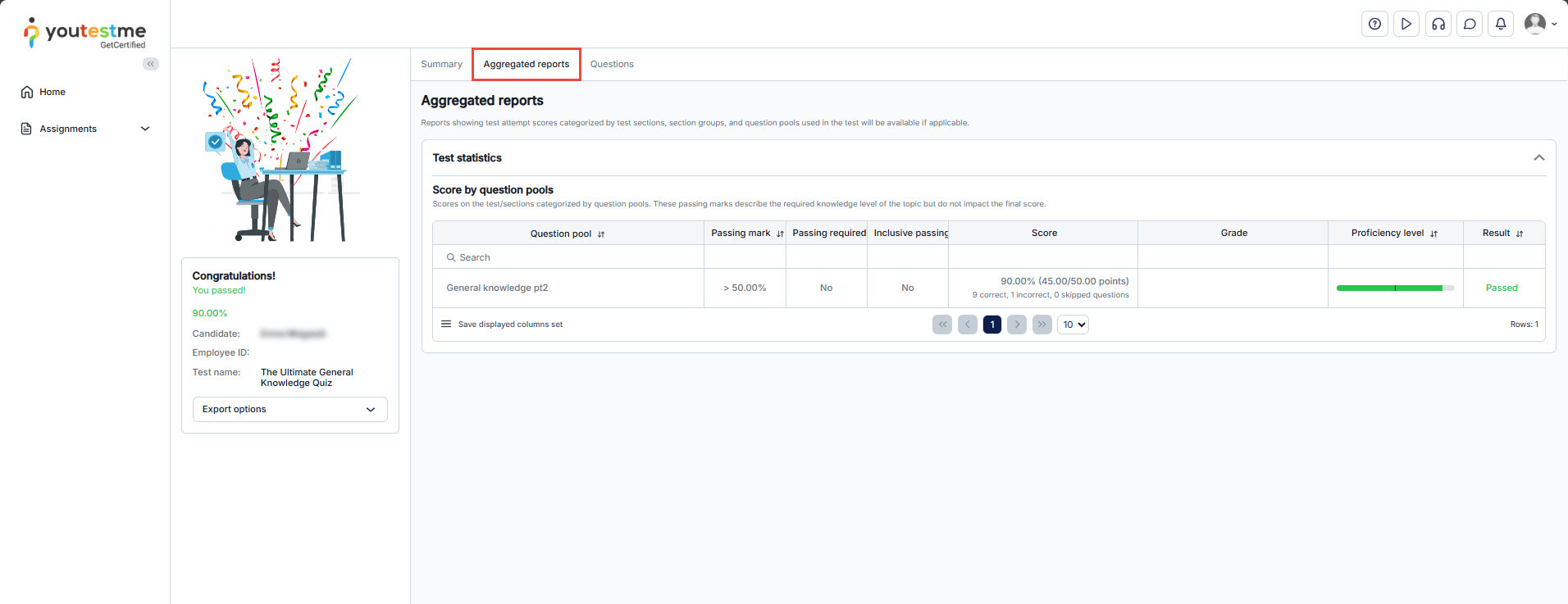
The enhancement empowers students to take charge of their learning journey by visualizing their strengths and weaknesses.




