Article verified for Release 16.1 on October 15, 2026
This article explains how to customize the homepage by adding, removing, and arranging widgets for different user roles. Widgets provide quick access to important information and frequently used application functions, such as test schedules, user management, reports, and recent activities.
Users with the Manage user roles permission can configure which widgets are displayed by default for each role. All users can also rearrange their own widgets directly on the Home page without requiring any special permissions.
Accessing the page
To add, remove, or rearrange widgets for a specific user role, follow these steps:
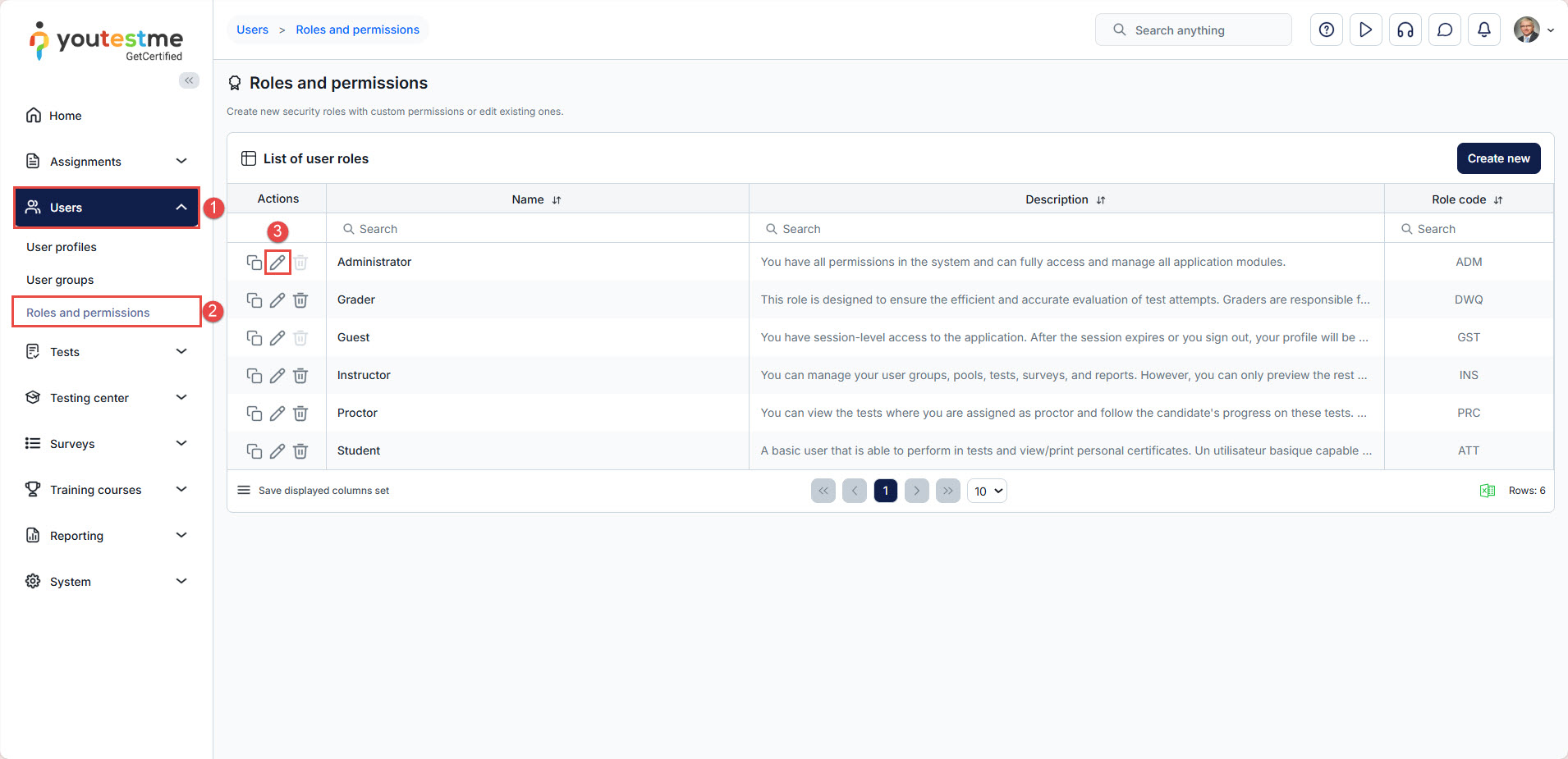
- Select the Users tab.
- Select the Roles and permissions tab.
- Choose the role whose widgets you want to display and click Edit.
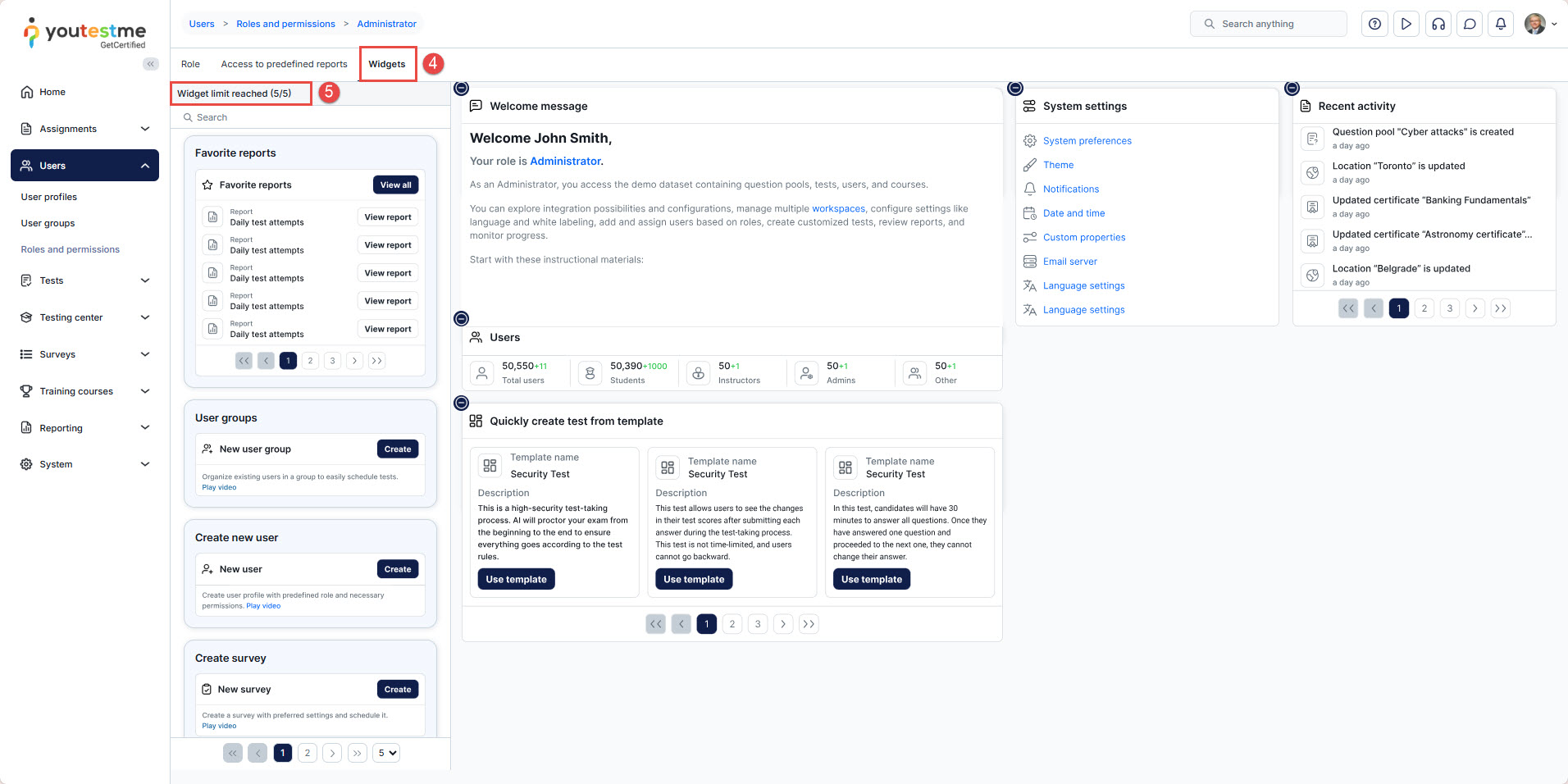
- Select the Widgets tab.
- Select the desired widget and drag it to the right side of the screen. (maximum of 5 widgets)

- You can position widgets by holding them and moving them across the screen.

- To remove a widget, select the “-” option.


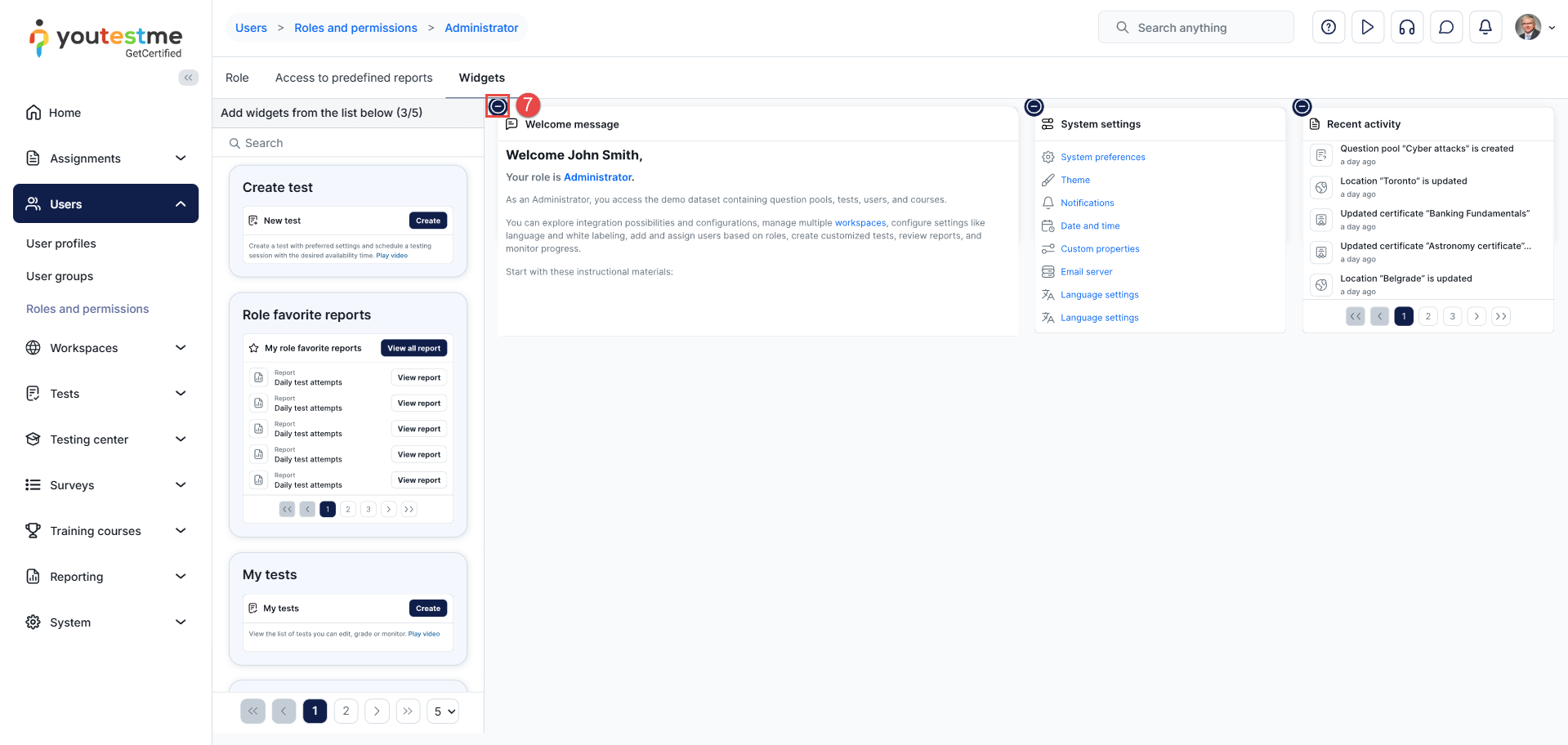
Note: The Manage user roles permission is required to access Roles and permissions → Widgets and configure widgets for specific roles. Changes made here apply to all users assigned to the selected role.
You must log out and log back into the application to see the applied changes.
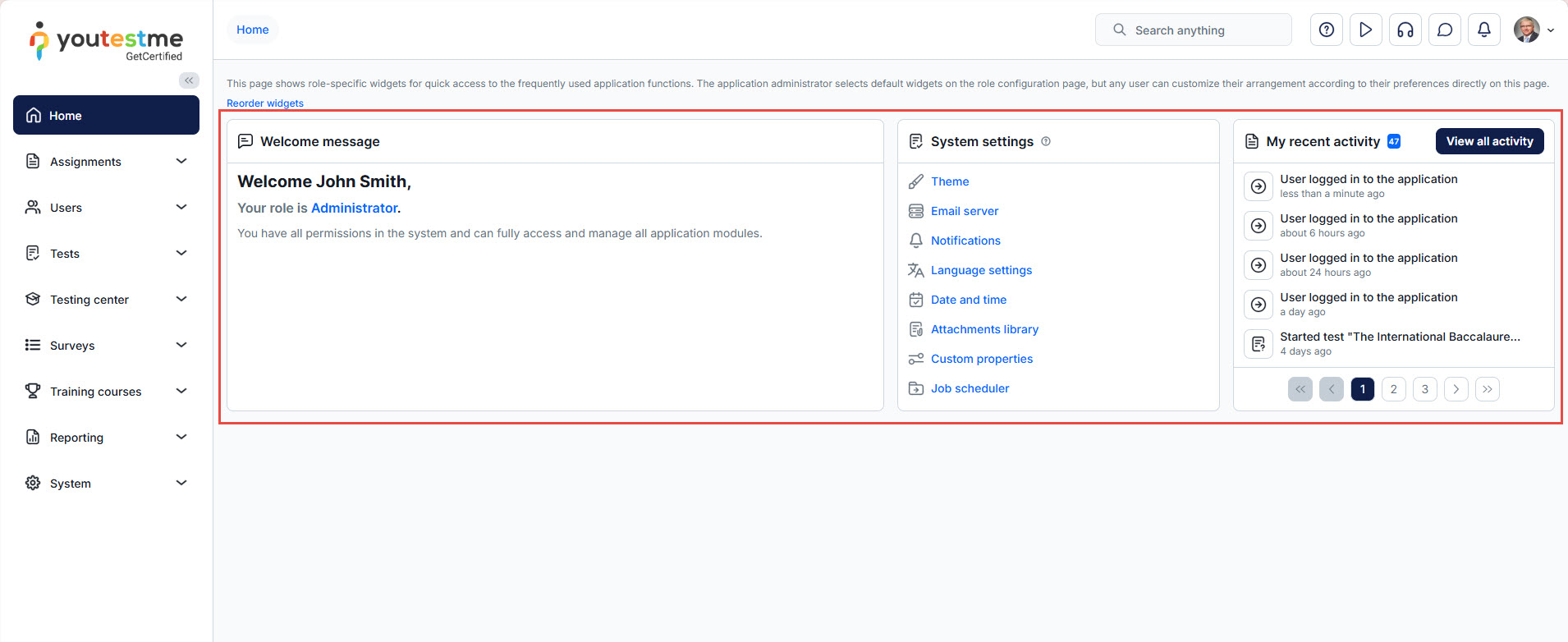
Before/After Example:
Before logging out, your homepage keeps the old widget layout.

After logging back in, the updated widget arrangement becomes visible.
Reorder widgets
This section allows you to adjust the order in which widgets appear on the homepage.
- Drag widgets up or down to rearrange their display priority.
- The widget at the top of the list will appear first on the user’s homepage.
- This provides full control over user experience, ensuring important widgets are displayed in the most visible locations.
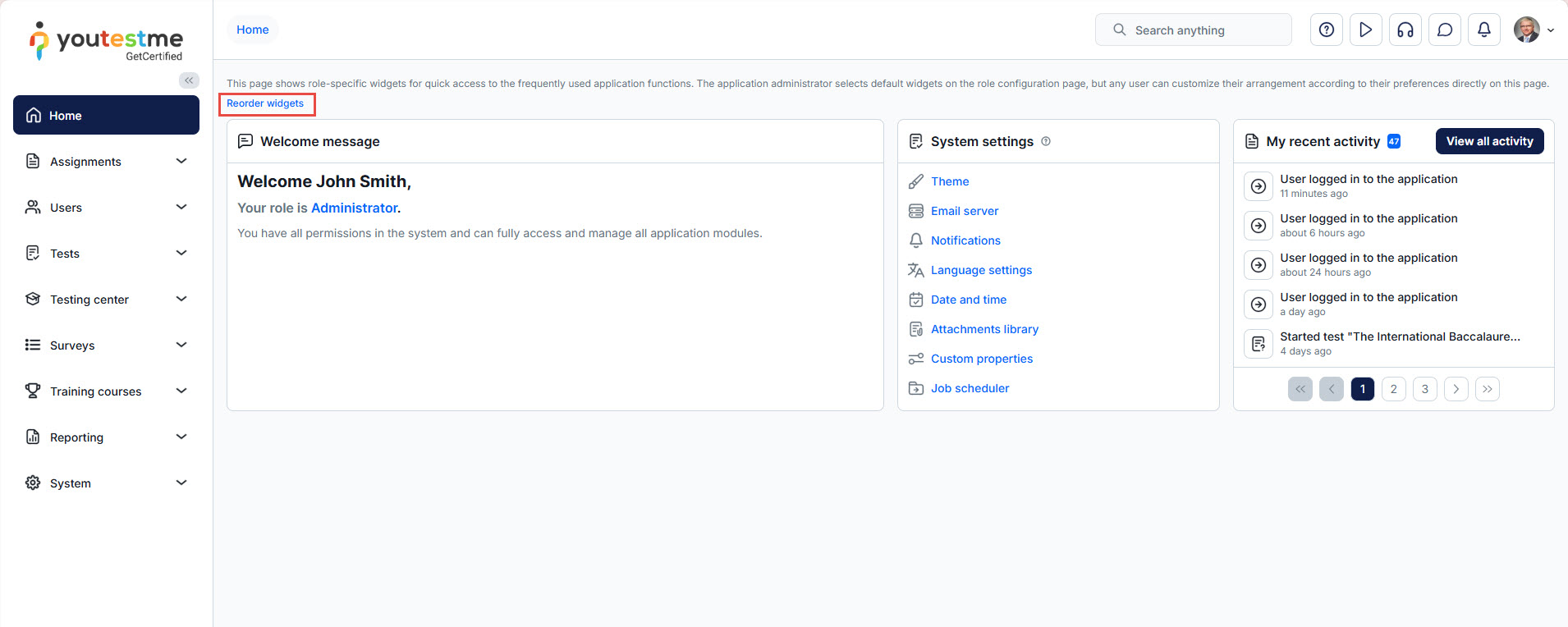
All users can customize the arrangement of their own widgets directly on the Home page, regardless of their assigned permissions.
This allows users to organize their Home page according to their preferences without affecting the widget configuration of other users.
Note: Rearranging widgets directly on the Home page only changes their display order. Adding or removing widgets requires the Manage user roles permission and must be performed through Roles and permissions → Widgets.
Important Notes
- Widgets can be added, removed, and reordered only in the Roles and permissions → Widgets tab.
- Changes apply to all users assigned to the selected role.
- If the changes are not visible, select Reorder widgets and then click Reset. This will remove any potential overlap and restore the defined widget structure.
Widget Types
Below is a list of available widgets and their functionalities:
-
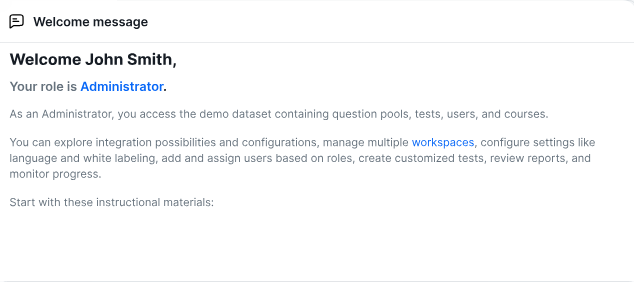
- Role Description – Displays text from the role’s description field, explaining its purpose and key actions.

-
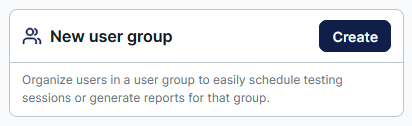
User Groups – Shortcut for creating a new user group (available to users with group creation permissions).

-
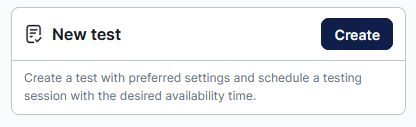
Create Test – Shortcut for initiating a new test.

-
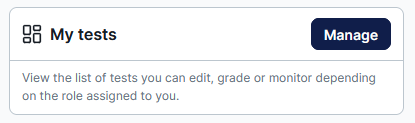
My Tests – Displays a list of tests the user can edit, grade, or monitor.

-
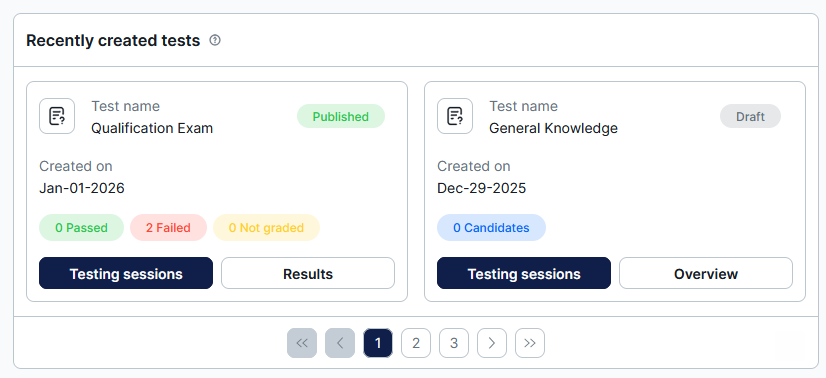
Recently Created Tests – Shows recently created tests with statistics (e.g., passed, failed, ungraded attempts) and management options.

-
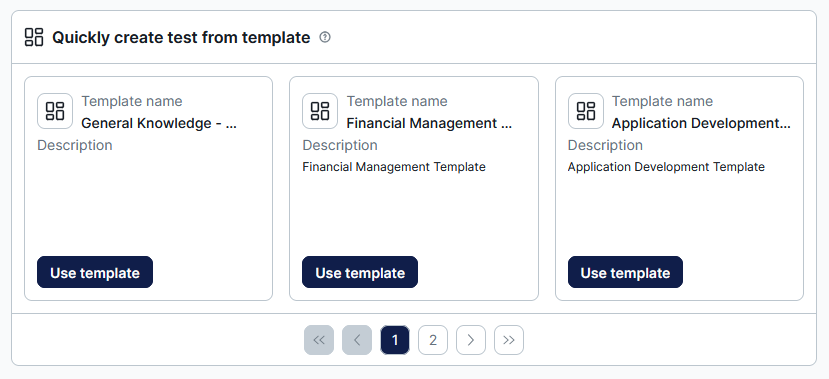
Create Test from Template – Lists public test templates that users can utilize to create new tests.

-
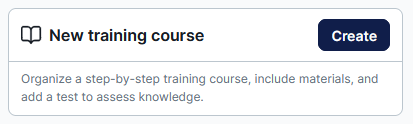
New Training Courses – Shortcut for creating a new training course.

-
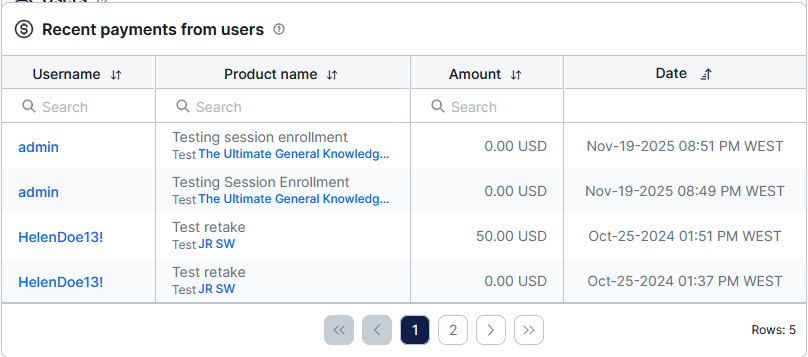
Recent Payments from Users – Displays recent purchases of testing sessions and training courses, including payment details.

-
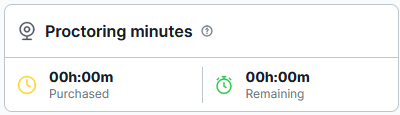
Proctoring Minutes – Shows the number of purchased and remaining proctoring minutes for test monitoring.

-
Users per Role – Displays the total number of users, along with those created since the start of the current month, categorized by security roles.

-
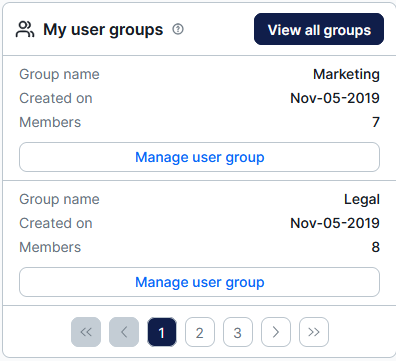
My User Groups – Lists groups managed by the user, ordered from oldest to newest.

-
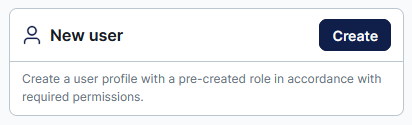
Create User Shortcut– Quick-access widget for adding new users to the application.

-
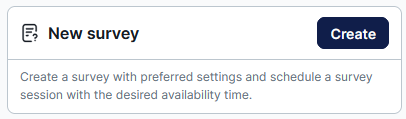
New Surveys – Shortcut for initiating a new survey.

-
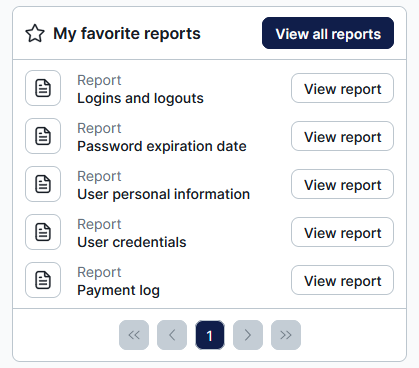
Favorite Reports– Displays a list of favorite reports (only available for Admins).

-
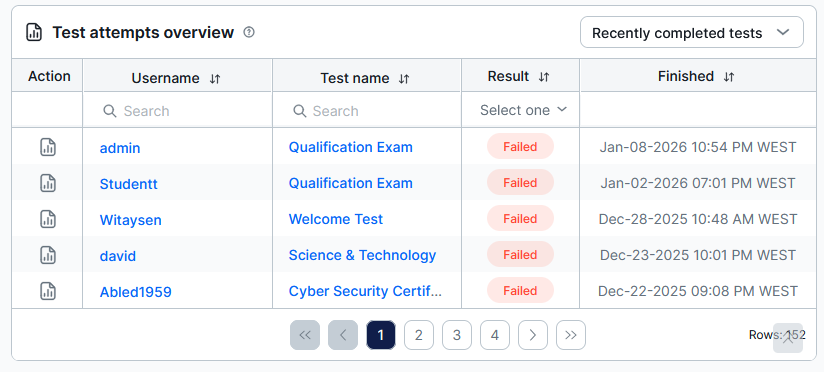
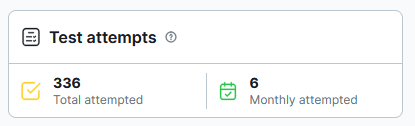
Test Attempts – Summarizes test attempts with relevant details.

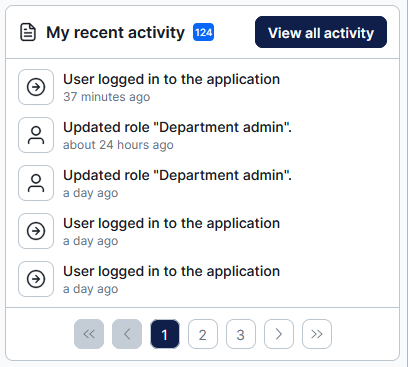
- Recent Activity – Shows a list of the user’s most recent actions within the application.

-
Attempted Tests – Displays the total and monthly number of attempted tests.

- Role Description – Displays text from the role’s description field, explaining its purpose and key actions.

Conclusion
Homepage widgets provide quick access to important information and frequently used application functions.
Users with the Manage user roles permission can add, remove, and configure widgets for specific roles through Roles and permissions → Widgets. These changes apply to all users assigned to the selected role.
All users can independently rearrange their existing widgets directly on the Home page without any additional permissions. This allows each user to personalize their homepage layout while keeping the available widgets controlled through role configuration