Article verified for Release 16.0 on February 3, 2026.
The AI Chatbot is an in-app assistant designed to help you quickly find answers and guidance while working in the application. You can use it to ask how to perform specific actions, understand features, or get general help—without leaving the app or manually searching through documentation.
The chatbot provides clear, contextual responses to support you as you navigate and use the platform.
Note: This feature is included in the EE package. If you are unsure whether your environment includes this package, please contact sales@youtestme.com or your designated account manager for confirmation.
Enabling the Chatbot
By default, only users with the Administrator role have permission to access the AI Chatbot. To grant access to other roles, follow these steps:
- Navigate to Users > Roles and Permissions.
- Locate and edit the desired role.
- Enable the Access AI in-app chat permission.
- Click Update to save your changes.
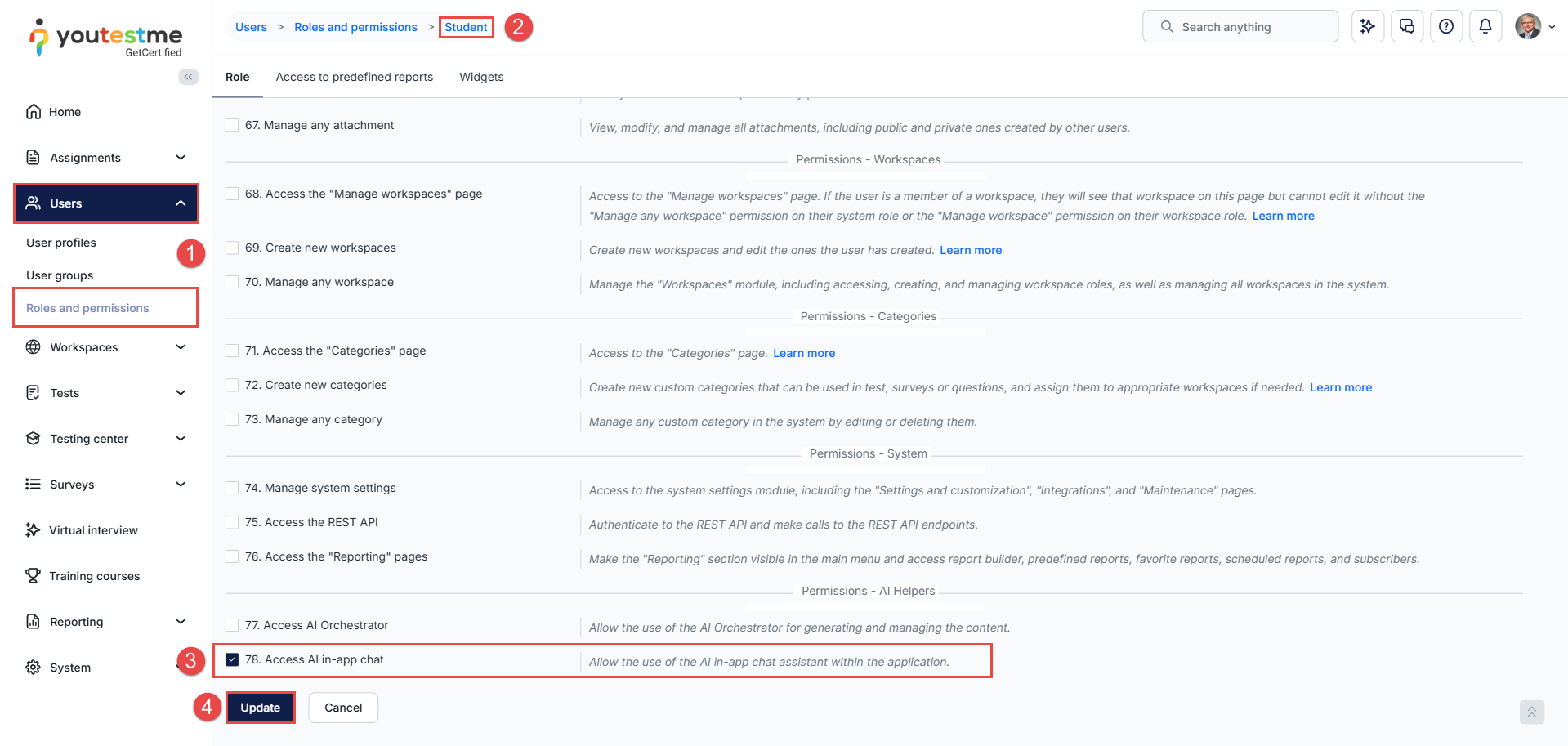
Once enabled, users assigned to that role will be able to access and use the AI Chatbot.
Accessing the Chatbot
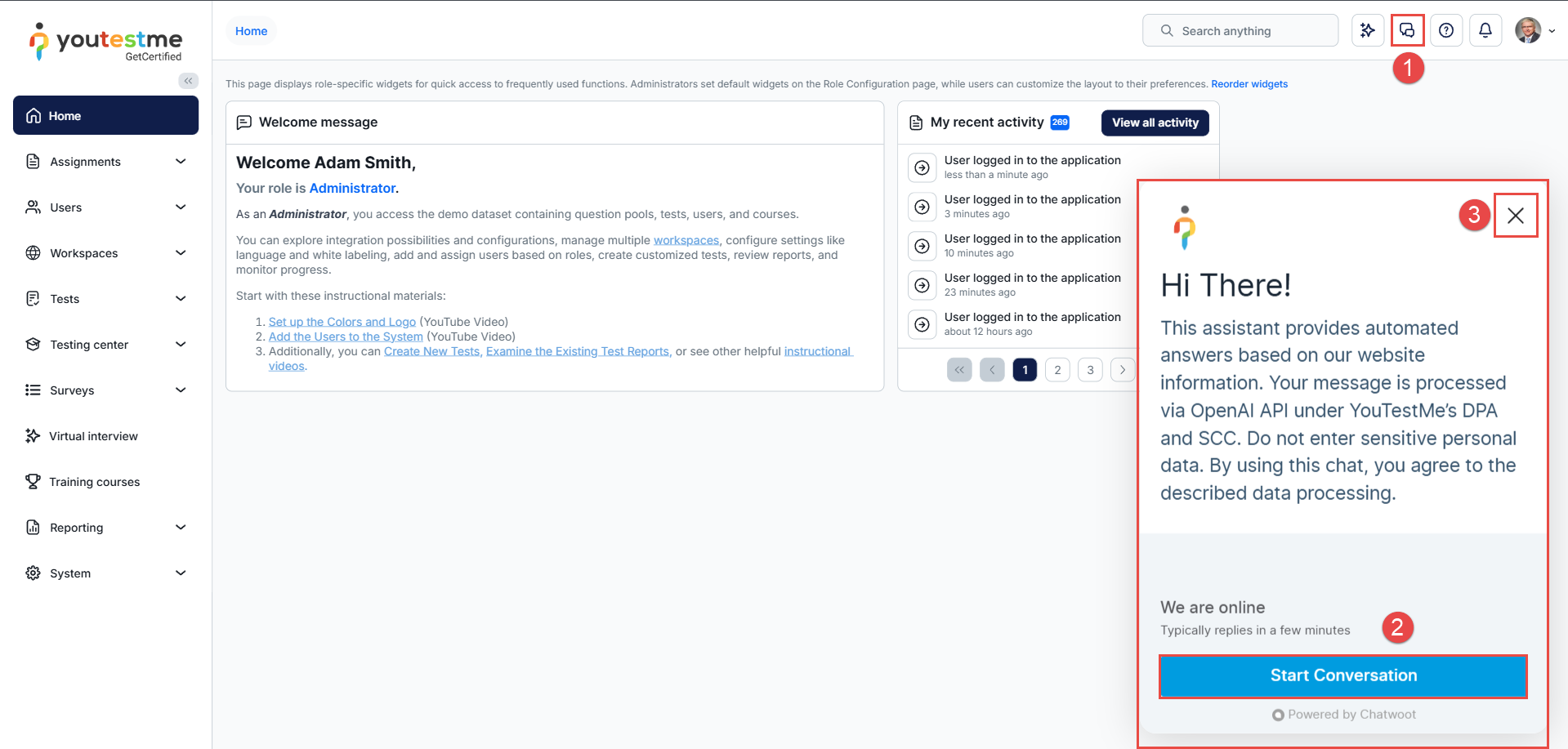
To access the chatbot, follow these steps:
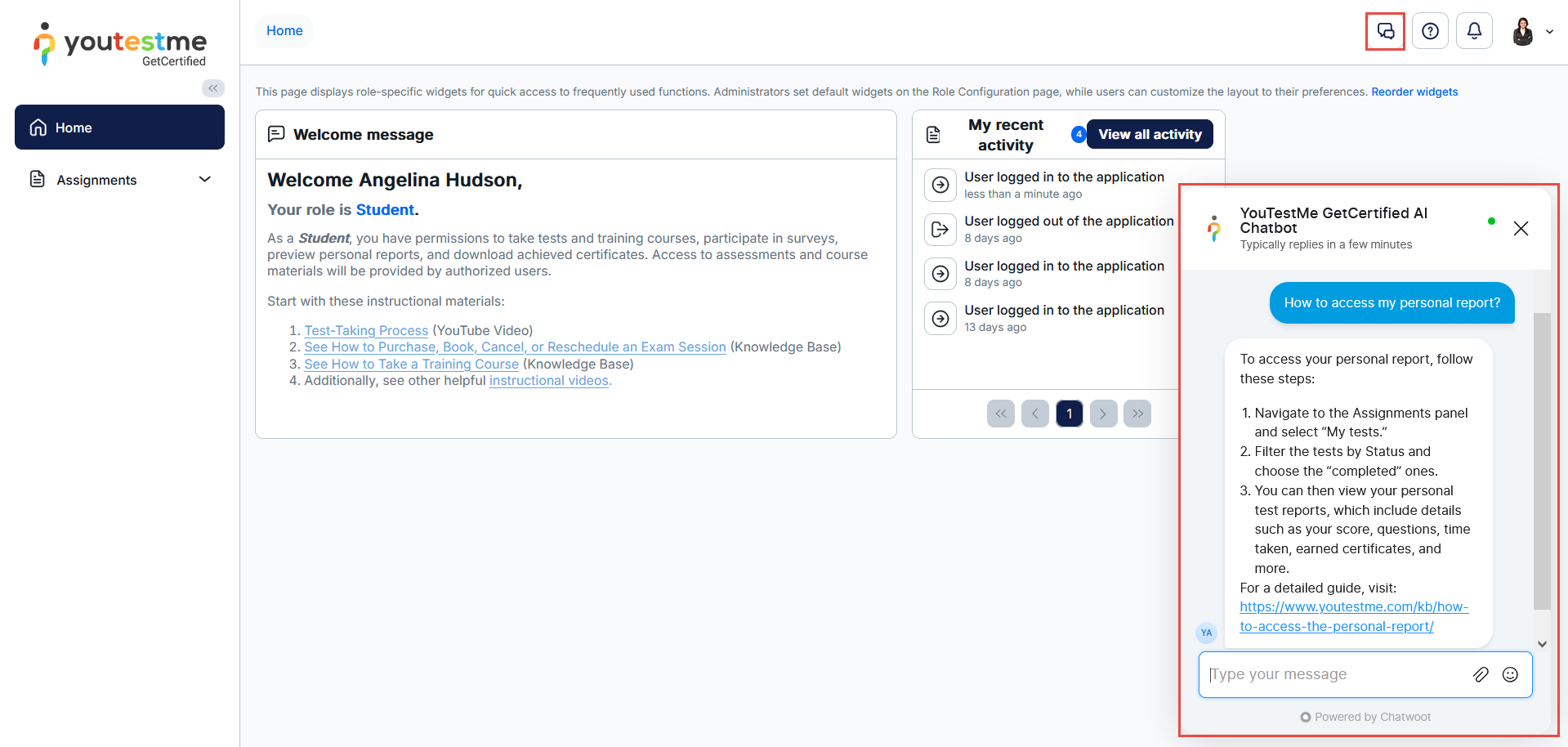
- Click the Chat option in the top-right corner of the application.
- The chatbot window will open. Start a conversation by selecting the Start Conversation button.
- To exit the chatbot, click the X option.
Using the Chatbot
Once the chatbot opens, you can interact with it to get assistance with the application.
- Use the search dialog to ask any question or request help with app features.
- You can enhance your messages by attaching a file or using emojis to better explain your question or provide additional context.
Note: For more accurate and detailed responses, we recommend asking one question at a time.
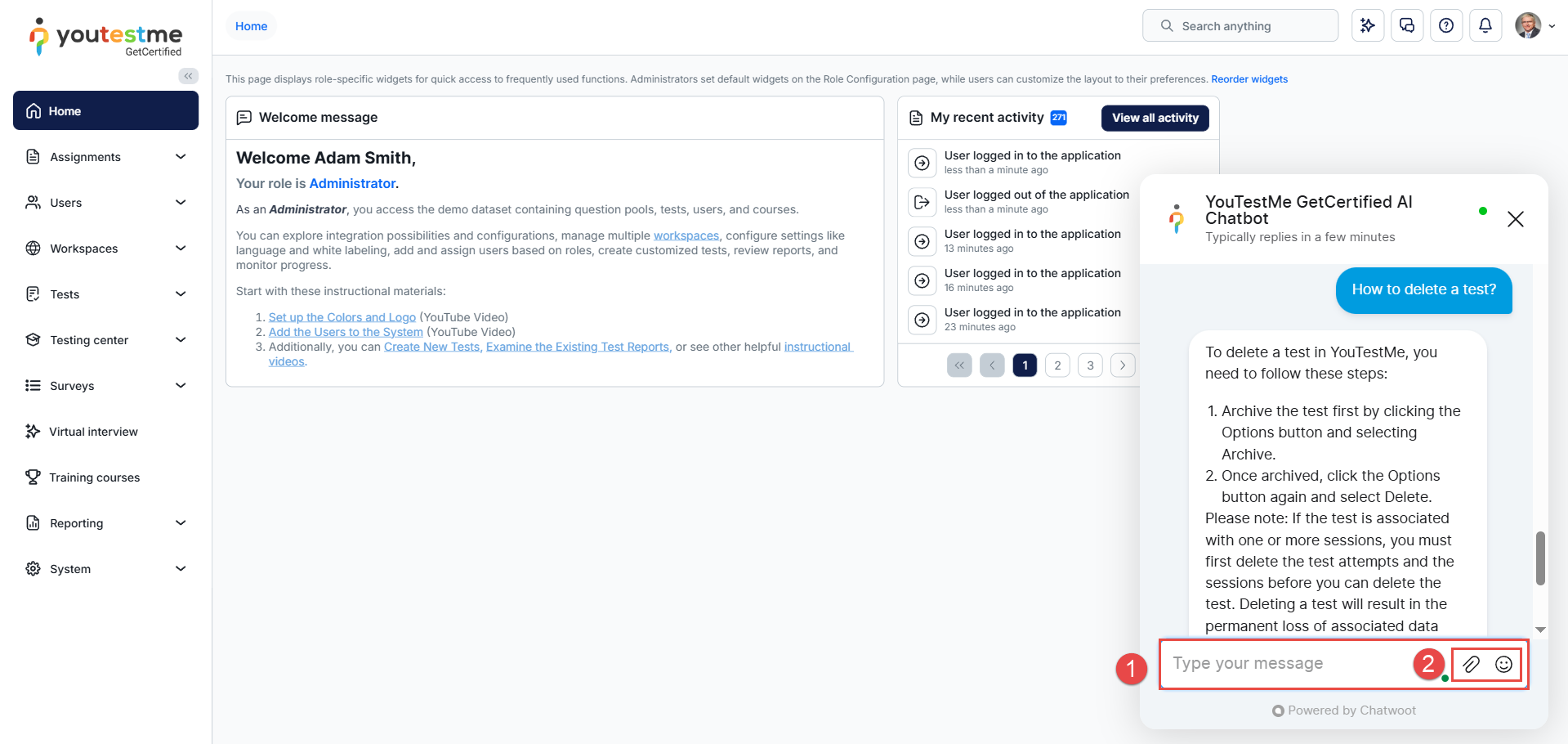
The chatbot responds directly in the conversation, allowing you to continue asking follow-up questions as needed.
Candidate’s Perspective
If this permission is enabled, candidates will also be able to use the AI Chatbot. This helps speed up their interaction with the platform, reduces confusion, and makes it easier for candidates to navigate and complete tasks within the application.
Deleting the Conversation
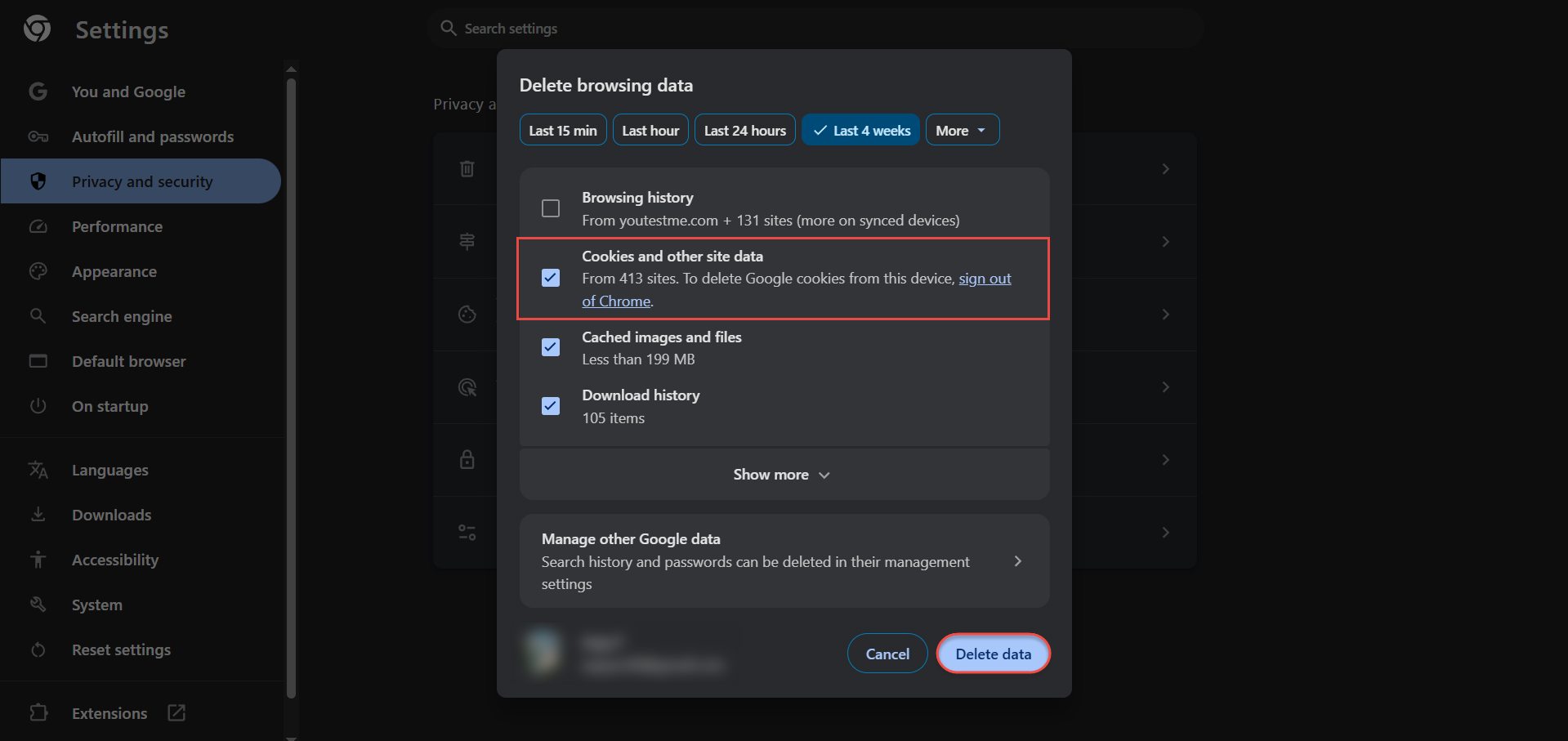
To reset or delete your conversation history with the AI Chatbot, you need to clear your browser cookies. This action removes the locally stored chat data from your browser.
For detailed instructions on clearing cookies in your browser, please refer to this site.