Article verified for Release 16.1 on September 24, 2026
This article explains how to restrict access to tests based on candidates’ IP addresses. You will learn how to define the IP addresses that belong to the internal network and configure a test so that it can only be accessed by candidates connecting from the specified network.
How to configure the internal network
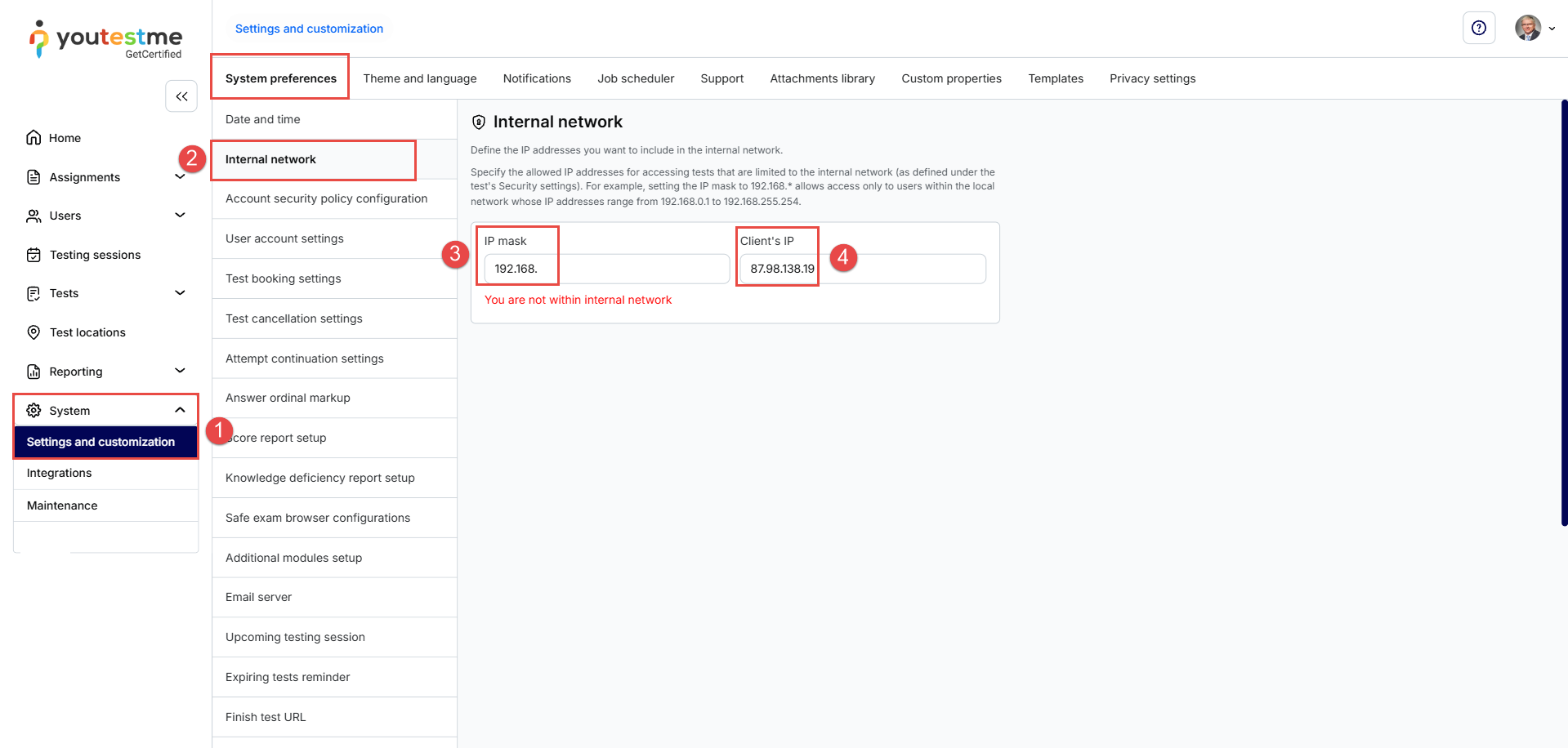
To define the IP addresses that will be considered part of the internal network:
- Navigate to System > Settings and customization > System preferences.
- Locate the Internal network section.
- In the IP mask field, enter the IP address or range of IP addresses that should be included in the internal network.
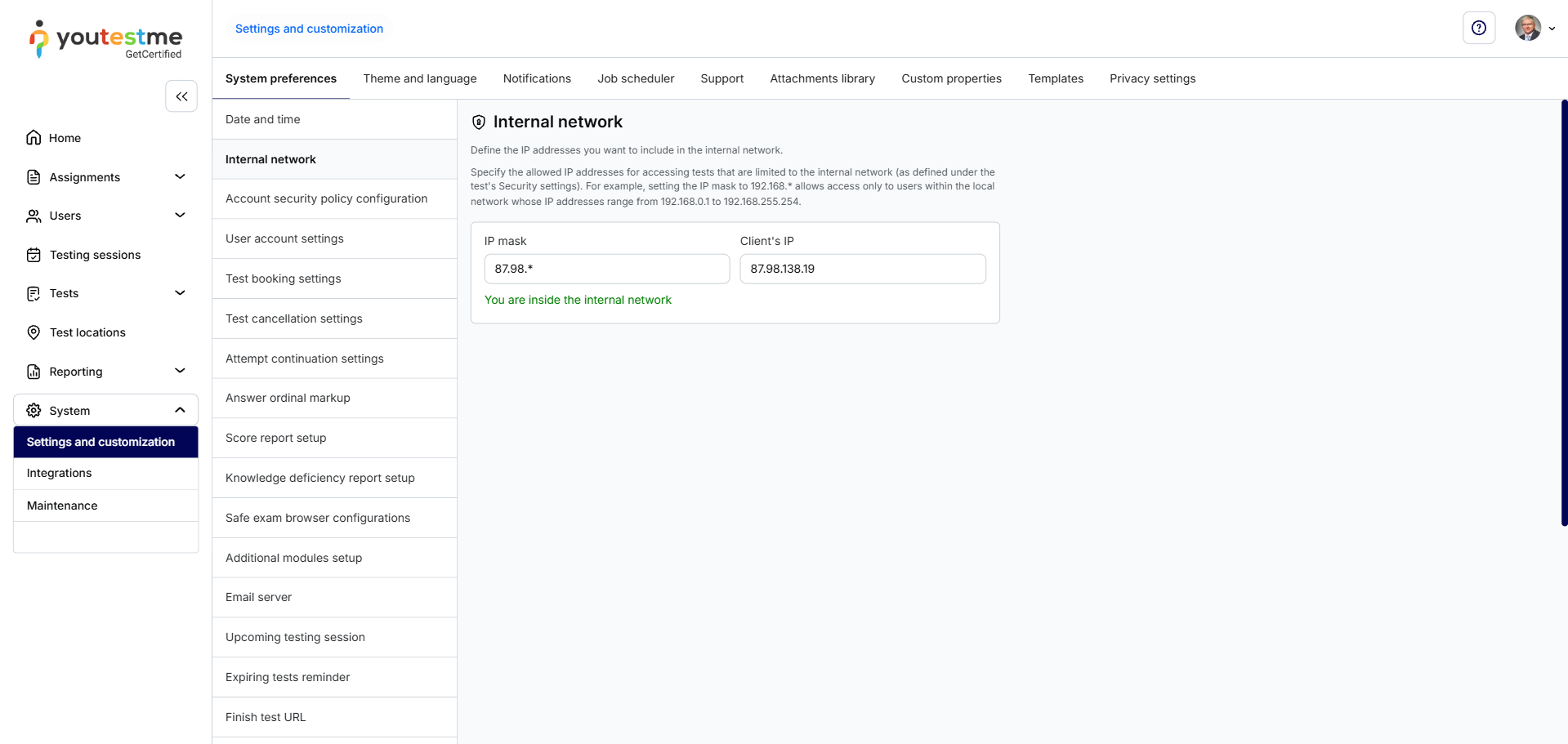
Note: Use an asterisk (*) to define a range of allowed IP addresses. For example, entering 192.168.* allows IP addresses from 192.168.0.1 to 192.168.255.254. - The Client’s IP field displays your current IP address and indicates whether you are currently within the configured internal network.
Note: Configuring the internal network does not restrict access to the entire application. The defined IP addresses are used when a test is configured to allow access only from the internal network.
IP address outside of the range:
IP address within the range:
How to restrict a test to the internal network
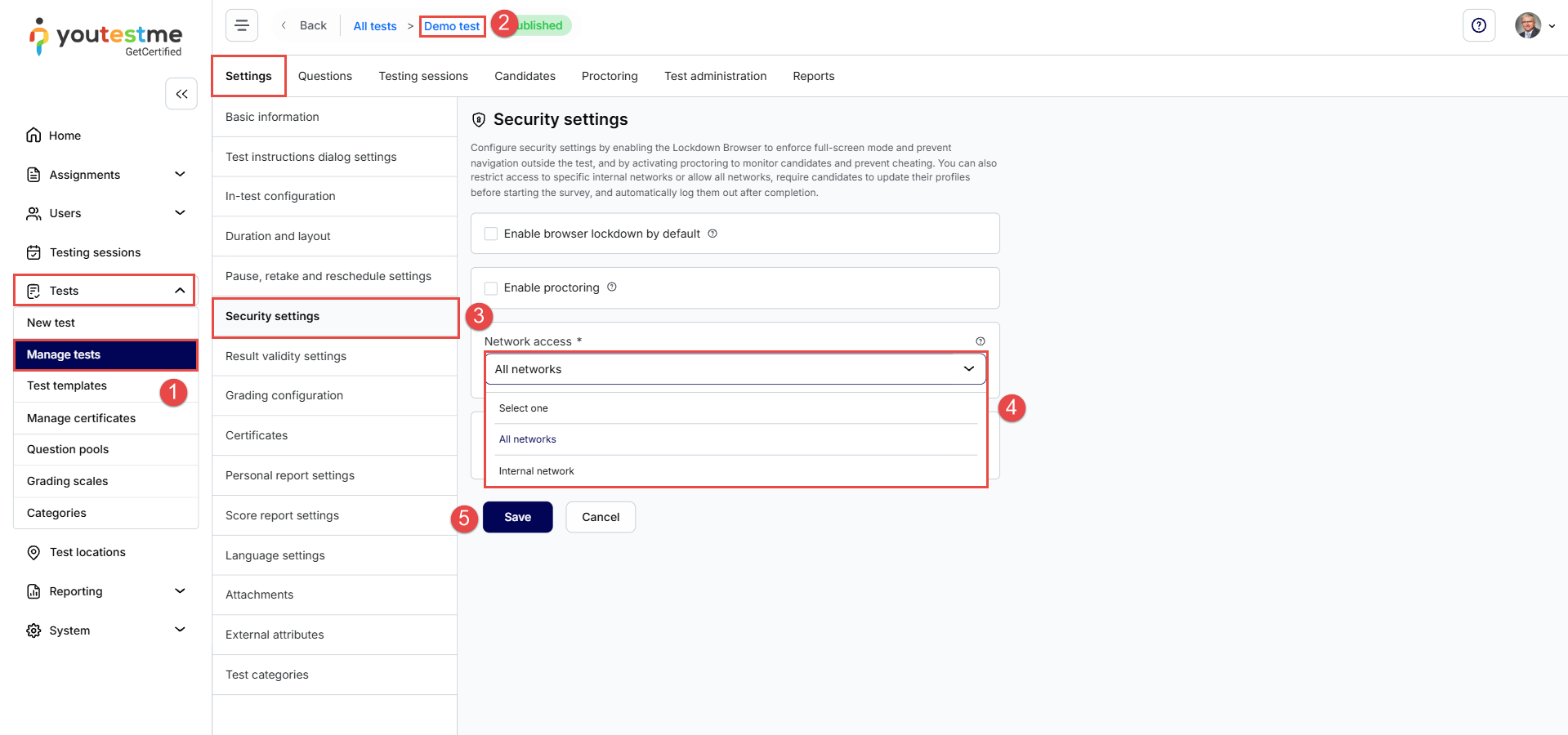
Once the internal network has been configured:
- Navigate to Tests > Manage Tests.
- Select the desired test.
- Navigate to Settings > Security settings.
- Enable the option to limit test access to the internal network.
- Save the changes.
Candidates will be able to access the test only when their IP address matches the IP mask configured under Internal network.
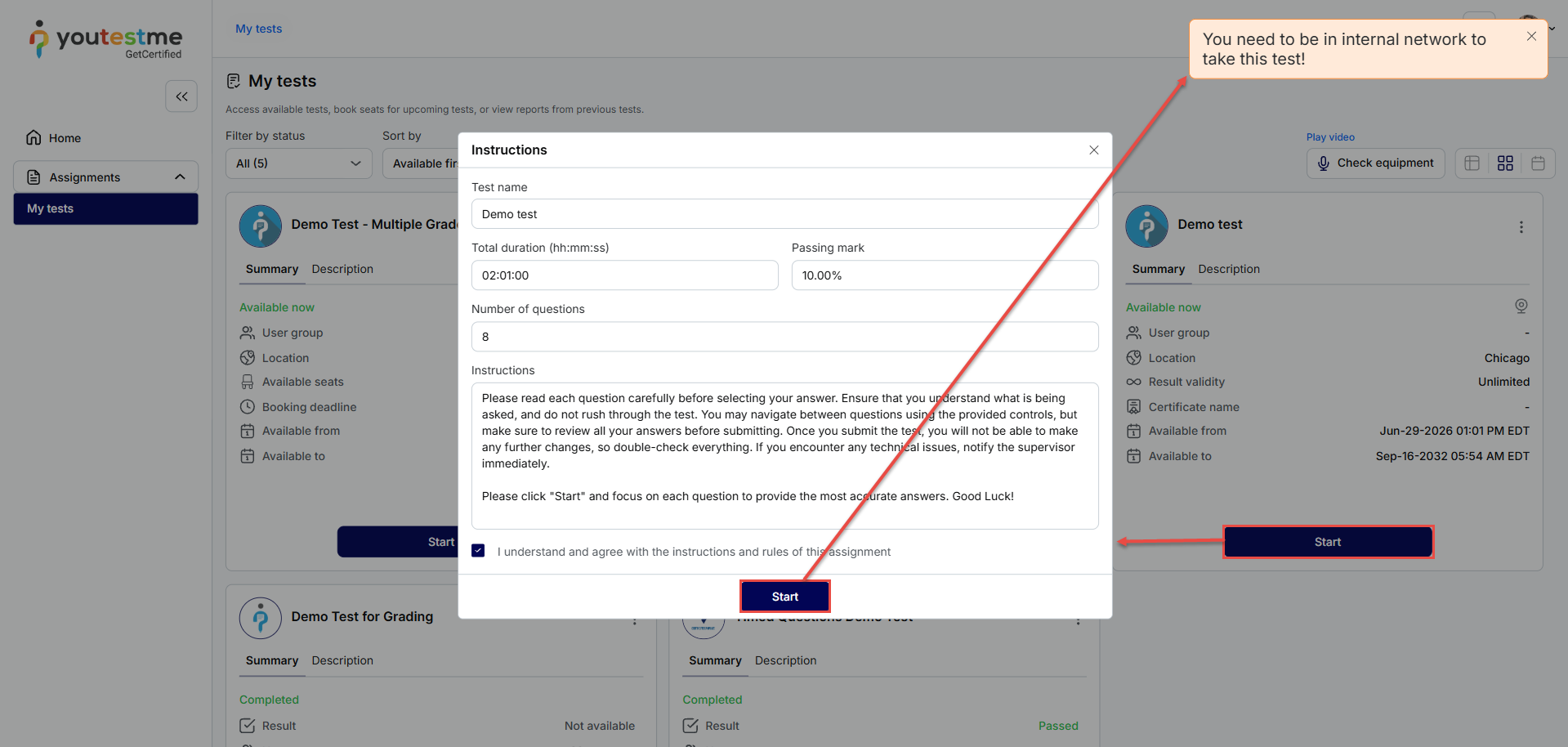
Candidate’s perspective
Candidates whose IP addresses are outside the configured internal network will not be able to access a test restricted to the internal network.