
Article verified for Release 15.1 on November 7, 2025.
This article explains how to create answer feedback that is displayed to candidates during the test-taking process or in their personal report. You can add answer feedback to both existing and new questions, regardless of the question type.
Accessing the Page
To create answer feedback, follow these steps:
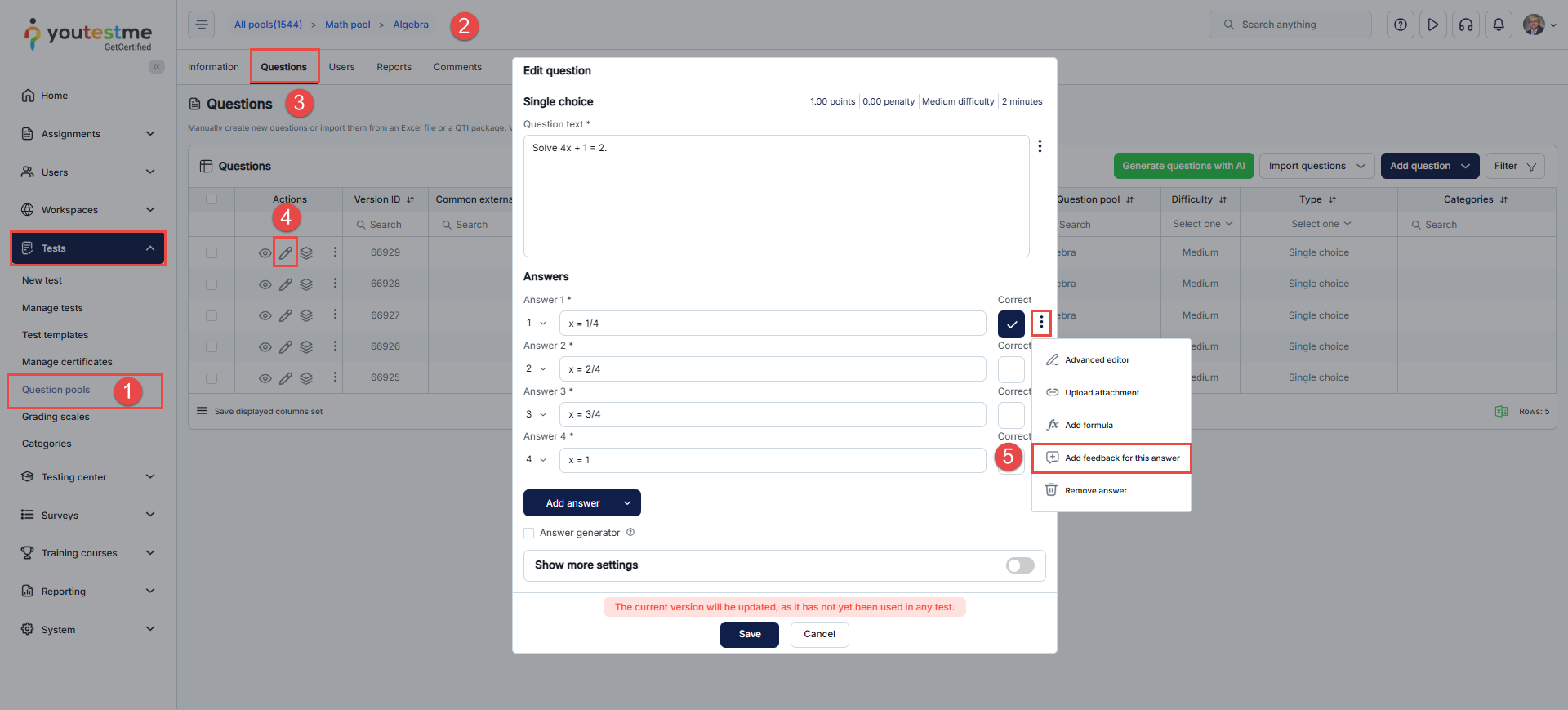
- From the side menu, navigate to Tests and select the Question Pools tab.
- Choose the desired pool.
- Navigate to the Questions tab.
- Select the Edit option to add answer feedback to existing questions.
- Click the three dots and choose Add Feedback for This Answer.
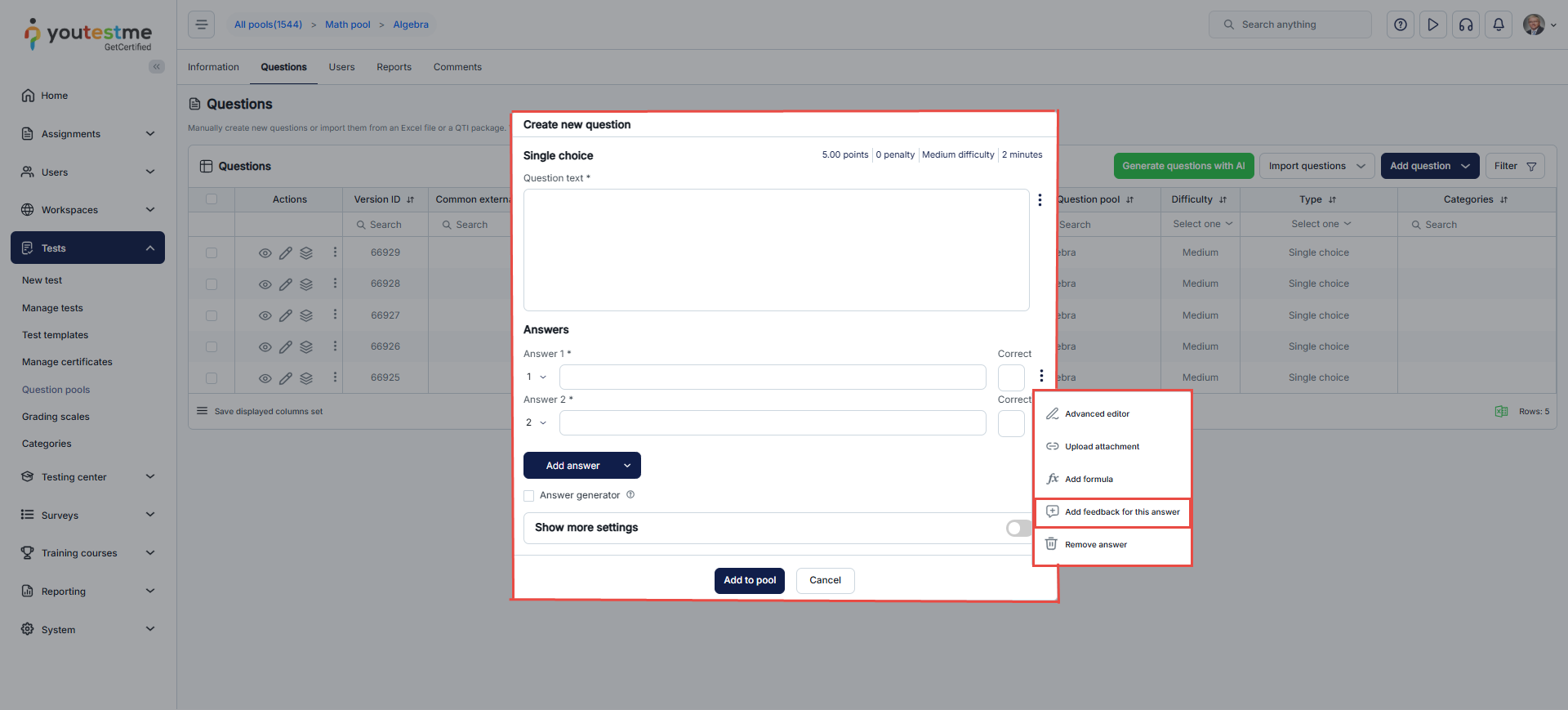
You can also select the Add questions and the desired question type to add answer feedback to the newly created questions.
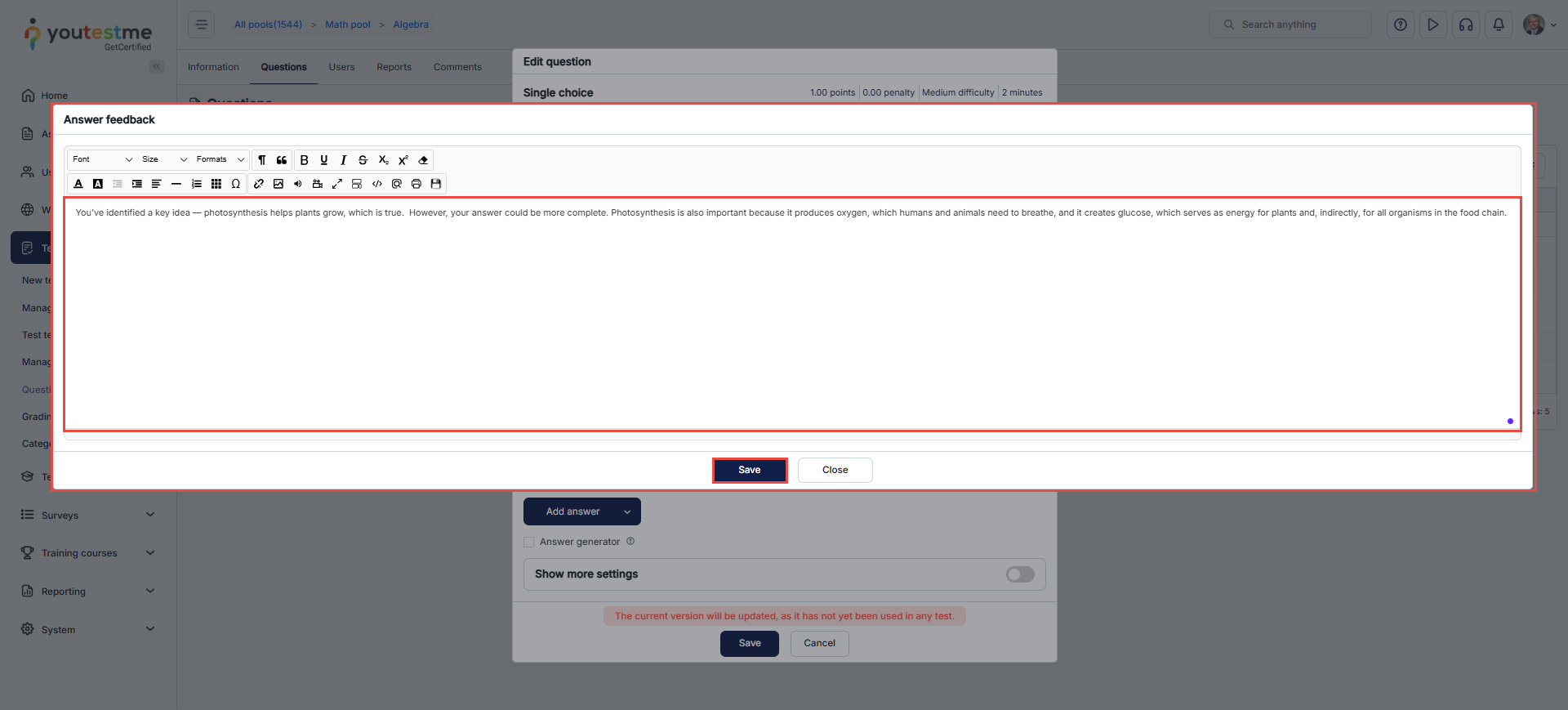
Adding and editing question feedback
In the Answer Feedback dialog, enter the feedback text and click Save to add the feedback to the question’s answer.
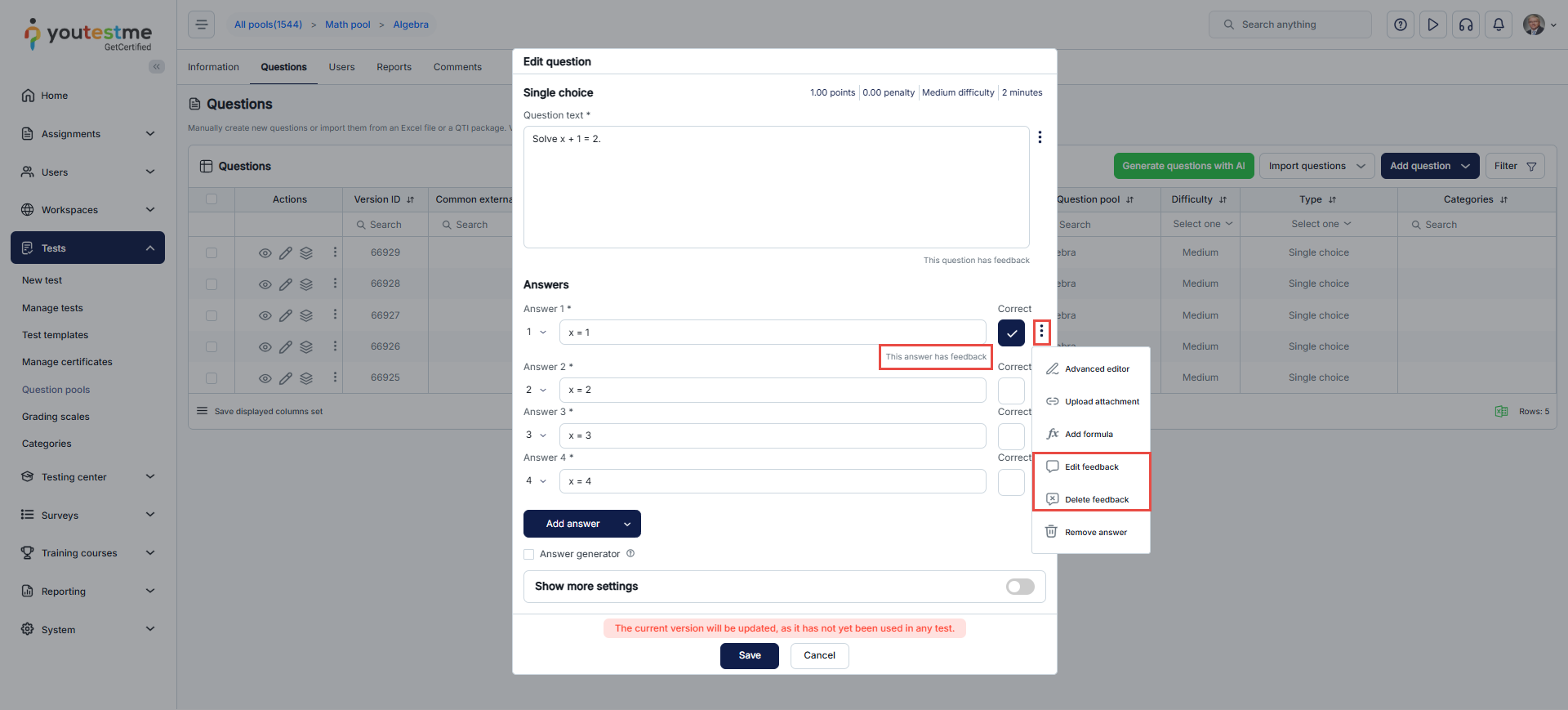
When feedback is added to a question’s answer, you will receive an application notification. Answers with feedback will be highlighted. To edit or delete an answer with feedback, click the three dots. next to the answer.
Enabling Answer Feedback in a Test
To enable answer feedback for candidates within the Test Creation Wizard, do the following:
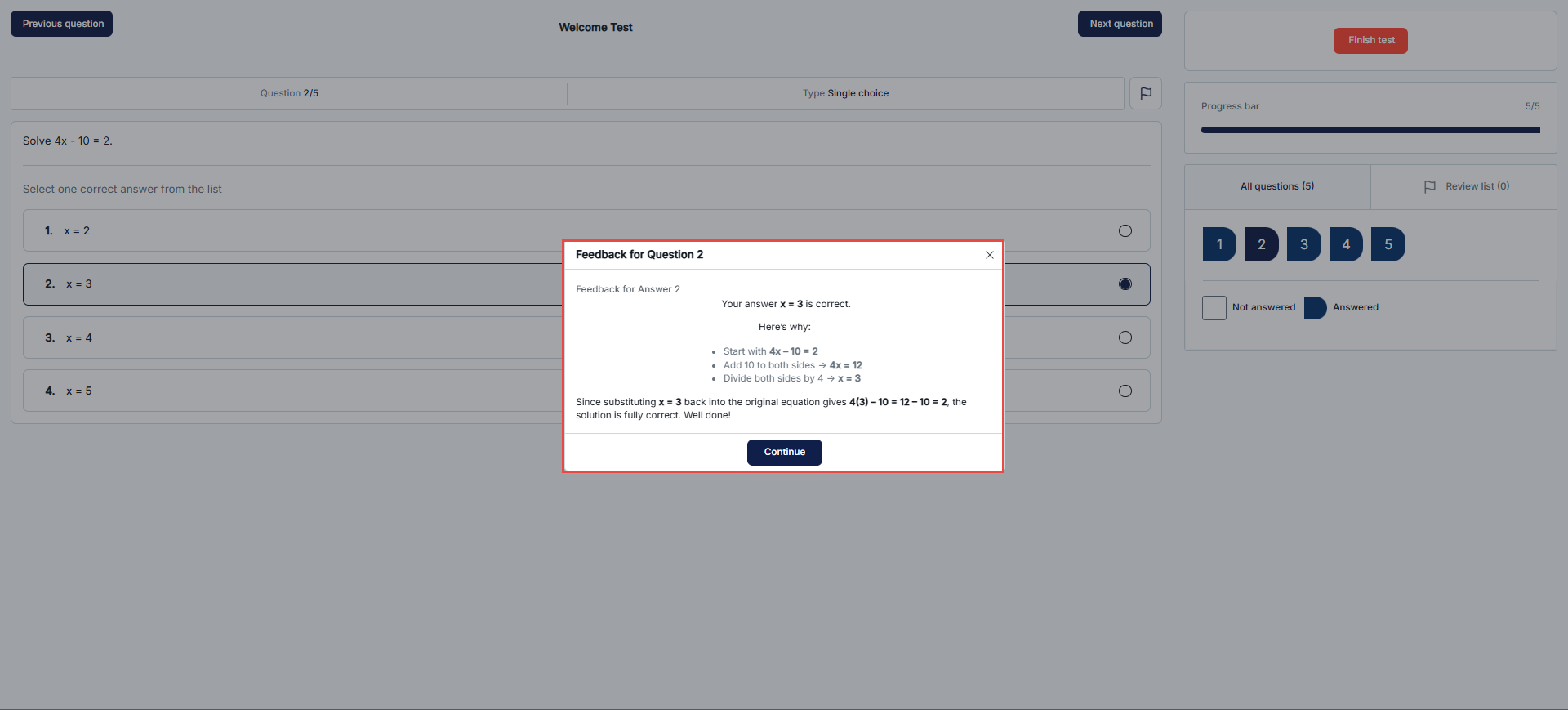
- To show feedback during the test, select Enable answer feedback to candidates. Feedback will appear when candidates choose an answer that includes it.
- To show feedback only in the personal report, select Show answer feedback in the personal report only. In this case, feedback will not appear during the test but will be visible in the personal report afterward.
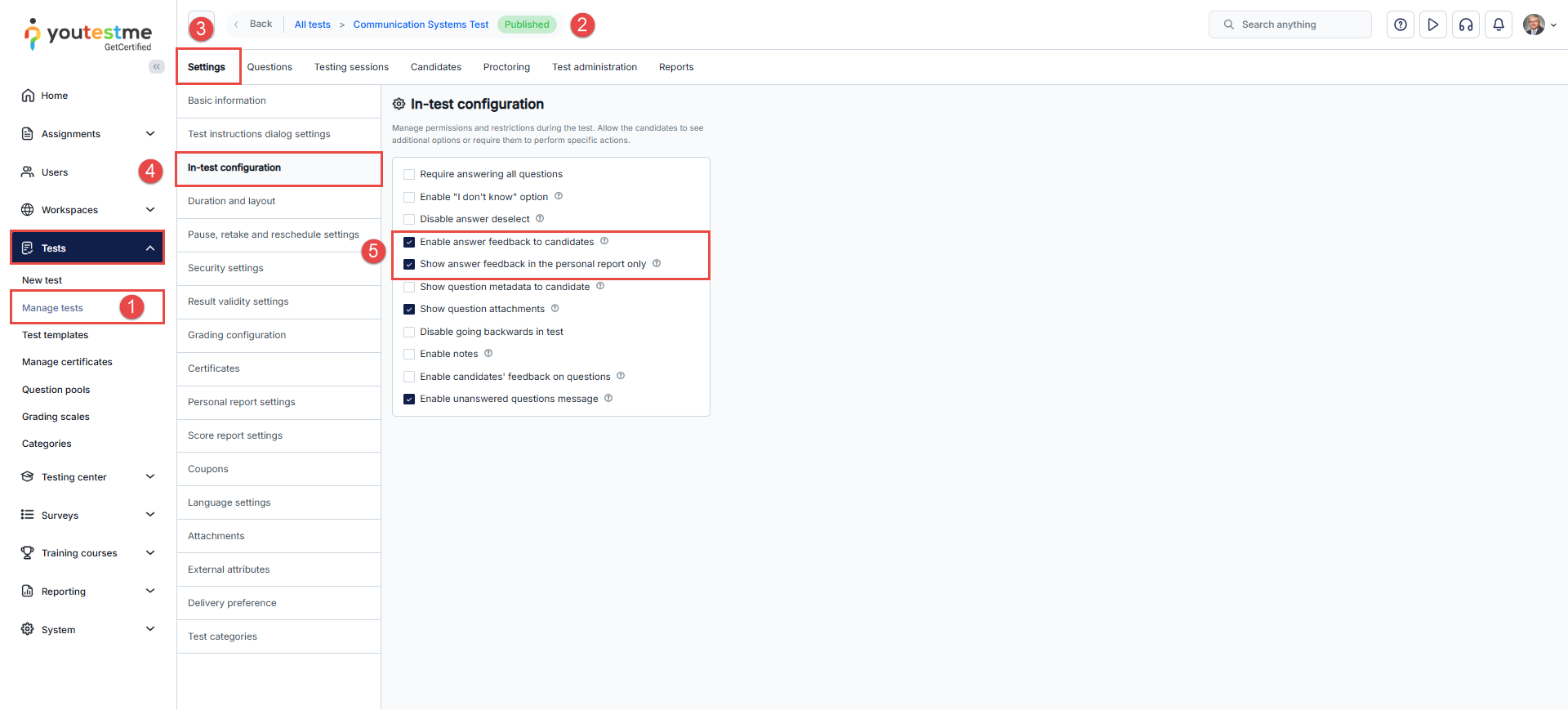
To enable answer feedback for an existing test, do the following:
- Navigate to Tests and select Manage tests.
- Choose the desired test.
- Navigate to Settings and select In-test configuration.
- Choose whether to display feedback during the test and/or in the personal report only.
- Select Save to apply your changes.
Candidates perspective
When Enable answer feedback to candidates is enabled, feedback will be visible both during the test and in the personal report.
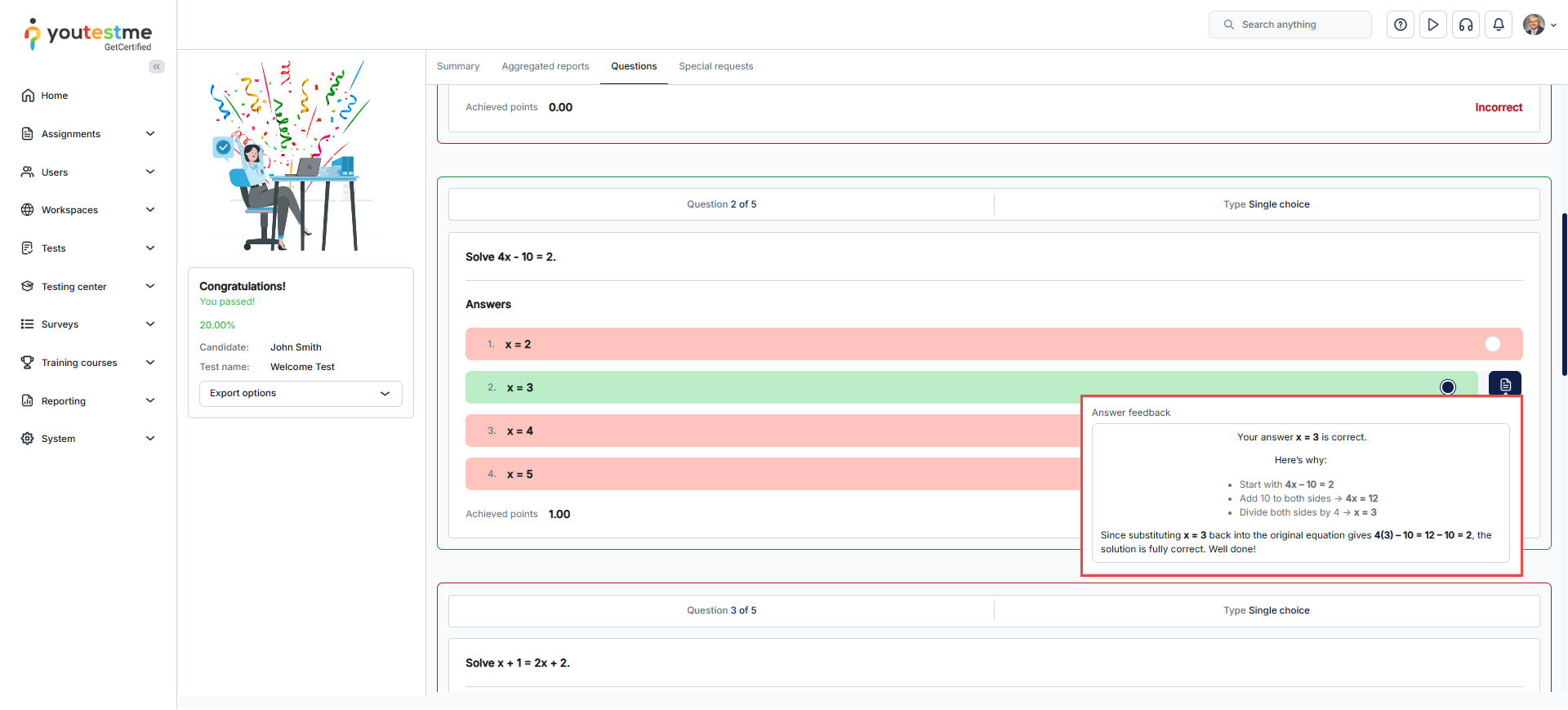
When Show answer feedback in the personal report only is enabled, feedback will be visible exclusively in the personal report.
For additional related topics, please refer to the following articles:




