
Article verified for Release 16.0 on February 12, 2026.
This article provides a complete guide to using the Virtual Interview platform for AI-powered candidate recruitment and evaluation. It explains how administrators can create and manage interviews, review AI-generated assessments, and collaborate with their teams, as well as how candidates can access interviews and submit their responses.
The guide is structured by user role to ensure a clear and efficient experience for both administrators and candidates. By following the steps outlined in this article, you can streamline your recruitment process, improve evaluation consistency, and make data-driven hiring decisions using AI-supported insights.
Recommended Browser: For the best performance and full functionality, we recommend using Google Chrome.
Note: This feature is included in the EE package. If you are unsure whether your environment includes this package, please contact sales@youtestme.com or your designated account manager for confirmation.
Access Virtual Interview
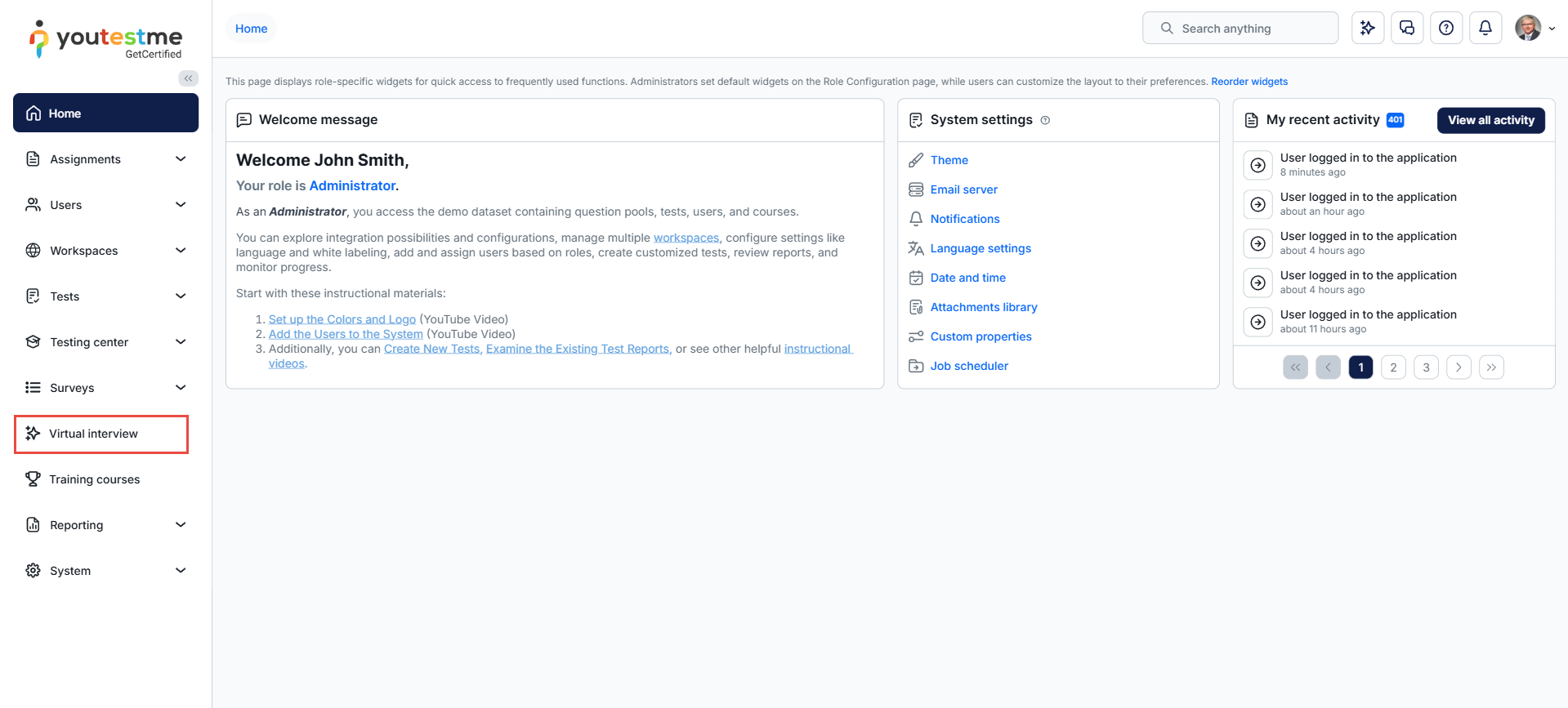
Interview Page
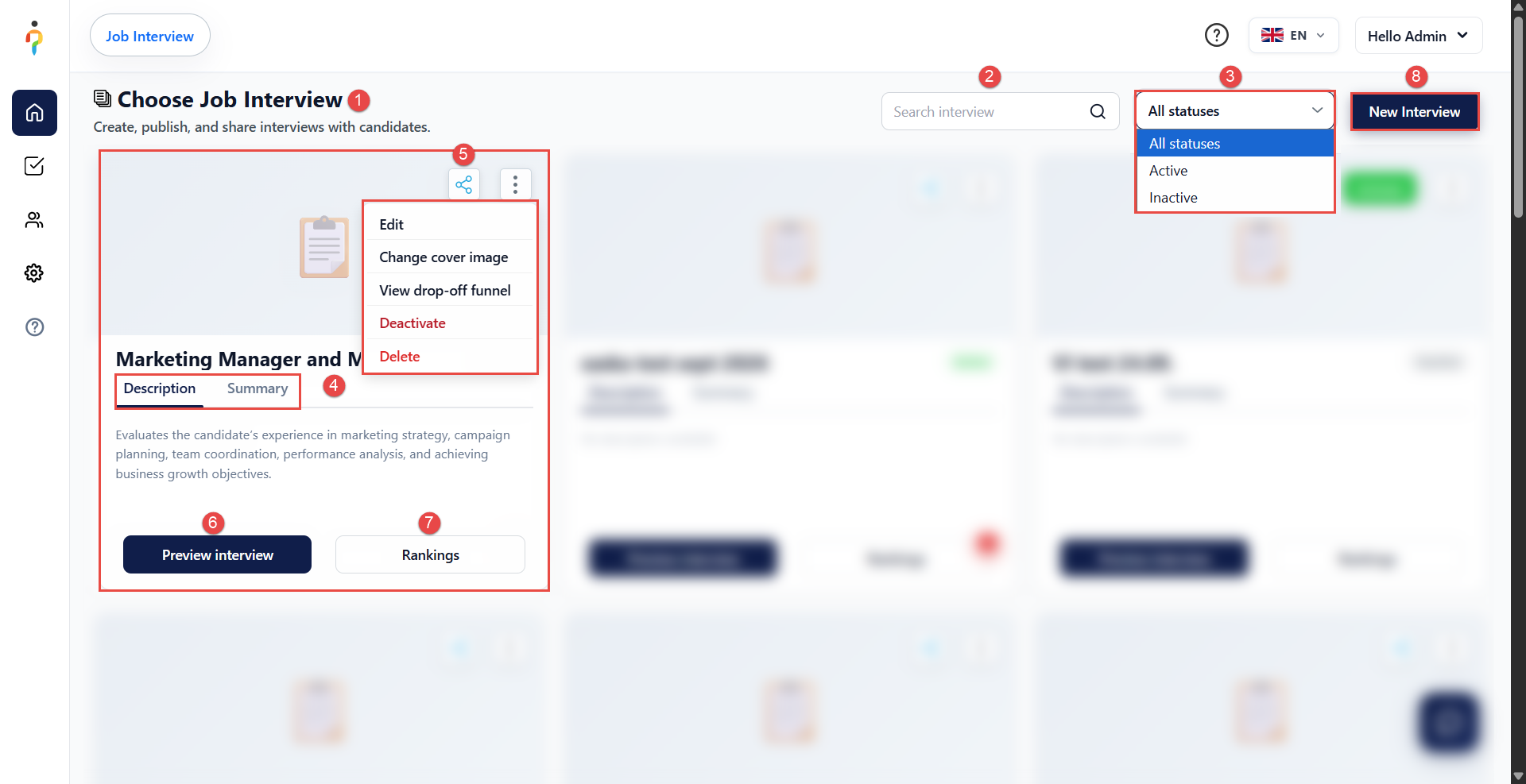
On the Interview Page, Administrators Can:
- View All Interviews – Access and browse the list of created interviews.
- Search Interviews – Use the search field to quickly find a specific interview by name.
- Filter Interviews by Status – Use the status dropdown to display All statuses, Active, or Inactive interviews.
- Review Interview Details
- Description – View a brief explanation of the interview’s purpose.
- Summary – View the interview status and the total number of questions.
- Manage Interview Options – Click the three-dot menu on an interview card to access the following options:
- Edit – Modify interview settings and questions.
- Change cover image – Upload, replace, or remove the interview’s cover image.
- View drop-off funnel – Review candidate progression and identify where candidates leave the interview process.
- Activate/Deactivate – Change the interview’s availability based on its current status.
- Delete – Permanently remove the interview and all associated candidate results.
Important: Deleting an interview is not recommended, as all associated candidate results will be permanently lost. Consider deactivating the interview instead.
- Share Interview via Link – Click the share icon on an interview card to generate and copy a direct link to the interview.
- Preview Interview – Click Preview interview to review the interview before making it available to candidates.
- View Rankings – Click Rankings to access candidate results and rankings for the selected interview.
- Create a New Interview – Click New Interview to start creating a new interview.
Note: Only active interviews are available and accessible to candidates.
Creating Interviews
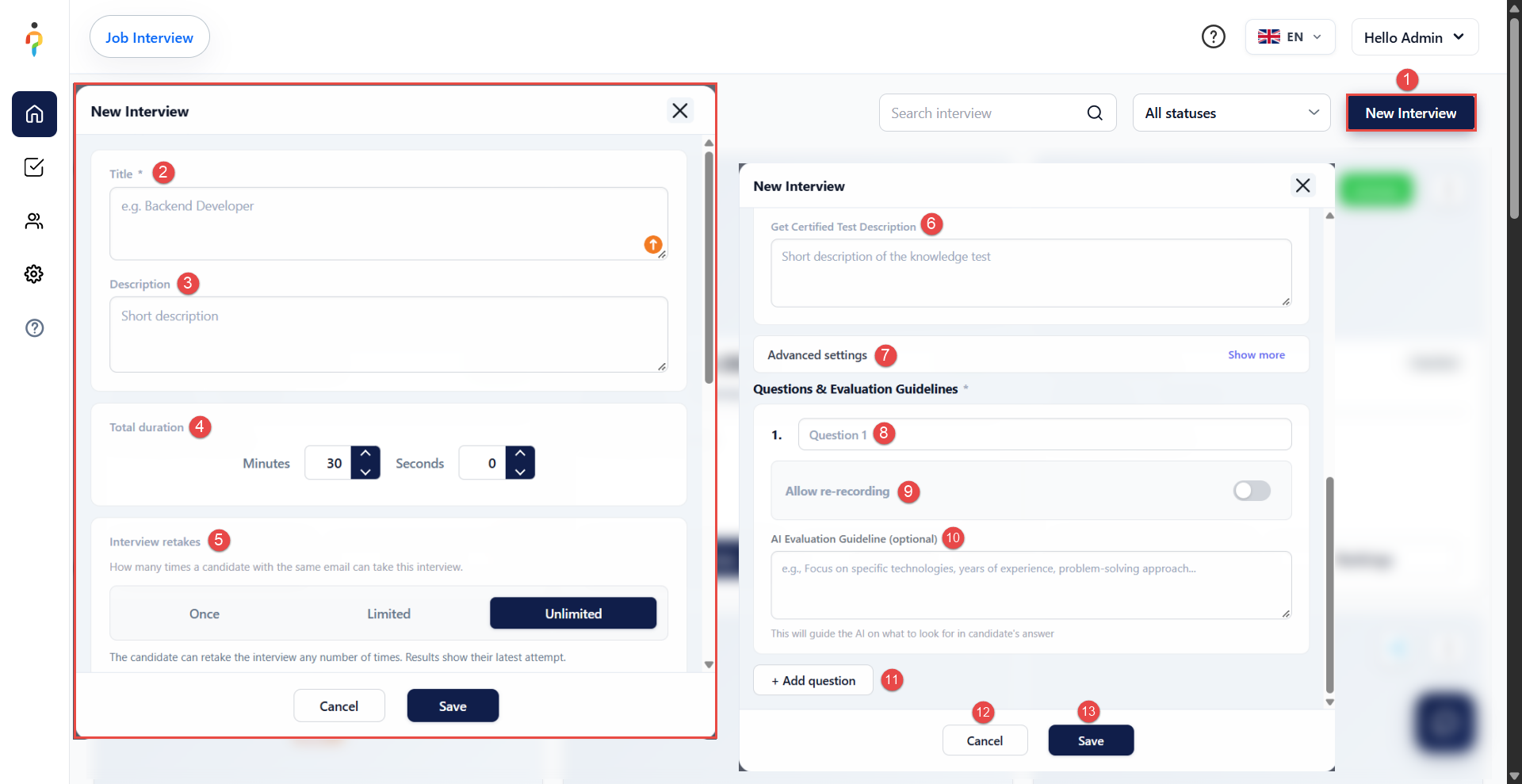
To create a new interview, follow these steps:
- Click the New Interview button.
- Enter the Title of the interview (required).
- Provide a brief Description of the interview (optional).
- Define the Total duration of the interview in minutes and seconds.
- Configure the Interview retakes settings to determine how many times a candidate can take the interview:
- Once – The candidate can take the interview only once.
- Limited – The candidate can retake the interview a specified number of times.
- Unlimited – The candidate can retake the interview any number of times. Results display the latest attempt.
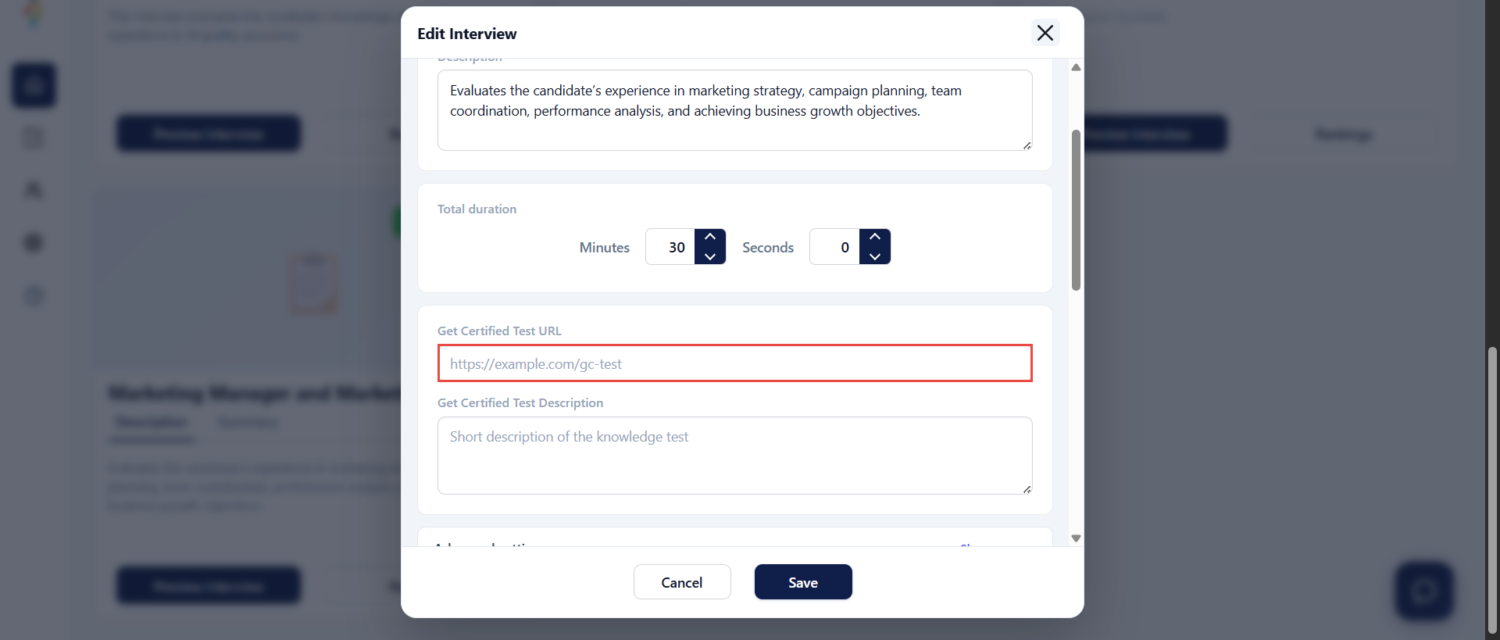
- (Optional) Enter the Get Certified Test Description to provide a brief description of the associated knowledge test.
- (Optional) Expand Advanced settings by clicking Show more to configure additional interview settings.
- Under Questions & Evaluation Guidelines, enter the Question Text (required).
- (Optional) Enable Allow re-recording to allow candidates to re-record their responses.
- (Optional) Enter an AI Evaluation Guideline to define how the AI should evaluate candidate responses. For example, you can specify:
- Required years of experience.
- Key competencies or behaviors to assess.
- Expected technical skills.
- (Optional) Click + Add question to include additional interview questions and configure their evaluation guidelines.
- To discard the changes, click Cancel or close the dialog.
- Click Save to create the interview.
Note: Newly created interviews are saved as Inactive by default. This allows you to review and confirm all settings before making the interview available to candidates.
Create the Knowledge Test
Create a knowledge test that matches the position and interview. For more information, please visit this article.
You can create questions manually or generate them with the AI question generator.
Review all generated questions before publishing the test.
Connect the Interview and Knowledge Test
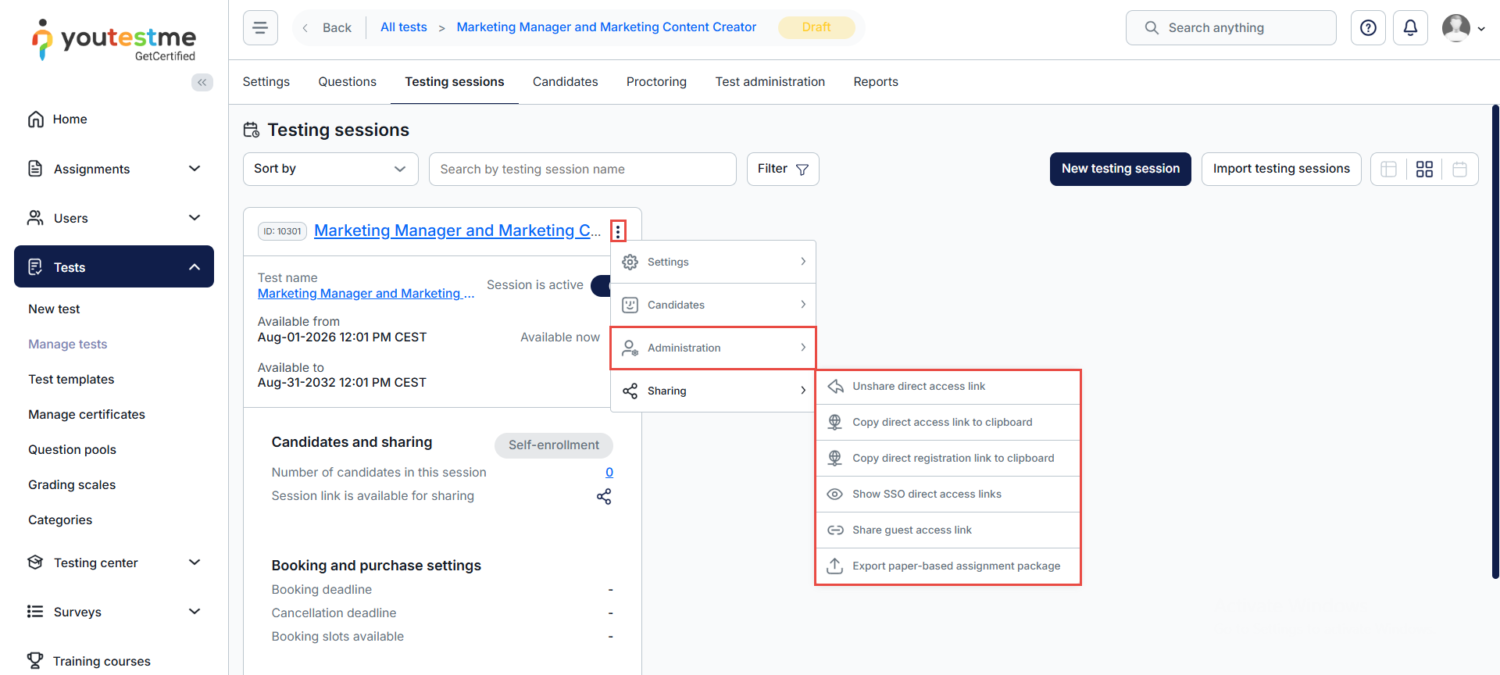
To connect the test to the interview, copy the direct link to the testing session. Please note that the session must be self-enrolment. For more information on generating direct links, please visit this article.
Check Rankings
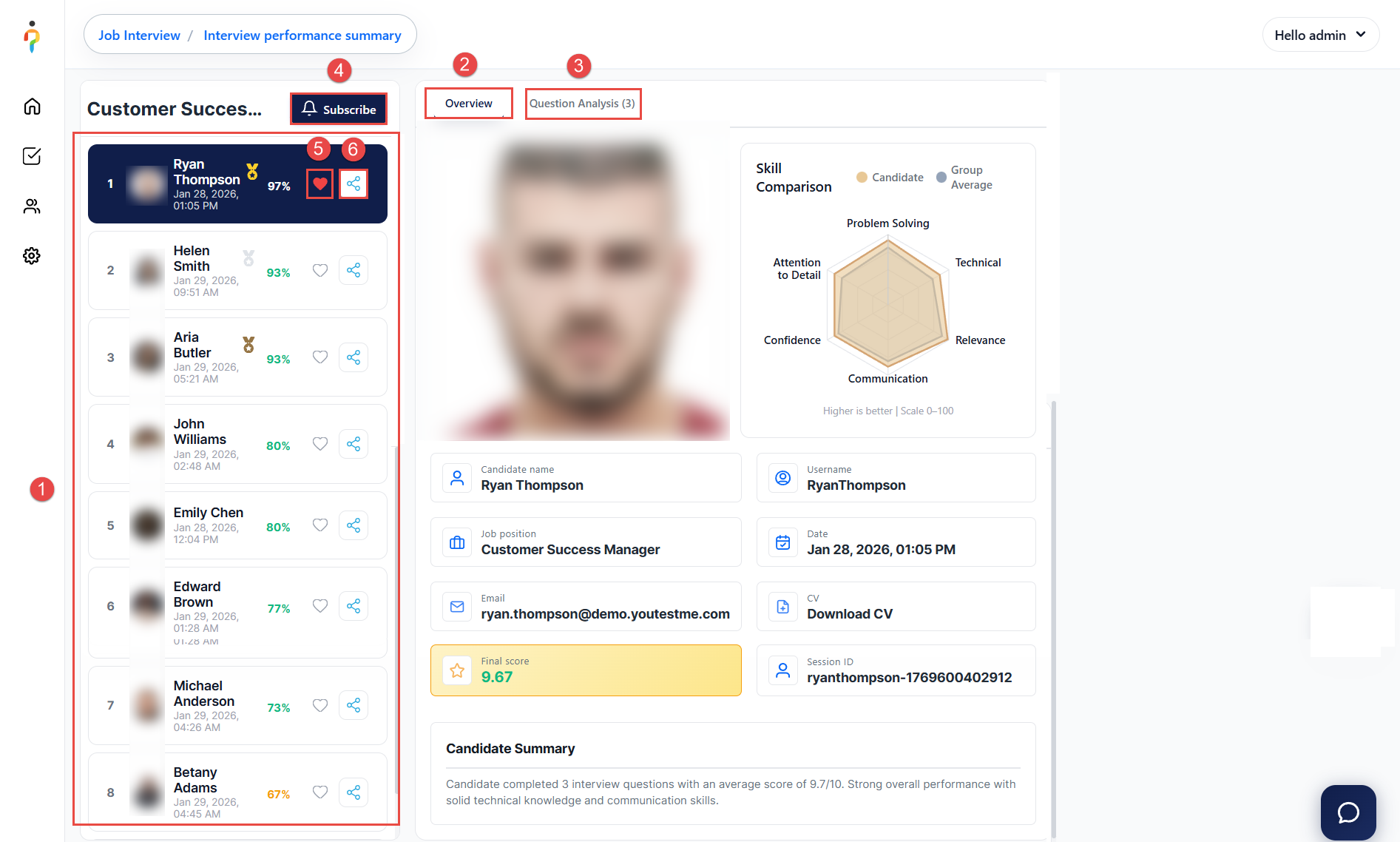
After selecting the Rankings button, administrators can access the following:
- List of Candidates – View all candidates who have completed the selected interview.
- Candidate Overview – Review detailed information for a selected candidate, including:
- Personal information
- AI evaluation results
- Question Analysis – Access a detailed breakdown of:
- All interview questions
- Candidate video responses
- Answer transcripts
- AI evaluation, including strengths, weaknesses, and overall summary
- Subscribe to Notifications – Receive automatic email notifications when candidates complete the interview and the AI evaluation is finalized. You can define a threshold score and choose to be notified only when a candidate exceeds that score.
- Like a Candidate – Mark candidates for easier identification or internal reference.
- Share Candidate Results – Share a specific candidate’s interview results via a secure link. Recipients will have access to:
- Skills breakdown and overall summary
- Video responses with AI evaluation
- Complete interview results and analysis
- Note: The shared link expires after 7 days for security purposes.
View All Results
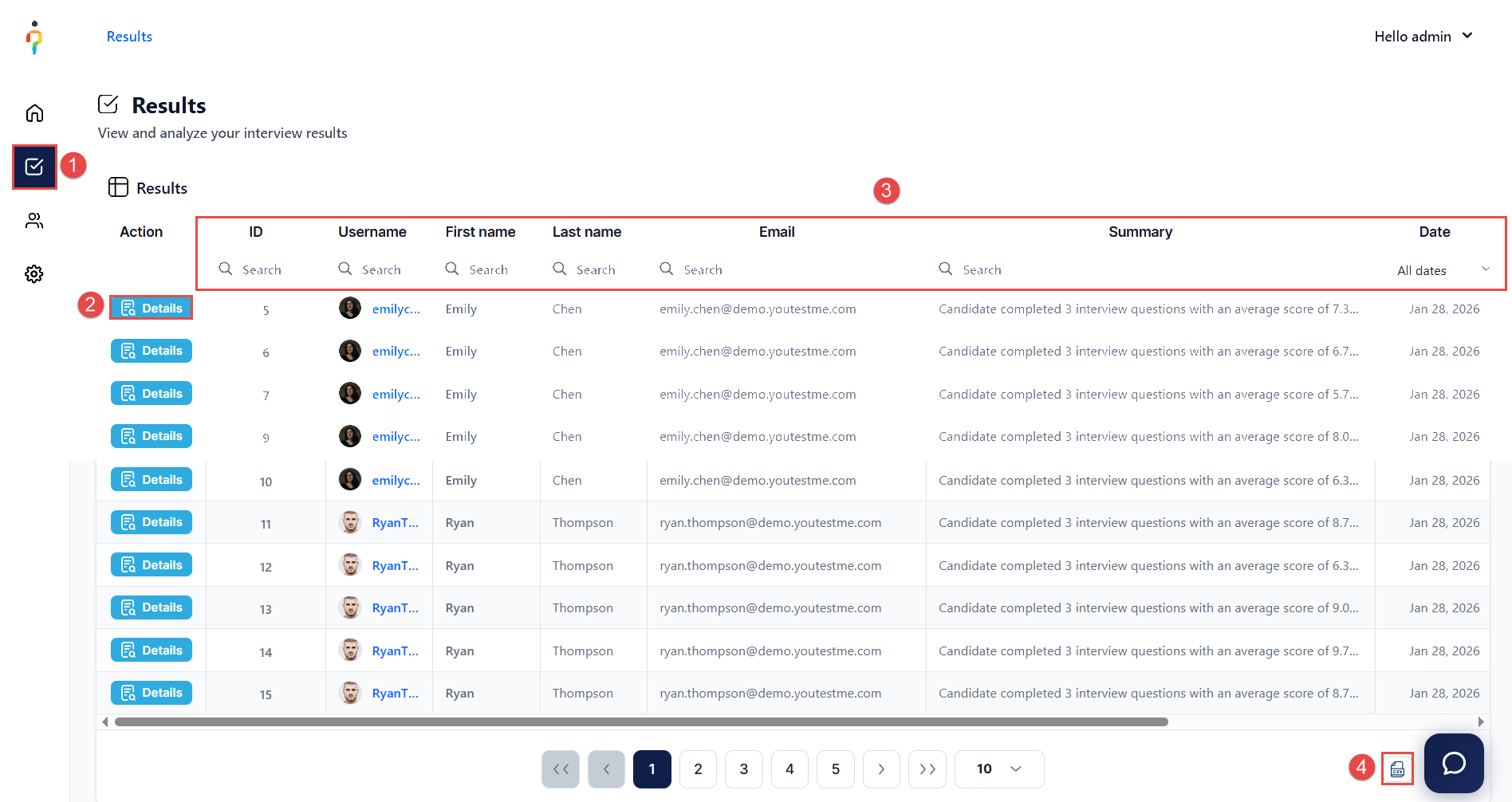
You can review results across all interviews in one centralized location.
To access all results:
- Select Results from the main menu.
- Use View Details to see:
- Candidate overview
- Question analysis for the selected interview
- Apply Filters to refine the table based on your criteria.
- Select Export to download the results as a CSV file.
Use AI Assistant
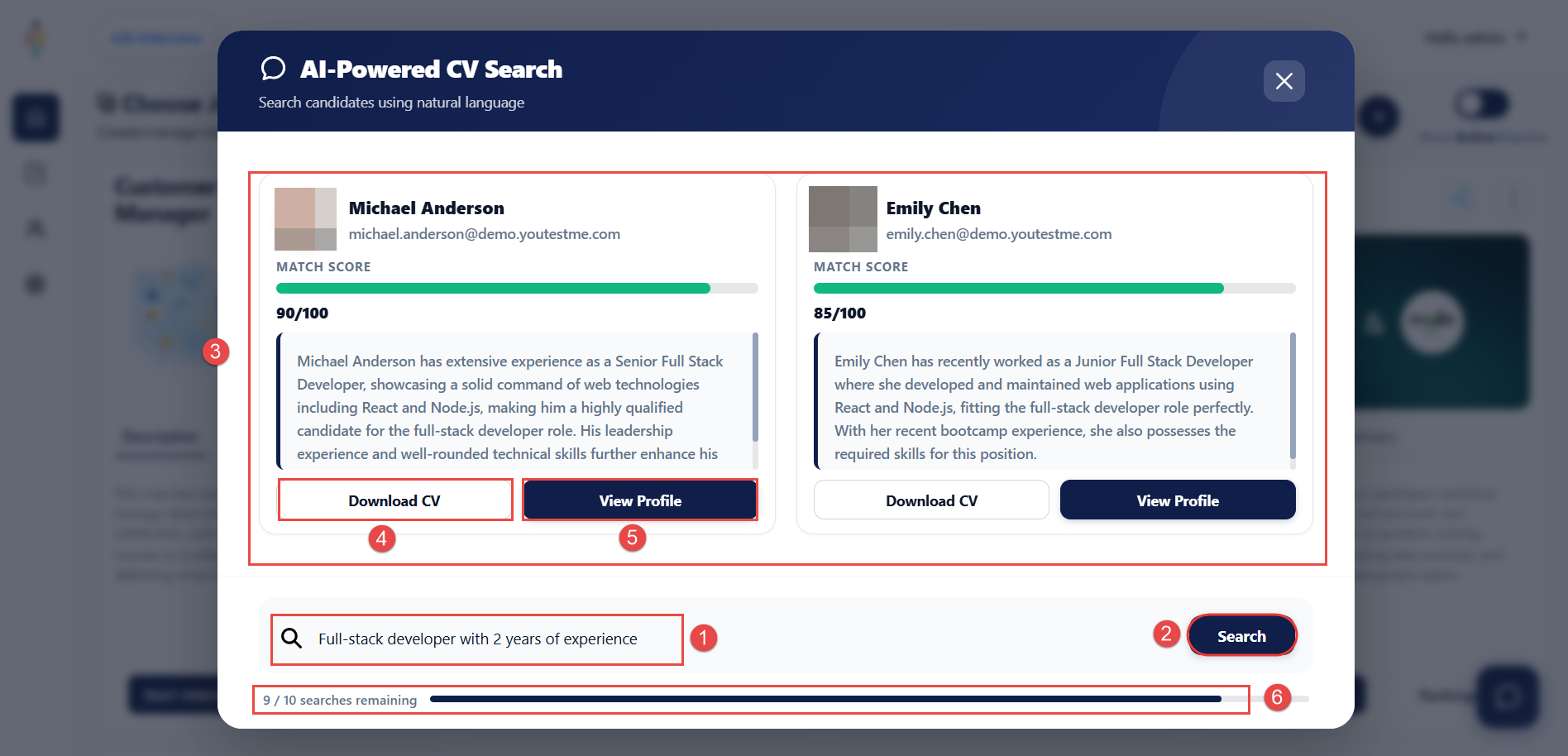
To quickly identify suitable candidates for a specific position, you can use the AI Assistant.
To access AI Assistant, select the AI Assistant icon located in the bottom-right corner of the screen.
Important:
Candidates must already exist in the system and have completed interviews with sufficient evaluation data. AI Assistant can only analyze and return results based on available data within the platform.
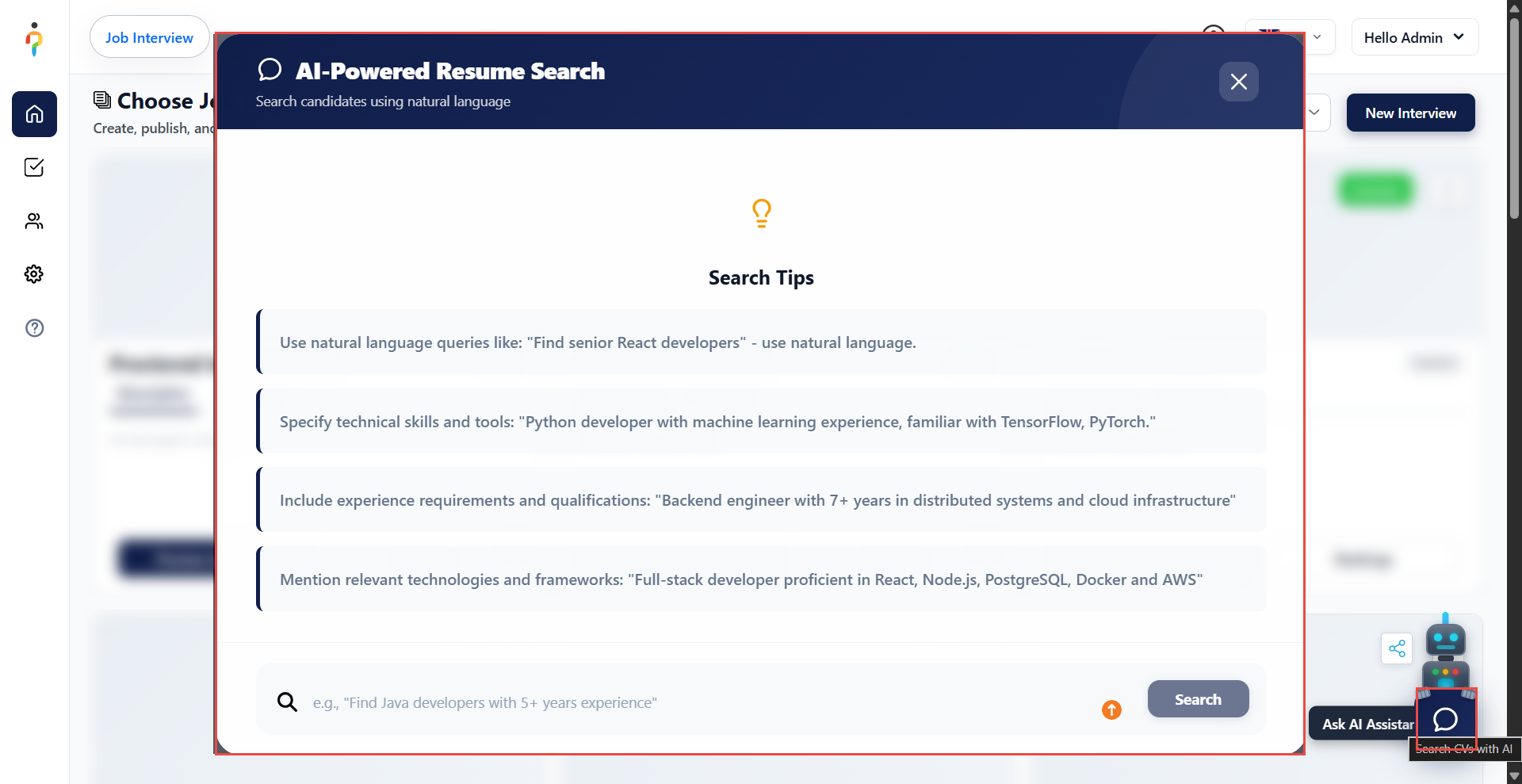
Once the AI Assistant dialog opens:
- Write down which candidate you are searching for (describe the required skills, experience level, competencies, or specific qualifications).
- Select Search to start the search process.
- VIRA will return candidates that satisfy your request.
- You can download their CV.
- You can open their profile.
- Keep in mind, you have a limit of 10 searches per day.
Manage Users
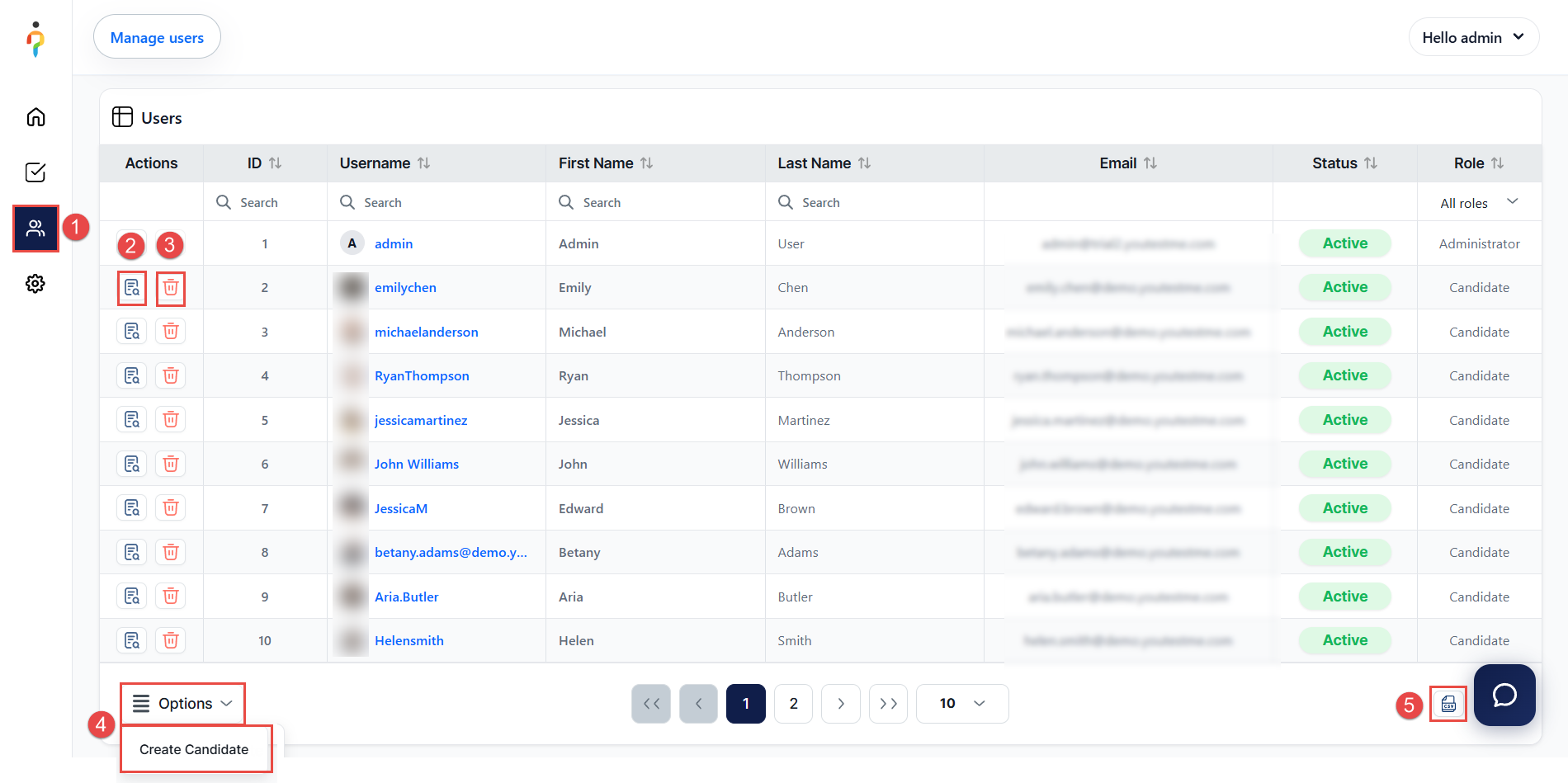
To access and manage users, follow these steps:
- Select Users Dashboard from the main menu.
- View the User Profile of a selected candidate to review their information and activity.
- Delete a candidate.
- Select Options > Create Candidate to add a new candidate to the system.
- Export all users by downloading the data in CSV format.
Create New Candidate
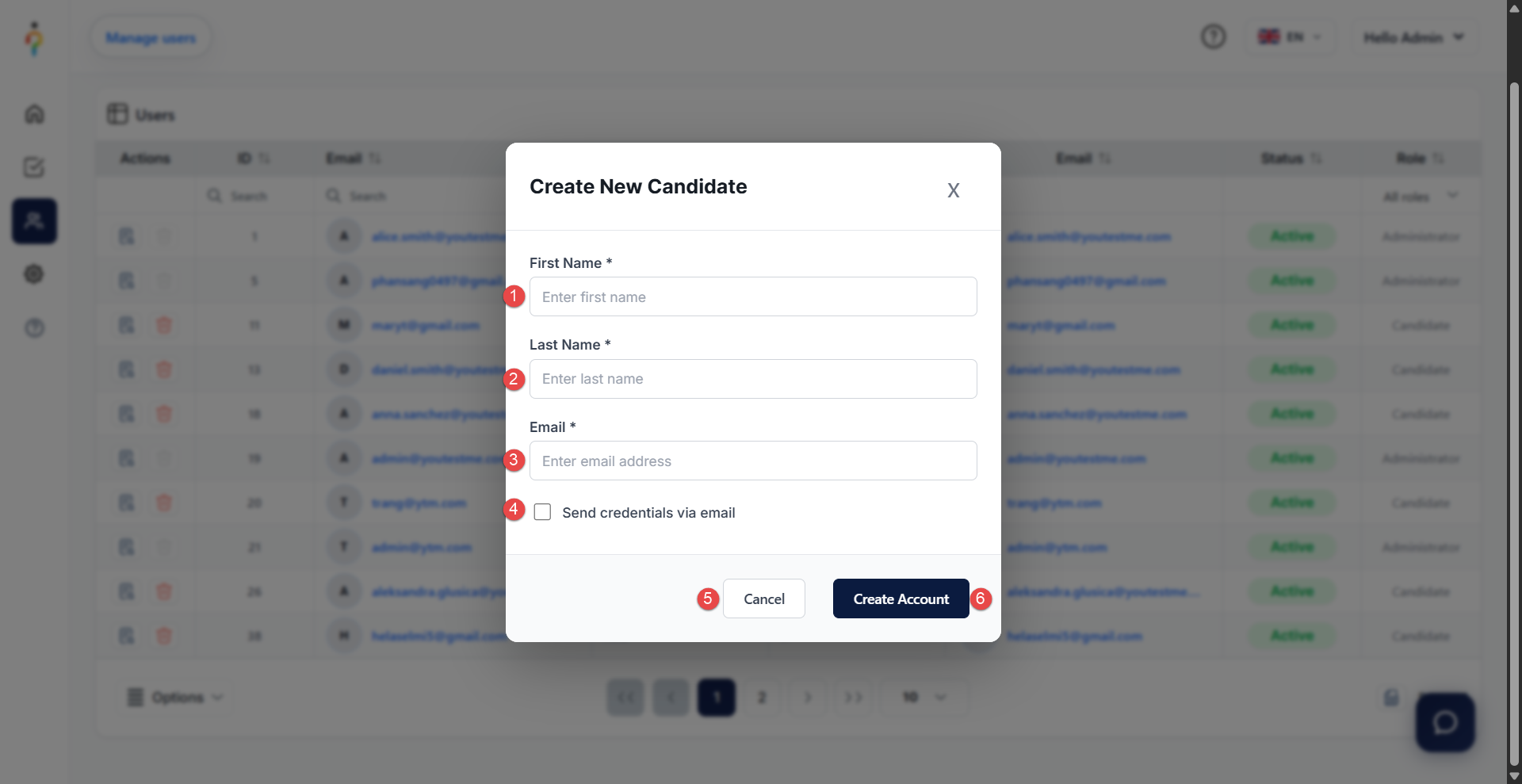
After selecting the Create Candidate button, a pop-up dialog will appear.
To create a new candidate account:
- Enter the First Name.
- Enter the Last Name.
- Provide the Email Address.
- (Recommended) Select the checkbox to send login credentials to the candidate automatically via email.
- To discard the action, select Cancel.
- Select Create Account to complete the process.
Access Settings
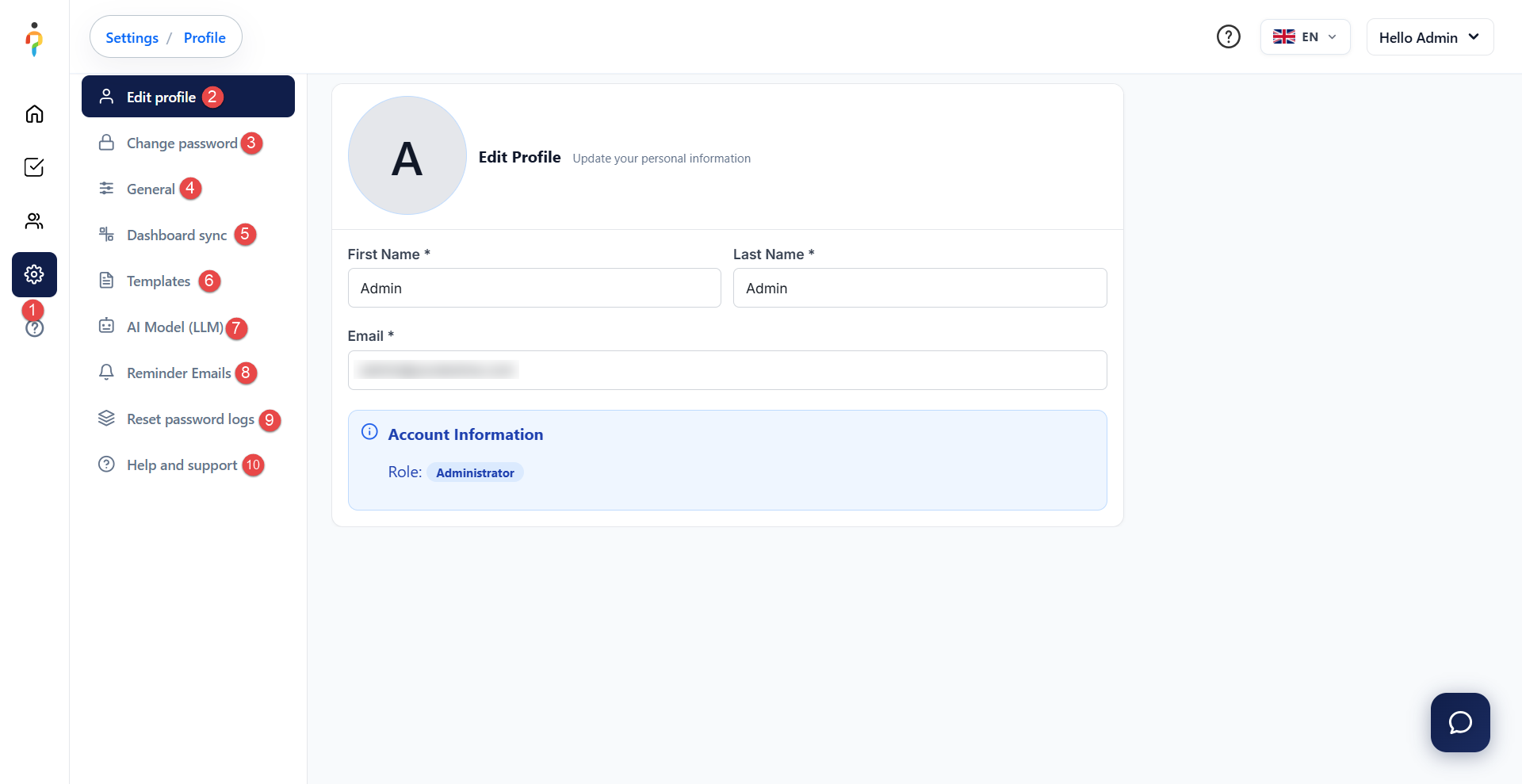
To access the Settings page:
- Select Settings from the main menu.
Within the Settings section, you can manage the following: - Edit Profile – Update your personal information, including your first name, last name, and email address. You can also view your assigned account role under Account Information.
- Change Password – Update your account password.
- General – Access and configure general application settings.
- Dashboard Sync – Manage dashboard synchronization settings.
- Templates – Access and manage application templates.
- AI Model (LLM) – Configure the AI model used for interview evaluation.
- Reminder Emails – Manage email reminder settings.
- Reset Password Logs – Review password reset activity across users in the system.
- Help and Support – Access support resources, user guides, and frequently asked questions related to the Job Interview platform.
Take Interview – Candidate’s Perspective
For detailed step-by-step instructions on how the interview process works, please refer to the dedicated article.
Additional resources: