Article verified for Release 16.1 on October 14, 2026
This article explains how administrators and other authorized users can monitor and review user activity in YouTestMe GetCertified using predefined activity reports and user-specific activity logs.
Activity reports provide information about recorded actions and events, helping organizations review system usage, investigate unexpected activities, and support security auditing and compliance processes.
Using these reports, authorized users can:
- Review recorded user actions and system events.
- Monitor login and logout activity.
- Track changes made within the application.
- Filter activity records by relevant criteria.
- Investigate suspicious or unexpected activity.
- Export report data for further analysis, where supported.
Accessing Activity Reports
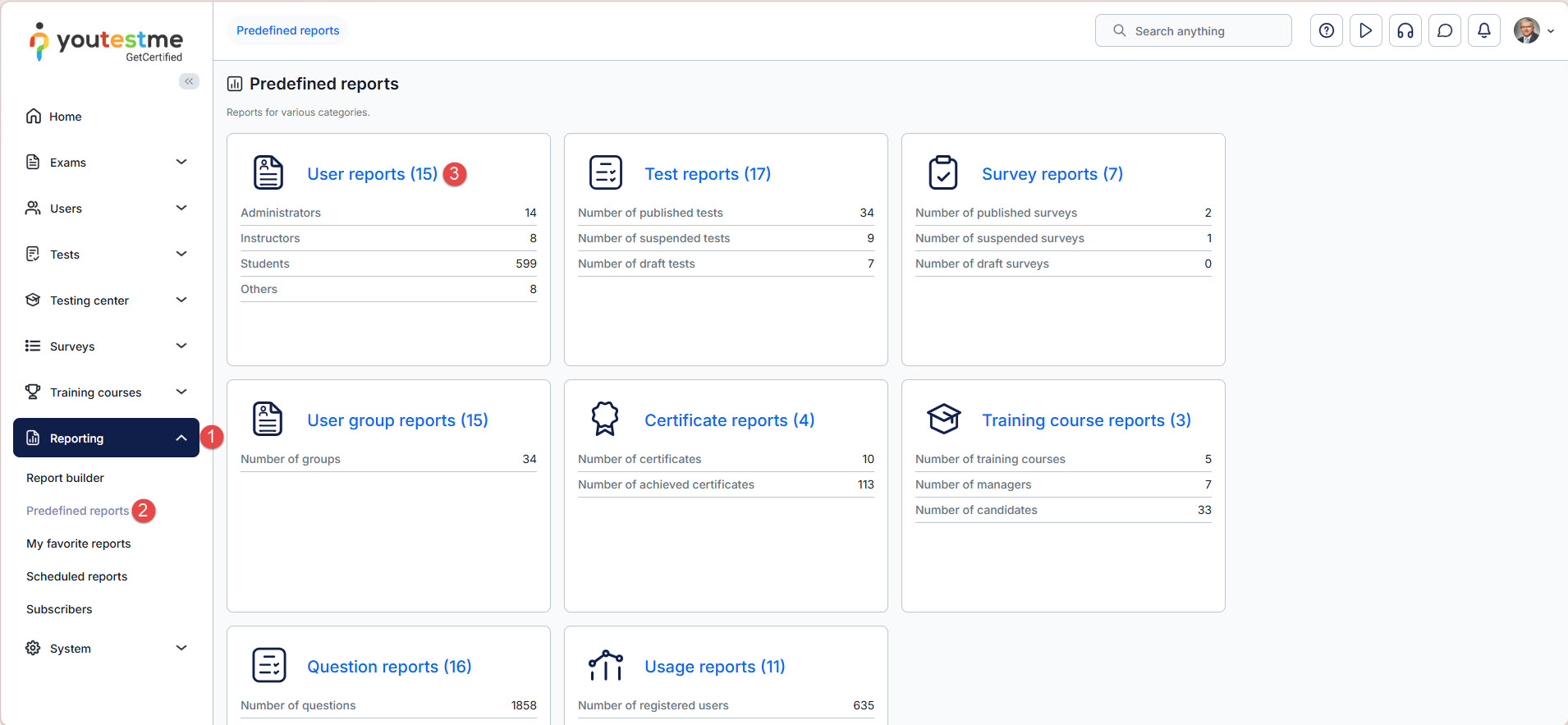
To access the activity reports:
- Navigate to the Reporting section from the left-side menu.
- Select the predefined reports section
- Open the User reports page.
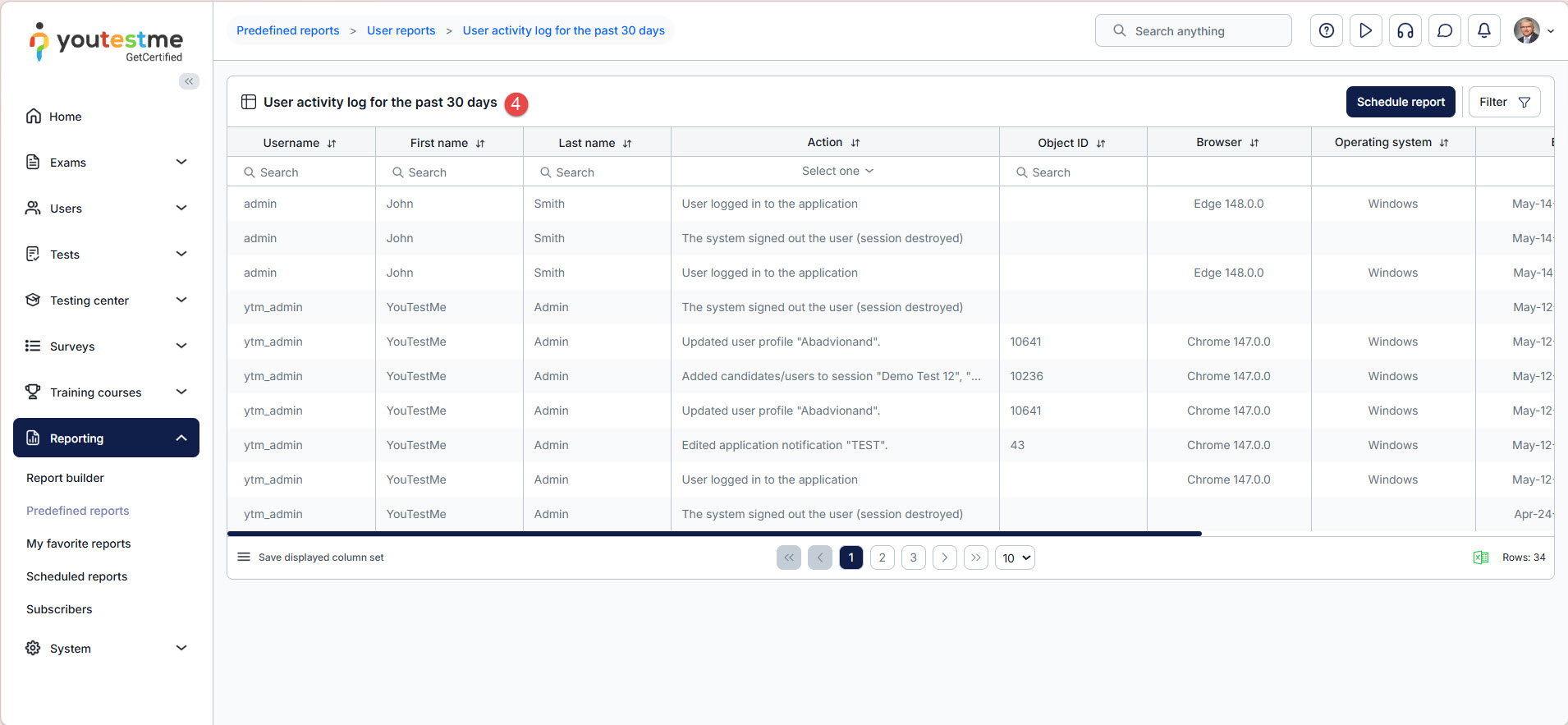
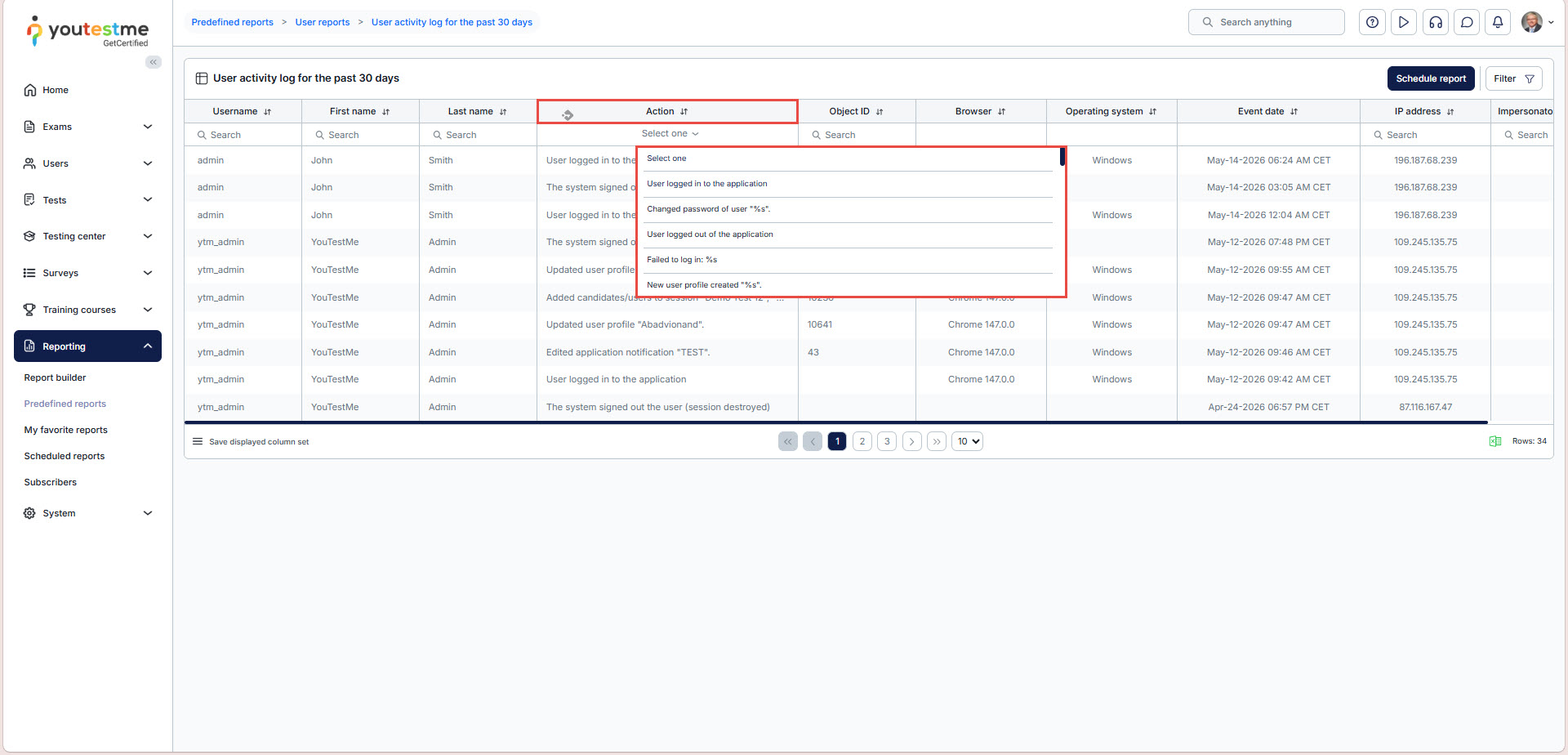
- Select the User activity log for the past 30 days from the available list.
Note: The User Activity Log for the Past 30 Days report includes activity for the current day.
Understanding the Report Data
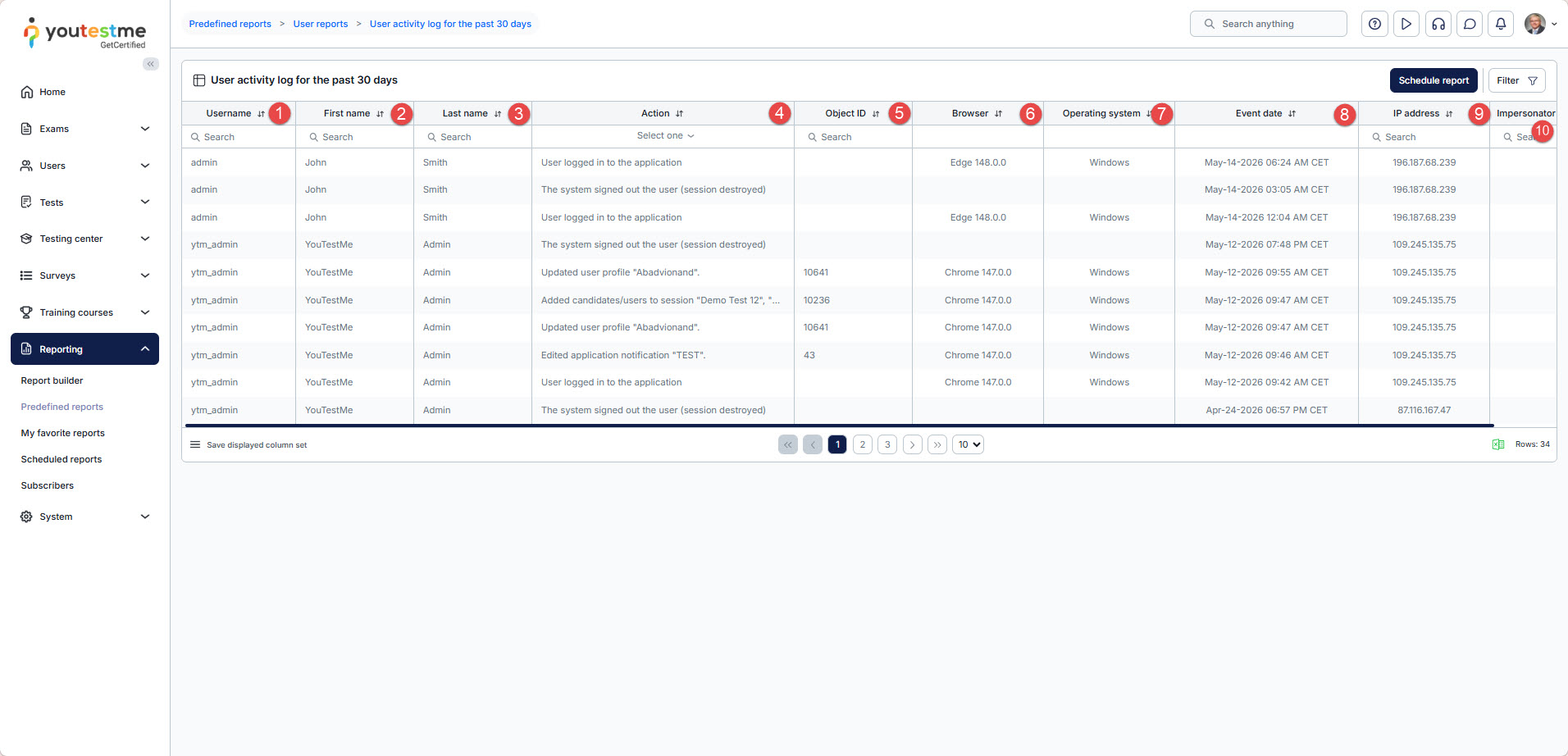
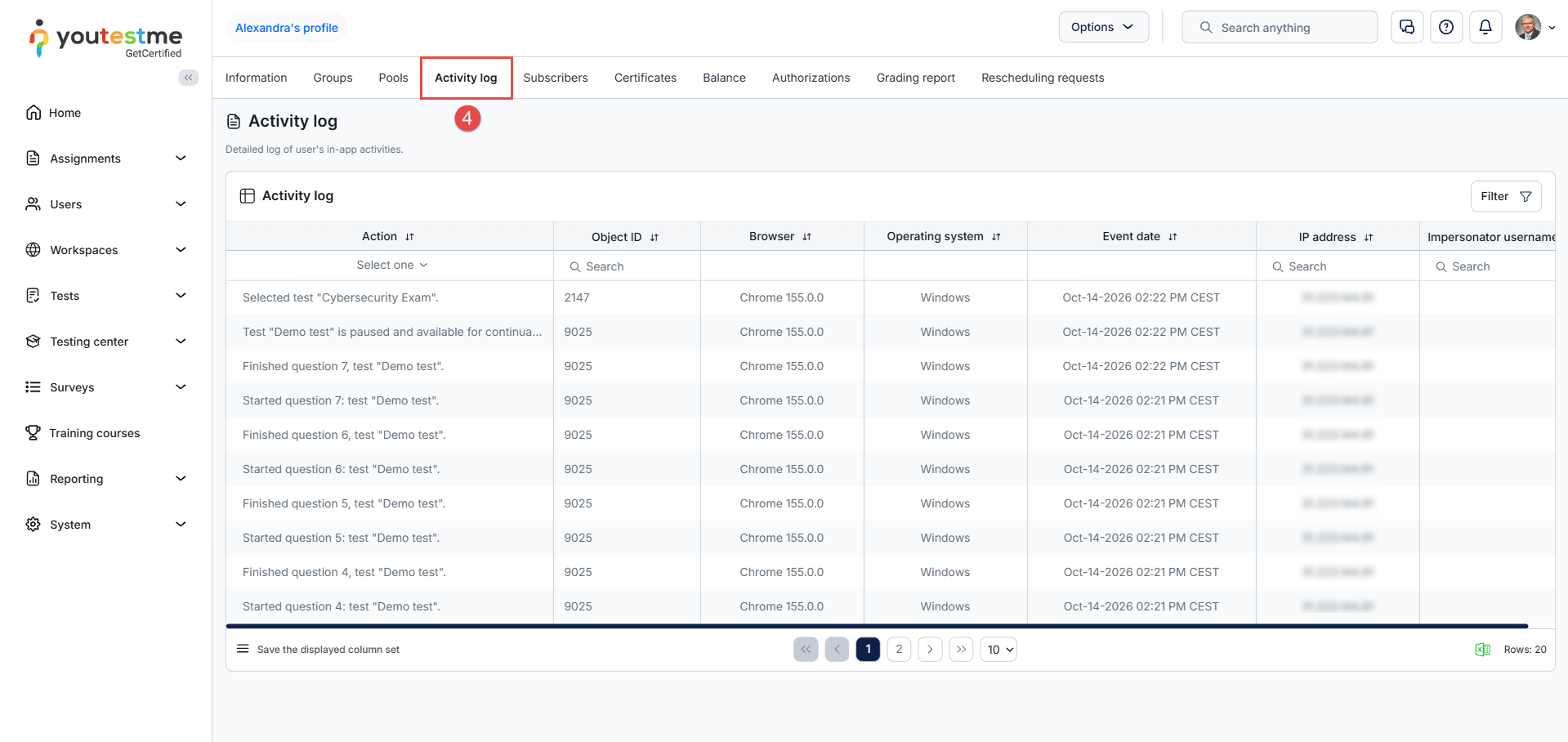
The report includes the following information:
- Username – the username of the user who performed the action.
- First name – the first name of the user.
- Last name – the last name of the user.
- Action – the activity or event performed in the system.
- Object ID – the identifier of the affected object, such as a test, survey, training course, or user profile.
- Browser – the browser used while performing the action.
- Operating system – the operating system of the user’s device.
- Event date – the exact date and time when the activity occurred.
- IP address – the IP address from which the action was performed.
- Impersonator username – displays the username of the administrator who impersonated another user, if applicable.
Action Column
The Action column records different types of activities performed within the platform. These logs help administrators track user behavior, monitor important events, and investigate potential issues.
The system records activities related to:
- User authentication and account management
- Test, survey, and training course actions
- Starting, continuing, suspending, or completing assignments
- Question pool and question management
- Report generation and exports
- Proctoring and browser lockdown events
- Session scheduling and candidate management
- Training course progress and enrollment
- System configuration and customization changes
- Role, authorization, and permission management
- E-commerce and purchase activities
- File uploads, downloads, and attachments
- Job execution and scheduled tasks
Examples of tracked activities include:
- User logged in or logged out
- Test started or completed
- Training course started or continued
- Browser lockdown violation detected
- Proctoring session started or stopped
- Report exported
- User profile updated
- Question pool created or modified
These detailed logs help organizations maintain transparency, improve auditing processes, strengthen security monitoring, and ensure compliance with internal policies.
User Activity Log for the Past 365 Days
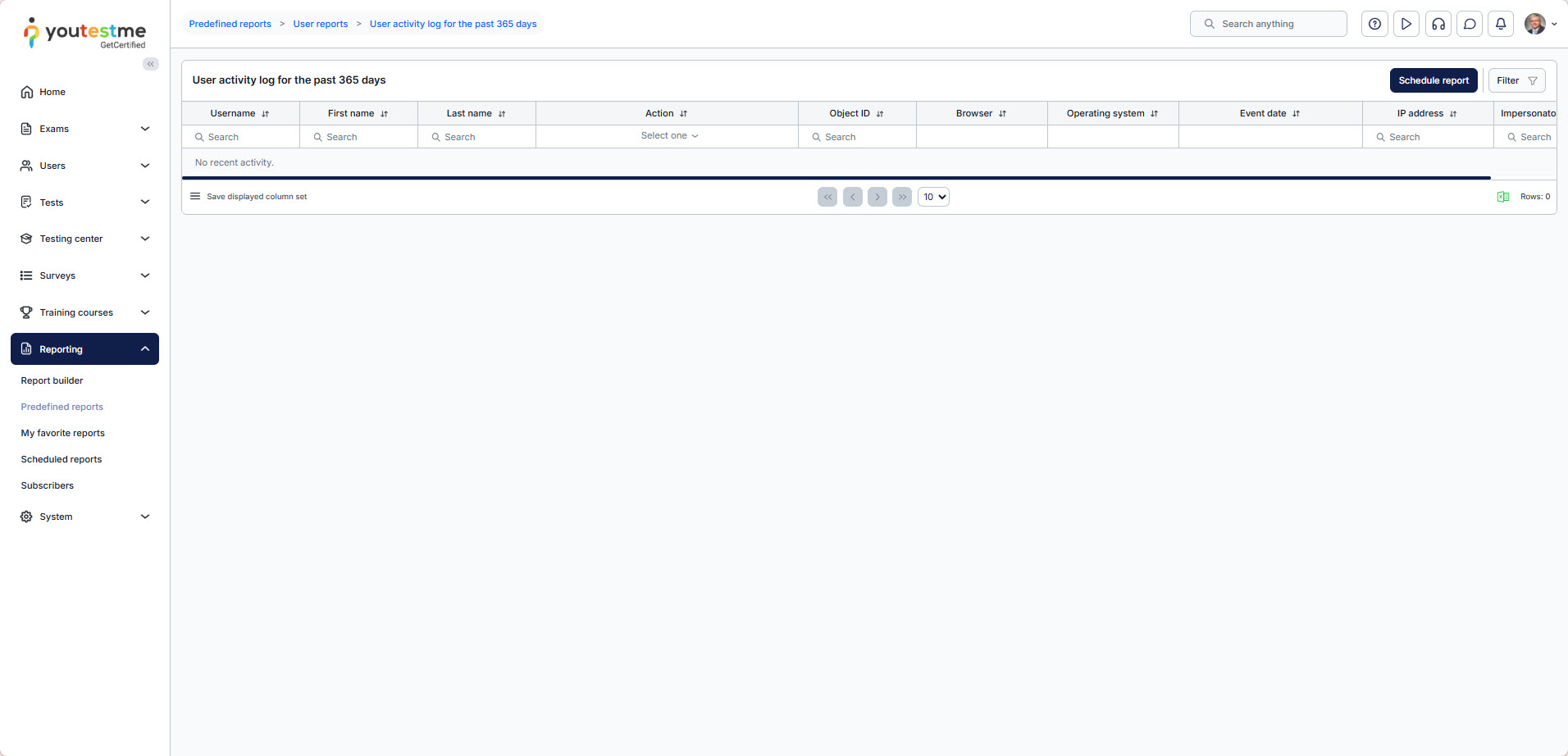
In addition to the 30-day report, the application provides the User activity log for the past 365 days.
This report provides the same type of activity information and filtering functionality while covering a longer reporting period.
Note: The User Activity Log for the Past 365 Days report does not include activity from the current day.
It is useful when administrators need to review historical activity, investigate earlier events, or analyze user actions over an extended period.
Configuring Report Filters
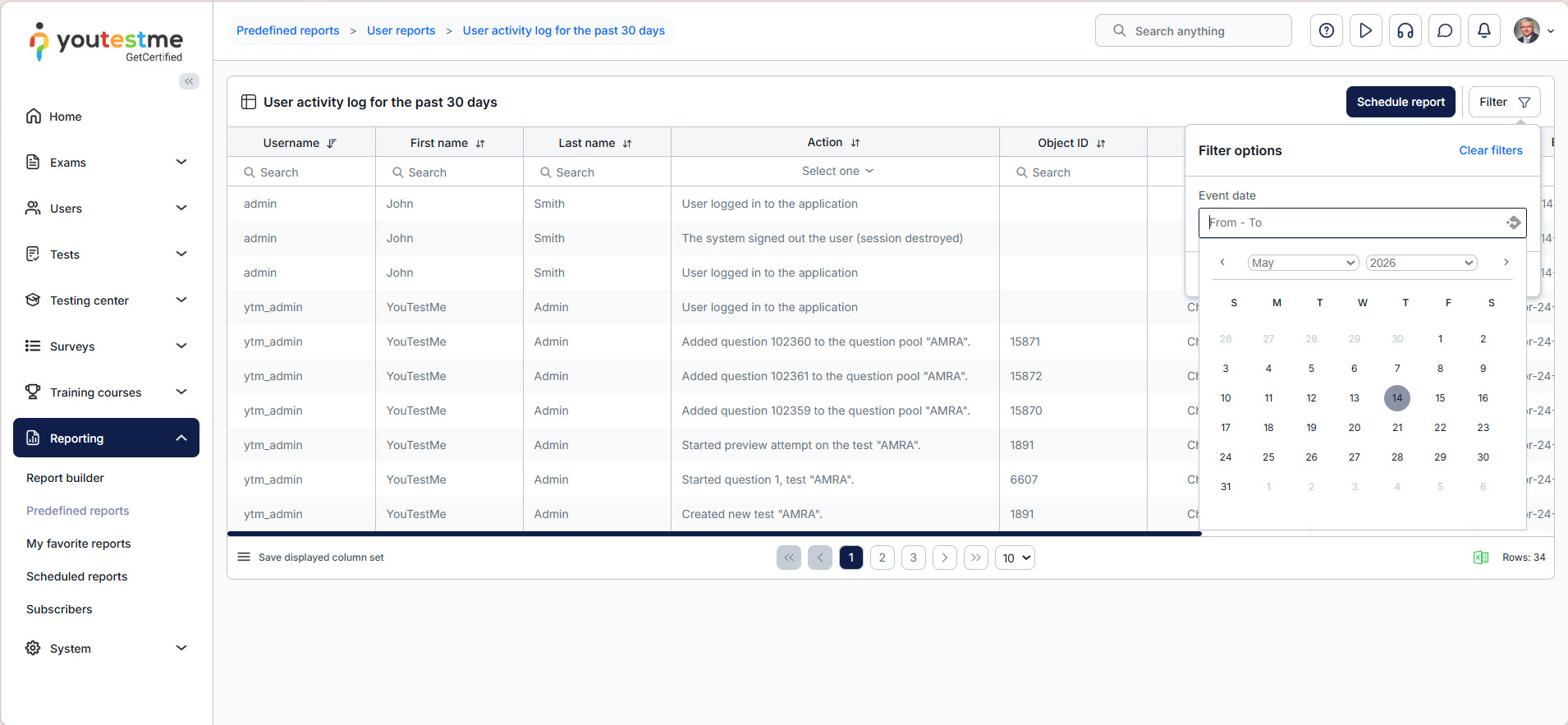
You can configure filters to narrow down displayed activities and quickly locate specific events.
Available filters allow administrators to search activities depending on:
- Specific users
- Action types
- Date ranges
- Browsers
- Operating systems
- IP addresses
Administrators can define a custom From date and To date range to review activities performed during a specific period.
Last login activity
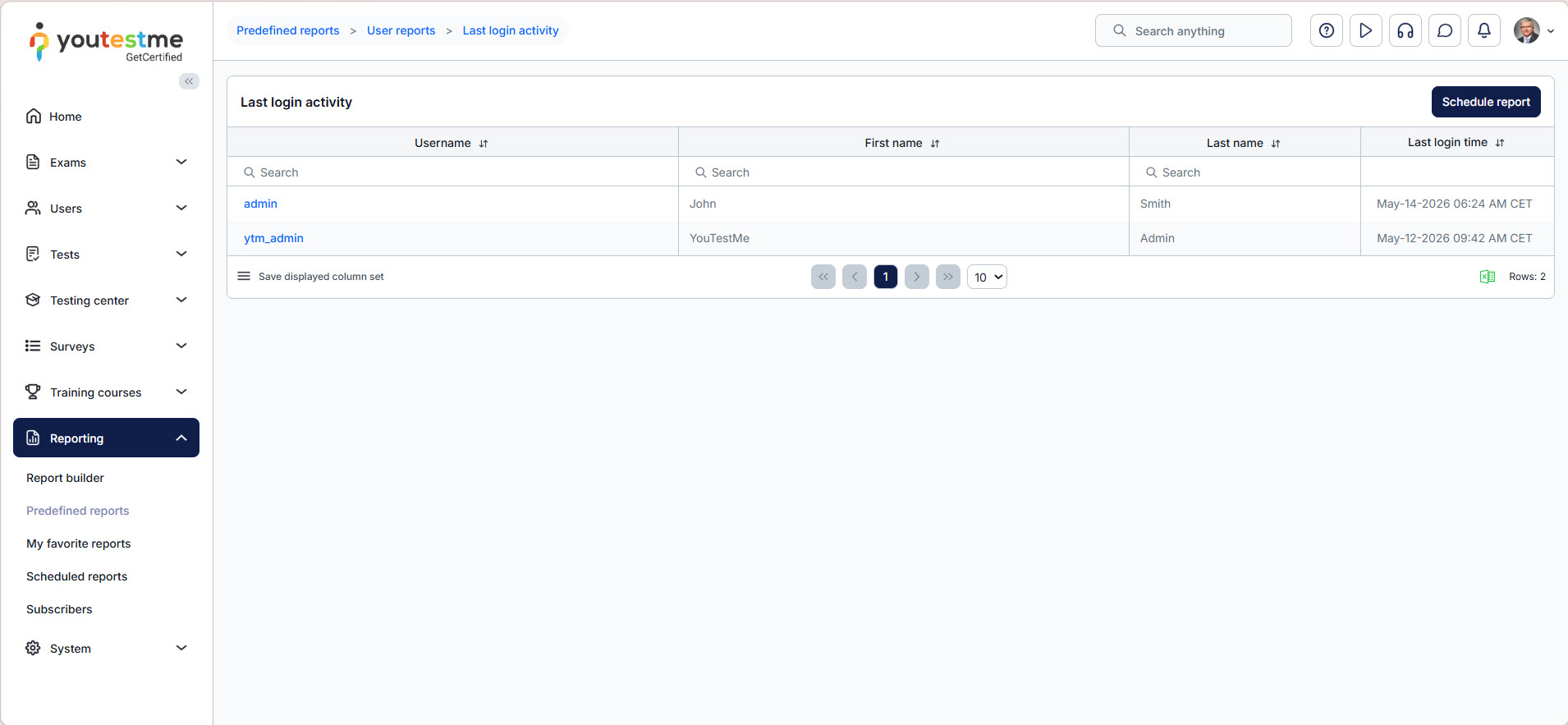
The Last login activity report displays the most recent login time for each user in the system, providing a clear overview of user activity and engagement.
This report helps administrators:
- Identify inactive users
- Monitor recent platform access
- Review user engagement trends
- Improve account monitoring and security oversight
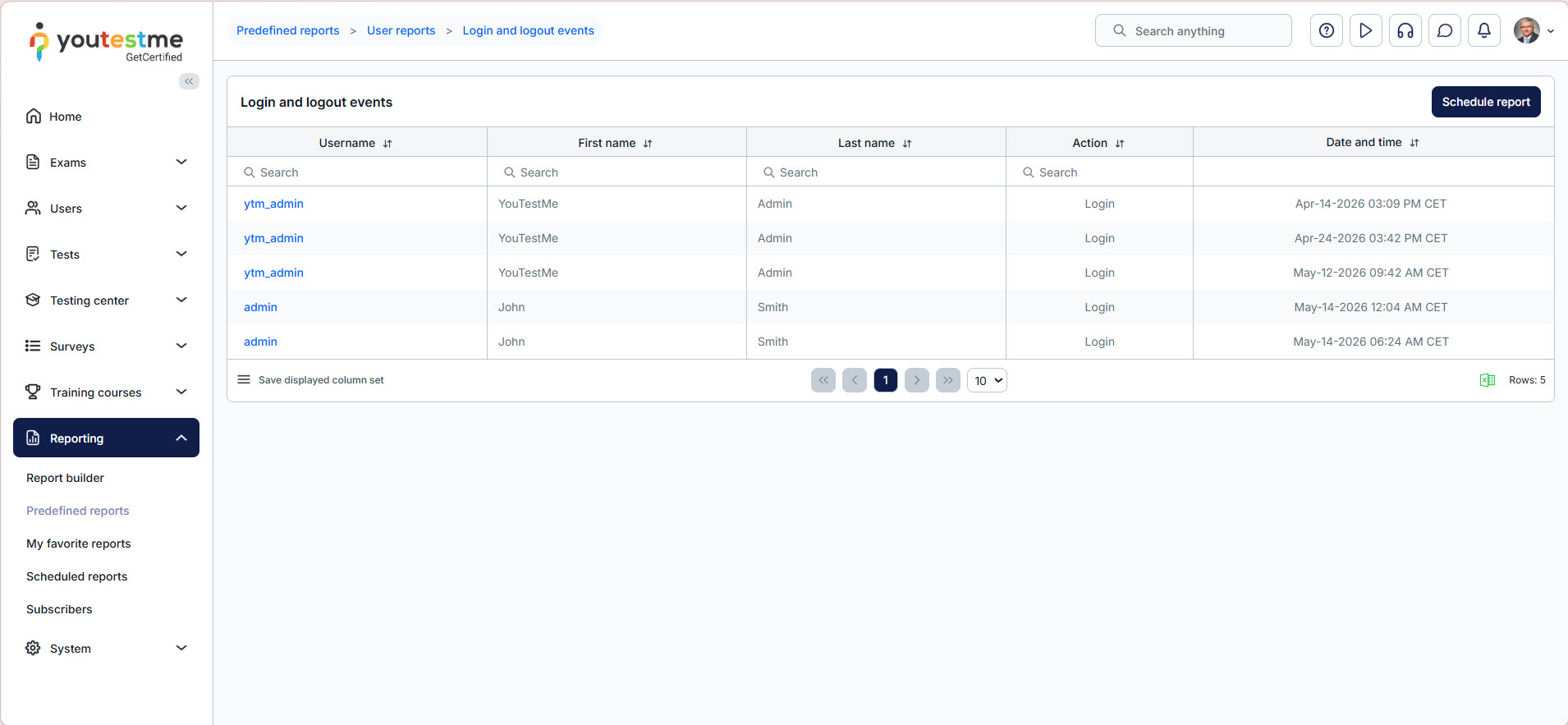
Login and logout events
The Login and logout events report provides a detailed audit trail of all login and logout activities performed within the system.
Using this report, administrators can:
- Monitor user access history
- Review successful and failed login attempts
- Investigate suspicious login activity
- Track session activity for security and auditing purposes
This information is especially useful for maintaining security compliance and monitoring unauthorized access attempts.
Activity Log Details for a Specific User
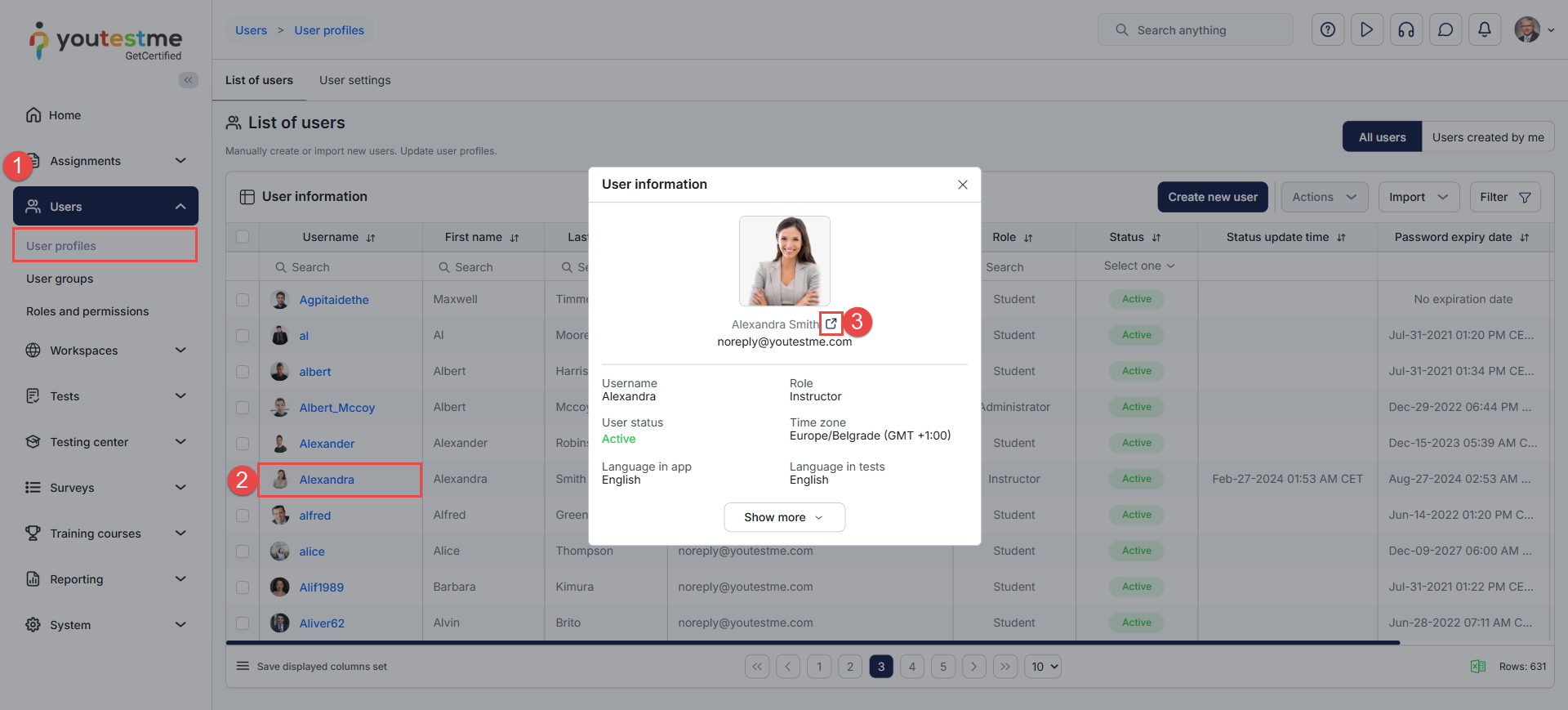
In addition to the predefined reports, administrators and other permitted users can view detailed information about any user directly from their profile. To do so:
- In the main menu, select Users and navigate to User Profiles.
- Click the username of the desired user to open their profile.
- In the pop-up window, you can view the user’s basic information, such as their name, email, role, status, time zone, and language preferences. To access more details, click the external link icon next to the user’s name to open the full profile page.
- Navigate to the Activity Log tab to view the user activity log.
Conclusion
YouTestMe GetCertified provides several ways to review recorded user activities, including predefined activity reports and activity logs available through individual user profiles.
These tools help authorized users monitor platform usage, investigate specific events, and support security and auditing activities.
For broader activity reviews, use the predefined reports and their filtering options. To investigate a particular user, open the Activity Log tab in their profile.