
Article verified for Release 16.2 on October, 2026.
This article explains how to use the AI Grading feature for Essay and Fill in the Blanks (FIB) question types. This feature introduces AI-assisted evaluation as a scoring option, enabling automatic grading of answers.
Note: This feature is included in the EE package. If you are unsure whether your environment includes this package, please contact sales@youtestme.com or your designated account manager for confirmation.
Enabling AI Grading
AI Grading must first be enabled for your environment by the YouTestMe team. Once enabled, the AI Grading configuration becomes available under System → Integrations → AI Model.
The integration can then be configured by following the steps below. Once configured, AI Grading can be used for Essay and Fill in the Blanks questions.
Configure the Integration
The first step is to configure the integration on your application.
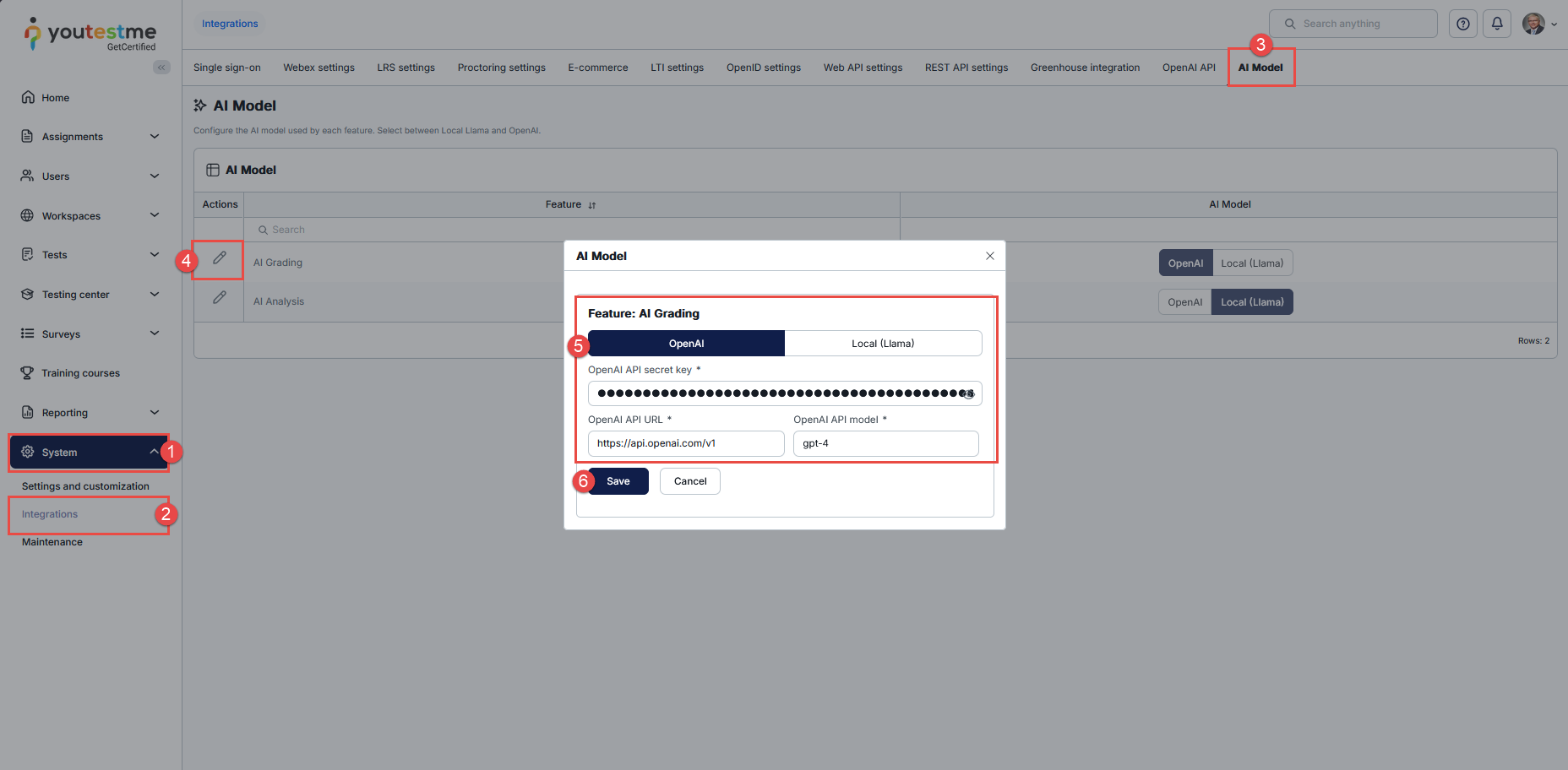
- Navigate to the System page.
- Open the Integrations section.
- Select the AI Model tab.
- Locate the feature you want to configure (in this case, AI Grading) and click the Edit icon.
- In the configuration window:
- Select the AI provider (OpenAI or Local (Llama)). Note: The use of local Llama models is currently not recommended due to their limited token capacity and insufficient performance for producing reliable evaluations.
- Enter the OpenAI API secret key .
- Define the OpenAI API URL.
- Enter the OpenAI API model (for example,
gpt-4).
- Click the Save button to apply the changes.
Important Note: AI Grading works with all Show report options. However, to allow candidates to view their AI-graded results immediately after finishing the test, select Immediately after finishing the test.
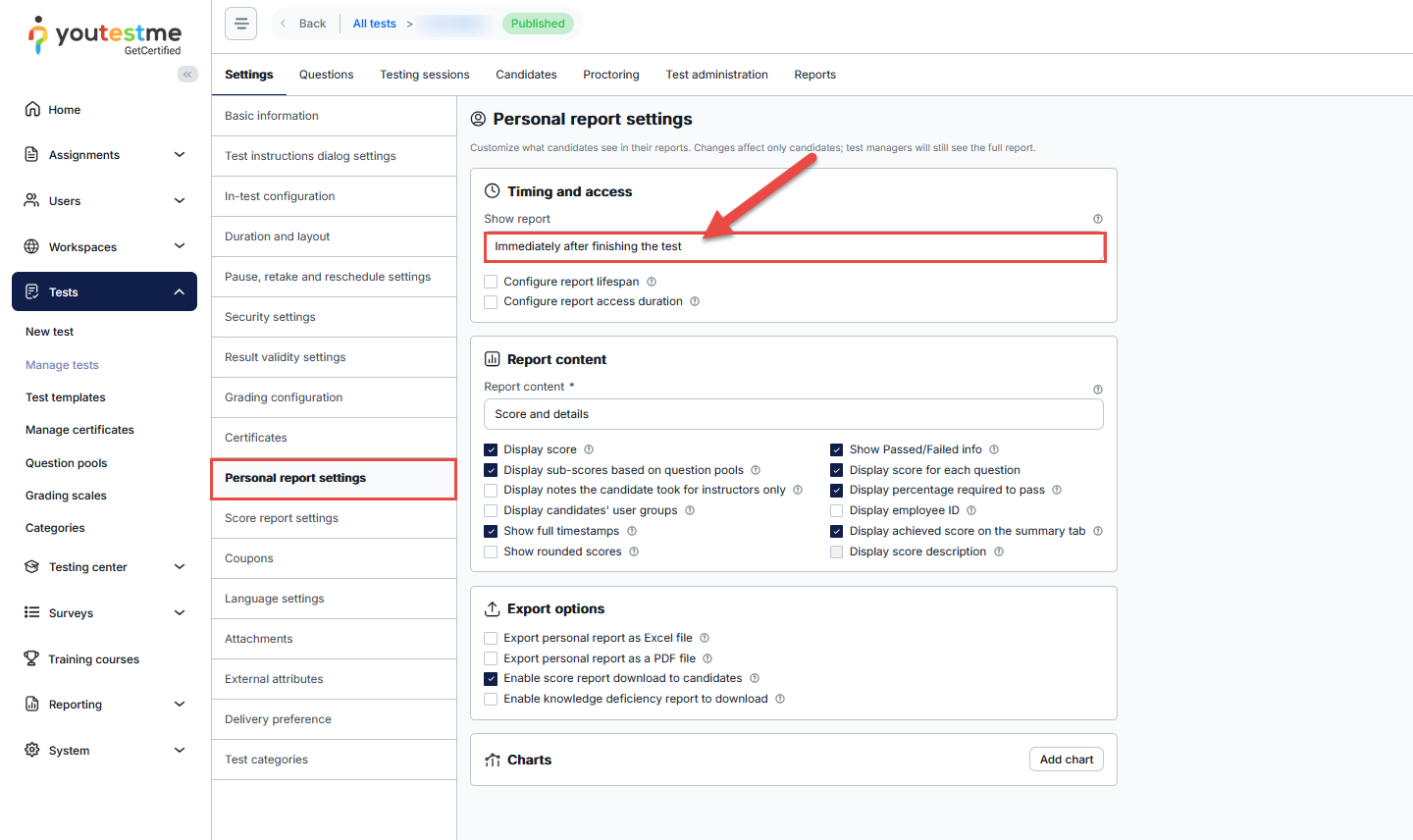
Report Visibility Options with AI Grading
- Immediately after finishing the test: Candidates can access their report as soon as they finish the test, including the AI-generated scores and evaluation summaries. Each question is graded asynchronously after the candidate submits their answer. The admin or grader can review and submit each AI-generated score, either confirming it without changes or adjusting it. Once the updated scores are submitted, the report reflects the changes. Until all AI-graded questions have been reviewed and submitted, the attempt is not considered fully graded, and the AI-generated scores remain subject to review.
- Immediately after grading: the report stays hidden until every AI-graded question has been reviewed. In practice this option means a person must review grades before the candidate sees anything.
- On manager’s approval: Answers are graded automatically, but candidates cannot access the report until the manager clicks Release reports to candidates. The report is released even if the AI-generated scores have not yet been reviewed. The admin or grader can review and update the scores afterward, and the report reflects the changes once the updated scores are submitted.
- Immediately after result verification: The report becomes available when the admin verifies the attempt, even if the AI-generated scores have not yet been reviewed. The admin or grader can review and update the scores afterward, and the report reflects the changes once the updated scores are submitted.
- Real-time grading: each AI-graded question is graded the moment it’s submitted, so the candidate sees its points and the AI summary immediately. The candidate waits a few seconds on submit while the grading runs. The attempt is still only final after a manager/ admin reviews it.
Creating a Question
AI Grading can be applied when creating Essay or Fill in the Blanks questions in two ways:
- Through the Question Pool – Navigate to the Question Pool and create a new question. For more information, check this article.
- During Test Creation – Add a new question while creating or editing a draft test. For more information, check this article.
After creating questions to the Question Pool, they become available for reuse during test creation. When creating a test, you can easily select and import these questions from the pool, which helps ensure consistency, saves time, and allows for better organization of content across multiple tests. For more information, check this article.
Configuring AI Grading in Essay Question
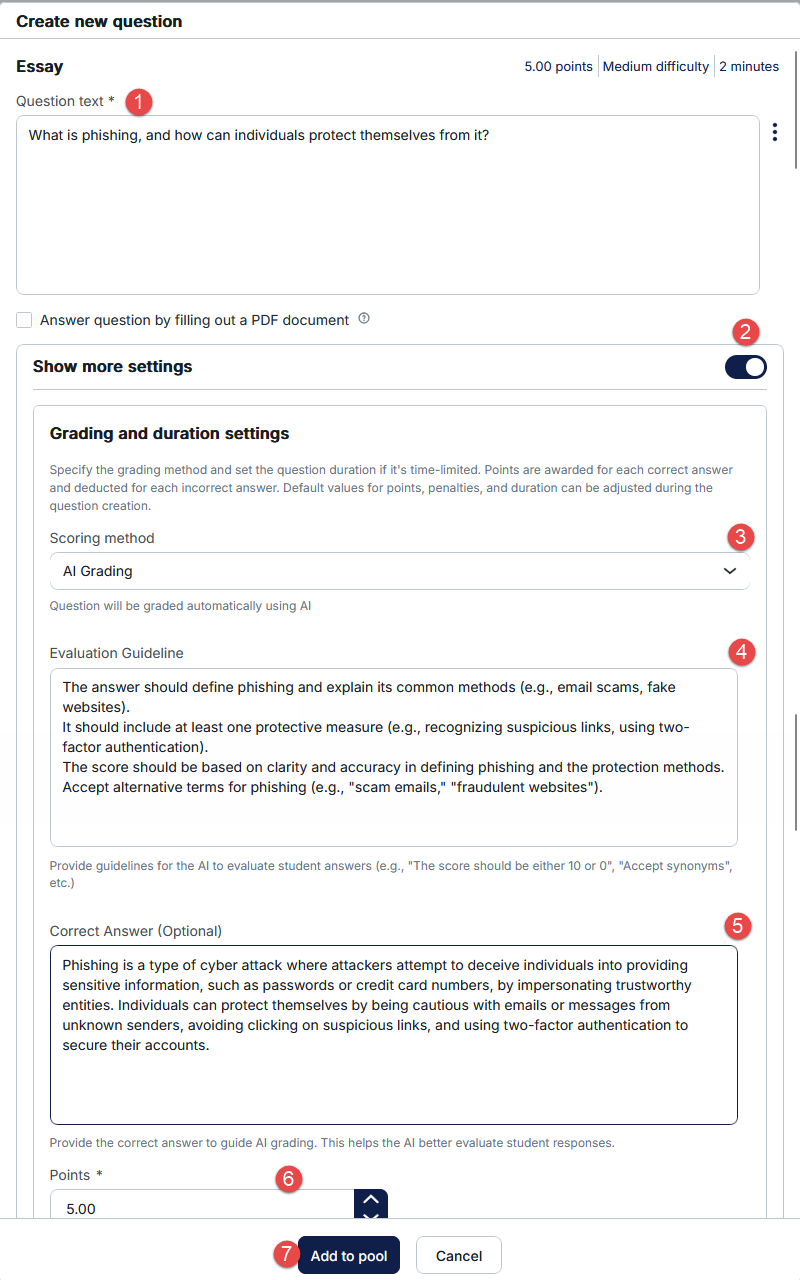
When creating a question:
- Insert the desired text.
- Enable Show more settings option.
- Navigate to the Scoring method section and choose the AI grading.
- Provide guidelines for the AI to evaluate student answers.
- Optionally, provide the correct answer to guide AI grading.
- Add points to question.
- Save the question and add it to the pool.
Configuring AI Grading in Fill in the Blanks questions
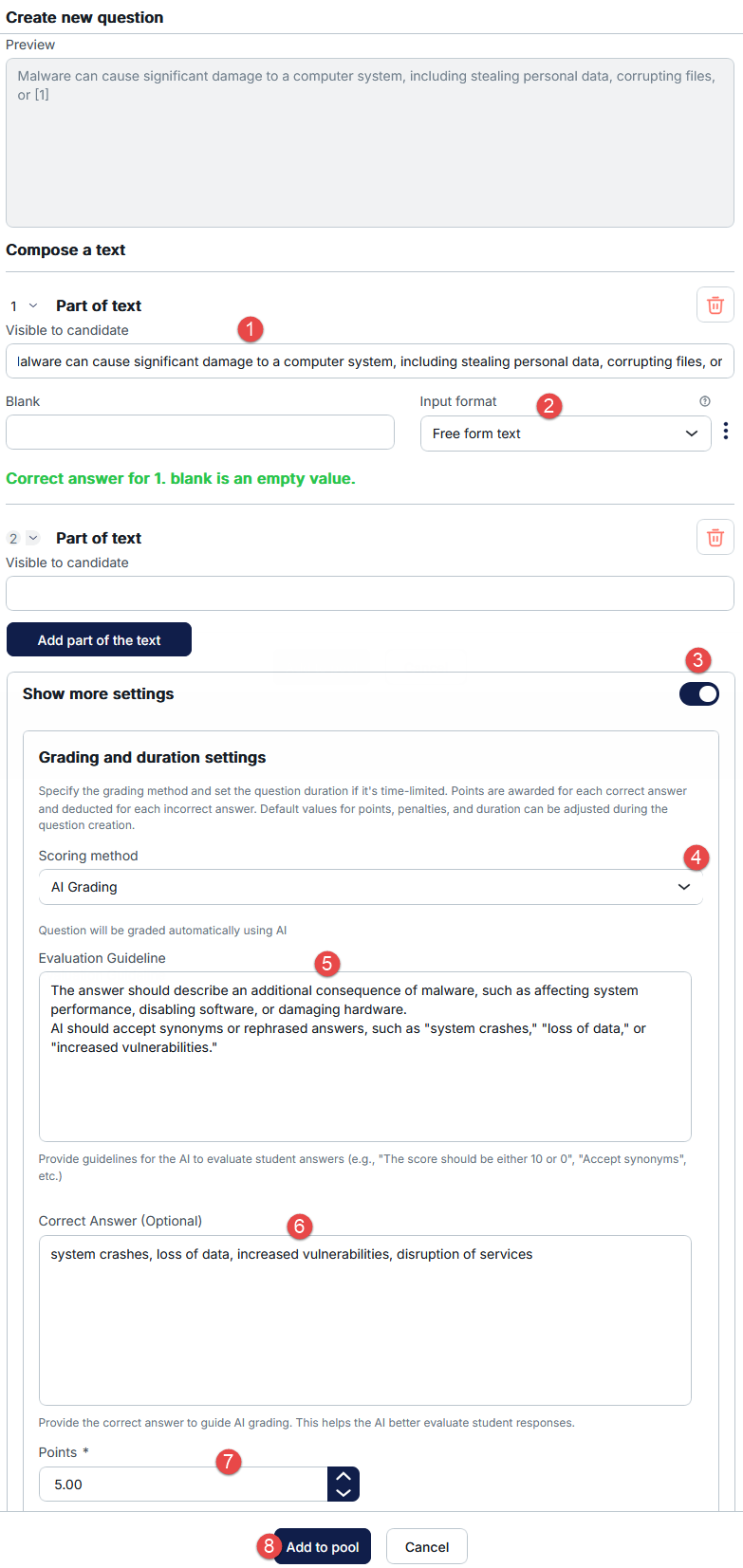
When creating a question:
- Insert the desired text – visible for the candidate.
- Choose input format to be Free form text so candidate can write the answer.
- Enable Show more settings option.
- Navigate to the Scoring method section and choose the AI grading.
- Provide guidelines for the AI to evaluate student answers.
- Optionally, provide the correct answer to guide AI grading.
- Add points to question.
- Save the question and add it to the pool.
Evaluation Guideline
This is a field where you define how the AI should evaluate answers.
Purpose:
- Guide the AI on scoring logic.
- Ensure consistency across responses.
Examples:
- “Accept synonyms and contextually correct answers”.
- “Evaluate based on accuracy, completeness, and clarity”.
- “Accept synonyms and rephrased answers”.
Best practice:
- Be clear and specific.
- Mention whether synonyms or rephrased answers are acceptable.
- If predefined scores (such as 0, 3, and 5 points) are required, explicitly define the scoring criteria and specify the only valid scores.
- Clearly describe how partially correct, incorrect, contradictory, or incomplete answers should be scored.
- Instruct the AI to evaluate only what the student actually wrote and not to infer intent, correct spelling, or assume that mistakes were accidental.
- The more detailed and restrictive the Evaluation Guideline is, the more consistent and predictable the grading results will be, especially when fixed scoring rules are expected.
Important: AI grading is based on the instructions provided in the Evaluation Guideline. While the model aims to evaluate answers consistently, the quality and specificity of the guideline directly influence the grading outcome. For the most reliable results, provide explicit evaluation criteria, clearly define the expected scoring rubric, and specify any mandatory or unacceptable answer patterns.
Correct Answer
- Provide a reference answer to guide the AI.
Purpose:
- Improves grading accuracy.
- Helps the AI understand expected responses better.
Expected behavior:
- The AI uses this as a benchmark but still evaluates flexible, contextually correct answers (especially for Essay questions).
How It Works (Runtime Behavior)
When a student submits an answer:
- The system sends:
- Question content.
- Student response.
- Evaluation Guideline.
- Correct Answer (if provided).
- The system evaluates student responses based on predefined guidelines and returns:
- A numeric score.
- An AI-generated evaluation summary/feedback.
- The platform:
- Saves the AI-generated score as a provisional score.
- Stores and displays the AI-generated evaluation summary in the results view.
- Allows a manager or grader to review and submit the AI-suggested score. The score can be adjusted or confirmed without changes. The attempt is fully graded only after all AI-graded questions have been reviewed and submitted.
Current Limitations
- Export of questions with AI Grading is supported. However, Evaluation Guideline and Correct Answer (Optional) fields are not included in the export/import process. These fields must be manually reconfigured after importing the questions.
- AI graded functionality has a known limitation on Microsoft Edge browser; using Google Chrome is recommended for best performance and stability.
Automated Test Generator Compatibility with AI Grading
When creating a test using AI Grading questions (Essay and Fill in the Blanks) together with the Automated Test Generator, it is mandatory to correctly configure the question pools from which questions will be selected.
This applies to both generation modes:
- By difficulty – generates test versions automatically based on question difficulty. Each candidate receives a unique version of the test.
- By category – generates test versions automatically using questions from selected categories. Each candidate may receive different questions.
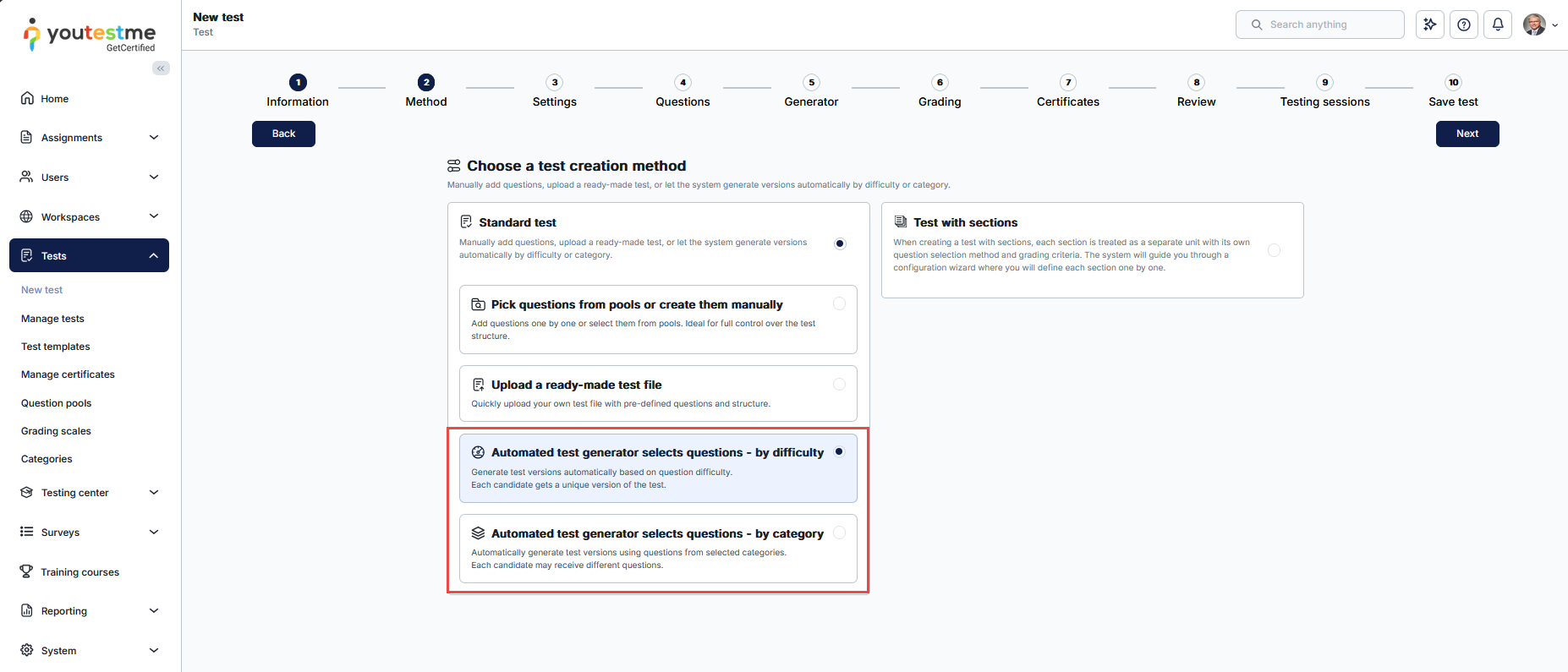
Mandatory configuration
For question pools that contain AI Grading-enabled questions, the following option must be enabled:
- Allow different points in test versions
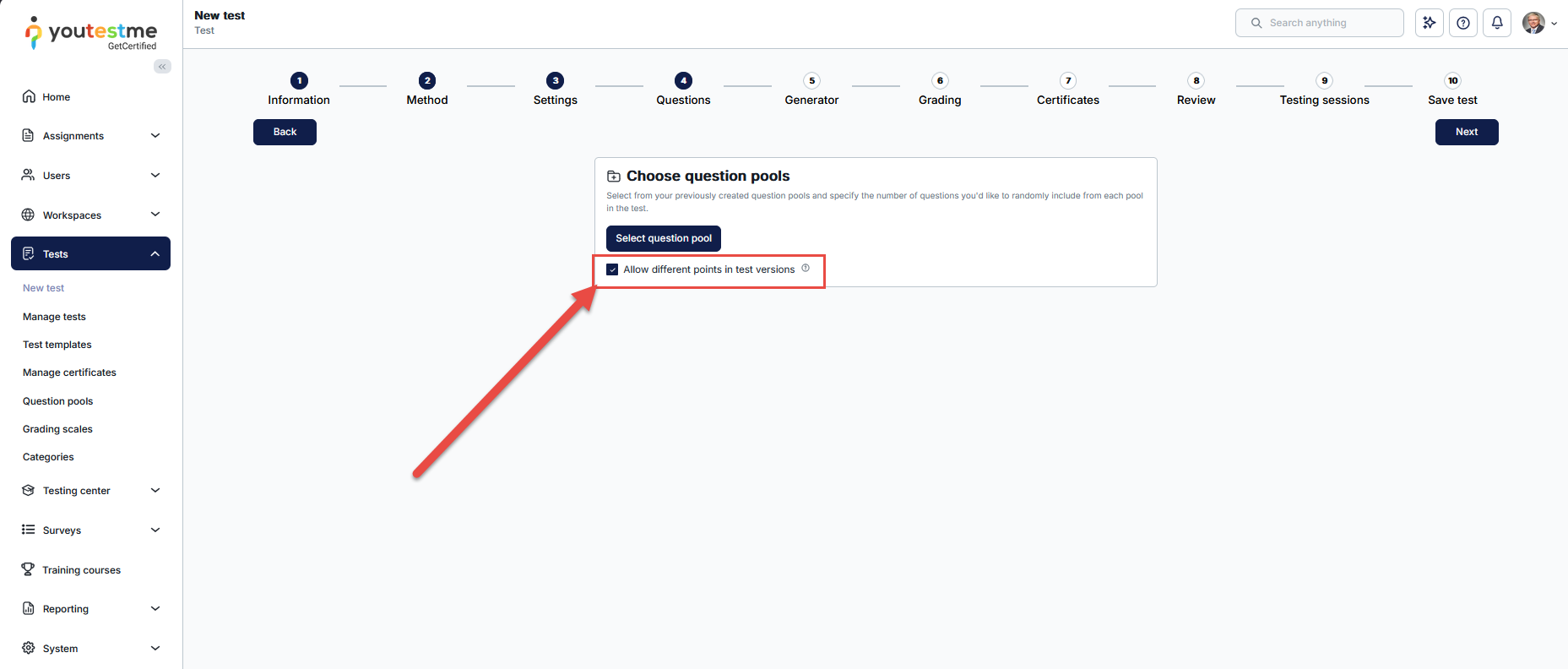
If this option is not selected, AI Grading questions will not be visible and generated.
Candidate’s Perspective
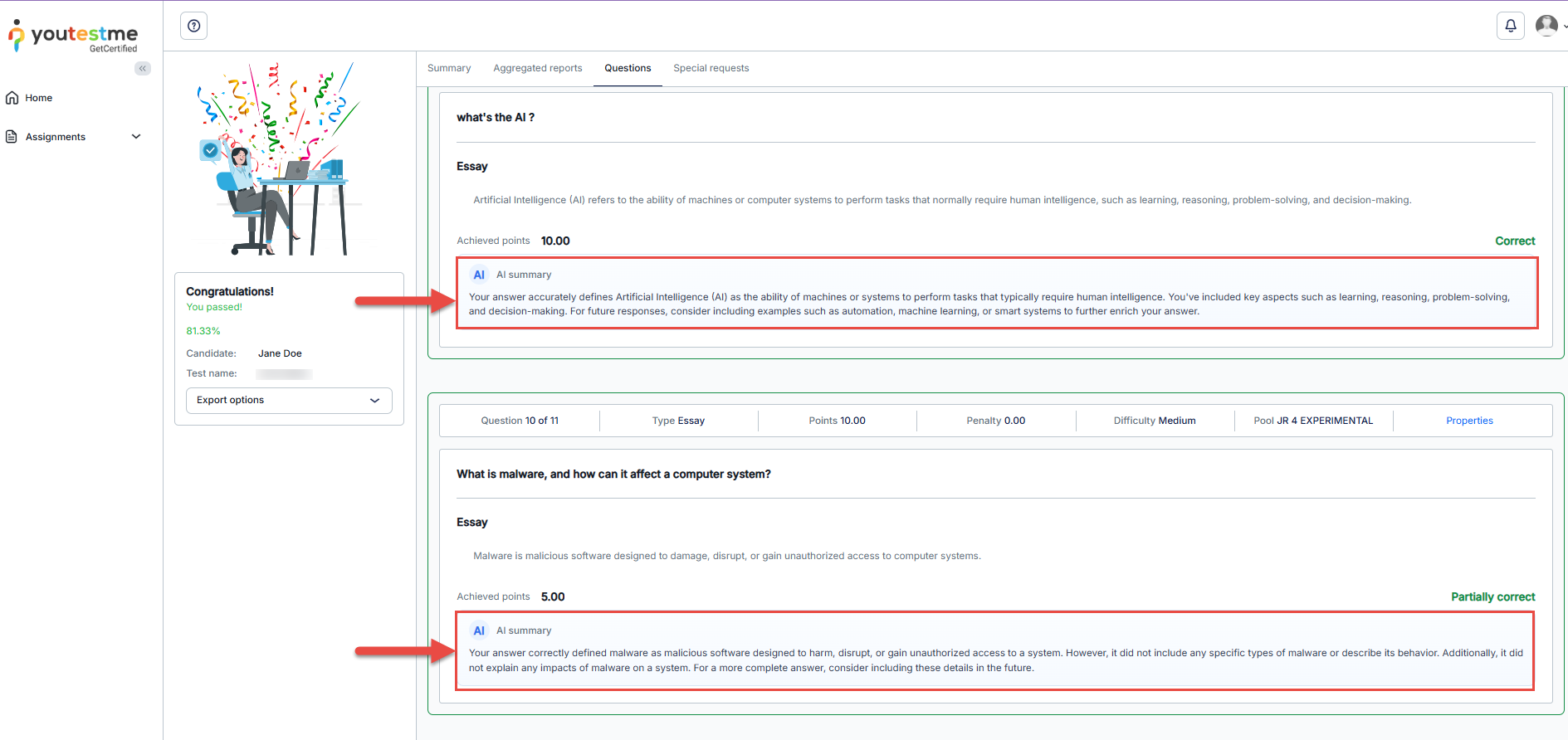
From the candidate’s point of view, when Show report is set to Immediately after finishing the test:
- The candidate can access the report as soon as they finish the test.
- The report displays the AI-generated scores and evaluation summaries for the submitted answers.
- A manager or grader can review and submit the AI-generated scores afterward. Once the reviewed scores are submitted, the report reflects any changes.
This allows candidates to view their results immediately while the review of AI-generated scores can be completed afterward.
Spelling Errors and Intended Meaning
AI Grading evaluates student responses according to the question content and the defined Evaluation Guideline. It should not be instructed to infer the student’s intent or assume that spelling mistakes were accidental. If synonyms, alternative wording, or specific spelling variations should be accepted, these cases should be explicitly addressed in the Evaluation Guideline.
Conclusion
AI Grading enhances the evaluation of Essay and Fill in the Blanks questions by automating subjective assessment. By defining clear Evaluation Guidelines and optionally providing Correct Answers, admins can ensure accurate and consistent grading.
This feature reduces manual effort, speeds up result delivery, and improves the overall assessment experience for both admins or test creators and students.