
This article explains how administrators and authorized users can track, monitor, and review user activity within the system using activity reports.
The activity reporting functionality provides detailed insight into actions performed across the platform, helping organizations improve security, monitor system usage, audit important activities, and investigate user-related events when necessary.
Using activity reports, administrators can:
- Monitor user actions and system events
- Track login activity and changes performed within the platform
- Filter activities by user, date, or action type
- Improve security auditing and compliance tracking
- Investigate suspicious or unexpected behavior
- Export activity data for additional analysis and reporting
The reporting functionality provides better visibility into platform usage and helps maintain transparency across all system activities.
Accessing Activity Reports
To access the activity reports:
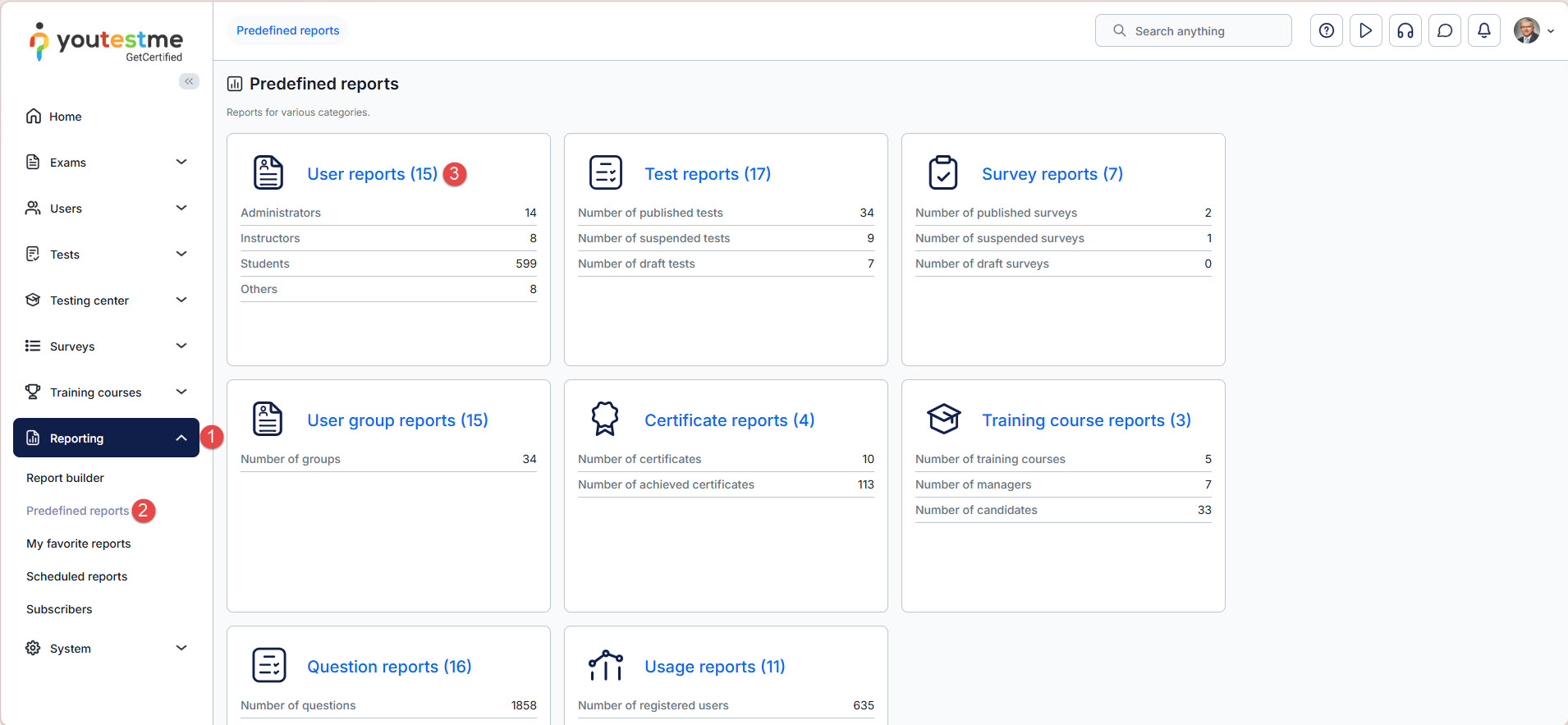
- Navigate to the Reporting section from the left-side menu.
- Select the predefined reports section
- Open the User reports page.
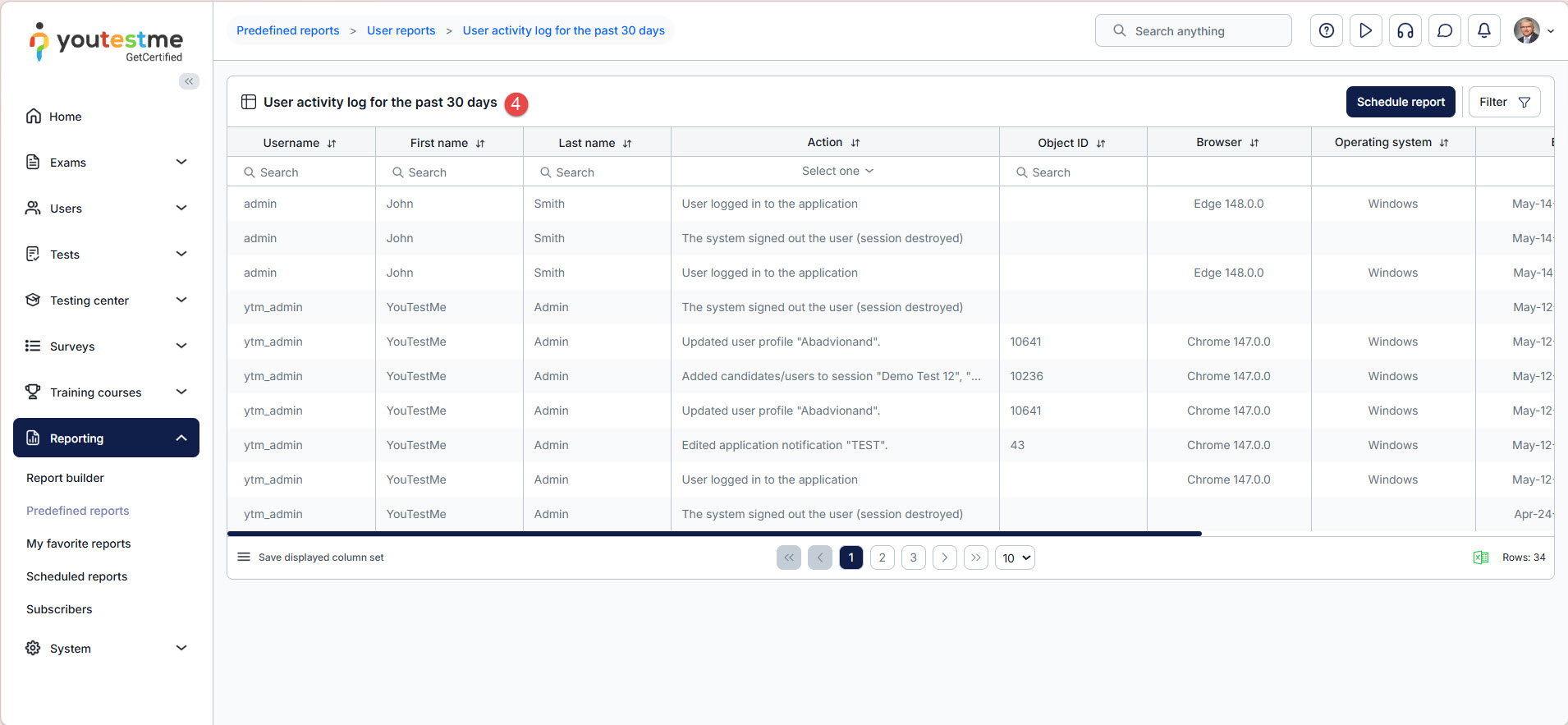
- Select the User activity log for the past 30 days from the available list.
Understanding the Report Data
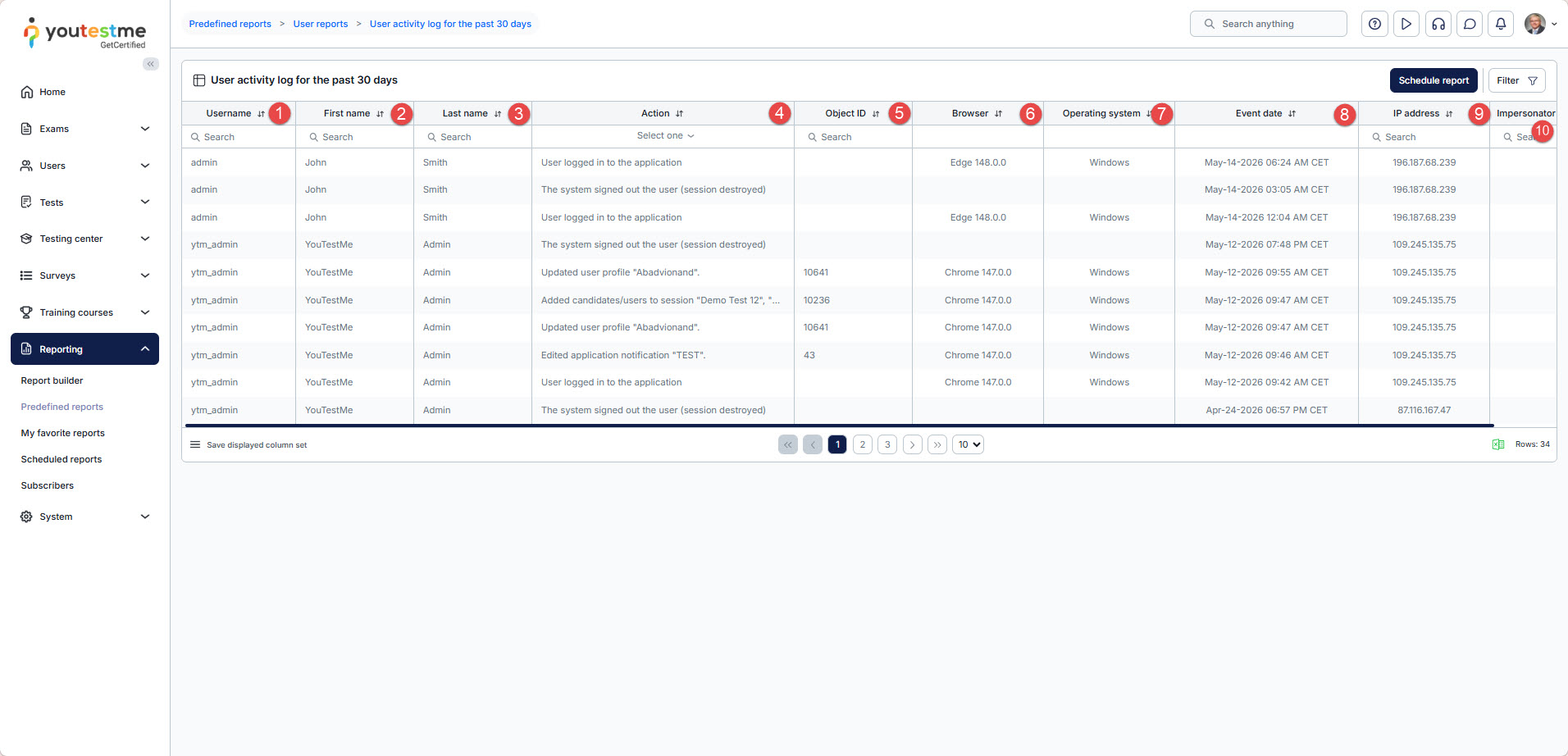
The report includes the following information:
- Username – the username of the user who performed the action.
- First name – the first name of the user.
- Last name – the last name of the user.
- Action – the activity or event performed in the system.
- Object ID – the identifier of the affected object, such as a test, survey, training course, or user profile.
- Browser – the browser used while performing the action.
- Operating system – the operating system of the user’s device.
- Event date – the exact date and time when the activity occurred.
- IP address – the IP address from which the action was performed.
- Impersonator username – displays the username of the administrator who impersonated another user, if applicable.
Action Column
The Action column records different types of activities performed within the platform. These logs help administrators track user behavior, monitor important events, and investigate potential issues.
The system records activities related to:
- User authentication and account management
- Test, survey, and training course actions
- Starting, continuing, suspending, or completing assignments
- Question pool and question management
- Report generation and exports
- Proctoring and browser lockdown events
- Session scheduling and candidate management
- Training course progress and enrollment
- System configuration and customization changes
- Role, authorization, and permission management
- E-commerce and purchase activities
- File uploads, downloads, and attachments
- Job execution and scheduled tasks
Examples of tracked activities include:
- User logged in or logged out
- Test started or completed
- Training course started or continued
- Browser lockdown violation detected
- Proctoring session started or stopped
- Report exported
- User profile updated
- Question pool created or modified
These detailed logs help organizations maintain transparency, improve auditing processes, strengthen security monitoring, and ensure compliance with internal policies.
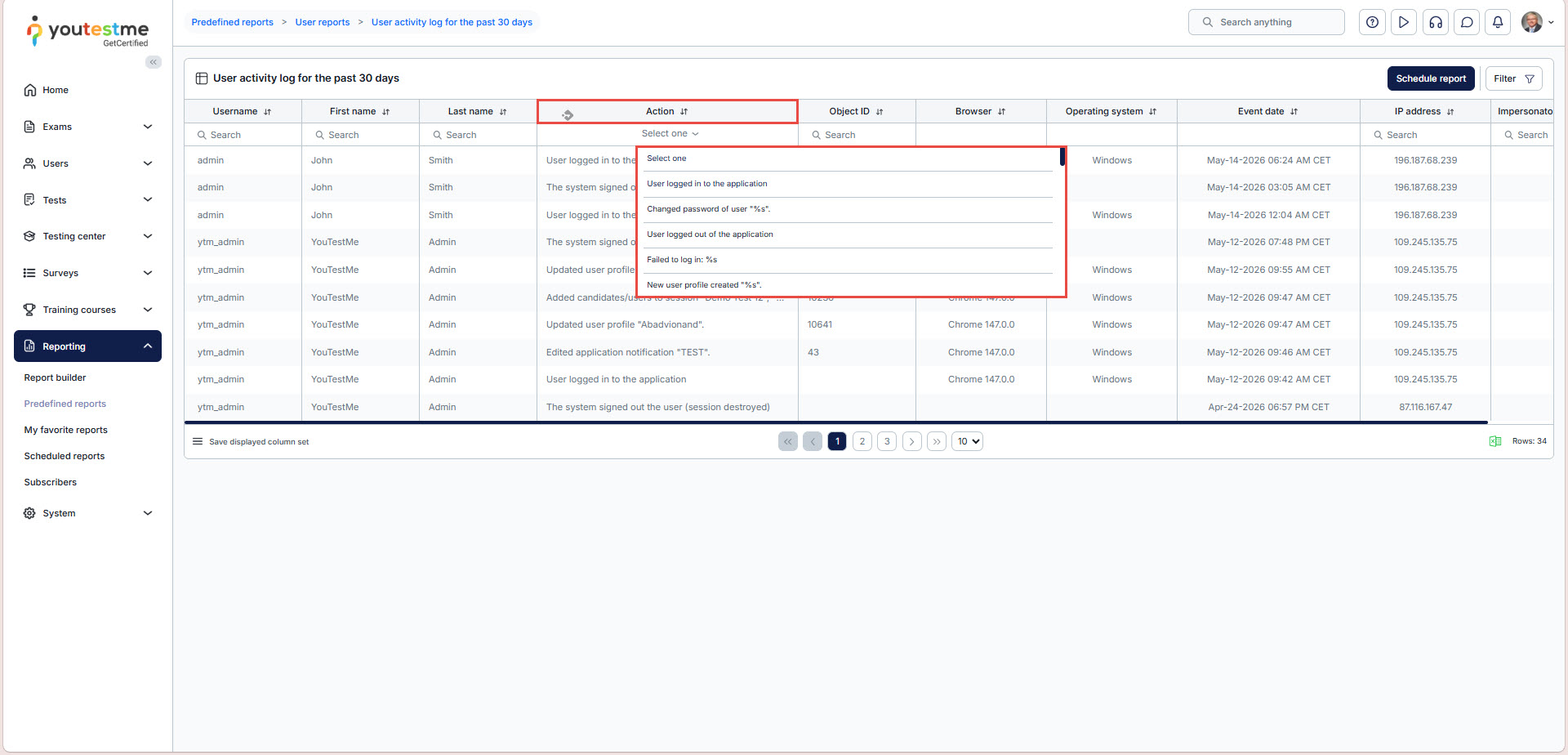
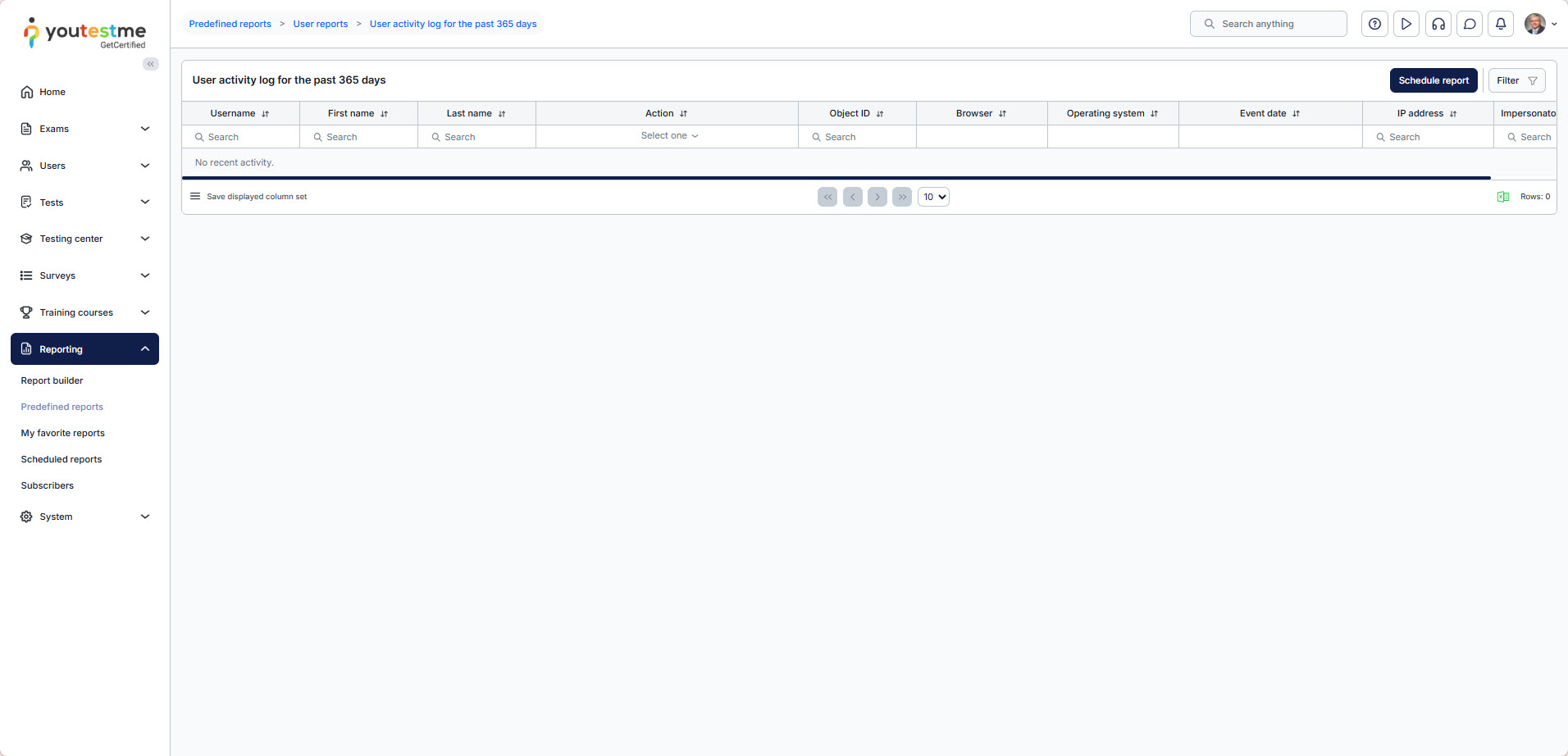
In addition to the User activity log for the past 30 days, the system also provides the User activity log for the past 365 days, which offers the same functionality and filtering options while covering activity data for the previous year.
Configuring Report Filters
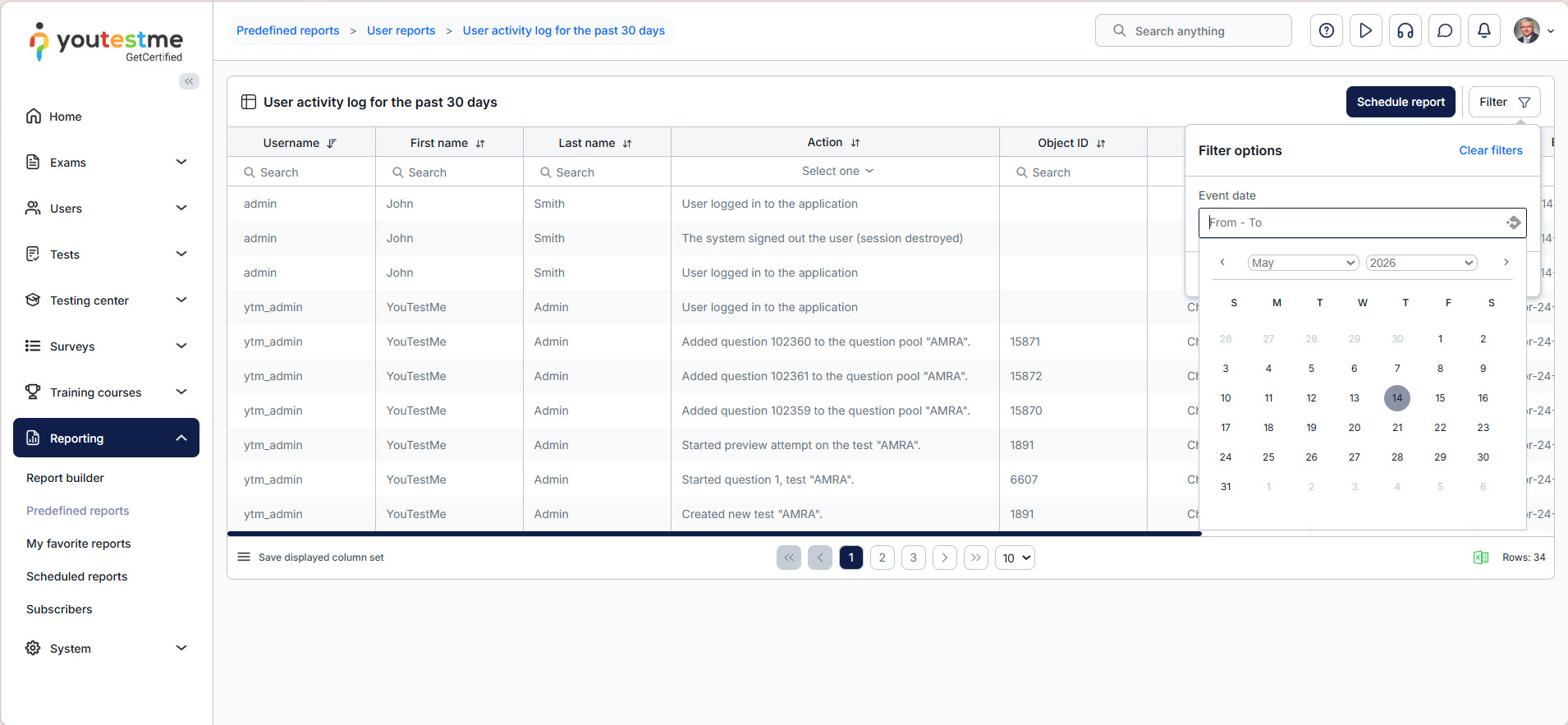
You can configure filters to narrow down displayed activities and quickly locate specific events.
Available filters allow administrators to search activities depending on:
- Specific users
- Action types
- Date ranges
- Browsers
- Operating systems
- IP addresses
Administrators can define a custom From date and To date range to review activities performed during a specific period.
Last login activity
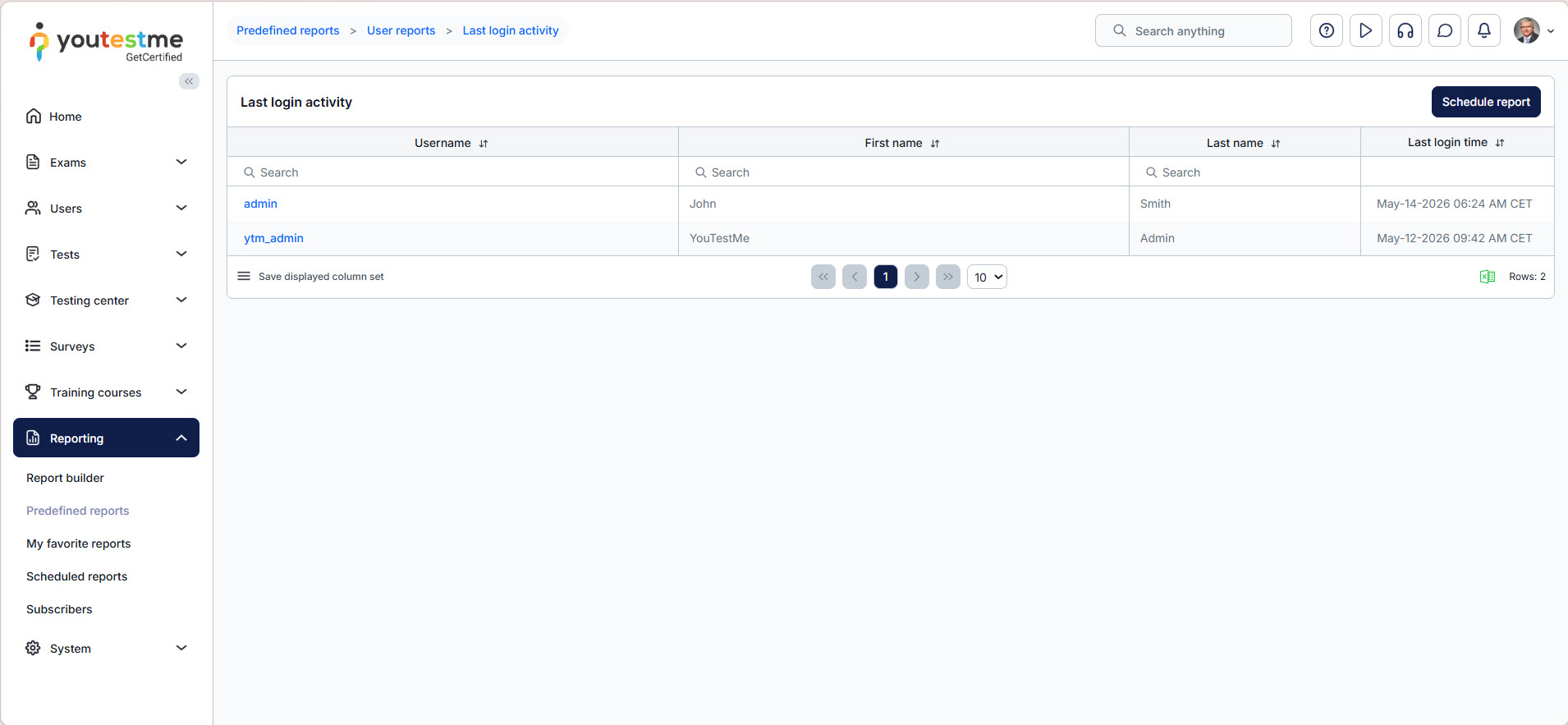
The Last login activity report displays the most recent login time for each user in the system, providing a clear overview of user activity and engagement.
This report helps administrators:
- Identify inactive users
- Monitor recent platform access
- Review user engagement trends
- Improve account monitoring and security oversight
Login and logout events
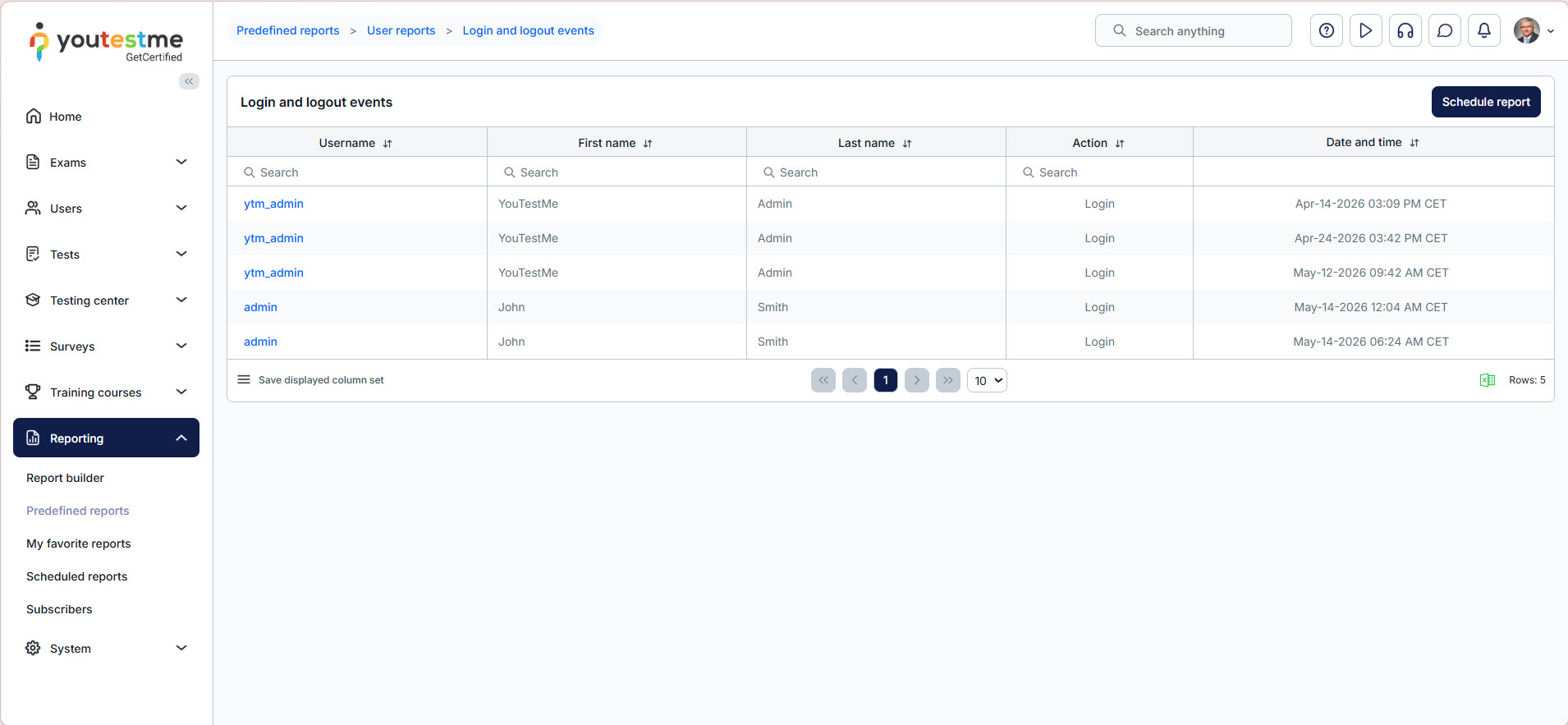
The Login and logout events report provides a detailed audit trail of all login and logout activities performed within the system.
Using this report, administrators can:
- Monitor user access history
- Review successful and failed login attempts
- Investigate suspicious login activity
- Track session activity for security and auditing purposes
This information is especially useful for maintaining security compliance and monitoring unauthorized access attempts.
Conclusion
Activity reports provide organizations with a powerful way to monitor and review user behavior across the platform. By tracking system events, login activity, assignment actions, and configuration changes, administrators can improve security oversight, simplify auditing processes, and maintain better visibility into platform usage.
Using the available filtering and reporting options, administrators can quickly identify important events, investigate suspicious activity, and export relevant data for additional analysis and compliance purposes.




