
Article verified for Release 16.1 on October 23, 2026.
Account Security Policy Configuration allows administrators to enforce password and account protection rules that ensure user privacy and secure access to the system. These policies help protect accounts by controlling password complexity, login attempts, session duration, and account inactivity.
Security policies can be configured at two levels:
- Global level – defines the default security policy for all users in the system.
- Role level – allows different security policies to be applied to specific roles. All security policy settings except Password reset link duration can be configured at the role level.
The Password reset link duration setting is configured only at the global level and applies to all users, including users with custom role security settings.
This flexibility enables administrators to define stricter policies for specific roles while maintaining general security policies for other users.
Configuring Account Security Policy at Global Level
To configure security policies globally, follow these steps:
- Navigate to System > Settings and Customization.
- Open Account Security Policy Configuration.
- Configure the available security parameters.
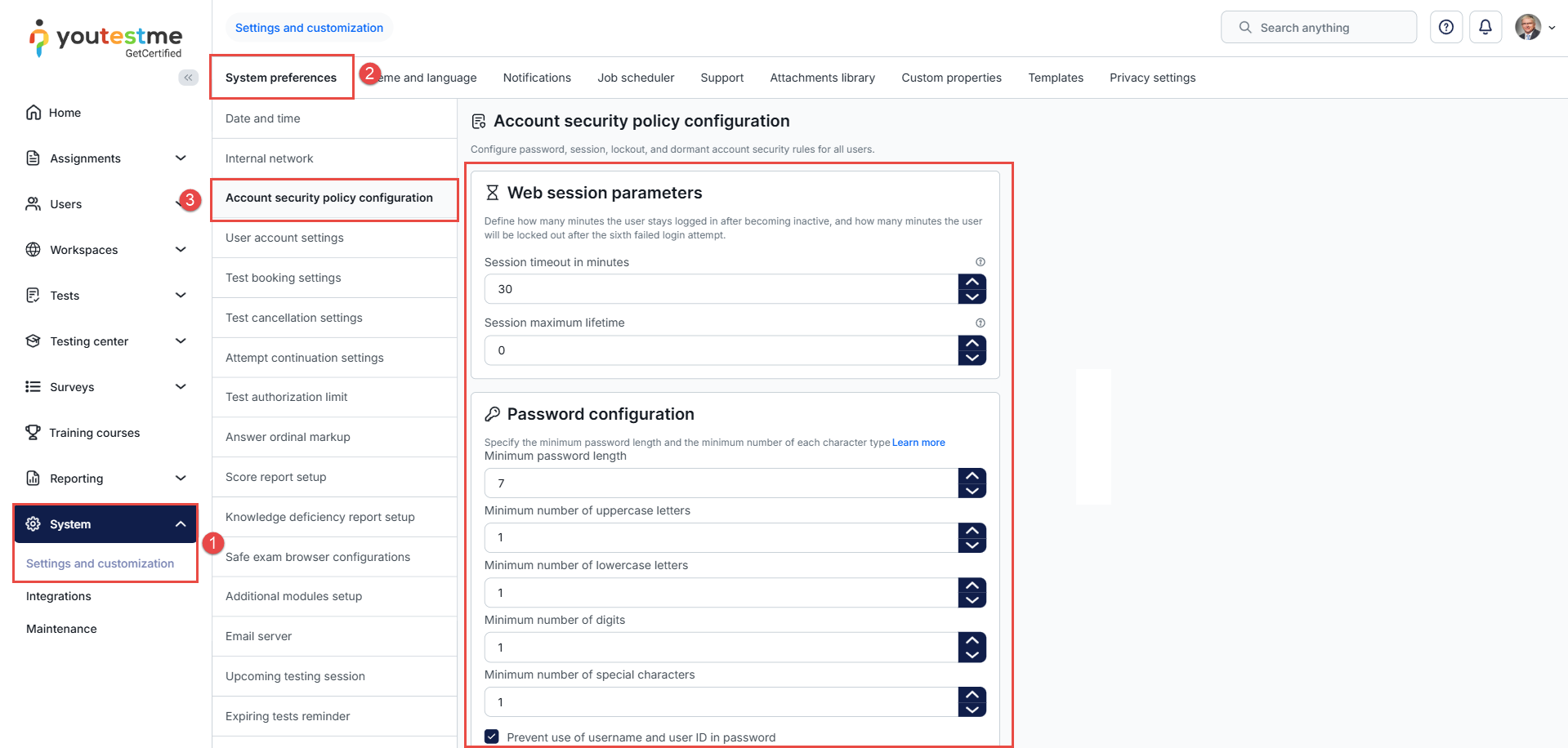
The following configuration sections are available:
Web Session Parameters
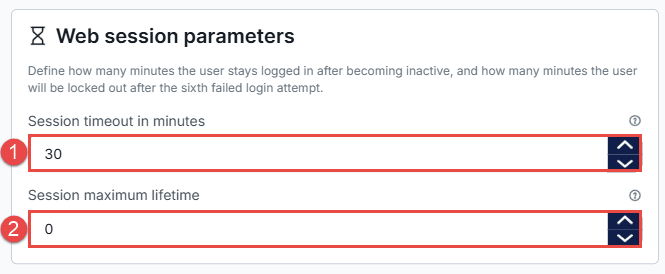
The Web Session Parameters section allows administrators to define how long a user session remains active and when reauthentication is required.
- Session Timeout in Minutes – Defines how long a user can remain logged in without activity. If no action is performed within the specified time, the session expires, and the user must log in again.
-
Password Configuration
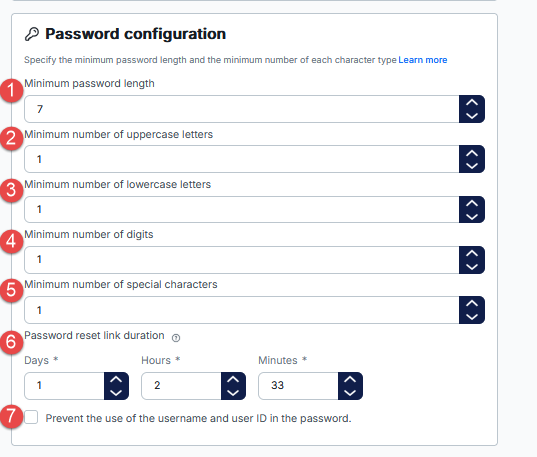
The Password Configuration section defines password complexity requirements to ensure stronger account security.
- Minimum password length – The minimum number of characters a password must contain.
- Minimum number of uppercase letters – Specifies how many uppercase letters (A–Z) must be included in the password.
- Minimum number of lowercase letters – Specifies how many lowercase letters (a–z) must be included in the password.
- Minimum number of digits – The minimum required number of numeric characters (0-9) in a password.
- Minimum number of special characters – Defines the required number of special characters (e.g., !, @, #, $, %, etc.) in the password.
- Password reset link duration – Defines how long a newly generated password reset link remains valid. Enter the duration using the Days, Hours, and Minutes fields. The default is 1 day (24 hours). For example, to allow 48 hours, enter 2 days, 0 hours, and 0 minutes. The duration must be at least 1 minute; all three fields cannot be zero. Use 0-23 for hours and 0-59 for minutes. This is a global setting that applies to all users, including users with custom role security settings. It cannot be changed for individual roles. Changes apply only to newly generated links; links that have already been sent keep their original expiration time.
- Prevent use of username and user ID in password – Prevents users from creating passwords that contain their username or user ID. This helps reduce the risk of easily guessable passwords.
Password Lifecycle
The Password Lifecycle section allows administrators to configure password history and password age restrictions.
- Password History Length – Defines how many previously used passwords cannot be reused.
- Minimum Password Age – Defines the minimum time (in minutes) that must pass before a password can be changed again.
- Maximum Password Age – Defines the maximum time (in minutes) a password can be used before it must be changed.
Note: Changes to this setting apply only when a password is set or changed. Passwords that were already set before the change are not affected until they are changed again.

Account Lockout
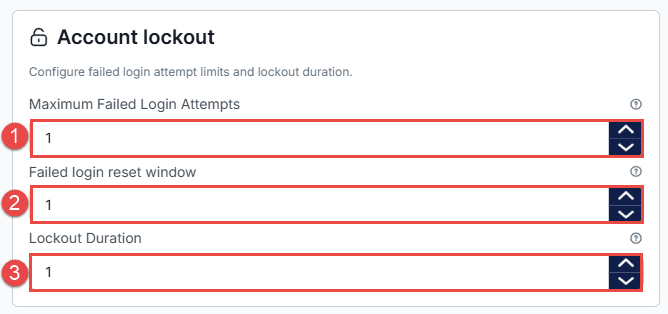
The Account Lockout section allows administrators to configure failed login attempt limits and lockout duration.
- Maximum Failed Login Attempts – Defines the maximum number of consecutive failed login attempts allowed before the account is locked.
- Failed Login Reset Window – Defines the time window (in minutes) after which failed login attempts are reset.
- Lockout Duration – Defines how long the account remains locked (in minutes) after too many failed login attempts.
Dormant Account
The Dormant Account section allows administrators to configure the automatic handling of user accounts based on inactivity. Administrators can specify how long a user account must remain inactive before it is marked as dormant and define the period after which the dormant account can no longer be reactivated. This process runs automatically every day at 12:00 PM (UTC).
- Dormant Inactivity Period – Defines the period of user inactivity (in minutes) after which the account is automatically marked as dormant.
- Dormant No-Reactivation Period – Defines the period (in minutes) after which a dormant account can no longer be reactivated. This setting does not mean that the account is automatically deleted.
Note: The dormant account check is executed automatically by a scheduled job every day at 12:00 PM (UTC). During this process, the system evaluates user inactivity and applies the configured dormant account rules.

Configuring Account Security Policy at Role Level
Security policies can also be configured for specific roles, allowing administrators to apply customized security requirements.
To configure security policies for a role:
- Navigate to Users > Roles and Permissions.
- Select the desired role. Click the Edit (pencil icon).
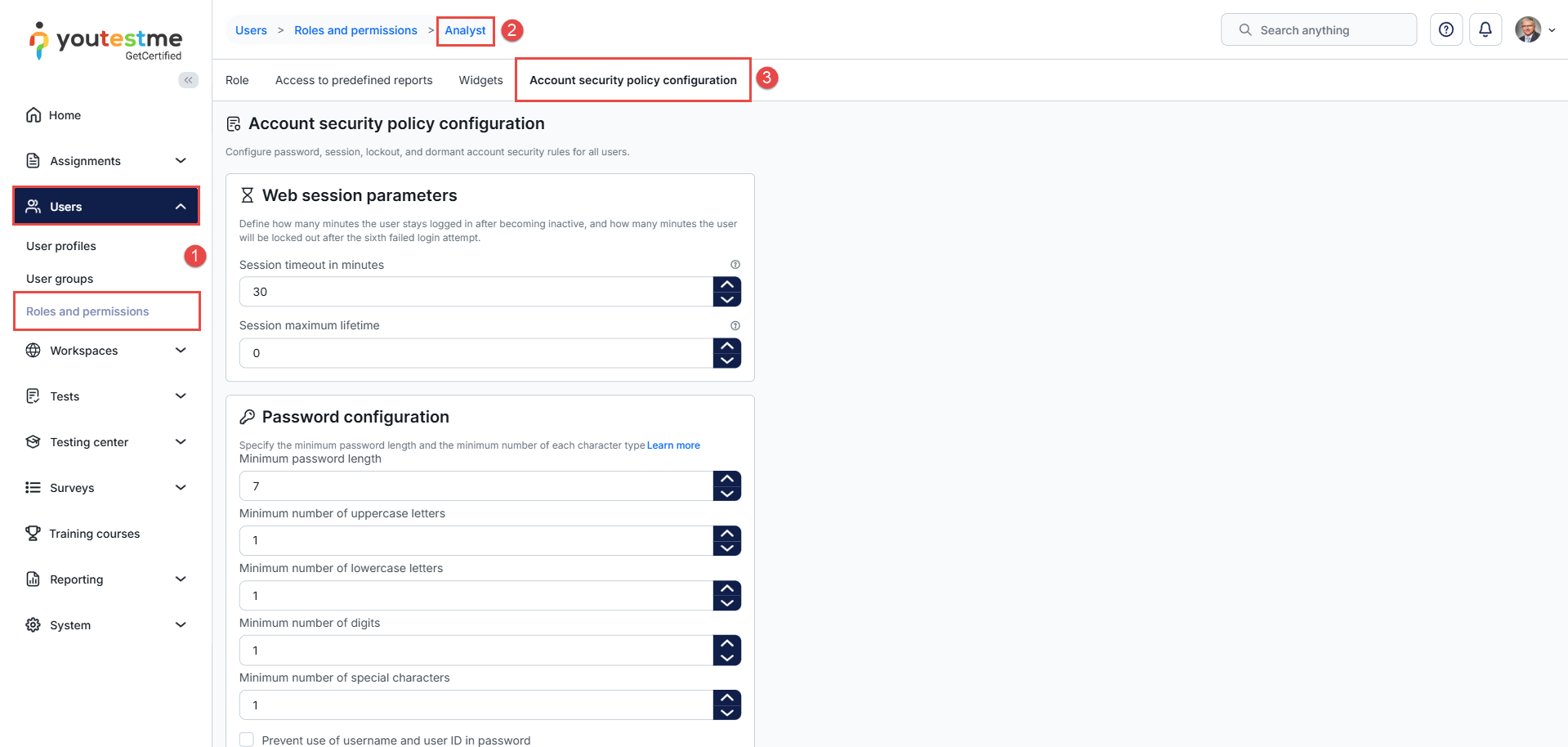
- Open the Account Security Policy Configuration tab.
The following security policy sections are available at the role level:
- Web Session Parameters
- Password Configuration
- Password Lifecycle
- Account Lockout
- Dormant Account
Note: The Password reset link duration setting is configured only at the global level and cannot be customized for individual roles.
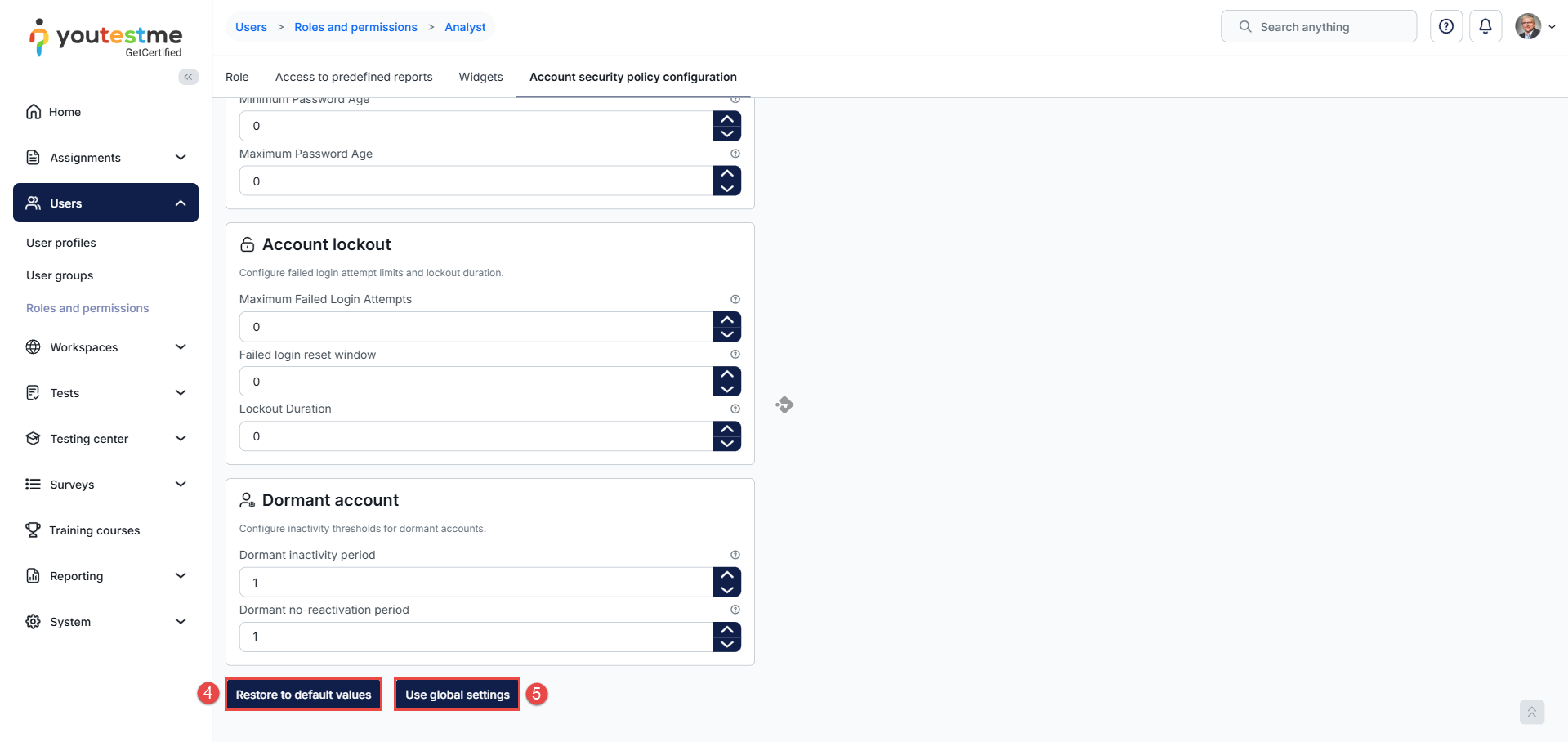
- Restore to Default Values – Resets the role security policy to its original configuration.
- Use Global Settings – Applies the security policy configured at the system level. This option becomes available after a role-level modification has been saved and allows administrators to revert the role to follow the global system policy.
User Creation and Password Setup
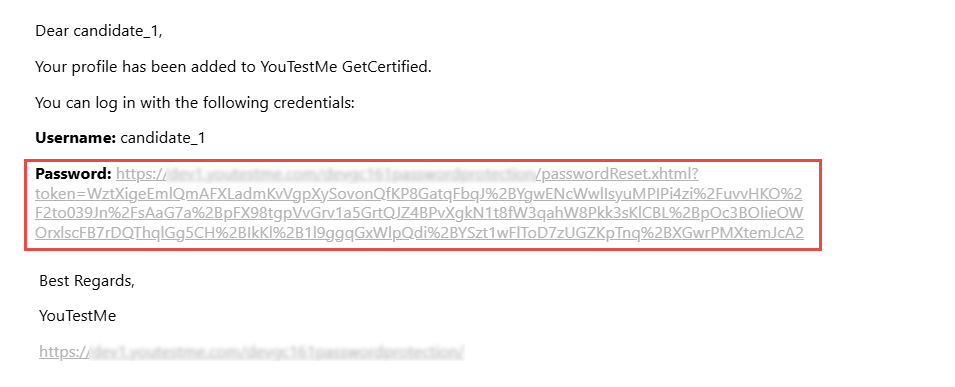
Regardless of the method used to create a user account, the user will receive an email notification containing a password setup link.
Note:
- Administrators cannot set a password when manually creating a user.
- Administrators cannot define passwords when importing users.
- By default, Enable Admin Password Management Legacy Mode is disabled, so administrators cannot directly set or change another user’s password through the user profile. This default configuration aligns with the security, legal, and compliance requirements and standards under which YouTestMe is certified.
- If an organization has a specific business requirement for administrators to manage other users’ passwords, Enable Admin Password Management Legacy Mode can be enabled upon request. Once enabled, administrators can also grant the relevant permission to users with other roles, allowing them to change other users’ passwords.
NOTE: The password setup link is valid for 24 hours by default. The expiration period can be configured in the global Account Security Policy settings, allowing administrators to set a shorter or longer duration. Changes apply only to newly generated links; links that have already been sent keep their original expiration time.
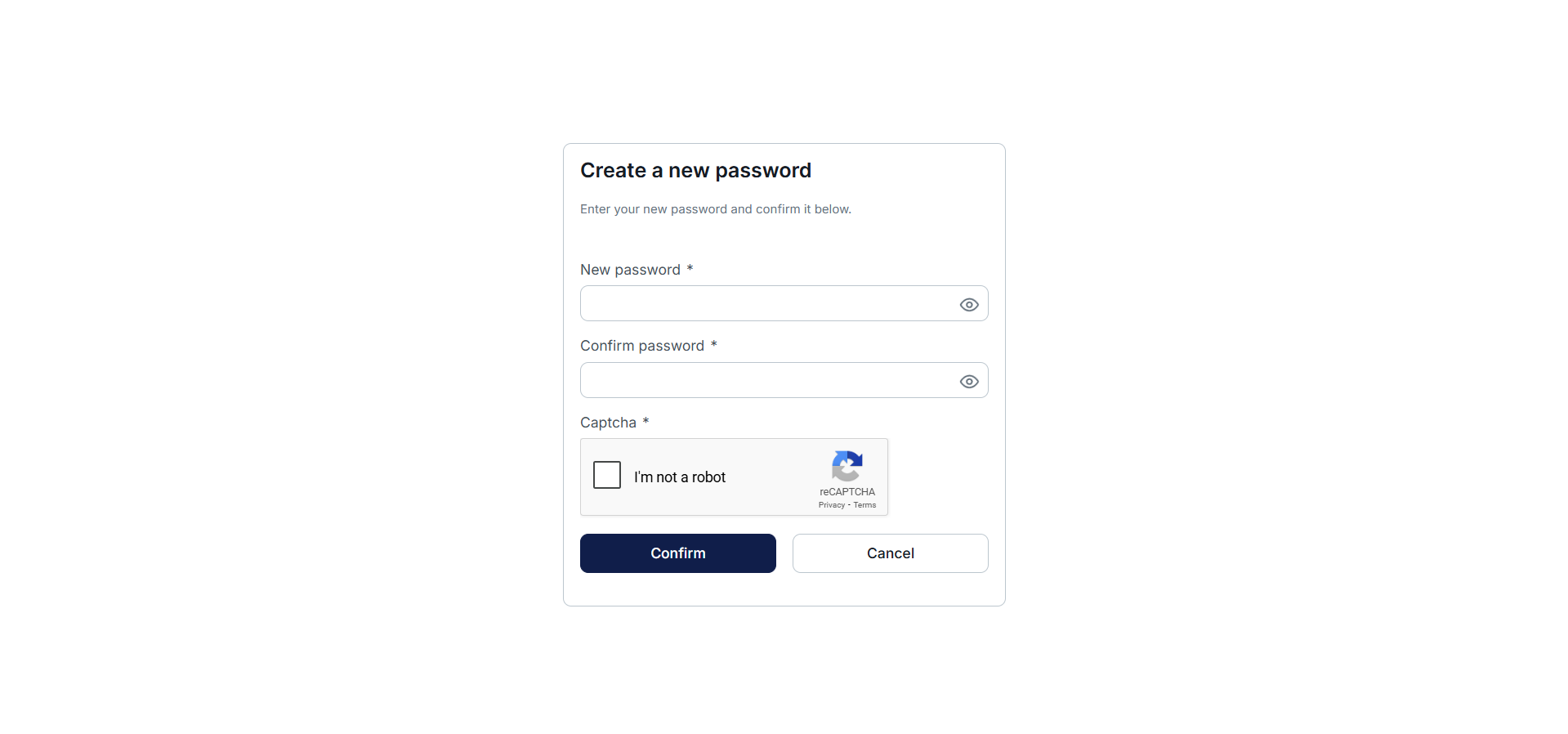
Through this link, users must create their password before accessing the platform.
An example of an email that users will receive:
Through this link, users must create their password before accessing the platform.
Additional resources: