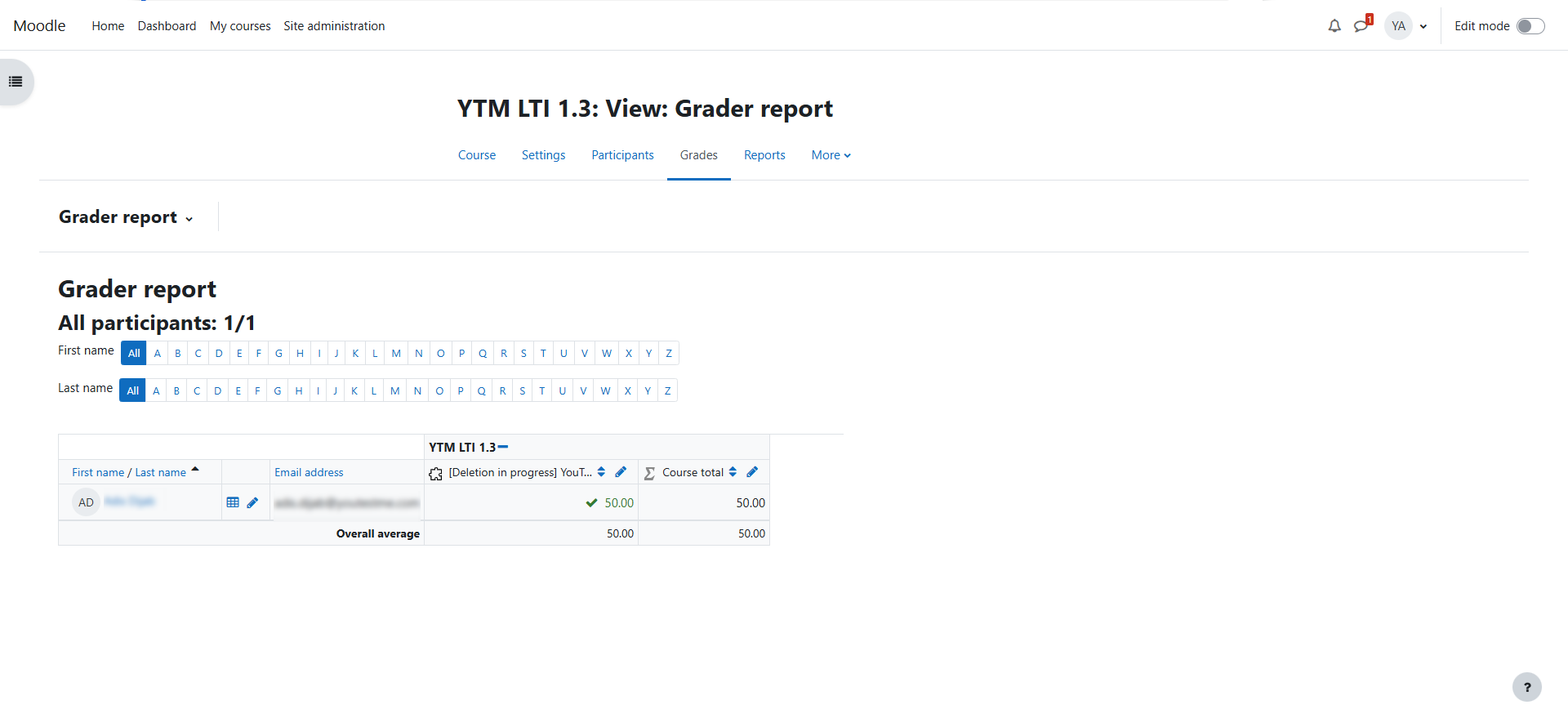
This article explains how to configure YouTestMe GetCertified as an LTI 1.3 external tool in Moodle. Once configured, users can launch a YTM test directly from Moodle, and the test result can be sent back to the Moodle gradebook.
1. Configure the LTI 1.3 tool in Moodle
First, configure the LTI 1.3 tool in Moodle to establish the connection between Moodle and YouTestMe.
- Log in to Moodle as an administrator.
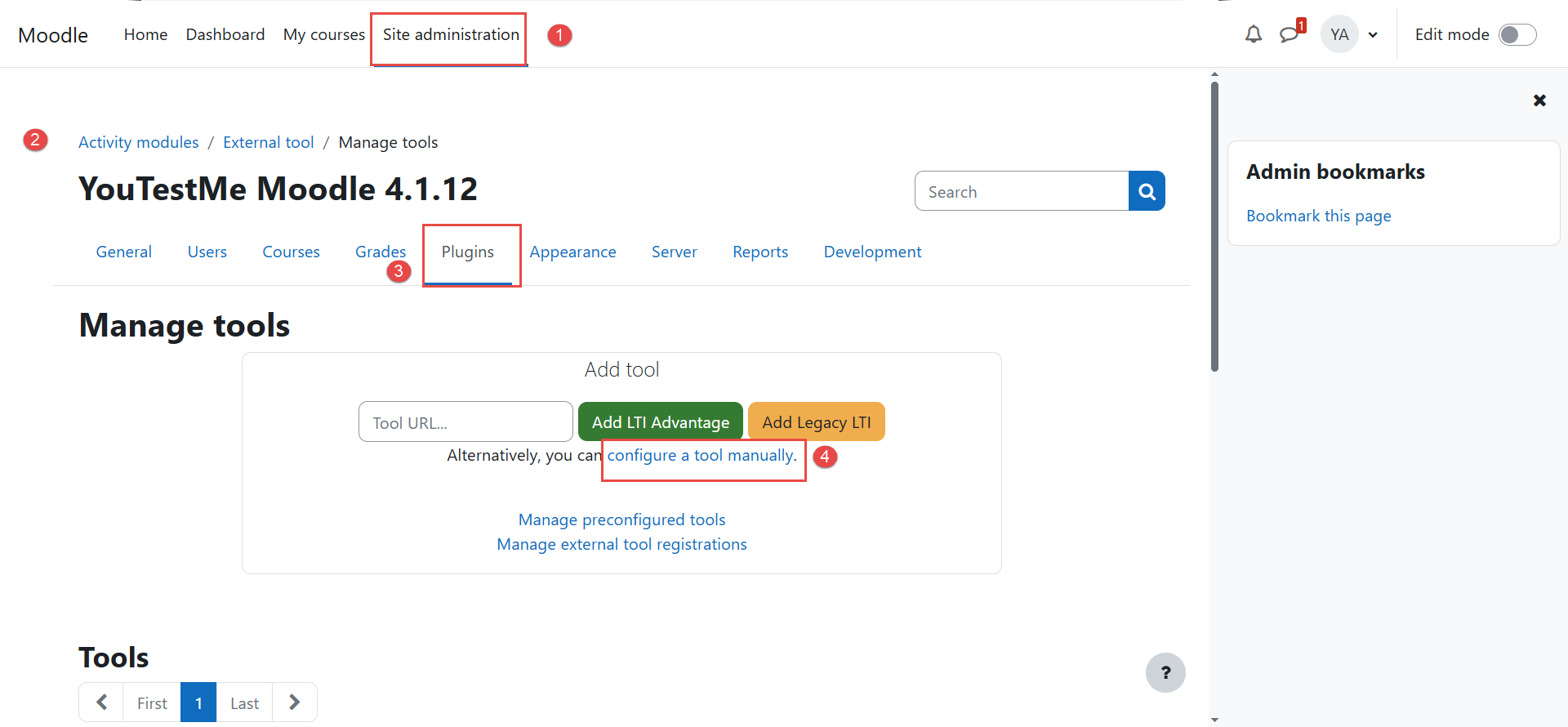
- Go to Site administration.
- Navigate to Plugins > Activity modules > External tool > Manage tools.
- Under Add tool, select Configure a tool manually.
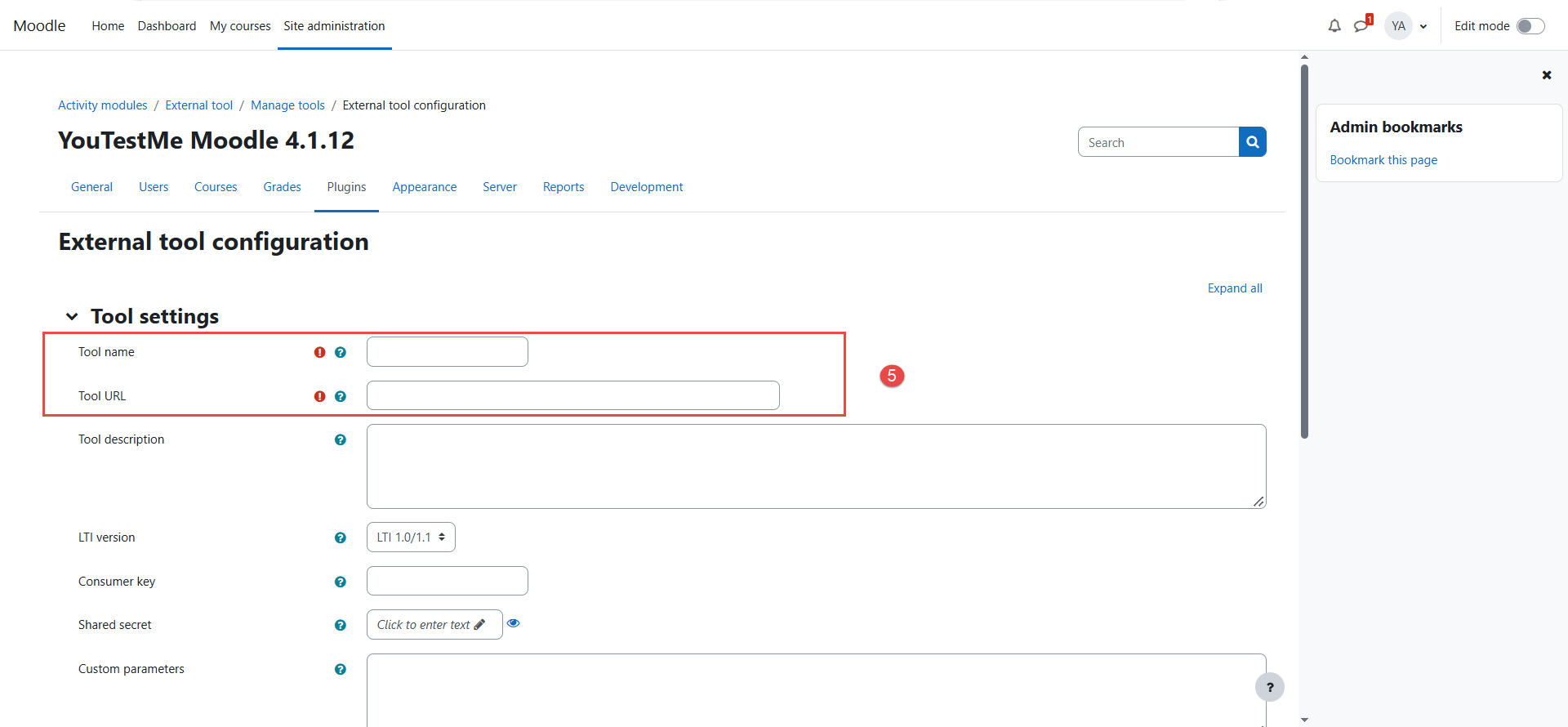
- In the Tool settings section, enter a temporary Tool name and Tool URL, then click Save changes.
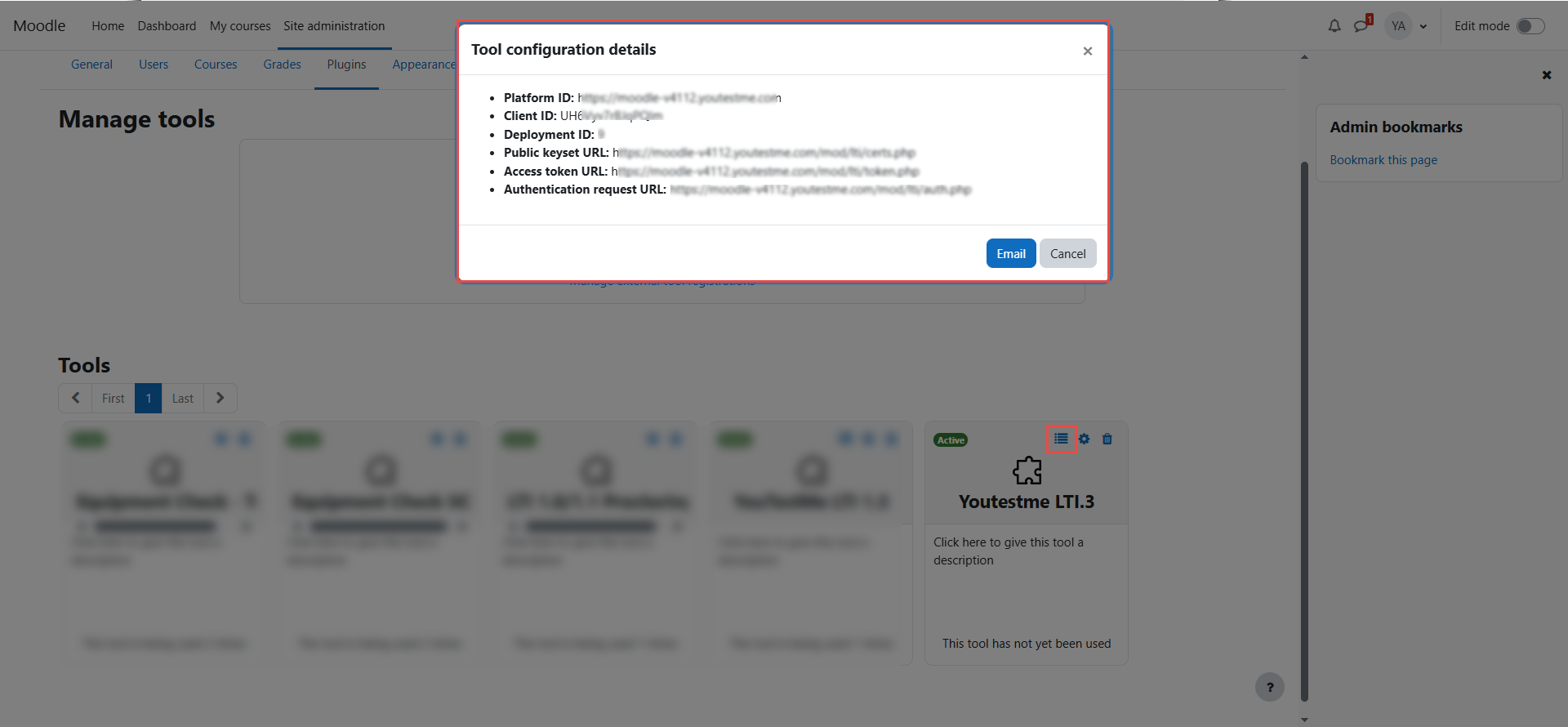
Moodle LTI 1.3 Configuration Details
After configuring the LTI 1.3 tool in Moodle, click the Tool configuration details icon highlighted below to display the information required for the LTI 1.3 connection.
- Platform ID – Identifies the Moodle platform that will be used for the LTI 1.3 integration.
- Client ID – A unique identifier assigned to the LTI tool configuration in Moodle. This value is required when configuring the integration in YouTestMe.
- Deployment ID – Identifies the specific deployment of the LTI tool in Moodle. This value is also required in YouTestMe.
- Public Keyset URL – The Moodle endpoint that provides the public keys used to verify LTI 1.3 security signatures.
- Access Token URL – The Moodle endpoint used to obtain OAuth 2.0 access tokens for authenticated LTI communication.
- Authentication Request URL – The Moodle endpoint used to initiate the LTI 1.3 authentication flow.
Keep the Moodle-generated Client ID and Deployment ID available, as they will be required when configuring the LTI 1.3 integration in YouTestMe.
Moodle LTI Endpoints
For the Moodle instance, use the following endpoints:
Authentication Request URLhttps://<moodle-domain>/mod/lti/auth.php
Used to initiate the authentication request between Moodle and YouTestMe.
Access Token URLhttps://<moodle-domain>/mod/lti/token.php
Used to obtain an access token for secure communication between the LTI platforms.
Public Keyset URLhttps://<moodle-domain>/mod/lti/certs.php
Used to retrieve Moodle’s public keys for validating signed LTI 1.3 requests.
Replace <moodle-domain> with the URL of your Moodle instance.
2. Create the LTI 1.3 Configuration in YouTestMe
After configuring the LTI 1.3 tool in Moodle, create the corresponding integration in Youtestme GetCertified.
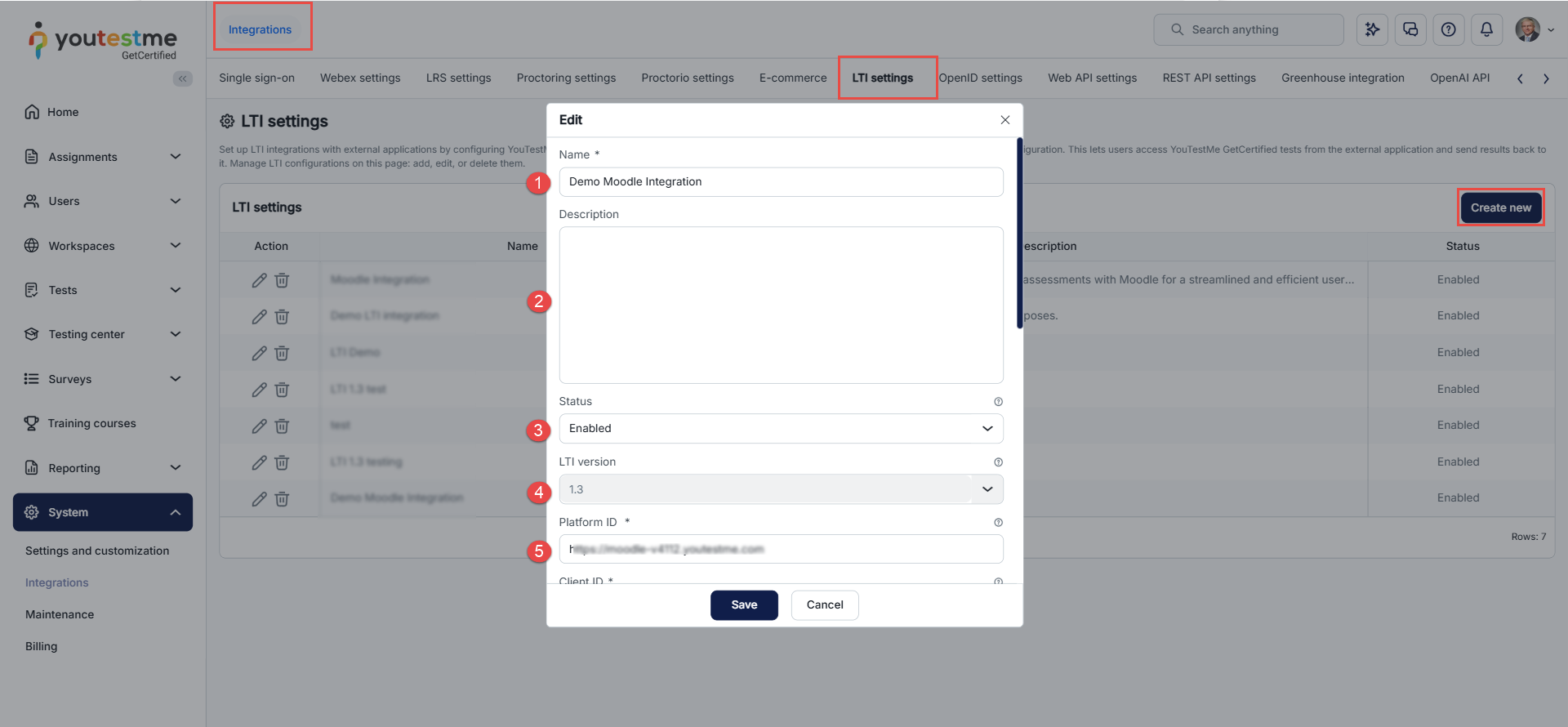
Navigate to System > Integrations.
Select LTI settings.
Click Create new.
Configure the General Settings
Under General settings, configure the integration with the following values:
- Name
- Description
- Status: Enabled
- LTI version: 1.3
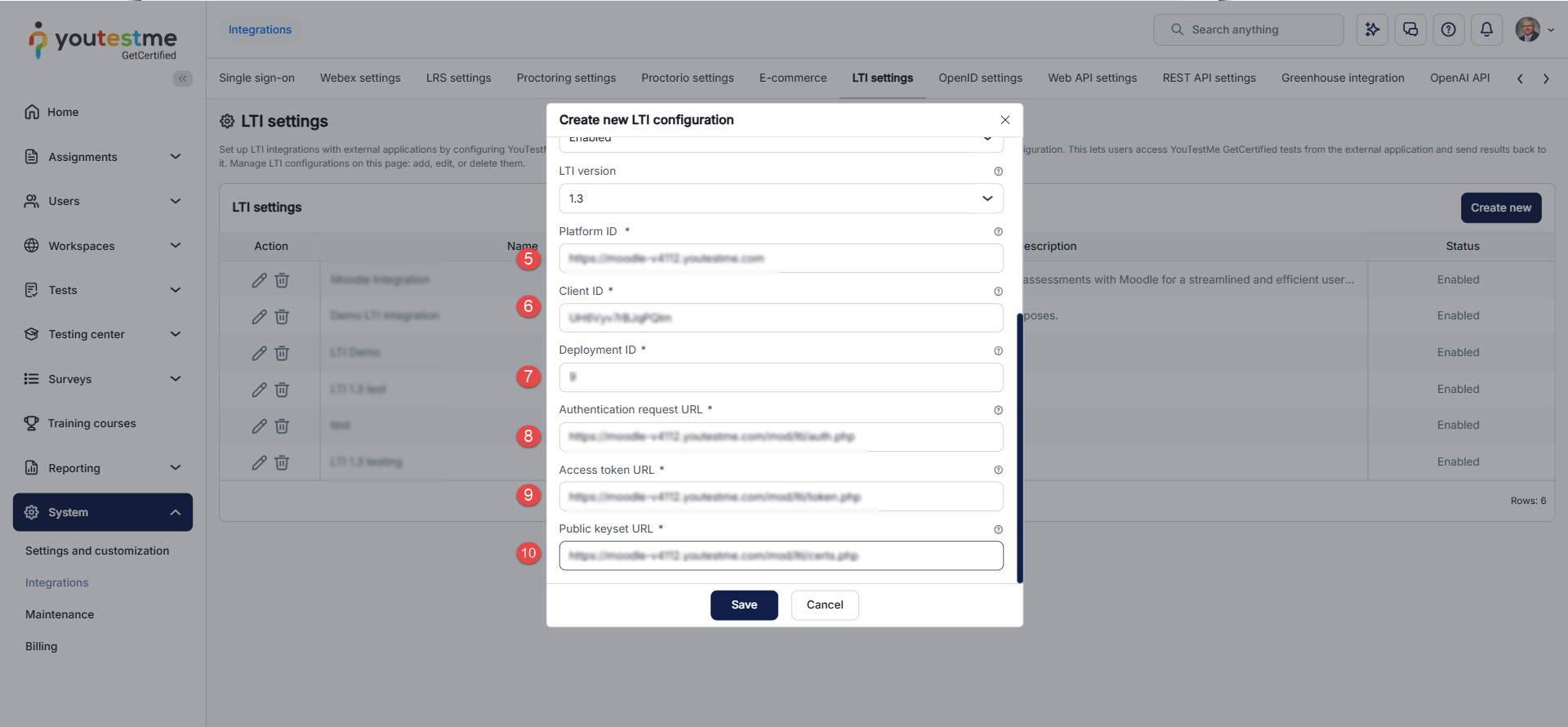
- Platform ID: Enter the URL of your Moodle instance.
- Client ID: Enter the Client ID generated by Moodle.
- Deployment ID: Enter the Deployment ID generated by Moodle.
- Authentication Request URL: Enter the Moodle Authentication Request URL.
- Access Token URL: Enter the Moodle Access Token URL.
- Public Keyset URL: Enter the Moodle Public Keyset URL.
YTM-generated URLs
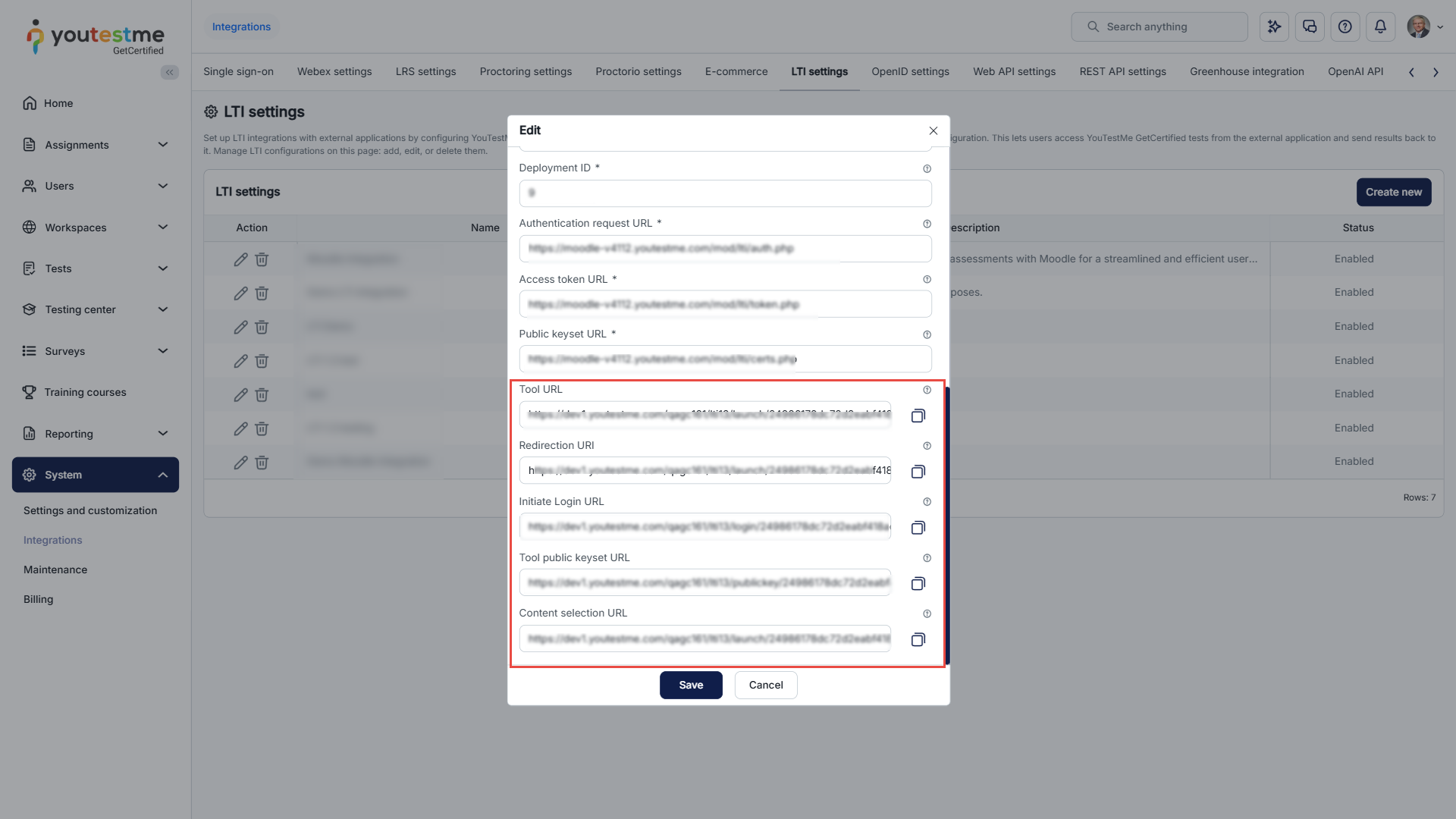
After entering the Moodle information, YouTestMe provides the URLs required by Moodle, including:
- Tool URL
- Redirection URI
- Initiate Login URL
- Tool Public Keyset URL
- Content Selection URL
- Click Save.
Copy these values so they can be entered in the Moodle LTI configuration.
Note: The URLs generated by YouTestMe are specific to the LTI configuration. Do not reuse URLs from another LTI integration.
3. Complete the LTI configuration in Moodle
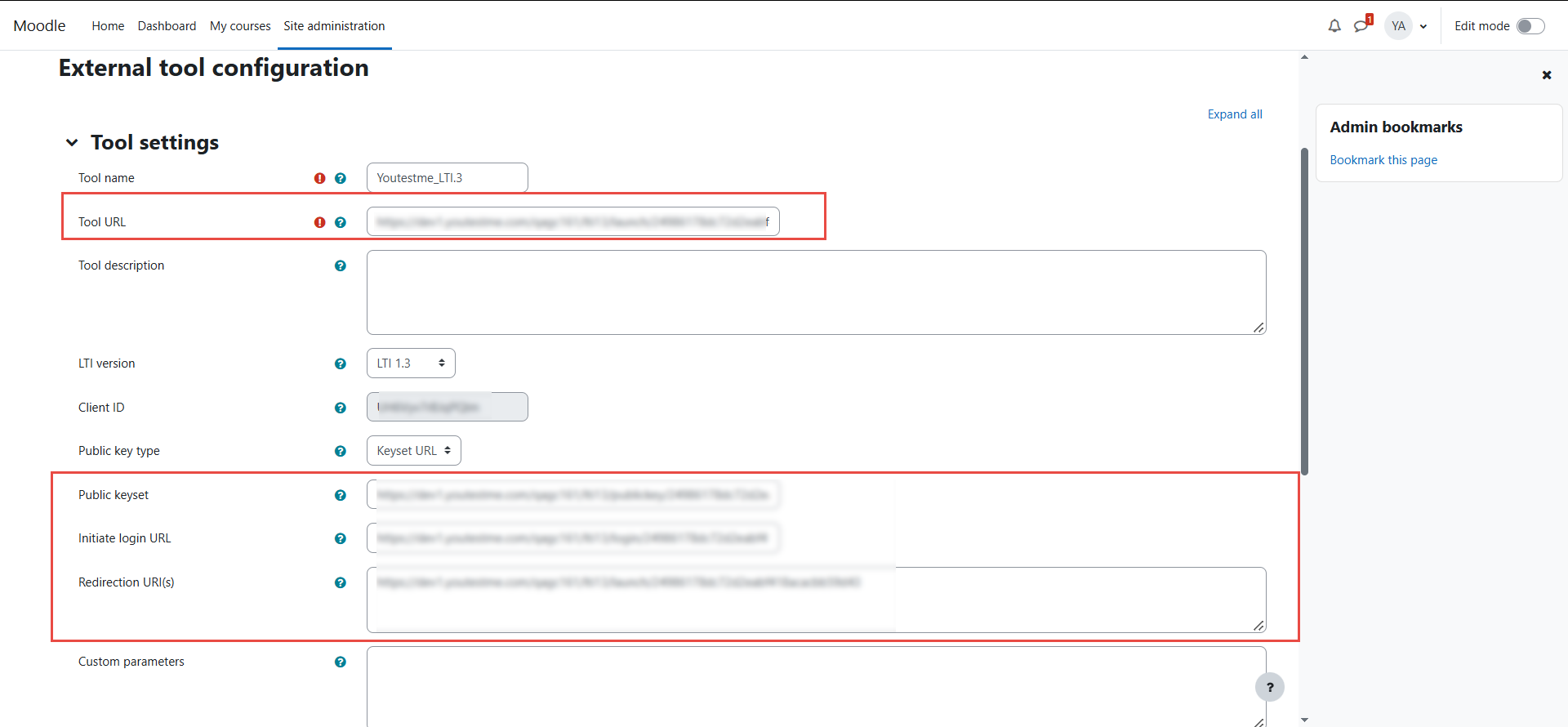
Return to the Moodle External tool configuration page.
Enter the URLs generated by YouTestMe:
Configure Grade Services
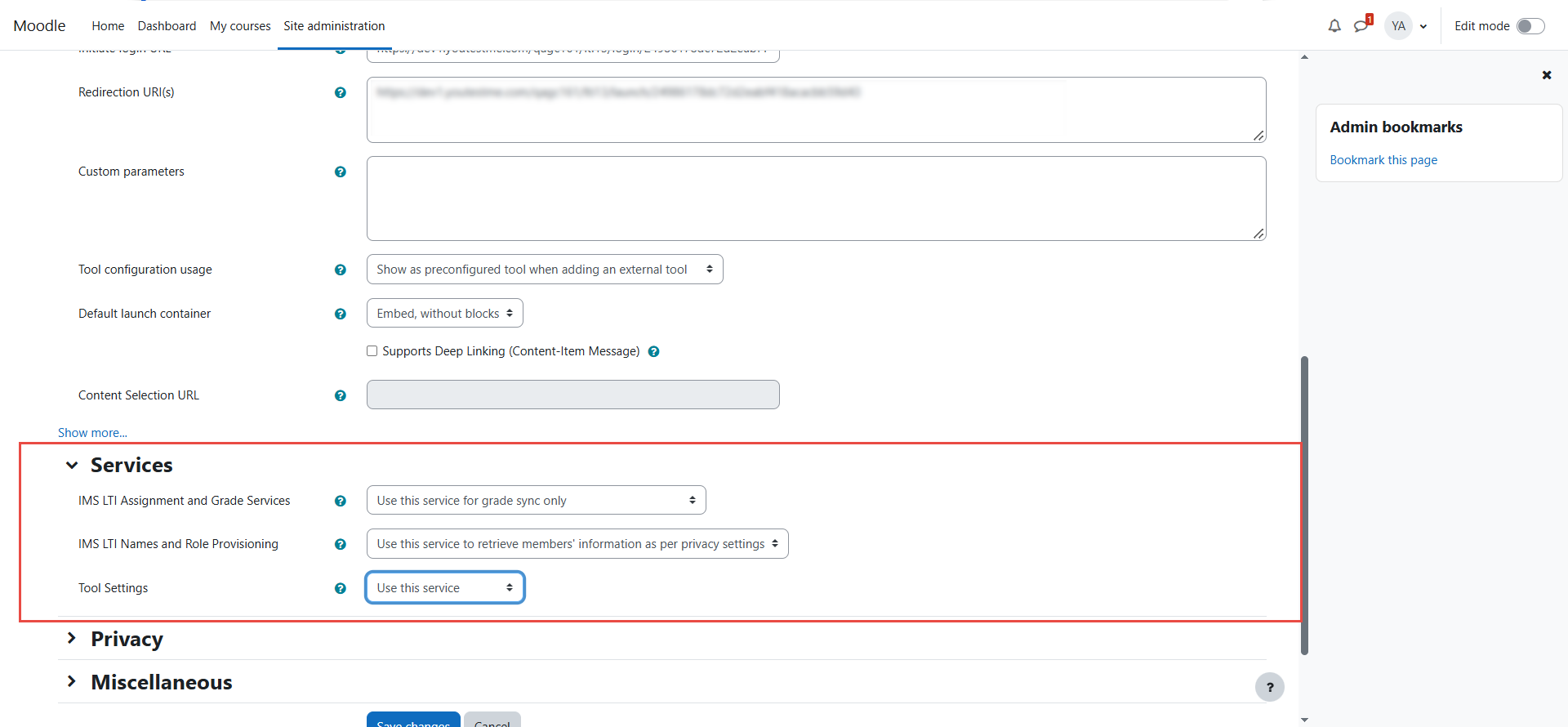
In the Moodle configuration, Grade Services must be enabled to allow Moodle to exchange assessment results and grades with YouTestMe.
Under Services, configure the following setting:
- IMS LTI Assignment and Grade Services: Select Use this service for grade sync only.
This enables Moodle to send grades and assessment results back to the LMS through the LTI Assignment and Grade Services (AGS).
The other service settings can remain configured as follows:
- IMS LTI Names and Role Provisioning: Use this service to retrieve members’ information as per privacy settings.
- Tool Settings: Use this service.
4. Add a YTM Test to a Moodle Course
Once the LTI 1.3 configuration is complete, you can add a YouTestMe test to an existing Moodle course.
- Open the Moodle course where the test should be available.
- Enable Edit mode.
- Click Add an activity or resource.
- Select External tool.
-
Enter an Activity name
-
Under Preconfigured tool
-
Under Custom parameters, enter the ID of the YTM test:
-
Configure the Grade settings according to your requirements.
For example:
- Grade type: Point
- Maximum grade: 100
- Save the activity.
The YTM test is now available as an activity in the Moodle course.
For more instructions on creating a test and taking it through Moodle, see How to Seamlessly Integrate YouTestMe with Moodle.
Verify Grade Synchronization
After completing the LTI 1.3 configuration and enabling Grade Services, verify that grades are successfully synchronized from YouTestMe to Moodle.
- Open the course containing the configured LTI activity.
- Open the LTI activity created for the YouTestMe integration.
- Navigate to Grades > Grader report.
- In the Grader report, locate the column corresponding to the LTI activity.
- Verify that the grade received from YouTestMe is displayed for the participant and included in the Course total.