
Article verified for Release 16.1 on September 25, 2026.
In this article, you will learn how to create a copy of an existing test and how to copy an individual archived test version. A test copy allows you to reuse an existing test and its configuration without creating a new test from scratch. The article also explains when to copy the entire test and when to copy an individual test version.
Note: The copied test is created as a separate test and can be modified without affecting the original test.
How to Create a Copy of the Entire Test
To create a copy of an existing test:
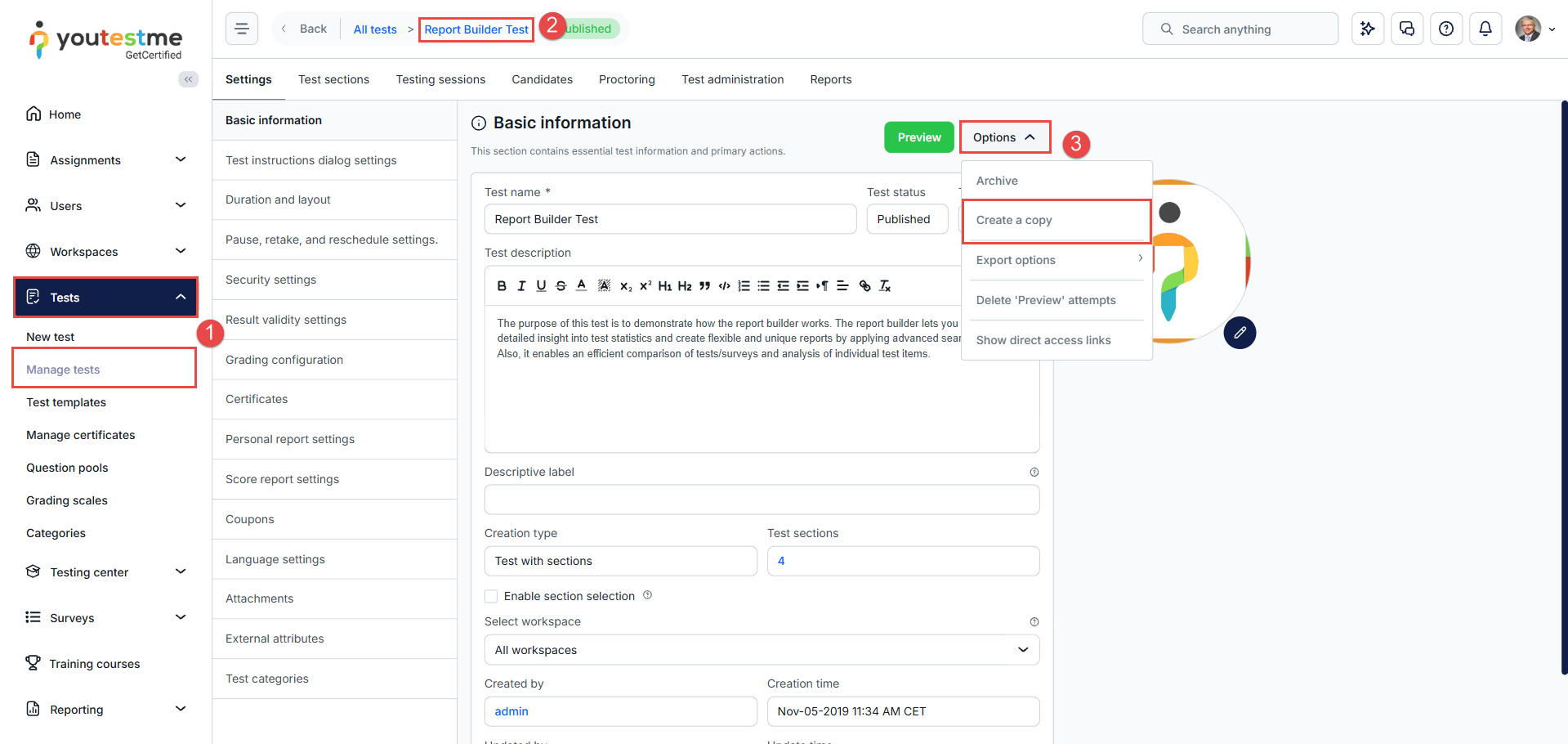
- Navigate to Tests > Manage tests.
- Open the test you want to copy.
- Click Options > Create a copy.
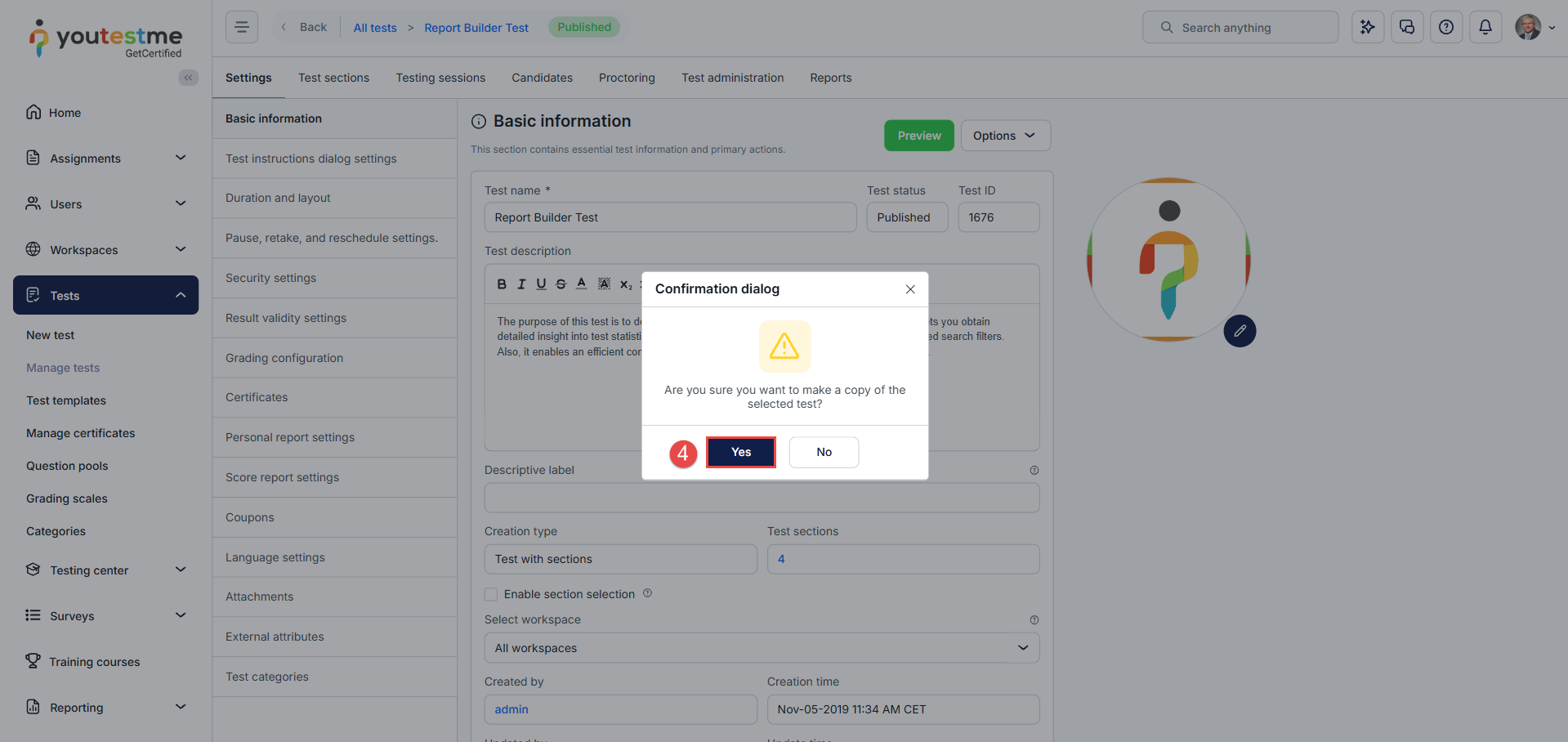
- A confirmation dialog will appear. Confirm that you want to create a copy of the test.

- The new test will be created automatically.

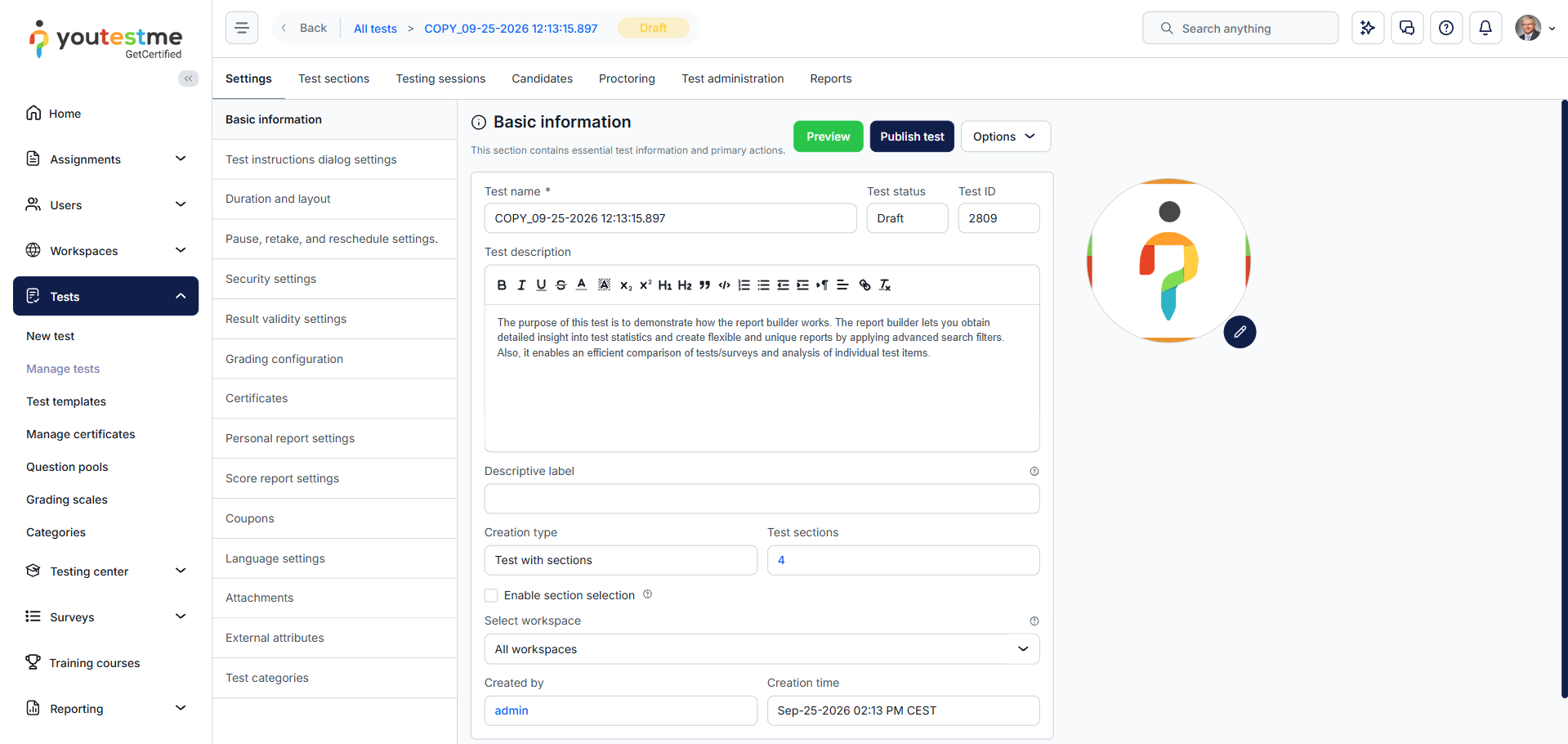
By default, the copied test is created with a name in the following format:
COPY_09-25-2026 12:11:20.132
The date and time in the test name indicate when the copy was created.
The copied test is created in Draft status and can be renamed and modified as needed.
Note: For the copied test to become available to candidates, you need to publish the test, create a testing session, and assign the candidates to the session.
What Is Included in the Test Copy
The following items are copied from the original test:
- All test settings and configurations
- Question pools
- Attachments
- Categories
- Rulesets
- Test versions for manually created tests
Note: For ad-hoc tests, test versions are not copied.
Important: There are two different copy actions:
- Options > Create a copy creates a copy of the entire test, including its test versions.
- Test versions > Actions > Copy creates a copy of an individual test version.
What Is Not Included in the Test Copy
The following items are not copied from the original test:
- Testing sessions
- Candidates assigned to testing sessions
- Certificates
- Test administration settings, including multiple graders
- Coupons
These items can be configured separately for the copied test if needed.
Active and Archived Test Versions
A test can contain multiple test versions, each with a specific combination of questions. For more information about creating and managing test versions, see How to Create Multiple Test Versions.
An active test version can be assigned to candidates and used for testing. An archived test version remains available in the test but is no longer assigned to candidates for future testing.
Important: Copying the entire test does not make an archived test version available. When the entire test is copied or exported and imported, the archived status of the test version is preserved in the new test. To make an archived test version available, you must copy the individual archived test version.
How to Copy an Archived Test Version
To make an archived test version available, copy the archived version directly from the Test versions section. Do not use Options > Create a copy, as this option creates a copy of the entire test, not an individual test version.
To copy an archived test version:
- Open the test.
- Go to the Questions tab and open the Test versions section.
- Click Filter and select Show archived versions, then click Apply.
- Locate the archived version you want to copy and make available.
- Click its Actions menu (three dots icon).
- Select Copy.
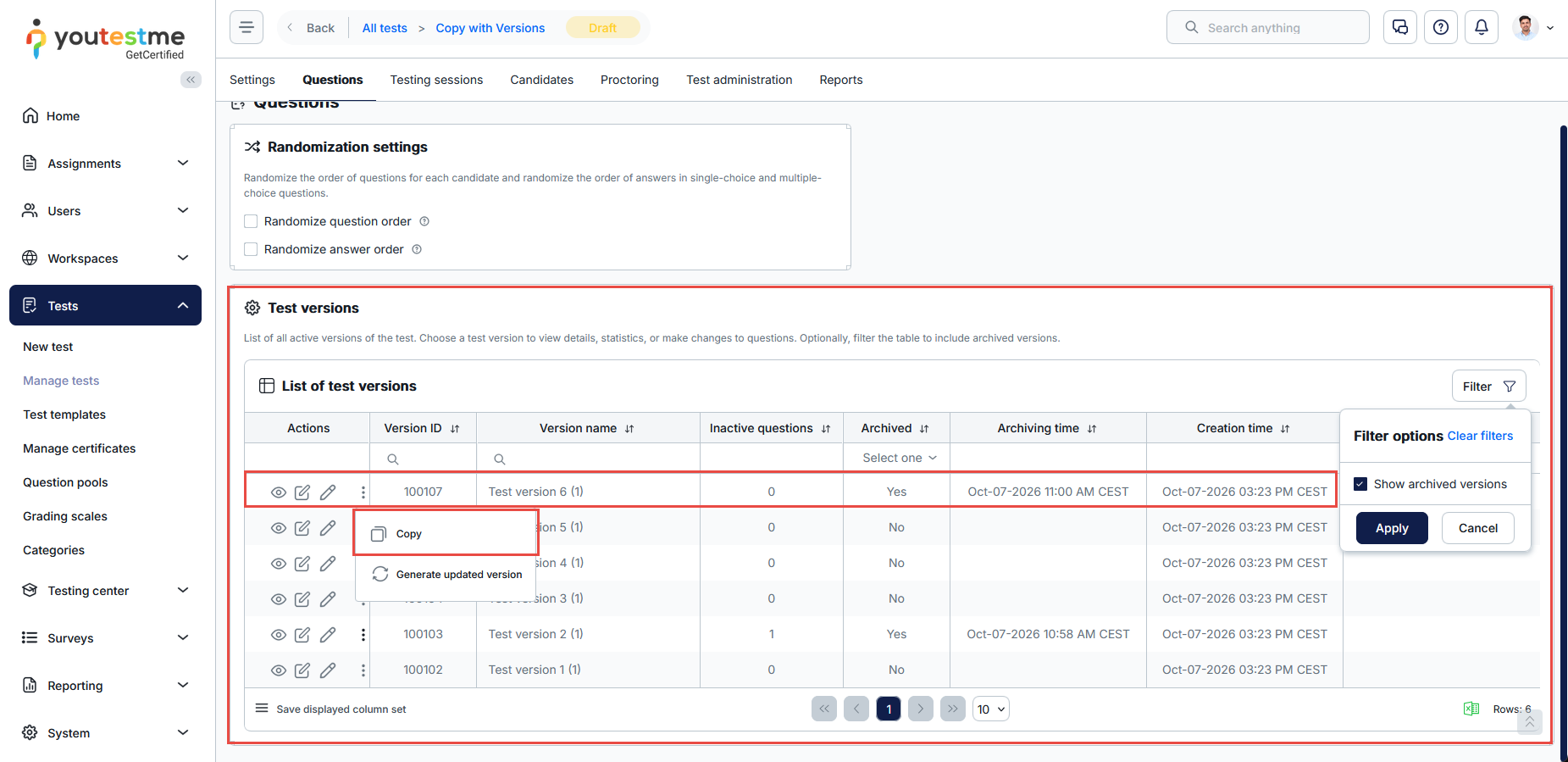
A new version will be created from the archived version and can then be used as the available version.
Conclusion
Creating a test copy allows you to reuse an existing test and its configuration while keeping the original test unchanged. Individual test versions can also be copied when needed, including archived versions that need to be made available for future testing. Using the appropriate copy option helps ensure that the test and its versions retain the intended configuration.