
Article verified for Release 15.1 on March 18, 2026.
This article provides an overview of how question pools support a structured question review workflow, from creation to approval and final use in tests. It explains the responsibilities of three key roles: Question Creator, Question Pool Manager, and Instructor, each contributing to a specific stage of the process to ensure content quality and consistency. It also introduces the use of tags (e.g., In Development, For Review, Approved) as an alternative way to manage and track question progress across pools.
Question Creator Perspective
The purpose of this role is to create questions. For instructions on creating the Question Creator security role, please refer to this article.
When you have created a Question Creator security role and a user with that role, log in as the Question Creator, then:
- Navigate to Tests > Question pools
- Open your assigned pool
- Click the Questions tab
- Click Add question
- Select a question type
Note: You can only see question pools that have been assigned to the Question Creator role.
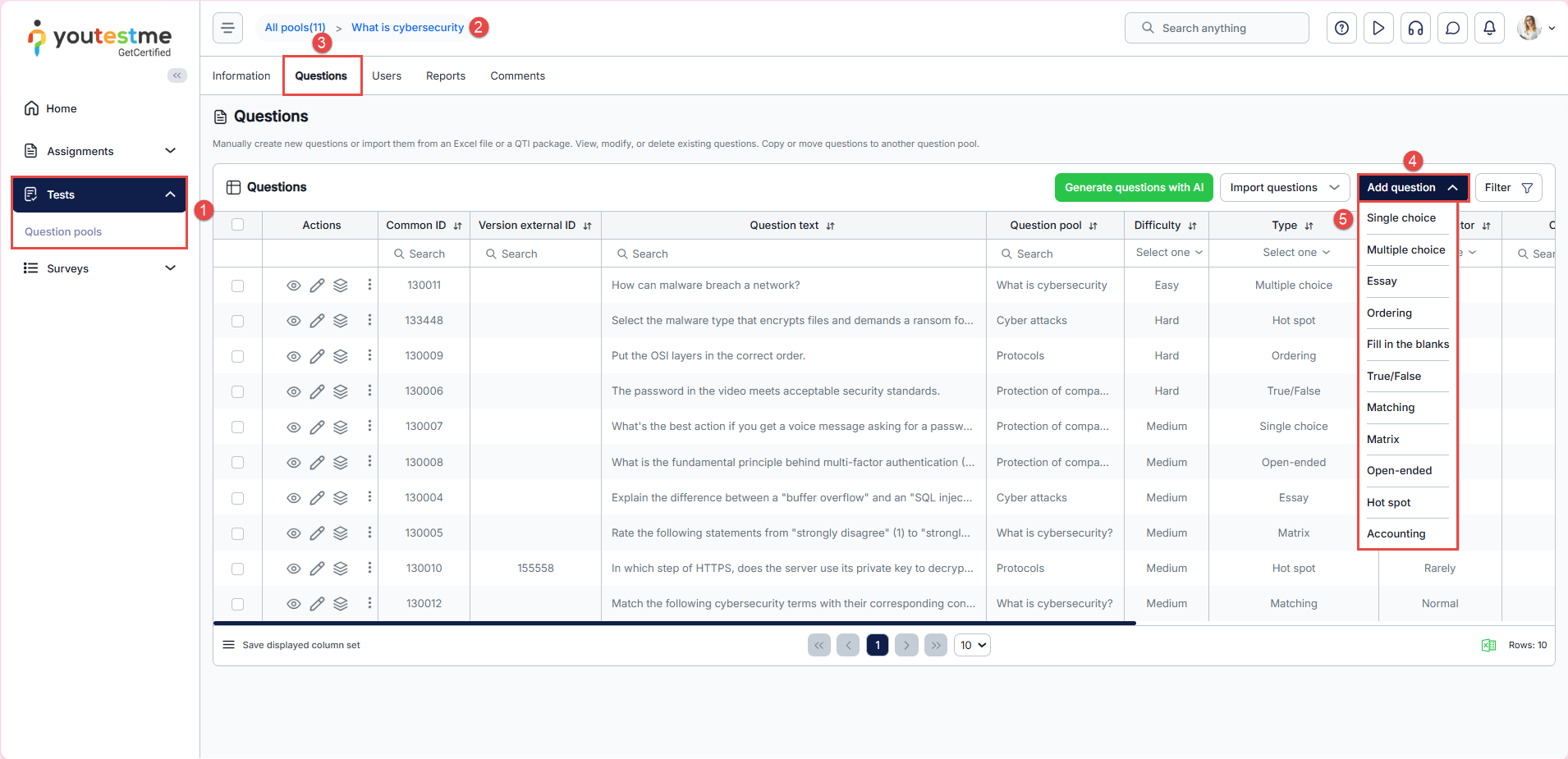
Adding questions
Fill in the required details and click Add to pool to save the question. For more information on creating questions for the pool, please refer to this article.
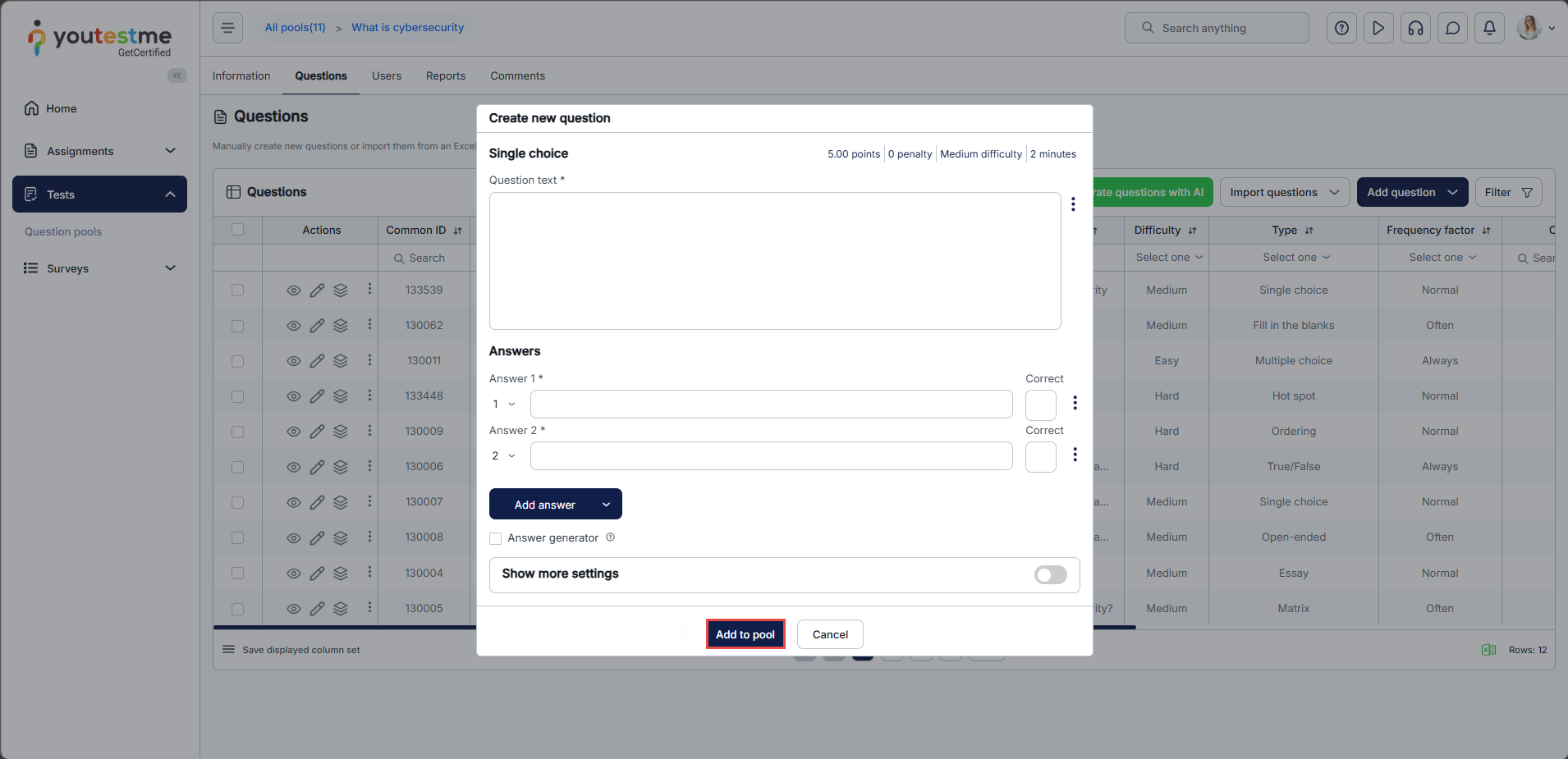
For more information about each question type, please watch this video.
Editing questions
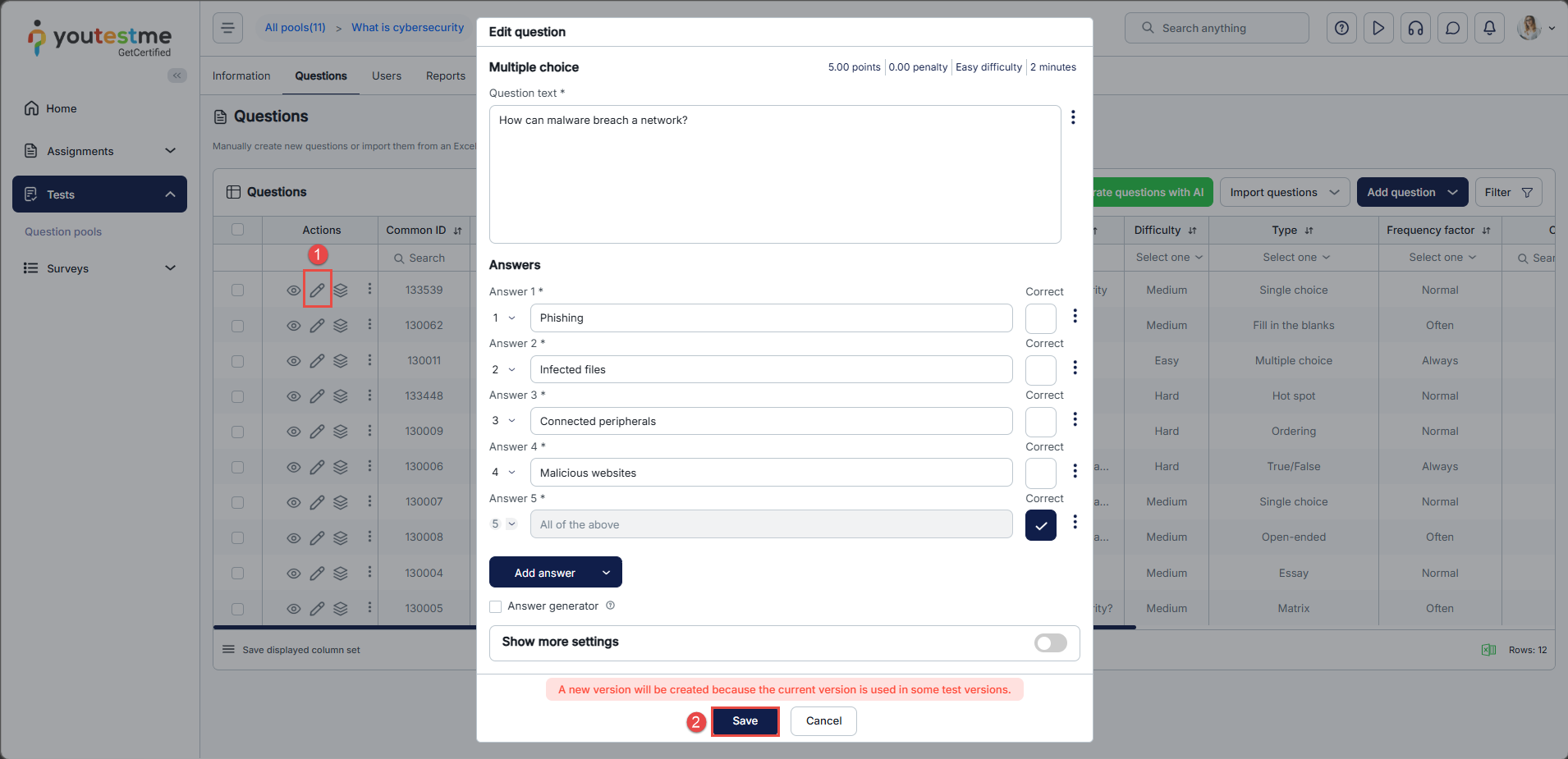
After a question has been created, you can edit its settings. However, if you want to change the type of the question, you will need to create a new one, as it is not possible to change a question’s type after it has been set.
To edit a question:
- Click the Edit button next to the question you want to edit. You can edit the question text, points, difficulty, and all the advanced settings except the question type. The process of editing questions is the same as for adding.
- Click Save when done.
Moving questions
To move questions from one pool to another, follow these steps:
- Select the questions you want to move.
- Click the Actions button.
- Select Move selected questions from the dropdown.
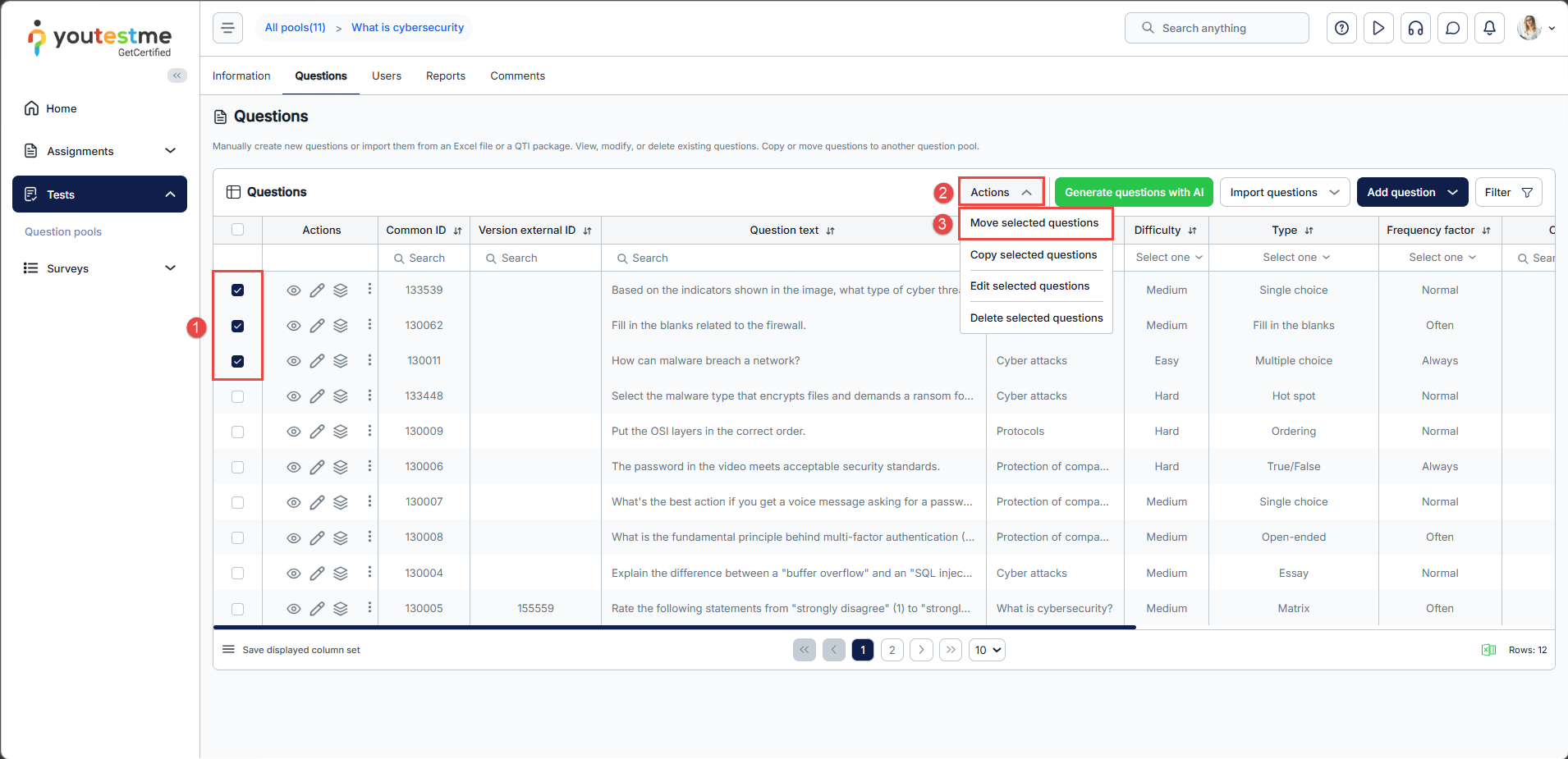
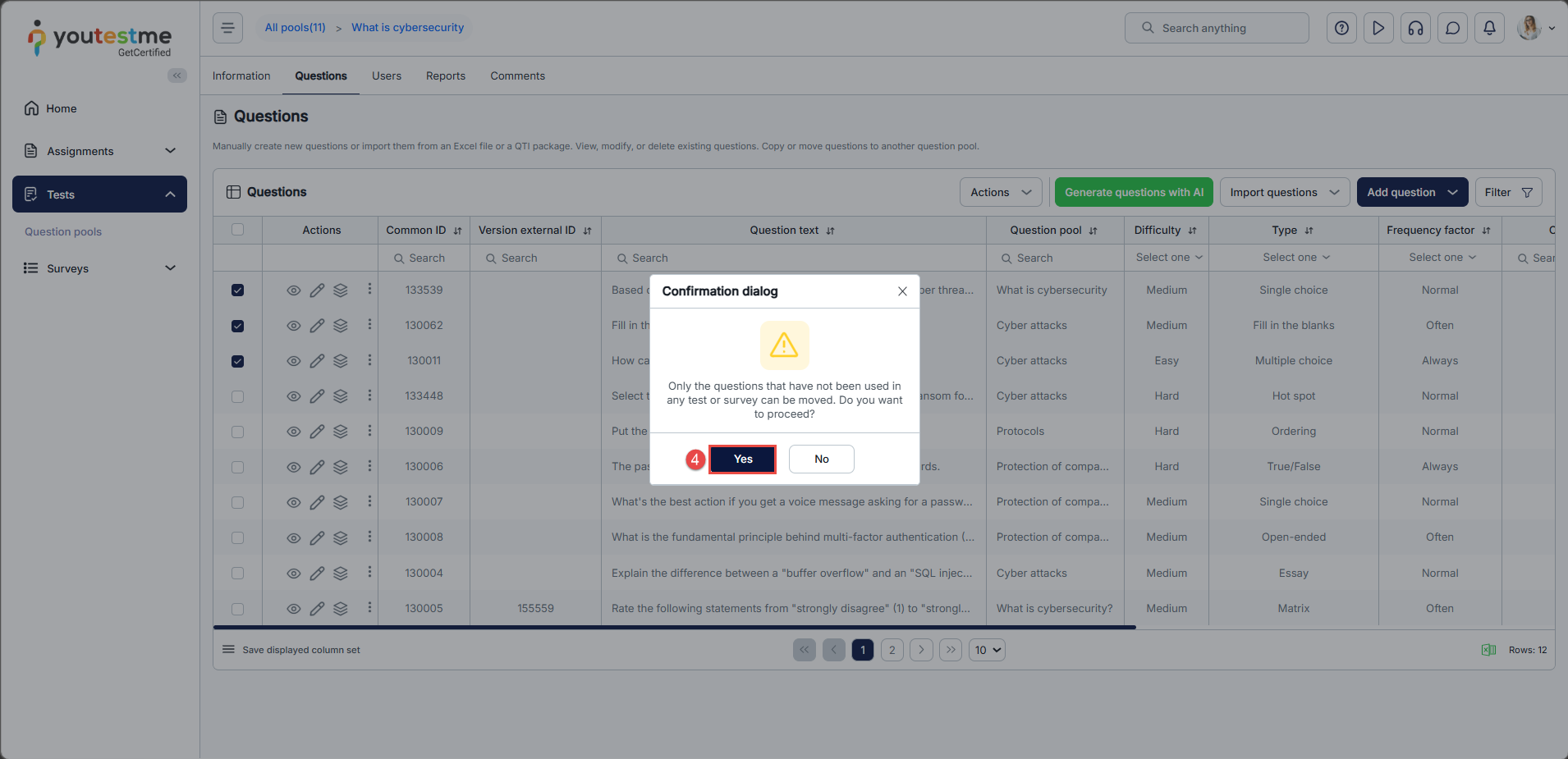
- Confirm the move by clicking “Yes” in the dialog box
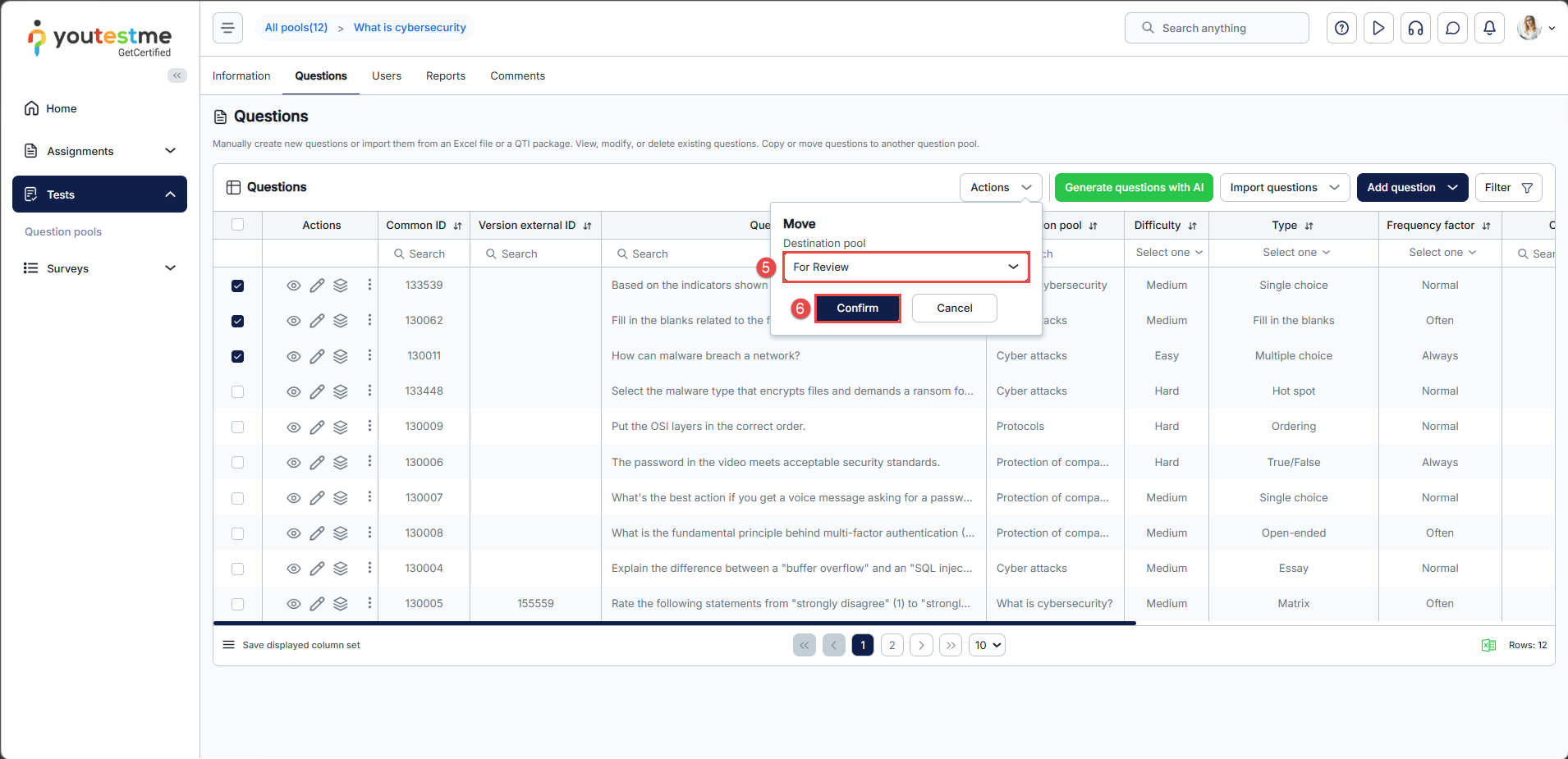
- Choose the For Review question pool.
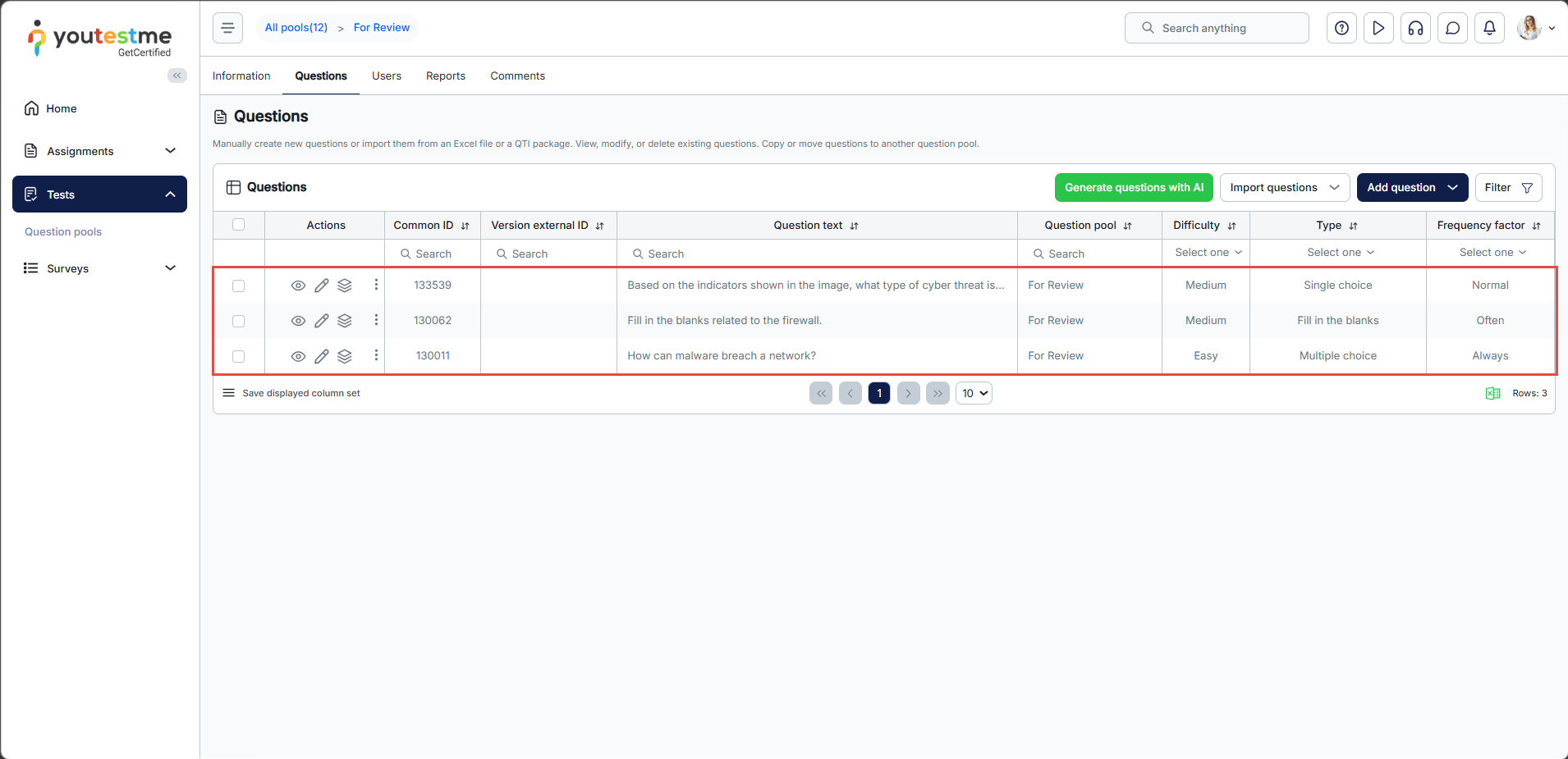
- Click Confirm.
Copying questions
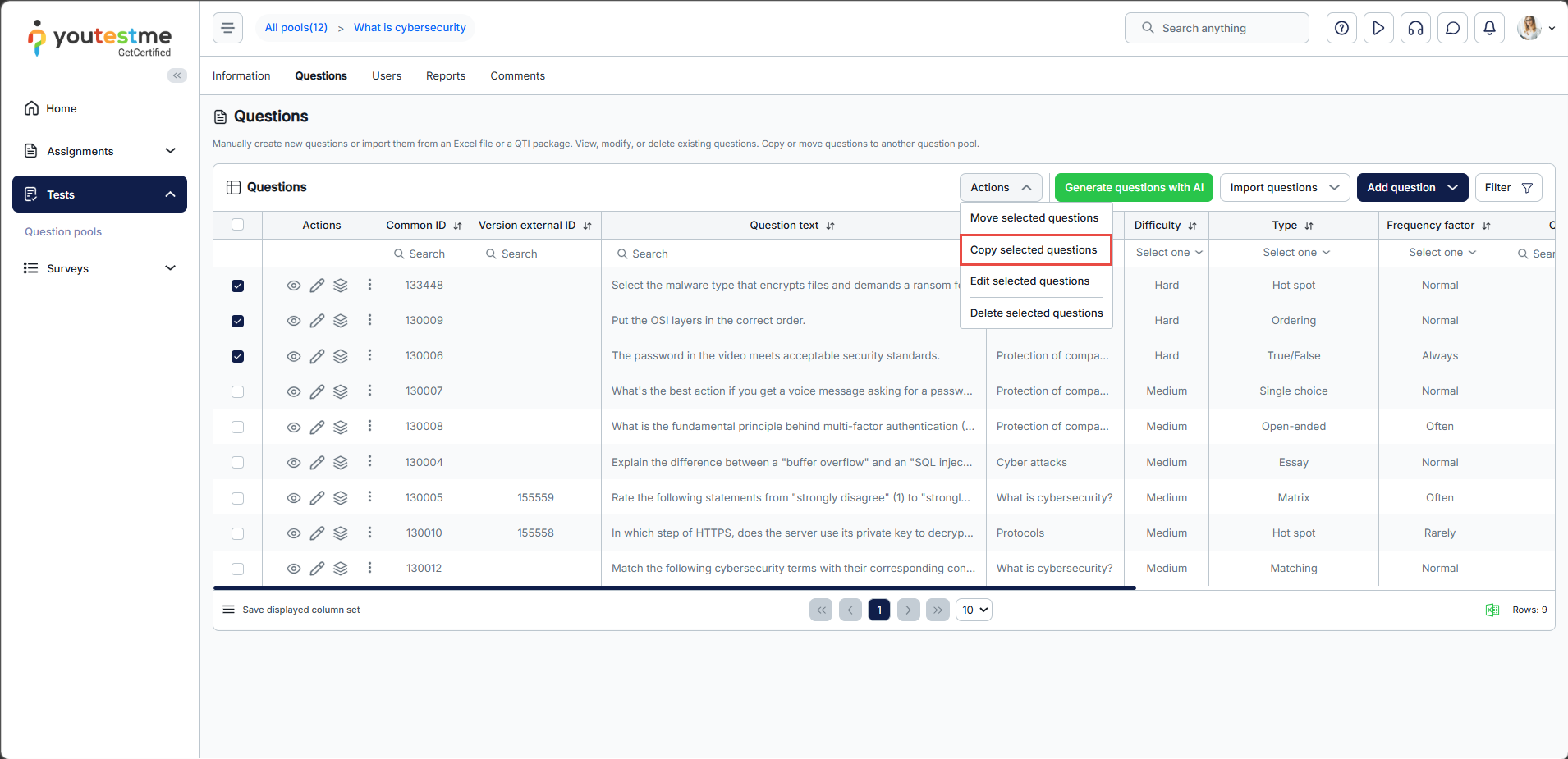
When you select questions and click Copy Selected Questions, you can copy them from this pool to another. The process is the same as when moving questions.
Question Pool Manager Perspective
The purpose of this role is to modify and approve questions. For instructions on creating the Question Pool Manager security role, please refer to this article.
When you have created a Question Pool Manager security role and a user with that role, log in as the Question Pool Manager and then do the following:
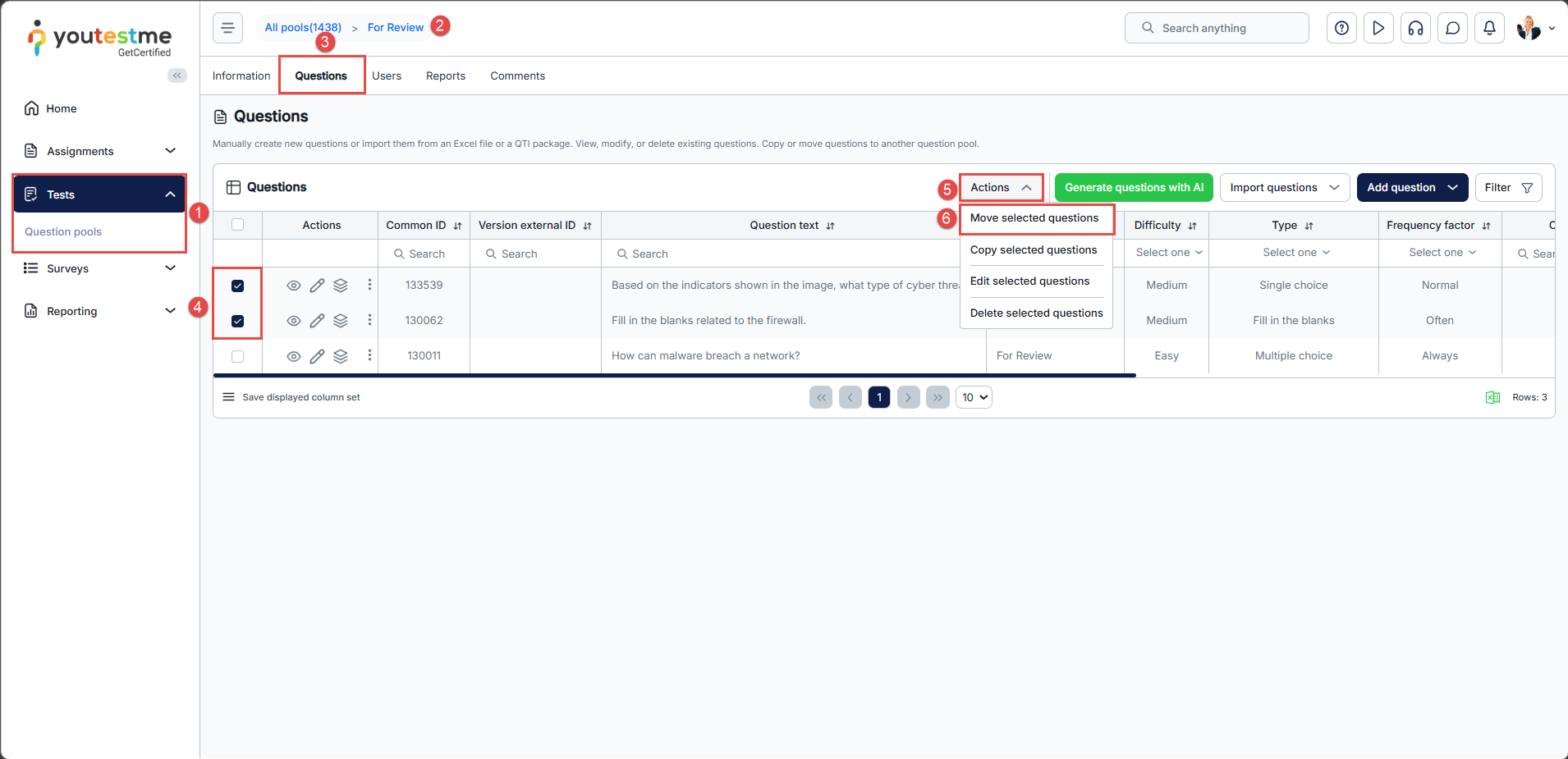
- Navigate to Tests > Question pools.
Note: You can only see question pools where the Question Pool Manager has been explicitly assigned as a manager. - Open the For Review pool.
- Click the Questions tab and review and edit questions as needed.
- Select the approved questions.
- Click the Actions button and select Move selected questions from the dropdown.
- Choose the Approved pool from the dropdown and click Confirm.
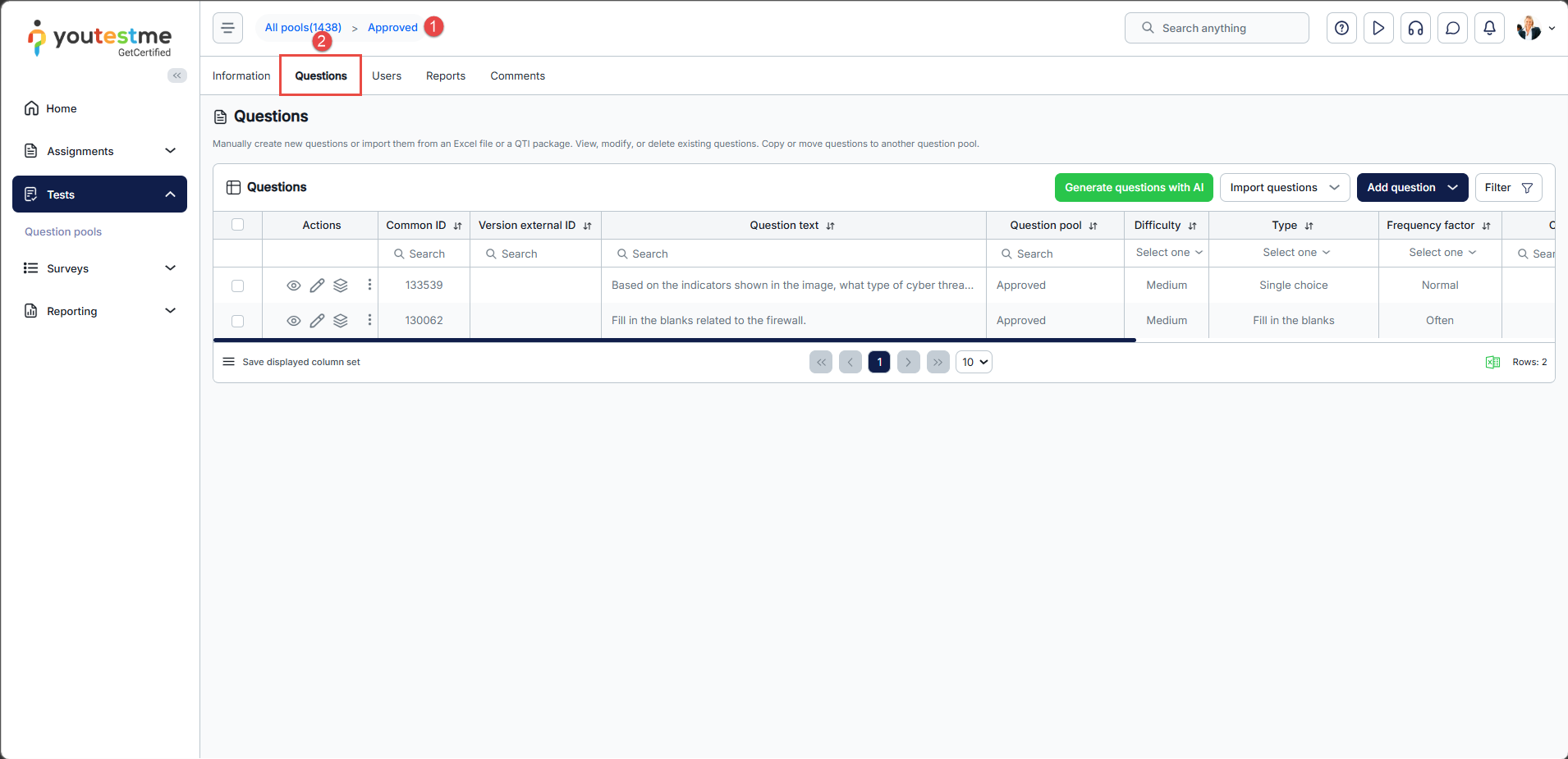
To verify the moved questions:
- Navigate to the Approved question pool.
- Click the Questions tab to view the questions in the Approved pool.
Instructors’ perspective
The purpose of this role is to create a test using approved questions. The Instructor role already exists in the system and is the default role. If you need to create a user with the Instructor role, please refer to this article for more instructions.
Once a user with the Instructor role has been created, log in to the application using that account.
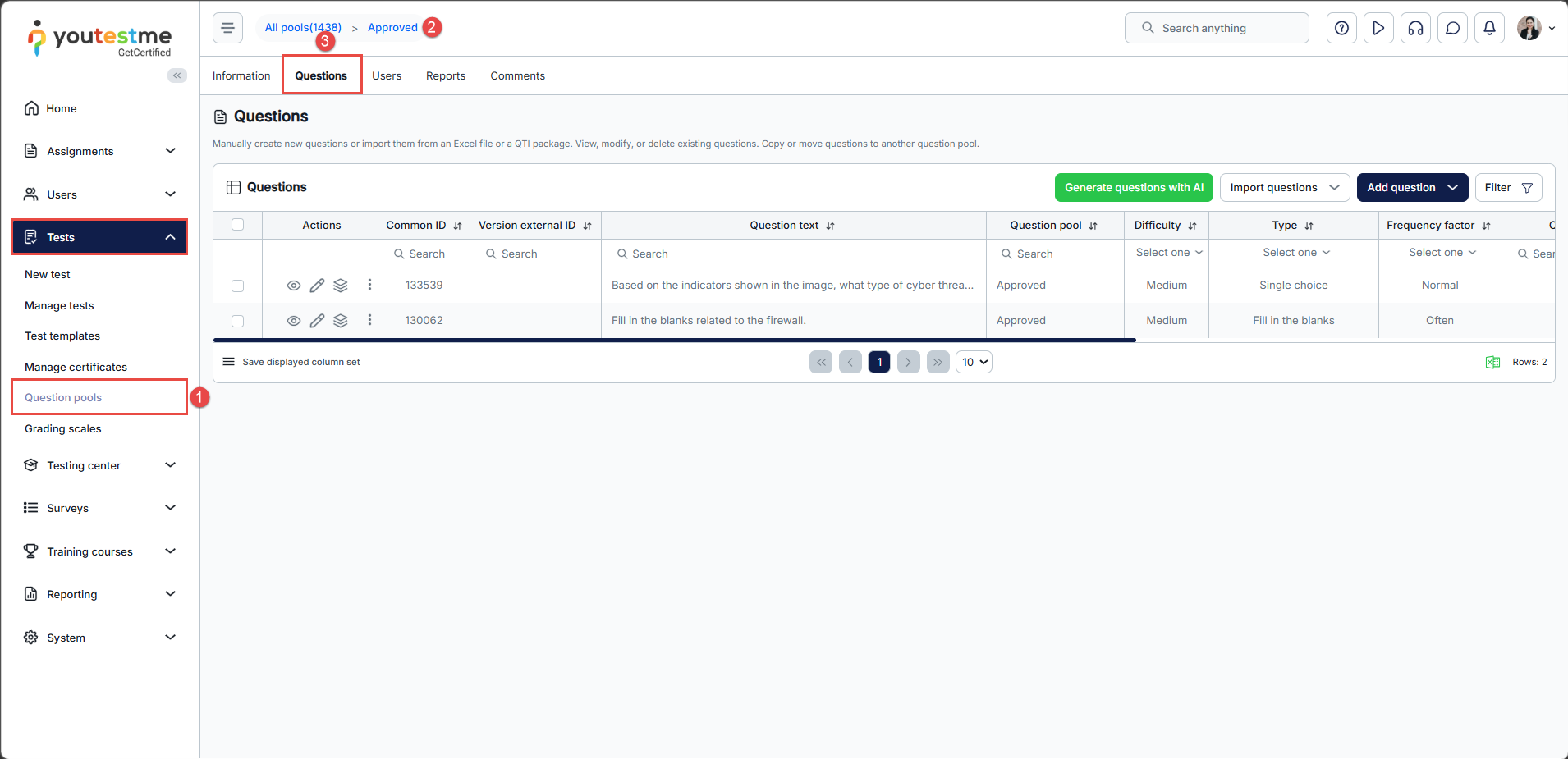
- Navigate to Tests in the left-side menu and select Question Pools.
Note: Instructors can only see question pools to which they are assigned. - Open the Approved question pool.
- Click the Questions tab to view the questions that can be used in a test.
To create a test using approved questions:
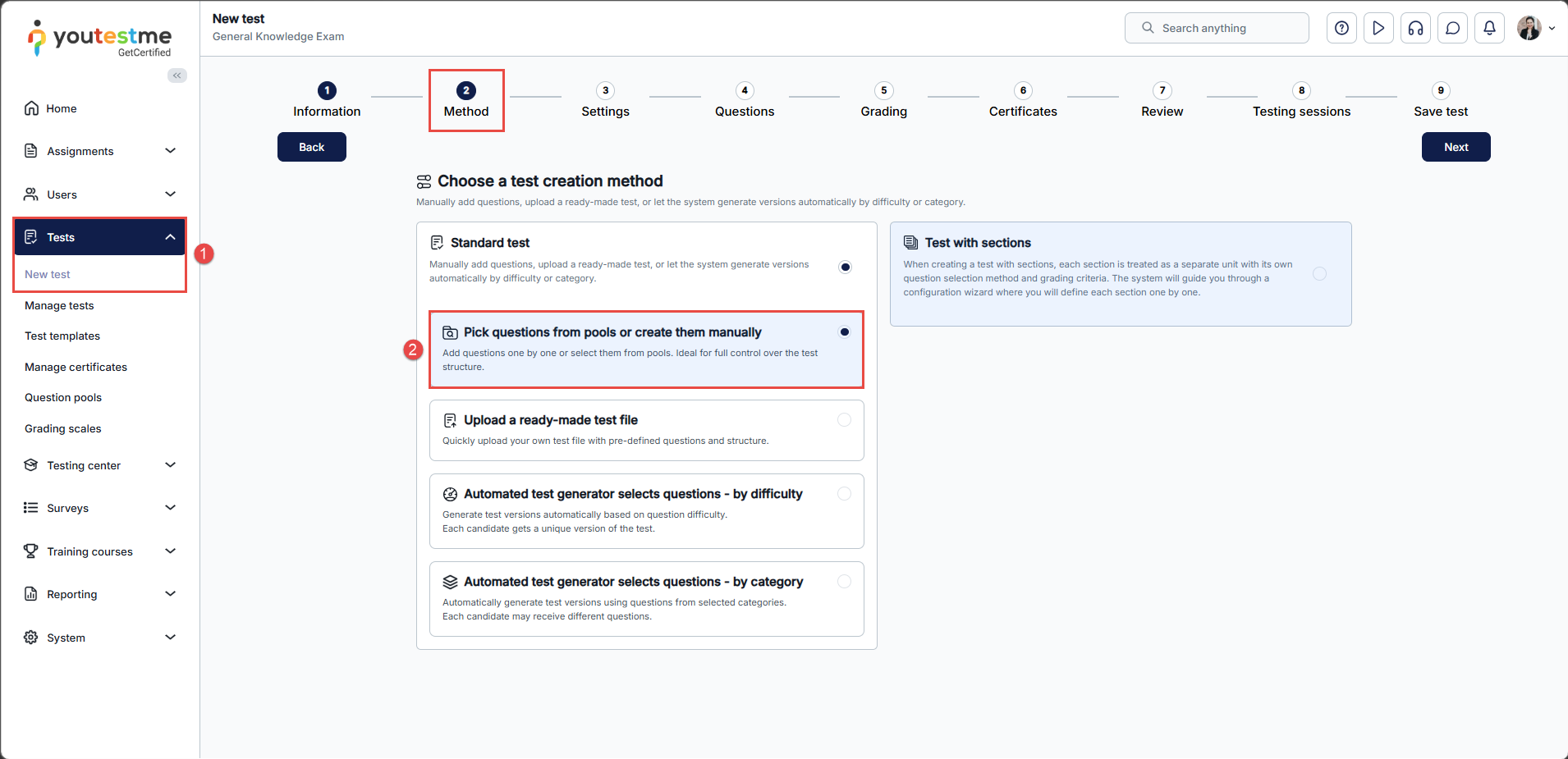
- Navigate to Tests and click New Test, and follow the steps in the Create Test wizard. For detailed instructions, refer to this article.
- In the Method step, choose Pick questions from pools or create them manually.
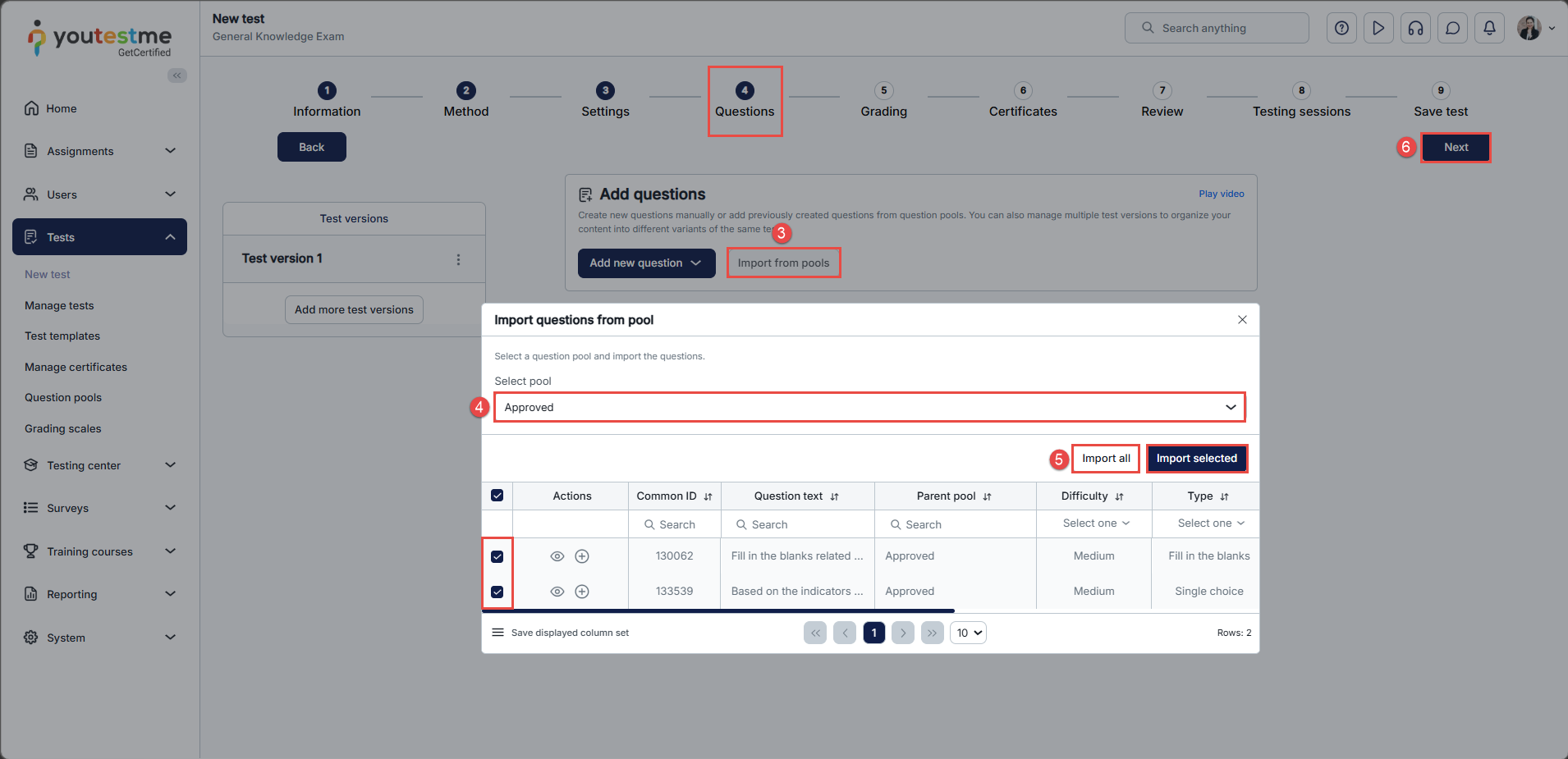
- In the Questions step, click Import from Pools.
- Select the Approved question pool.
- Choose the questions you want to include in the test and click Import Selected to add them to the test, or click Import All to include all questions from the pool.
- Continue with the remaining steps in the test creation wizard to finalize your test.
Reviewing using tags
You can use tags such as Approved, For Review, and In Development to organize and sort questions into question pools.
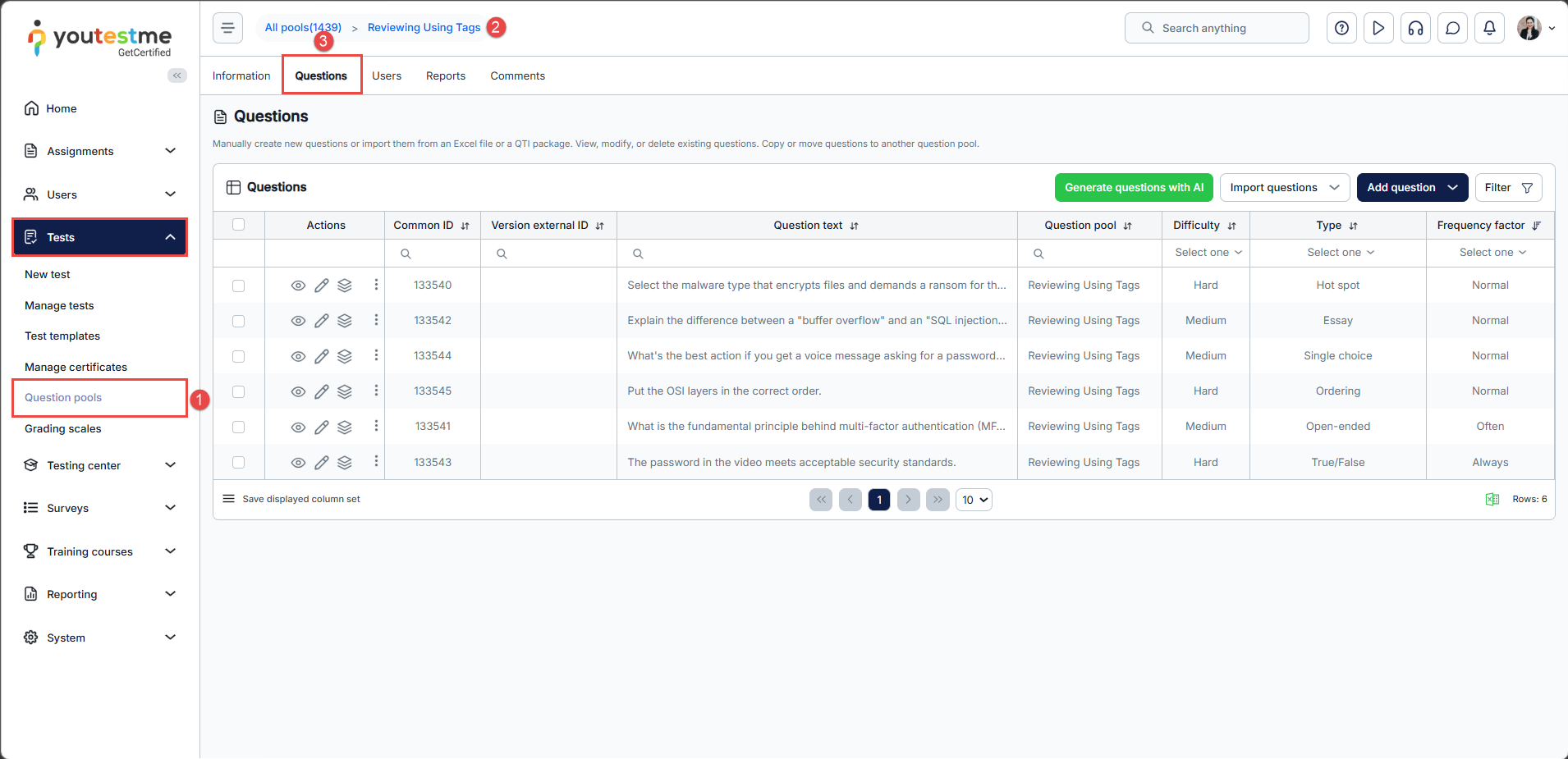
- Navigate to Tests and select Question Pools.
- Open the Reviewing Using Tags question pool.
This pool allows the Question Pool Manager to manage questions using tags. - Click the Questions tab to view all questions with their assigned tags.
To review questions based on tags:
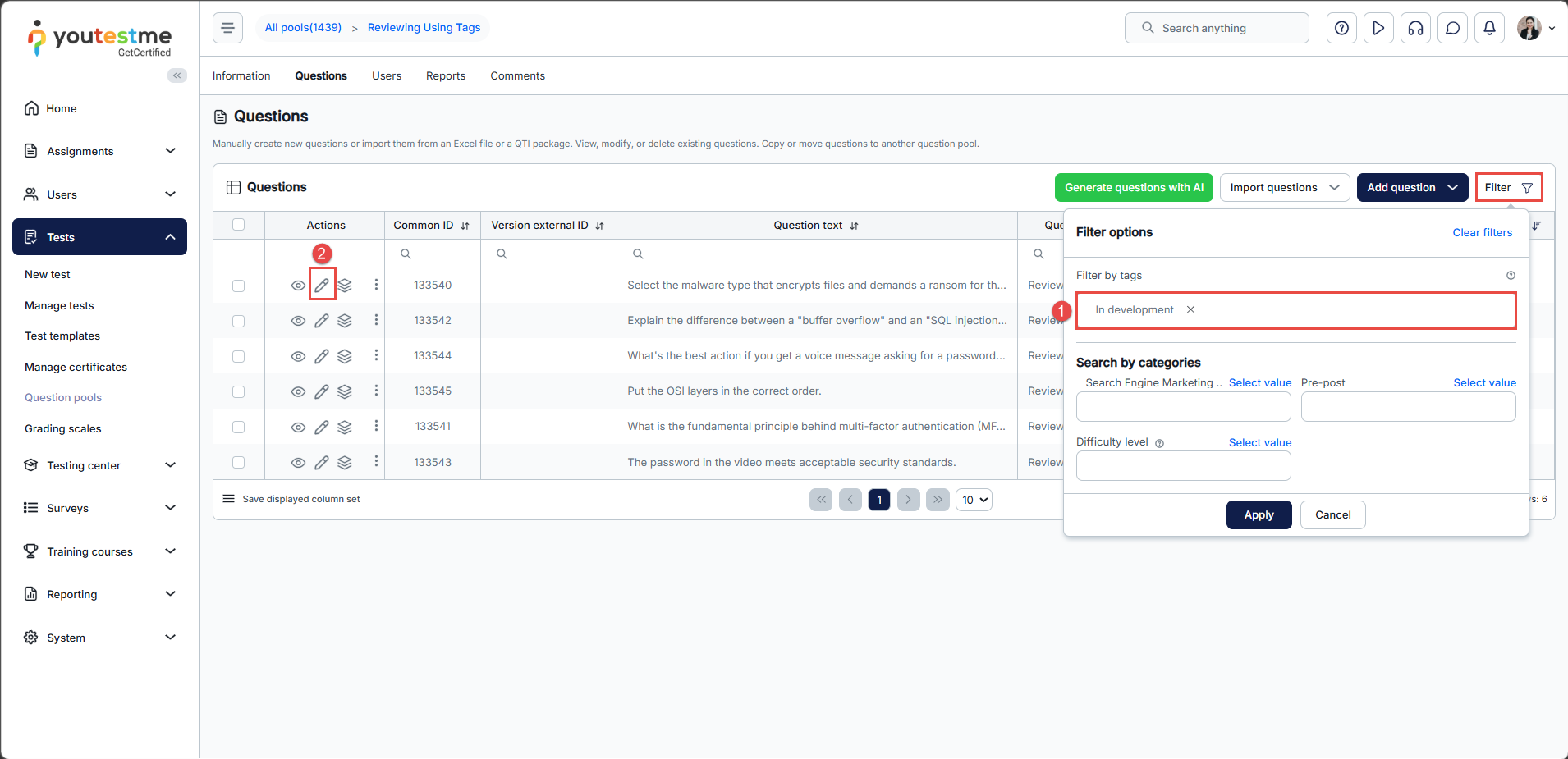
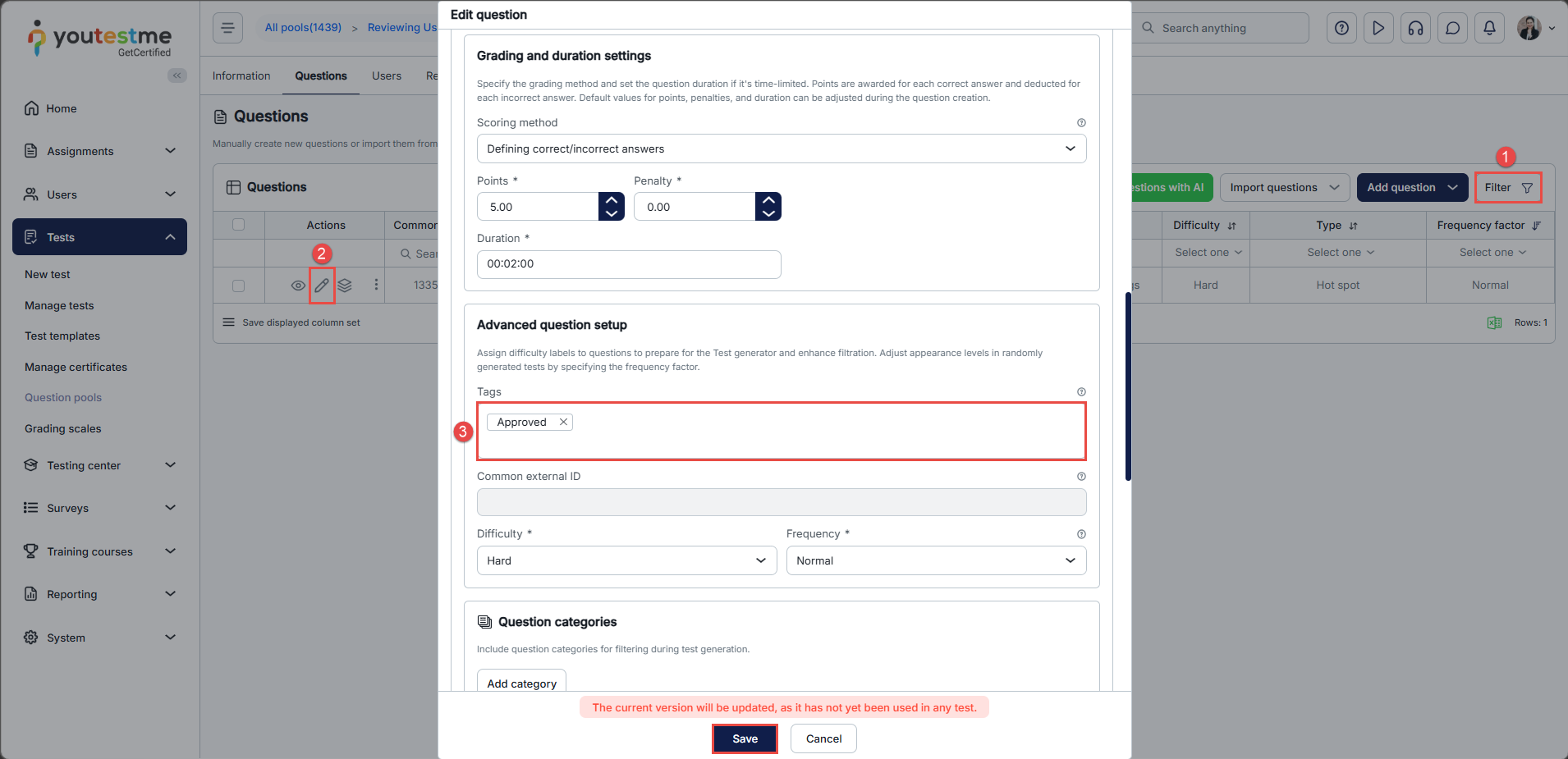
- Use the Filter by Tags search bar and search for In Development questions.
- Click the Edit button next to the question you want to edit.
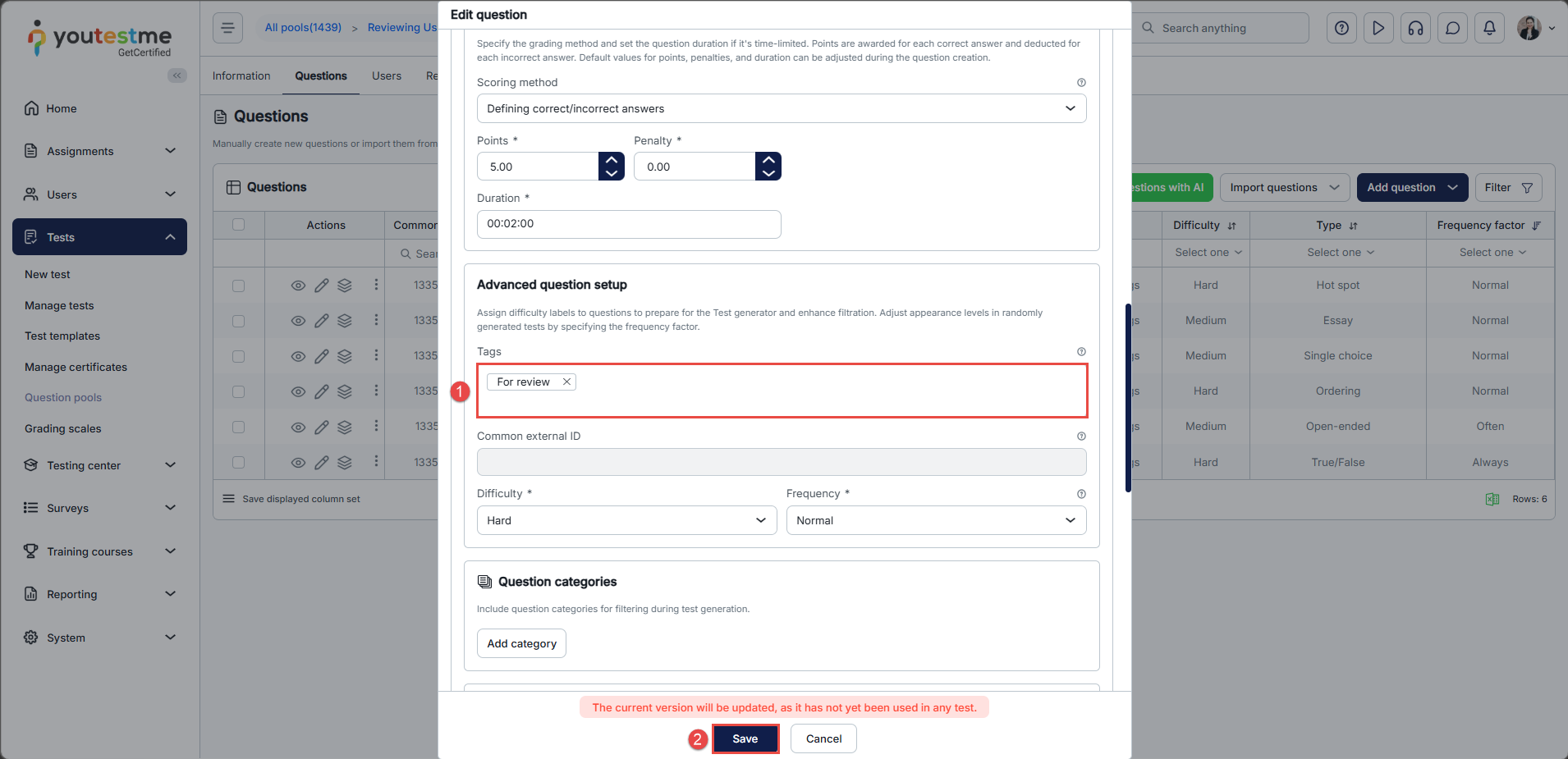
You can now update the question settings. To move the question to the next stage:
- Change the tag to For Review.
- Click Save.
The question will now appear in the For Review question pool.
Note: When adding a new tag, a dropdown menu displays all tags that have previously been created in the system.
You can follow the same process to approve questions:
- Filter questions by the For Review tag.
- Click the Edit button next to the question you want to edit.
- Change the tag to Approved and click Save.
The question will then appear in the Approved question pool.
You can also create new questions and assign them a tag such as Approved, For Review, or In Development.
For more useful instructional materials, please visit:




