
Article verified for Release 16.1 on October 16, 2026.
This article explains how to reactivate existing user accounts in YouTestMe GetCertified, either individually or in bulk.
Deactivating accounts can be useful for users who take tests periodically, as it temporarily restricts their access to the application. When their accounts are reactivated, users can log in using their existing credentials without needing to create a new account or password.
Activate Existing User Profiles
To activate the existing user profiles, follow these steps:
- From the main menu, select “Users”, then open the “User Profiles” tab.
- Select the “List of All Users” tab.
- Click the Filter button and check the box next to “Show inactive users.”
- Click Apply to display inactive users.
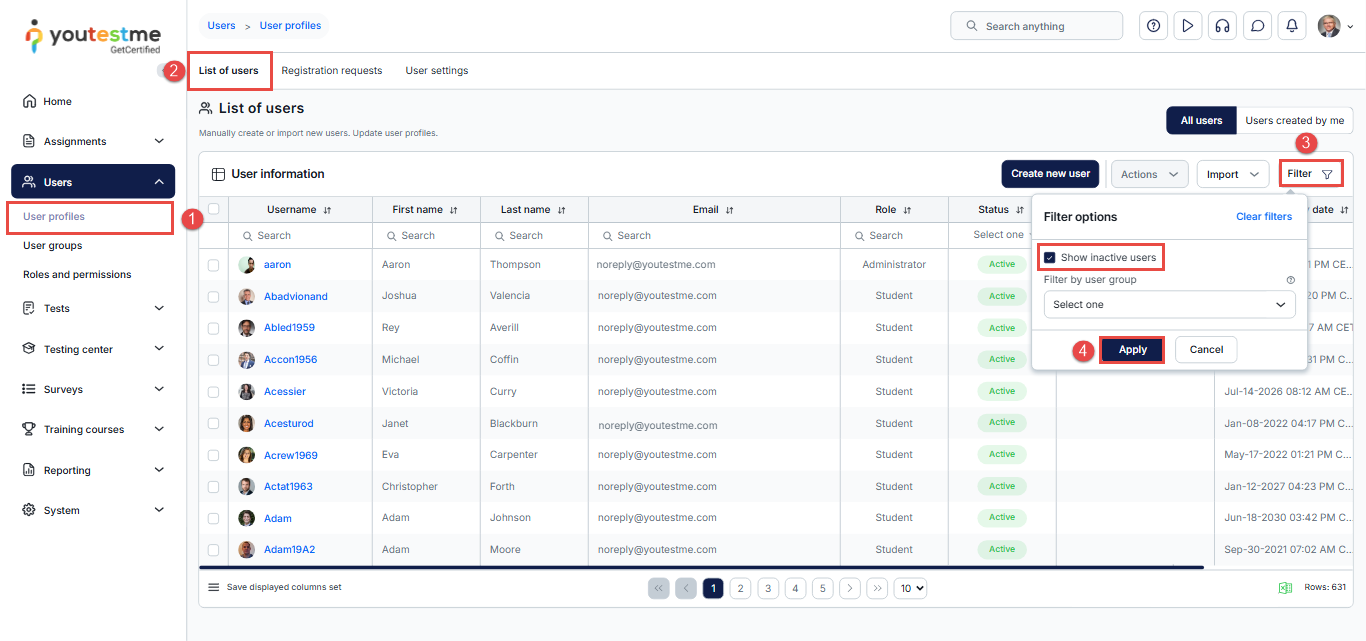
Note: Inactive user accounts are hidden by default. To view them, you must open the Filter and enable “Show inactive users.” Otherwise, inactive accounts will not appear in the list.
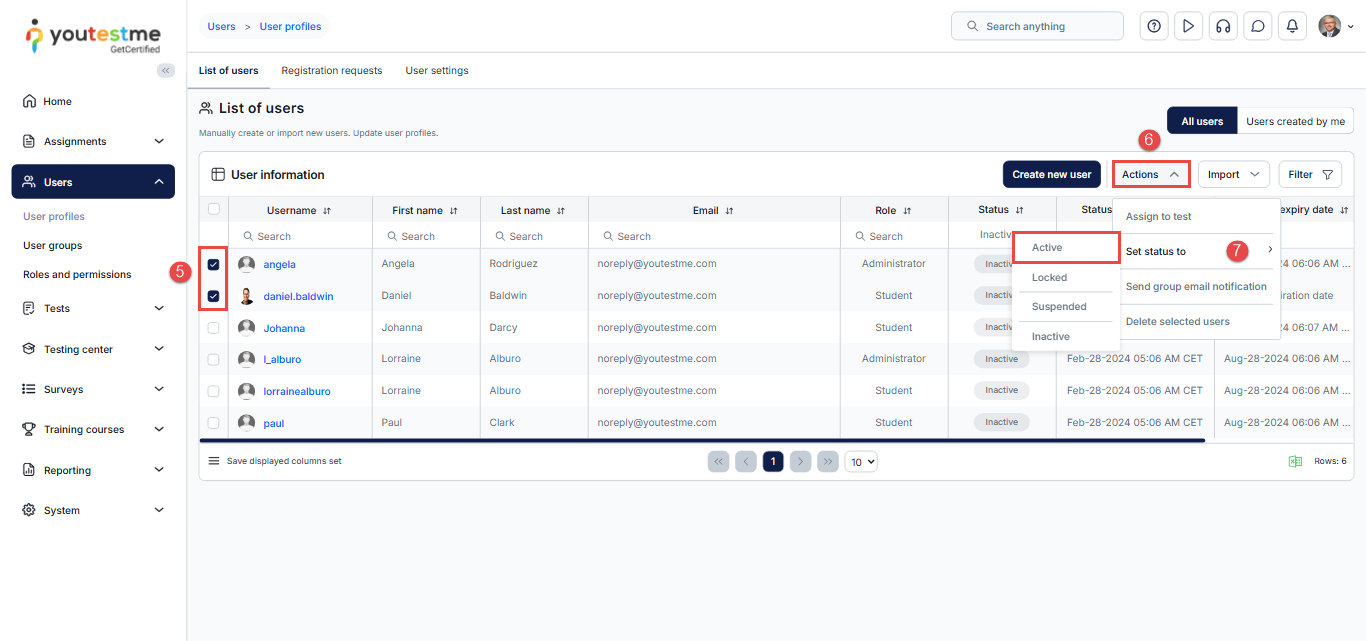
- Select the user profiles you want to reactivate.
- Click the Action option.
- Select “Set status to” and choose “Activate.”
Activate a Specific User Profile
To activate a single user profile, you can:
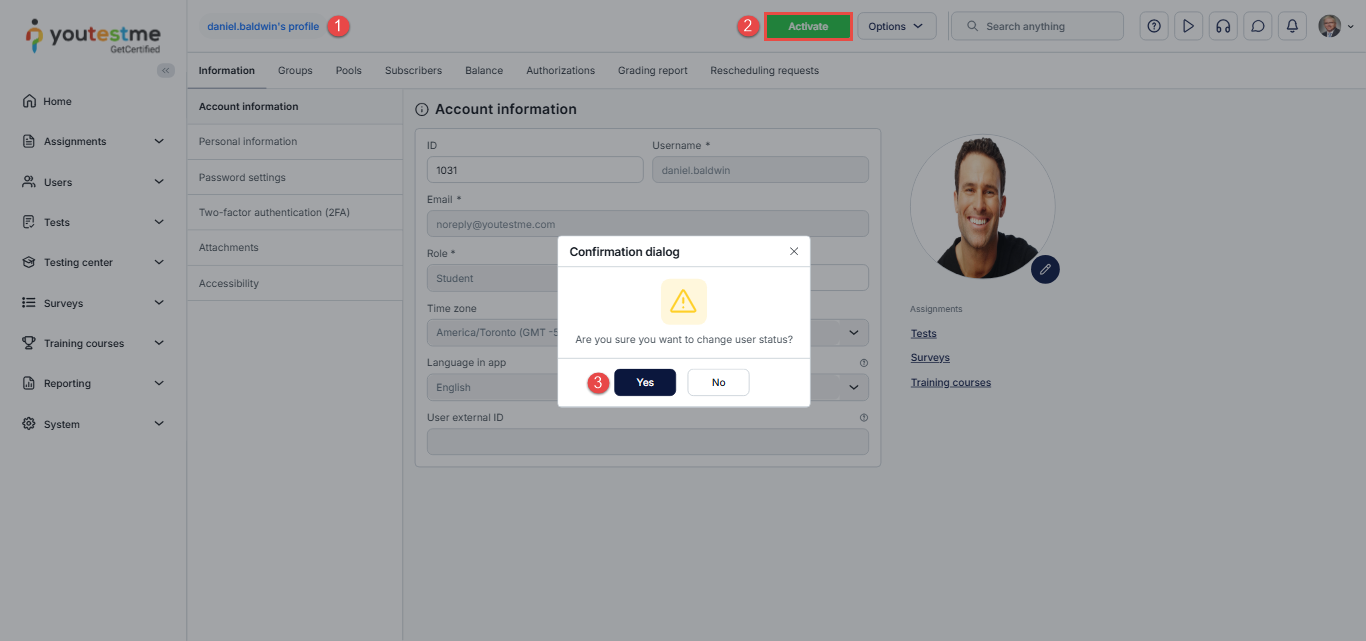
- Open the user’s profile from the “List of All Users.”
- Click the Activate button.
- In the confirmation pop-up, click Yes to confirm the activation.
Candidate’s Perspective
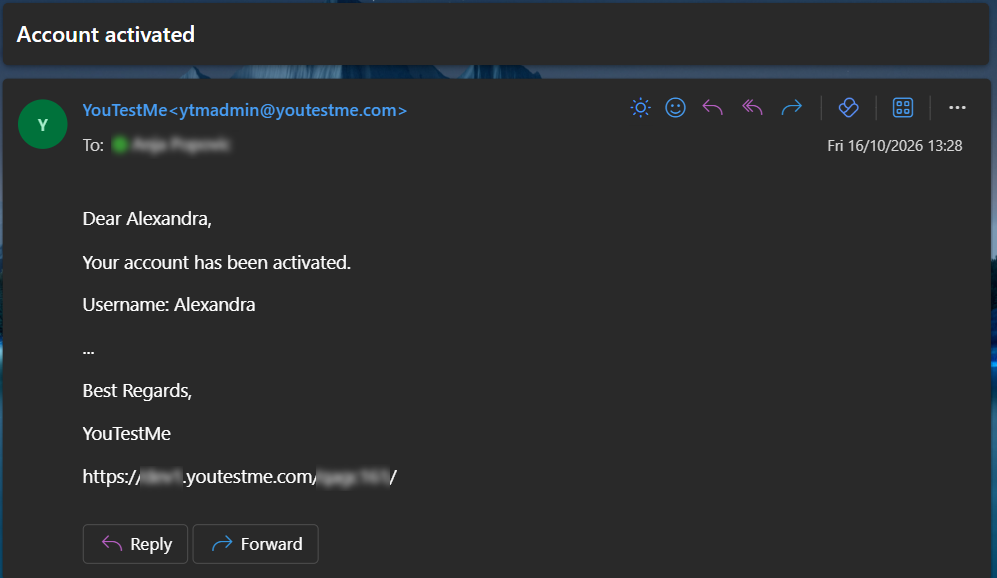
Once a user profile is reactivated, the user will receive an email notification containing their username.
Note: Reactivating a user account does not generate a new password. Users can log in using the same password they had before their account was deactivated.
If a user has forgotten their password, they can reset it using the Forgot Password option on the login page.
For more information, please refer to the How to Reset Your Password article.
For a video tutorial on how to change a user’s status, please watch the video.
Conclusion
Reactivating user accounts restores users’ access to YouTestMe GetCertified while preserving their existing login credentials. Once reactivated, users receive an email notification containing their username and can log in using the same password they used before deactivation.
If users have forgotten their password, they can reset it using the Forgot Password option on the login page.
For more related instructional materials, please visit: