
Article verified for Release 16.0 on March 24, 2026.
This article explains how candidates can use the My assignments tab to view, filter, sort, and manage their assigned tests, surveys, and training courses. It also describes all available actions that candidates can perform within this panel.
Accessing My Assignments
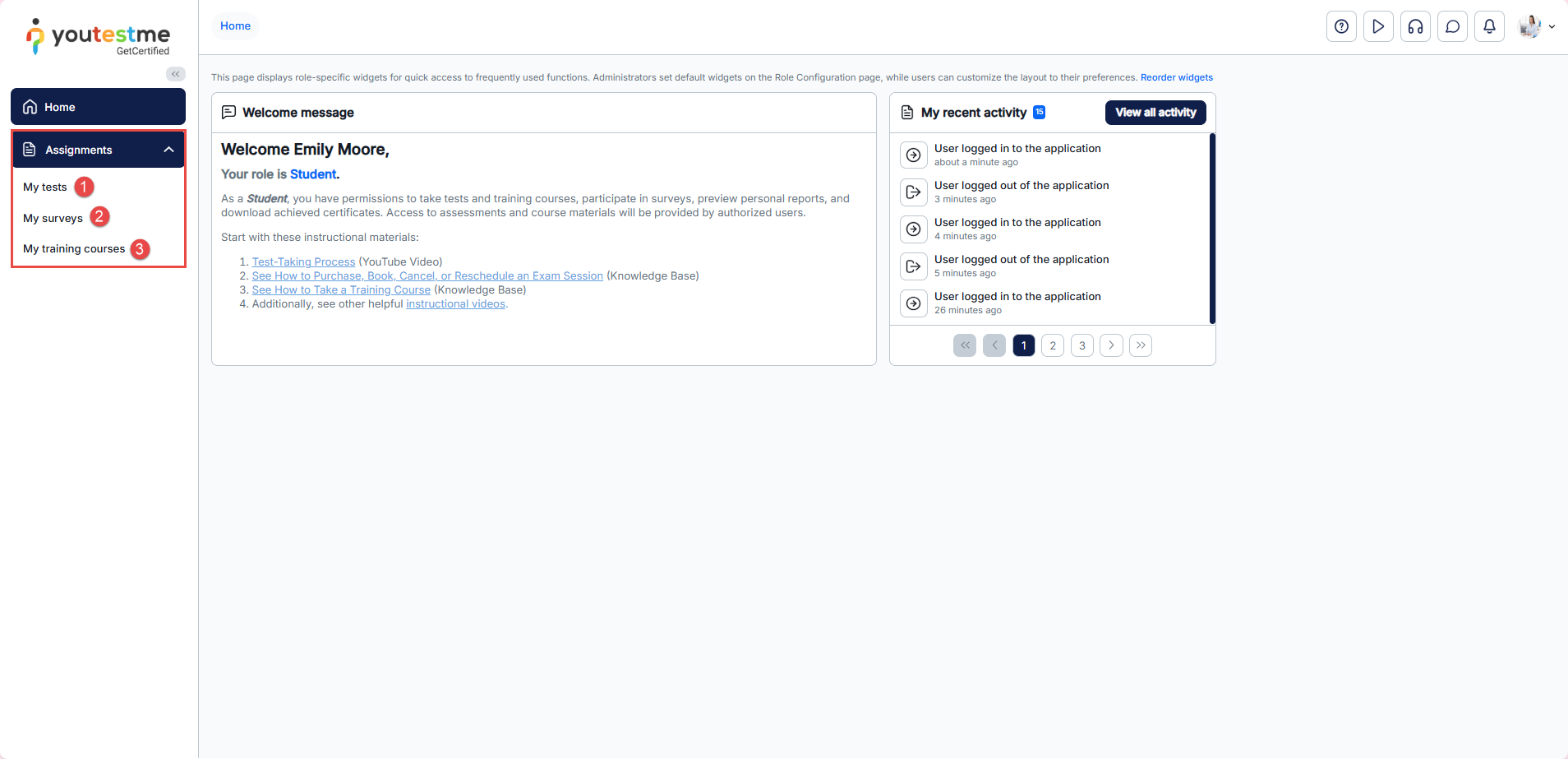
To access your assignments, do the following:
-
Click the “My assignments” tab in the main menu, or
You will be presented with a list of all assignments available to you, including:
- My tests
- My surveys
- My training courses
Depending on your permissions and assignments, the list may include different items.
Understanding assignment types
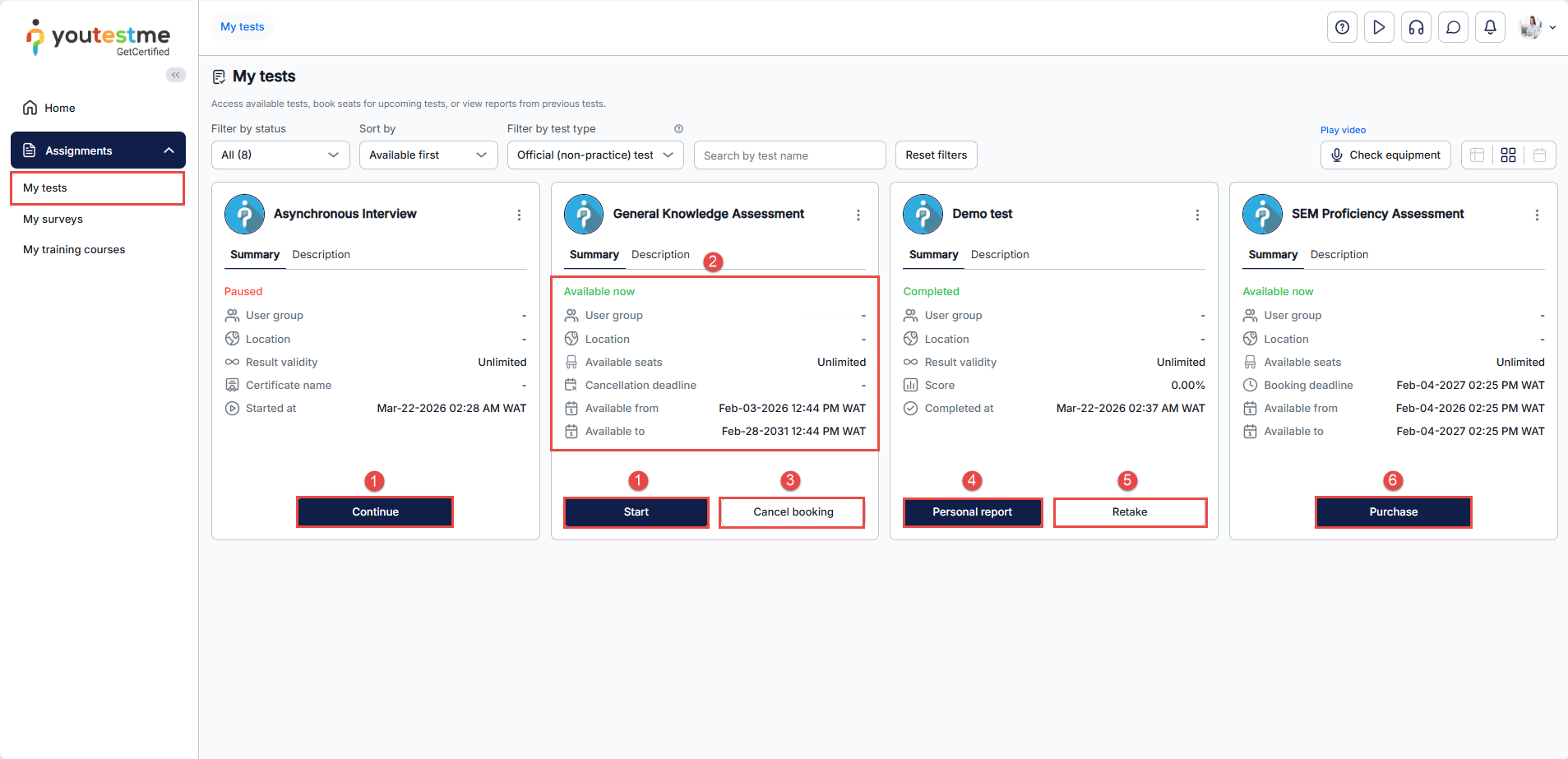
My tests
This section displays all tests assigned to you. From here, you can:
- Start or continue a test
- View test details
- Book or cancel a test session (if scheduling is required)
- View results or reports (if permitted)
- Retake a test (if allowed)
- Purchase a test (if e-commerce is enabled)
My surveys
This section shows surveys assigned to you. You can:
- Surveys for taking
- Survey results
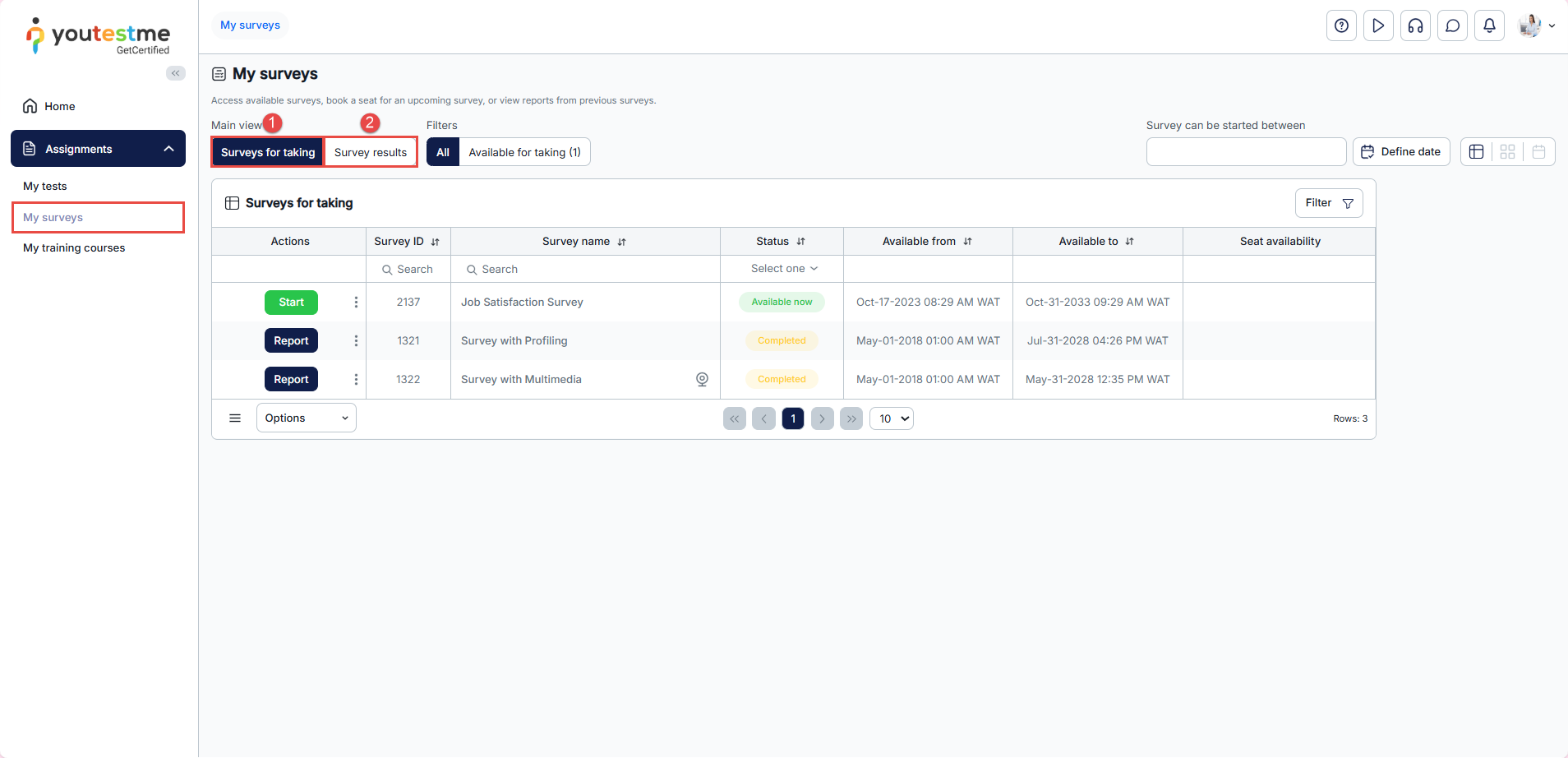
Note: Surveys follow the same interface and actions as tests in list view.
My training courses
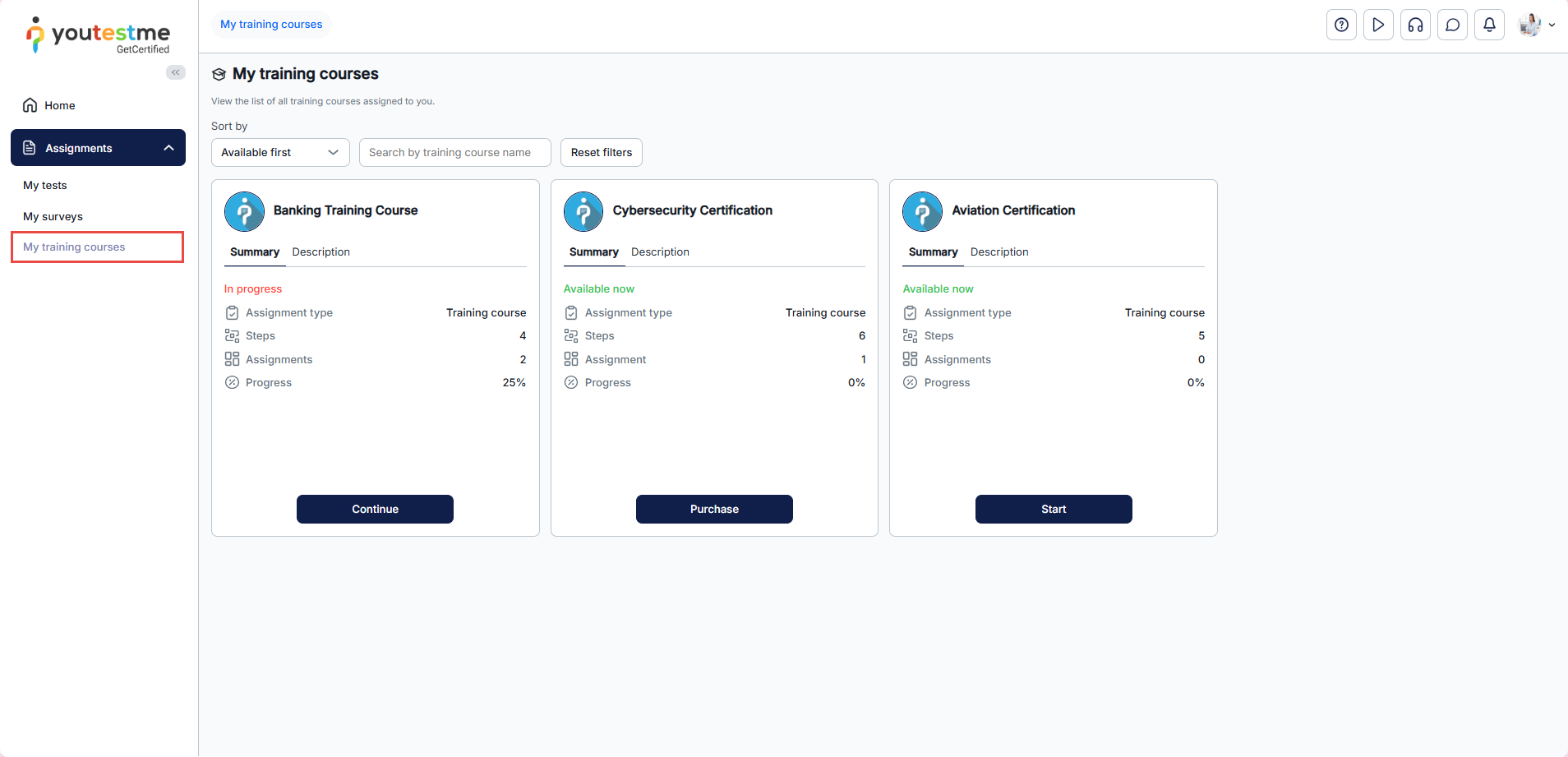
This section lists training courses assigned or available to you. You can:
- Start or continue a course
- Access learning materials
- Purchase or enroll in a course (if e-commerce is enabled)
- Track progress
- Download certificates (if available)
Filtering My assignments
You can filter assignments to quickly find what you need.
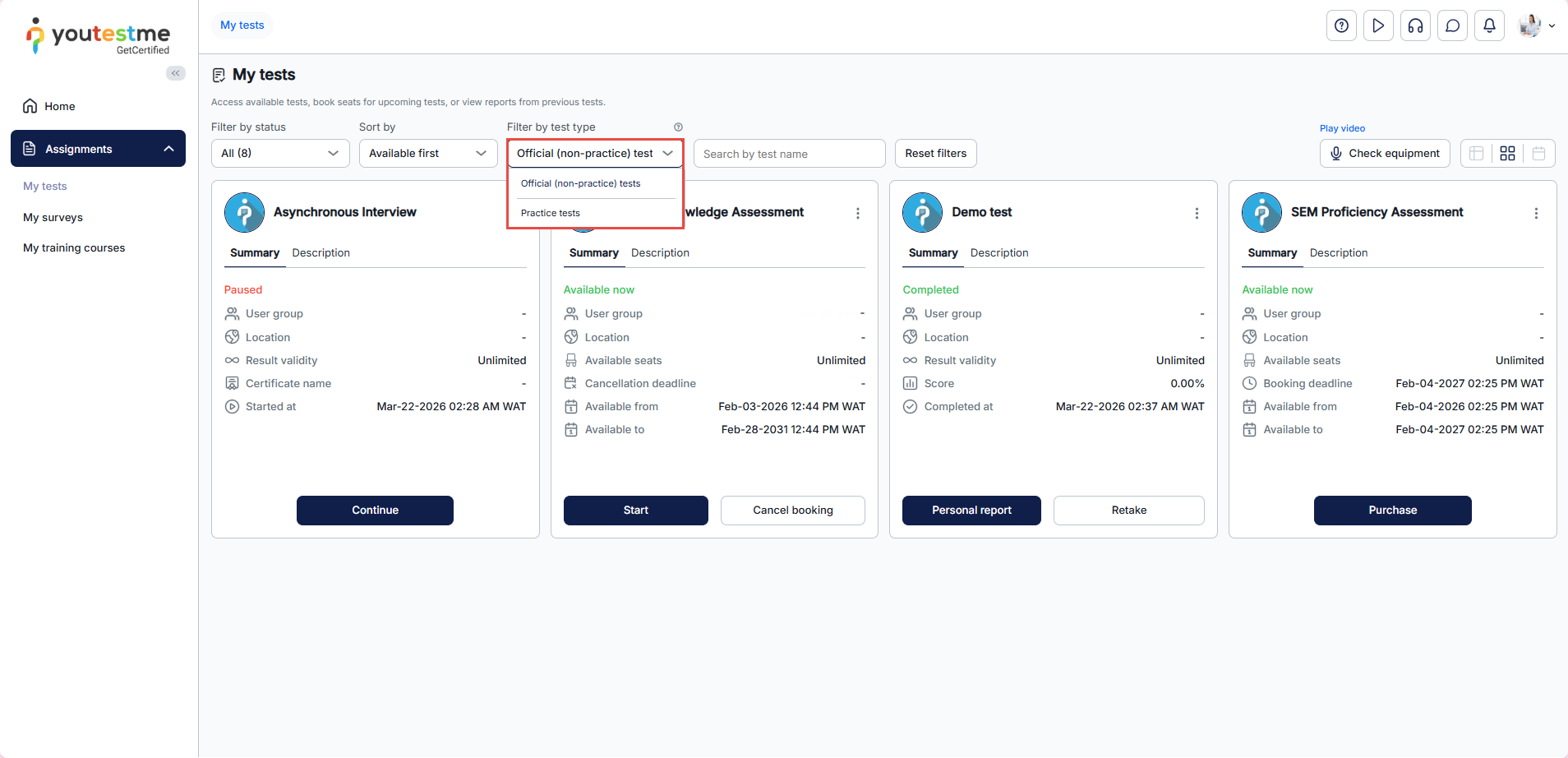
Filter by test type
Choose which assignment types to display:
- Official tests – Displays assigned official tests that can be taken.
- Practice tests – Displays available practice tests.
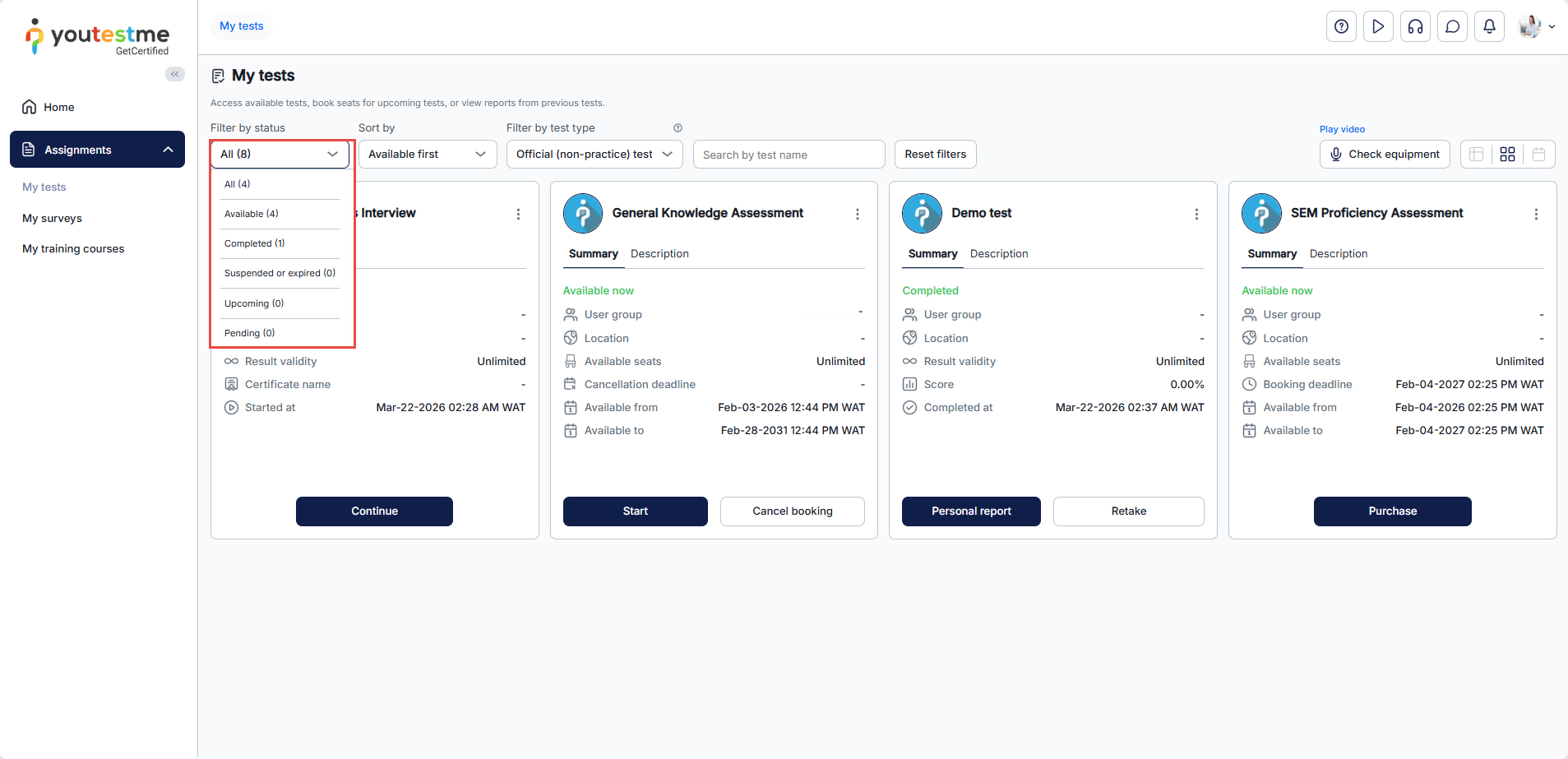
Filter by status
Filter assignments based on their status:
- All— displays all assignments
- Available — assignments ready to start
- Completed — finished assignments with reports or continuation options
- Suspended or expired — inactive or expired assignments
- Upcoming — scheduled assignments
- Pending — assignments awaiting completion or evaluation
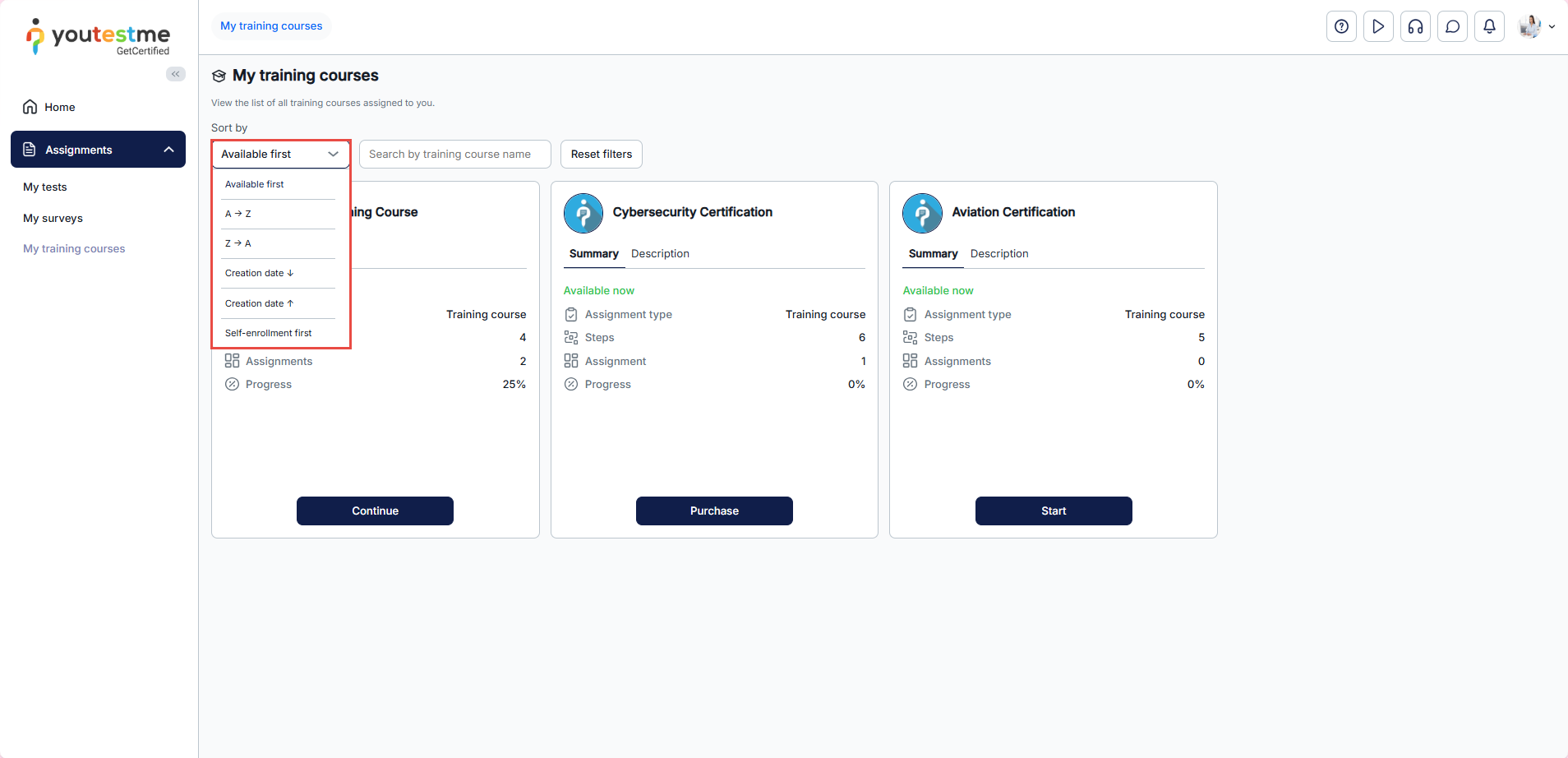
Sorting My Assignments
You can sort the list using different criteria:
- Available first — shows assignments ready to start first
- A → Z — alphabetical order
- Z → A — reverse alphabetical order
- Newest first — latest assignments first
- Oldest first — earliest assignments first
- Self-enrollment first — shows assignments you can enroll in without approval
Additional actions available to candidates
Depending on how assignments are configured, you may also be able to:
- Request special accommodations – For more information, refer to the related article.
- Access certificates – For more information, refer to the related article.
Related articles
For more useful instructional materials, please visit:
- How to request special accommodation
- How to book a test session
- How to purchase a training course
- How to pin training course to the My assignments page




