Article verified for Release 15.1 on February 3, 2026.
This article provides a detailed overview of creating and managing test and survey categories, helping you organize assessment content more effectively and streamline the overall assessment process. By using categories and category values, you can group related tests, surveys, and questions, improve navigation for administrators and instructors, and ensure consistency across workspaces. Proper categorization is especially useful in large systems with multiple assessments, teams, or subject areas, as it simplifies filtering, reporting, and long-term maintenance.
Accessing the page
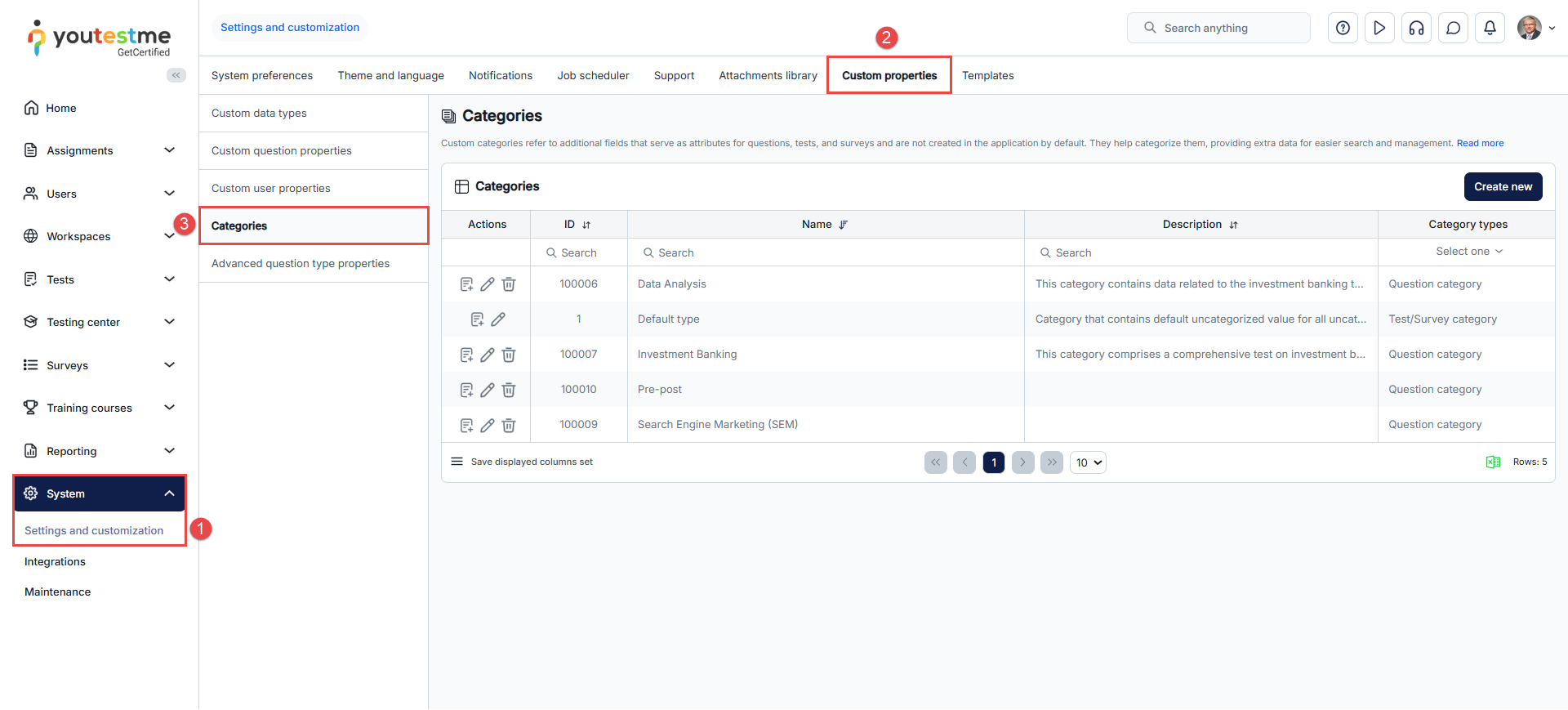
To access the Tests categories tab, do the following:
- Navigate to the System section in the left-side menu and select the Settings and Customization page.
- Click the Custom properties tab.
- Choose Categories.
Creating a new test category
To create a new test category, do the following:
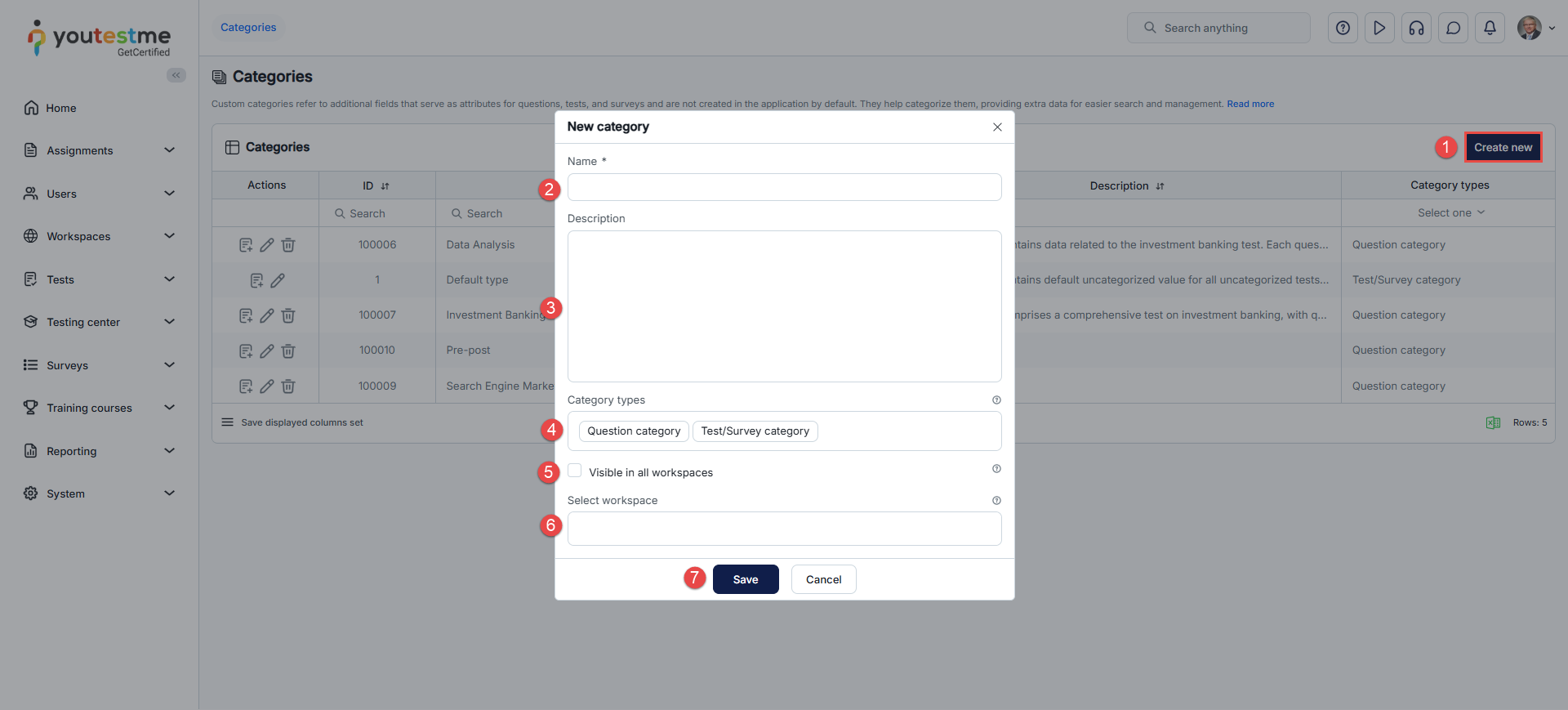
- Click the Create new button.
- Enter the category’s Name, e.g., “Entrepreneurial Competencies.
- Optionally, add a Description.
- Select the Category type for categorizing questions, tests/surveys, or both.
- If this option is enabled, the category can be used in all workspaces.
- Optionally, select the Workspace. For detailed instructions on question category workspaces, refer to this article.
- Save the category.
To add value to the test category:
- Click the Define values button.
- Click the Add new value button.
A pop-up window will appear. Follow these steps: - Enter the value’s Name.
- Optionally, add a Description.
- Click the Save button.
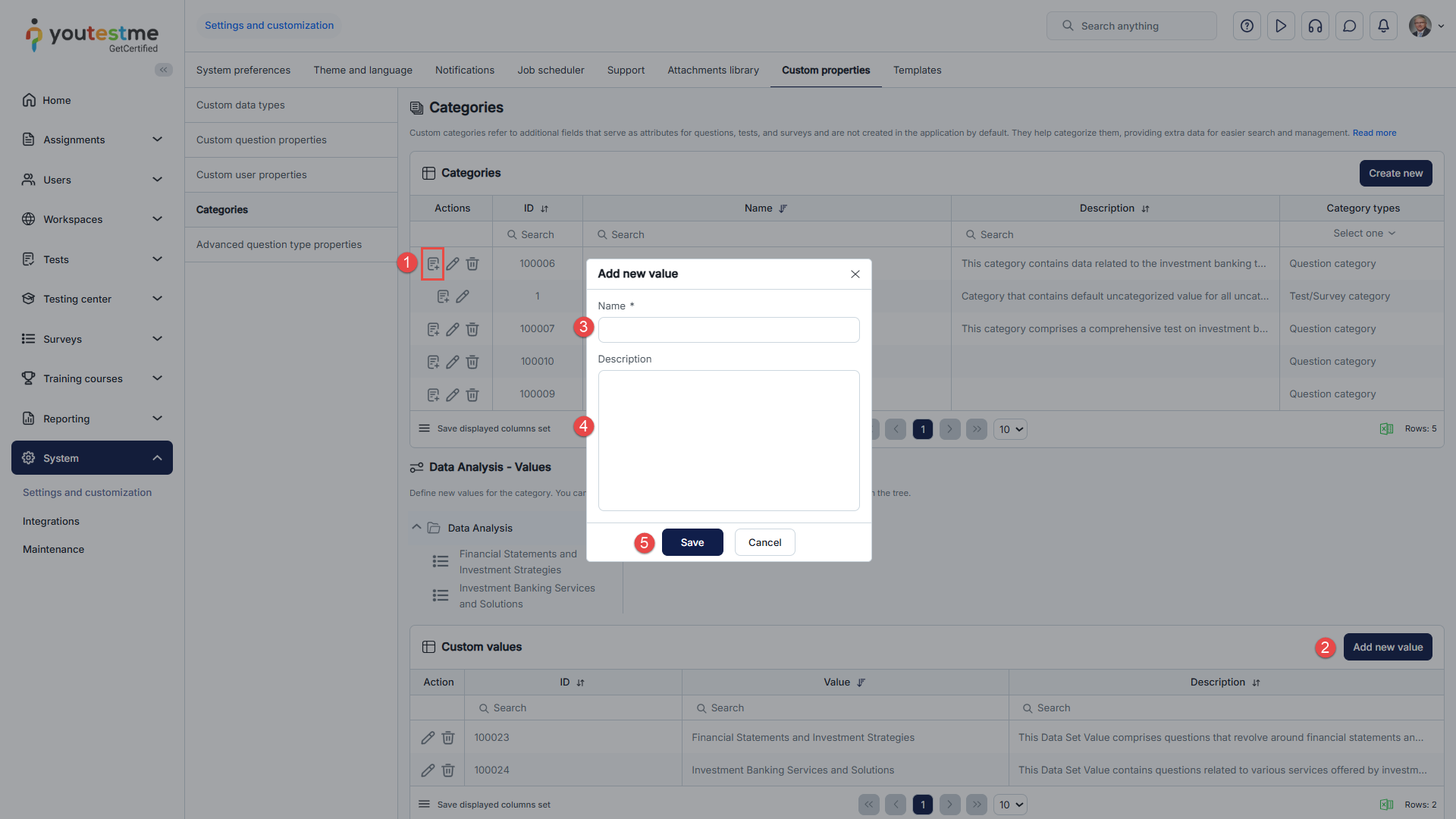
Note: You can create as many test category values as needed.
Organizing tests and surveys
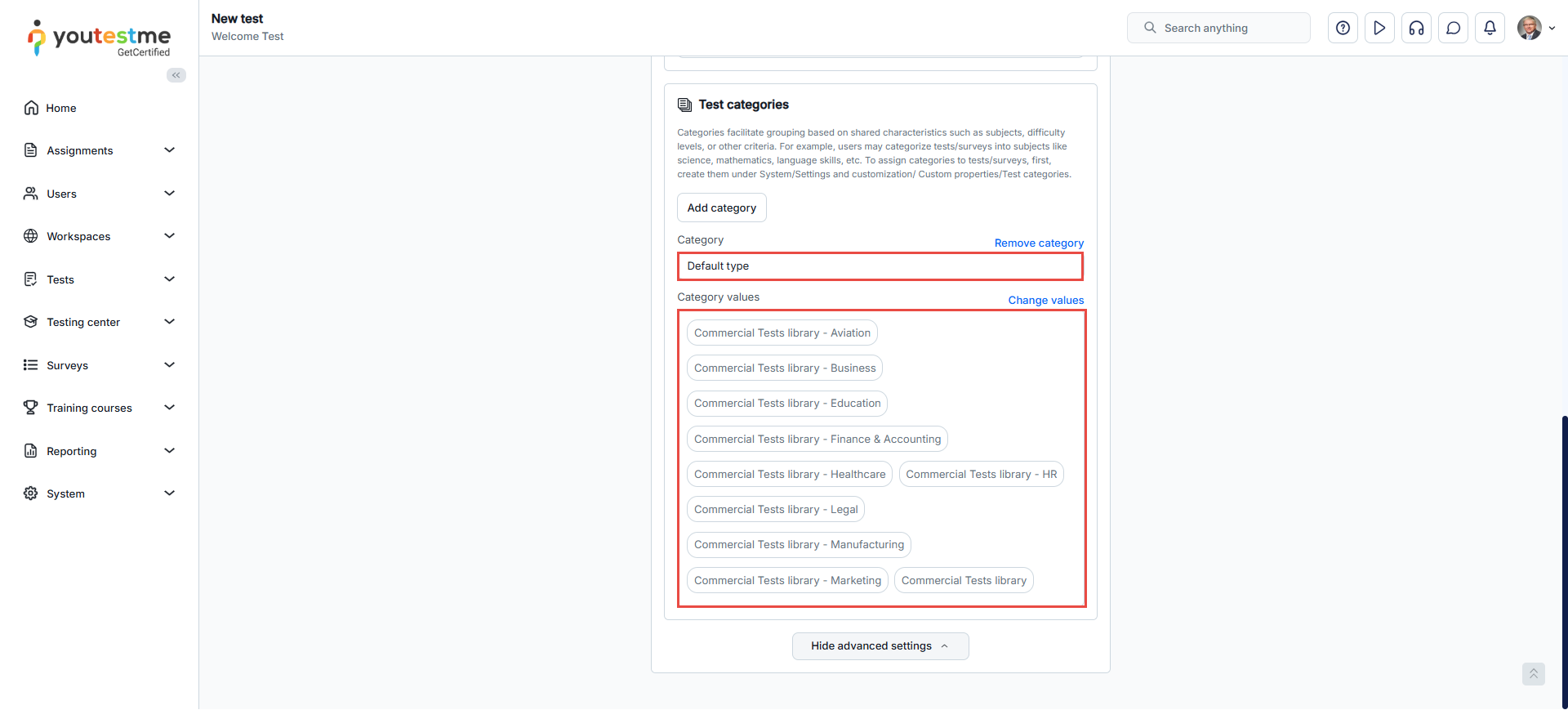
In the first step of the Test Creation Wizard, you will be able to choose from the drop-down list the test category type and also its values.
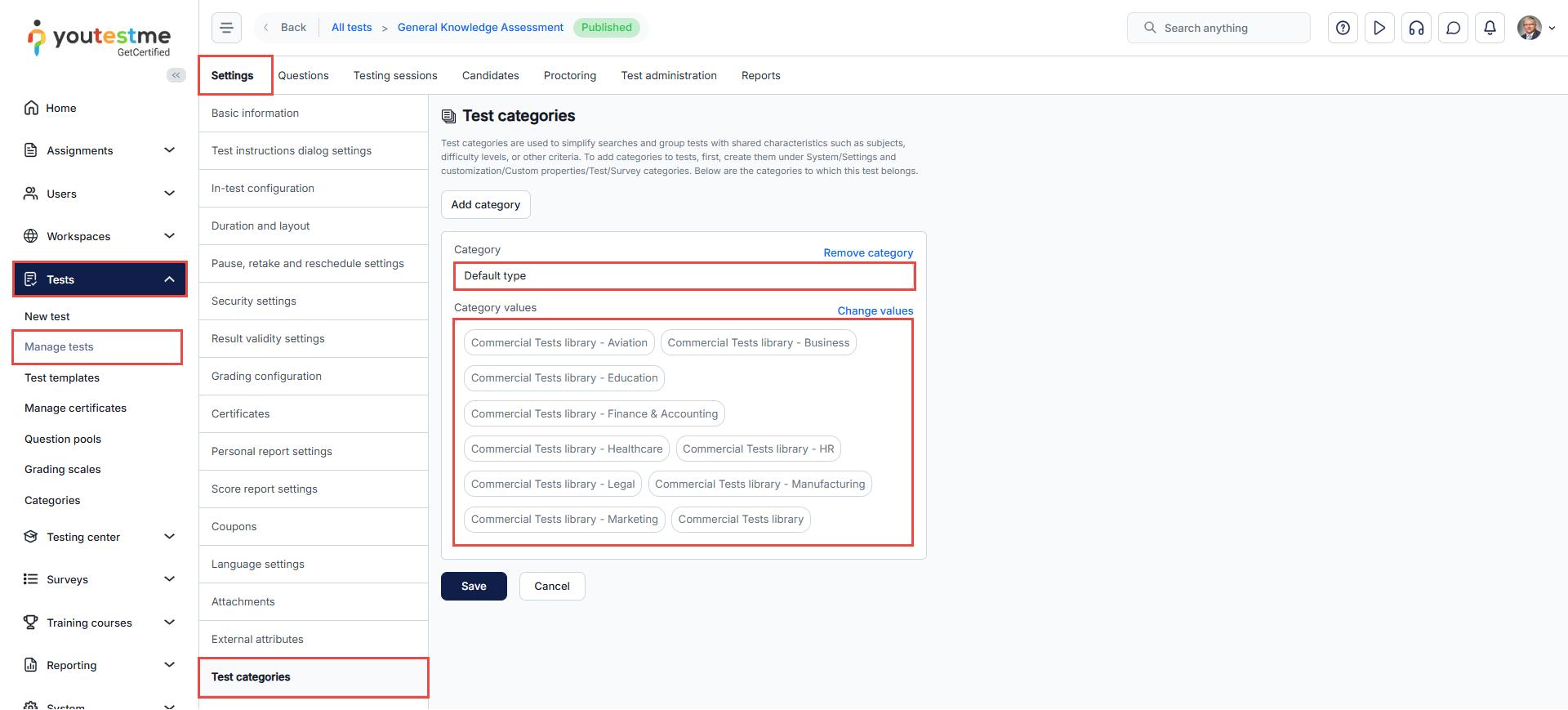
This action can also be performed from the Tests > Manage tests > Settings > Test categories tab.
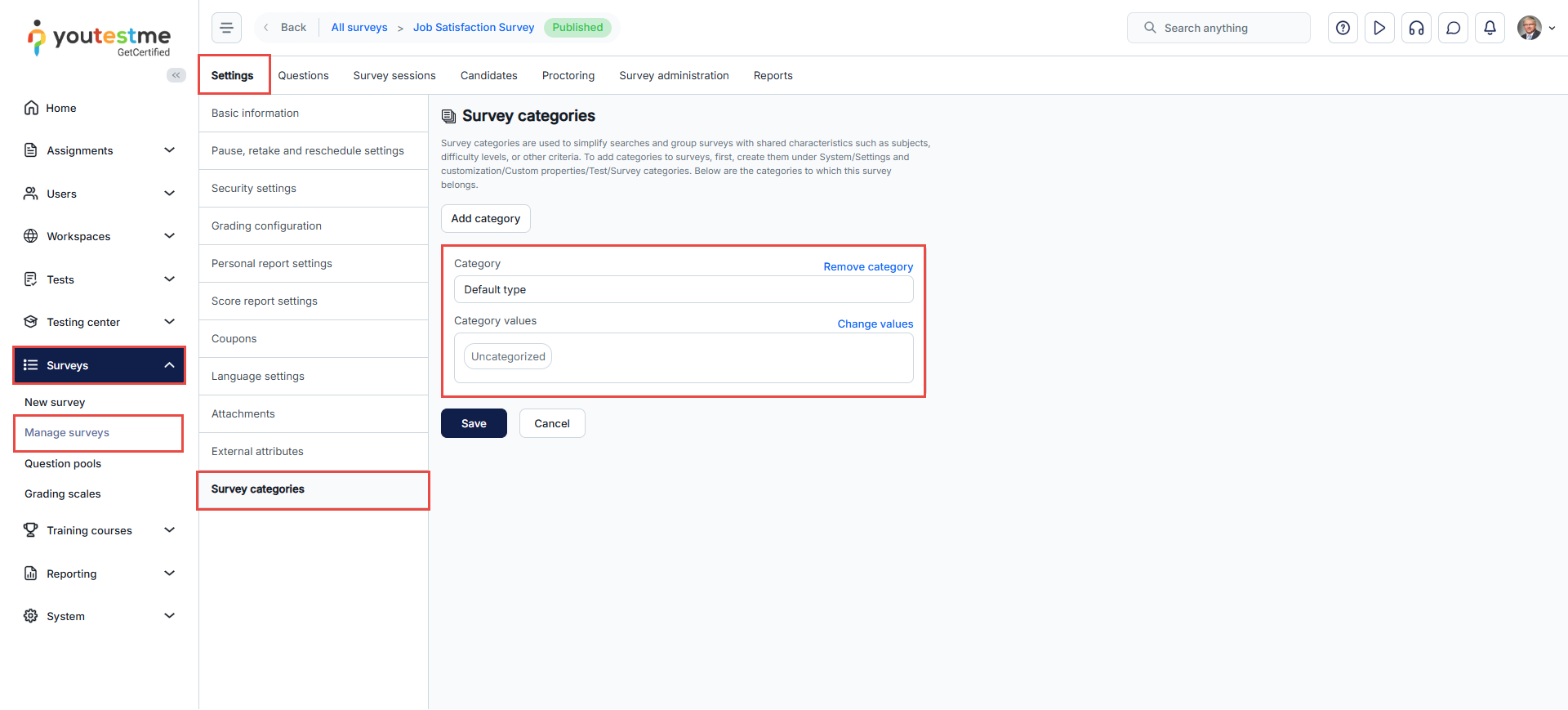
This organization also applies to surveys.
The survey can be categorized using the Survey Creation Wizard.
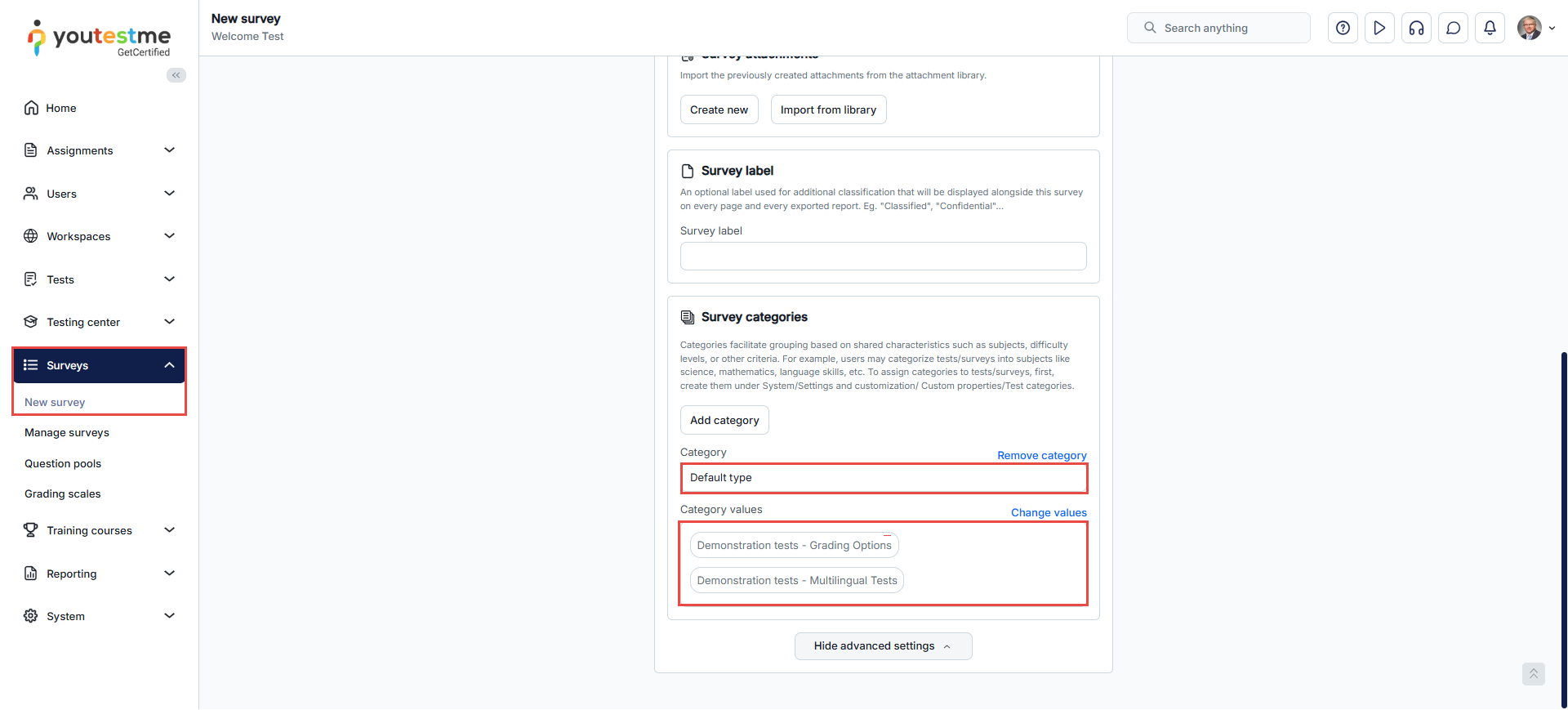
It can also be categorized under Surveys > Manage surveys > Settings > Test categories.