
Article verified for Release 15.1 on February 24, 2026.
This article explains how to quickly locate your assigned tests, surveys, and training courses on the Assignments page.
You can search for assignments using List View, Tiles View, or Calendar View, depending on your preferred layout. The search functionality works consistently across all views, allowing you to quickly find specific assignments by entering relevant keywords.
List View
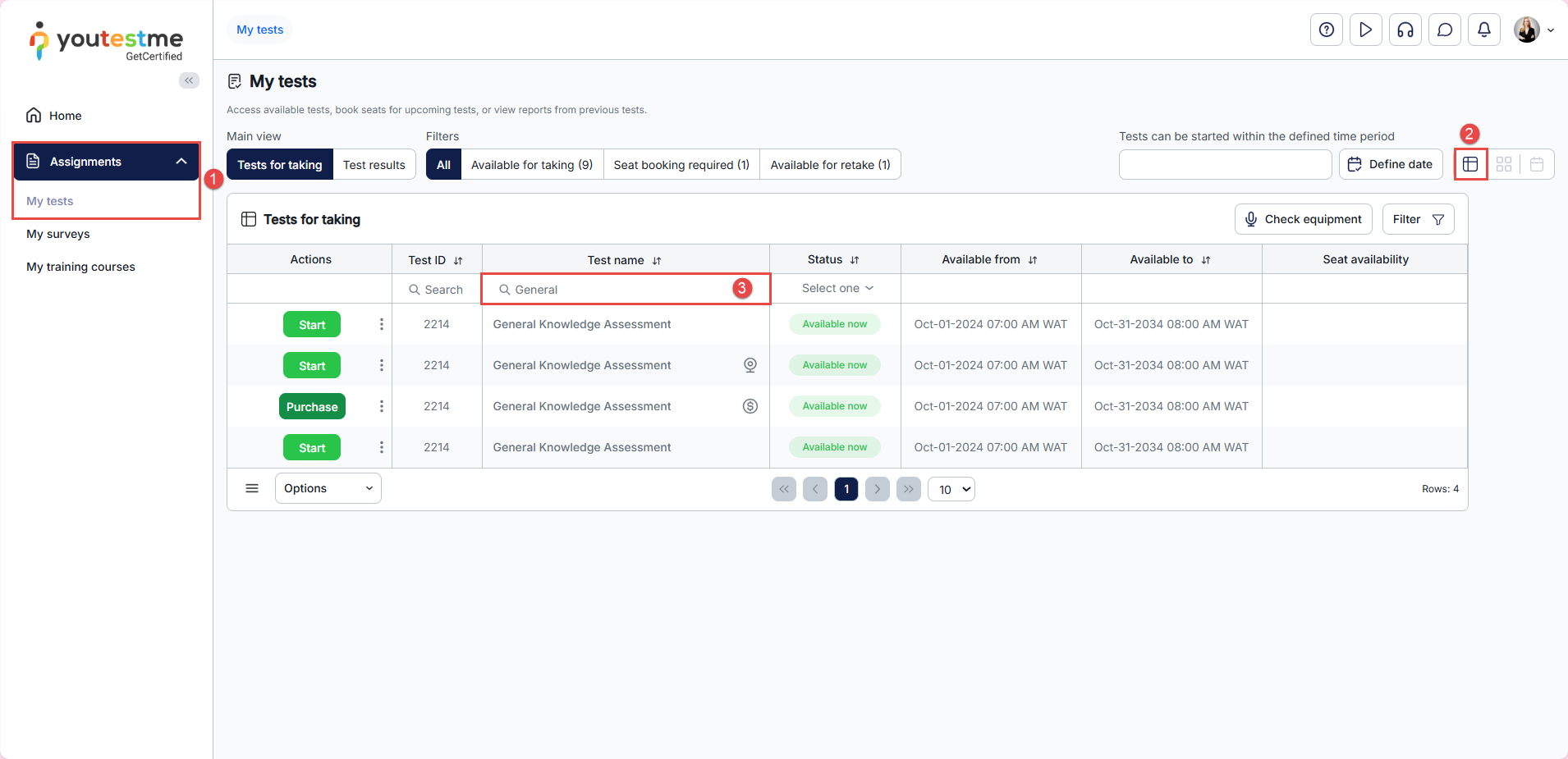
To search for assignments in the List View:
- Navigate to the Assignments > My Tests tab.
- Switch to List View.
- Enter a keyword in the search field.
The system will display all tests that contain the entered keyword.
Note: If multiple rows appear for the same assignment, each row represents a different available session for that test.
Tiles View
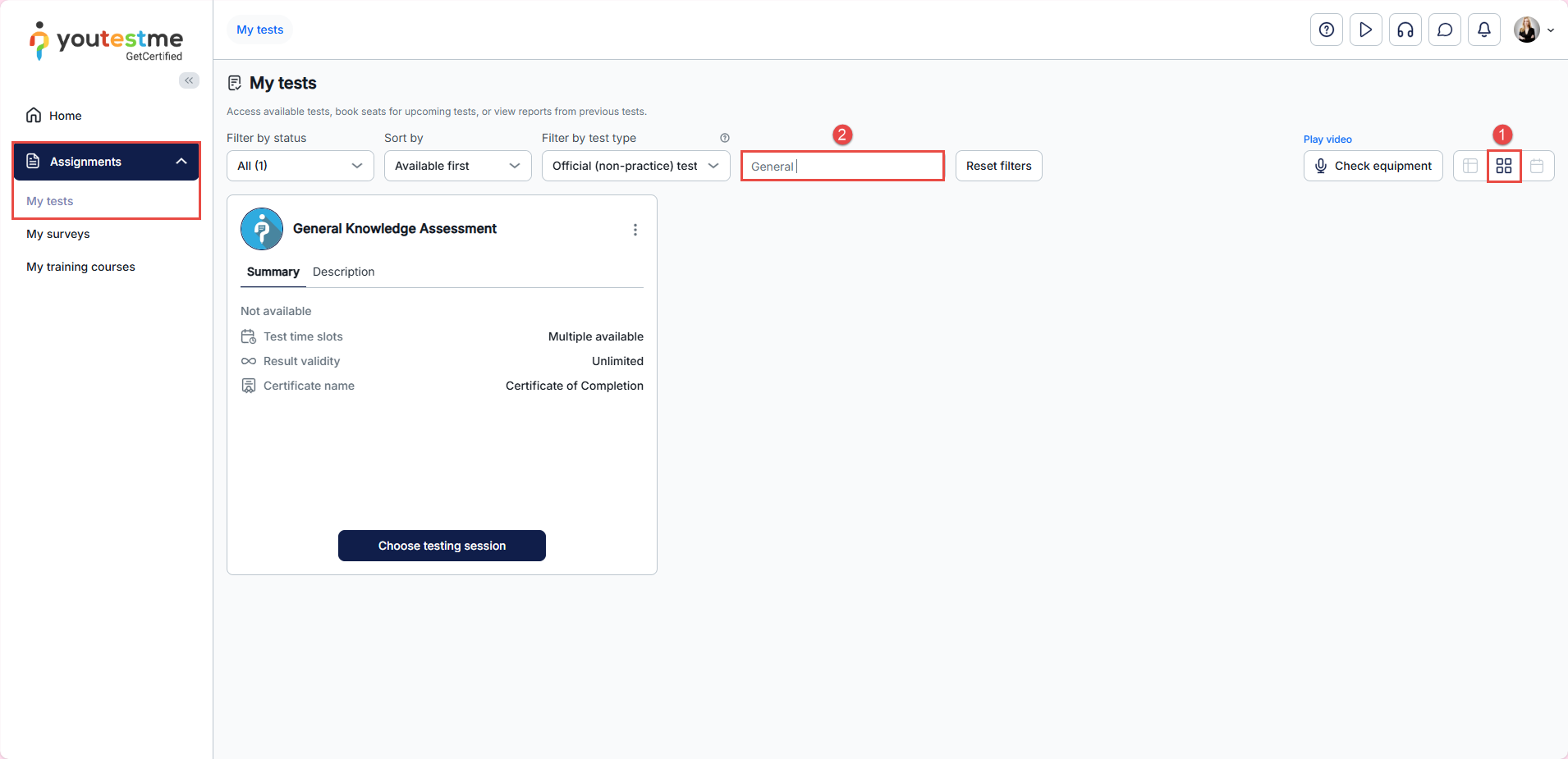
To search for assignments in the Tiles View:
- Switch to Tiles View.
- Enter a keyword in the search field.
All matching tests will be displayed as tiles.
Calendar View
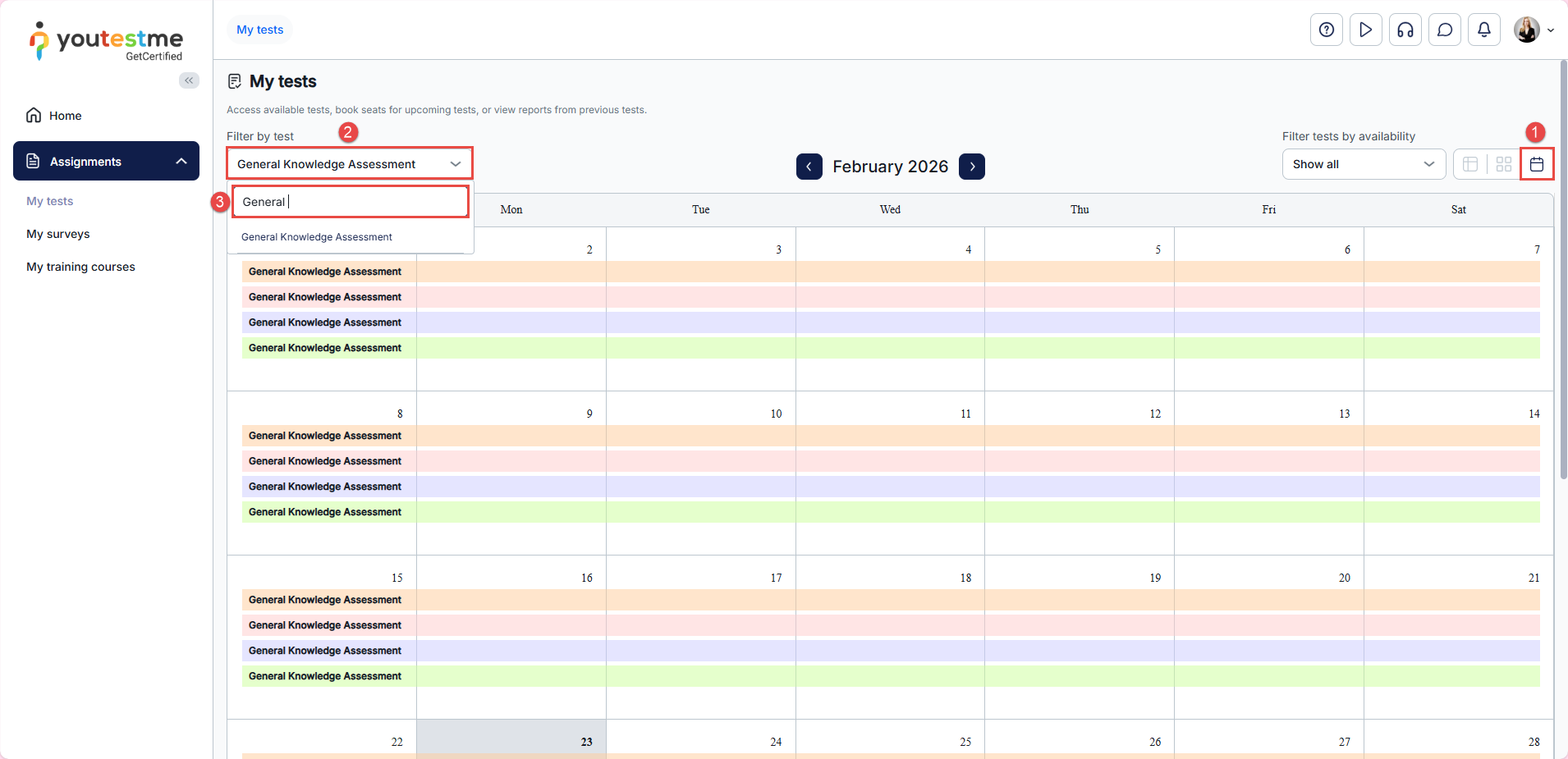
To search for assignments in the Calendar View:
- Switch to Calendar View.
- Click Filter by Test.
- Enter a keyword in the search field.
All matching assignments will be displayed on the calendar according to their scheduled dates. If a test includes multiple sessions, all available sessions for that test will be visible on the calendar.
For more useful instructional materials, check these links:




