Article verified for Release 16.1 on September 25, 2026.
YouTestMe offers test creators a range of flexible options to define test duration, accommodating various requirements and test formats.
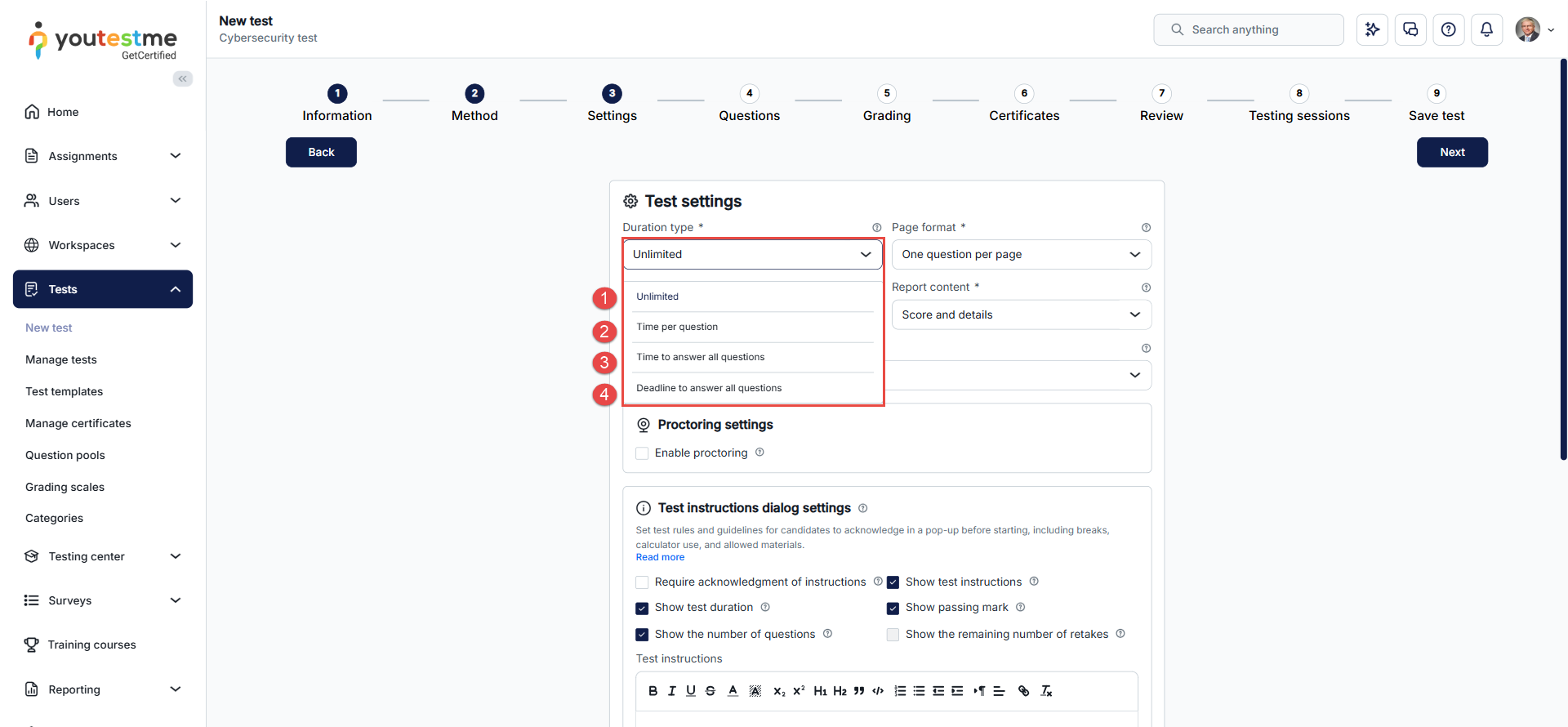
This article provides an overview of the available duration settings for each test type:
- Unlimited: No time limit is imposed, allowing candidates to take as much time as needed to complete the test.
- Time Per Question: Each question is assigned a specific time, and the total test duration is calculated as the sum of the time allocated to all questions.
- Time to Answer All Questions: The total test duration is predefined, giving candidates the flexibility to allocate their time across questions as they prefer.
- Deadline to Answer All Questions: The test must be completed and submitted by a specified deadline, which can be set in days.
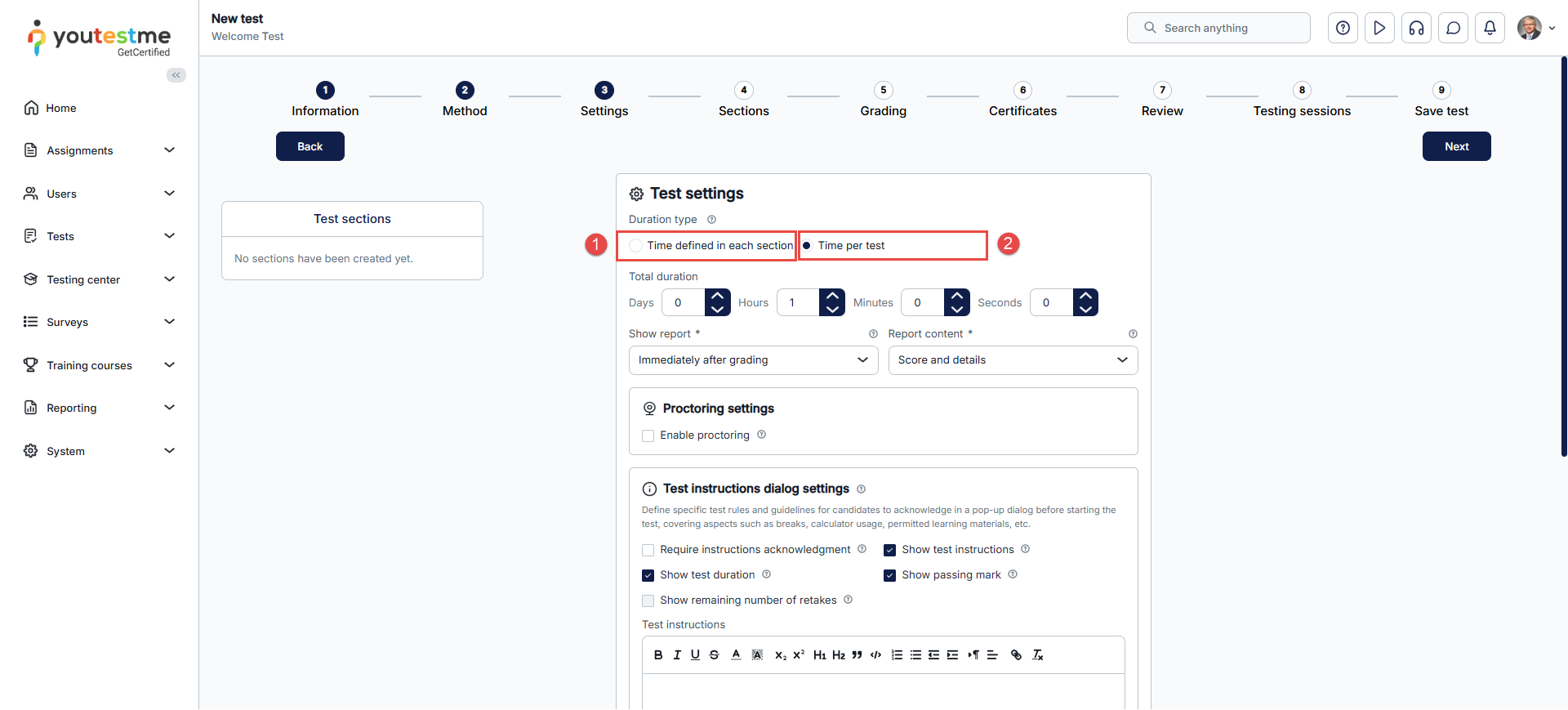
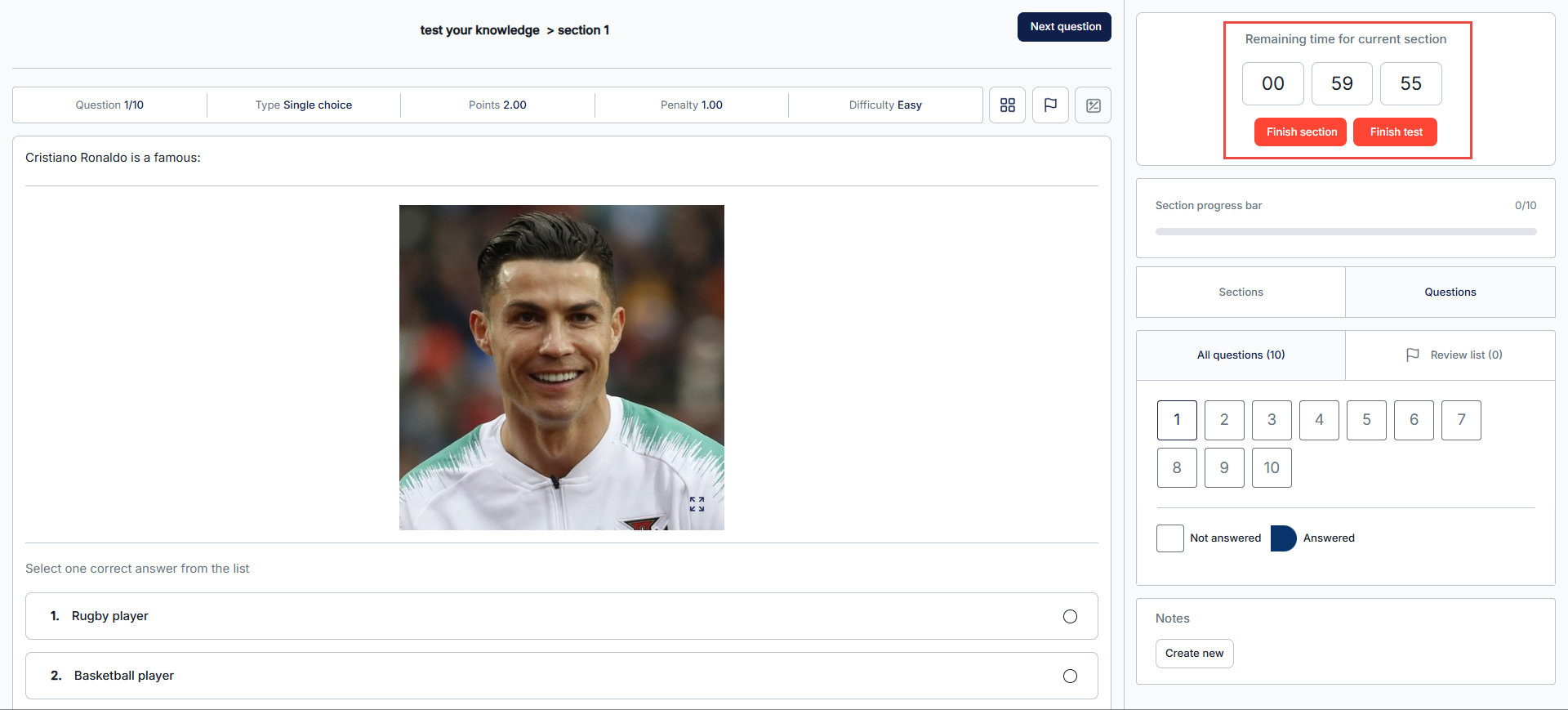
- Time defined in each section: For tests divided into sections, the duration can be based on the time allocated to each section. The options above are also available for section-specific durations.
Note: Once a duration type is selected, the time limit is defined exclusively at that level — it is not possible to combine it with a time limit defined at another level. For example, selecting Time to Answer All Questions at the test level means no additional time limit can be set at the section or question level; selecting Time Per Question means the total time is only the sum of the individual question times, and no separate test- or section-level limit applies.
Duration Settings – Tests Without Sections
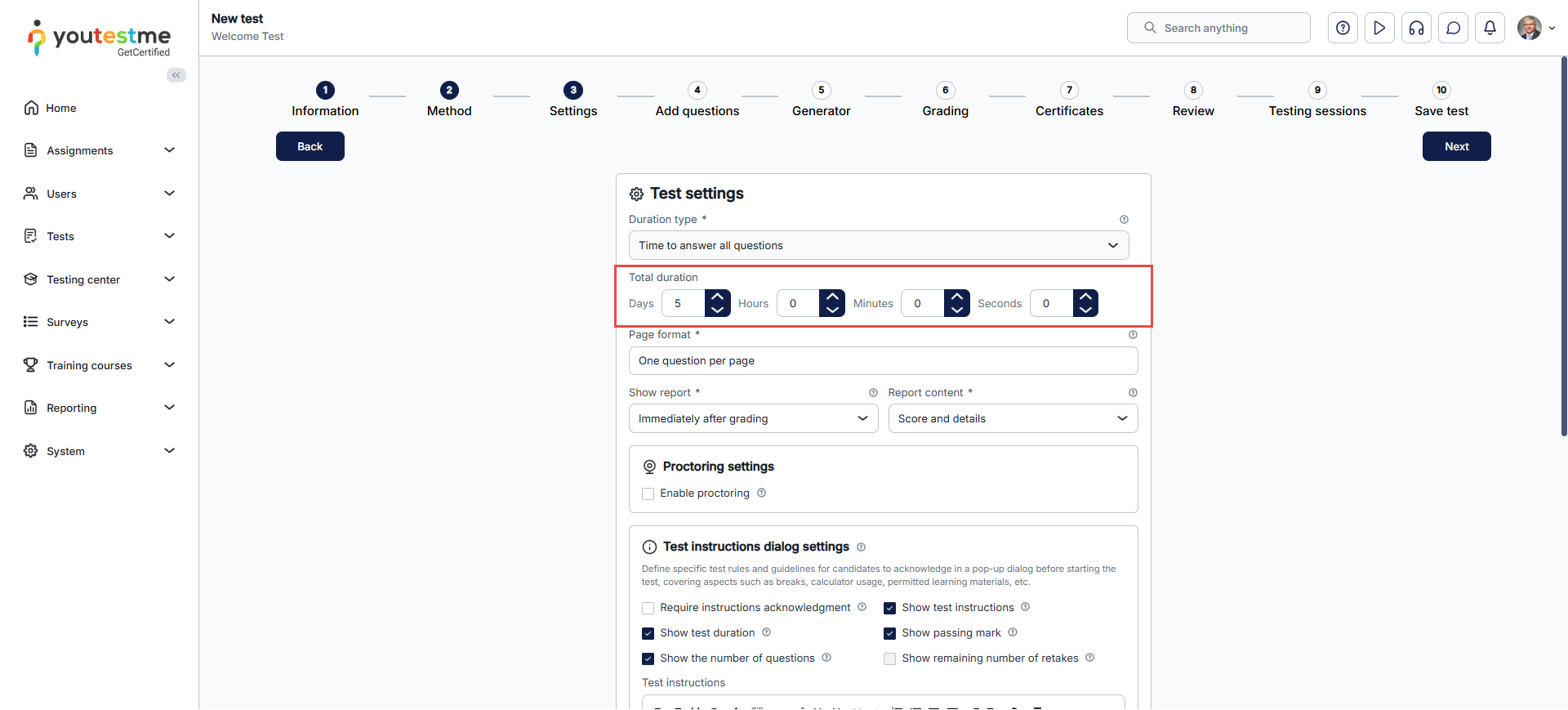
At the Test Settings step of the test creation process, test creators select the duration type from the Duration Type dropdown menu.
Unlimited Test Duration
- Description: No time limit is imposed for completing the test.
- Candidate’s Perspective: No timer is displayed on the test page.
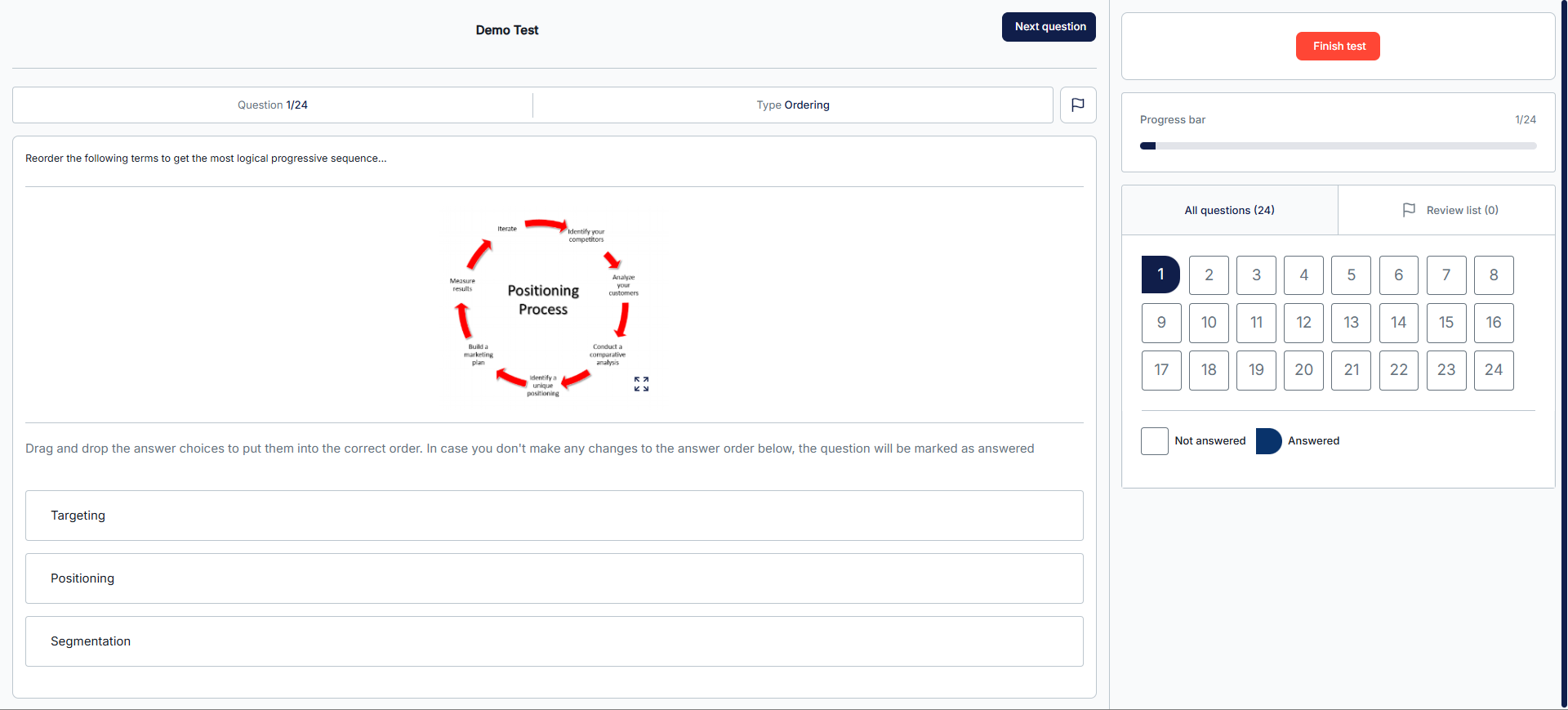
- Use Case: Ideal for practice tests where candidates can take as much time as needed to answer and submit.
Time Per Question
- Description: The system calculates the total test duration by summing the predefined time assigned to each question during either the question creation or test creation process. For more details, refer to the article on question creation.
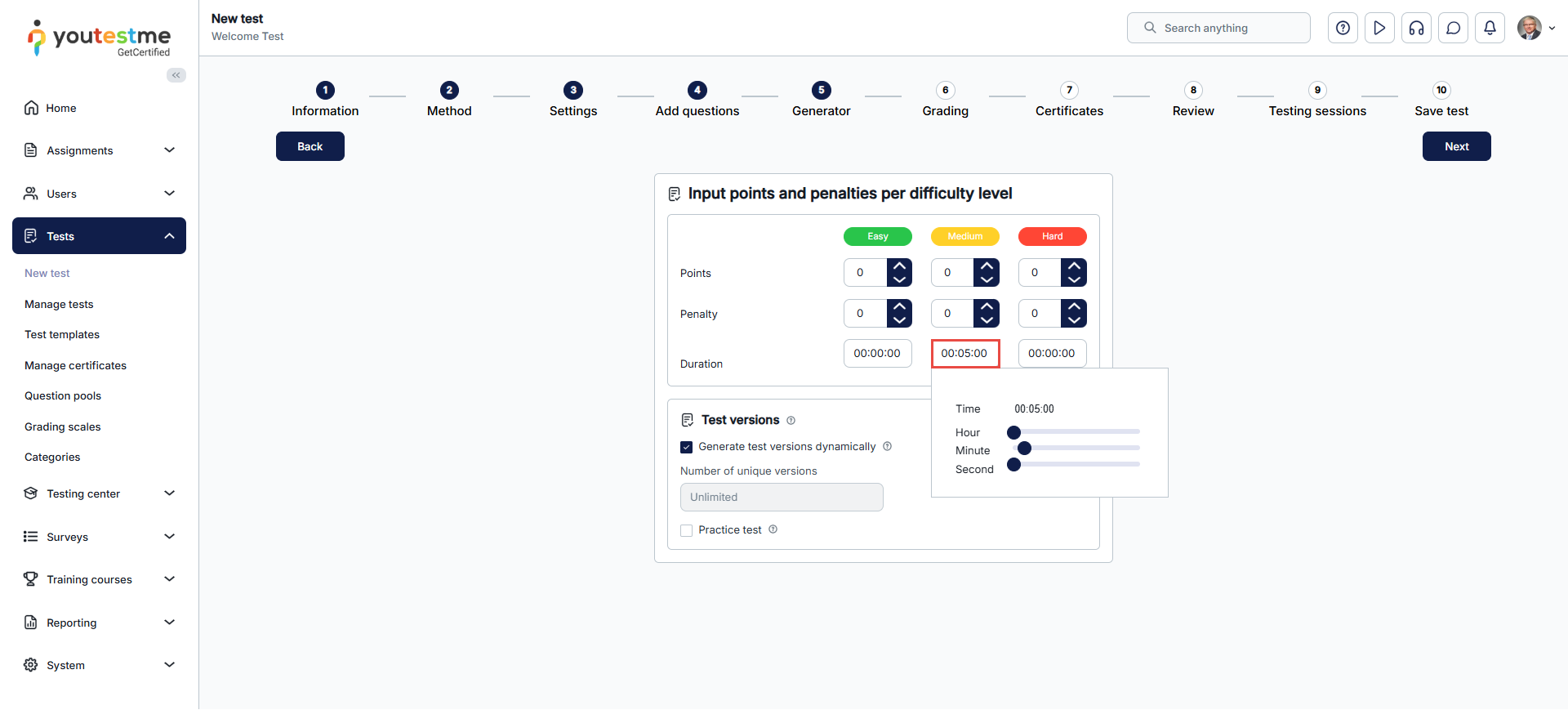
- Candidate’s Perspective:
- A timer displays the time allocated for each question.
- When the timer expires, the candidate is automatically moved to the next question.
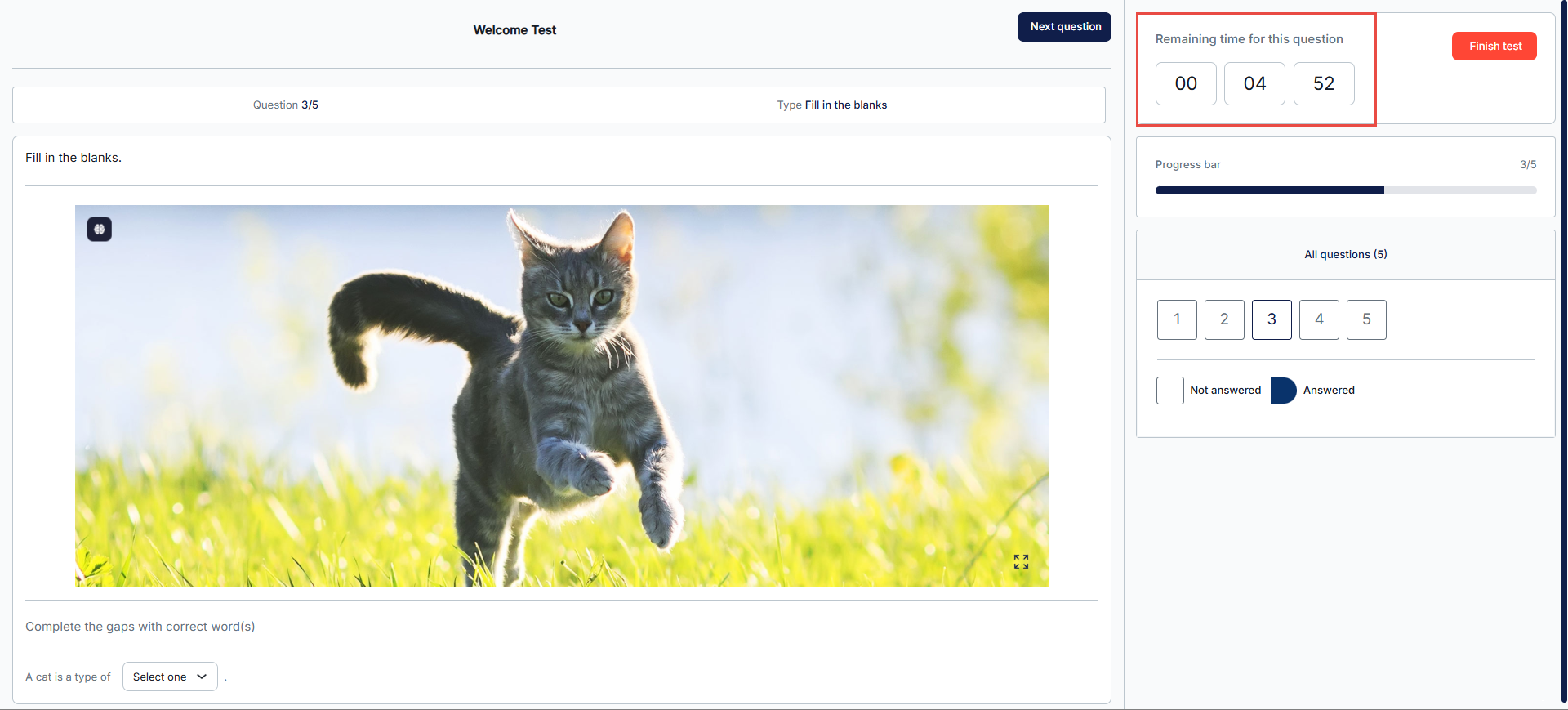
Note: When the Time Per Question is enabled, revisiting questions is disabled by default. Candidates must answer questions sequentially without skipping or revisiting.
Time to Answer All Questions
- Description: Test creators define the total duration for completing the test in days, hours, and minutes, allowing candidates to allocate their time across questions as they choose.
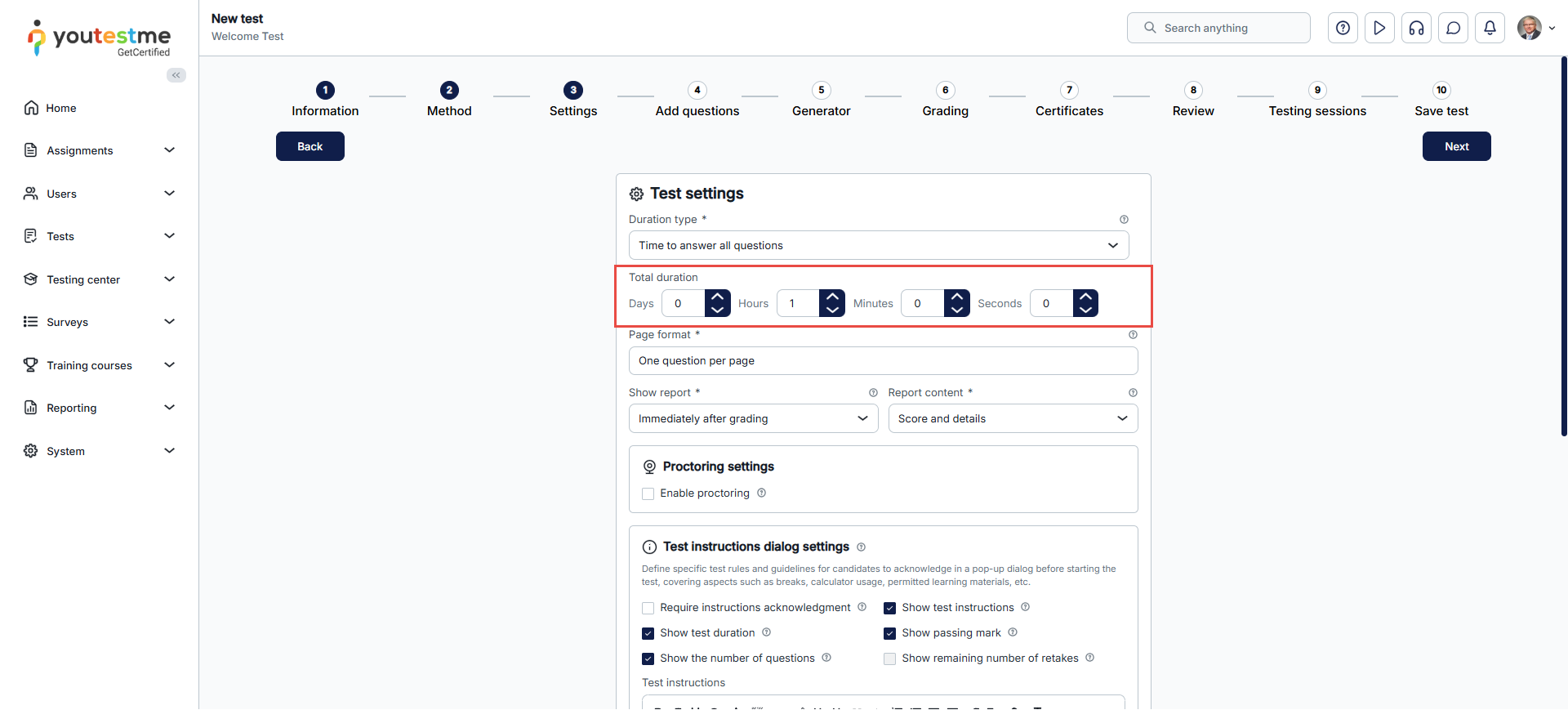
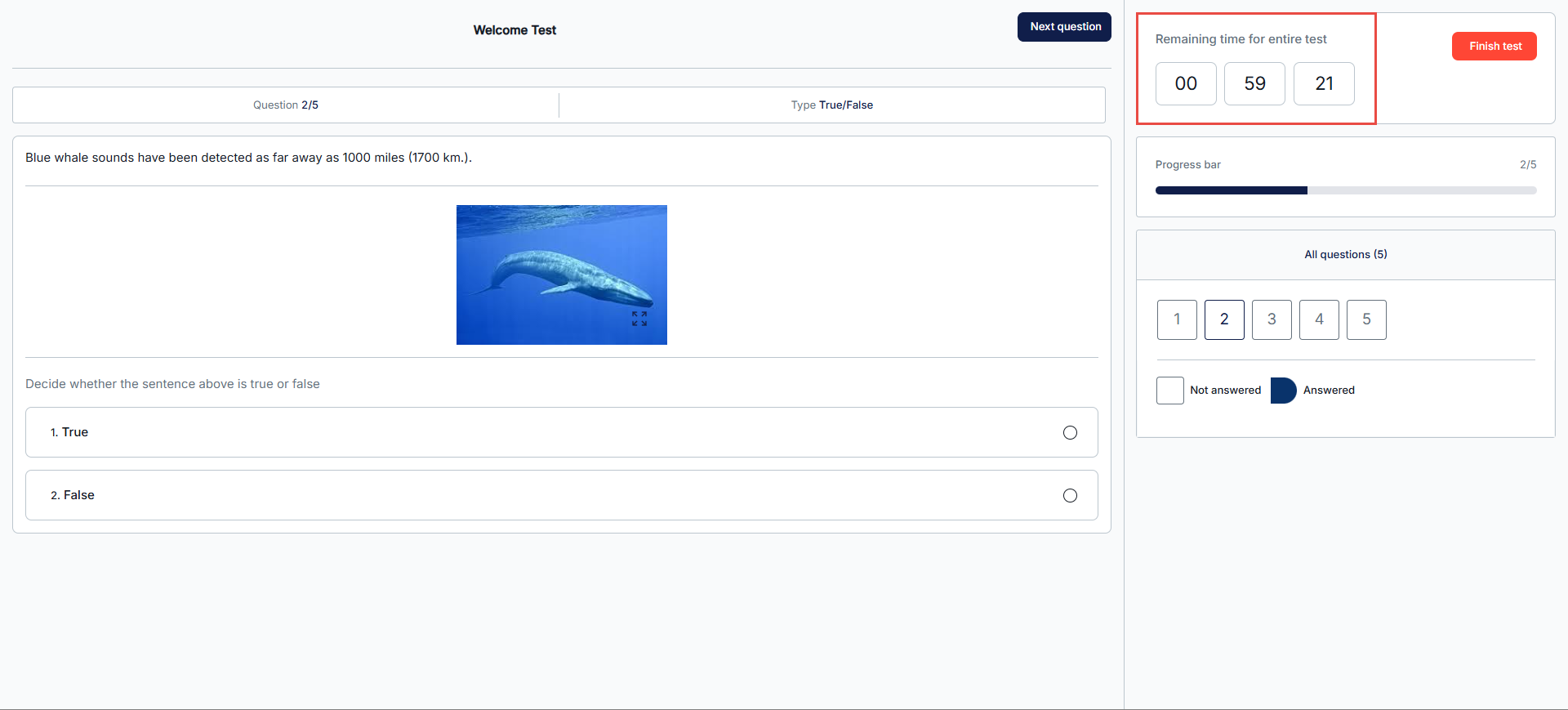
- Candidate’s Perspective:
- A countdown timer displays the total test duration and continues regardless of the time spent on individual questions.
- The timer pauses when the candidate exits and resumes when they re-enter the test.
- Additional Settings:
- Test creators can enable or disable revisiting questions.
- A continuation period can be defined, allowing candidates to resume their tests within a specific timeframe during the exam availability period.
Deadline to Answer All Questions
- Description: Test creators define a fixed deadline for completing the test in days, hours, and minutes. Unlike the previous option, the timer continues counting down even when the candidate exits.
- Candidate’s Perspective:
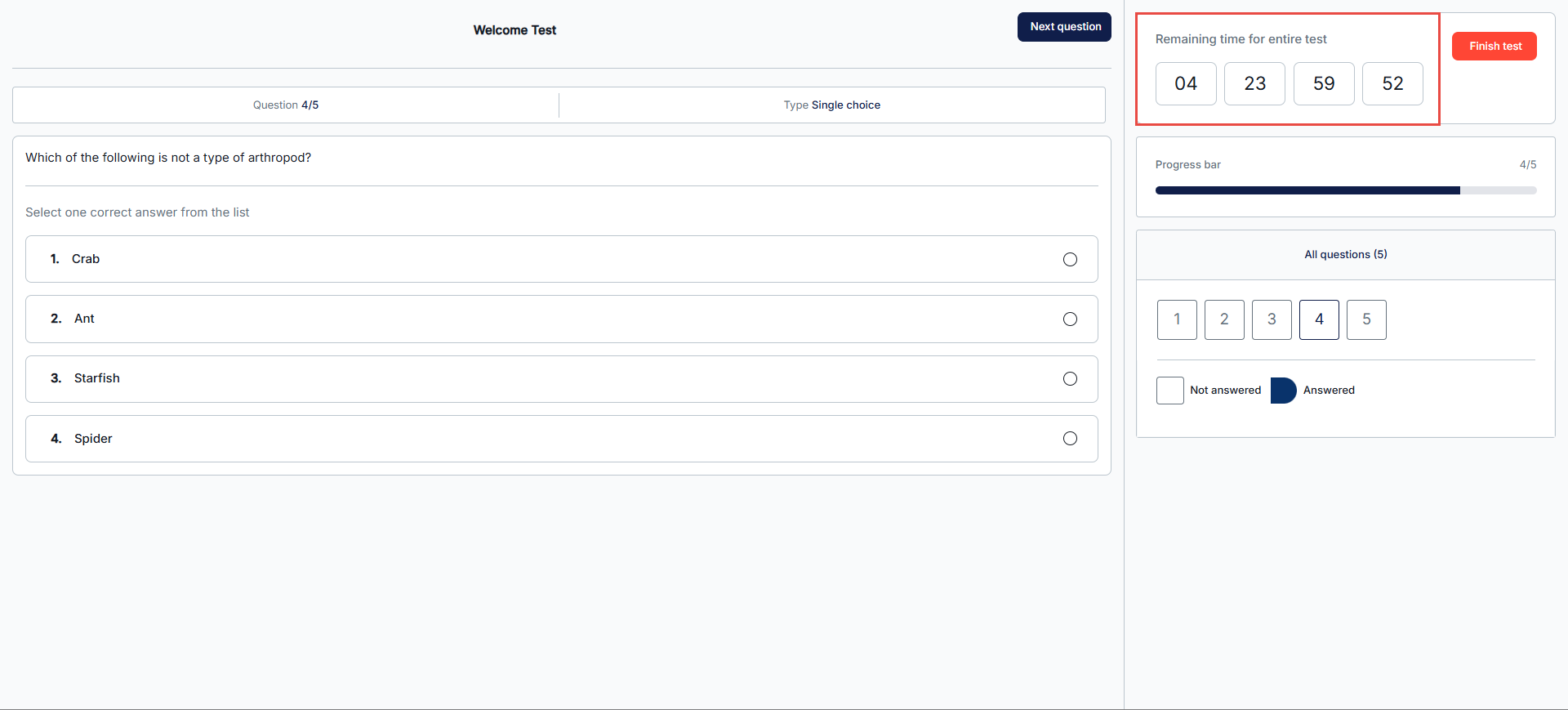
- On the test page, the timer will display the remaining time for the entire test.
- Once the timer expires, the test is automatically submitted.
- Additional Settings:
- Test creators can customize navigation settings, allowing or restricting the ability to pick questions.
- Use Case: Ideal for extended certification deadlines where candidates are given a specific period to complete the test.