
Article verified for Release 15.2 on December 12, 2025.
In this article, we will guide you through the process of creating a user role with access to question pools, limited to read-only permissions.
Creating a question pool viewer role
To create a role that allows users to access question pools without making modifications, follow these steps:
- Navigate to the Question Pool Permissions section.
- Check the box next to Access the “Question Pools’ page.
- Leave the following options unchecked:
-
- Create New Question Pools
- Manage Any Question Pool
This configuration ensures the user can view question pools but cannot create or modify them, maintaining controlled access.
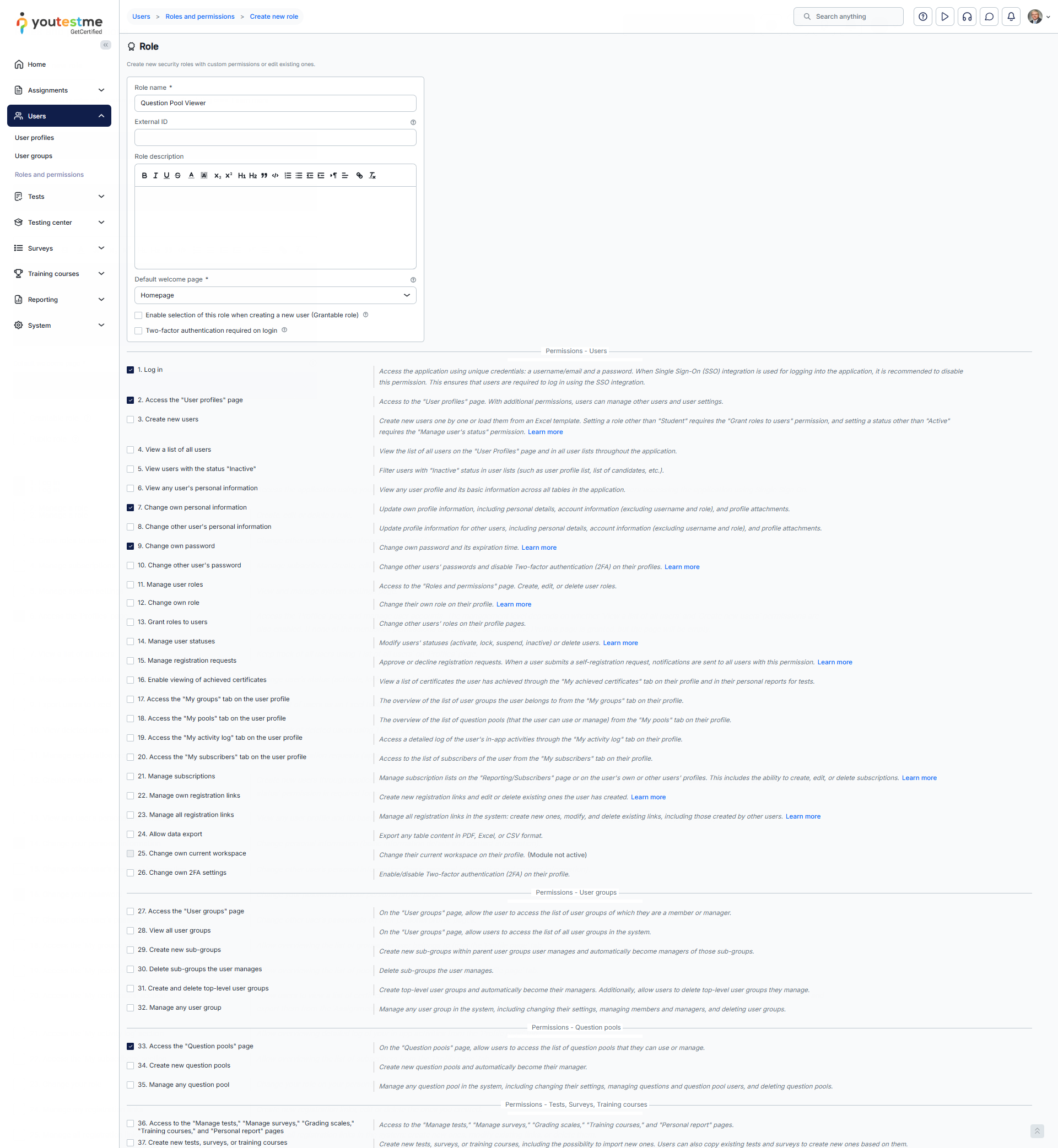
After creating the Question pool viewer role, you can assign it to a user who needs read-only access to question pools.
Assigning a read-only permission to the user
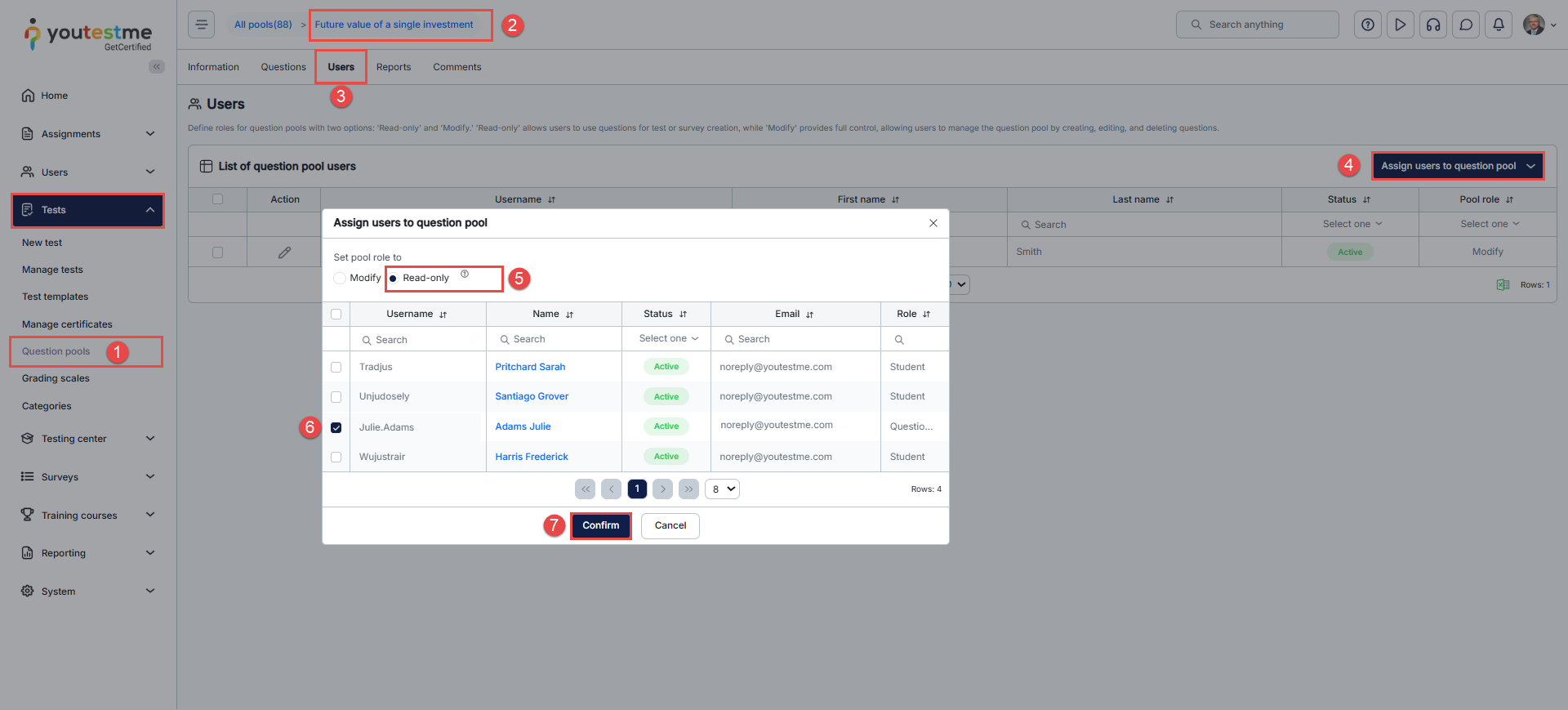
To assign a user read-only permission for a question pool, follow these steps:
- Go to the main menu and select Tests, then choose Question pools.
- Click on the specific question pool to which you want to grant read-only access for a user.
- In the pool settings, navigate to the Users tab.
- Click the Assign users button.
- Select the read-only pool role.
- Select the previously created user.
- Click the Confirm button,
Question pool viewer’s perspective
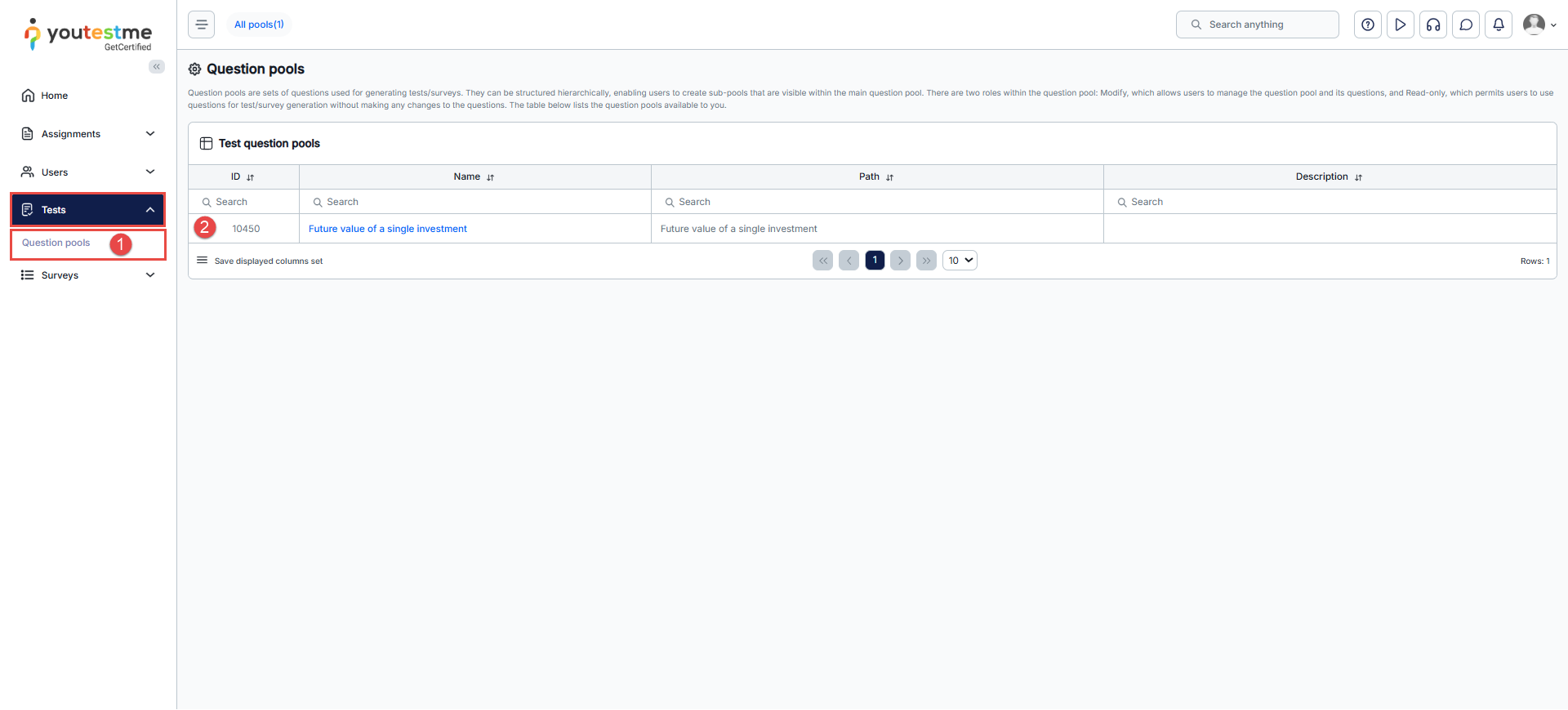
Once a user with the “Question Pool Viewer” role logs in, they will have limited access to the question pool assigned to them:
- Click on the Tests option in the main menu and select Question pools.
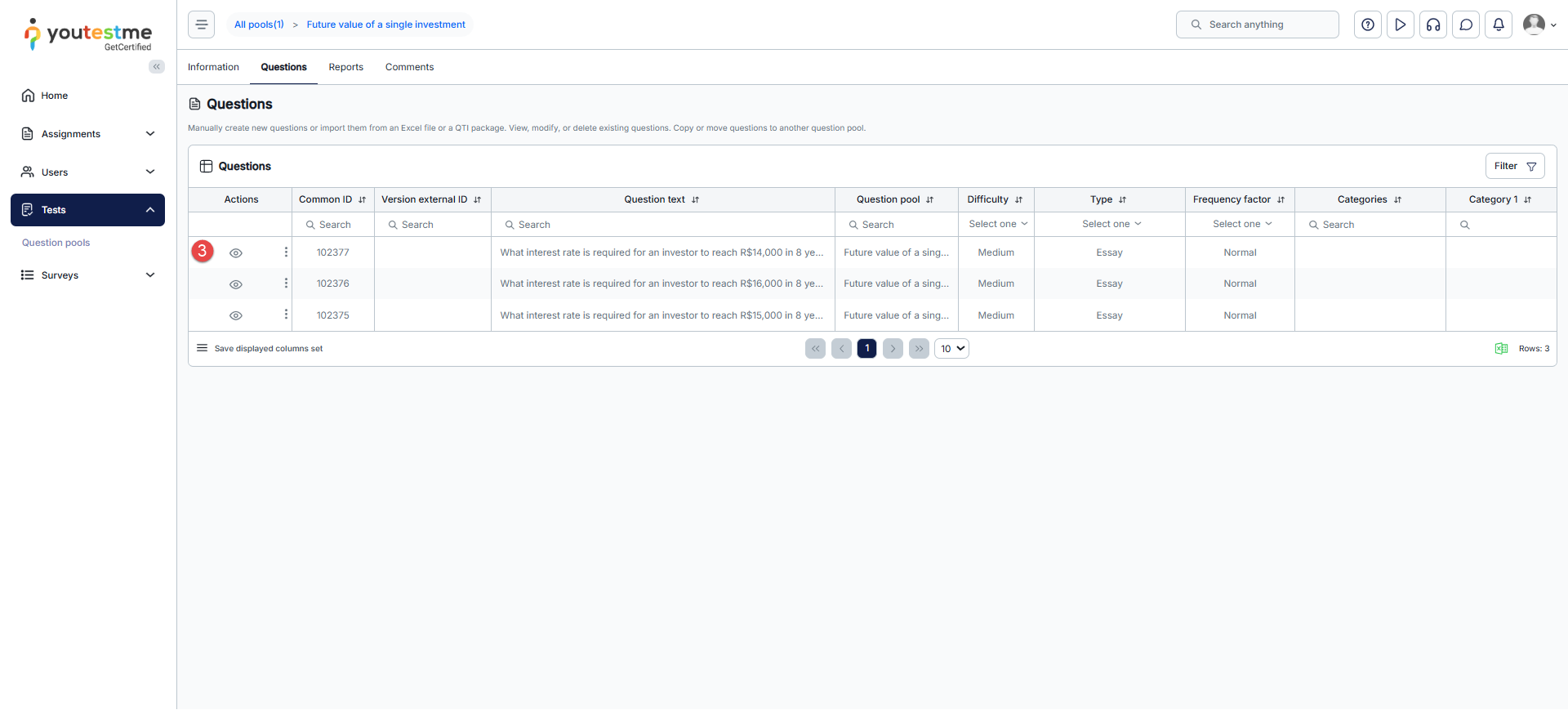
- Choose the specific question pool they wish to view.
- Within the question pool, they can only view information and preview questions. They won’t have permission to modify or manage any data.
For more related articles, please visit:




