
Article verified for Release 15.2 on January 26, 2026.
This article is about how to ensure candidates change their passwords regularly and understand the importance of doing so for the security of their accounts. Periodic password updates are a critical step in maintaining account security and preventing unauthorized access. On the YouTestMe platform, there are two main cases in which a candidate must change their password: when their account is locked or when their password expires.
- Case 1: When the Candidate is Locked Out
If a candidate’s account is locked, they will receive an email notification. To resolve this issue, the candidate should follow these steps:
- Navigate to the platform’s login page.
- Enter their old credentials (username and password).
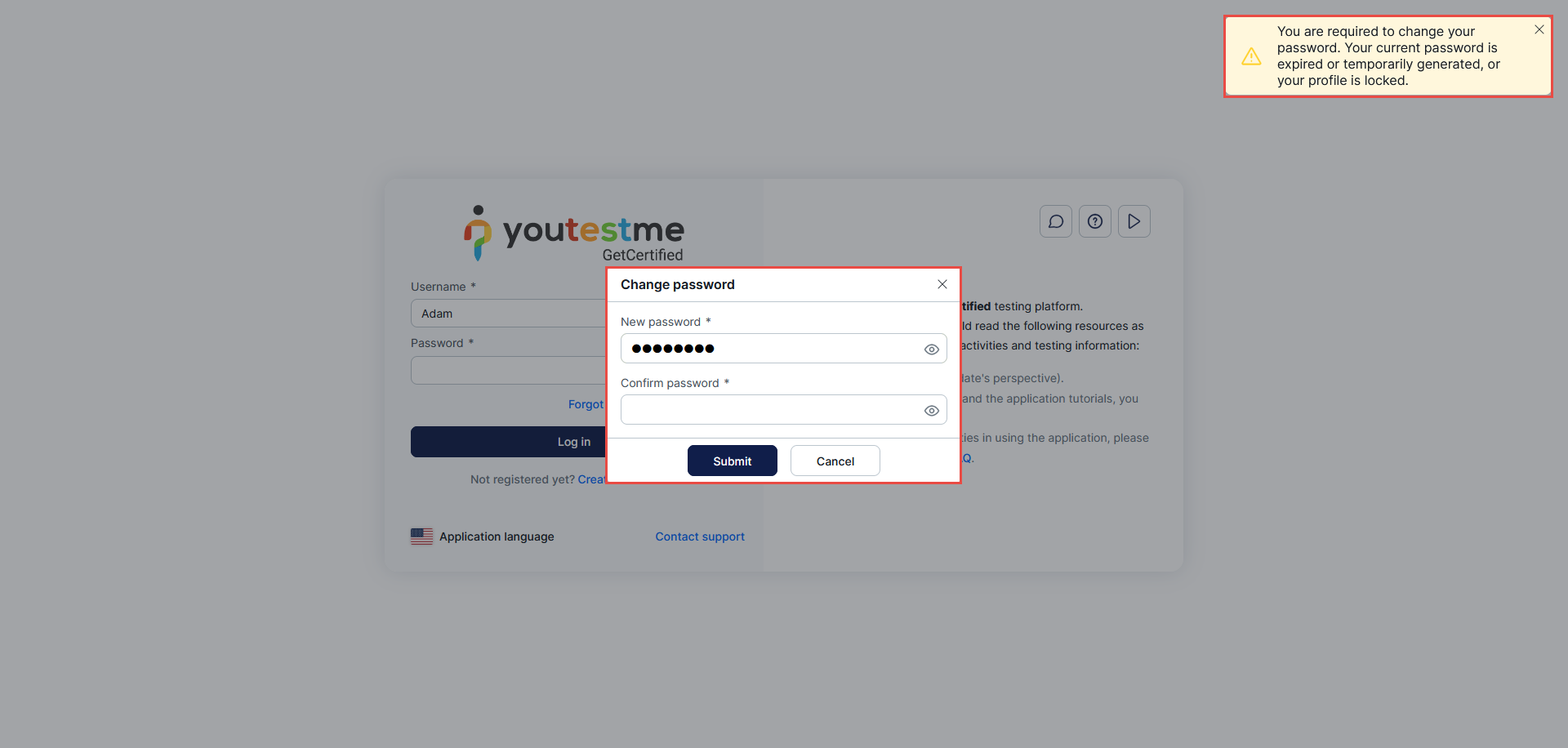
- A pop-up message will appear, indicating that their account is locked or their password has expired.
- The candidate will be prompted to enter a new password and confirm it.
- After the password update, the candidate will have access to their account.
For administrators who need to manually change a user’s status, refer to: How to change the user’s status .
- Case 2: When the Candidate’s Password Has Expired
When a candidate’s password expires, they will receive a similar pop-up notification when trying to log in. To proceed with updating their password:
- Navigate to the login page.
- Enter their old credentials (username and password).
- A warning message will appear, informing them that their password has expired and must be changed.
- The candidate will be prompted to enter a new password and confirm it.
- Once the password has been updated, the candidate will regain access to their account.
For more information on how to manage password changes and account security, please visit the following articles:




