The following guide walks you through the recommended workflow for using the Virtual Interview module. By following these steps, you will become familiar with the core functionality of the platform, from creating interviews to reviewing candidate evaluations.
Create an Interview
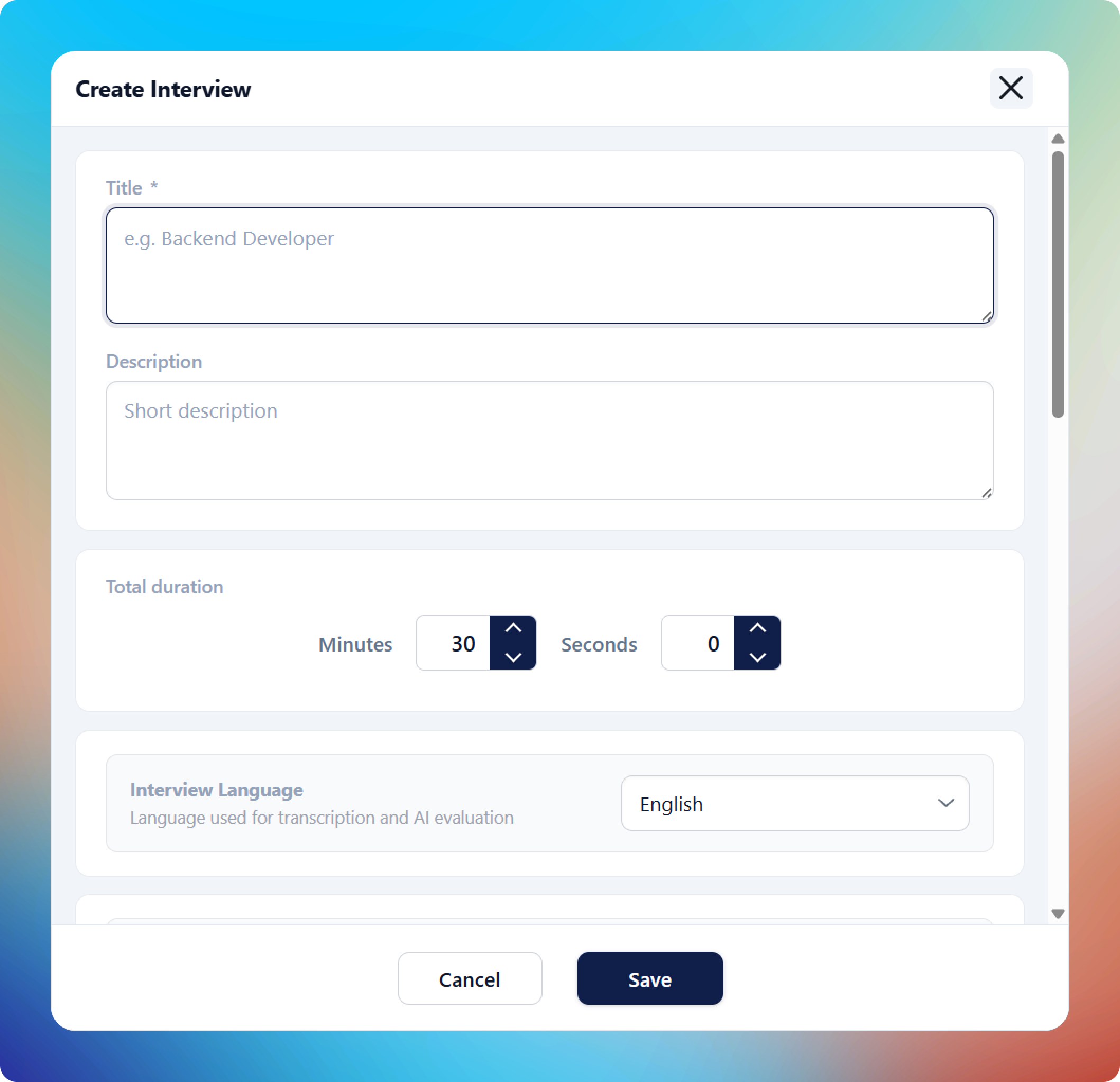
To create a new interview, navigate to the Interviews section and select Create Interview.
Begin by configuring the interview settings, including:
- Interview title
- Interview description
- Total interview duration
- Interview language
- Transcription language used for AI evaluation
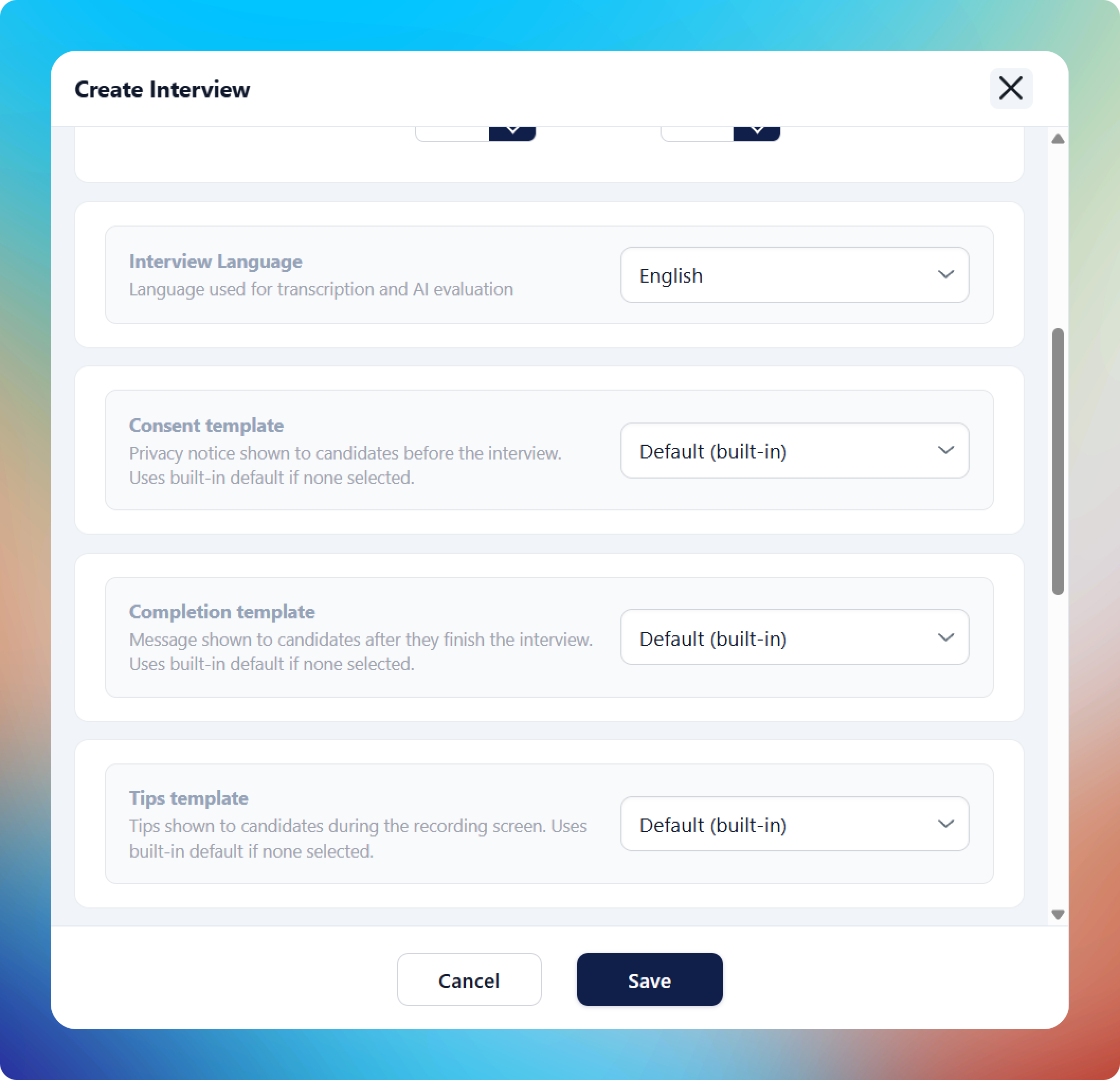
- Privacy notice shown to candidates before the interview
- Completion message shown after candidates finish the interview
- Candidate tips displayed on the recording screen
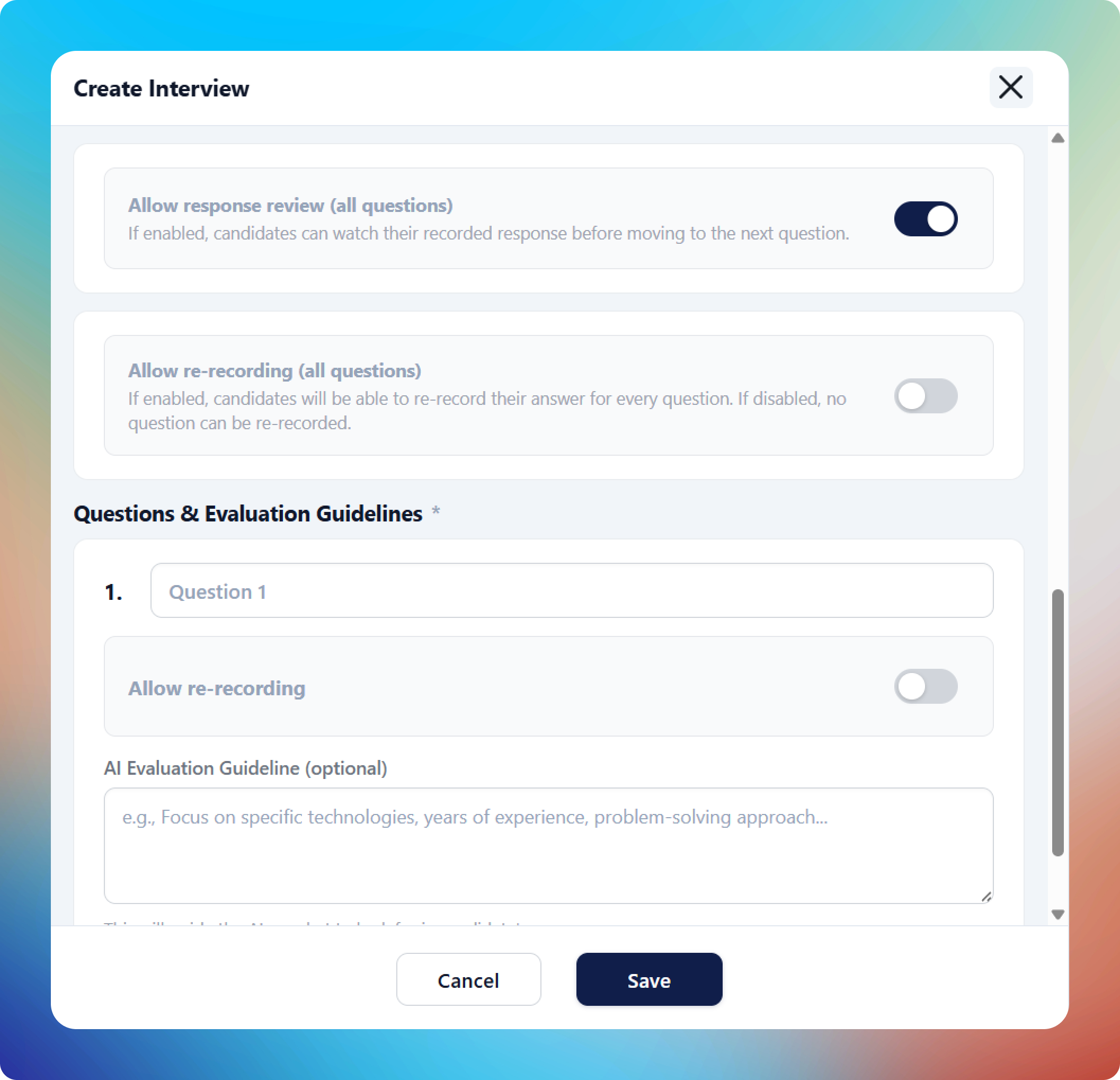
- Whether candidates can review their recorded responses
- Whether candidates can re-record their responses
Once the interview settings have been configured, proceed to add the interview questions. For each question, you can define the question content and optionally allow re-recording for that specific question.
You may also provide AI evaluation guidelines, which help guide the AI on what qualities, competencies, or information to look for when assessing candidate responses.
After all questions and evaluation guidelines have been added, click Save to create the interview.
Manage and Activate the Interview
After creating your interview, return to the dashboard and locate it in the interview list.
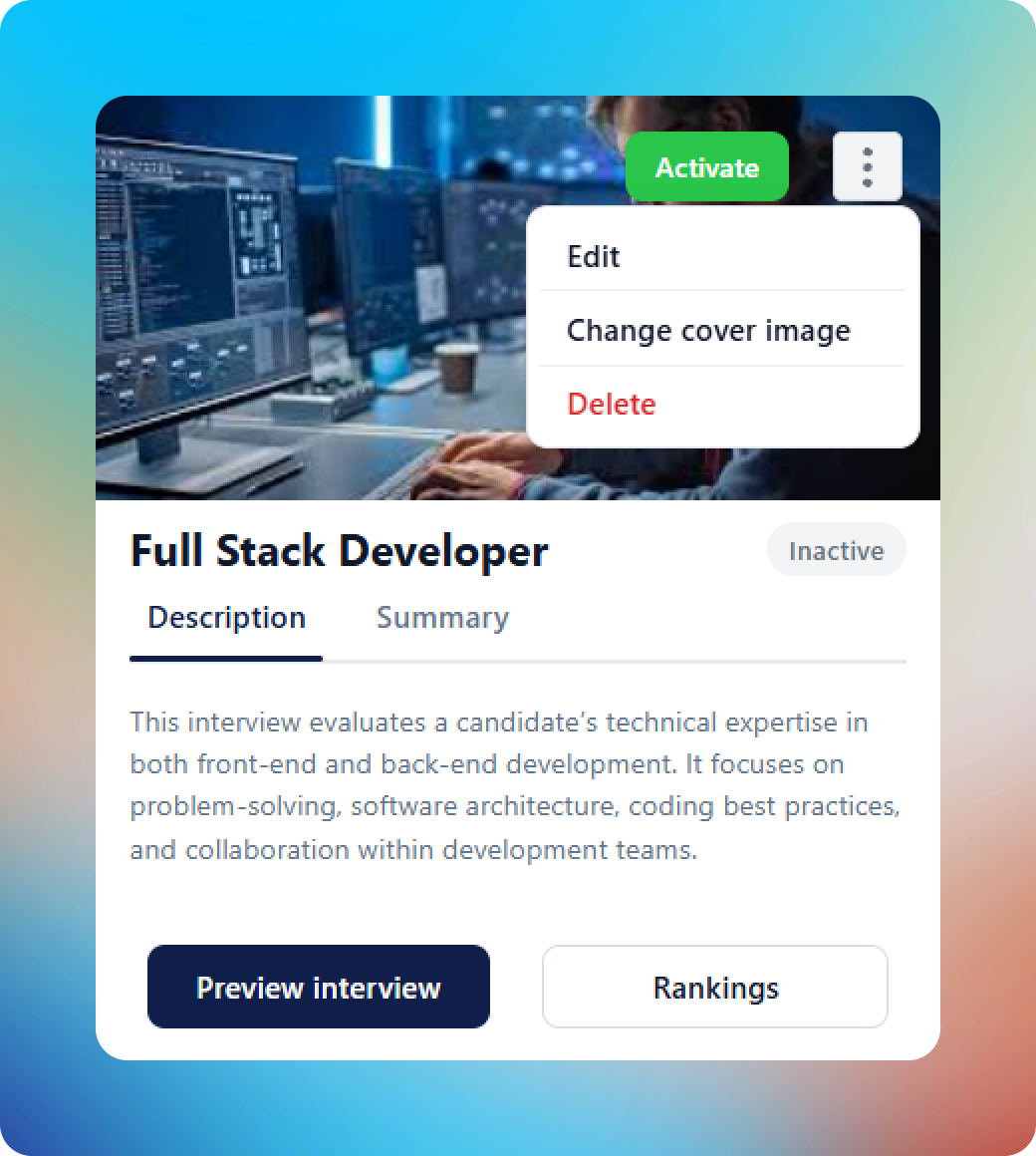
Use the filters in the upper-right corner of the dashboard to switch between active and inactive interviews.
From the interview actions menu, you can:
- Activate the interview
- Edit the interview configuration
- Change the interview cover page
- Deactivate the interview
- Delete the interview
To make the interview available to candidates, select Activate. Once activated, candidates can begin accessing and completing the interview.
Share the Interview with Candidates
After activating the interview, return to the interview dashboard and locate your interview.
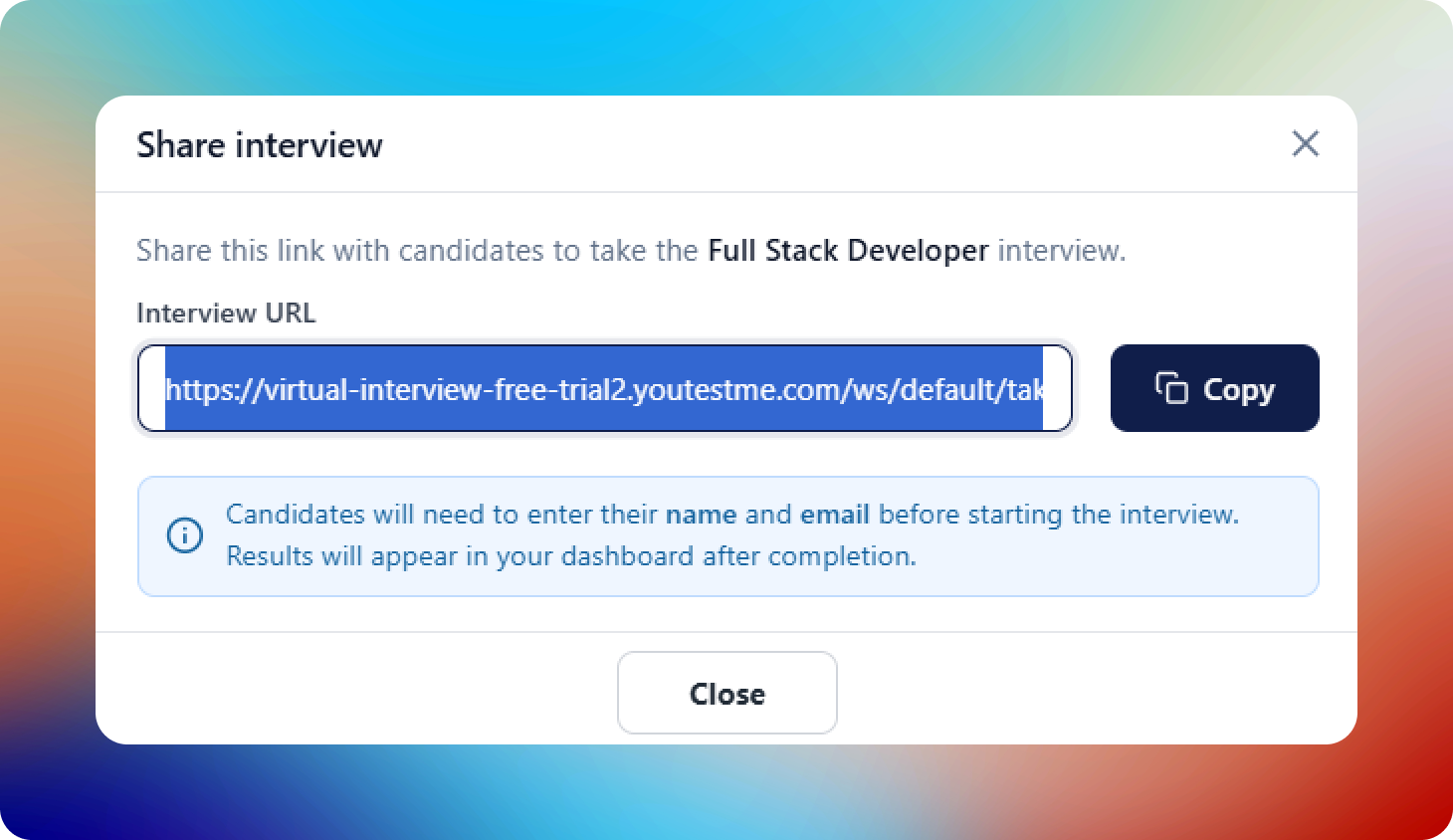
Select Share to open the sharing options. The platform will generate a candidate access link that can be copied using the Copy Link button.
Once copied, the link can be distributed to candidates through email, messaging applications, recruitment portals, or any other communication channel.
Candidates who receive the link can access the interview directly and begin the interview process using their web browser.
Complete the Interview as a Candidate
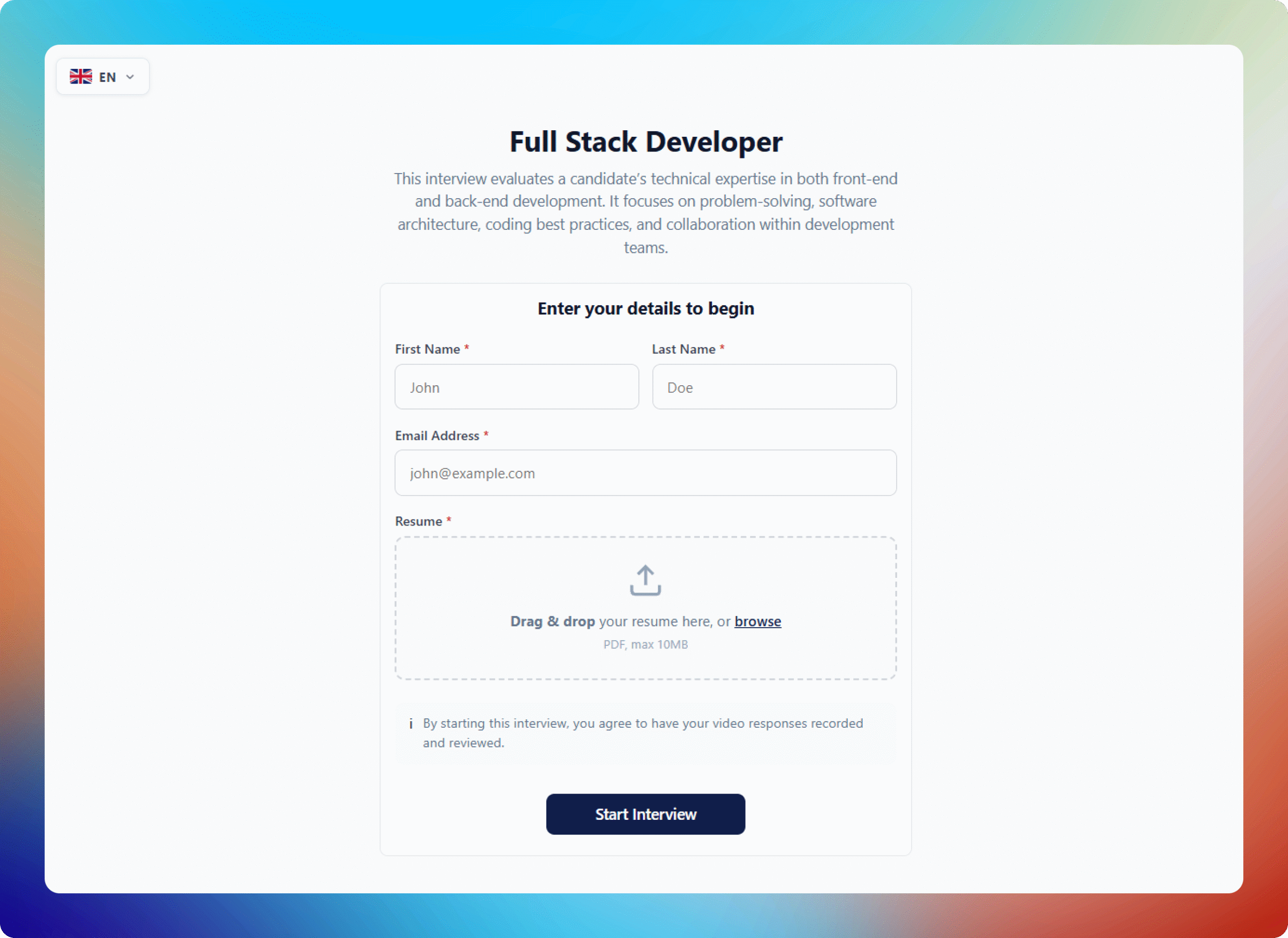
After copying the interview link, open the link in a separate browser window or an incognito/private browsing session to experience the interview from a candidate’s perspective.
As a candidate, you will:
- Review the introductory message and instructions
- Accept the recording and privacy notice
- Review any candidate tips provided by the administrator
- Record responses to the interview questions
- Retake or review recordings if those options were enabled
- Submit the completed interview
Alternatively, you can use the Preview Interview option available on the interview dashboard next to the Rankings button. This allows you to experience the interview workflow without needing to use a separate candidate access link.
Once the interview has been submitted, the platform automatically begins processing the responses and generating the evaluation results.
Review Interview Results
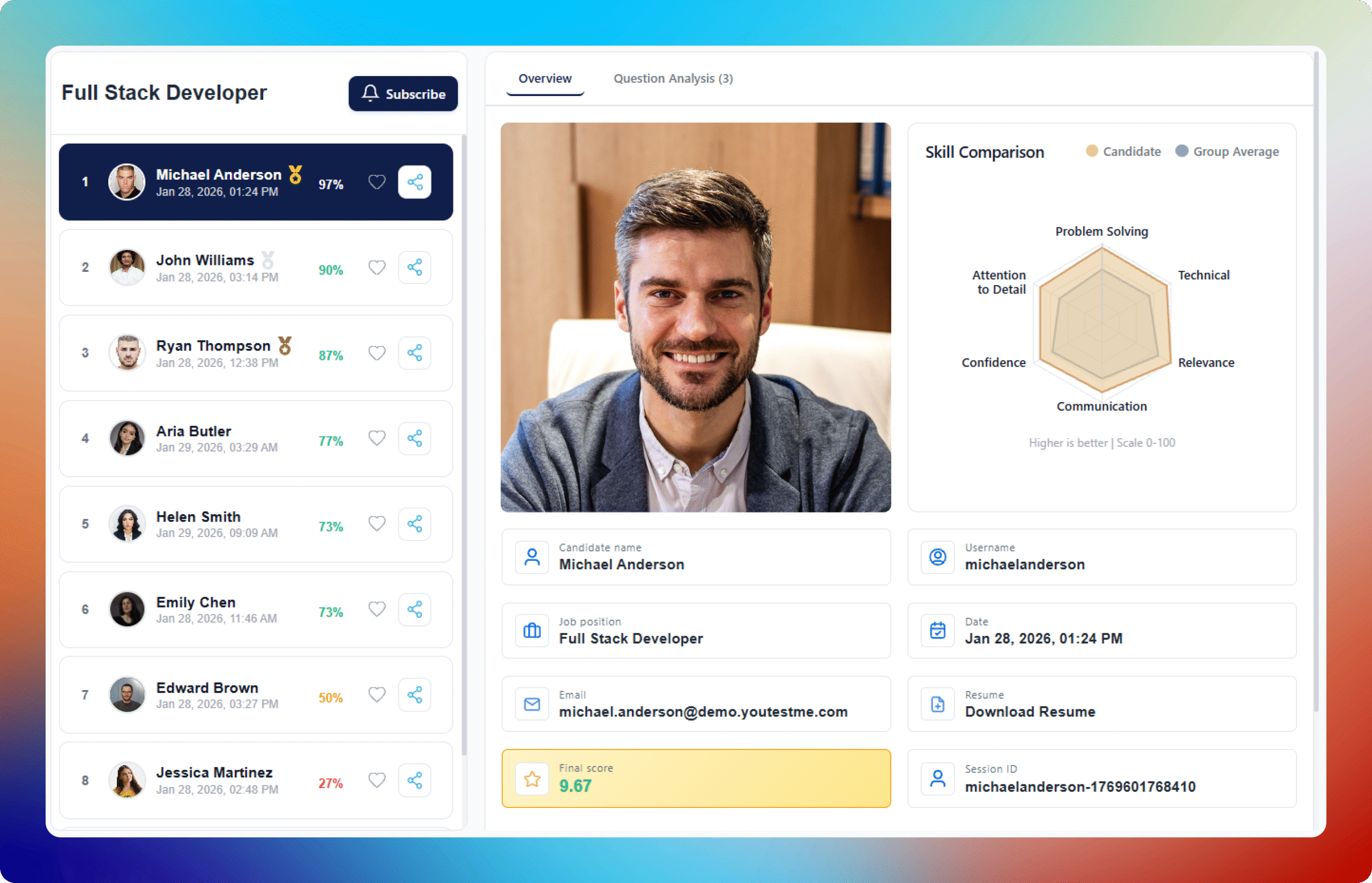
Once the interview has been completed and processed, return to the interview dashboard and open the Rankings section.
Here you can review all submitted candidate interviews and access:
- Candidate video recordings
- AI-generated transcripts
- Question-level scores and feedback
- Overall candidate evaluations
- Candidate rankings
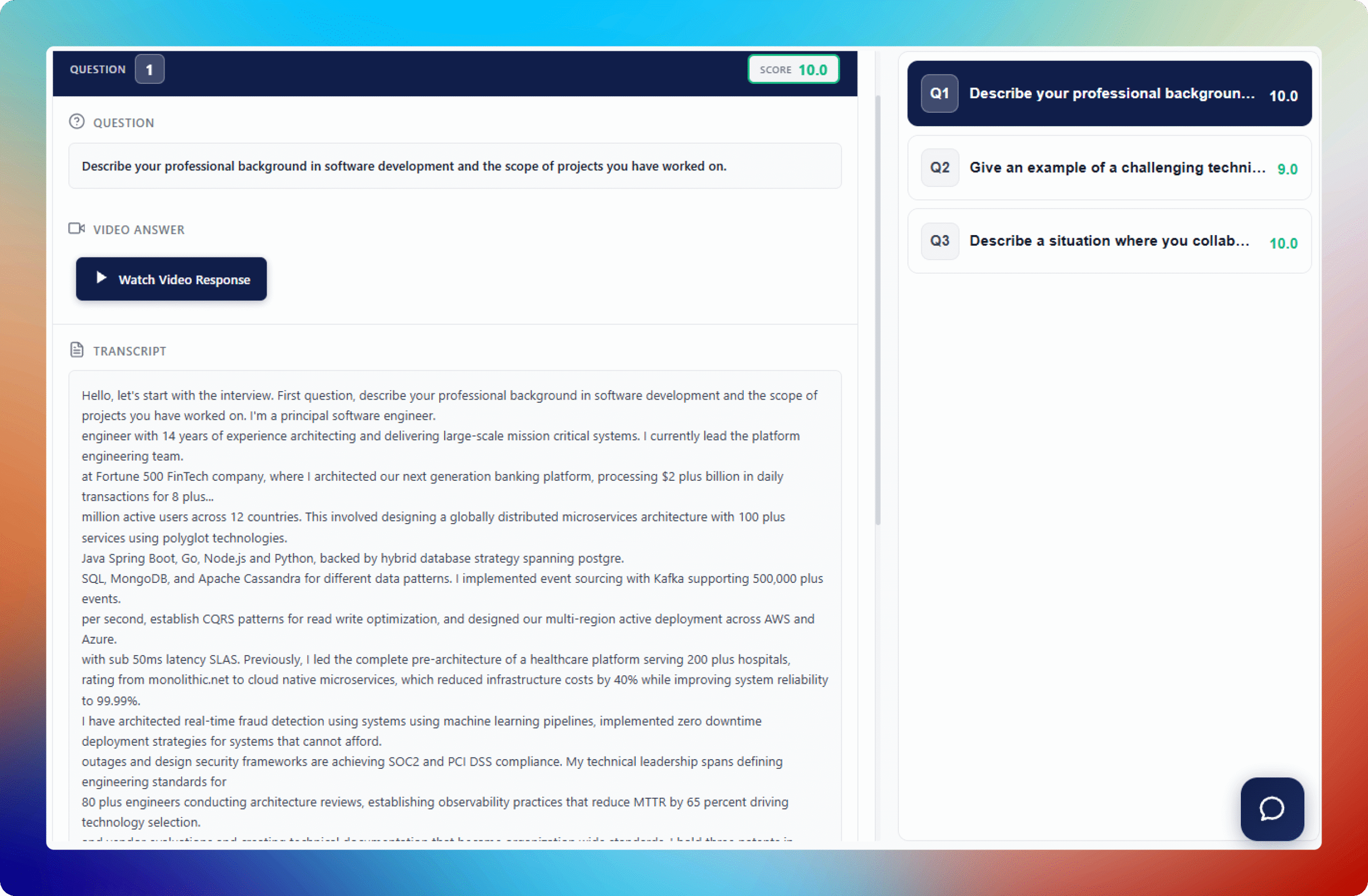
Selecting a candidate opens a detailed results view, allowing you to review individual responses, evaluation outcomes, and supporting information generated during the assessment process.
This section provides a complete overview of candidate performance and demonstrates the platform’s AI-assisted evaluation capabilities.
Select a candidate to open the detailed results view. Here you can review each video response, the corresponding transcript, and the AI-generated analysis and evaluation for each question.
This section provides a complete overview of candidate performance and demonstrates the platform’s AI-assisted evaluation capabilities.
Candidate Search by CV
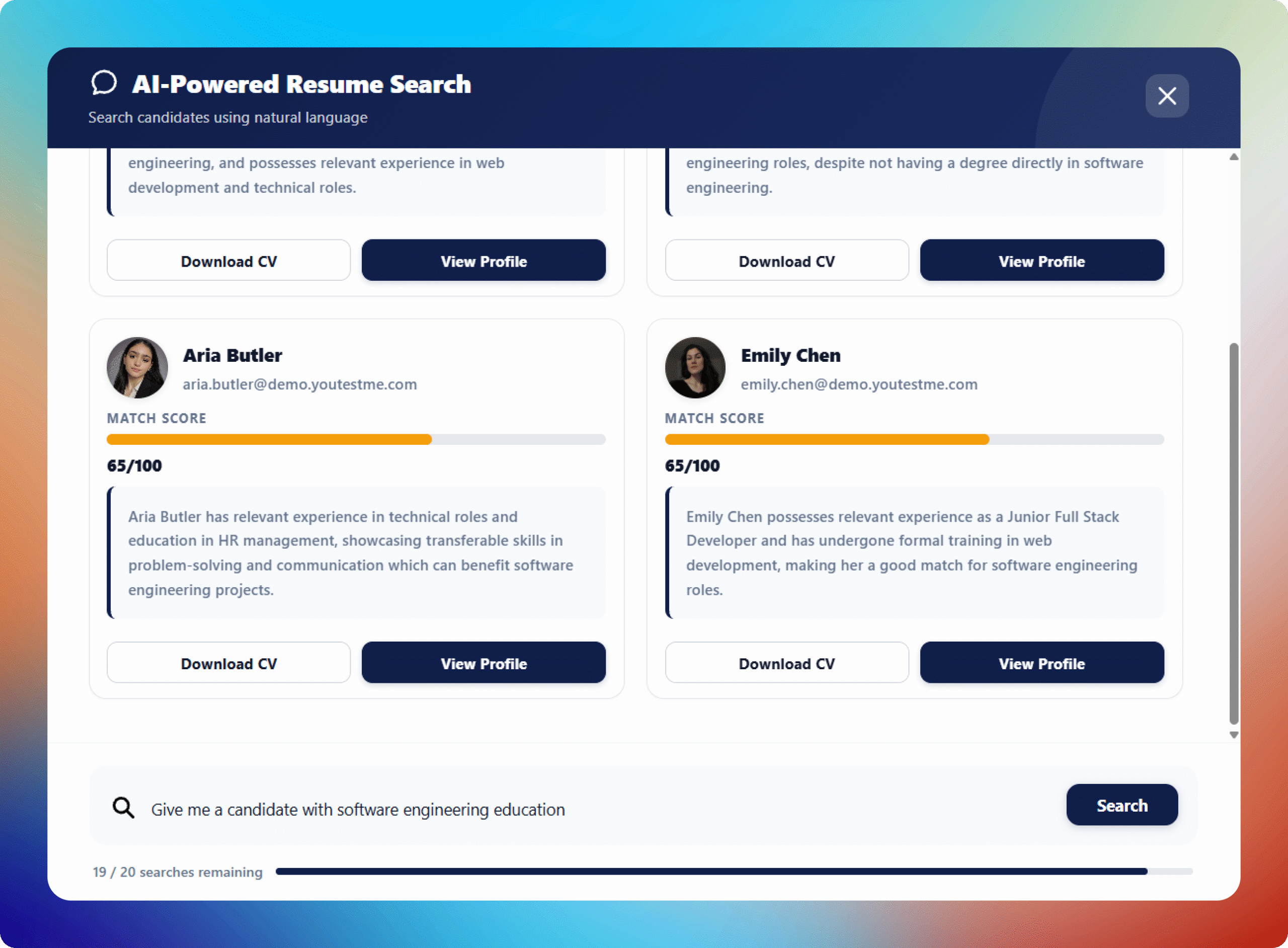
After reviewing interview results, locate the AI Assistant for CV Search using the chat button in the lower-right corner of the screen.
The platform allows you to:
- Search across uploaded CVs and candidate information
- Identify candidates with specific skills, experience, qualifications, or keywords
- Navigate directly to a candidate’s interview analysis and results
- Download candidate CVs for further review
This functionality helps recruiters quickly identify relevant candidates without manually reviewing large numbers of CVs and interview submissions.
Manage Users
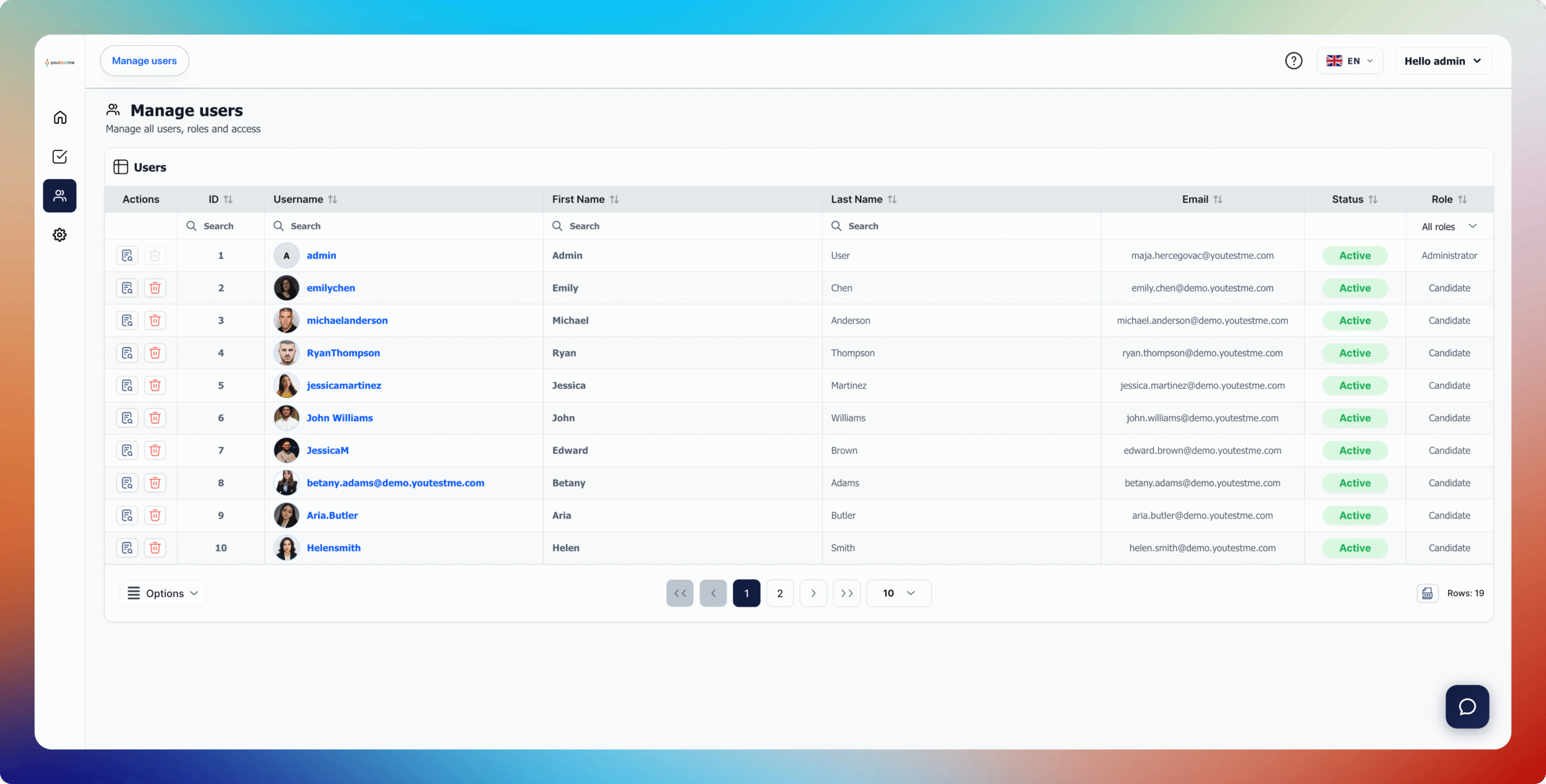
To add additional users to your workspace, navigate to the Manage Users section from the main navigation menu.
From here, you can:
- Invite additional administrators to collaborate within the workspace
- Add recruiters, reviewers, or other team members
- Create candidate accounts directly within the platform
- Manage existing user accounts and permissions
To add a new user, select Options in the lower-right corner of the screen and choose either Add Candidate or Add Admin. Enter the required information and save the record.
Administrators will receive an invitation to access the workspace, while candidates can be manually added to the platform when needed.
This functionality enables collaboration across multiple team members while also allowing administrators to manually manage candidate records within the system.
Select an LLM Model for AI Evaluation
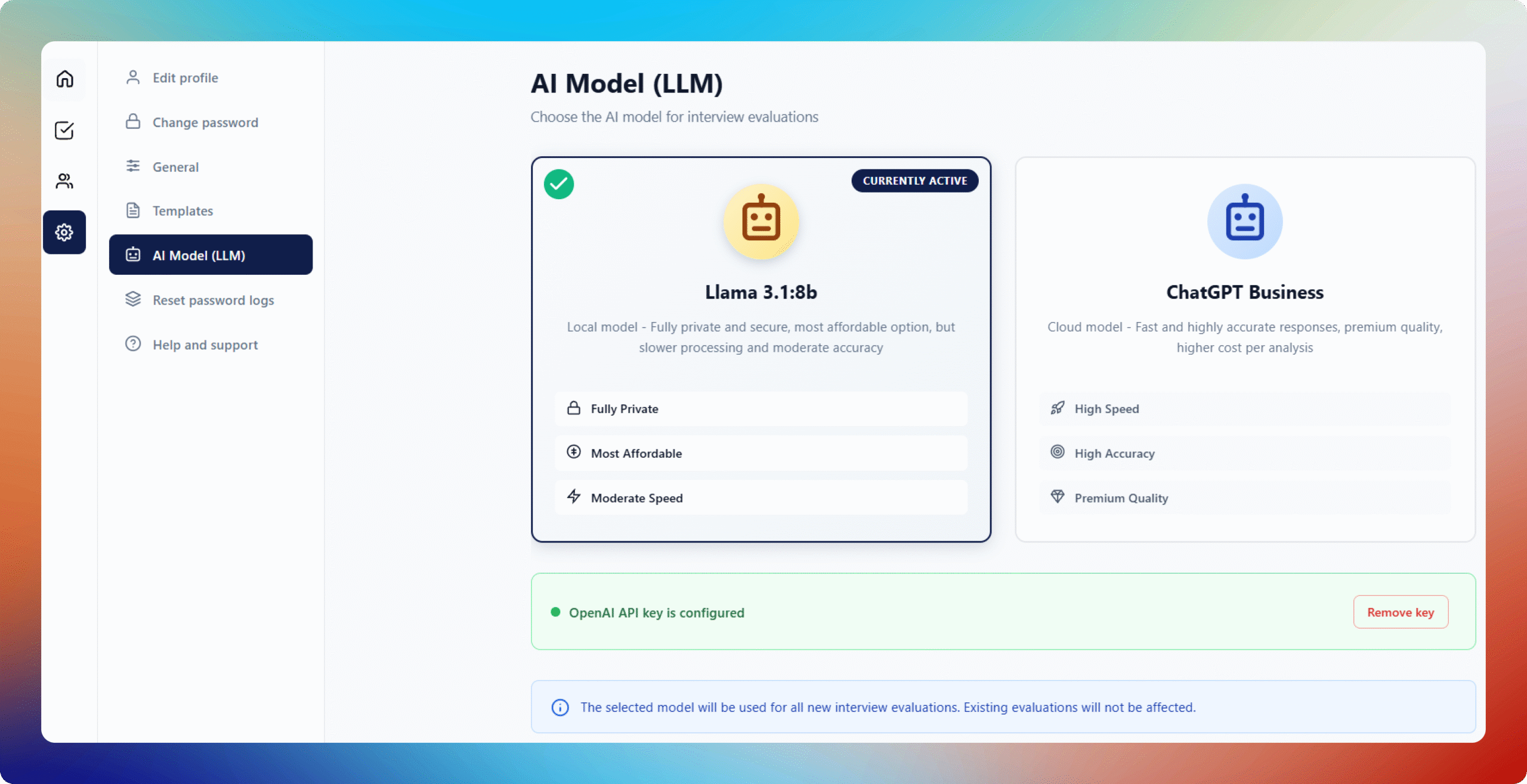
The platform supports multiple large language models (LLMs) for automated candidate evaluation.
Depending on your requirements, you can select the AI model used to analyze candidate responses and generate evaluations.
Supported options include:
- OpenAI models (ChatGPT)
- Open-source models hosted through Llama
This flexibility allows organizations to choose the AI model that best aligns with their evaluation methodology, performance requirements, and data governance preferences.
The selected AI model can be changed at any time, allowing you to compare evaluation outcomes across different models and assessment approaches.
Need Help?
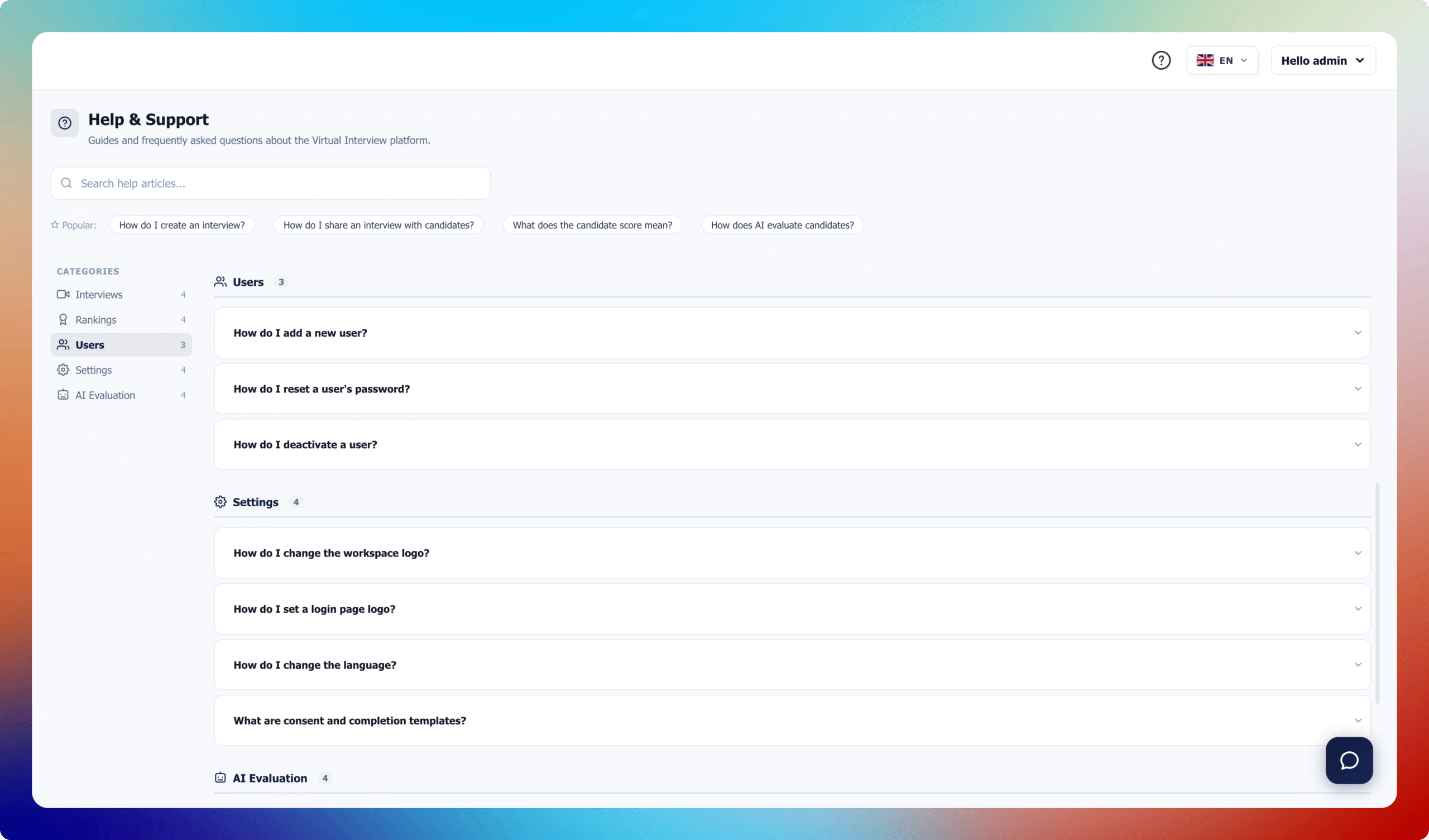
If you need assistance while exploring the platform, click the Help icon (question mark) located in the upper-right corner of the screen.
From there, you can access step-by-step help articles and user guides.