
Article verified for Release 16.1 on July 13, 2026.
This article explains how to use the question review process feature in YouTestMe. The question review process provides a structured workflow for creating, reviewing, and publishing questions, ensuring quality control before questions are made available for use in tests.
The process involves two key roles:
- Editor: Creates and manages questions, initiates the review process, and publishes the final version.
- Reviewer: Reviews questions submitted by editors, provides comments, and can suggest revised versions.
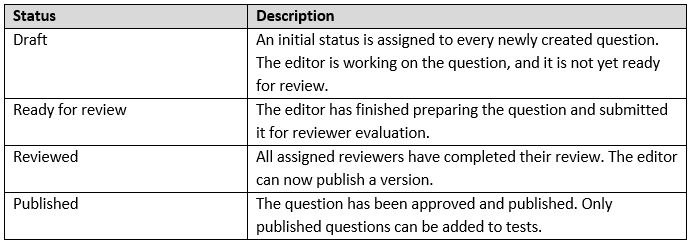
The Question review process introduces five question statuses that control the lifecycle of each question. Only questions in Published status can be used in tests.
Enabling the question review process
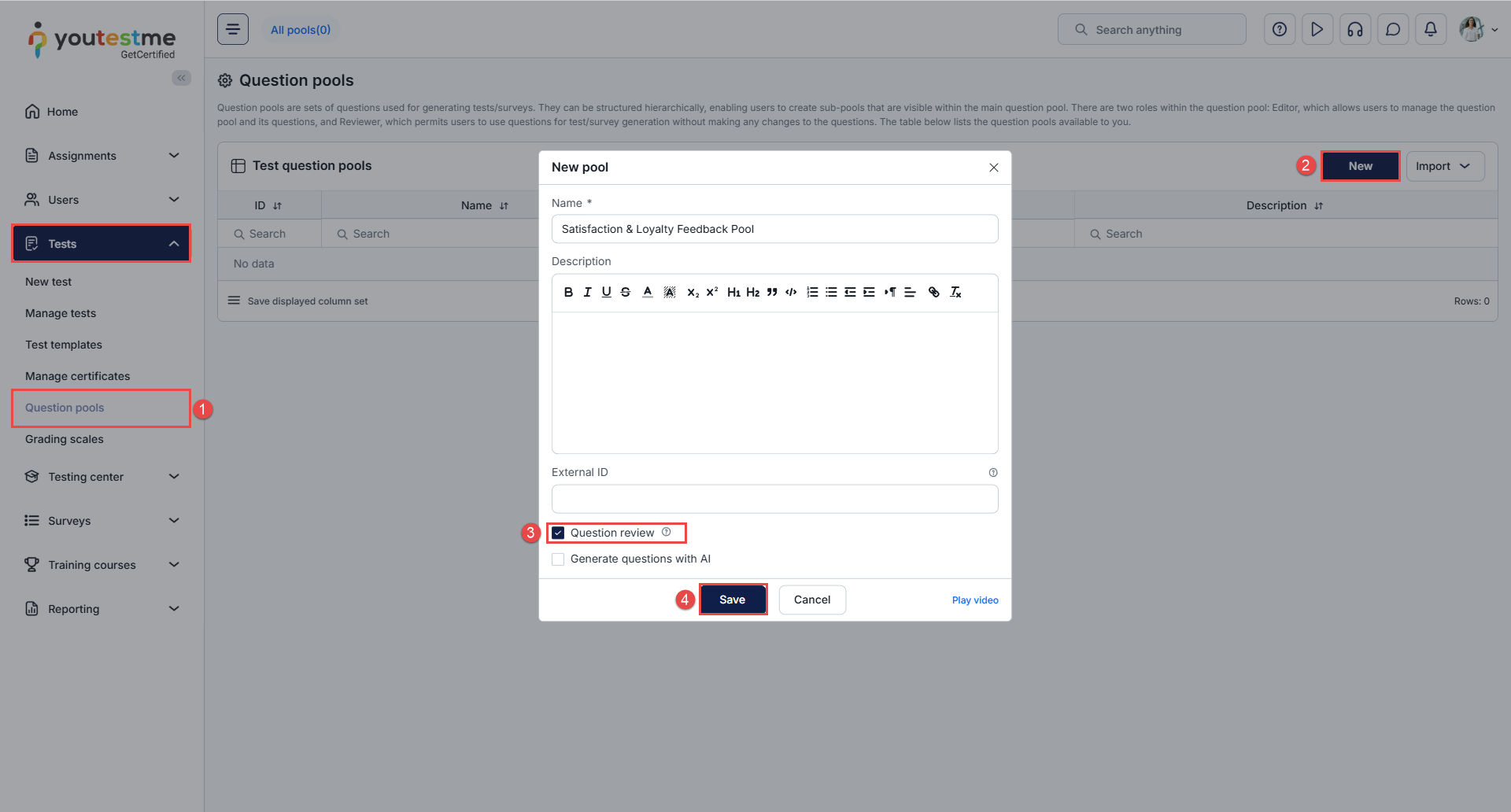
The Question review process is enabled at the question pool level. To enable it:
- Navigate to Tests > Question Pools.
- Create a new question pool by clicking New.
- Enable the Question review option.
- Click Save.
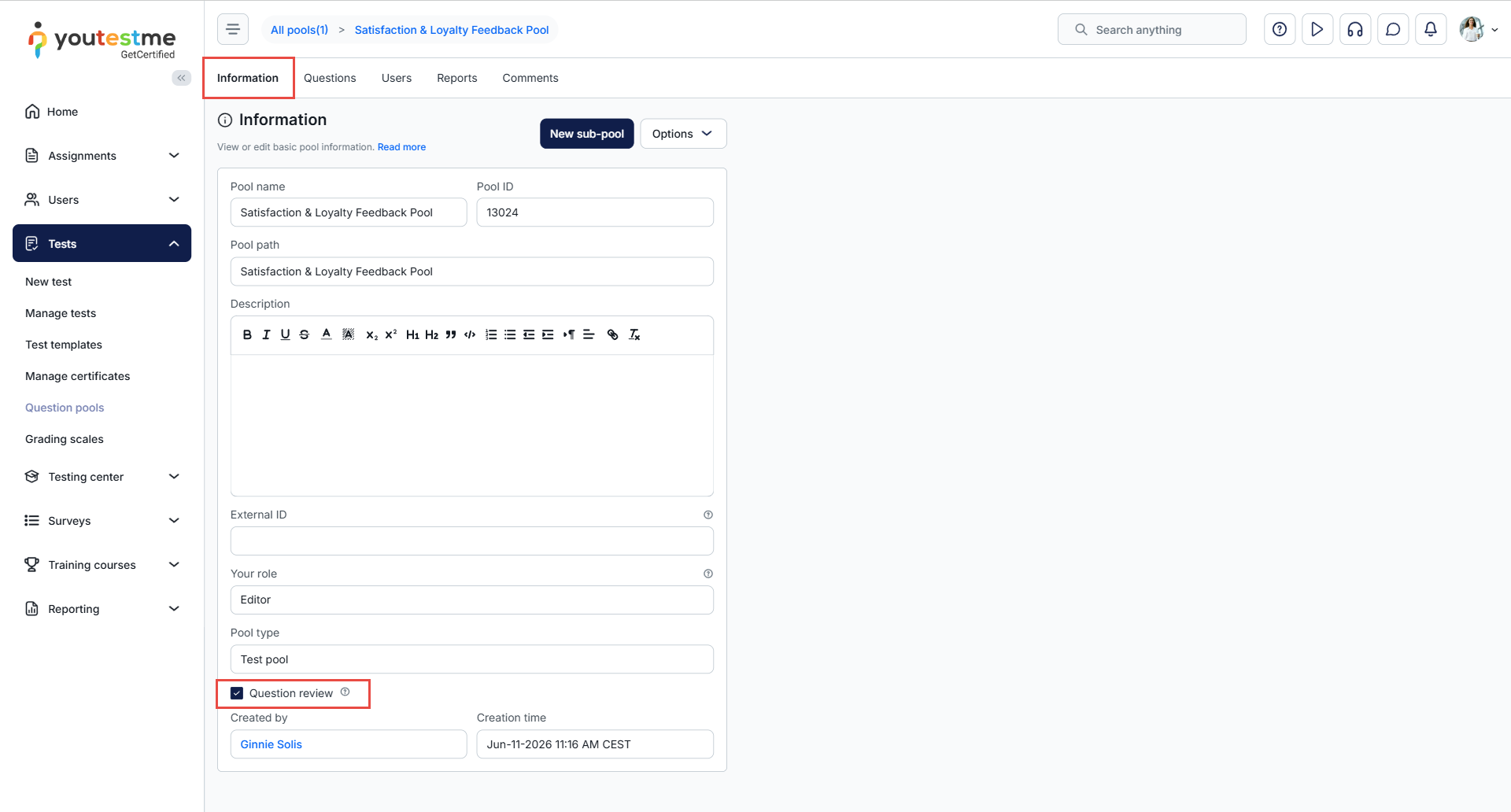
Note: The Question review option can also be enabled on existing pools at any time via the Information tab.
Note: When copying an existing question pool, the Question review option is not carried over to the copy. It must be manually enabled on the duplicated question pool if required.
Assigning user roles
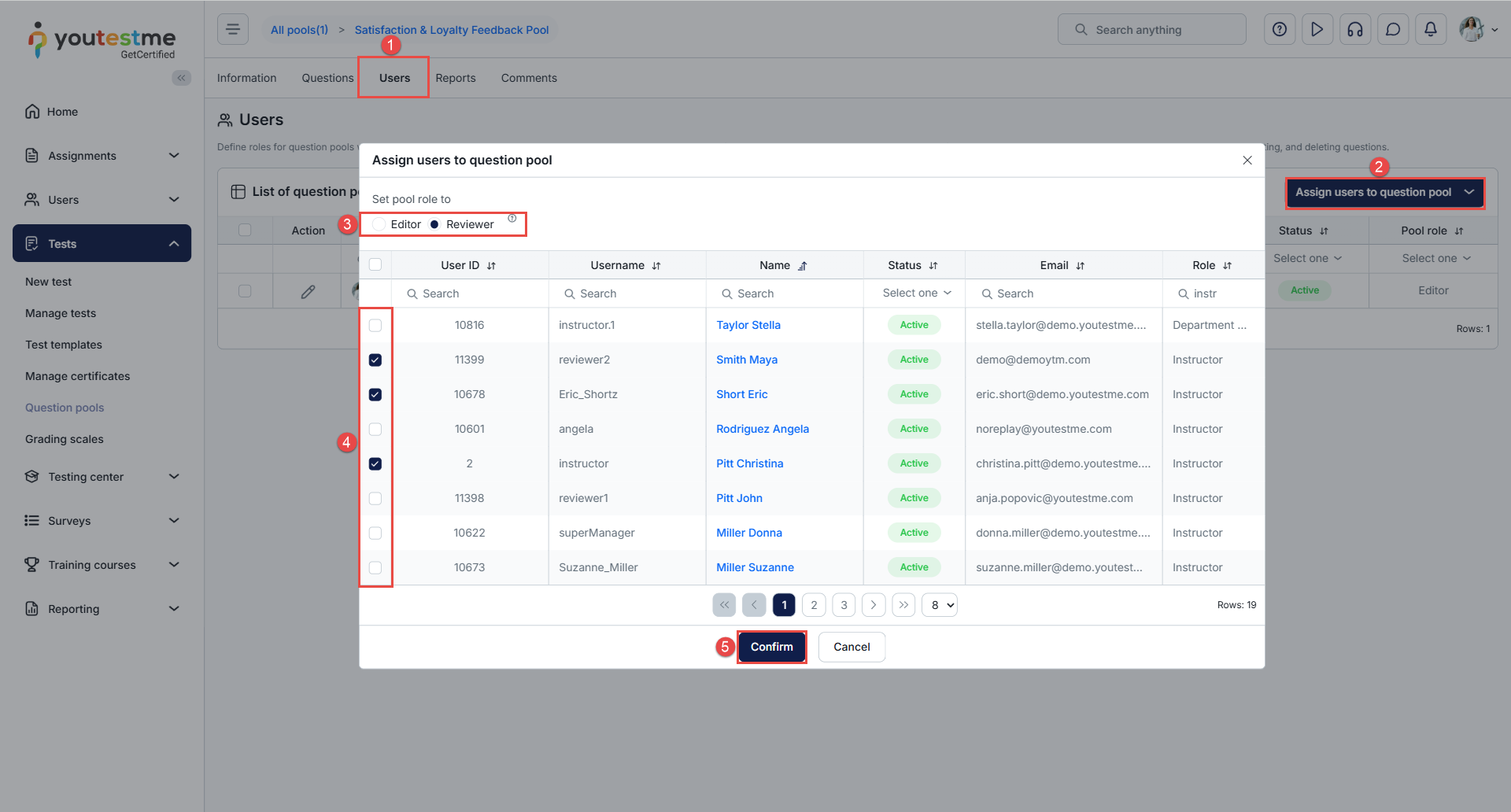
To assign users as reviewers to a question pool:
- Navigate to the Users tab of the question pool.
- Click on the Assign user to question pool dropdown.
- Set the question pool role to Reviewer/Editor.
- Bulk add users by selecting them.
- Click the Confirm button.
Note: As an editor, you are automatically assigned to any question pool you create.
Note: When assigning users to a question pool, the default role selection is set to Reviewer. Editors are assigned less frequently and can be selected from the same dropdown.
Question review process
Step 1: Editor creates questions
After creating questions in a question pool with the review process enabled:
- Navigate to the Questions tab.
- Create questions by clicking Add new question or by importing them. For more information, refer to this article.
- The default status for new questions is Draft.
- When the questions are ready for evaluation, select them and use the status dropdown to change it to Ready for review.
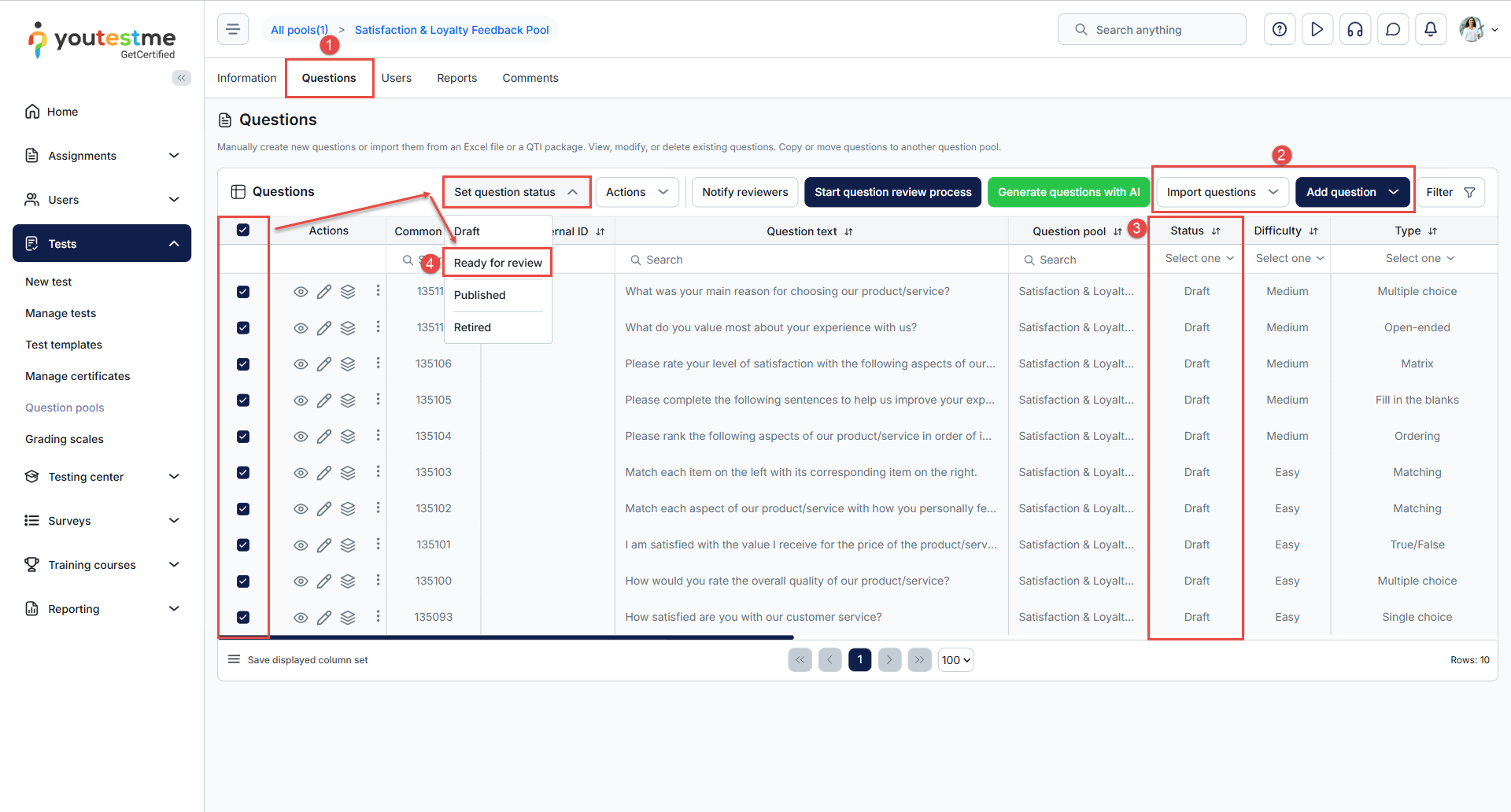
Step 2: Notifying reviewers
Once the editor has finished marking questions as Ready for review, they must manually trigger reviewer notifications:
- In the Questions tab, click Notify reviewers.
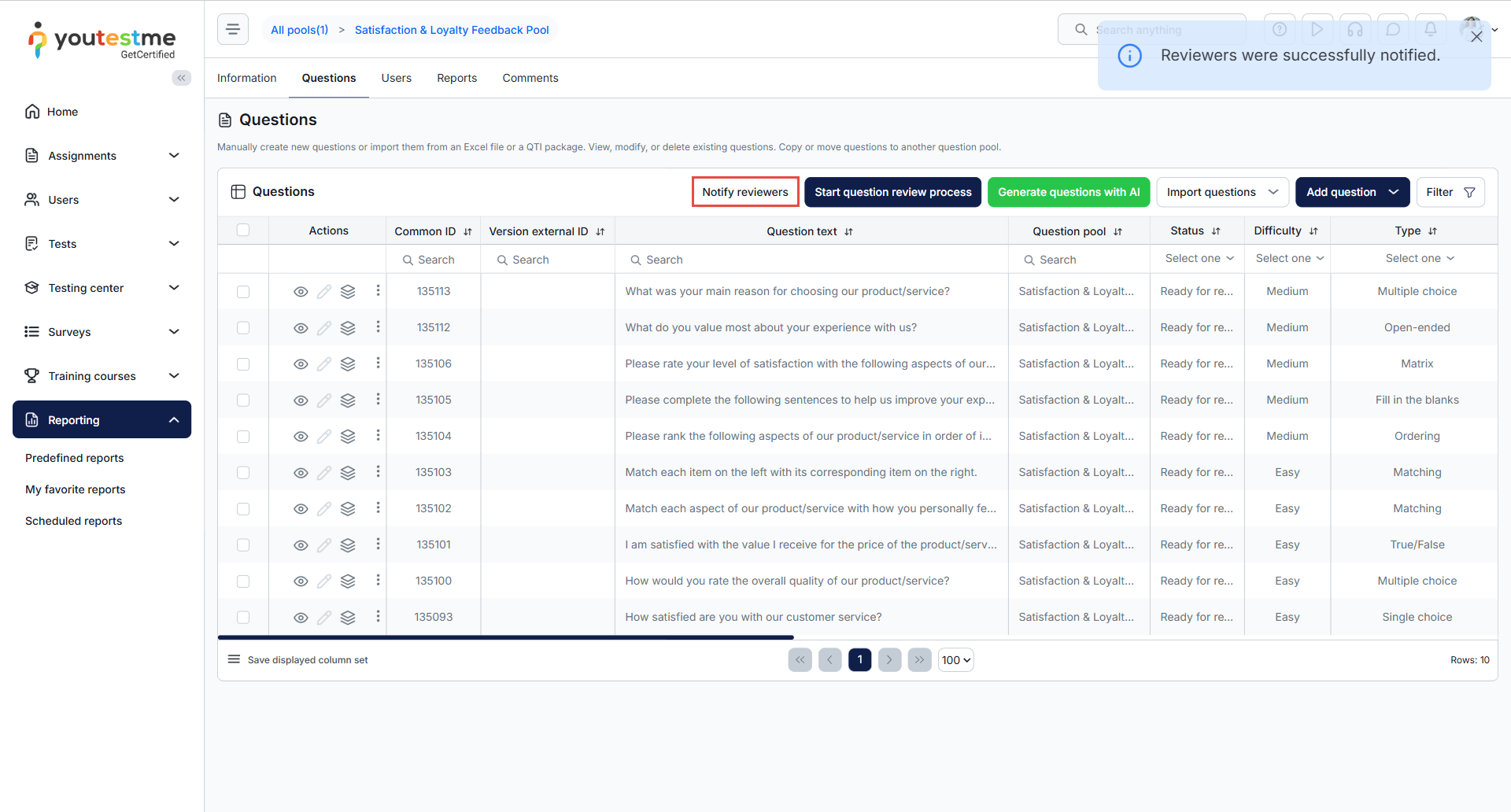
This is a manual action — since questions can be marked as Ready for review one by one, the editor decides when to send the notification, whether after completing a full cycle or at any other point they see fit. This prevents reviewers from receiving excessive notifications throughout the editing process.
Reviewers will receive an email notification with a direct link to the question pool, where they can immediately access and review the submitted questions.
Step 3: Reviewer actions
To begin reviewing questions, the reviewer should open the question pool using the direct link in the notification email, then click Start question review process in the Questions tab.
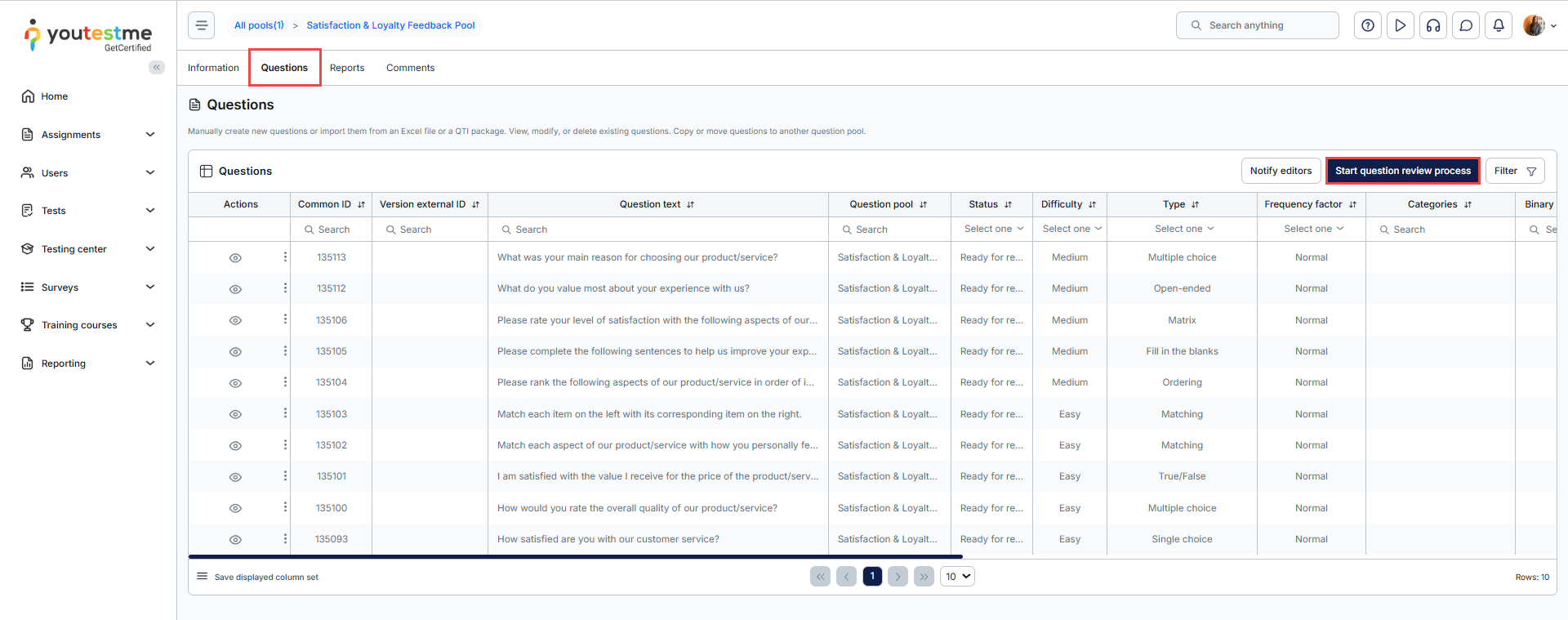
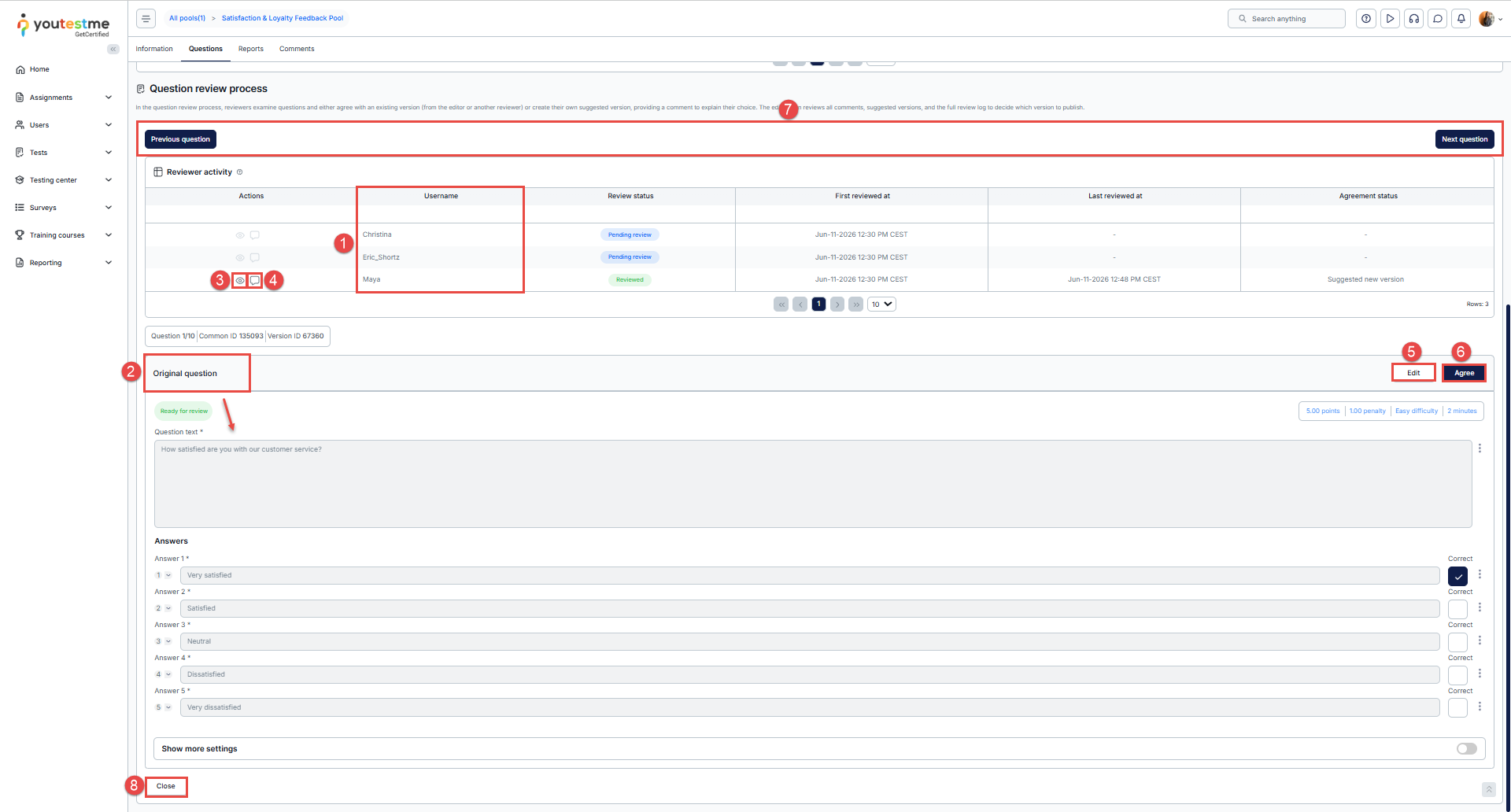
Additional options will appear below the question table. Within the review interface, a reviewer can:
- View the list of users assigned to review the question.
- See the original version of the question.
- View a version suggested by another reviewer (using the Eye icon).
- Read comments provided by other reviewers.
- Edit the question to suggest their own version.
- Agree with the currently displayed version.
Note: If the reviewer is currently viewing the original version, clicking this button will approve it. If the reviewer is viewing a version submitted by another reviewer, clicking this button will approve that version instead. - Switch between questions that have a Ready for review status.
- Close the question review process.
Agreeing with a version
If the reviewer agrees with the displayed version:
- Select the Agree button.
- A dialog will appear requiring a comment explaining the decision. Enter the comment.
- Click Save to complete the action.
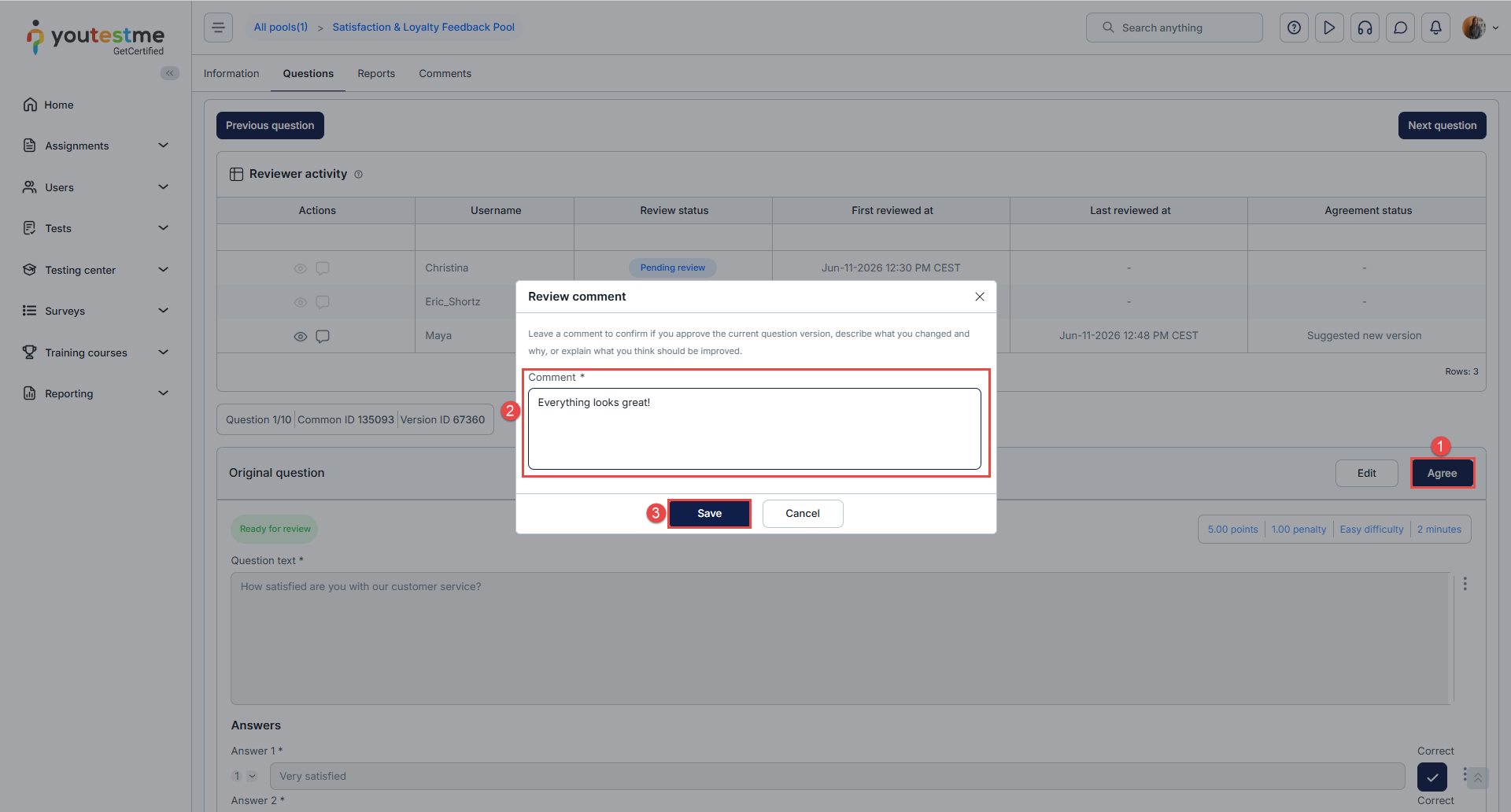
Note: Once a reviewer agrees with a version, that decision cannot be changed.
Suggesting a new version
If the reviewer does not agree with any existing version and wishes to propose their own:
- Select the Edit option.
- The question will become editable, with additional options available (translations, categories, hints, etc.).
- Once satisfied with the changes, select Save.
- A comment is required explaining what was changed and why.
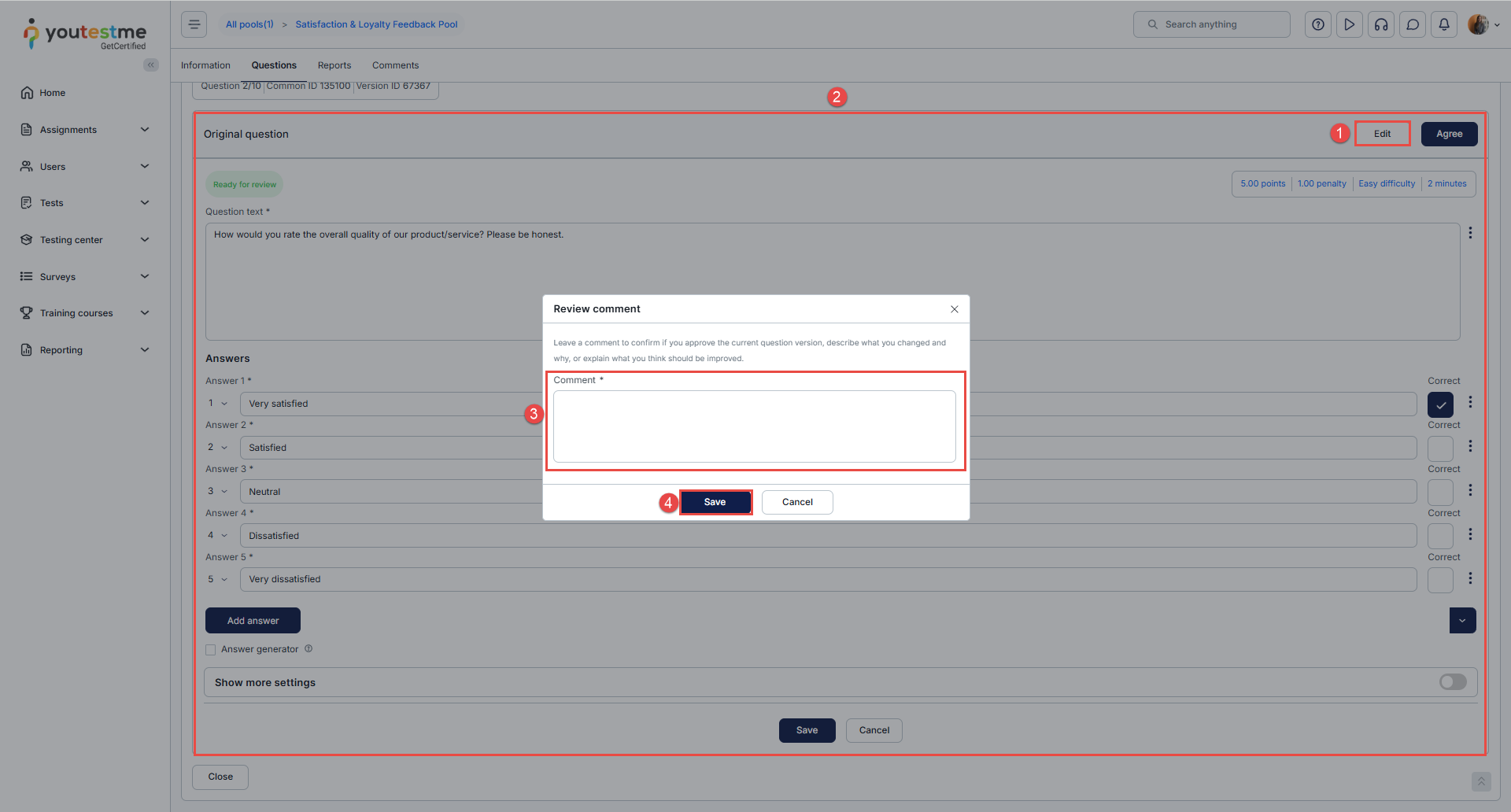
Note: After saving a suggested version, that reviewer can no longer make further changes.
Editing a comment
Reviewers can edit their comments while the review process is still in progress (i.e., while at least one other reviewer has not yet completed their review):
- Locate the question for which you want to modify the comment.
- Select the comment icon.
- Make the necessary changes and click Save.
Note:The last reviewer to complete the review cannot edit their comment, since submitting the review finalizes the process. Once the review process is finalized, no comments can be modified.
Step 4: Editor finalizes and publishes
Once all assigned reviewers have completed their review, the question status automatically changes to Reviewed, and the editor receives an automatic email notification informing them that the review is complete. The email includes a direct link to the question pool, allowing the editor to proceed immediately with finalizing and publishing the reviewed questions.
To finalize a question, the editor opens the review process for the question pool and chooses one of the following actions.
Publishing an original version
The editor can publish the original version or a reviewer-suggested version:
- Review each reviewer’s status and comments:
- Suggested new version – The reviewer proposed their own version.
- Agreed with editor (username) – The reviewer approved the editor’s original version.
- Agreed with reviewer (username) – The reviewer approved another reviewer’s suggested version.
- Use the View option to inspect any suggested version.
- Use Revert to original to view the original version.
- Select Publish next to the preferred version, then click Yes in the pop-up.
Note: The question status will change to Published once the action is confirmed.
Publishing a reviewer’s version
The editor can approve the reviewer’s suggestion.
- Within the review process, click the Eye icon to view the reviewer’s version.
- Click Publish.
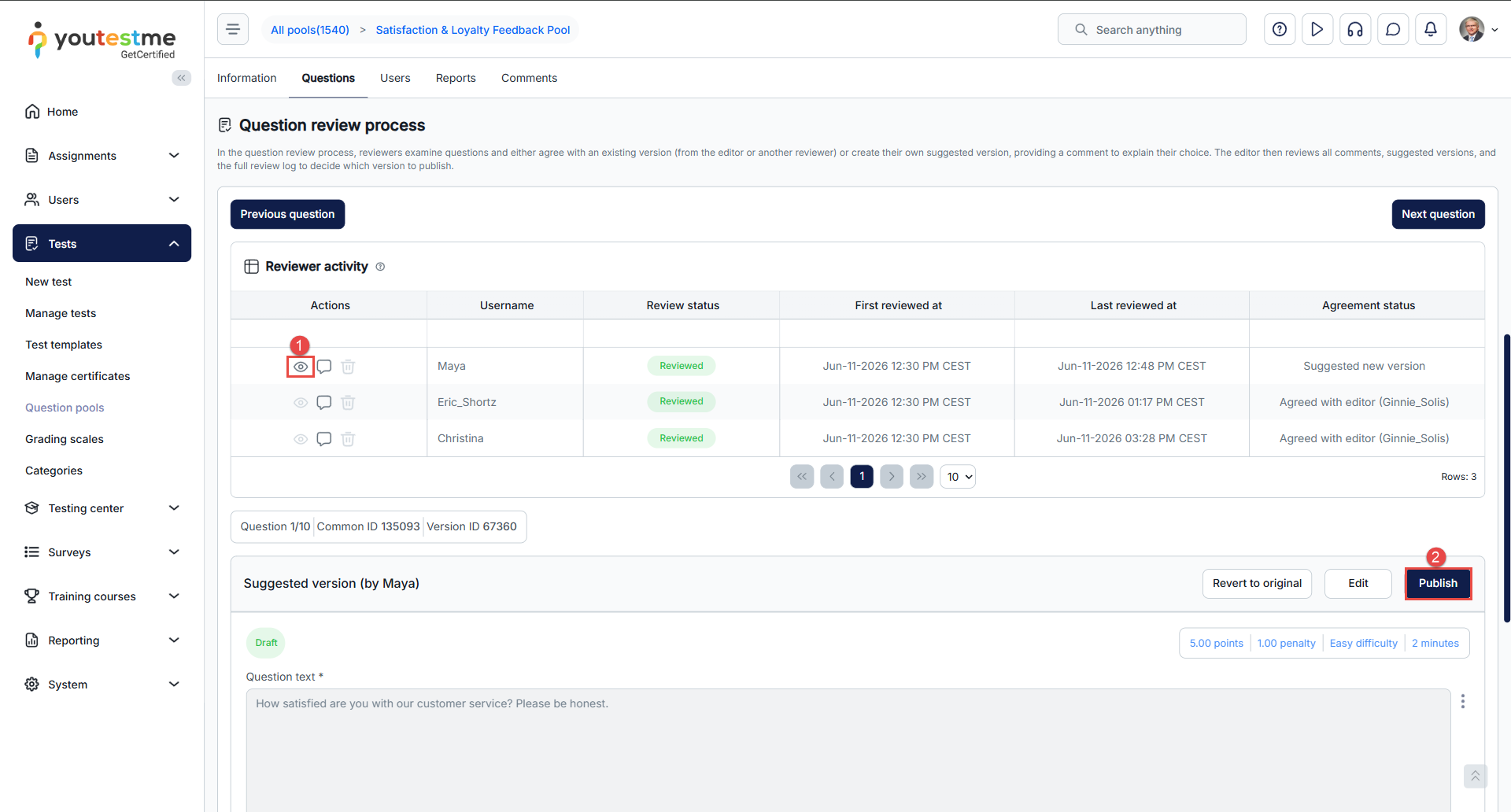
Editing and publishing the desired version
The editor can modify the original version or a reviewer’s suggested version before publishing, without re-initiating the review process:
- Within the review process, click Edit next to the version you want to modify and make the necessary changes, then save them.
- Click Publish.
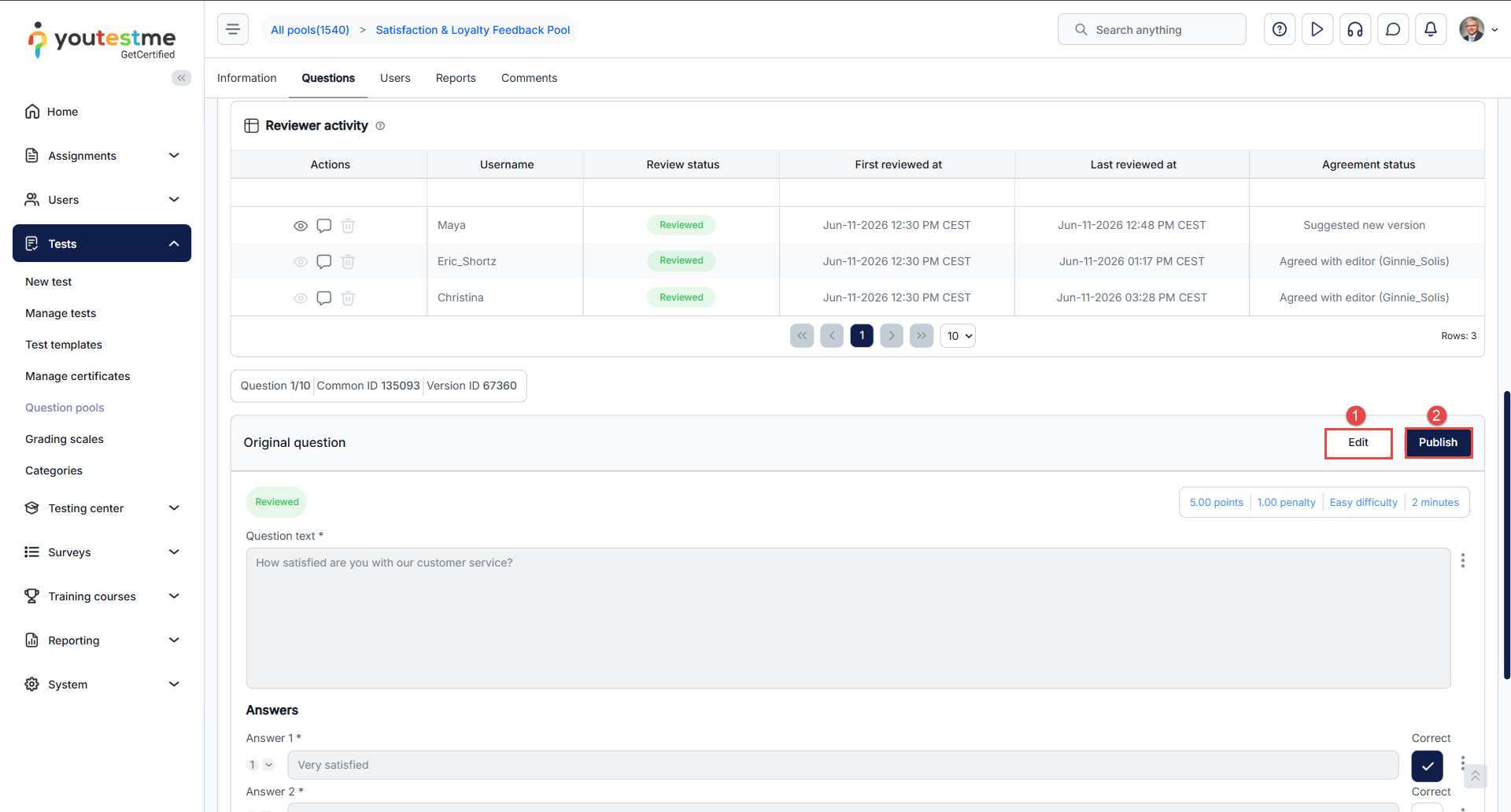
Returning a question for a second review round
If the editor is not satisfied with any of the reviewed versions and wishes to send the question back for another round of review:
- Select Edit next to the desired question.
- Click the pencil icon next to the current status.
- Open the status dropdown and select Ready for review.
- Click to Notify reviewers.
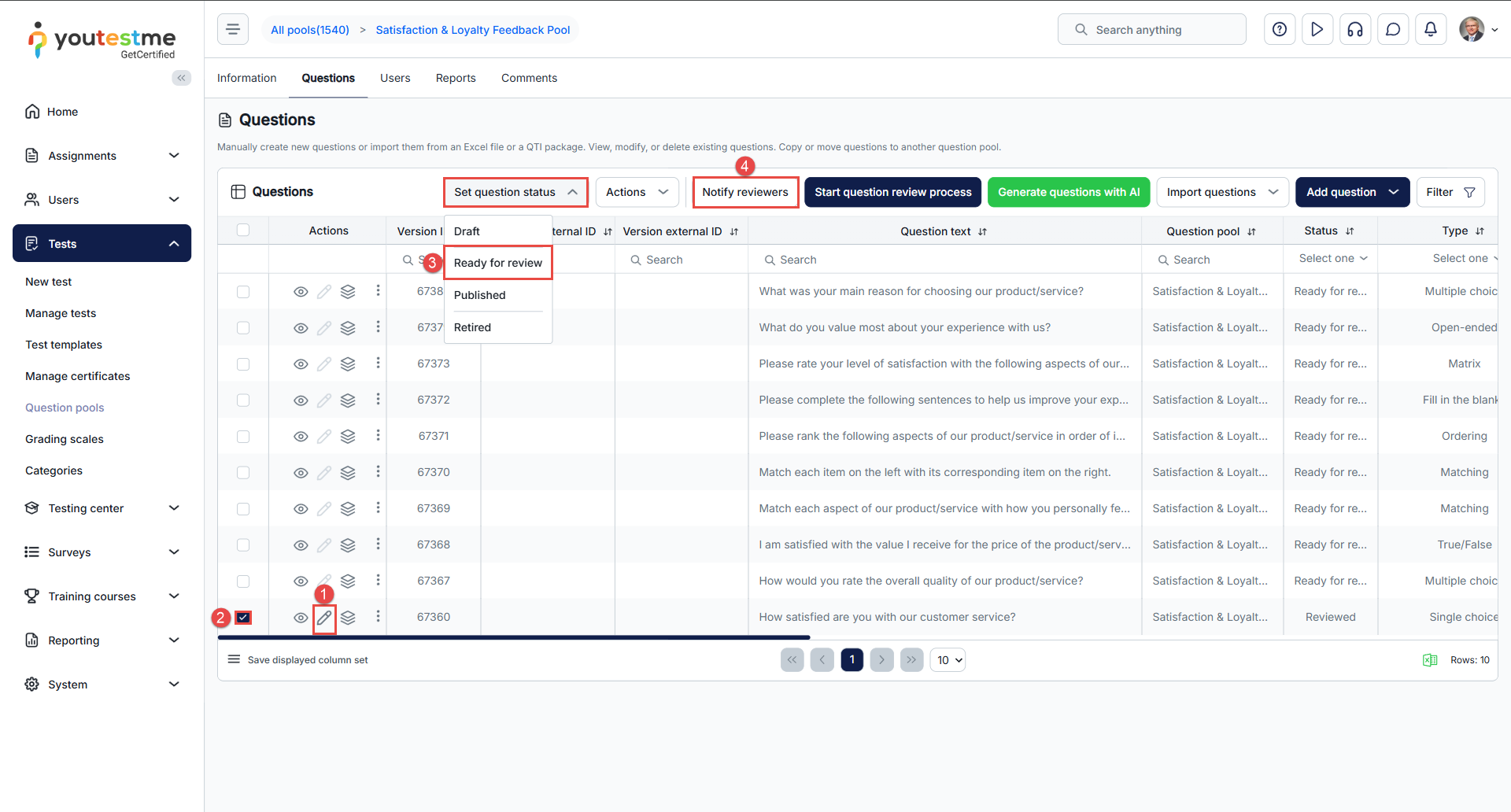
This action initiates a new review cycle and automatically reassigns the questions to the existing reviewers in the question pool.
Notifications
Configuring notifications
Before notifications can be sent to reviewers and editors, the relevant notifications must be enabled and configured in the system:
- Navigate to System > Settings and Customization.
- Open the Notifications tab.
- Locate the following notifications:
- Questions ready for review
- Questions reviewed
- For each notification, configure the application notification (displayed inside the platform) and/or the email notification.
- Select Edit to customize the message content.
Editing a notification template
When editing a notification template, a pop-up window allows customization of both application and email content:
- Choose the Template language for the notification.
- Set the Notification title (used as the subject line for email notifications).
- Review the list of available variables. Variables must be written in $variable$ format and must not be modified.
- Enter the desired notification text using the available variables.
- Click Restore to default to revert to the system’s default message if needed.
- Click Save to store the changes.
Note: Incorrect variable formatting (e.g., missing $ signs) will produce an error when saving.
Handling incomplete reviews
If a reviewer is unable to complete the review (for example, due to illness or unavailability), the editor can remove them from the question to prevent the review process from being blocked:
- Locate the reviewer in the Users tab and select it.
- Click on the Removed selected.
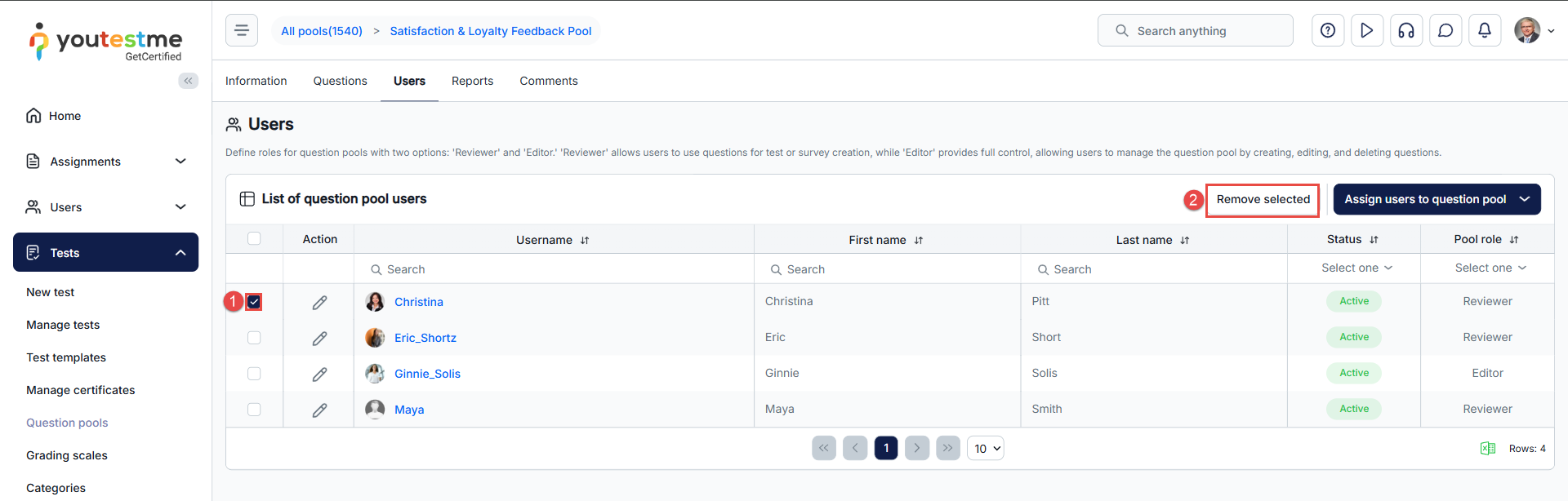
Once the remaining reviewers have completed their reviews, the question will automatically transition to the Reviewed status.
Conclusion
The Question review process in YouTestMe provides a structured, auditable workflow for ensuring question quality before publication. By involving dedicated editors and reviewers with clearly defined roles, status transitions, and notification mechanisms, the feature supports collaborative content development with full traceability.




