
Article verified for Release 15.1 on September 20, 2025.
This article explains how to create a Generated Test, allowing you to produce either a limited or unlimited number of test versions.
The Generated Test feature automatically creates unique question sets for each candidate based on configurable rules. Questions are organized into pools by topic or knowledge area, and you can define the number of questions drawn from each pool to match your desired test structure.
Creating a Generated Test
To create a Generated Test, follow these steps:
- Navigate to the Tests section and select New Test.
- Complete the first steps of the test creation wizard. For detailed instructions on these steps, please refer to the following article.
-
In the Method step of the wizard, choose how you want the system to generate the questions for your test:
-
Automated test generator selects questions – by category
-
Automated test generator selects questions – by difficulty
-

Important: The two automated test generation methods use different question selection criteria. The By Difficulty method selects questions based on difficulty level, while the By Category method selects questions based on category conditions. You cannot combine difficulty and category conditions within the same generation method.
Generate tests based on question difficulty
Once this method is selected, follow these steps:
In the Add Questions step of the wizard:
-
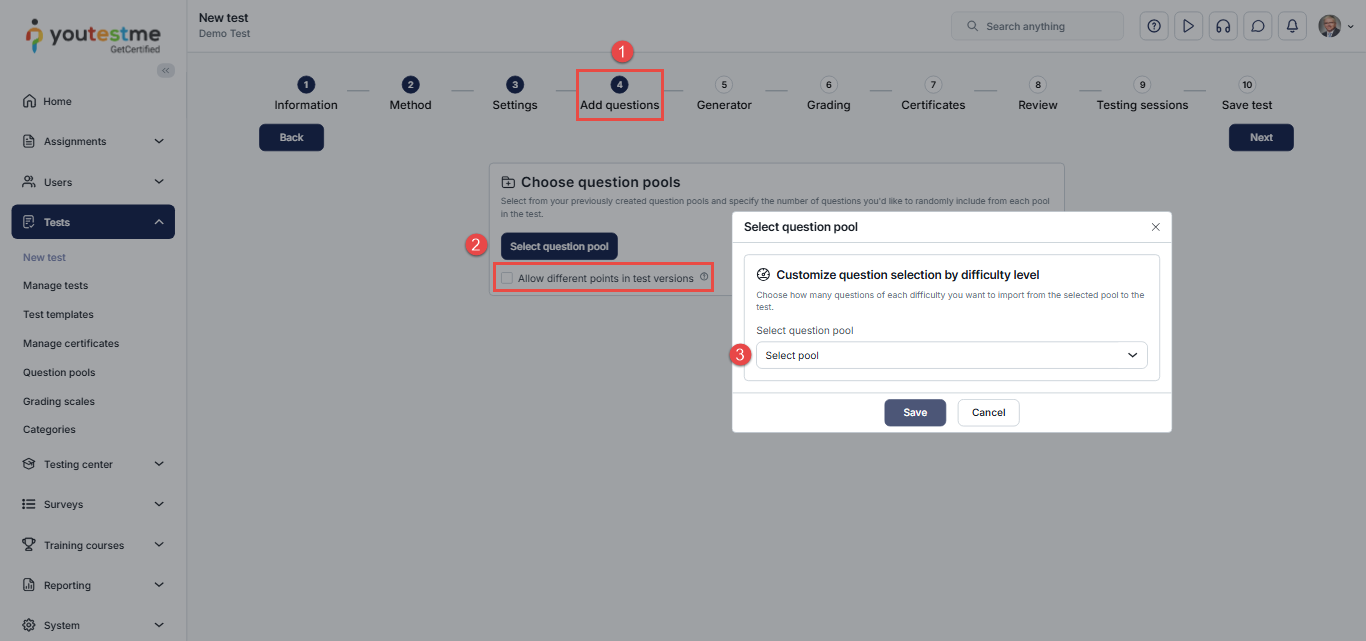
Click the Select question pool button to include questions from as many question pools as needed. The system will use the selected pools to generate different test versions.
-
Enable the Allow different points in test versions option if you want the points and penalties for each question to be taken from the question’s own configuration instead of being uniform across all versions.
Note: Set the Allow different points in test versions option before adding any question pools. Once you add question pools, you can no longer enable or disable the option. To change it, delete all added pools, update the option, and then add the pools again.
This is because the option affects which questions can be included from each pool. When it is enabled, questions with all scoring methods, as well as branching questions, become eligible. Changing the option after adding pools would make the number of available questions shown for those pools inaccurate. -
Use the drop-down menu to view all available pools in the system and select the desired question pool.
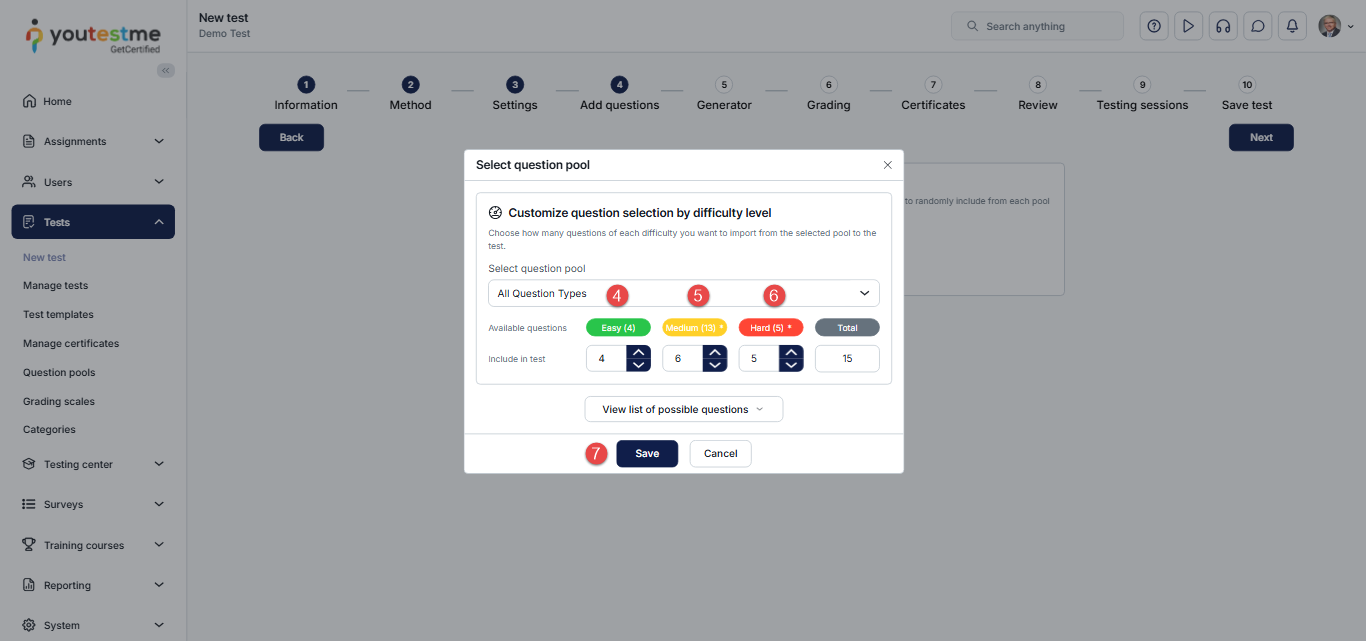
- After choosing the desired pool, select the number of easy questions to be imported into the test. If no questions are labeled as Easy, you won’t be able to add them.
- Select the number of medium questions that will be imported from the selected pool to the test. If no questions are labeled as Medium, you won’t be able to add them.
- Select the number of hard questions that will be imported from the selected pool to the test. If no questions are labeled as Hard, you won’t be able to add them.
- Click the Save button.
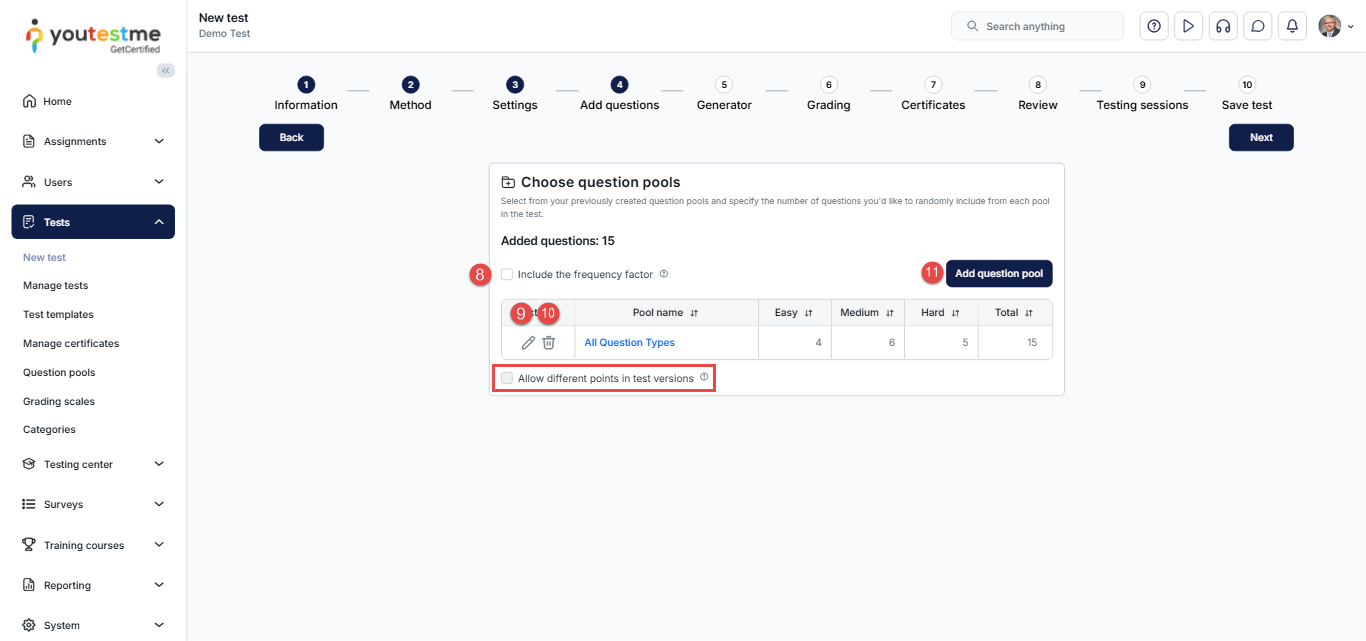
- You can include the frequency factor when generating test versions. The system will take into account the frequency factor defined for each question and determine how often it will appear in the test versions.
- Edit the question pool by clicking the pencil icon.
- Delete the added question pool by clicking the trash icon.
- You can add more question pools if desired.
In the Generator step of the wizard, you can:
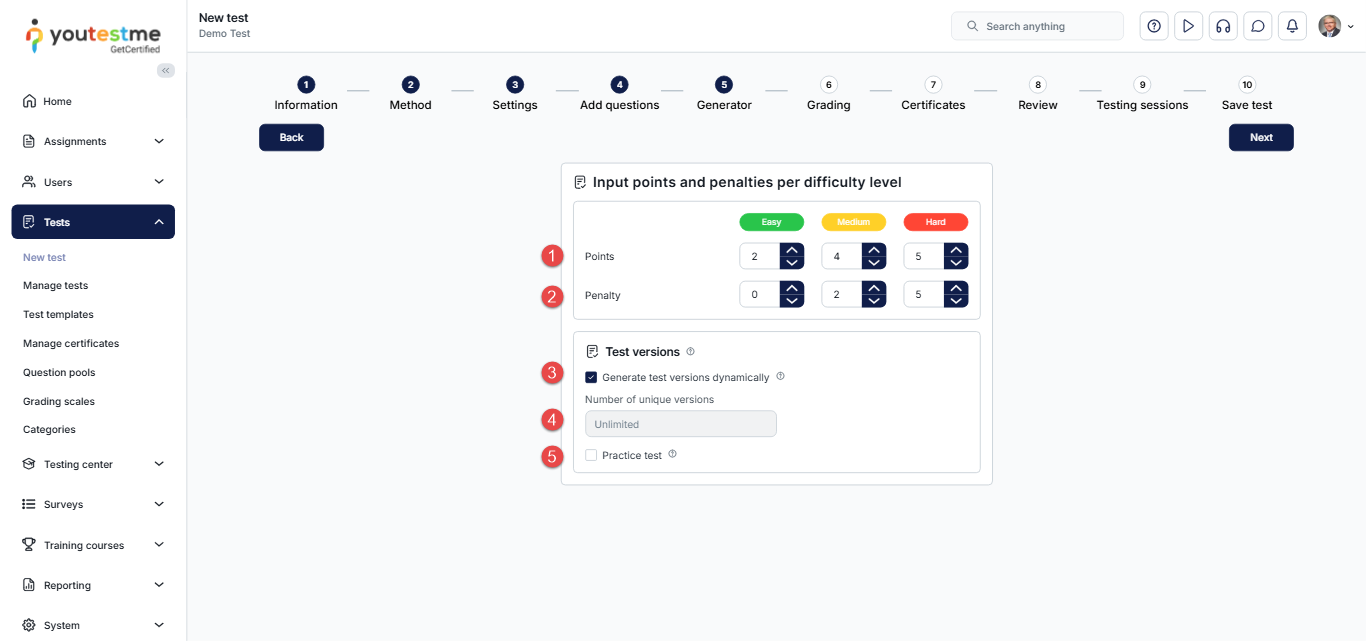
- Define the number of points per difficulty category: Specify the points awarded for correctly answering easy, medium, and hard questions.
- Define the number of penalty points per difficulty category: Specify the points deducted for incorrect answers in each difficulty category.
- Generate test versions dynamically: When enabled, the system generates a new version each time a user starts the test.
- If this option is disabled, you can set a fixed number of unique versions (up to 100).
- Allow candidates to specify the number of questions per pool: Let candidates define how many questions from each pool the test will include when they start the test.
Generate tests based on question categories
Once this method is selected, proceed by following the next steps:
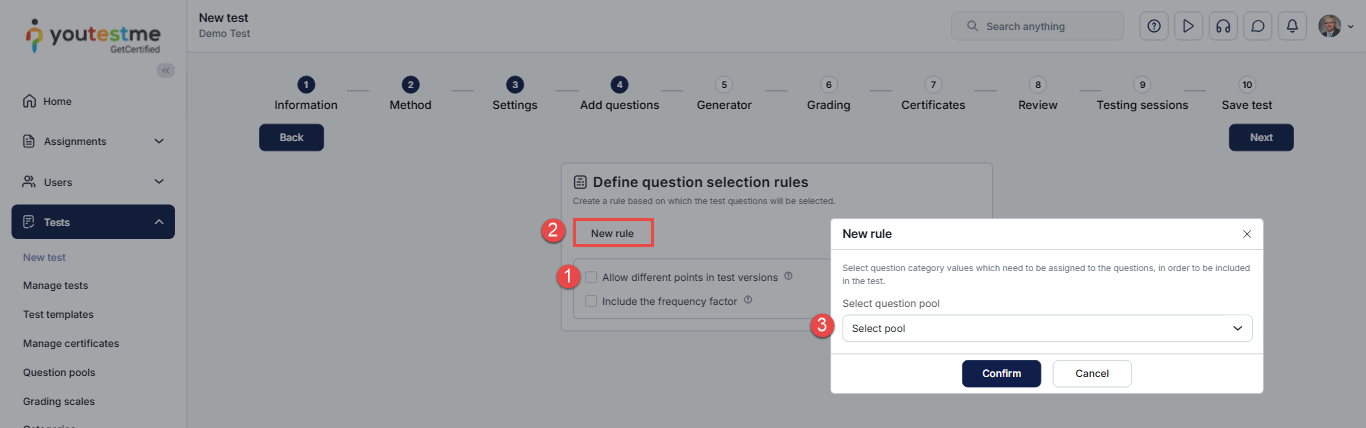
- Enable Allow different points in test versions if you want each question’s configured points and penalties to be used instead of applying the same scoring settings to all generated test versions.Note: Configure this option before adding any rules. After you add a rule, you cannot enable or disable this option. To change the setting, delete all existing rules, update the option, and then add the rules again.
- Click New rule to add a question selection rule. You can create multiple rules to select questions from different question pools.
- Click on the drop-down menu to view all available pools in the system and select the desired question pool.

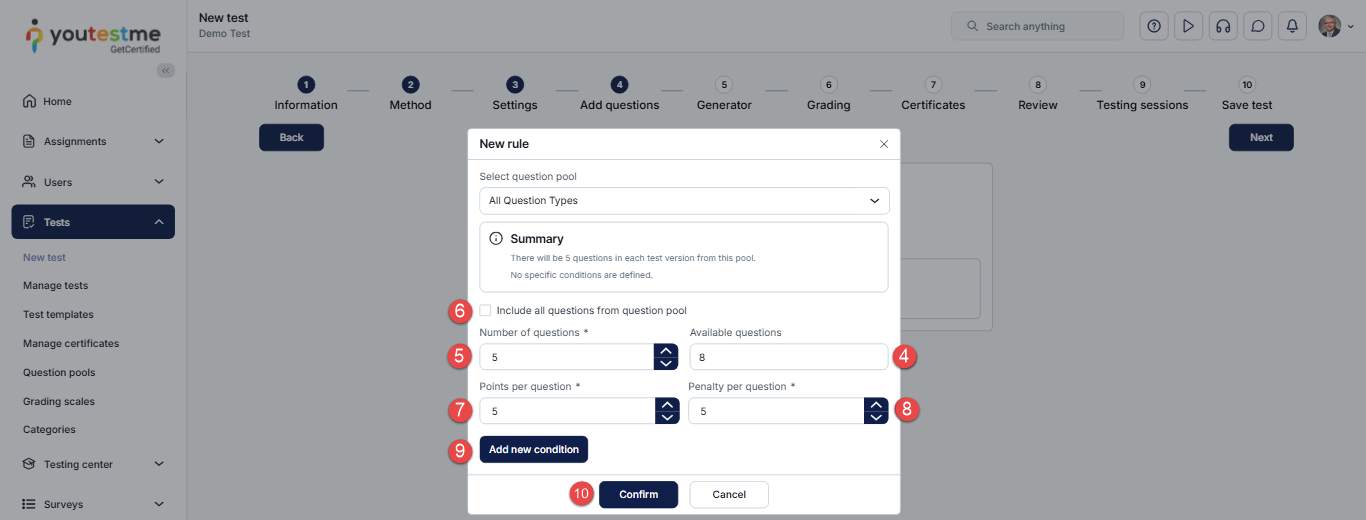
- Check the number of available questions in the pool.
- Choose the number of questions to be imported from the selected pool to the test.
- Include all questions from the question pool that meet the desired condition.
- Set the number of points for each question.
- Set the penalty points for each question.
- Add a new condition – Click the Add new condition button to set values for a question category that will be used for filtering in the test generation process.
- Confirm – Click the Confirm button to save your settings.
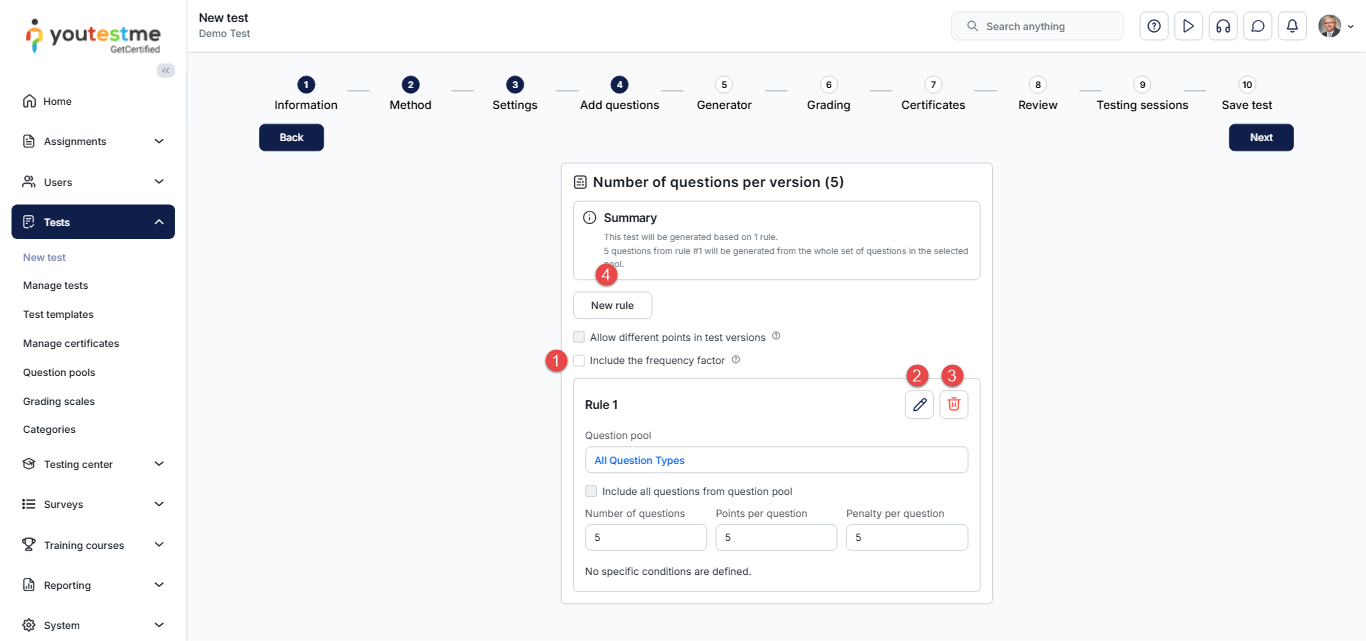
After you confirm your choices, you can:
- Include the frequency factor.
- Edit the settings by clicking the pencil icon.
- Delete the added rule by clicking the trash icon.
- Create a new rule.
In the Generator step, you can:
- Enable the option to generate test versions dynamically.
- Define a specific number of unique test versions, if desired.
- Enable the Practice Test option.

For detailed instructions on filling out the remaining steps, please refer to the following article.
Frequency Factor
In addition to existing rules for generating questions, this article explains how to set frequency factor rules. These allow you to:
-
Ensure that essential questions appear more frequently.
-
Exclude outdated or irrelevant questions from generated tests.
For more related instructional material, please see these links: