
Article verified for Release 16.1 on October 13, 2026.
This article explains how to change your own password or reset another user’s password in YouTestMe GetCertified.
Users with the appropriate permissions can change their own passwords, while only administrators with the required permissions can change passwords for other users.
How to Change Your Own Password
To change your own password, follow these steps:
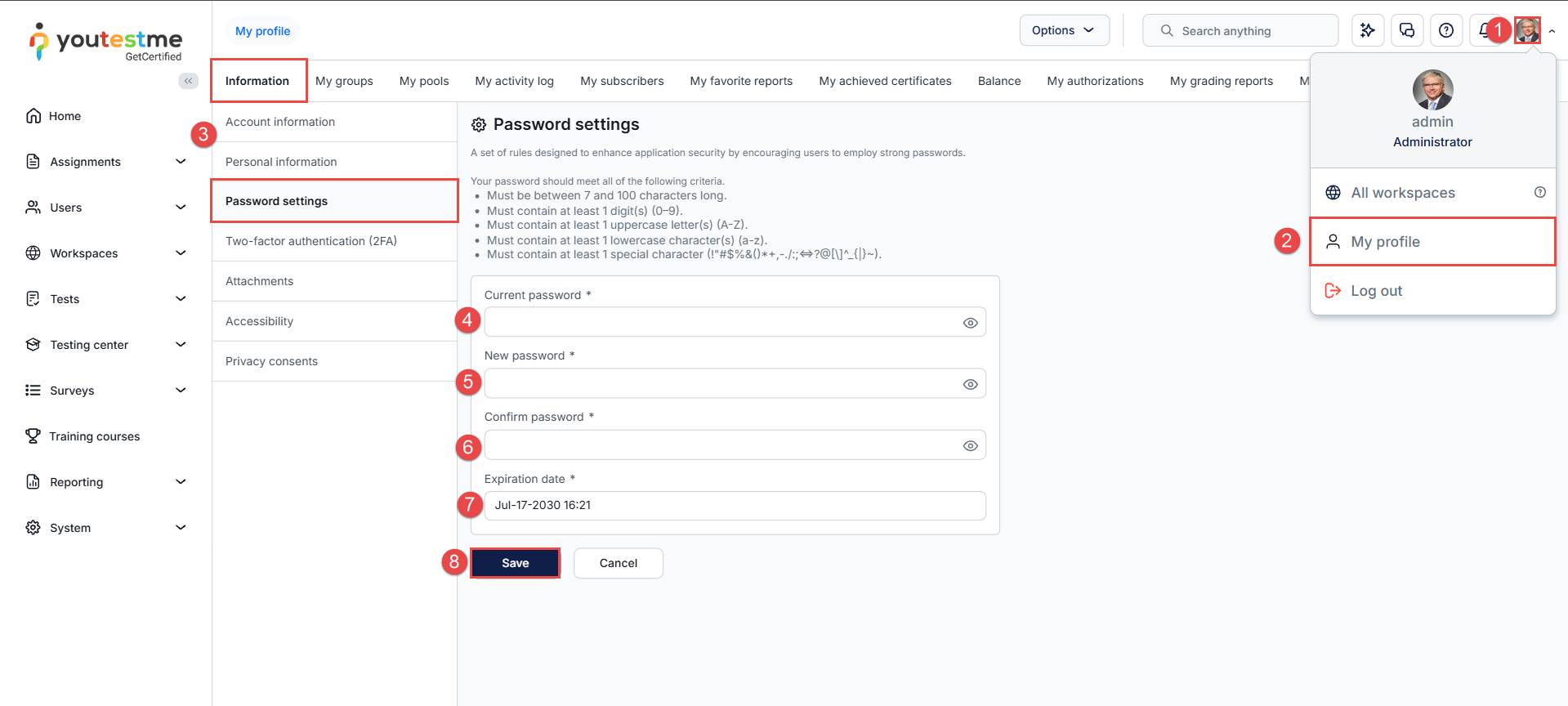
- Click your avatar in the upper-right corner of the application.
- Select My Profile.
- Navigate to Information → Password Settings and click Change Password.
- Enter your current password in the Current Password field.
- Enter your new password in the New Password field.
- Re-enter the password in the Confirm Password field.
- Set the Expiration Date for the password.
- Save the changes.
How to Change Another User’s Password (Administrators Only)
Only administrators with the appropriate permissions can change passwords for other users.
To change another user’s password, follow these steps:
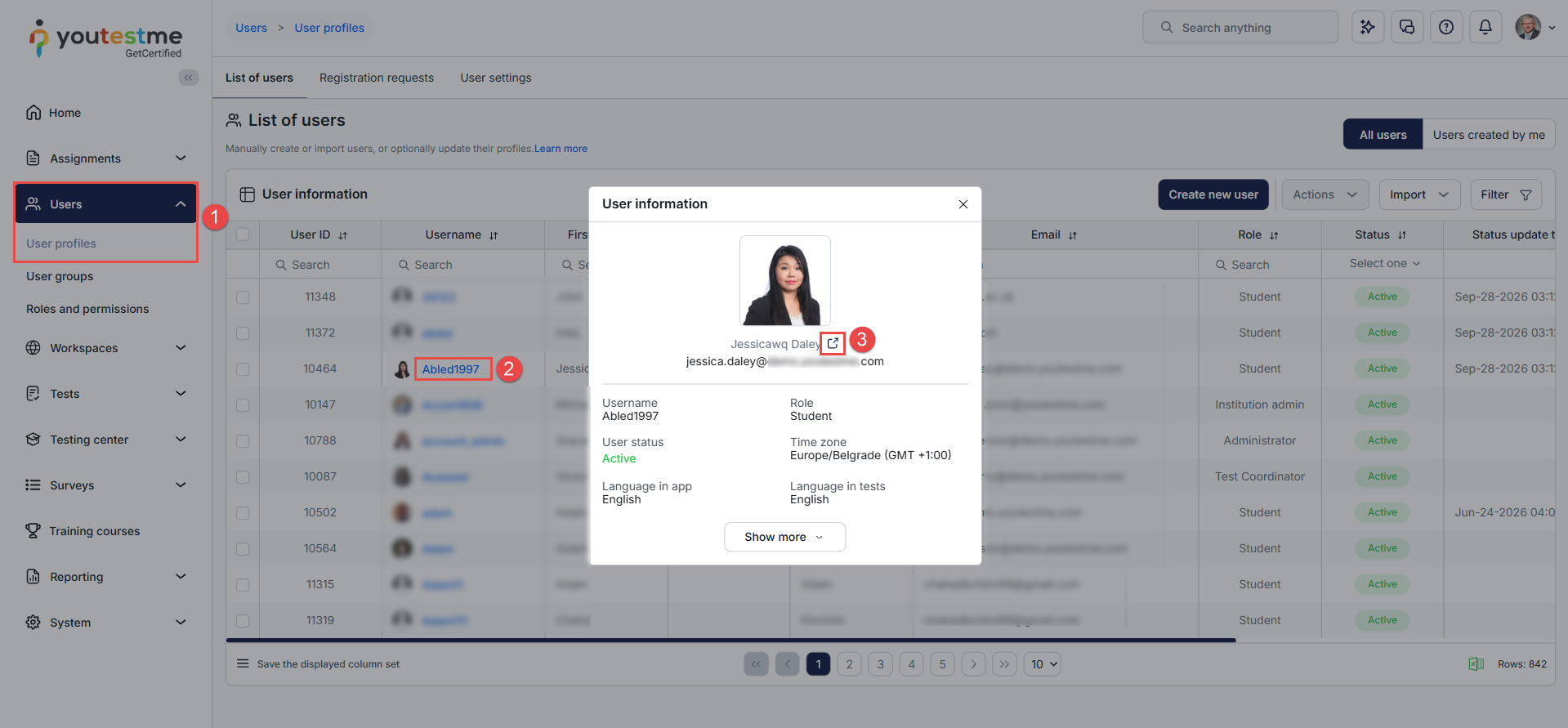
- Navigate to Users → User Profiles.
- Find and select the user whose password you want to change.
- Click the Open User Profile icon.

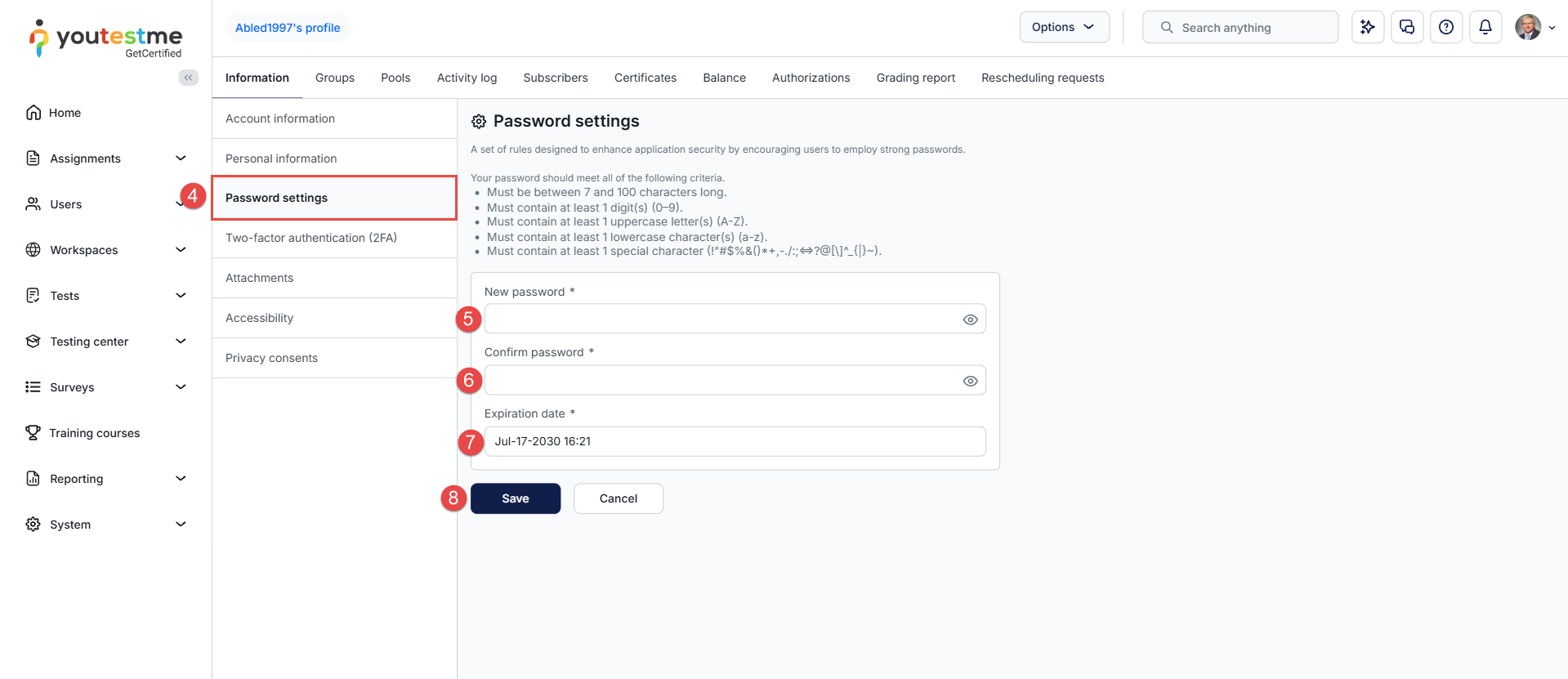
- Navigate to Password Settings and click Change Password.
- Enter the new password in the New Password field.
- Re-enter the password in the Confirm Password field.
- Set the Expiration Date for the password.
- Save the changes.
Important: Password Changes and Active Sessions
Changing a password does not automatically log the user out of an active session.
- If you change your own password, you can continue using your current session. The new password will be required the next time you log in.
- If an administrator changes another user’s password, that user will not be automatically logged out. They must use the new password the next time they log in.
Conclusion
Users with the appropriate permissions can change their own passwords, while administrators with the required permissions can also change passwords for other users. Password changes do not terminate active sessions, and the new password must be used at the next login.
For more related instructional materials, please see:




