
Article verified for Release 15.1 on December 8, 2025.
This article provides step-by-step guidance to troubleshoot login issues when accessing your account. If you find yourself unable to log in using the credentials provided in the email, we’ll guide you through some simple solutions to get you back into your account.
Overview of the Login Page:
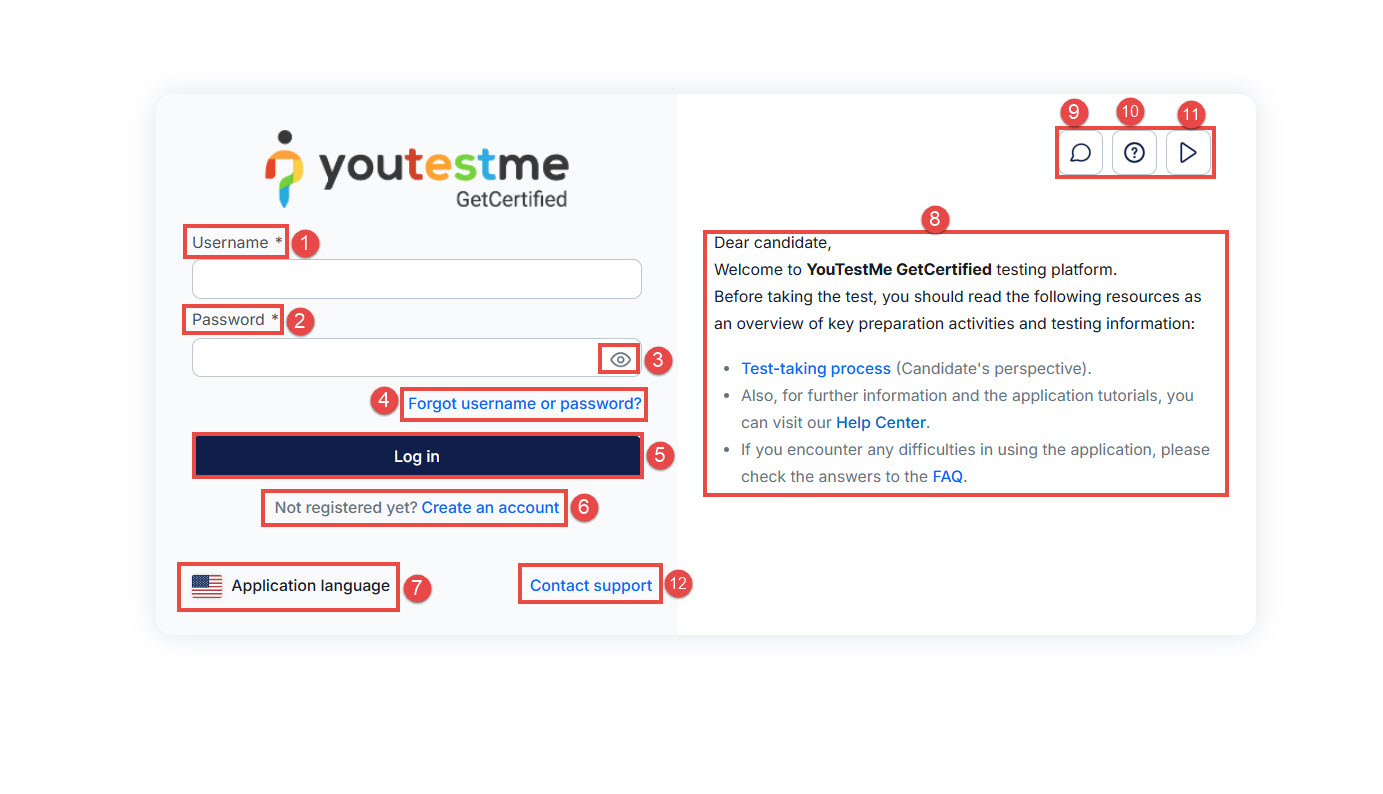
To access your account, navigate to the login page. On the login screen, you will see the following fields:
- Username: Enter the unique name associated with your account.
- Password: Enter your account password exactly as provided.
- Show Password Icon (Eye): Click the eye icon in the password field to reveal or hide your password for better accuracy.
- Forgot Username or Password: Use this link if you need to recover your login credentials.
- Login Button: Click this button after entering your credentials to access your account.
- Create an Account: Option to register a new account, if enabled by the system.
- Application Language: Choose your preferred language for the interface.
- Chat: Contact support via live chat for real-time assistance.
- User Manual: View the official user guide for detailed instructions.
- Instructional Video: For more details on logging in and navigating the home page.
- Login Instructions: Instructions provided by the test administrators.
- Contact Support: Use this option to send a direct email request to the support team for assistance with login or account issues.
How to Log In with Two-Factor Authentication (2FA)
If two-factor authentication (2FA) is enabled for your account, you must complete an additional verification step after entering your username and password. For more information about this option, please refer to this article.
How to Log In with Two-Factor Authentication (2FA)
Trouble Logging into the Application
If you’re unable to log in due to an incorrect username or password, follow the steps below to recover your account.
Forgot Username
If you’ve forgotten your username, follow these steps:
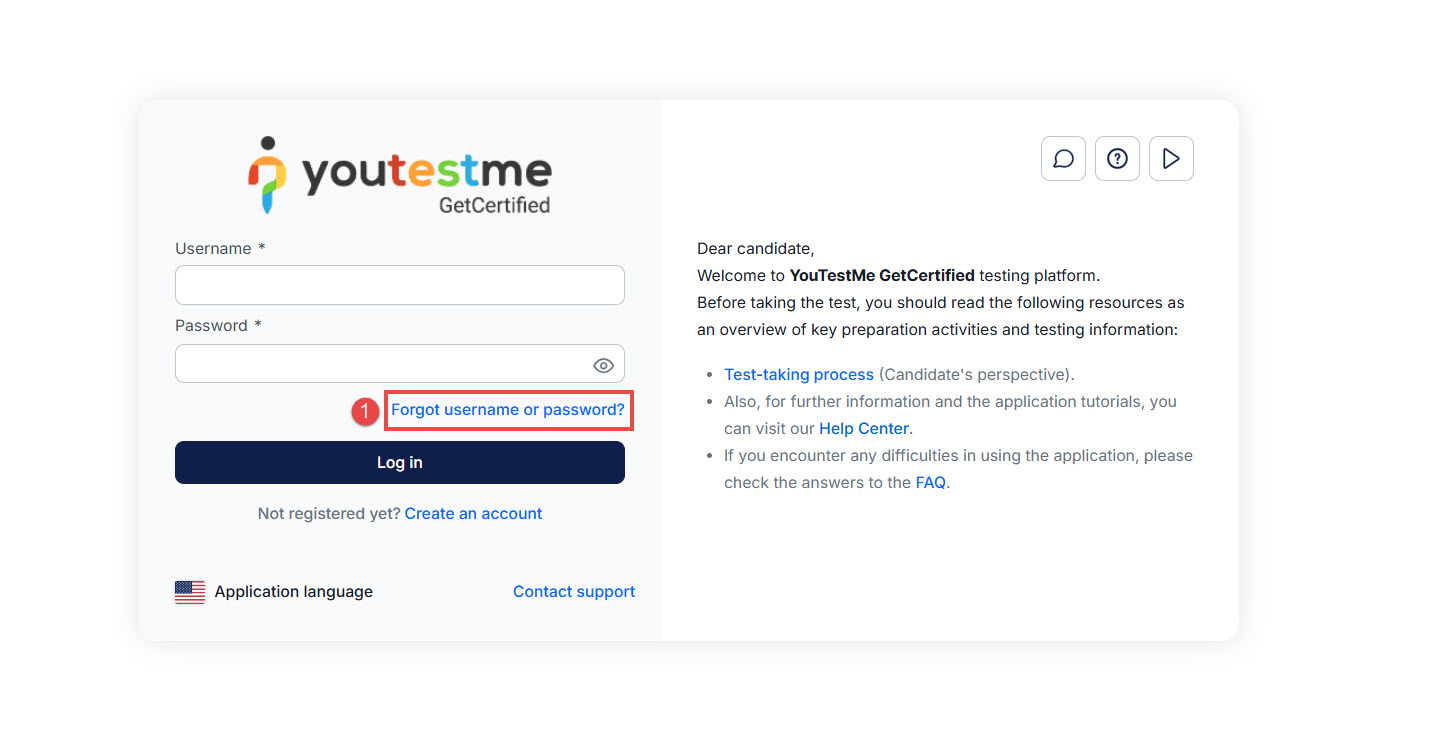
- Click on Forgot Username or Password
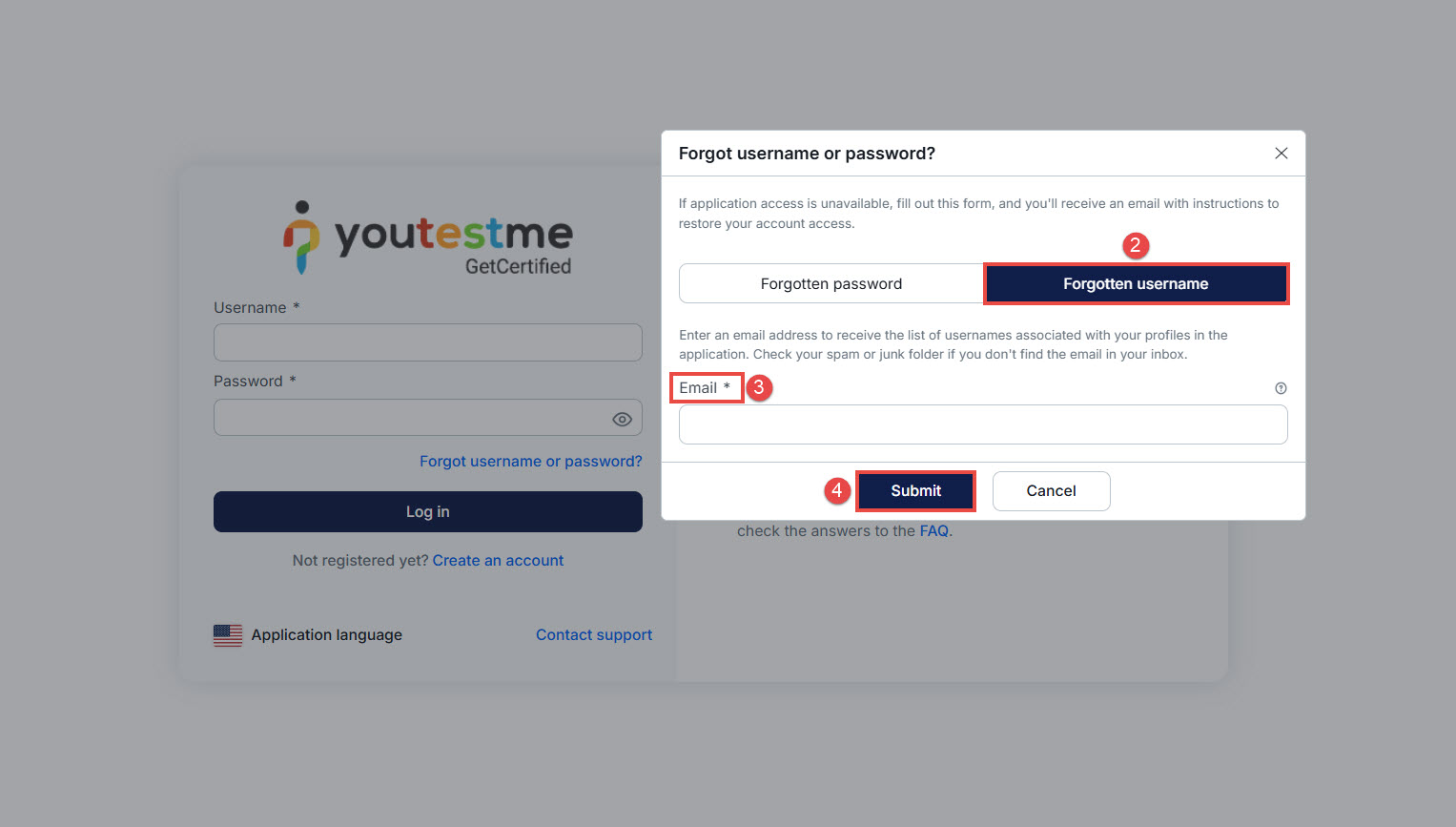
- In the pop-up window, select Forgotten username.
- Enter the email address associated with your account.
- Click the Submit button to request a username reminder.
Check Your Inbox: After submitting your request, check your inbox for an email that contains your username. If you don’t find the email in your inbox, be sure to check your spam or junk folders as well.
Note: If no usernames are associated with the provided email address, the system will send a blank email without any username information.
Forgot Password
If you’ve forgotten your password, follow these steps:
- Click on Forgot Username or Password.
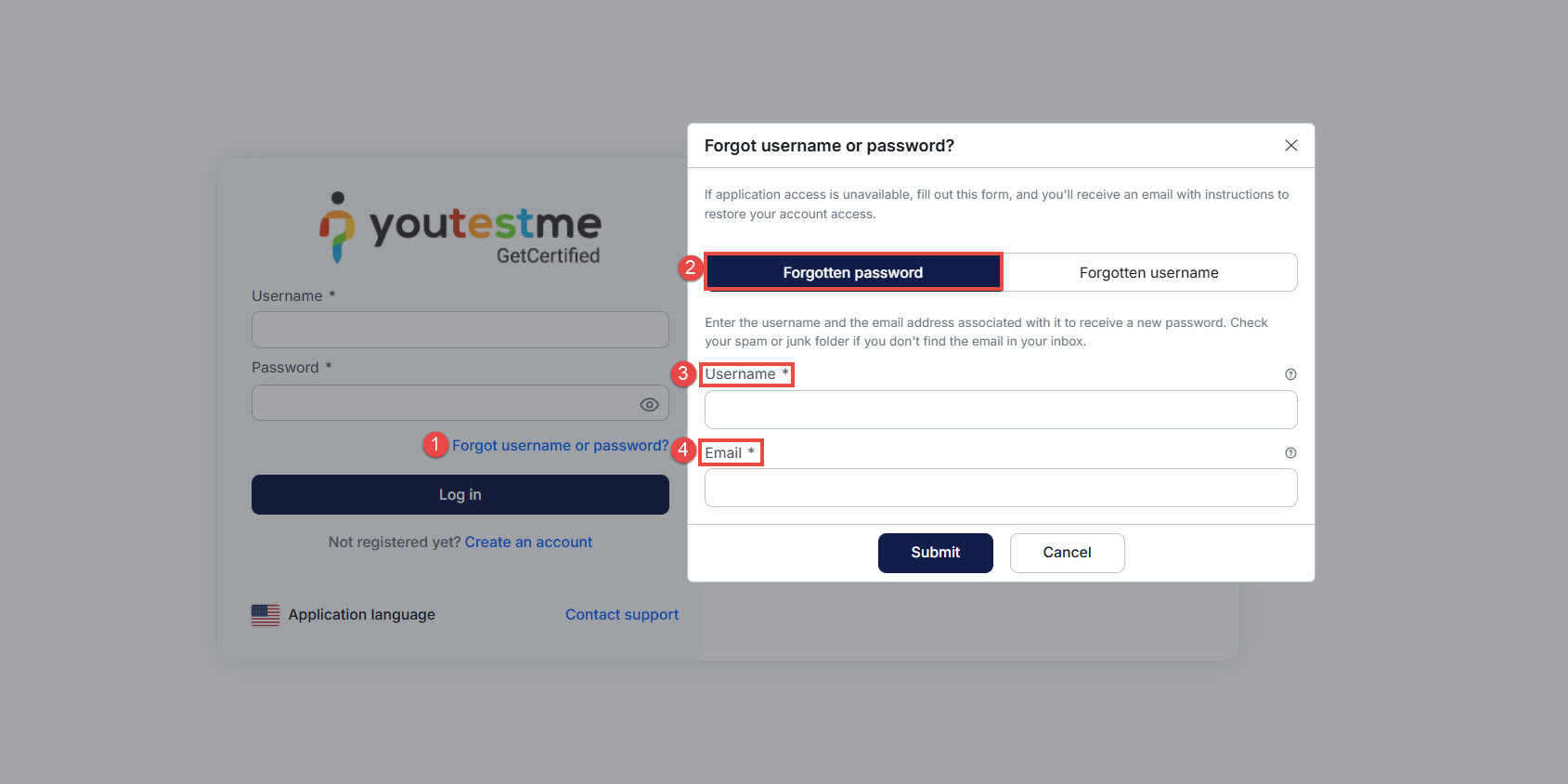
- In the pop-up window, select the Forgotten Password option
- Enter your username and the email address associated with your GetCertified account.
- Click the Submit button to request a password reset.
Check Your Inbox: After submitting your request, check your inbox for an email with your new password generated by the system. If you don’t find the email in your inbox, be sure to check your spam or junk folders.
You should receive an email with instructions for resetting your password.
The email should look similar to the example below:
Dear JaneDoe13!,
We received a request to reset your password.
To set a new password, click the link below:
link generated from the app
This link will expire in 30 minutes.
If you did not request a password reset, you can safely ignore this email.
Best regards,
NOTE: The password setup link expires after 30 minutes. Through this link, users must create their password before accessing the platform.
Through this link, users must create their password before accessing the platform.
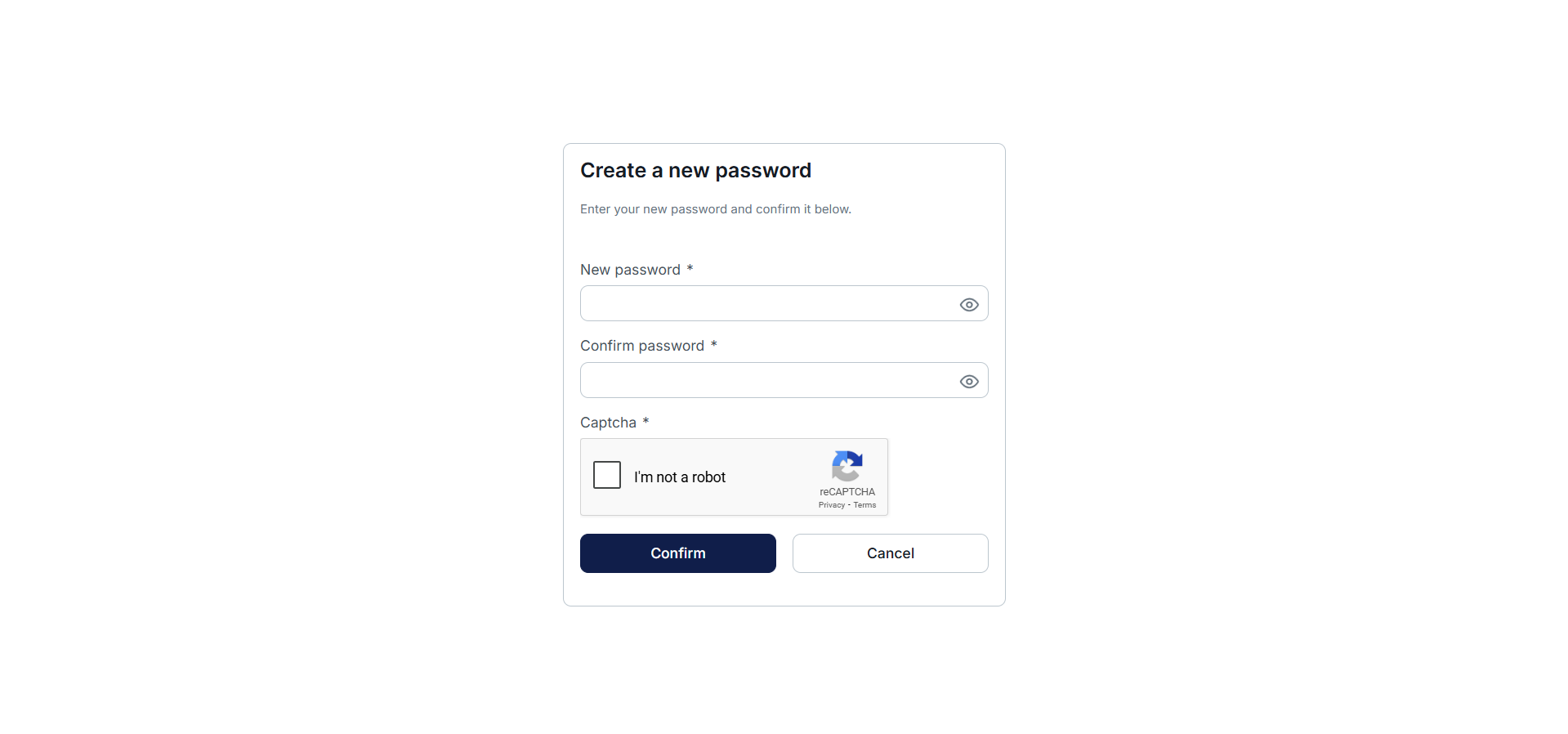
Note: If you use your professional email address, please be aware that many organizations implement stringent email filtering systems to safeguard against security threats. These filters can automatically block system-generated emails. Please contact your test instructor if you have not received the reset password email.
How to Contact Support
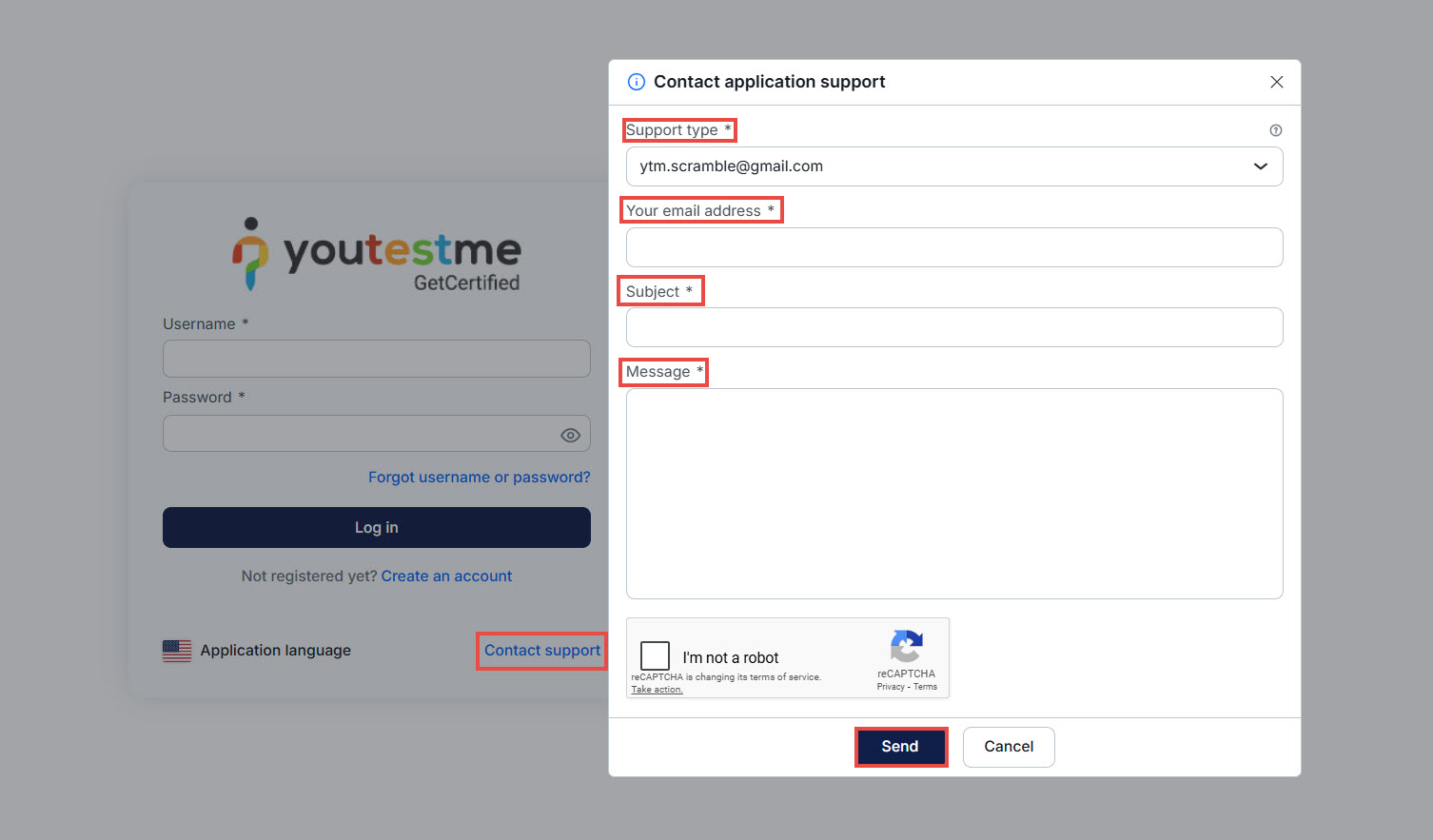
If you’re still experiencing login issues and have not received an email from the system, you can contact support directly from the login page. Follow these steps:
- Click on “Contact Support.”: On the login page, locate and click “Contact Support.”
- Choose the Support Department (if applicable): Depending on the administrators’ settings, you may be able to select a specific support department, such as Customer Support or Technical Support.
- Enter Your Email Address: Provide the email address associated with your account.
- Enter the Subject: Choose a relevant subject that summarizes your issue (e.g., “Login Issue”).
- Write Your Message: In the message box, describe the issue you encountered in as much detail as possible.
- Click “Send”: After entering the required information, click the “Send” button to submit your request to the support team.
- Check Your Inbox: You will receive a reply from the support team as soon as possible with further troubleshooting steps.
When SSO Login Is Required
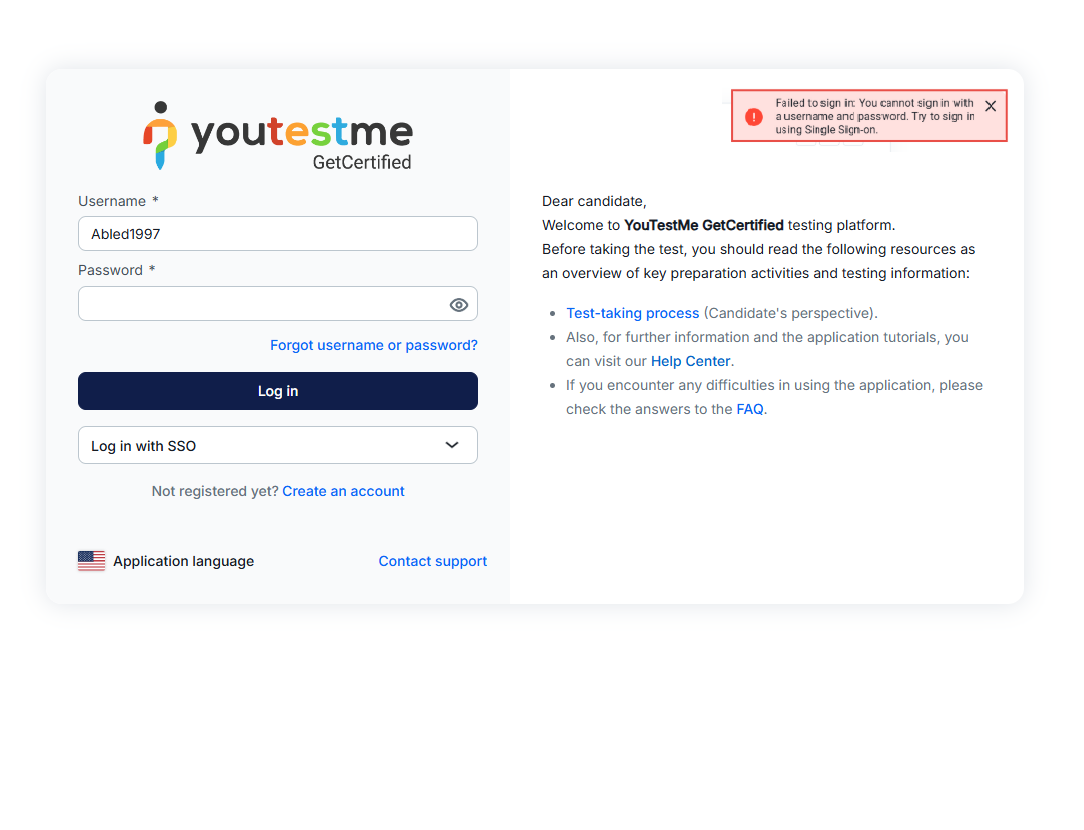
When SSO (Single Sign-On) login is enabled, and you’re required to log in through a different system, attempting to access the application through the standard login page may result in the following warning:
Failed to sign in: You cannot sign in with a username and password. Try to sign in using Single Sign-On.
This message appears when your account is configured to use an SSO method. You cannot log in manually using a username and password on the regular login page. Instead, you must:
- Click the appropriate SSO login button.
- Proceed with your institution’s authentication process.
Best Practices and Tips
- Whenever a user requests a new temporary password, the previous ones automatically expire and cannot be used. It is essential to use the most recent temporary password received, as the previous ones have expired and cannot be used.
- Once you log in successfully, you will be prompted to change your password immediately to enhance the security of your account. For detailed instructions on how to change your password directly within the application, please refer to this article.
- For the best experience, we strongly advise using a PC or laptop and enabling the Show password option to ensure accurate entry of the password.
For more useful instructional materials, check these links: