Article verified for Release 15.1 on November 10, 2025.
In this article, we explain the Ordering question type.
This question type requires candidates to arrange a set of items into the correct sequence. Items are presented in an initial order, and candidates must reorder them to reflect the correct process, chronology, or hierarchy, making this format suitable for evaluating understanding of ordered relationships or step-based concepts.
Manually Creating an Ordering question
An ordering question requires candidates to arrange a set of items in the correct sequence. This type of question is useful for assessing understanding of processes, chronological events, or hierarchical relationships.
Key Behavior in the Application:
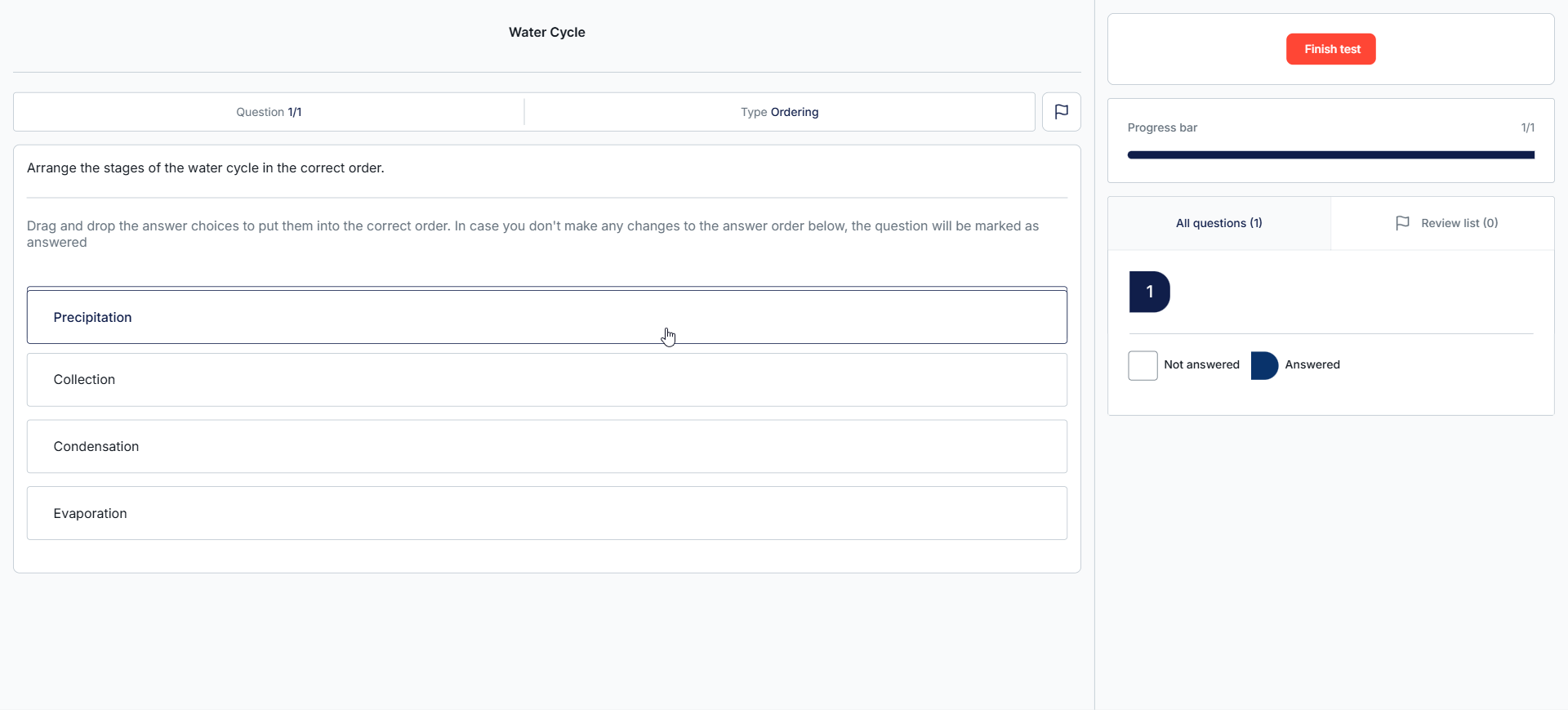
- If a candidate moves to the next question without changing the initially presented order, the system will consider the question answered.
- The candidate will receive a warning message indicating that the current order will be recorded as their answer.
To manually create an ordering question, follow the steps below:
- Access the desired question pool to which you would like to add the ordering question and navigate to the Questions tab.
- Click the Add Question button and select the Ordering question type.
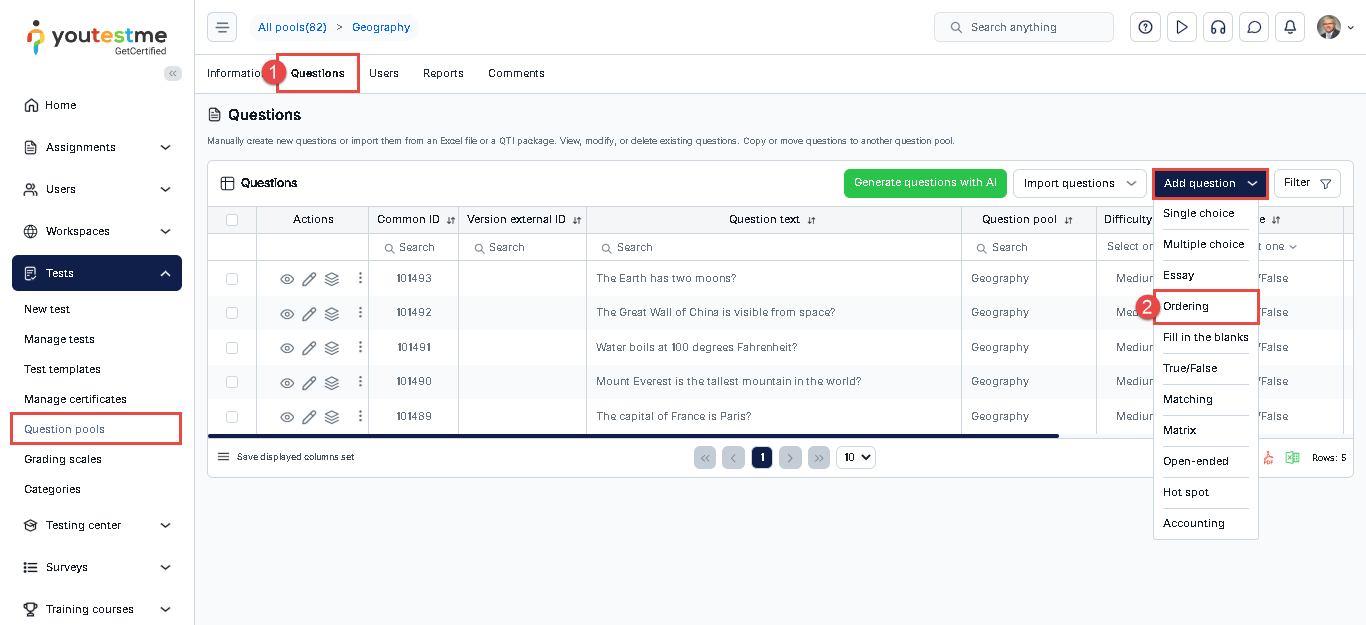
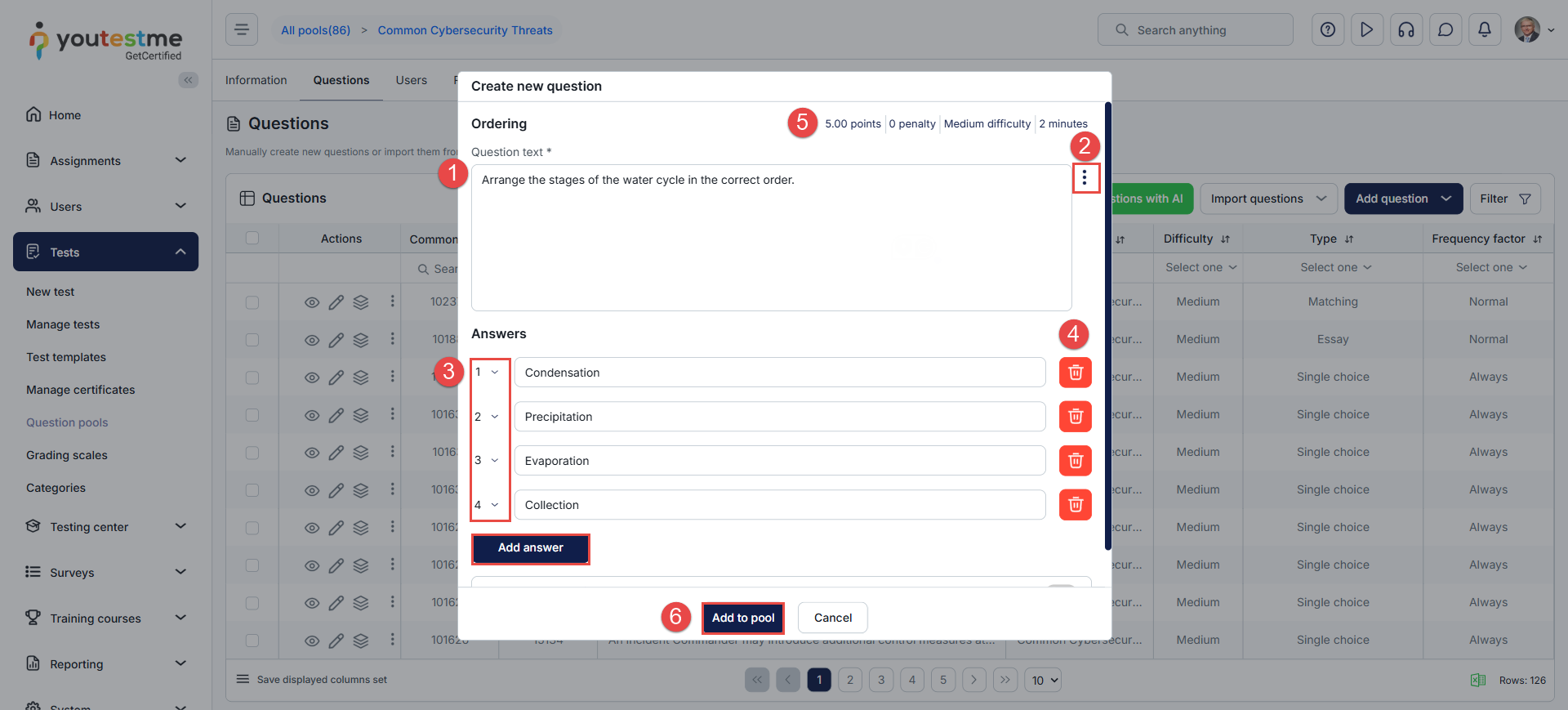
In the Create New Question dialog:
- Enter the question text.
- Click the three dots menu to add question feedback, attachments, or formulas.
- Click the “Add Answer” button to add the items that the candidate should order. By default, the order in which the answers are added will be considered correct. You can adjust the correct order using the drop-down menu to select the desired numerical or ordinal sequence.
- Click the bin icon to remove any items if needed.
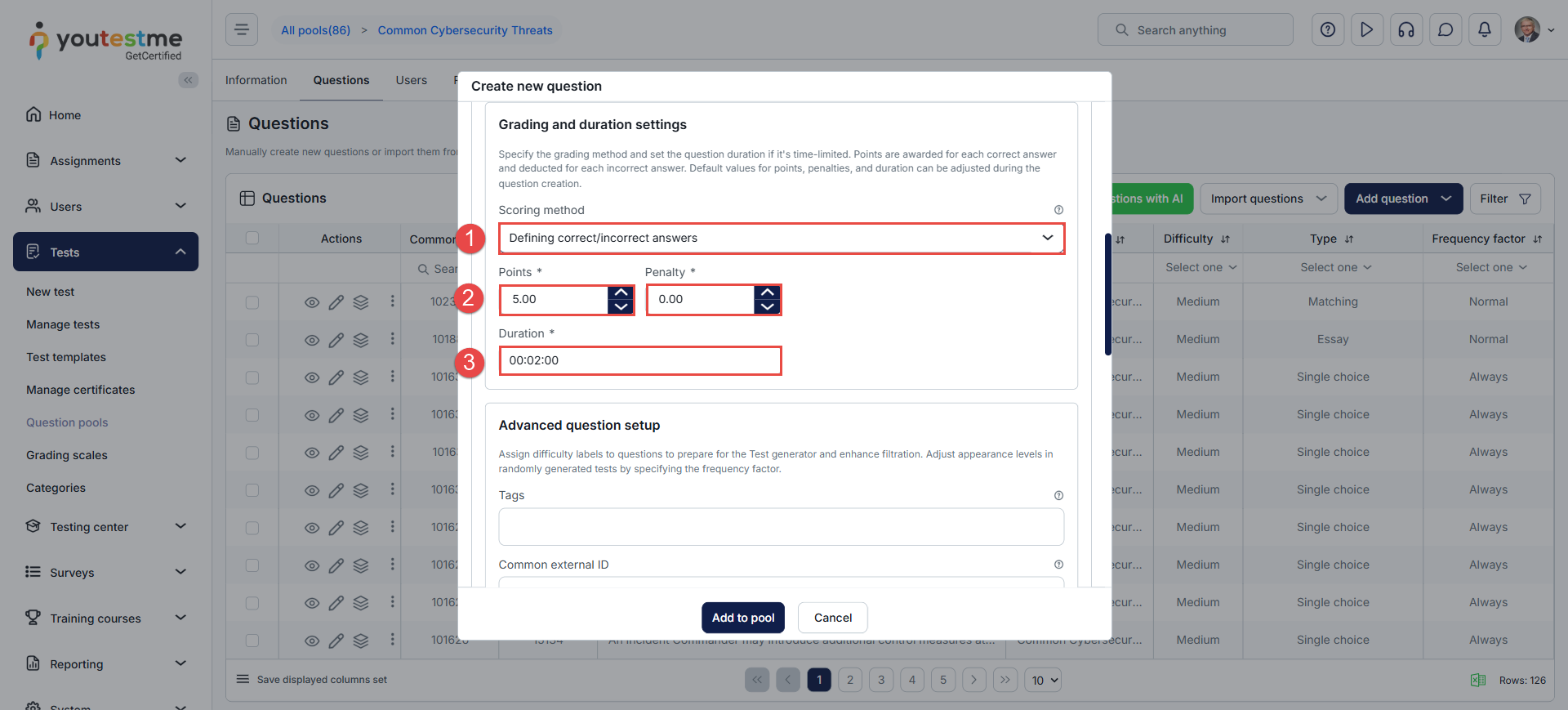
- Set the question parameters, including points, penalties, difficulty level, and duration.
- Click the “Add to Pool” button to save the question.
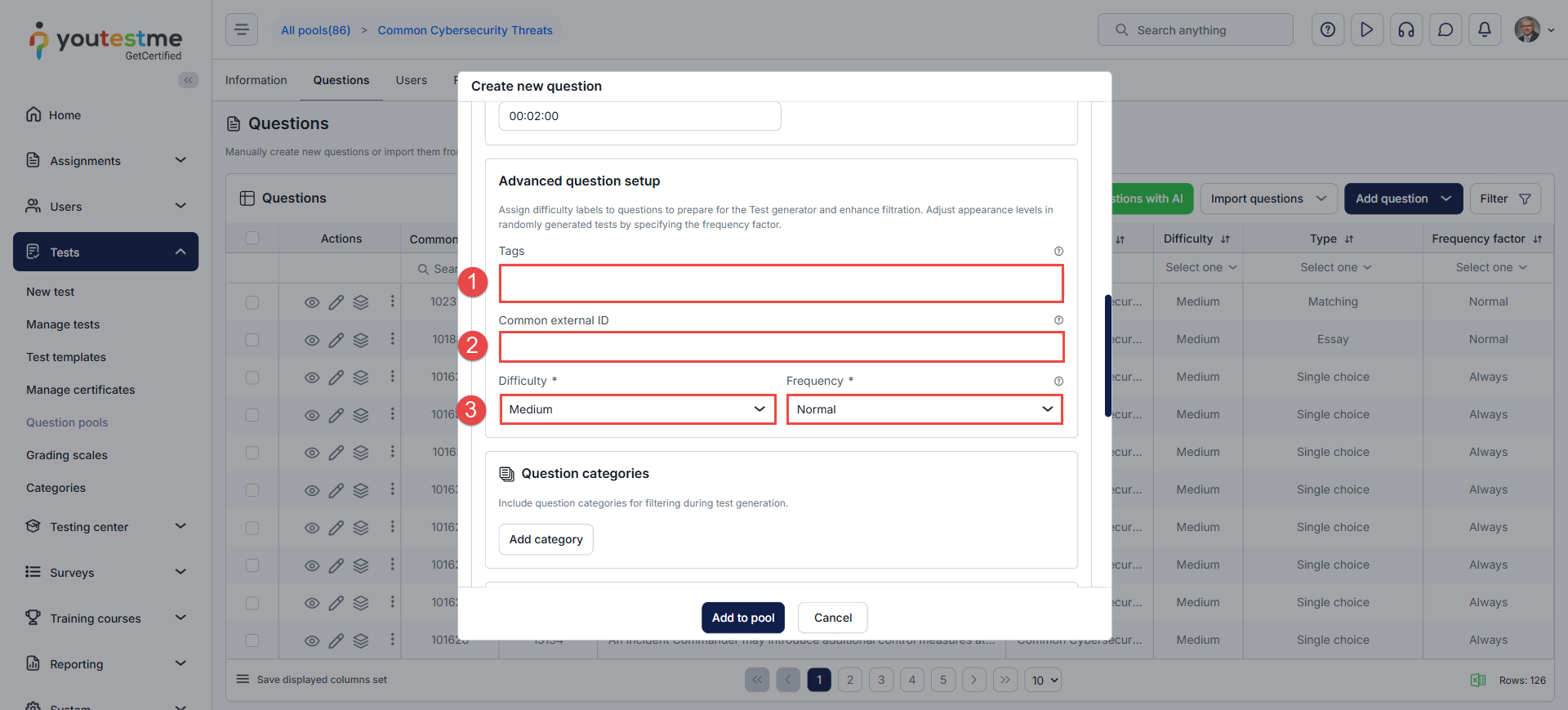
Question categories
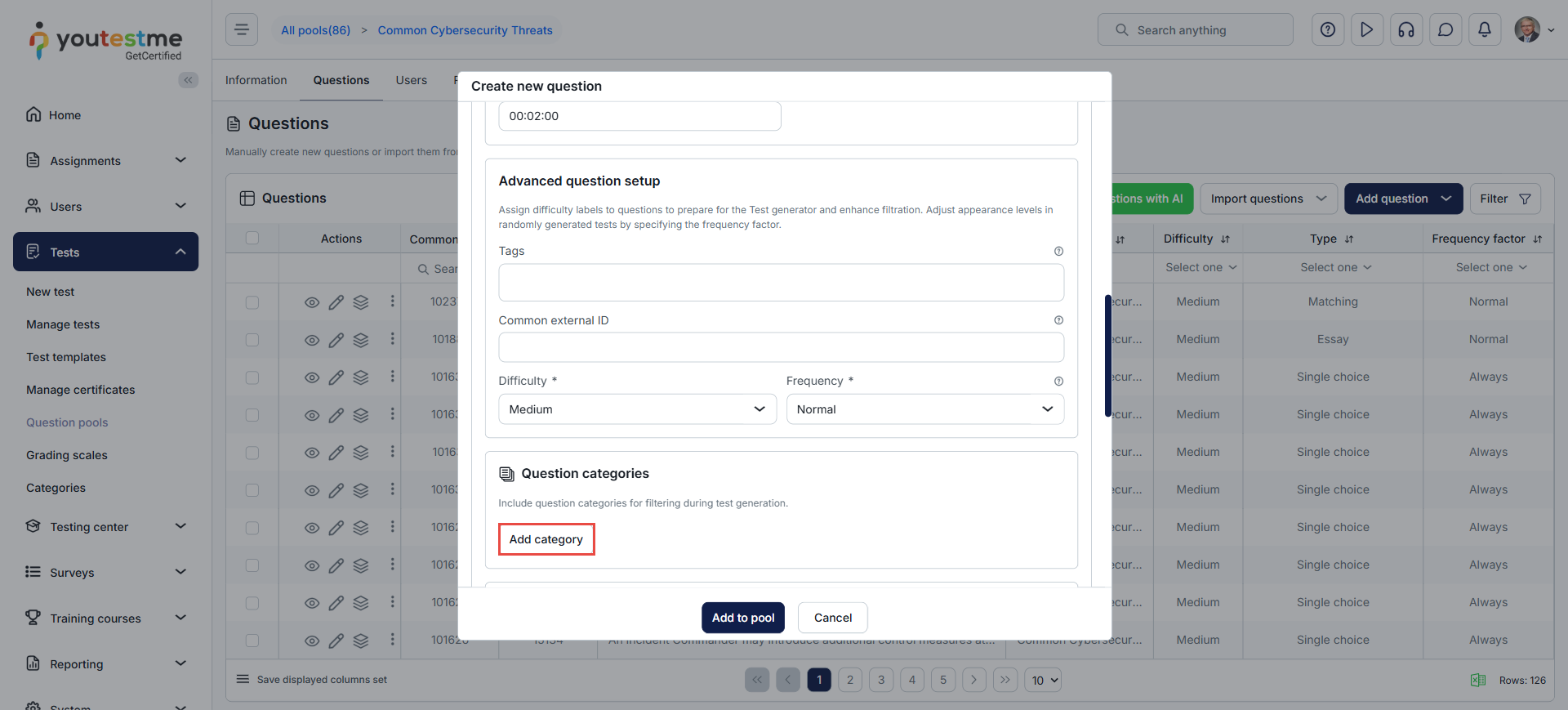
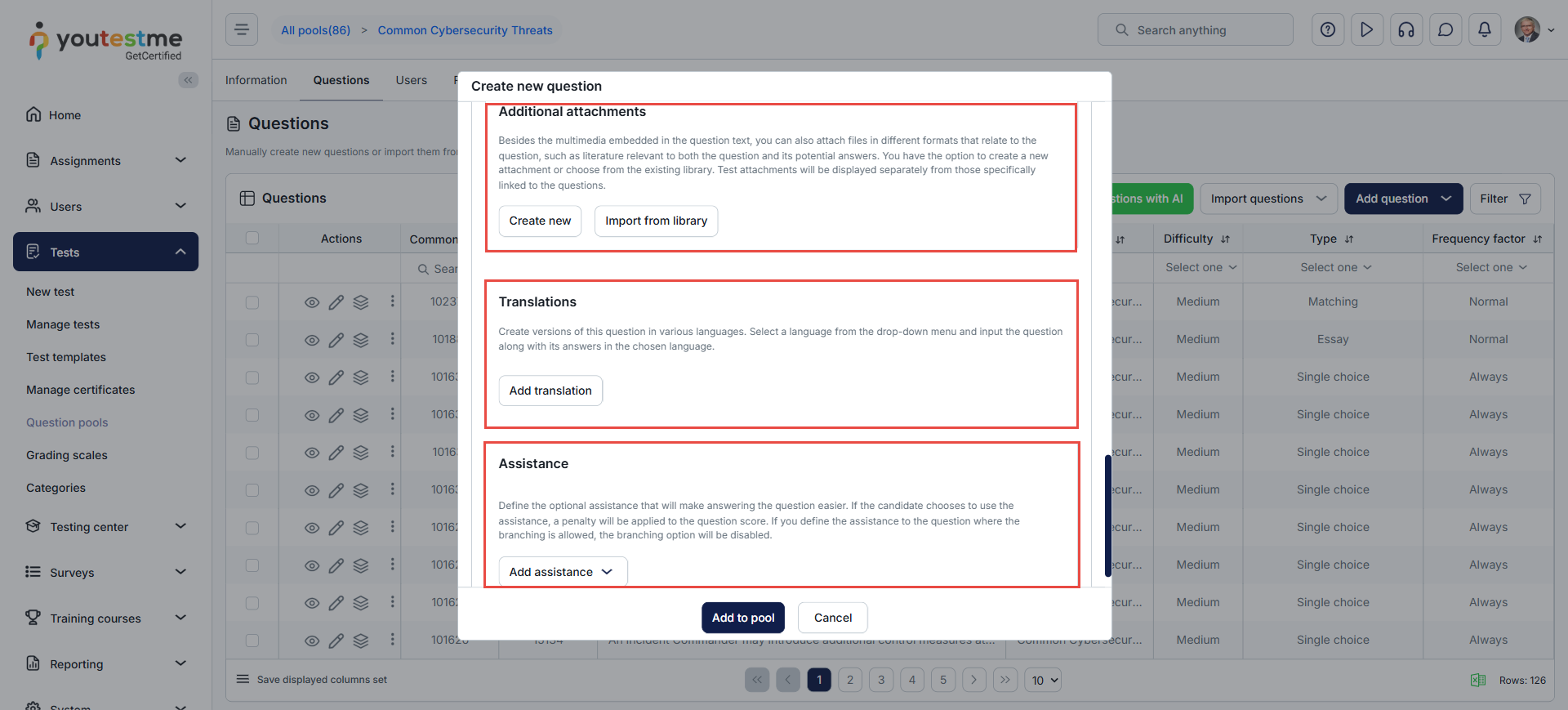
Additional attachments
Upload additional supporting files or resources for the question. Please refer to this article for more details.
Translations
Add translations for multilingual exams. You can manually translate the question or use the Auto-translate feature. Please refer to this article for more details.
Assistance
You can provide hints, offer additional time, or remove one incorrect answer to assist the candidate in answering this question.
Candidate’s perspective
The candidate needs to drag and drop the provided answers to arrange them in the correct order.