
This article explains the internal recruitment process in YouTestMe Hiring Commander and provides a brief overview of how HR, Managers, and Candidates use the system from the initial setup to the final candidate evaluation.
The process consists of three main workflows:
- HR prepares and publishes the recruitment process.
- Candidates apply for a position and complete the interview and knowledge test.
- Managers review candidates and assessment results and make hiring decisions.
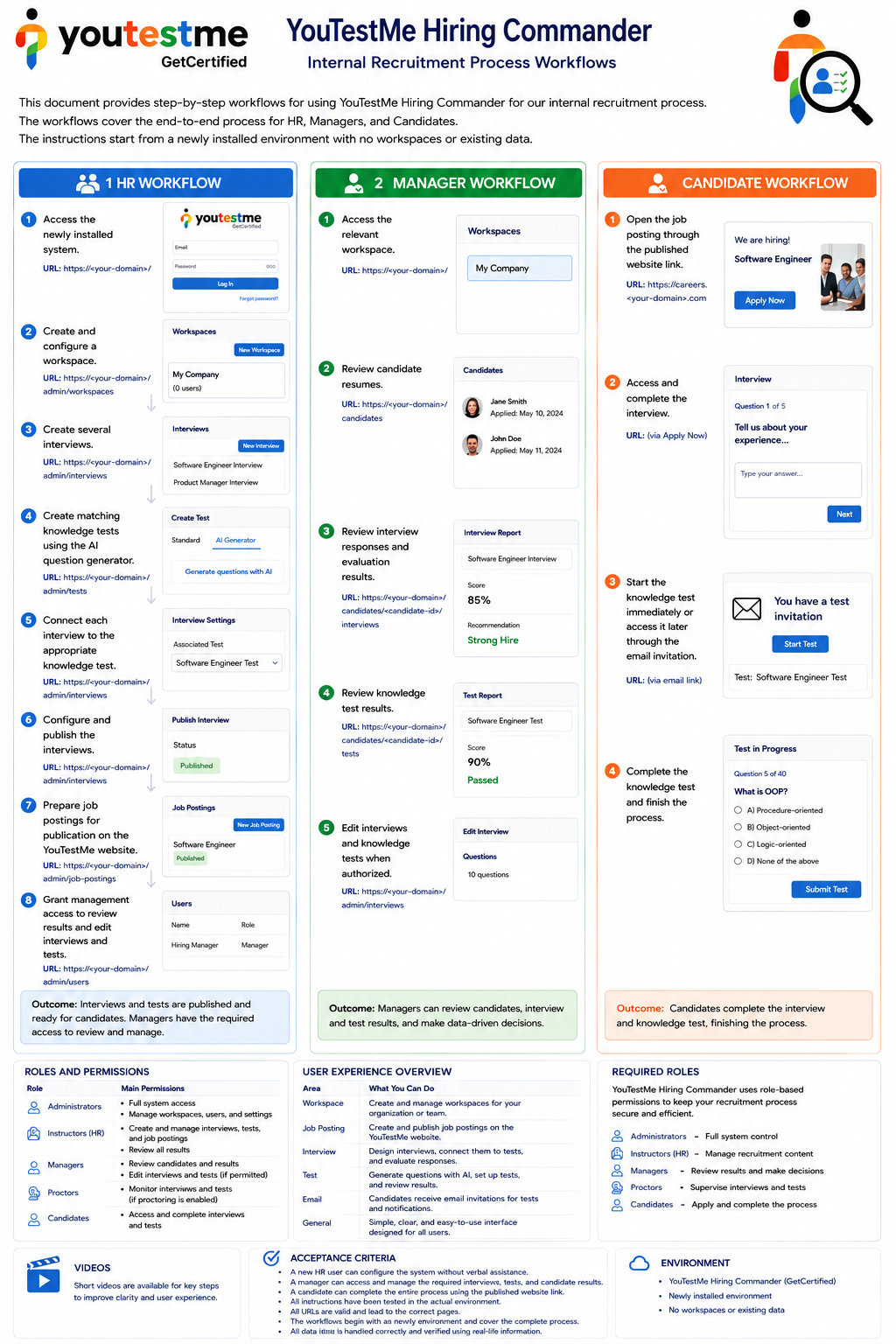
Overview of the YouTestMe Hiring Commander recruitment process showing HR, Manager, and Candidate workflows.
Application Entry Points
Users access the Hiring Commander process differently depending on their role.
HR / Administrator / Instructor
HR/Administrator / Instructor can configure workspaces, create interviews and knowledge tests, publish job postings, manage users, and prepare the recruitment process.
Manager
Managers primarily use the application to review candidates, interview responses, and knowledge-test results.
Candidate
Candidates normally do not need to access administrative application URLs.
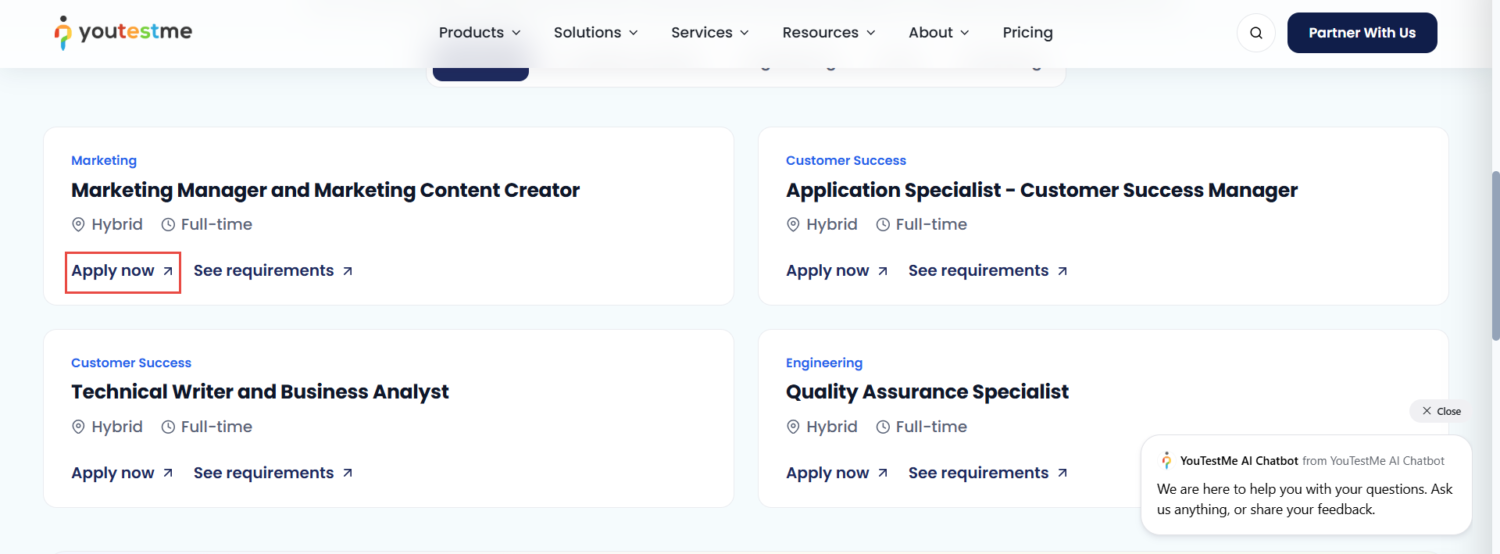
To begin the recruitment process, candidates visit the official recruitment website, locate the interview associated with the position they are interested in, and select Apply now. This action opens the candidate interview flow and guides them through the required steps.
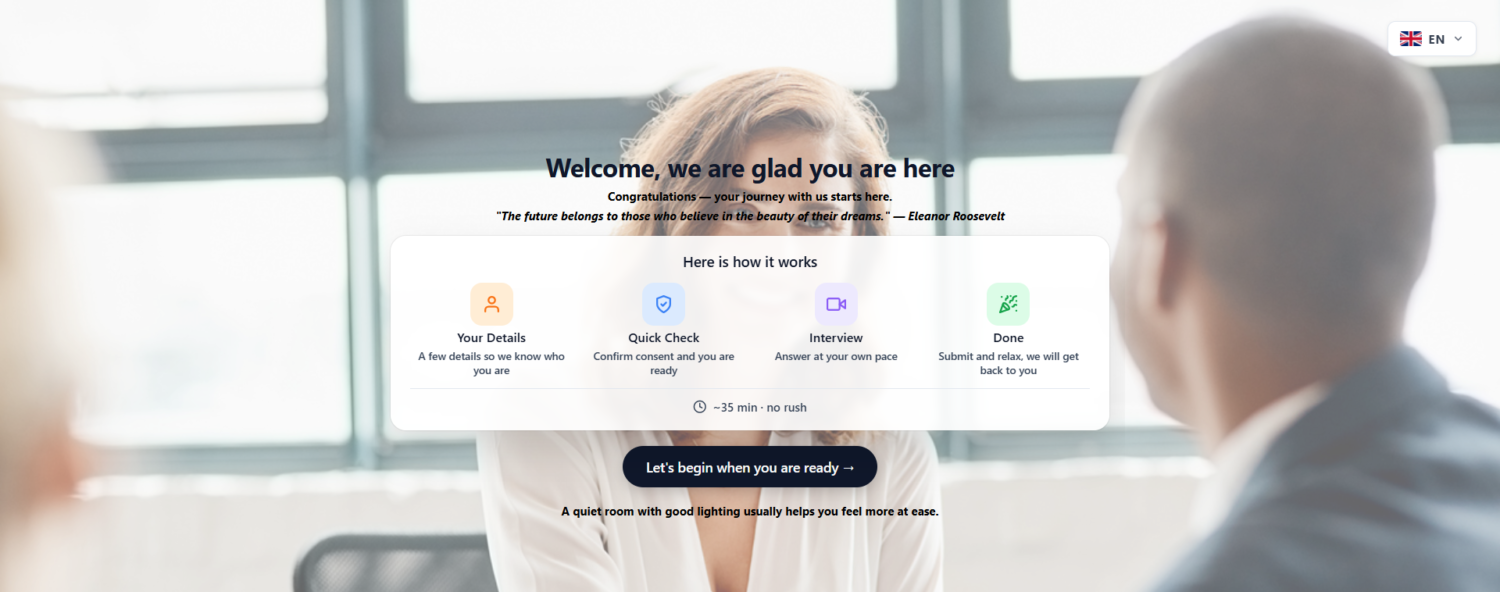
After selecting Apply Now, the candidate is redirected to the interview welcome page, which provides a brief overview of the process and estimated duration.
When ready, the candidate selects Let’s begin when you are ready to start the interview.
HR Workflow
HR prepares the recruitment environment before candidates can begin.
Create a Workspace
Access the Hiring Environment
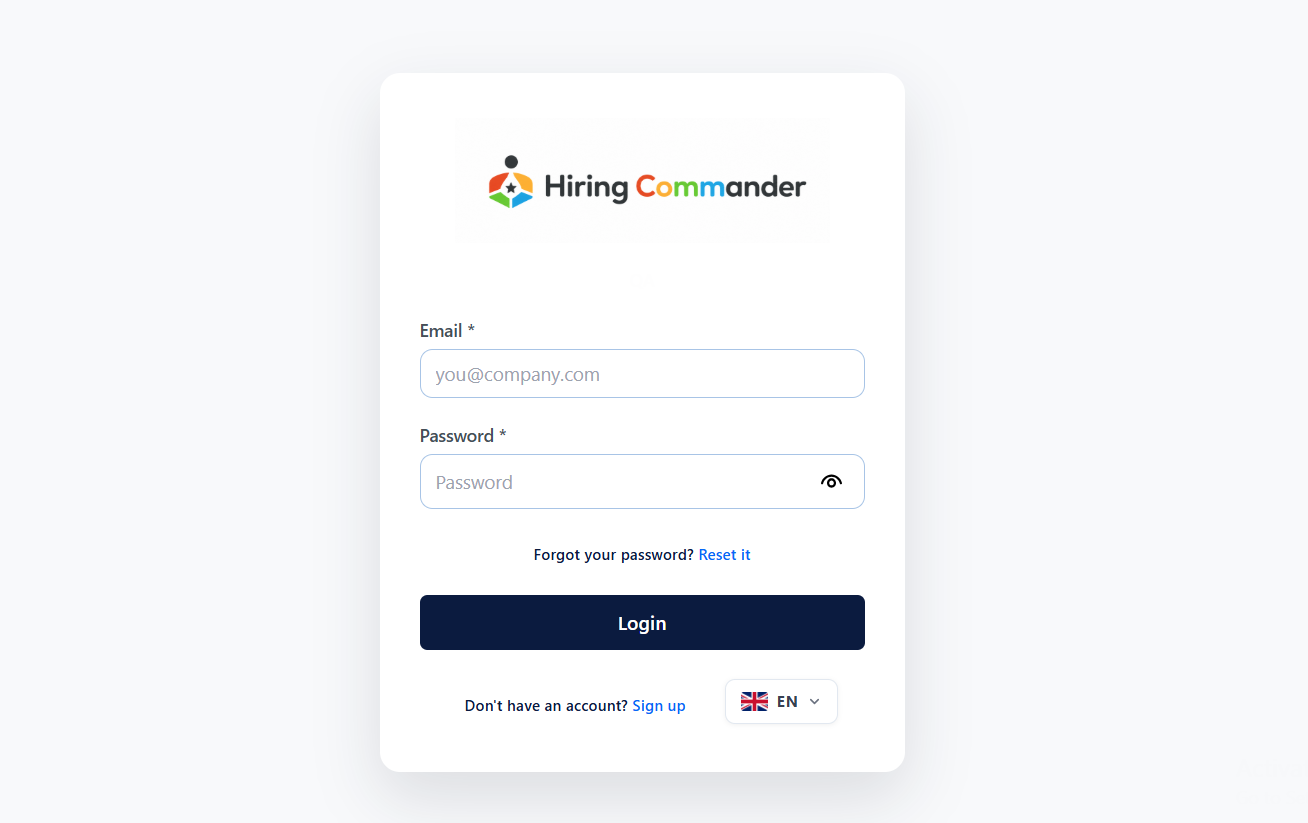
Sign in with an account that has the required Administrator or Instructor permissions. Login page for the YouTestMe Hiring Commander recruitment application.
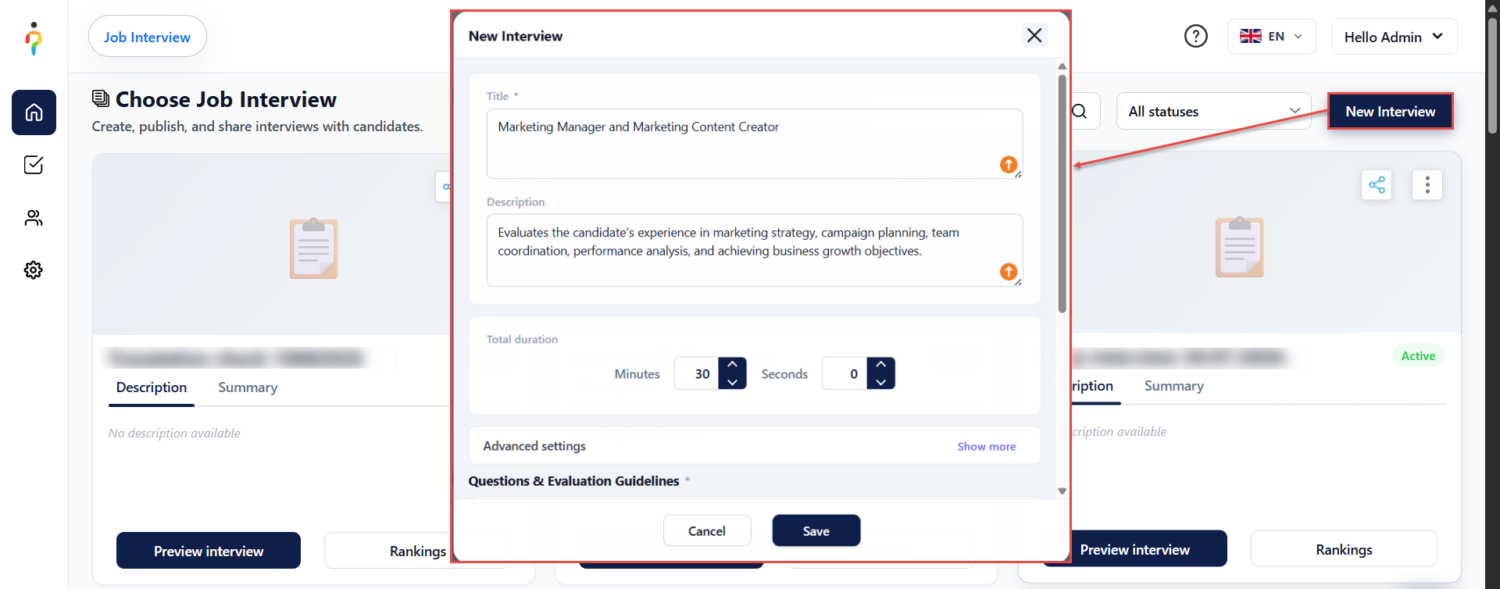
Create the Interview
Create a structured interview for the open position by selecting the Create interview button. For example, Marketing Manager and Marketing Content Creator.
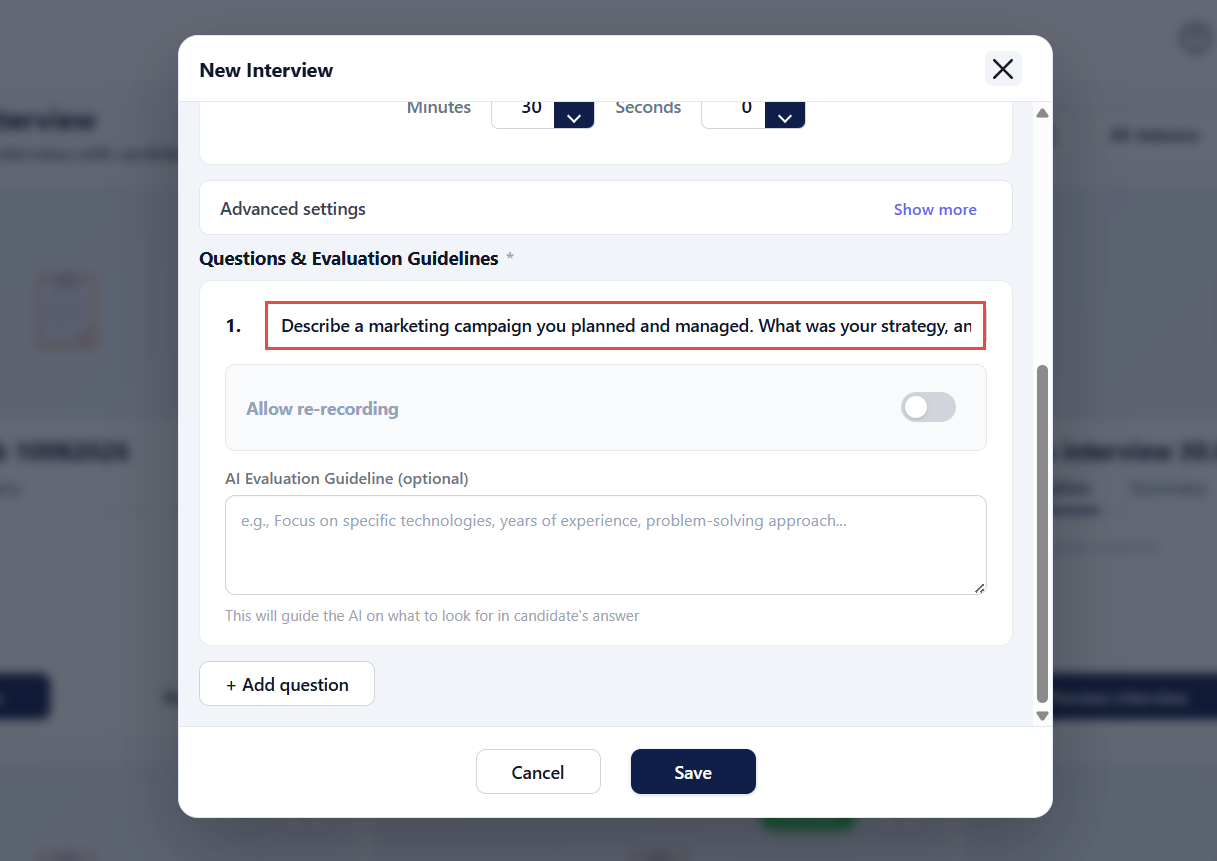
Configure the questions candidates will answer during the interview.
Create the Knowledge Test
Create a knowledge test that matches the position and interview. For more information, please visit this article.
You can create questions manually or generate them with the AI question generator.
Review all generated questions before publishing the test.
Connect the Interview and Knowledge Test
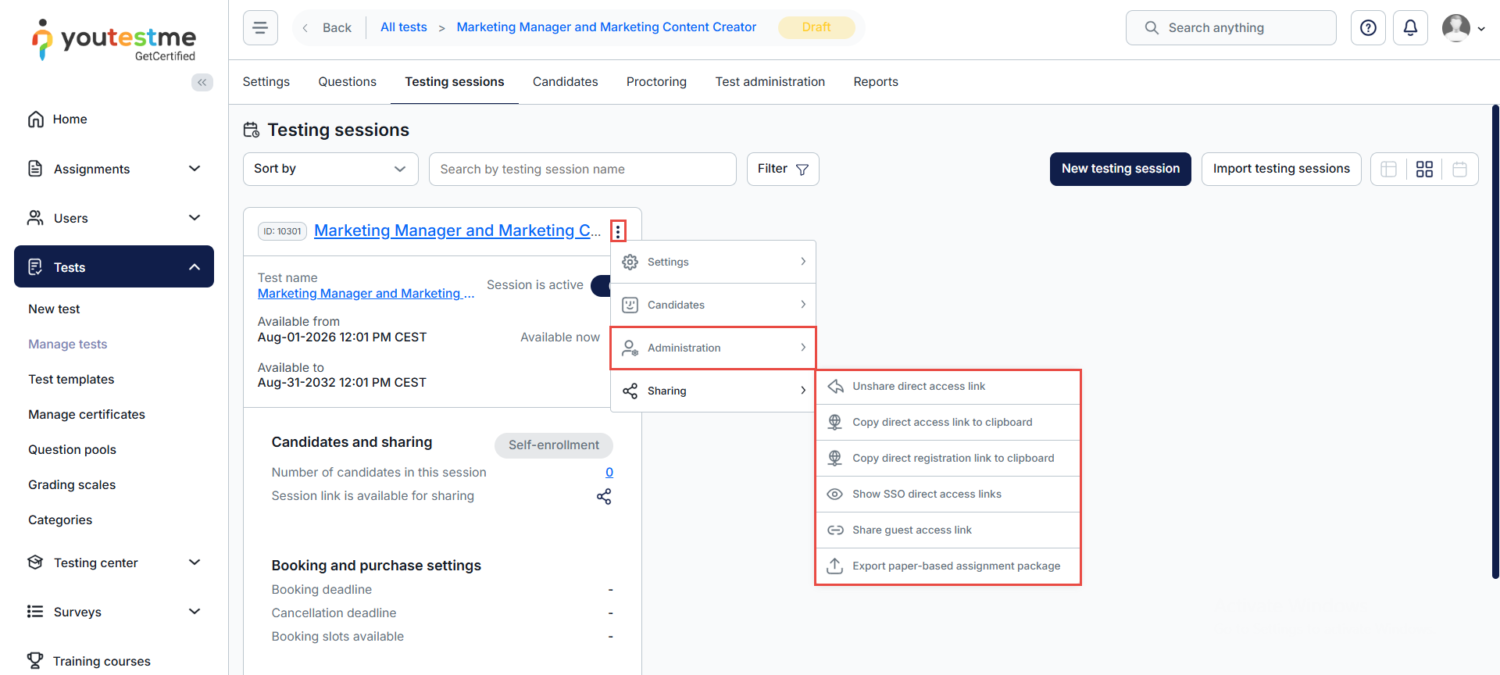
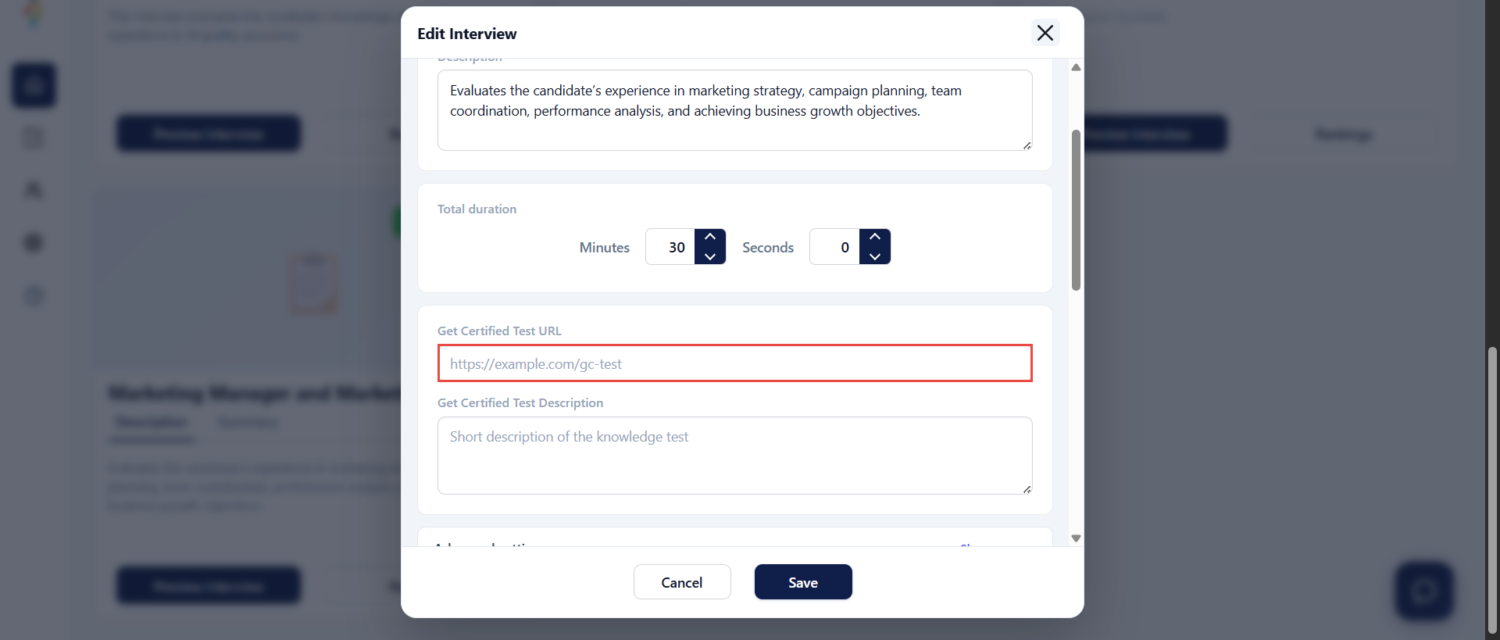
To connect the test to the interview, copy the direct link to the testing session. Please note that the session must be self-enrolment. For more information on generating direct links, please visit this article.
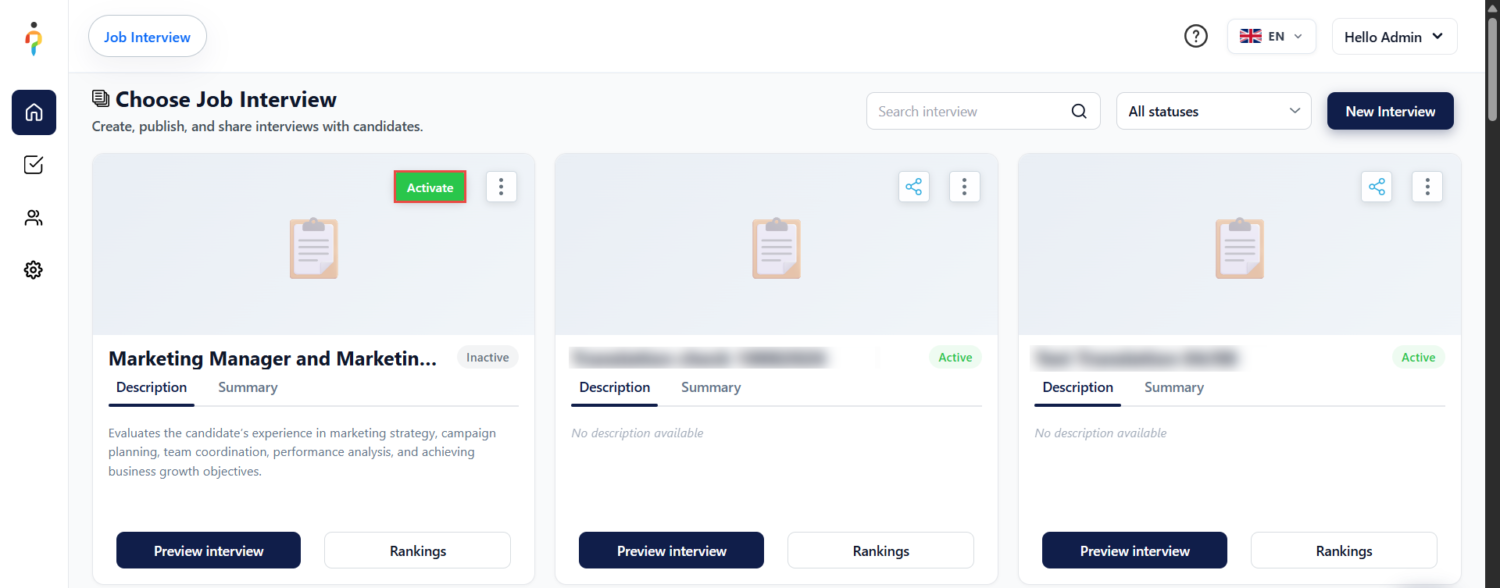
Activate the Interview
After creating and reviewing the interview configuration, activate the interview to make it available to candidates. Once activated, candidates can access and complete the interview.
HR Outcome
Once these steps are completed:
- the workspace is configured,
- interviews and tests are ready,
- the job posting is published,
- candidates can start the recruitment process, and
- Managers have the required access to review candidates.
Candidate Workflow
Open the Job Posting
The candidate opens the published job posting and selects Apply Now.
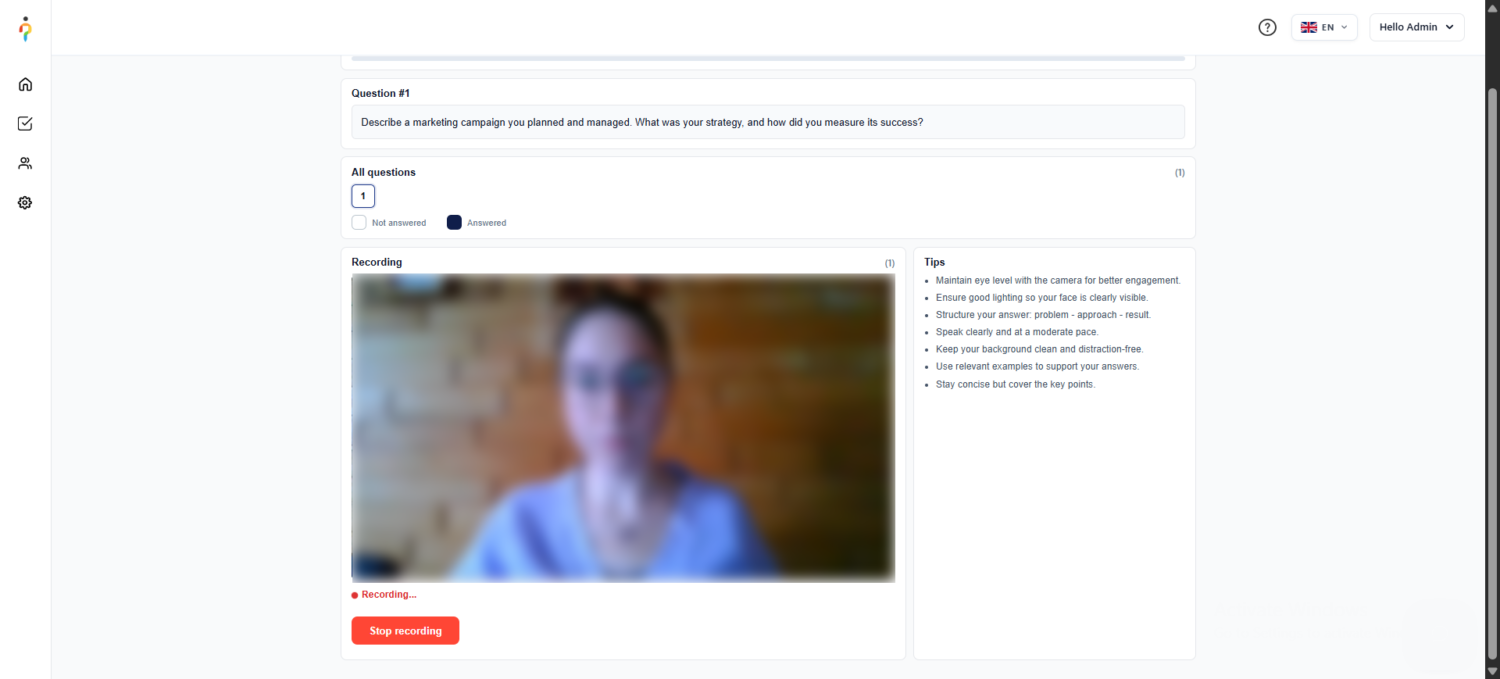
Complete the Interview
After selecting Apply Now, the candidate enters the structured interview.
The candidate answers each required question and continues through the interview until they submit all responses.
Access the Knowledge Test
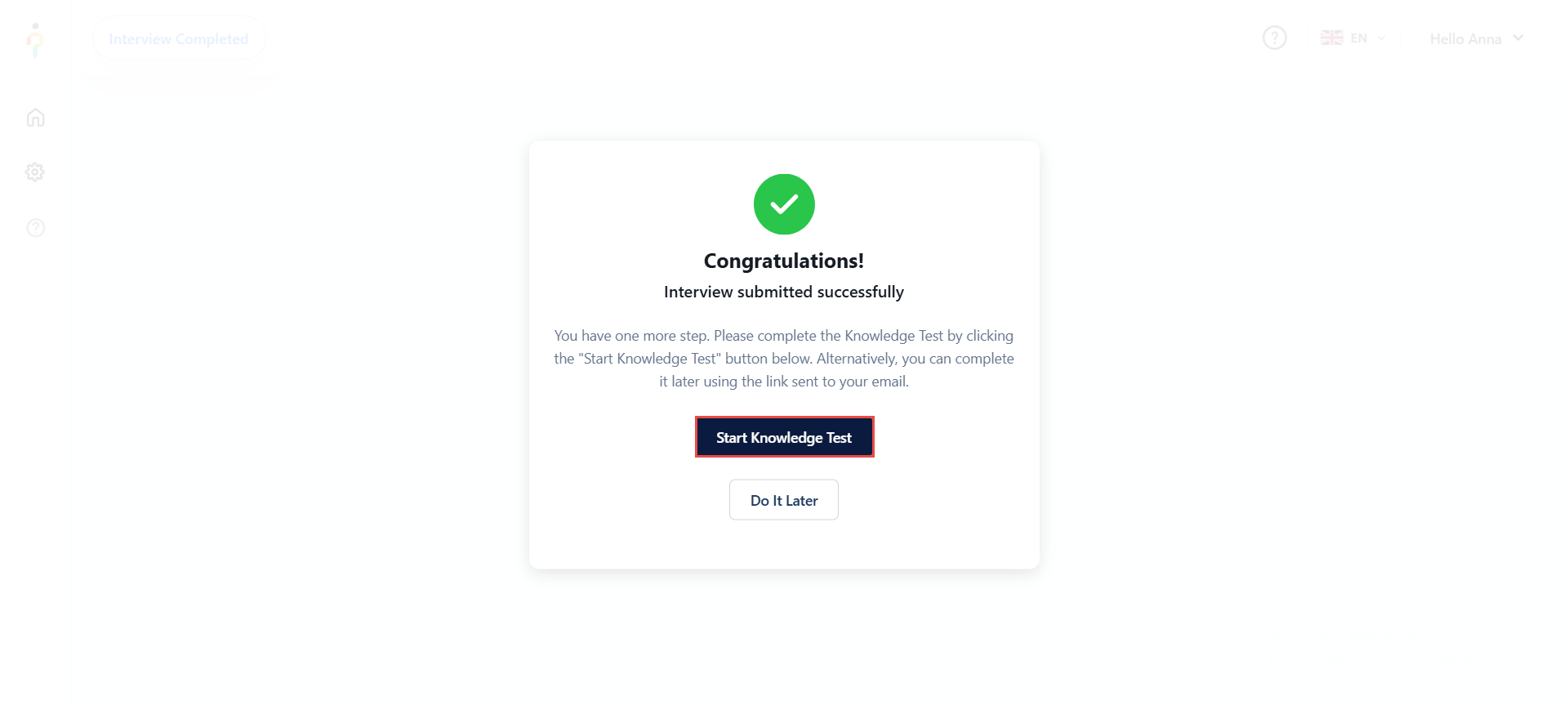
After submitting the interview, the candidate can click Start Knowledge Test to be redirected directly to the assigned knowledge test, or choose Do It Later and access the test later using the link sent to their email.
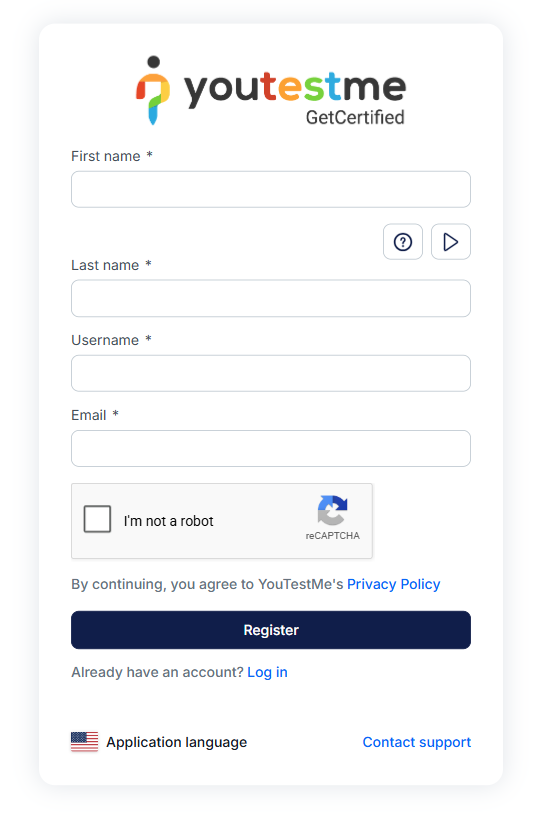
After clicking Start Knowledge Test, the candidate is redirected to the GetCertified registration page, where they must enter the required information and register before accessing the assigned knowledge test. Candidates who already have an account can select Log in instead.
After registering or logging in to GetCertified, the candidate is redirected to the Assignments page, where the assigned knowledge test is displayed and can be started immediately by clicking Start.
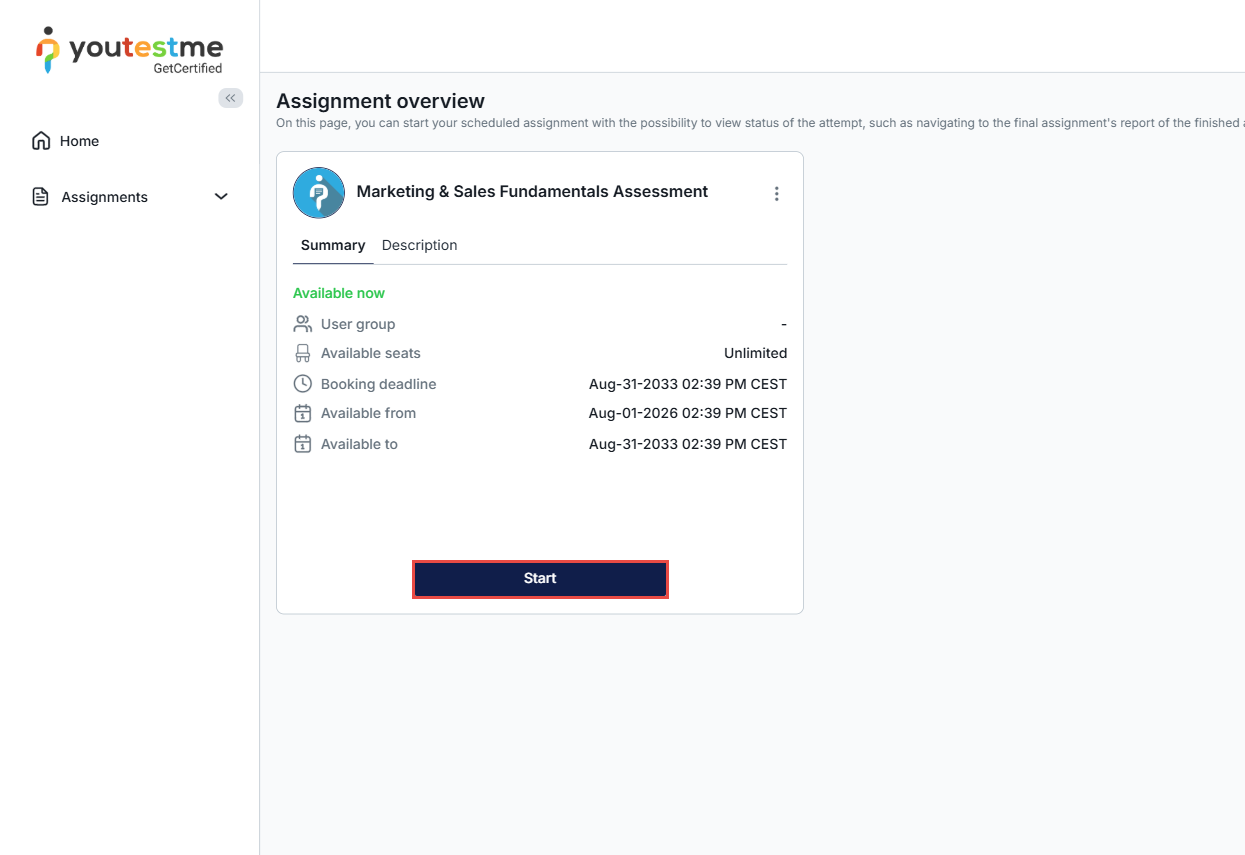
For more information on how to start a proctored test, please visit this article.
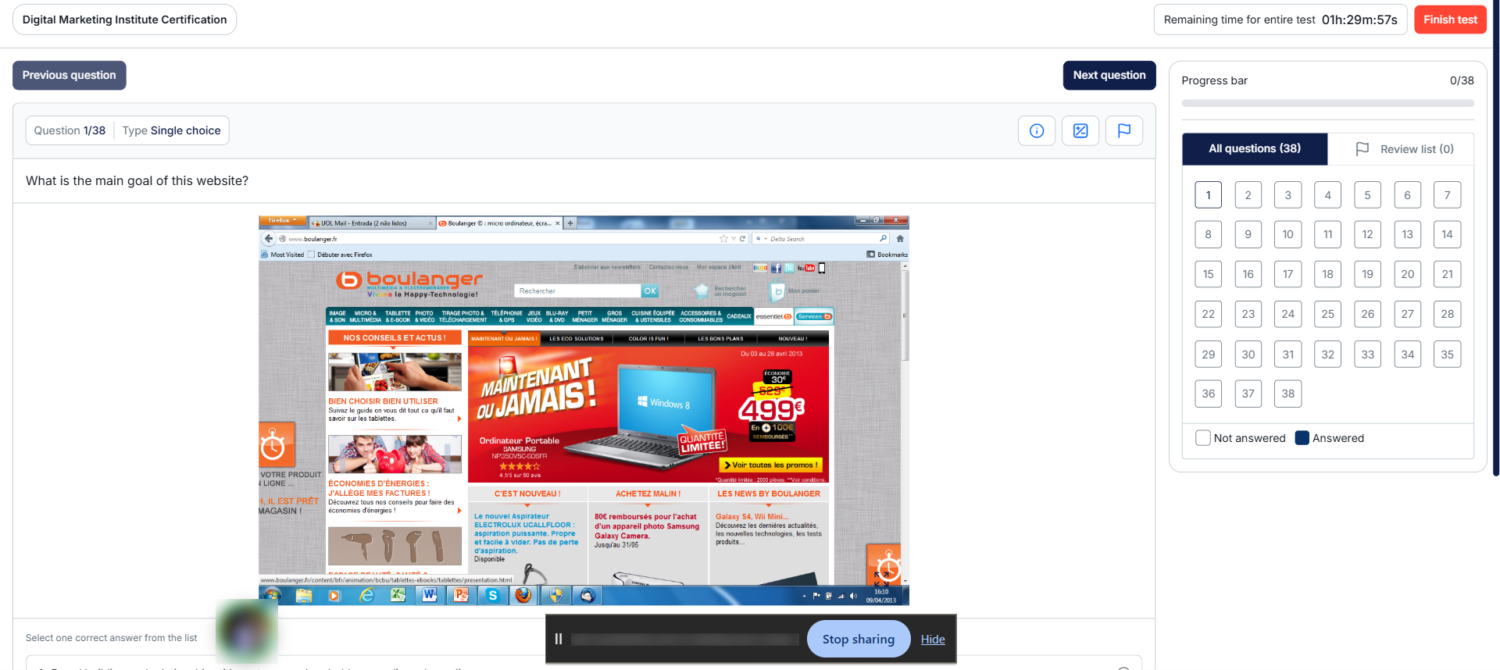
Complete the Knowledge Test
The candidate answers the required questions and submits the test. After submitting the test, the candidate has completed the assessment part of the recruitment process.
Candidate Outcome
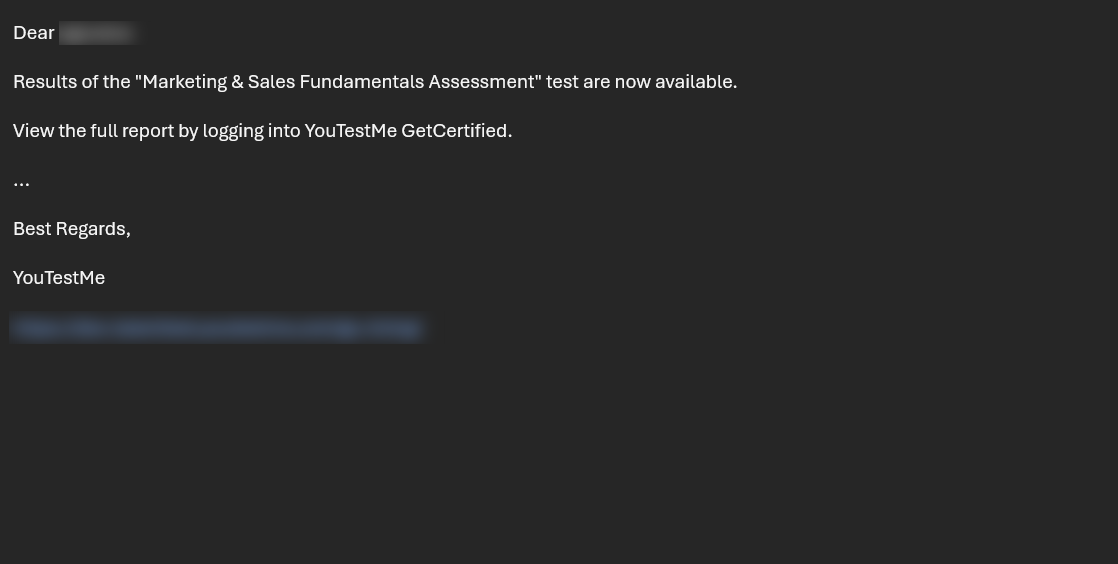
The candidate completes the recruitment process through the published job link, interview flow, and connected knowledge test without needing access to internal administrative pages. Once the candidate completes the knowledge test, they receive an email notification confirming that the results are available, with a link to log in to GetCertified and view the full report.
Manager / Admin Workflow
Managers and administrators use the Results page in YouTestMe Virtual Interview to review completed candidate interviews and evaluate their performance.
Access the Results Page
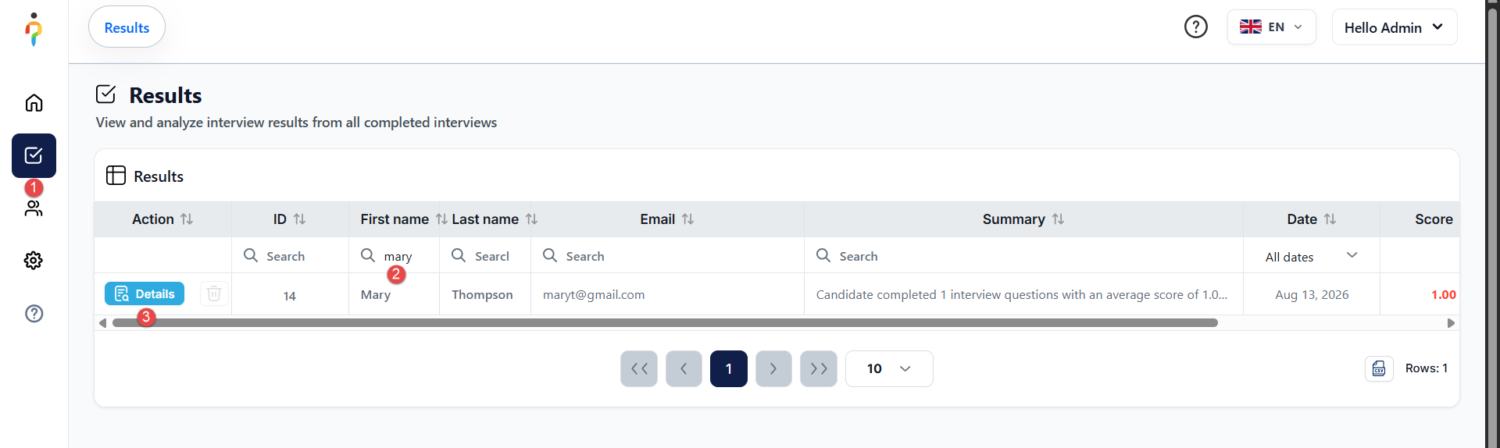
Sign in to YouTestMe Virtual Interview and select Results from the main navigation.
Find a Candidate
Use the available search and filtering options to locate the candidate whose results you want to review. The Results table displays candidate information, completion date, summary, and interview score.
Review Interview Details
Select Details next to the candidate to open the complete interview result and review the submitted responses and evaluation information.
Check Knowledge-Test Completion
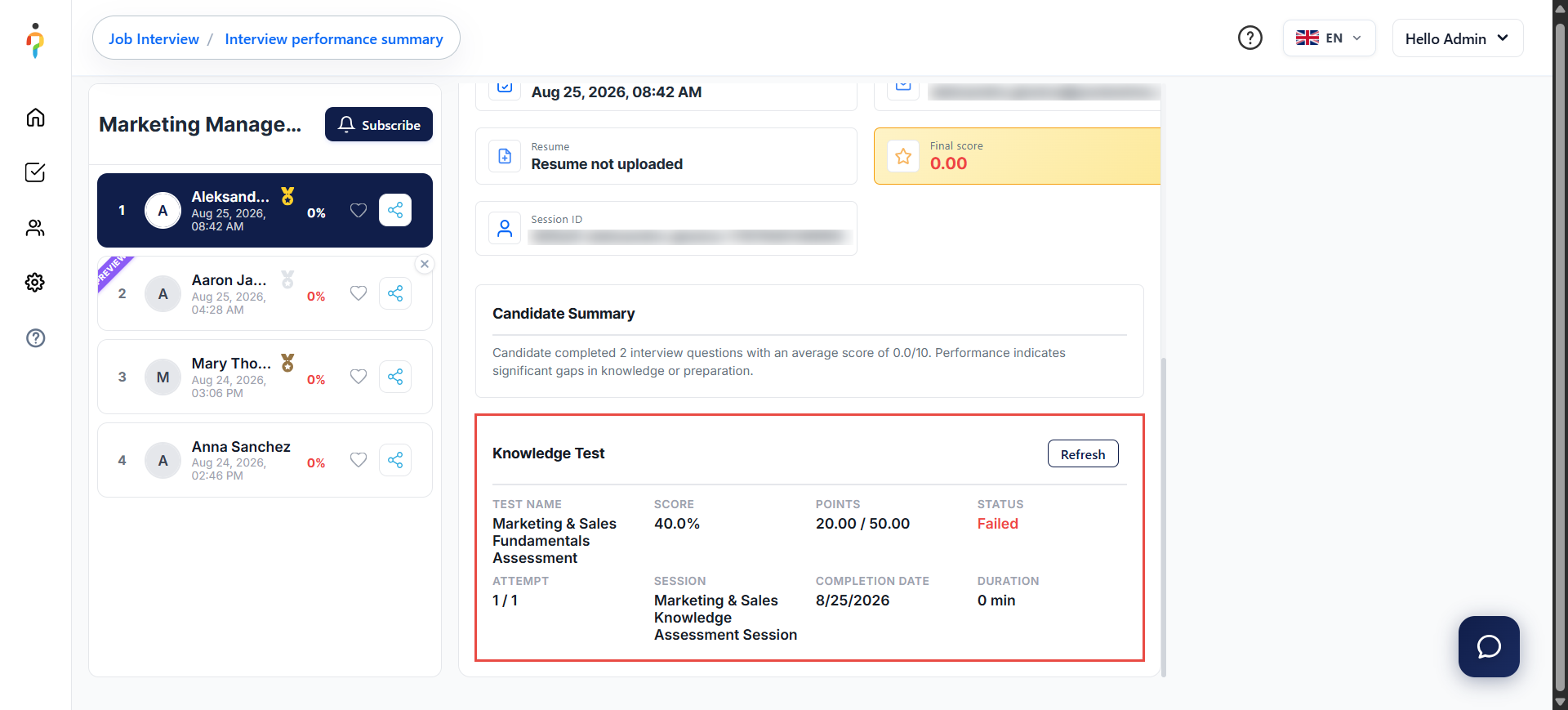
Within the candidate’s interview results, scroll to the bottom of the page. The Knowledge Test section indicates whether the candidate has completed the assigned knowledge test.
This allows the administrator or manager to review the interview result and confirm the candidate’s knowledge-test completion status from the same candidate record.
Make the Hiring Decision
Review the available candidate information, interview evaluation, and knowledge-test results. Use this information to compare candidates and make the final hiring decision.
Manager Outcome
The Manager has access to the candidate information and assessment results required to make an informed hiring decision.
Roles in the Recruitment Process
Administrators
Administrators have full system access and can manage users, settings, permissions, and recruitment configuration.
Instructors / HR
HR users create and manage interviews, knowledge tests, and job postings and prepare the recruitment process for candidates.
Managers
Managers review candidates, interview results, and knowledge-test results and make hiring decisions.
Proctors
When proctoring is enabled, Proctors can monitor tests according to their assigned permissions. For more information, please visit this article.
Candidates
Candidates apply for open positions and complete their assigned interviews and knowledge tests.
Summary
The complete Hiring Commander recruitment workflow can be summarized as:
HR prepares the process → Job is published → Candidate applies → Candidate completes the interview → Candidate completes the knowledge test → Manager reviews the results → Hiring decision is made.
The workflow provides a single structured process for managing recruitment content, candidate assessments, and hiring decisions.
For more useful instructional materials, check these links: