
Article verified for Release 15.1 on December 9, 2025.
This article outlines the process of automatically assigning candidates to training courses via a registration link.
Adding Training Courses to the Registration Link
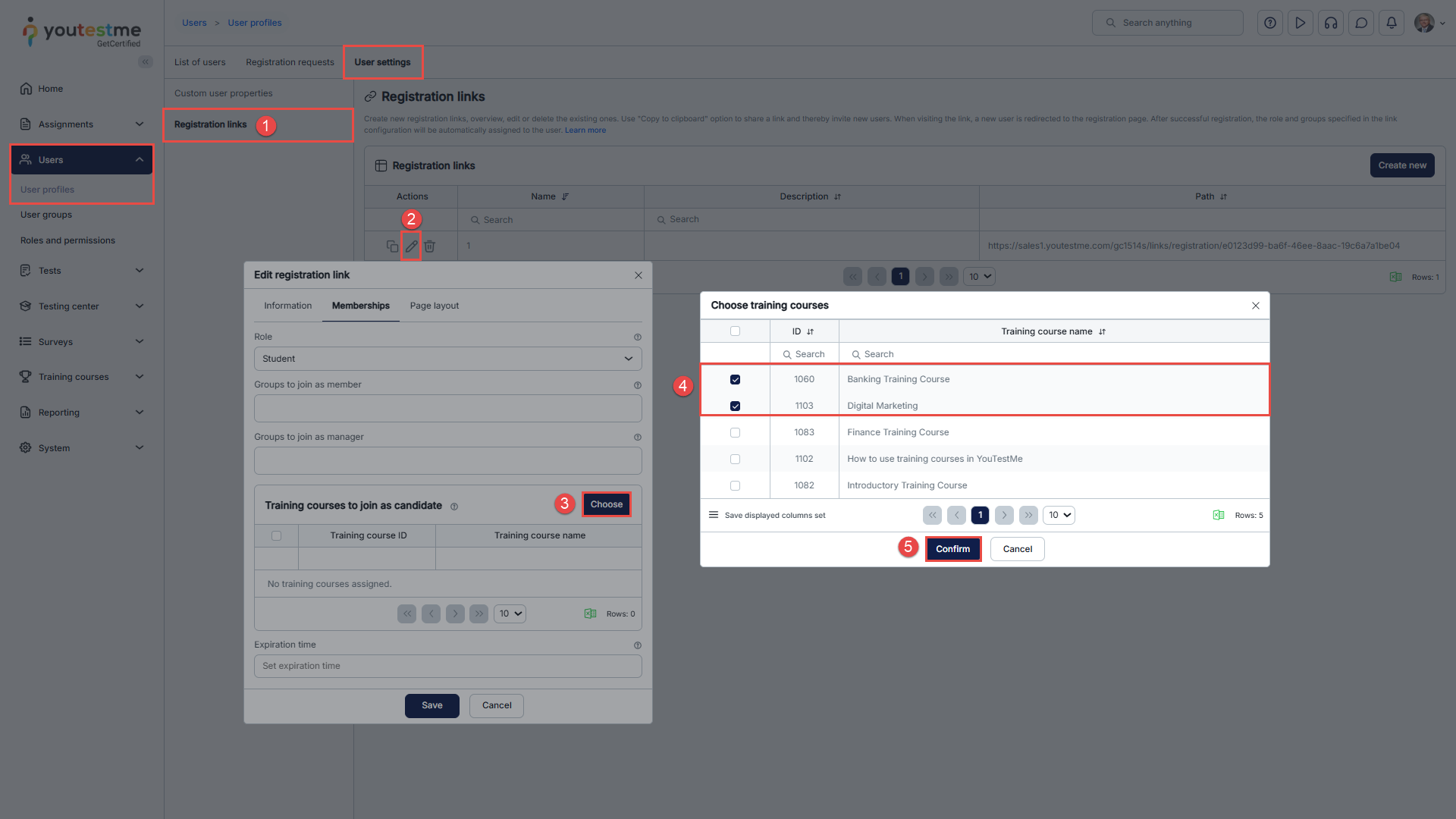
To create a registration link, follow the steps in this article. You can add training courses when editing an existing registration link:
- Navigate to Users > select User Profiles page > open the User Settings tab > then go to Registration Links.
- Select the Edit option.
- When the pop-up window appears, navigate to the Training courses section and click on the Choose button.
- The new pop-up window will appear, where you can select the desired training courses.
- Save the changes by clicking on the Confirm button.
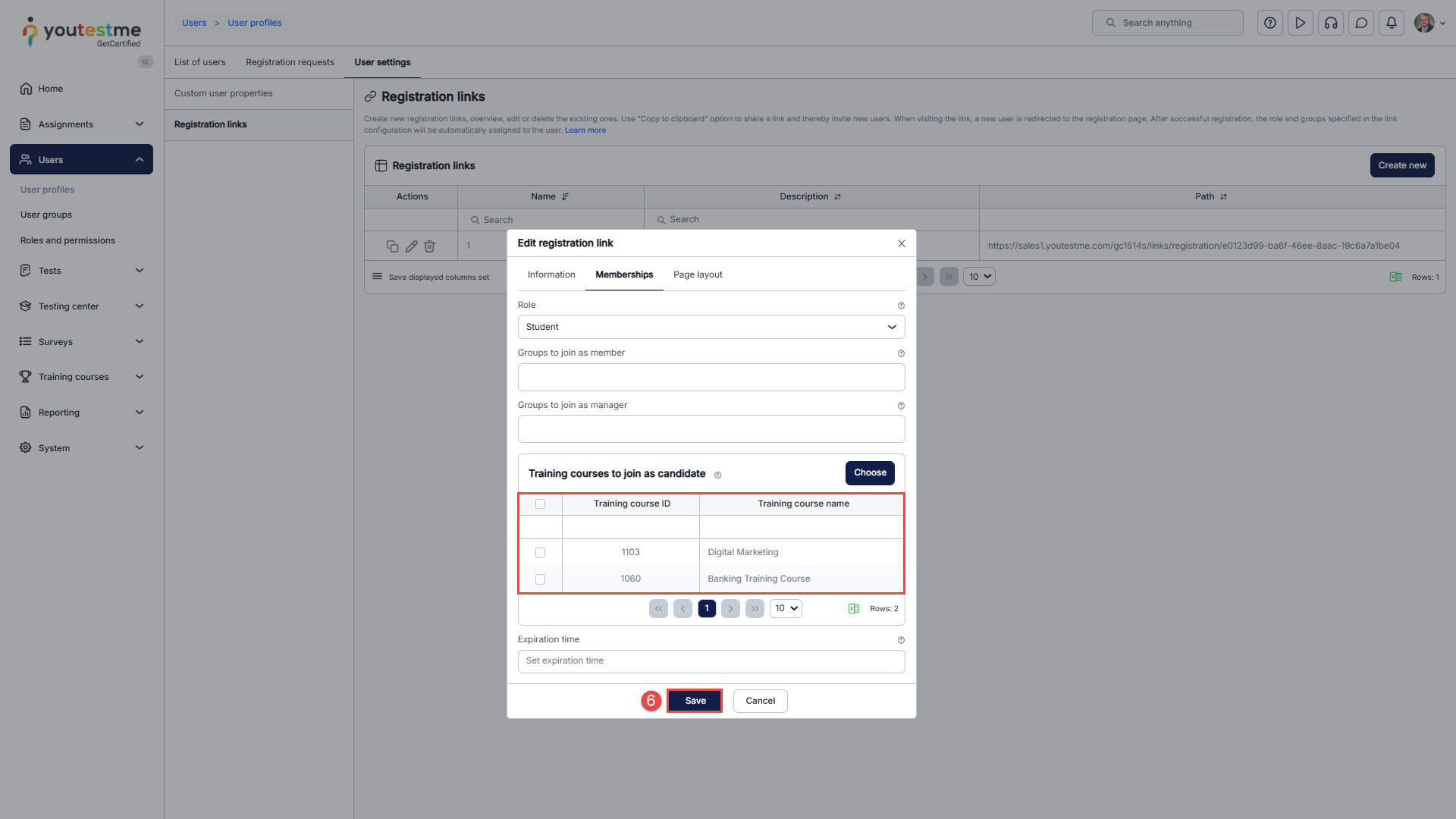
- Training courses should appear in the table. To confirm all the changes, click the Save button.
Candidate’s Perspective
Upon clicking the registration link, candidates will be prompted to fill in the required information to register.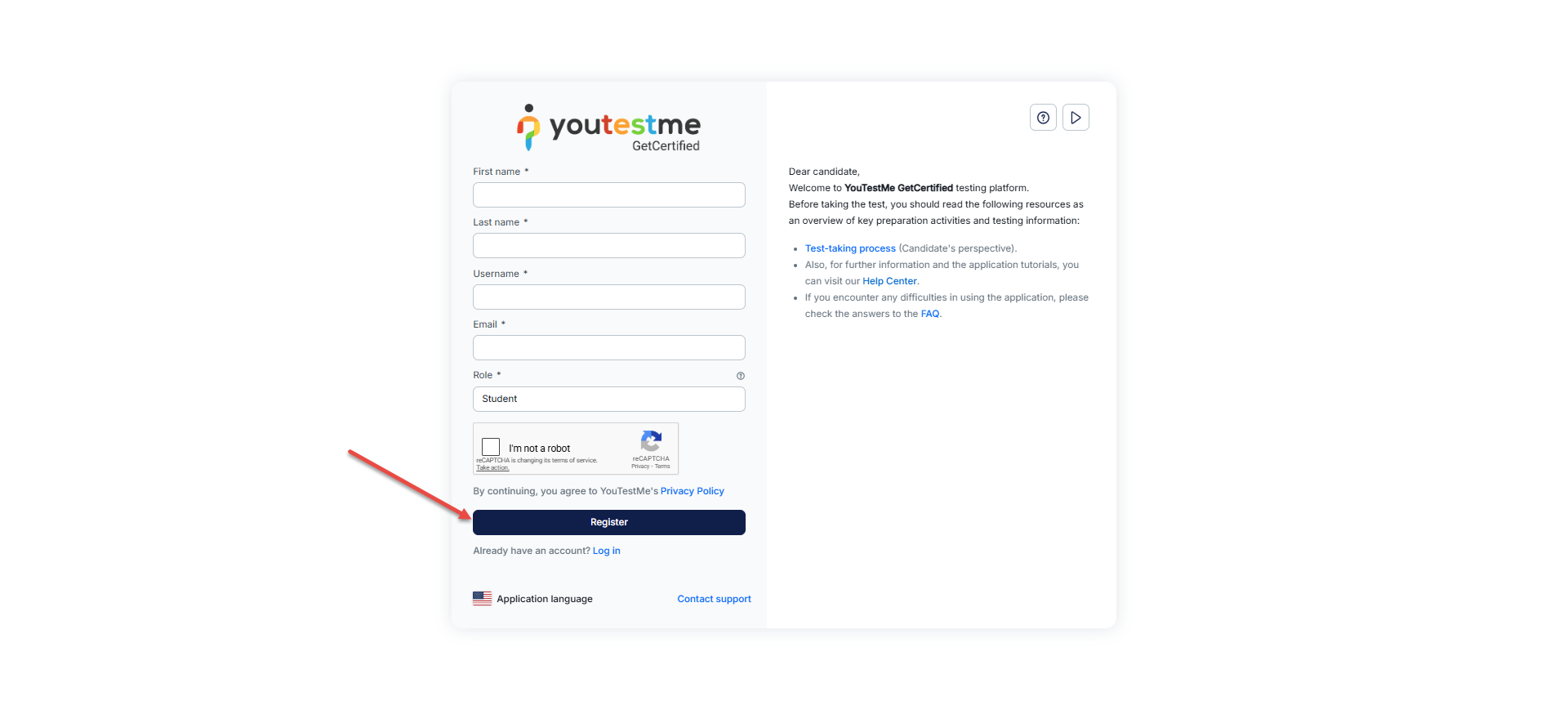
By default, candidates will be assigned to the training courses specified when the registration link was created.




