Article verified for Release 16.1 on July 07, 2026.
Navigating the process of accessing practice tests through LTI Integration becomes a straightforward task with the proper guidance. In this article, we’ll provide clear and concise instructions, enabling you to use this technological integration for adequate test preparation seamlessly.
Note: The practice tests option is enabled for generated tests (with difficulty/categories), and when the option Generate test versions dynamically.
Creating a test
For more information on creating practice tests, please visit this article.
It is important to create active self-enrollment sessions and publish the test to allow test-taking through LMS.
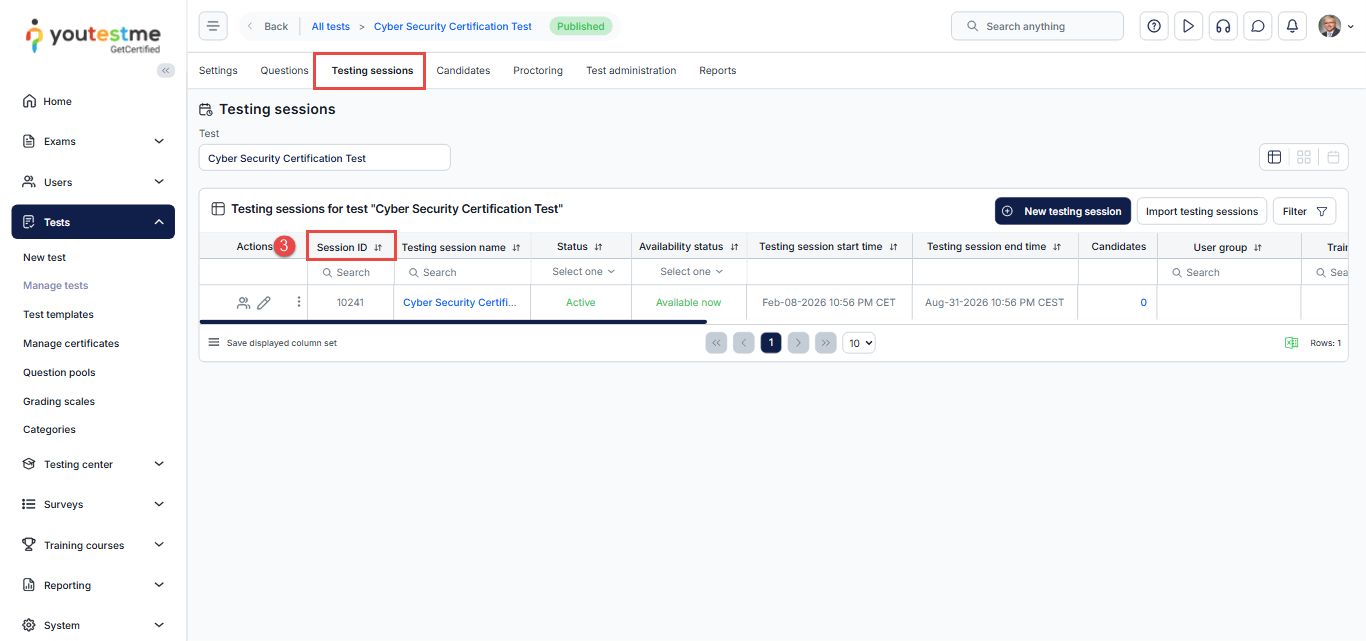
Important information is the test ID and a testing session ID, since you can set integration to assign the candidates to the testing session directly, or give them access to the test, where they can choose which testing session they want to start the test.
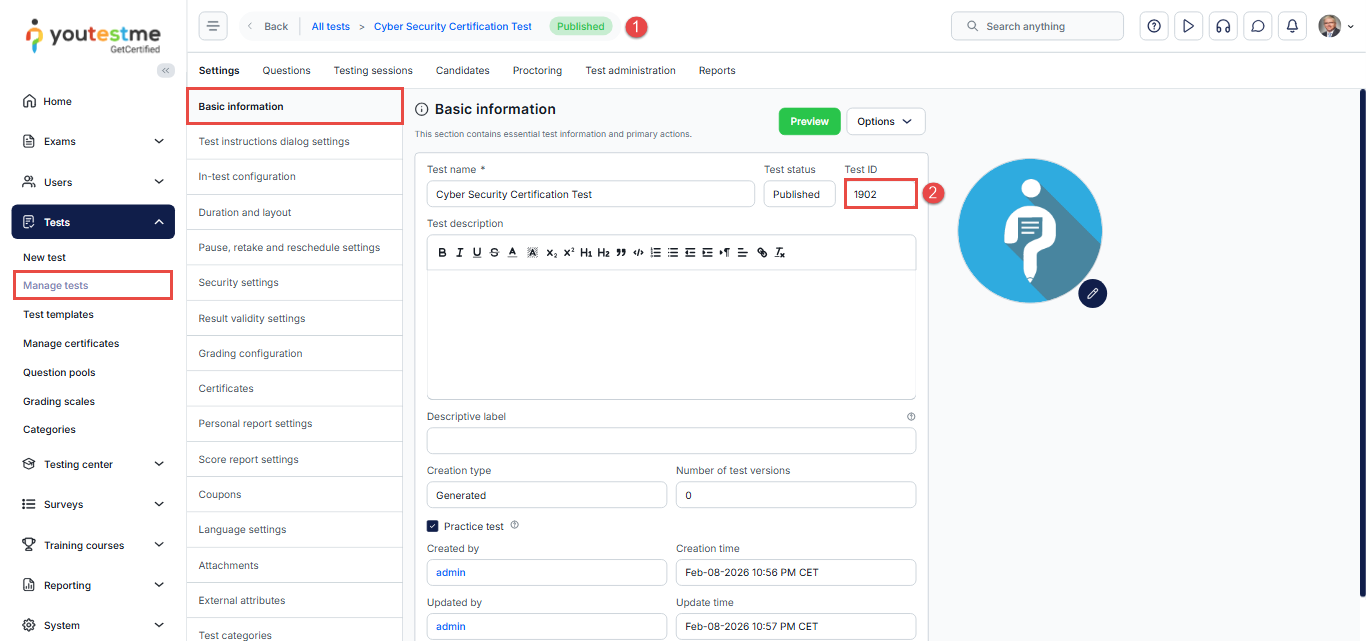
To find the test ID:
- From the main menu, navigate to Manage Tests and select the desired test.
- On the Basic Information page, locate the test ID.
- Then, navigate to the Testing Sessions page to find the session ID.
More information on how to set both integration settings will be explained below.
LTI Settings
Before configuring your Learning Management System (LMS), you must first create an LTI configuration in YouTestMe. This configuration establishes the connection between YouTestMe and the external application (LTI Tool Consumer), allowing users to launch tests through LTI integration and return the results to the external application.
Create an LTI Configuration
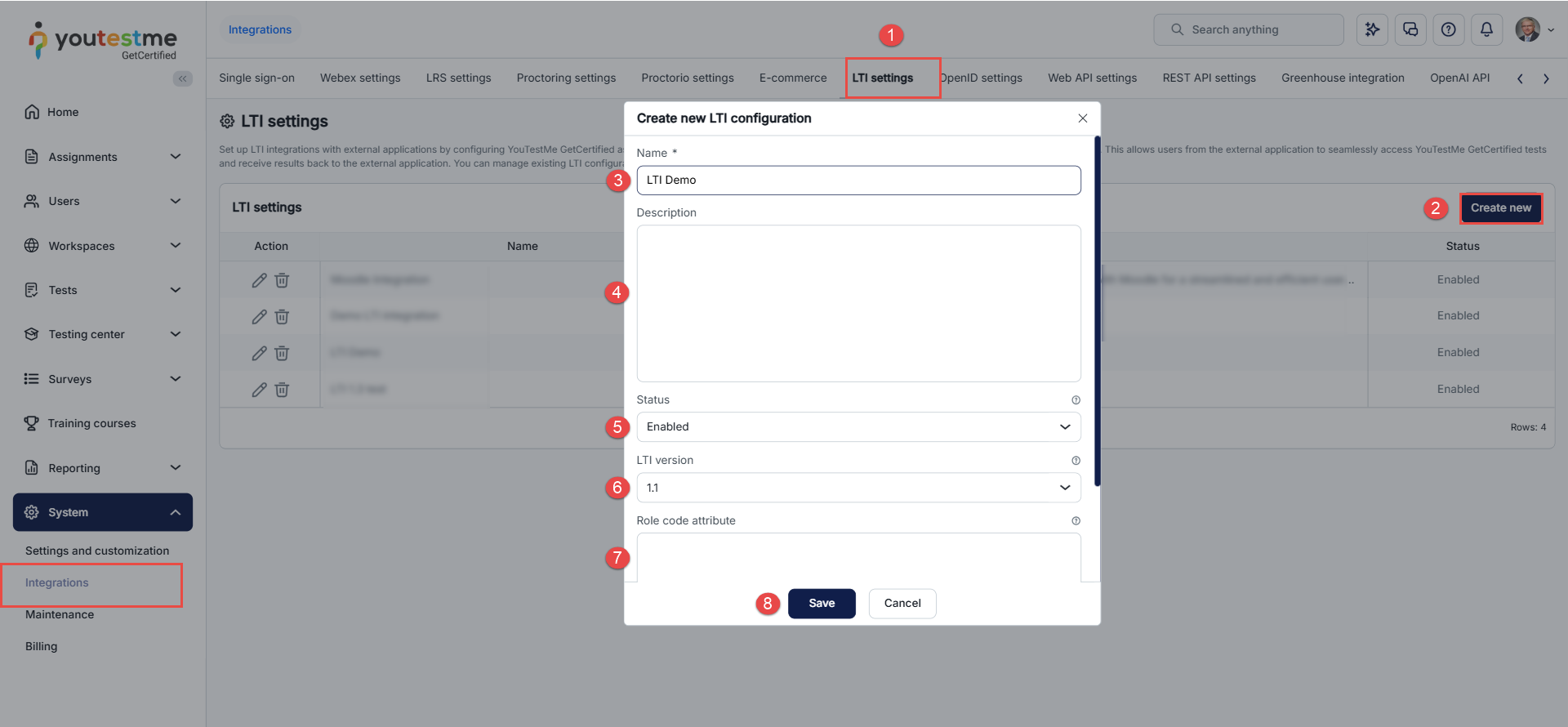
- From the main menu, navigate to System > Integrations > LTI settings.
- Click Create new.
- In the Name field, enter a unique name for the LTI configuration.
- Enter a Description.
- Set the Status to Enabled.
- Select the LTI version.
- The Role code attribute is used to specify the role code corresponding to the role that will be assigned to users accessing the application via LTI.
- Click Save.

After saving, the Edit dialog opens, where you can review or update the LTI configuration and view the parameters required to configure your LMS.
LTI Configuration Parameters
Use the following values when configuring your LMS or other LTI Tool Consumer:
- Consumer key – The unique identifier of the LTI configuration. Together with the Secret key, it is used to verify the LTI Launch request.
- Secret key – Used by the LTI Tool Consumer to sign the LTI Launch request and by YouTestMe to verify the request signature.
- Signature method – Specifies the signature algorithm used to sign the LTI Launch request.
- Message URL – The endpoint where the LTI Tool Consumer sends the LTI Launch request.
You can copy each value by clicking the Copy to clipboard icon next to the corresponding field.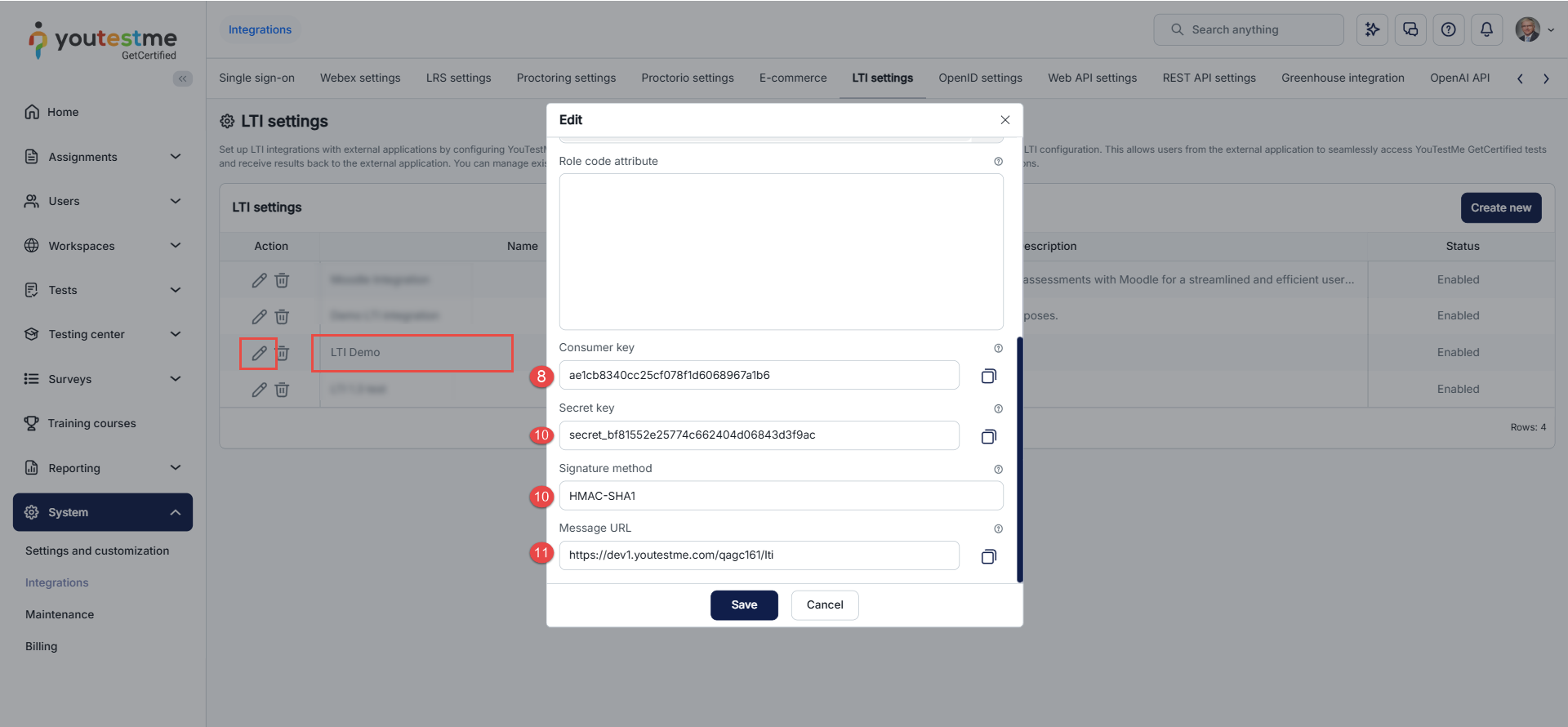
Once the LTI configuration is created, continue with the LMS Configuration section and use the Consumer key, Secret key, and Message URL to configure your LMS.
LMS Configuration
For the demonstration, the LMS Emulator will be used.
- Access https://saltire.lti.app/platform.
- Navigate to the Security Model tab.
- Enter the Message URL text from the YouTestMe application in the Message URL field.
- Enter the Consumer key text from the YouTestMe application in the Consumer key field.
- In the Shared secret field, enter the Secret key text from the YouTestMe application.
- Click the Save button in the top left corner.

Allow access to the test
To give candidates access to the test where they can choose in which testing session they want to start the test, you should do the following:
- Navigate to the Message tab.
- In the Custom parameters field, enter the test_id=desired_test_id.
- Click the Save button.

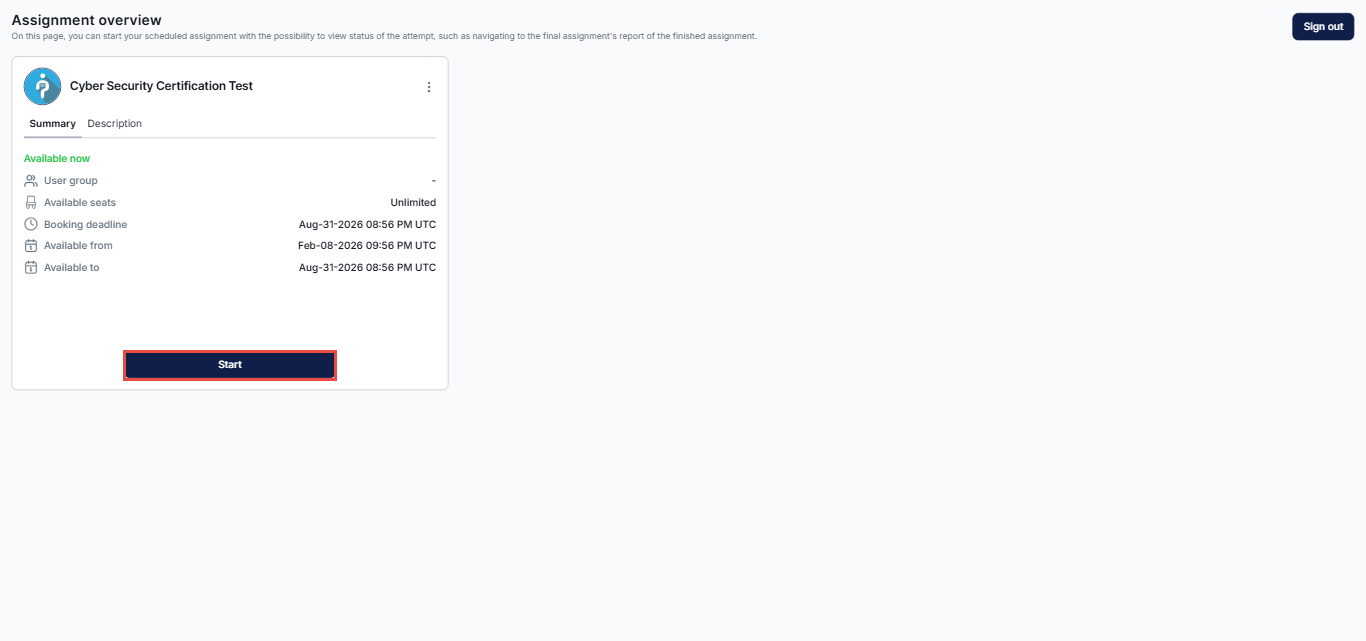
Once the integration is set, a candidate can start the test. To start the test, click the Connect button in the top left corner.

The candidate will be redirected to the YouTestMe application, where they can start the test. If there are a few testing sessions, the candidate should click the Choose the session button to choose the desired one to start the test. Otherwise, the candidate should only click the Book button to book the available session.
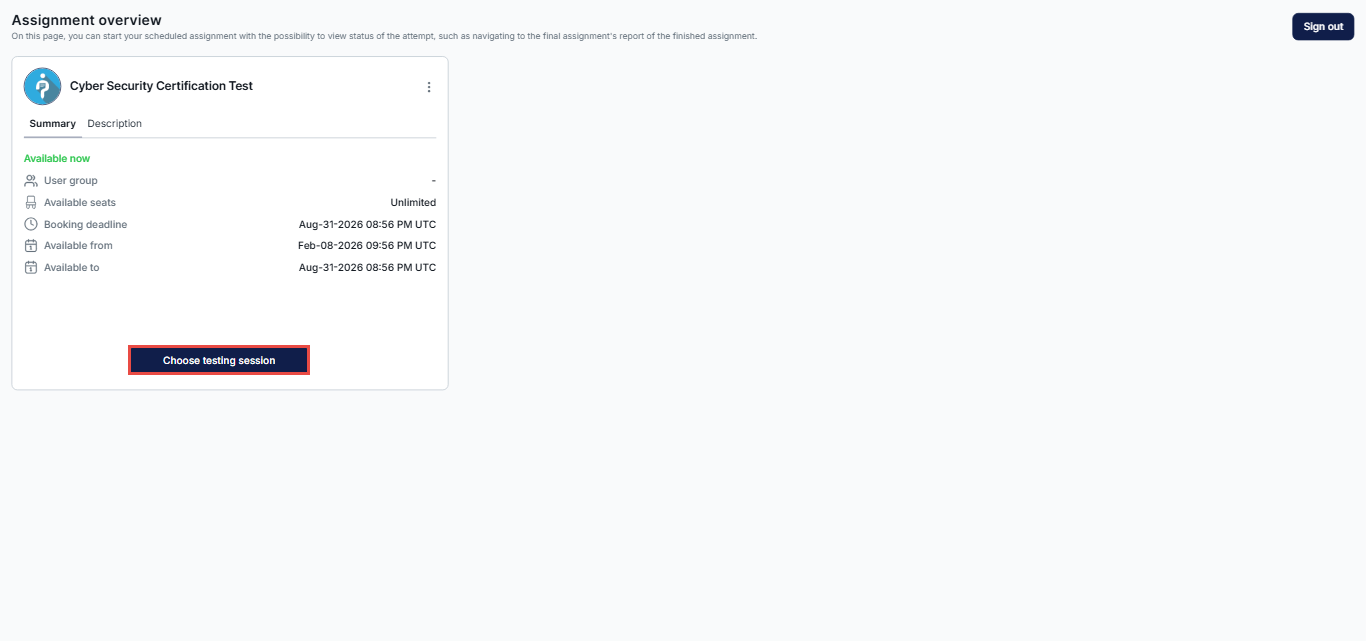
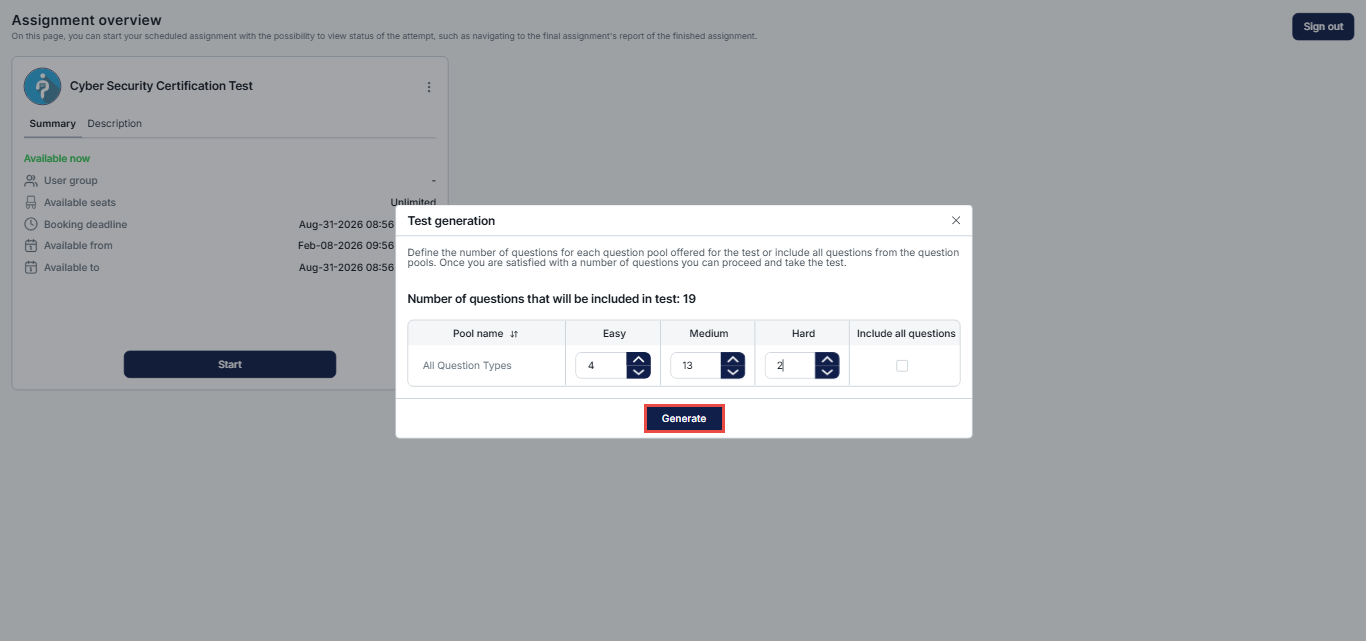
Specify the number of questions for each question pool available in the test, or opt to include all questions from the question pools. Once you’ve determined your preferred number of questions, click on the Generate button to proceed to take the test.
Once the test is completed, the candidate may be redirected to the personal report (depending on the test settings), and once checked, the candidate can sign out by clicking the button in the top right corner.
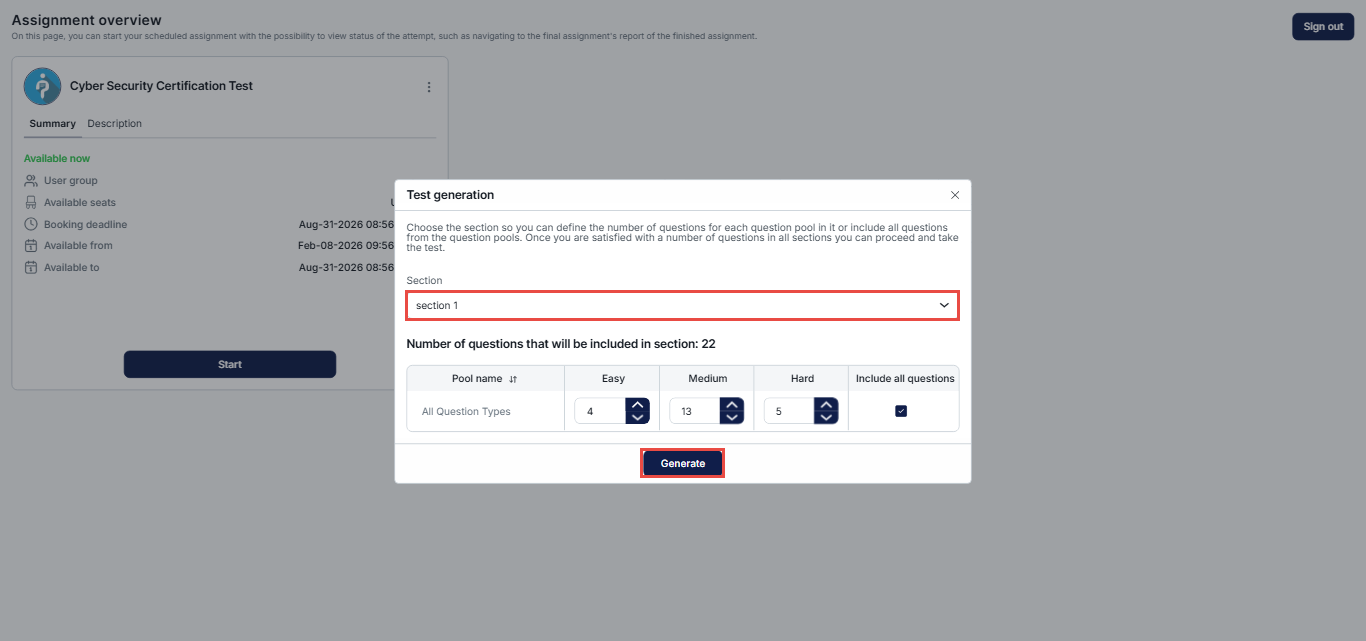
Note: When tests contain sections, users can select which sections they want to include in the practice test.
Select the desired section to define the number of questions for each question pool within it, or include all questions from the question pools. Once you are content with the number of questions across all sections, click the Generate button to take the test.
Once signed out, the candidate will be redirected to the LMS page.
The candidate can access their report by clicking the “View” button, then “Gradebook”.

Allow access to the testing session directly
To give candidates access to the testing session directly, you should do the following:
- Navigate to the Message tab.
- In the Custom parameters field, enter the testng_session_id=desired_testing_session_id.
- Click the Save button.

Once the integration is set, a candidate can start the test. To start the test, click the Connect button in the top left corner.

The candidate will be redirected to the YouTestMe application, where they can start the test. Since the candidate has already been assigned to the testing session, they will have the Start button. The rest of the process is the same as for the first scenario.