
Article verified for Release 15.1 on December 15, 2025.
This article explains how to access and use the Overall User Profile Report, which provides a detailed overview of users’ personal information, account settings, and any custom user properties created in the system.
Accessing the page
To access the report:
- Select the Reporting, then Predefined reports tab.
- Select the User reports.
- Select the Overall user profile information report.

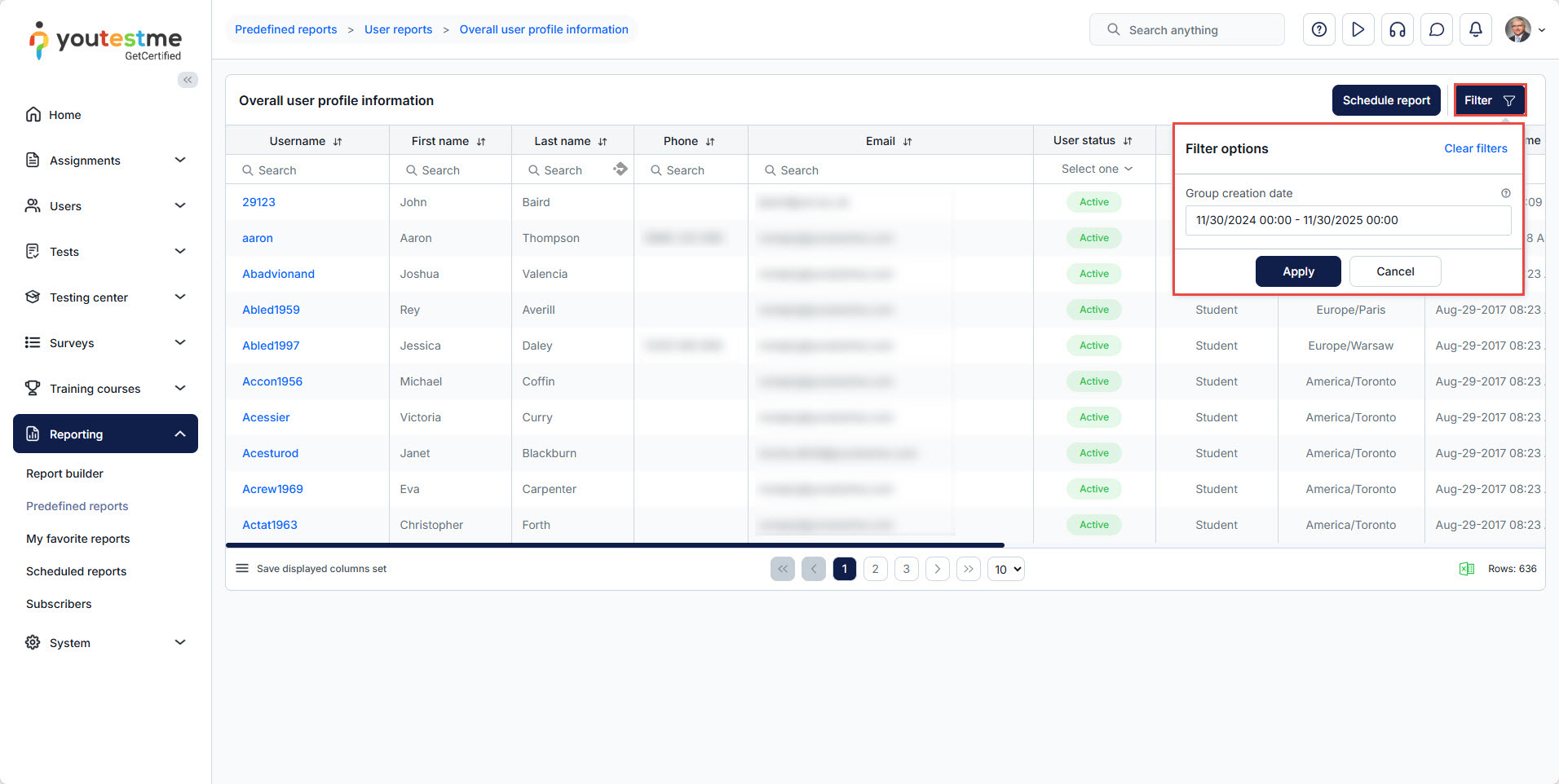
You can filter users by specifying a creation date range, allowing you to view only users created within a selected time period.
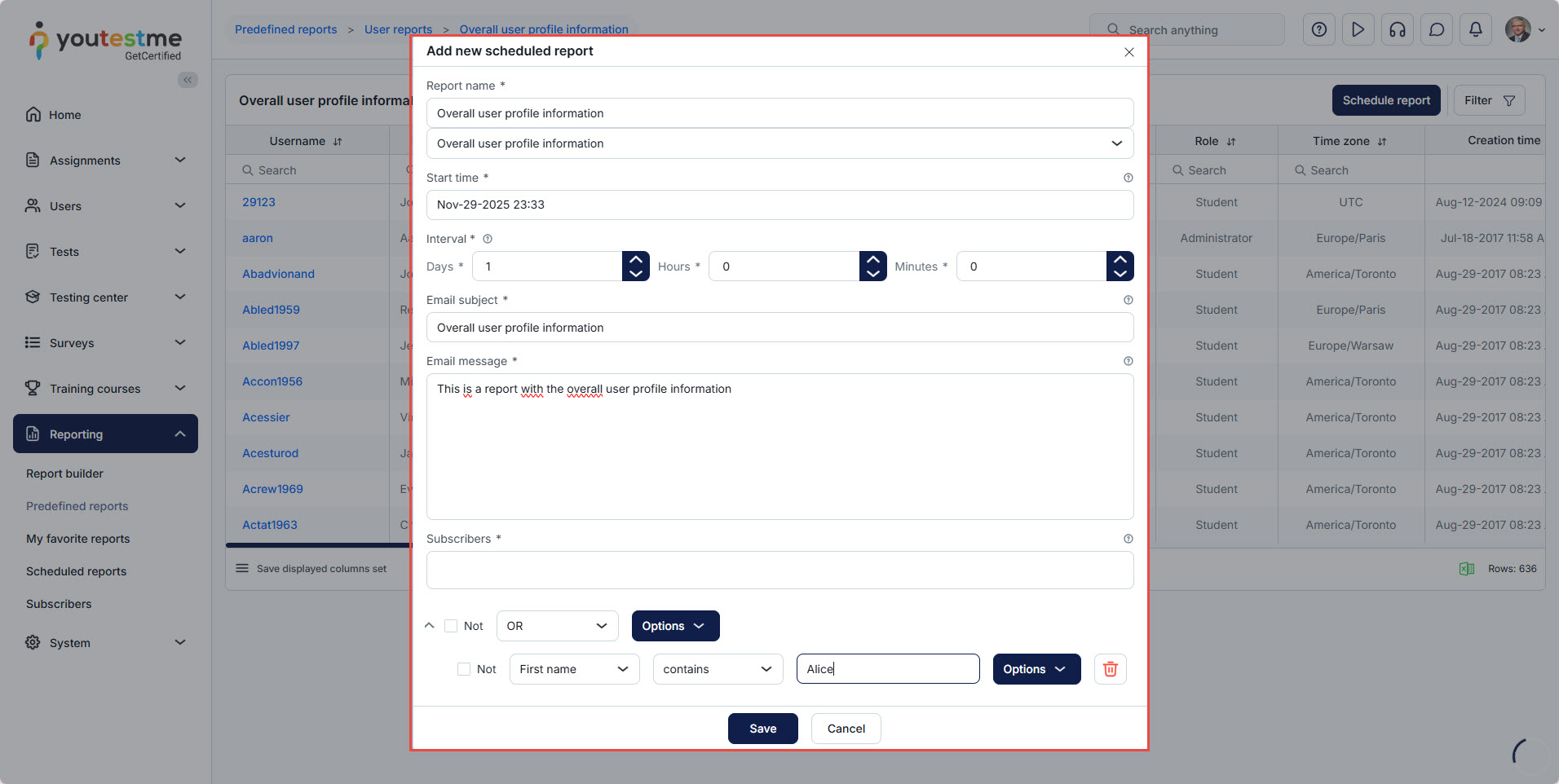
The report can be scheduled for future delivery. For more details, please refer to this article.
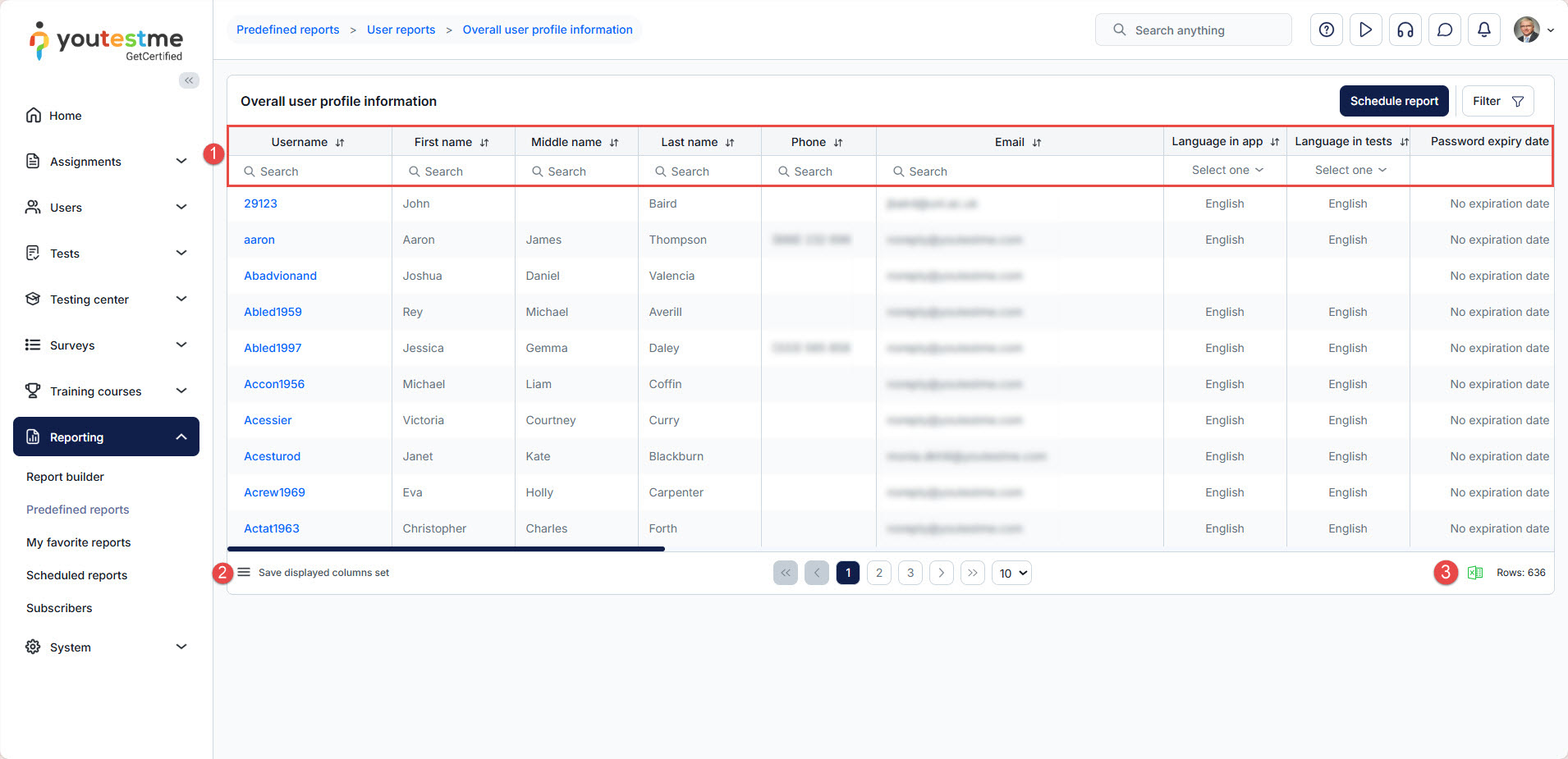
Additionally, you can:
- Filter the columns
- Choose which columns should be displayed
- Export the report as an Excel file
Columns in the Report
The Overall User Profile Report contains the following standard columns:
Username: The unique identifier the user uses to log into the system.
First Name: The user’s given name is stored in their profile.
Middle Name: An optional field used to store the user’s middle name, if provided.
Last Name: The user’s family name used for identification in reports and administrative views.
Phone: The user’s phone number, if provided. This column may be hidden depending on privacy or system configuration.
Email: The email address associated with the user account.
It is used for system notifications, password recovery, and scheduled reports.
Language in App: The language used for the application interface when the user is logged in.
Language in Tests: The language applied to tests and assessments taken by the user, if configured separately from the application language.
Password Expiry Date: Indicates the date when the user’s password expires and must be changed, based on password policy settings.
Last Login Time: Displays the most recent date and time the user successfully logged into the system.
User Status: Indicates whether the account is currently active:
-
Active – The user can log in and use the system.
-
Inactive / Deactivated – The user cannot log in until the account is reactivated.
-
Suspended – The account is temporarily blocked by an administrator.
Role: Defines the permissions assigned to the user (for example, Student, Administrator, Instructor).
The role determines which features and pages the user can access.
Time Zone: The time zone assigned to the user, used to display correct timestamps for tests, deadlines, and reports.
Creation Time: The exact date and time when the user account was created in the system.
Update Time: The date and time when the user profile was last modified.
Employee ID: An internal identifier used by organizations to link the user account to an employee record.
External ID: An identifier used to associate the user with an external system.
Custom Properties: In addition to the standard fields listed above, the report may also include custom user properties. These are additional fields created by administrators to store extra information (such as department, ID number, location, etc.).
Note: For instructions on how to create and manage custom user properties, please see the dedicated article:




