
Article verified for Release 15.2 on January 13, 2026.
This article explains how to return to the Test Wizard. This option is used when certain test settings need to be modified but cannot be changed on the Manage Test page. Returning to the wizard allows administrators to adjust these restricted settings and, if necessary, change the test creation type.
Accessing the Wizard for Draft Tests
If a test is still in Draft status, you can return it to the wizard at any time and continue configuring it step by step.
Steps to Return a Draft Test to the Wizard
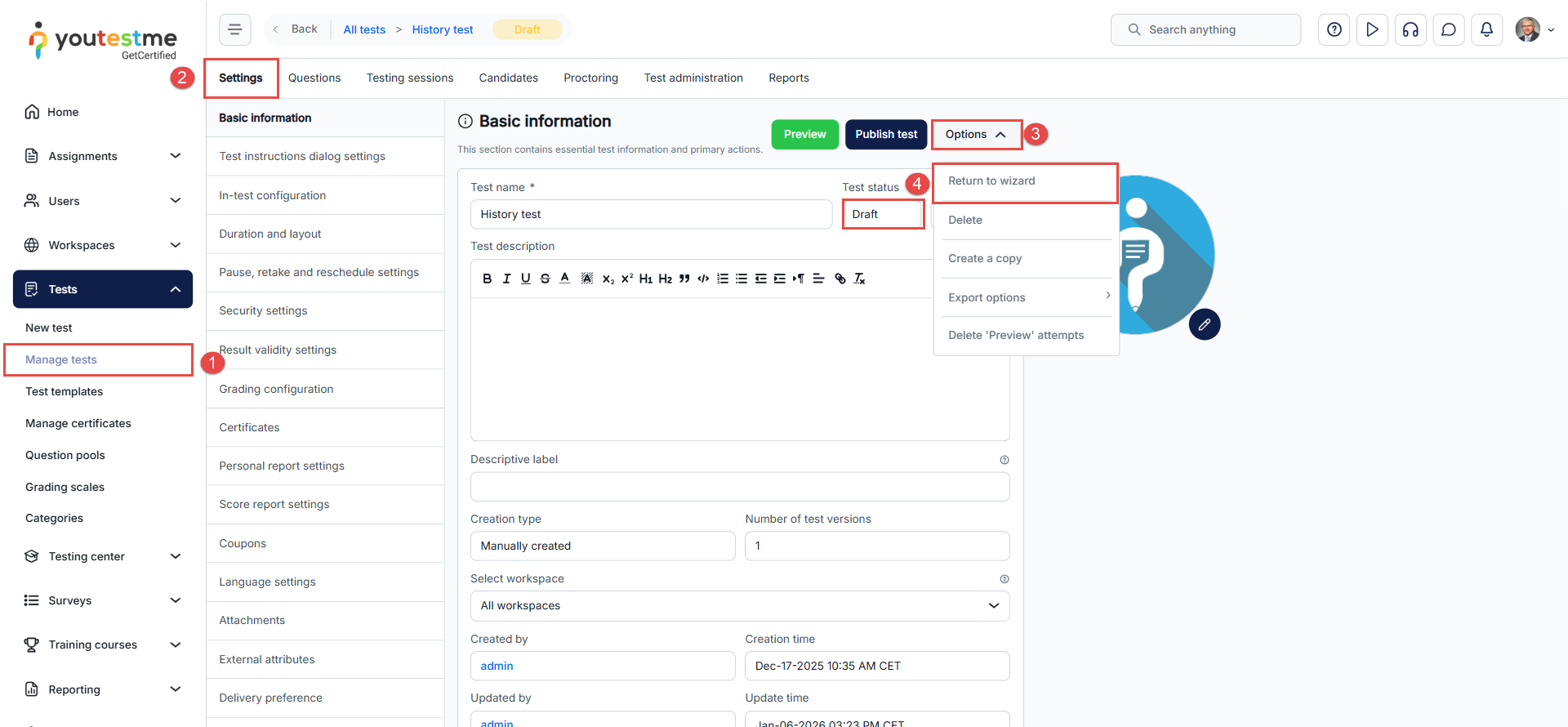
- From the left-hand menu, navigate to Tests > Manage tests.
- Find your draft test in the list and open it. Make sure you are on the Settings tab.
- In the upper-right corner of the test settings page, click Options.
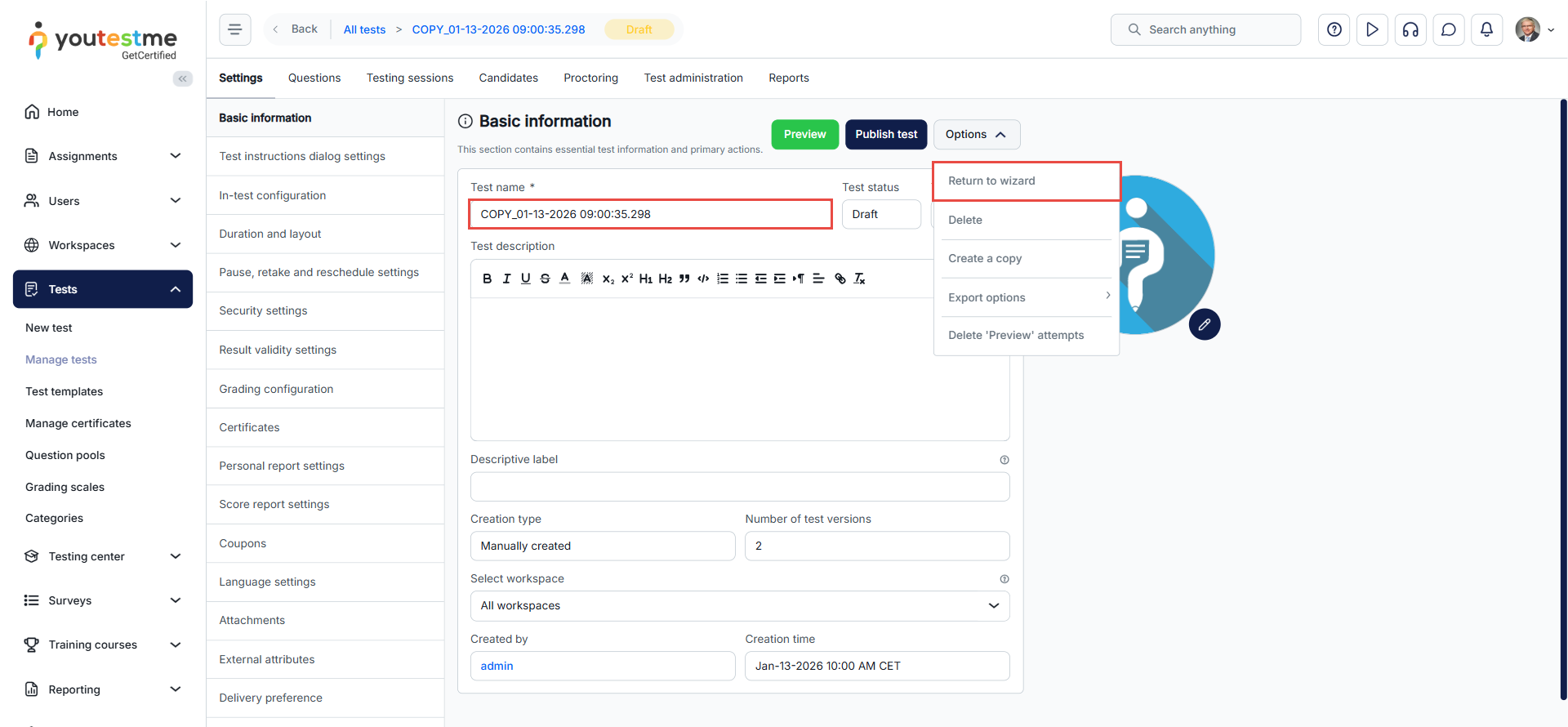
- From the dropdown menu, click Return to wizard.
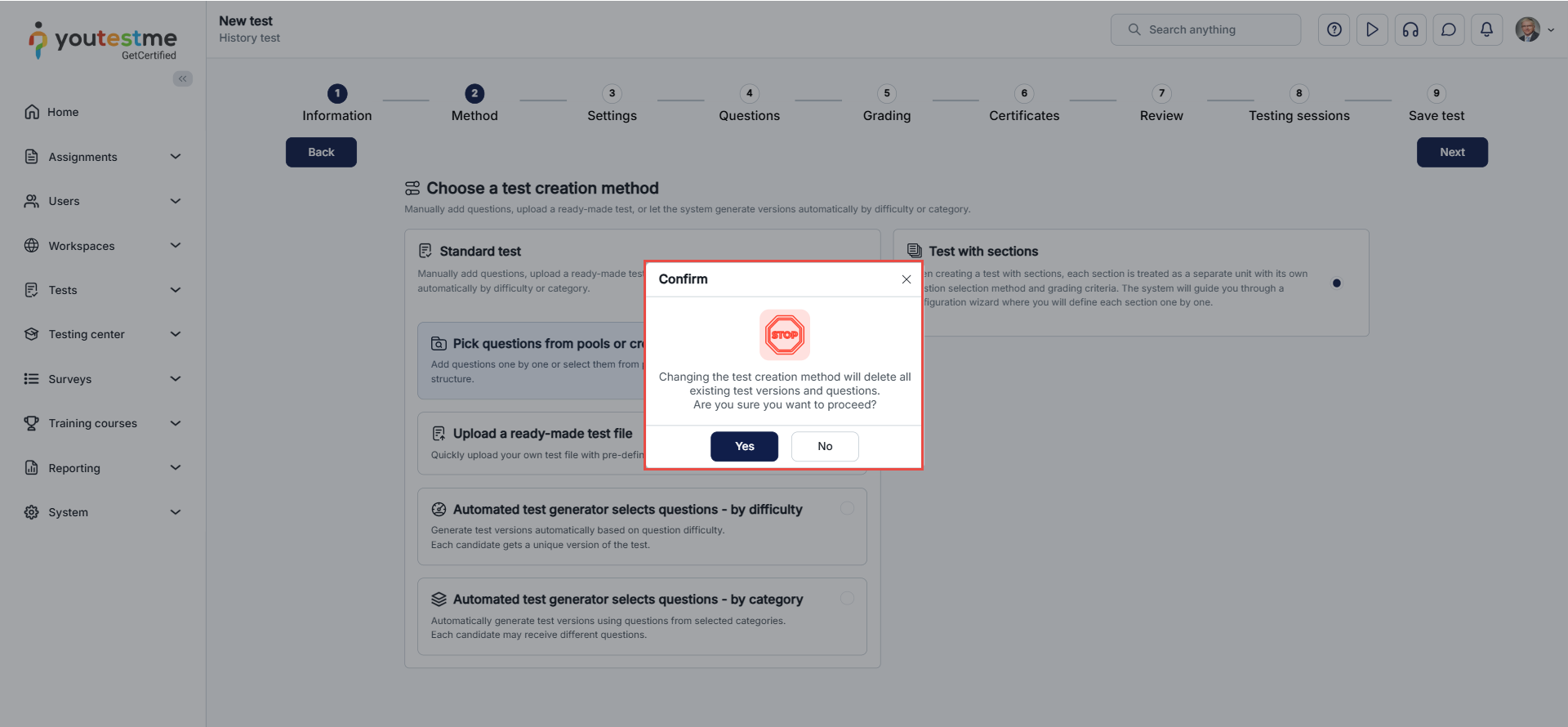
Note: Returning to the wizard allows the user to change the test creation method. As shown in the screenshot, the user can select a different creation method, confirm the action, and then proceed with the test setup.
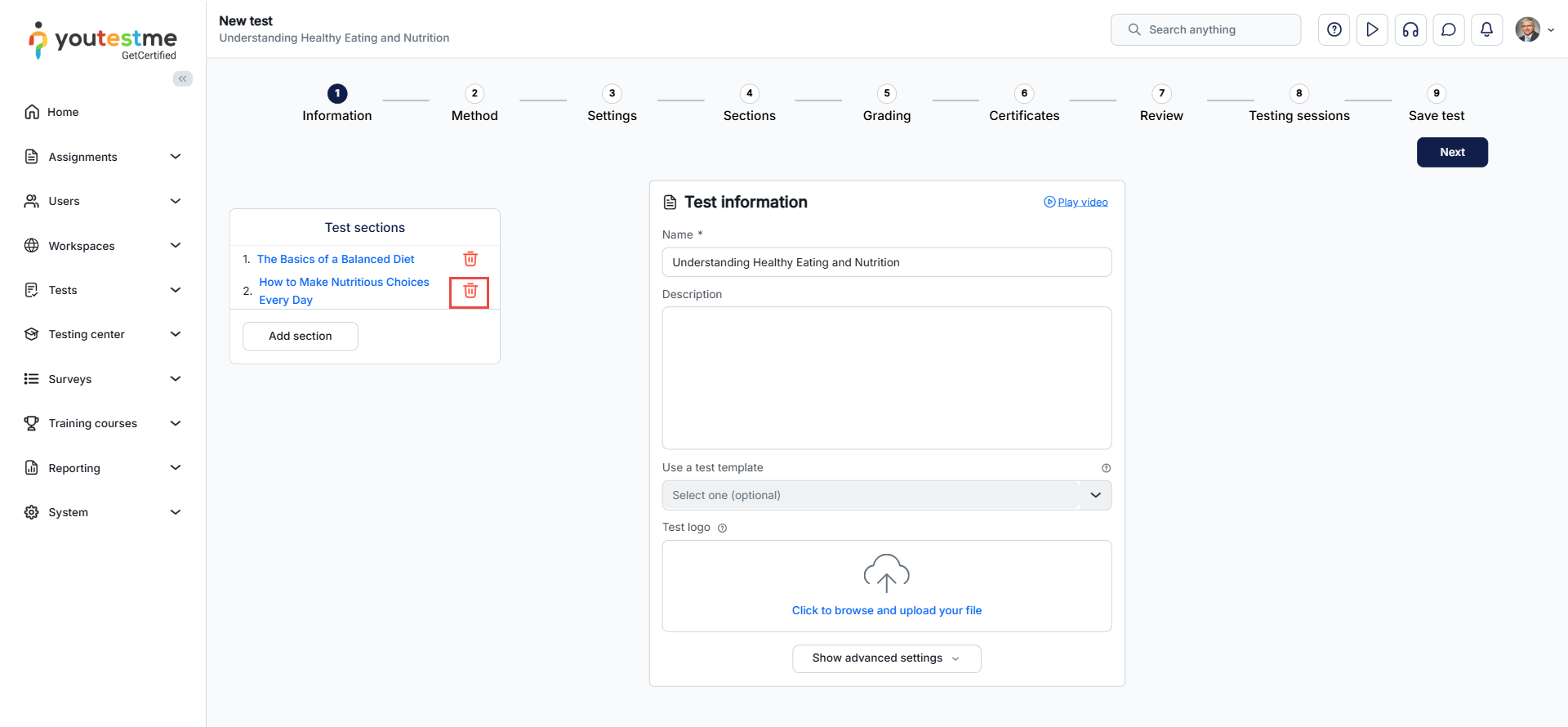
Note: Returning to the wizard allows the option to delete a test section. As shown in the screenshot below, the Remove Section icon next to the desired section can be clicked to delete it.
Returning to the Wizard for a Published Test
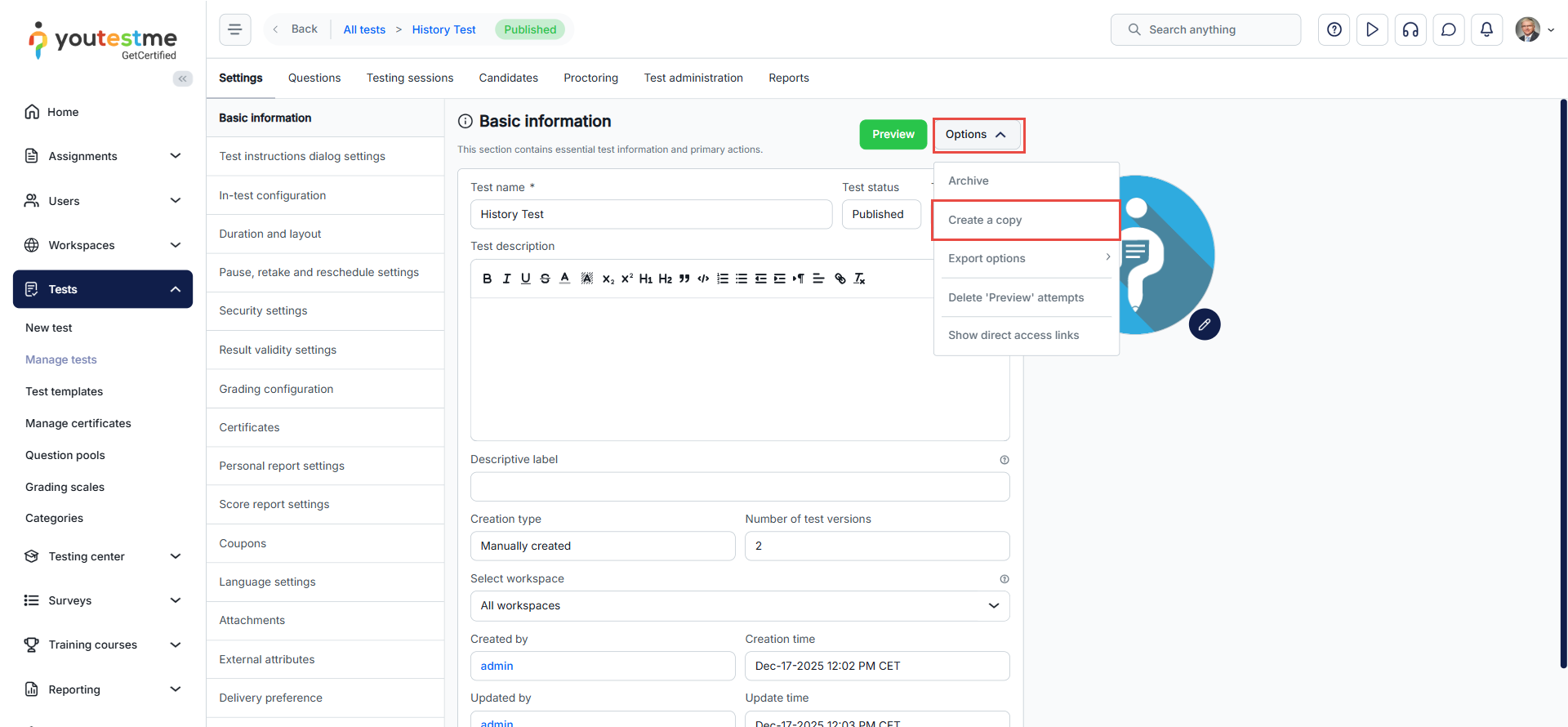
Returning to the wizard is not available for tests that have already been published. Some settings of a published test cannot be modified directly.
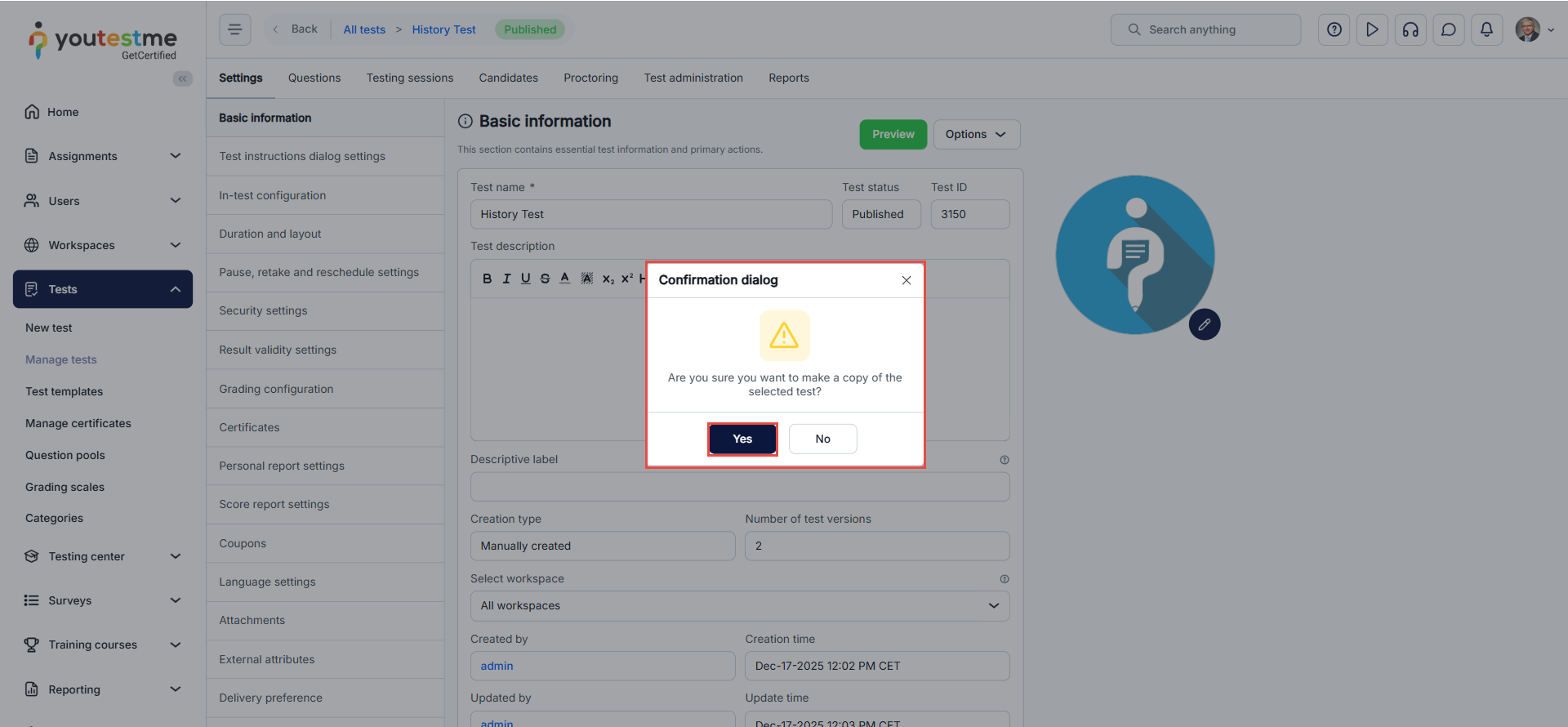
To make changes using the wizard, a copy of the published test must be created first. The copied test is generated with Draft status, which allows access to the wizard.
Once the draft copy is created, you can return to the wizard and proceed by following the steps described in the previous sections of this article.
For more information, you may find the following guides helpful:




