Article verified for Release 15.1 on December 1, 2025
This article explains how to bulk import testing sessions and assign candidates using an Excel template.
Bulk importing sessions is especially useful for organizations that manage high testing volume, recurring assignments, or large groups of candidates. Instead of creating each session manually, you can prepare all session details in a single spreadsheet and import them at once, saving time, reducing manual errors, and ensuring consistent setup across all tests.
This feature is available through both the Manage Tests module and the Testing Center, allowing administrators and test managers to choose the workflow that best fits their process.
Bulk Assigning Candidates to Testing Sessions Using the Excel Template from the Manage Tests Module
To bulk create testing sessions and assign candidates using an Excel template from the Manage Tests module, follow these steps:
- In the main menu, select Tests and click the Manage Tests sub-module.
- Select the desired test by clicking on its name, or create a new one.
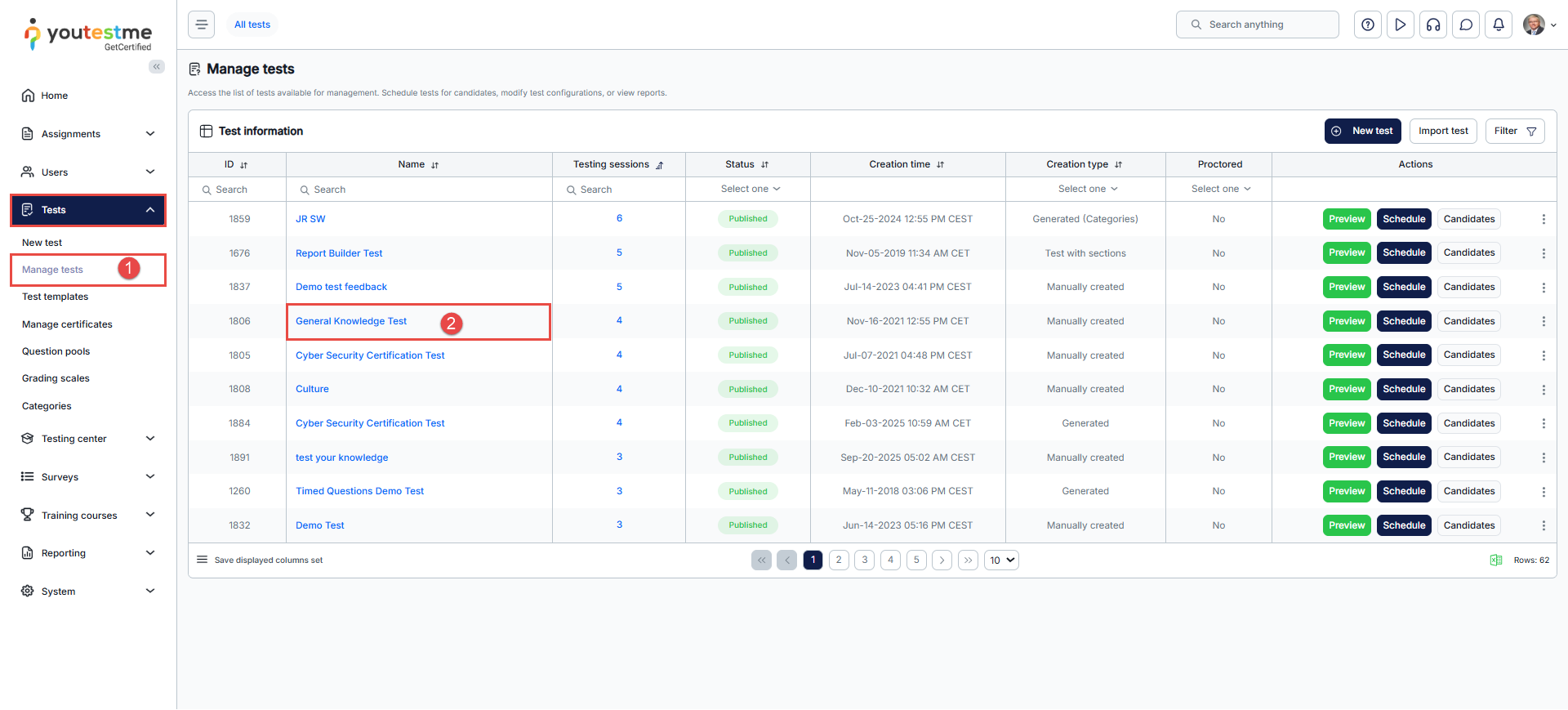
- Navigate to the Testing Sessions tab.
- Click the “Import Testing Sessions” button.

In the Import Testing Sessions dialog:
- Click the Excel Template link to download and fill in the template.
- Click the Select File button to upload the completed Excel template.
- Finally, click the Upload button to create the testing sessions and assign the candidates.

Bulk Assigning Candidates to Testing Sessions from the Testing Center
To bulk create testing sessions and assign candidates from the Testing Center, follow the steps below:
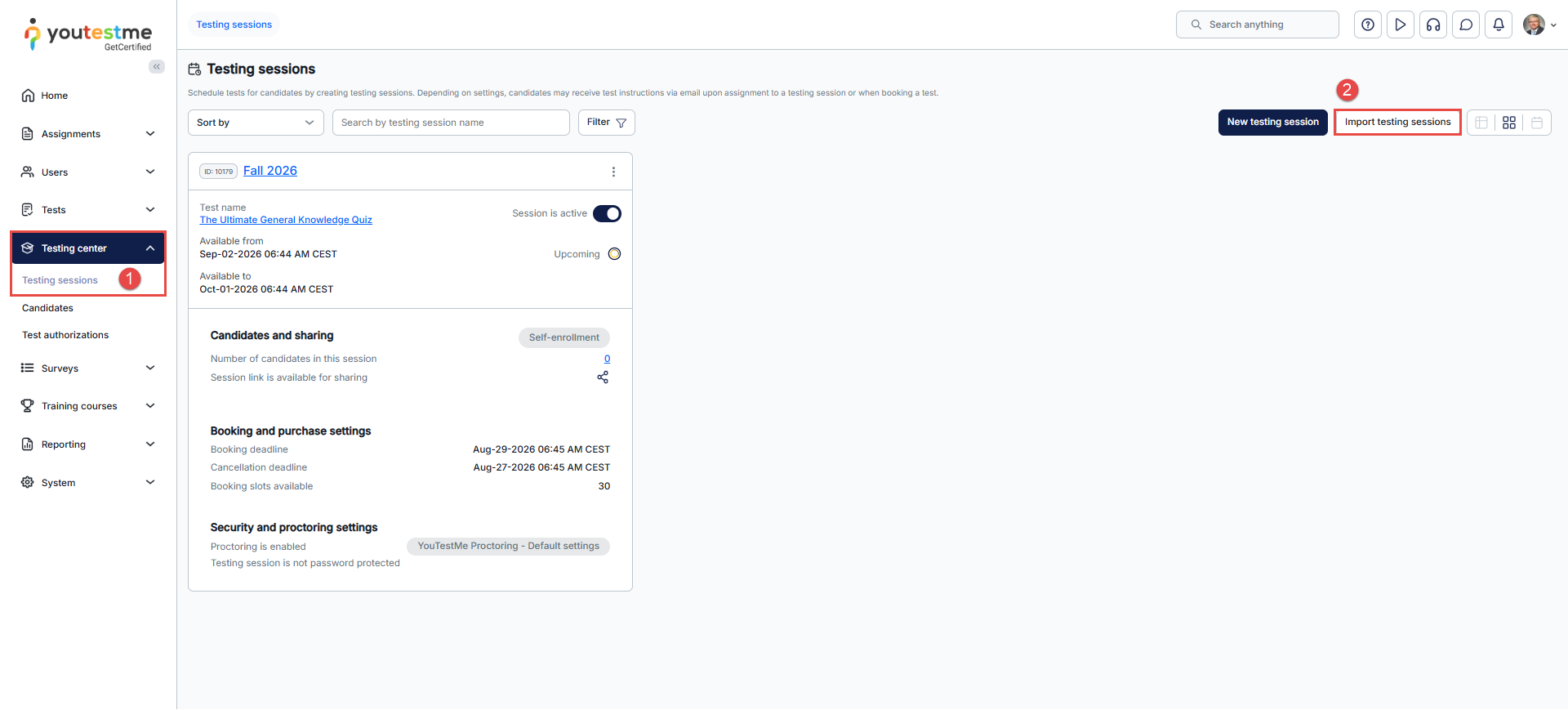
- In the main menu, click Testing Center, then navigate to Testing Sessions.
- Click the Import Testing Sessions button.
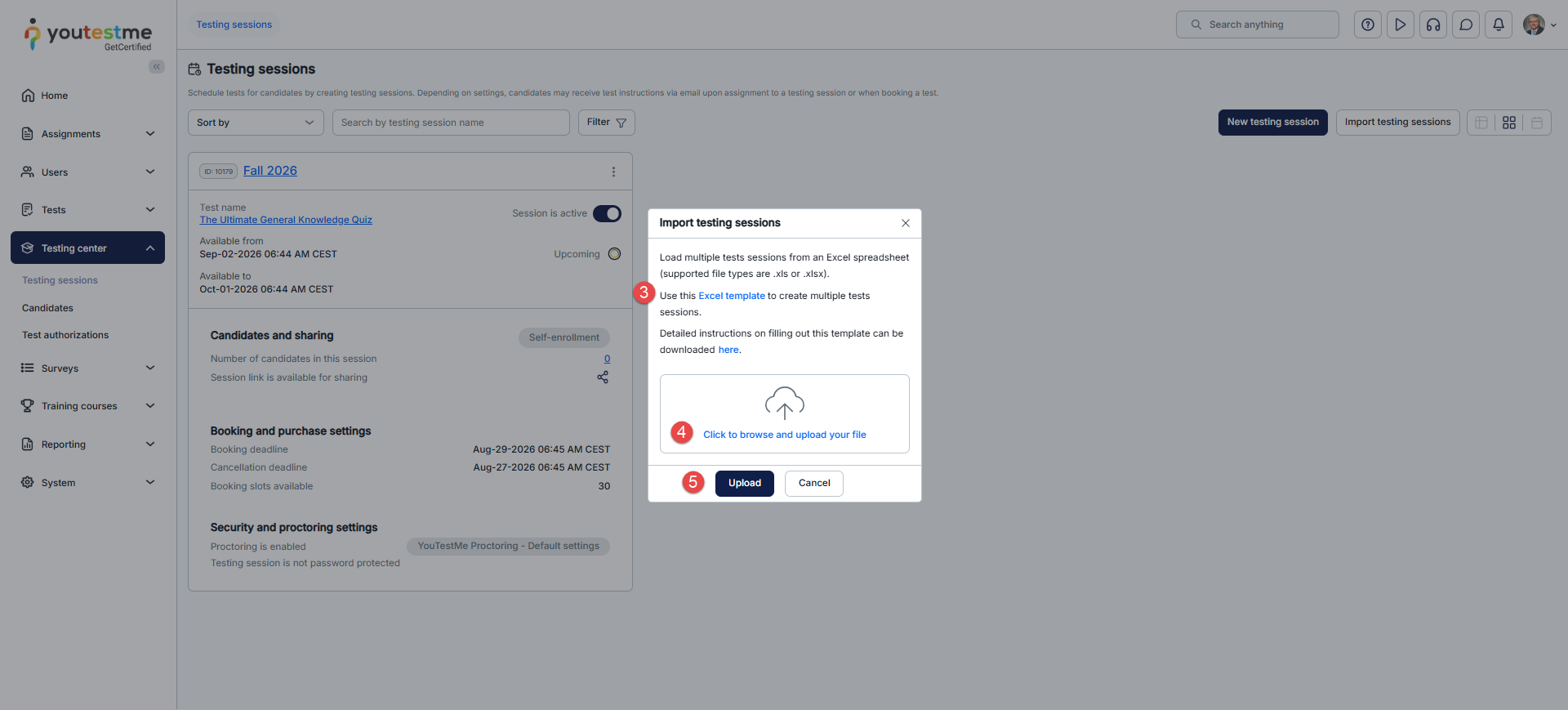
In the Import Testing Sessions dialog:
- Click the Excel Template link to download the template, and fill it in with the session details and candidate usernames.
- Click the Select Files button to upload the completed template.
- Click the Upload button to finalize the creation of the testing sessions.
Tips
- You can import multiple sessions from a single file.
- Each candidate can be assigned to only one session per test.
- Ensure that all usernames and external IDs are accurate to prevent import errors.
For more helpful articles, you can see:






